Trying to access a WordPress site and being met with an error page is at best inconvenient, whether that site is yours or someone else’s. As with many HTTP response codes, part of what makes a 401 error so frustrating is the lack of information it offers for diagnosing and resolving the issue.
The 401 error can happen with any browser, so it’s a pretty common issue people face. In most cases, this problem is relatively simple and straightforward to fix.
In this post, we’ll explain what 401 error messages are and why they happen. Then, we’ll walk you through five methods you can use to fix them.
Let’s get started!
What is the 401 Error Code?
The Internet Engineering Task Force (IETF) defines the error 401 Unauthorized as:
The 401 (Unauthorized) status code indicates that the request has not been applied because it lacks valid authentication credentials for the target resource. The server generating a 401 response MUST send a WWW-Authenticate header field containing at least one challenge applicable to the target resource.
An Introduction to the 401 Error Code
HTTP 400 status codes are encountered when there is a problem making a request. A 401 error, in particular, happens when your browser denies you access to the page you’re trying to visit.
As a result, instead of loading the web page, the browser will load an error message. 401 errors can happen within any browser so the message appearing may differ.
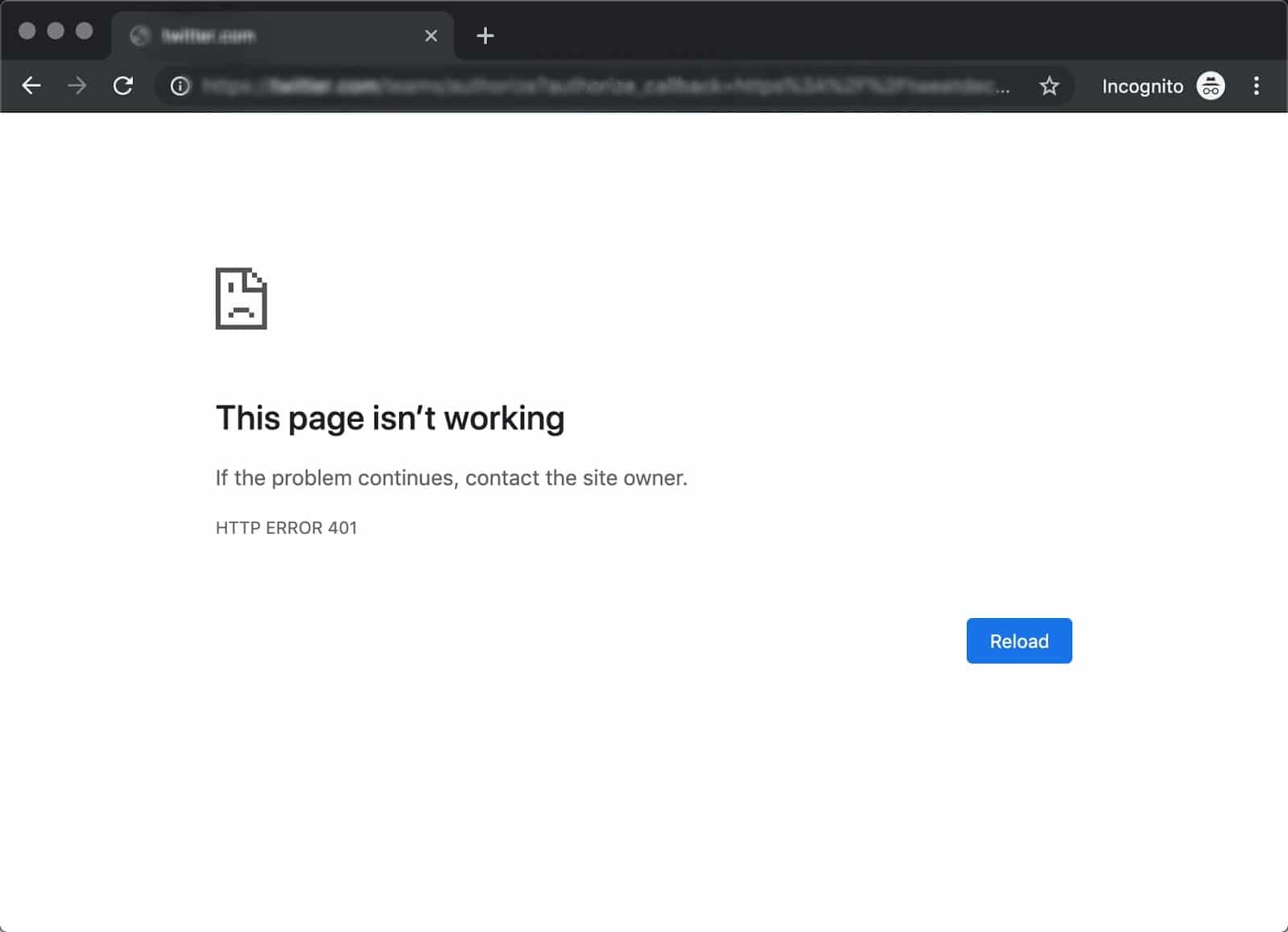
For example, in Chrome or Edge, you’ll likely see a paper icon along with a simple message telling you that the page in question isn’t working. It will include the phrase “HTTP Error 401” at the bottom, and instruct you to contact the site’s owner if the problem persists:
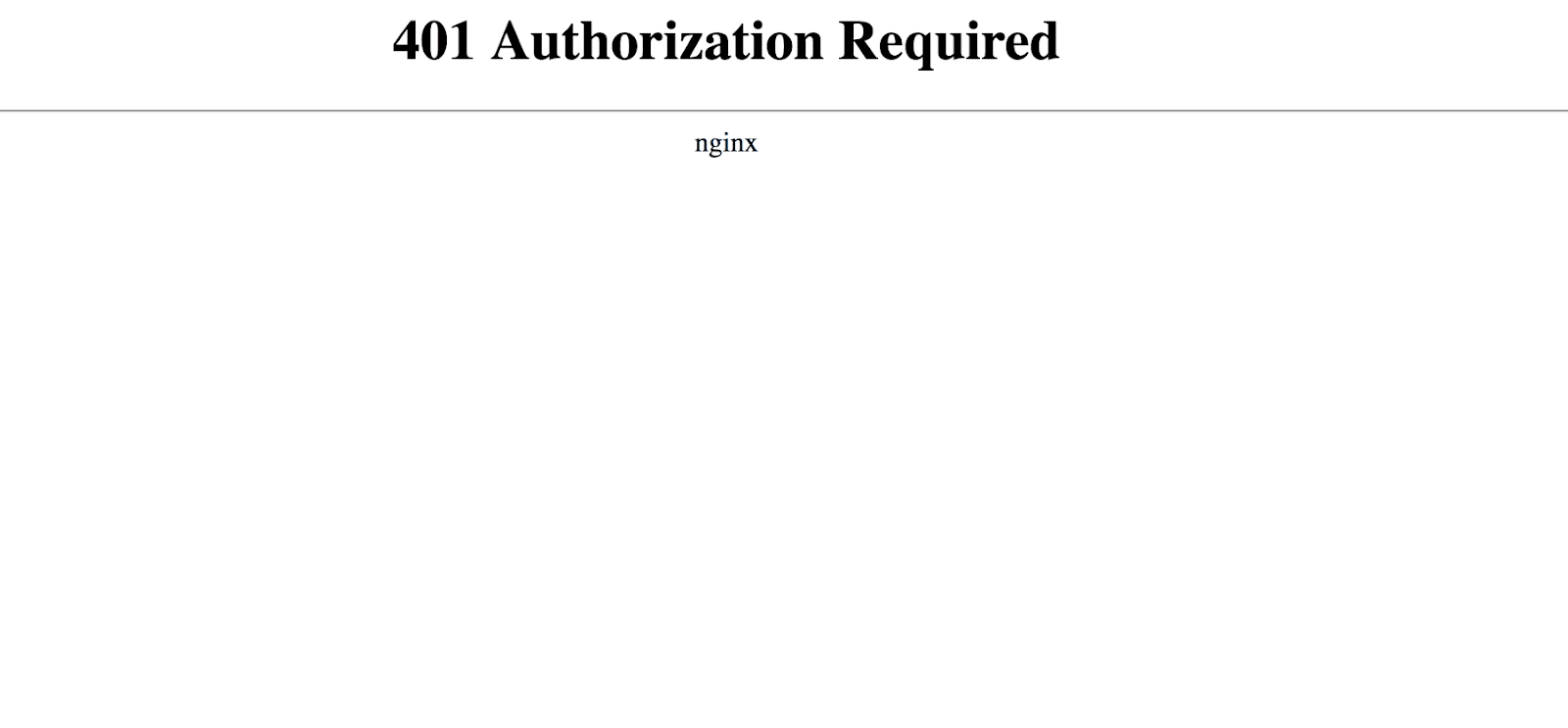
At other times and in other browsers, you might get a slightly less friendly warning that’s just a blank page with a “401 Authorization Required” message:
Other variations include:
- “HTTP 401 Error – Unauthorized”
- “401 Unauthorized”
- “Access Denied”
These errors occur on websites that require a login in order to access them. In most cases, it means that something is either wrong with the credentials or with the browser’s ability to read them as valid.
This is similar to HTTP 403 Forbidden Error, in that access isn’t permitted to the user. However, unlike with the 403 error, the 401 error message indicates that the authentication process failed.
The code is sent via the WWW-Authenticate header, which is responsible for identifying the authentication method used for granting access to a web page or resource.
The HTTP 401 error is all too common 🤦♀️ — and this guide will give you everything you need to fix it the next time you see that message showing up ✅Click to Tweet
What Causes a 401 Error?
If you encounter an error code in the 400s, you know you’re dealing with a client-side (or browser-side) issue. While the problem may be happening within your browser, however, it doesn’t necessarily always mean that’s the culprit, which we’ll explain in more detail later.
401 errors occur on restricted resources, such as password-protected pages of your WordPress site. So it’s safe to assume that the cause of the problem has something to do with the authentication credentials.
Outdated Browser Cache and Cookies
One of the most common reasons you might experience a 401 error is that your browser’s cache and cookies are out of date, preventing the authorization from successfully going through. If your browser isn’t using the valid authentication credentials (or any at all), the server will reject the request.
Plugin Incompatibility
At other times, this error is caused by a plugin incompatibility or error. For example, a firewall or security plugin can mistake your login attempt as malicious activity, and return a 401 error to protect the page.
Incorrect URL or Outdated Link
It’s also possible that the source of the problem can be attributed to a minor mistake. Common culprits in this category include an incorrectly-typed URL or an outdated link.
How to Fix the 401 Error (5 Methods)
Now that we’ve gone through a bit of background on the 401 error, it’s time to discuss how you can resolve it.
Let’s take a look at five methods you can use:
1. Look for Errors in the URL
We’ll start off with the easiest potential fix: making sure you used the correct URL. This may sound simple, but 401 errors can sometimes appear if the URL wasn’t correctly entered in.
Another possibility is that the link you used to visit the page in question points to the wrong URL. For example, it might be outdated, or leading to a page that no longer exists (and no redirects are in place).
Therefore, it’s worth double-checking the URL you used. If you typed it in yourself, verify that you spelled everything correctly. If you clicked on a link, confirm that it’s pointing to the page you’re trying to access (or try to visit that page directly through the website).
2. Clear Your Browser’s Cache
Your browser’s cache is designed to improve your online experience, by reducing page loading times. Unfortunately, sometimes it can also cause unwanted interruptions.
As we mentioned earlier, one of the common causes of the 401 error is outdated or incorrect cache data or cookies. Therefore, if you don’t notice any issues with the page’s URL, the next step is to clear your browser’s cache.
This will clean out any invalid information that’s locally stored in your browser, which could be interrupting the authentication process. Similarly, your browser’s cookies might contain authentication data that simply needs to be refreshed.
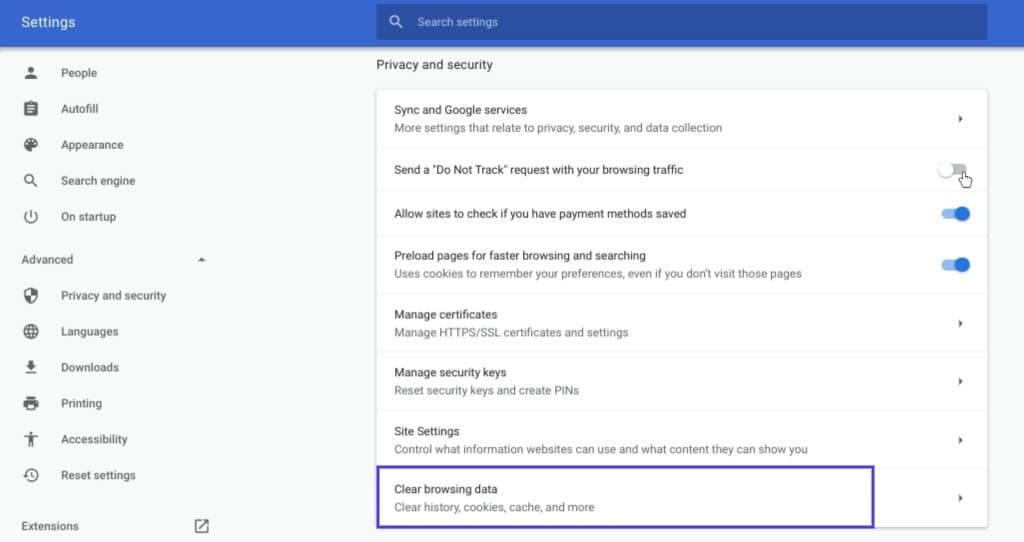
If you’re a Google Chrome user, you can do this by clicking on the menu icon in the top-right corner of the browser, and then going to Settings. Under the Privacy and security section, click on Clear browsing data:
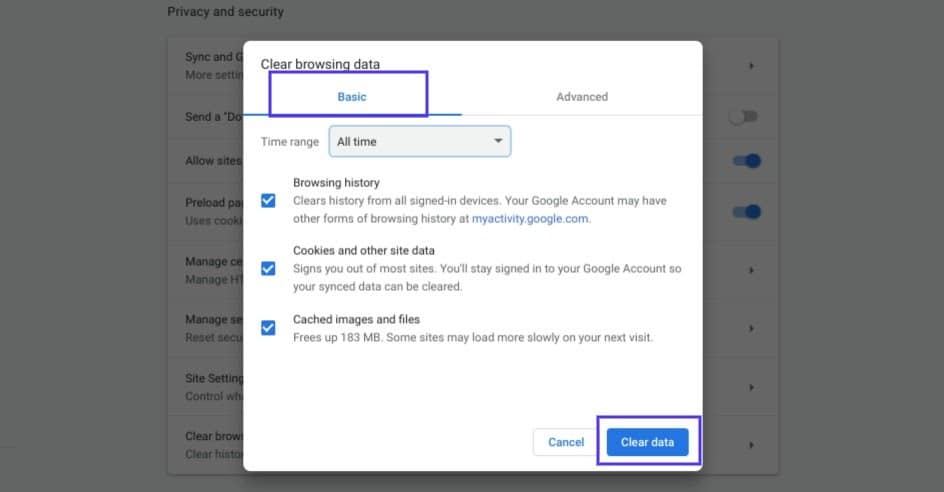
A new window will open. Under the Basic tab, make sure all three boxes are selected, and then select Clear data:
This process will look a little different in other browsers. For example, in Mozilla Firefox, you would click on the library icon in the top-right corner of the browser, followed by History > Clear Recent History:
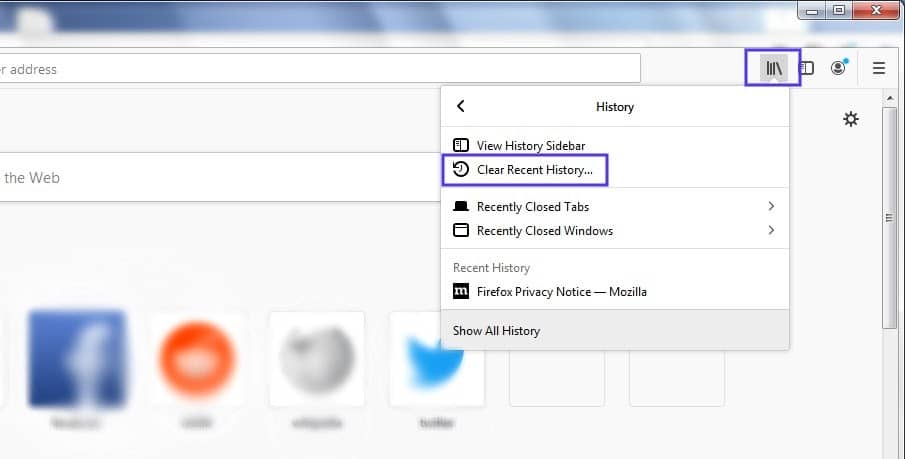
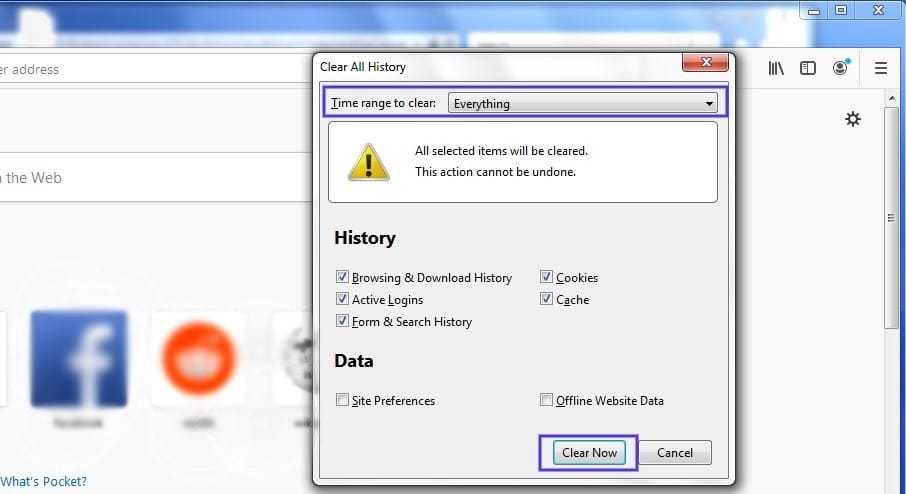
In the panel that opens next, select Everything in the drop-down menu at the top, make sure “Cache” is selected, and then click on the Clear Now button:
If you’re using a different browser, please refer to this guide for clearing the cache
3. Flush Your DNS
Another method you can try to resolve the 401 error is flushing your Domain Name Server (DNS). While this is a rarer issue, it can be a possible cause, so it’s worth giving it a try if the first two solutions don’t work.
To do this in Windows, click on the Start button and type cmd into the search bar. Hit Enter, and the Command Prompt will open. Copy and paste the command ipconfig/flushdns, and then hit Enter again:

On a Mac, you can do this by going to Finder > Applications > Utilities > Terminal:
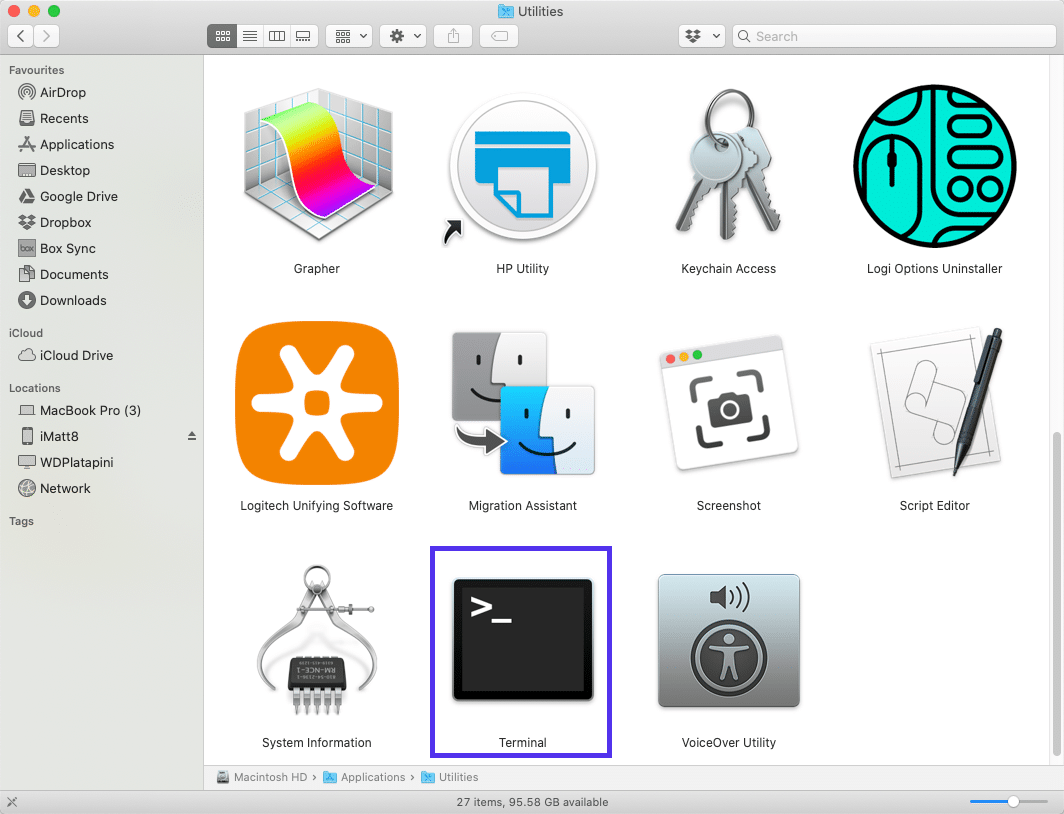
Input the command line sudo killall -HUP mDNSResponder and press Enter. Then, you can try refreshing the page you were trying to visit, to see if the 401 error has been resolved.
4. Deactivate Your WordPress Plugins
The problem causing your 401 error might not be due to your browser. If you’re having trouble accessing your WordPress site, it’s also possible that one or more plugins are to blame.
Some plugins, especially security-focused plugins, are configured to show a 401 error when they suspect suspicious login activity that might indicate an attack. Others might just be suffering from compatibility issues. Therefore, it’s a good idea to deactivate all of your WordPress plugins and see if that resolves the issue.
You can deactivate your plugins all at the same time in your dashboard, by going to Plugins > Installed Plugins. Check the box at the top to select all of them. Then under the Bulk Actions drop-down menu, select Deactivate and click on the Apply button:
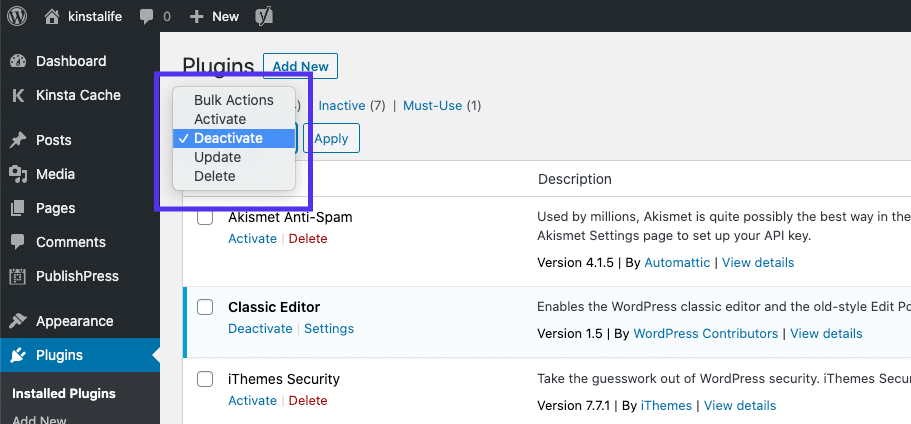
After that, try reloading the page that returned the 401 error to see if this has resolved the issue. If it has, you can manually activate each plugin one at a time, in order to determine which one is causing the problem.
Then you can remove that plugin, replace it with a new one, or contact its developer for assistance.
5. Check the WWW-Authenticate Header Response
At this point, if the issue hasn’t been fixed, it may be caused by a server-side problem. This means our last fix will be a bit more involved.
As we saw earlier, the 401 response is sent through the WWW-Authenticate header, which appears as “WWW-Authenticate: <type> realm=<realm>”. It includes ‘challenges’, or strings of data that indicate what type of authentication is required in order for access to be granted.
In a nutshell, you’ll want to check and see if the header response was sent, and more specifically, what authentication scheme was used. At the very least, this can help narrow down the cause of the problem, and bring you one step closer to a solution.
To do this, go to the web page that’s displaying the 401 error, and access the developer console in Chrome. You can right-click on the page and select Inspect, or use Ctrl+Shift+J.
Next, click on the Network tab and reload the page. This will generate a list of resources. Select the Status header to sort the table and locate the 401 status code:
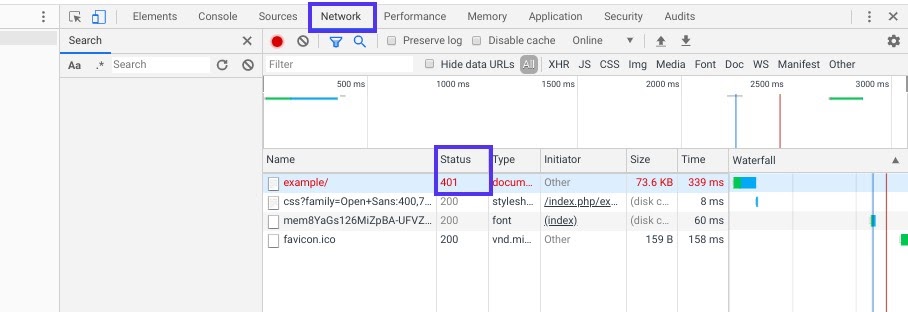
Select that entry, and then click on the Headers tab. Under Response Headers, locate the WWW-Authenticate header:
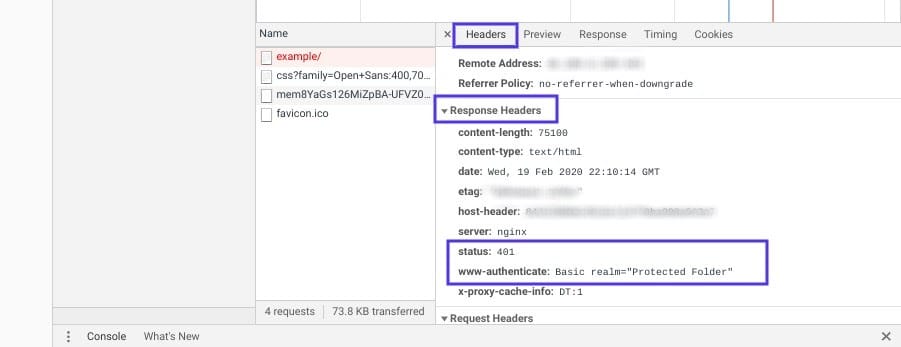
The information that is present in the response header, particularly the authentication schemes, can give you more information about what’s happening and point you towards a solution. It can help you understand what type of authentication the server is expecting.
For example, in the above example, we can see that the authentication scheme is “Basic”. This means the authentication request should only require an ID and password. For more detailed information and instructions on how to use this information, we recommend referring to the HTTP Authentication Scheme Registry.
HTTP 401 errors, begone! 🧙♂️ 5 ways to stop those pesky messages (no magic required) ✨Click to Tweet
Summary
When your browser and server have trouble communicating or authenticating requests, you’re sometimes forced to deal with errors such as the 401 error. While this problem is irritating, the message is usually temporary and fixable.
Here are five methods you can use to fix the 401 error:
- Look for errors in the URL.
- Clear your browser’s cache.
- Flush your DNS.
- Deactivate your WordPress plugins.
- Check the WWW-Authenticate header response.
Get all your applications, databases and WordPress sites online and under one roof. Our feature-packed, high-performance cloud platform includes:
- Easy setup and management in the MyKinsta dashboard
- 24/7 expert support
- The best Google Cloud Platform hardware and network, powered by Kubernetes for maximum scalability
- An enterprise-level Cloudflare integration for speed and security
- Global audience reach with up to 35 data centers and 275+ PoPs worldwide
Test it yourself with $20 off your first month of Application Hosting or Database Hosting. Explore our plans or talk to sales to find your best fit.
2 января, 2015 12:50 пп
15 301 views
| Комментариев нет
Cloud Server
При обращении к веб-серверу или приложению каждый поступивший HTTP-запрос получает в качестве ответа код состояния HTTP (англ. HTTP status code). Коды состояния HTTP – это трехзначные коды, сгруппированные в пять различных классов. Класс кода состояния можно определить по первой цифре:
- 1хх – информационные коды;
- 2хх – успех;
- 3хх – перенаправление;
- 4хх – ошибка клиента;
- 5хх – ошибка сервера.
Это руководство фокусируется на выявлении и устранении наиболее часто встречающихся кодов ошибок HTTP (то есть кодов состояния 4xx и 5xx) с точки зрения системного администратора. В некоторых ситуациях веб-сервер отвечает на запрос определенным кодом ошибки; рассмотрим общие возможные причины и решения.
Краткий обзор ошибок клиента и сервера
Ошибки клиента (коды состояния HTTP 400-499) возникают из-за HTTP-запросов, отправленных клиентом (веб-браузером или другим клиентом HTTP). Хотя данные типы ошибок связаны непосредственно с клиентом, системному администратору полезно знать, с какими кодами ошибок может столкнуться пользователь, чтобы определить, можно ли решить эту проблему в конфигурациях сервера.
Ошибки сервера (коды состояния HTTP 500-599) возникают тогда, когда веб-сервер не в состоянии обработать запрос из-за какой-либо ошибки или сбоя.
Общие советы по устранению ошибок HTTP
- При использовании веб-браузера для тестирования веб-сервера не забудьте обновить браузер после внесения изменений в настройки сервера.
- Проверяйте логи сервера, чтобы получить подробные сведения о том, как сервер обрабатывает запросы. Например, веб-серверы Apache и Nginx создают два файла по имени access.log и error.log, в которых можно найти соответствующую информацию.
- Запомните: определения кодов состояния HTTP являются частью стандарта, который реализуется обслуживающим запросы приложением. Это означает, что фактический код состояния, который возвращается в результате, зависит от того, как программное обеспечение сервера обрабатывает конкретную ошибку.
Ознакомившись с основными понятиями кодов состояния HTTP, приступим к обзору наиболее часто встречающихся ошибок.
Ошибка 400 Bad Request
Код статуса 400, или ошибка Bad Request («неверный запрос») означает, что синтаксис запроса HTTP, отправленного на сервер, неверен.
Как правило, причины возникновения ошибки 400 Bad Request таковы:
- Куки пользователя, связанные с сайтом, повреждены. Чтобы решить эту проблему,, попробуйте очистить кэш браузера и файлы cookie.
- Искаженный запрос из-за неисправного браузера.
- Искаженный запрос из-за ошибки пользователя при формировании HTTP-запроса вручную (например, неправильное использование curl).
Ошибка 401 Unauthorized
Код статуса 401, или ошибка Unauthorized («неавторизован») значит, что пользователь, пытающийся получить доступ к ресурсу, не прошел авторизацию (или не смог пройти ее, указав неверные учетные данные). Чтобы иметь возможность просматривать защищенный ресурс, пользователь должен предоставить корректные учетные данные.
Например, ошибка 401 Unauthorized может возникнуть, если пользователь пытается получить доступ к ресурсу, который защищен HTTP-авторизацией (как в этом руководстве по Nginx). В подобной ситуации ошибка 401 будет появляться снова и снова до тех пор, пока пользователь не предоставит корректный логин и пароль (который внесен в файл .htpasswd).
Ошибка 403 Forbidden
Код состояния 403, или ошибка Forbidden («запрещено») значит, что запрос пользователя был отправлен верно, но сервер отказывается обслуживать его в связи с отсутствием разрешения на доступ к запрашиваемому ресурсу. В этом разделе описаны наиболее распространенные причины возникновения ошибки 403.
Права на файл
Как правило, ошибка 403 случается, если пользователь, который запускает процесс веб-сервера, не имеет прав на чтение запрашиваемого файла.
Чтобы привести пример устранения ошибки 403, предположим, что:
- пользователь пытается получить доступ к индексному файлу (http://example.com/index.html);
- рабочий процесс веб-сервера принадлежит пользователю www-data;
- индексный файл на сервере находится в /usr/share/nginx/html/index.html.
Итак, если пользователь получает ошибку 403 Forbidden, убедитесь, что пользователь www-data имеет права на чтение файла. Как правило, в подобной ситуации нужно просто изменить права на файл. Это можно сделать несколькими способами, но в данном случае подойдет вот эта команда:
sudo chmod o=r /usr/share/nginx/html/index.html
Файл .htaccess
Еще одна потенциальная причина возникновения ошибки 403 (часто это делается намеренно) – использование файла .htaccess. При помощи файла .htaccess можно запретить конкретным IP-адресам (или диапазонам адресов) доступ к определенным ресурсам.
Если пользователи неожиданно получают ошибку 403 Forbidden, убедитесь, что она не была вызвана настройками файла .htaccess.
Несуществующий индексный файл
Если пользователь пытается получить доступ к каталогу, который не имеет стандартного индексного файла, а листинг каталога (directory listing) отключен, веб-сервер будет возвращать ошибку 403 Forbidden. Такое случится, если, например, пользователь попытается получить доступ к каталогу http://example.com/emptydir/, а в каталоге emptydir на сервере нет индексного файла. Листинг каталога можно включить в конфигурациях сервера.
Ошибка 404 Not Found
Код статуса 404, или ошибка Not Found («не найдено») значит, что пользователь может взаимодействовать с сервером, но требуемый файл или ресурс отсутствует.
Ошибки 404 могут возникнуть в самых различных ситуациях. Ниже приведен список советов, которые помогут устранить проблему в случае, если пользователь неожиданно получил 404 Not Found:
- Проверьте ссылку, которая направляет пользователя на сервер, на наличие ошибок или опечаток.
- Возможно, пользователь ввел неверный URL.
- Может быть, нужного файла не существует в указанном месте на сервере; убедитесь, что запрашиваемый ресурс не был перемещен или удален с сервера.
- Проверьте, правильно ли указано местонахождение корневого каталога (document root) в конфигурации сервера.
- Возможно, пользователь, которому принадлежит рабочий процесс веб-сервера, не имеет соответствующих прав, чтобы открыть каталог, в котором находится запрашиваемый файл. Для доступа к каталогу нужны права на чтение и выполнение.
- Если пользователь переходит к ресурсу по символической ссылке, убедитесь, что веб-сервер настроен для поддержки символических ссылок.
Ошибка 500 Internal Server Error
Код состояния 500, или ошибка Internal Server Error («внутренняя ошибка сервера») означает, что сервер не может обработать запрос по неизвестной причине. Иногда этот код появляется в ситуациях, когда более подходящими являются другие сообщения об ошибках 5xx.
Как правило, причиной данной ошибки является неправильная настройка сервера (например, искаженный файл .htaccess) или нехватка некоторых пакетов (к примеру, запуск файла PHP без предварительно установленного PHP).
Ошибка 502 Bad Gateway
Код состояния 502, или ошибка Bad Gateway («ошибочный шлюз») значит, что запрашиваемый сервер является шлюзом или прокси-сервером, и он не получает валидных ответов от серверов бэкэнда, которые на самом деле выполнили запрос.
Если речь идет об обратном прокси-сервере (например, о балансировщике нагрузки), убедитесь, что:
- с серверами бэкэнда (на которые пересылаются HTTP-запросы) все в порядке;
- обратный прокси настроен правильно, в его настройках указаны корректные бэкэнды;
- сетевое соединение между серверами бэкэнда и обратным прокси-сервером в порядке. Если серверы могут взаимодействовать на других портах, убедитесь, что эти порты не заблокированы брандмауэром;
- нужные сокеты существуют в корректном местонахождении и имеют соответствующие разрешения (если веб-приложение настроено слушать сокеты).
Ошибка 503 Service Unavailable
Код состояния 503, или ошибка Service Unavailable («сервис недоступен») означает, что сервер перегружен или находится на обслуживании; такой сервис должен стать доступным в течение некоторого времени.
Если сервер не находится на обслуживании, эта ошибка может указывать на то, что серверу не хватает ресурсов процессора или памяти для обработки всех входящих запросов, или что нужно настроить веб-сервер для обслуживания большего количества пользователей или процессов.
Ошибка 504 Gateway Timeout
Код состояния 504, или ошибка Gateway Timeout («шлюз не отвечает») значит, что данный сервер является шлюзом или прокси-сервером, и он не получает ответа от бэкэнда в пределах допустимого периода времени.
Как правило, это происходит по следующим причинам:
- Плохое сетевое соединение между серверами;
- Внутренний сервер, который выполняет запрос, работает слишком медленно;
- В настройках сервера задано слишком короткое время ожидания шлюза или прокси-сервера.
Заключение
Теперь вы знакомы с основными кодами ошибок HTTP и знаете некоторые пути решения этих проблем.
Если же вы столкнулись с ошибкой, которая не была охвачена данной статьей, или знаете другие удобные способы устранения ошибок HTTP, пожалуйста, опишите их в комментариях ниже.
Tags: Cloud Server, HTTP, HTTP status code, VPS
- Blog
- 401 UNAUTHORIZED ERROR

 (13 votes, average: 4.38 out of 5)
- May 23, 2022
- by Admin
What it Is 401 Error and How to Fix It?
401 Unauthorized Error is an HTTP reaction rating code illustrating that an application made by the client has not been verified. A network 401 Error signifies that the resource is barred and needs authentication that the client did not provide.
Just like many HTTP feedback codes especially those that illustrate an error, diagnosing a server 401 unauthorized error access can be challenging. There are more than 50 rating codes that illustrate the intricate relationship between; a web application, the client, a web server, and different third-party web services. Let’s have a comprehensive discussion about the 401 Unauthorized Error.
HTTP 401 Error Unauthorized
HTTP error 401.2 unauthorized indicates that you are not licensed to view a certain page as a result of invalid verification headers. This is triggered by the incorrect configuration of IIS (Internet Information Server). How do you determine that the error message 401.2 unauthorized log-on failed due to server configuration?
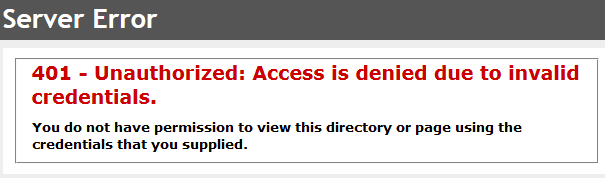
When you try to access a particular web page only to get a “You are not licensed to access this page” or “you have no permission to access this page or directory with the details you provided”. 401 Unauthorized Error may also occur because the verification method you used is either disabled or you are trying to use NTM via a proxy server.
How do you Solve this Problem?
Do so by activating at least one verification method. Here is how to go about it.
- Click the Start menu and click on Programs. Proceed to Administrative Tools and click on Internet Services Manager
- Below the Tree pane, access your preferred website
- Right-click on the website and click properties
- Click on the Directory Security Tab to access Anonymous access and verification control. Now click Edit
- Choose and apply at least one verification method
What does HTTP 401 Unauthorized Access Error Mean?
Do you encounter an HTTP error 401 unauthorized access is denied when you want to login on a website? The 401 Unauthorized Access Error is referred to as an HTML Error Code. It often occurs when you are browsing through the internet.
It indicates that you are restricted from accessing the desired page. The page can only load if you sign in using the right User ID and password. It reminds you to key in the accurate details required to access your website.
The server 401 unauthorized error access can also be all HTTP response rating codes that are classified in category 4xx. . Often, these are regarded as Client-Side error reactions. It means that a website user and the browser or connected hardware cannot access some vital steps ideal to obtain certain website content.
Apart from an incorrect username and password, there could be a connectivity error or a problem with your hardware configuration. While this is a client-side error, it can occur as a server error when validating authentication credentials.
Variations of HTTP 401 Error
Error message 401.2 unauthorized logon is not standard. Remember, this error illustrates itself in various ways as seen below.
- HTTP Error 401 – Unauthorized
- Authorization required
- Response: HTTTP_Unauthorized
- 401 unauthorized
It is worth mentioning that the illustration of error 401 depends on the website, seeing that some website owners customize their pages.
What are the Reasons?
The Wrong URL: When you are attempting to gain access to a wrong URL and you receive an HTTP error 401 unauthorized access is denied alert.
The Wrong Login Credentials: If you key in an incorrect username and password you will realize that the remote server returned an error 401 Unauthorized.
DNS Error: Sometimes DNS lookup inaccuracy is responsible for the 401 error alert you receive on your browser. The website needs login details without notifying you to log in.
Attempting to Gain Access on a Website With No Login Details: When you need to access a section of the website where you need to log in securely, you are likely to get a 401 error message.
How to Fix a 401 Unauthorized Error?
There are various methods of solving this problem as seen below.
Method 1. Wrong URL
Confirm whether the URL you entered is correct. Many times, a wrong URL is responsible for a 401 error. Sometimes you may attempt to provide an incorrect URL or open a URL link that is only reserved for licensed users.
Always check to ensure the address you provide is valid. Some web servers offer security from unsuitable URLs. For instance, this can be through acquiring a directory file via URL to obtain data.
When this happens, you should type the right URL before reloading the page to fix the problem. Often, if we are trying to access a certain URL via the same address the link is likely to be wrong.
Method 2: Input the Right Login Details
If a 401 login appears after you login, this means you gave an invalid username or password. You will need to key in the right username and password to access a site. If you forgot your login details especially your password, you have to reset it through the website’s in-built Password Reset feature. This will allow you to pick a new password.
Resetting a password is easy especially if you registered the website using a valid email address. Many websites will send a confirmation email complete with your username and new password. In some cases, you may need to contact the website admin to reclaim access. Try to access the site once you obtain the right login details.
Method 3: Ensure You have Logged In
What happens when your URL is correct but you still cannot gain access to the website? In this case, chances would be high that you may not be logged in to the website. To fix this problem, check the website’s landing page and find the login link. Provide your login details and proceed to load the page.
In case you do not have login details, you will need to create a new account using a safe access link. Once your account is ready, accessing the site will be easy.
Method 4: Clear Cookies and Cache from Your Browser
A 401 error is an indication that the client lacks the authorization to complete the specific request. This could be due to corrupted or invalid cookies which trigger the wrong server verification. Cache on your browser stores local models of web resources and content.
Your active version could be clashing with the cached form of your desktop which triggers a 401 error. If this is the case you would need to clear your cookies and cache to eliminate this error. Do this by pressing Ctrl+Shift+Del.
Method 5: Getting Rid of Possible DNS Error
If a DNS error is responsible for the 401 error, you will need to flush it out to eradicate it. You will also need to conduct regular internet service maintenance. Here is how to go about flushing a DNS on Windows.
- To launch the Run window press the window key and R together
- Type the cmd command and click ok
- A command display window will appear on the screen. Input the ipconfig /flushdns command and press enter
- You will see a successfully flushed alert
Method 6: Disable Theme and Plugins Temporarily
Sometimes one of your themes or plugins could be responsible for the 401 error. If this is the case you would have to disable all your themes and plugins. To achieve this Open cPanel, click on File Manager, and rename the themes and plugins folders. If you are certain that your theme or plugin is responsible for the error then you would have to disable all the themes and plugins to fix the problem.
Method 7: Log Out and Login Again
Sometimes you will get a 401 error code even when you have followed the right procedure. If that is the case then the server could be responsible. An error can occur during website maintenance and this is why you should logout and login again. Doing so can clear away the error.
Method 8: Reload the Page
Did you know that the easiest quick fixes can be all you need to fix problems? In this case, all you will need to do is reload the website. Before doing so, first, delete your cookies and cache. This prevents your browser from loading potential problem pages from the internal storage.
Method 9: Seek Assistance from your Website operator?
Sometimes you may not understand the problem. In this case, you will need to contact your website operator. Often, their email is displayed on the site. Whether or not you are responsible for the error, your operator will help you fix the problem. Remember to provide comprehensive information about the system and the problem you are experiencing. This will help you get the best assistance.
The steps we have discussed here should help you get conversant with the HTML 401 error and the best way to solve it.
Some Other Ways of 401 Authentication Error
The 401 authentication error can also occur in various other forms as seen below.
- 401.502: this error occurs when a certain client (sam IP) requests different times on a server and reaches the limit of the IP Restriction Concurrent.
- 401.504: this error shows that the client’s hostname is in the banned IP restrictions list at the server-side.
- 401.503: This error indicates that the client’s IP address is in the banned IP restriction list at the server side.
- 401.501: This error indicates that the client has generated numerous requests. In simple terms, this means the client has reached the maximum request limit.
- 401.3: This error indicates that the login failure is a result of the Access-control list (ACL) on the resource. It also indicates that authorization failure is due to the filter
- 401.2: This error indicates that the login failure is a result of server configuration
- 401.1: This error indicates that the login failure is due to specific reasons
401 Code References
- Python3.5+ HTTP Status Constant http.HTTPStatus.UNAUTHORIZED
- Python2 HTTP Status Constant httplib.UNAUTHORIZED
- Go HTTP Status Constant http.StatusUnauthorized
- Rails HTTP Status Symbol :unauthorized
- Symfony HTTP Status Constant Response::HTTP_UNAUTHORIZED
- Python3+ HTTP Status Constant http.client.UNAUTHORIZED
Conclusion
An HTTP 401 error shows that a client-side verification problem or your browser is having difficulties validating itself using your WordPress website’s server. Before you can start looking for any comprehensive troubleshooting, you may want to try the easy solutions first. Ensure you are using the proper URL and remember to clear your browser’s cookies and cache.
You may also want to determine any security features you could be using on the site. Further, you will want to consider server-level passwords you may have added such as a password via htpasswd and htaccess. If everything else fails, try to deactivate your themes and plugins temporarily.
Error 599
Free Website Hosting
Website Backup
Website Status
Cakrawala Rafflesia