Разделение жесткого диска на более мелкие тома рекомендуется, если вы активно использовали жесткий диск для сохранения и резервного копирования данных. Таким образом, вы можете сохранить ценную информацию, если один диск выйдет из строя. Это связано с тем, что разделенные тома действуют как независимые хранилища.
Несколько вещей могут вызвать сбой раздела. Неправильная процедура завершения работы, особенно при записи или чтении раздела, приводит к его разрушению. Поврежденная или зараженная загрузочная информация может привести к сбою вашего диска. Первое, что вы заметите в раздавленном разделе, это то, что он не открывается, или открытие занимает очень много времени. Вы также можете получить ошибки типа «Структура диска повреждена и нечитаема».
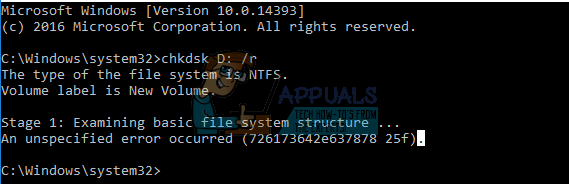
Первое, что нужно сделать после того, как раздел не открывается, это запустить chkdsk в командной строке с расширением / f (chkdsk / f) для сканирования и исправления ошибок. Тем не менее, chkdsk возвращает еще одну ошибку с указанием «Произошла неуказанная ошибка» с кодом ошибки (726173642e637878 25f) или (75736e6a726e6c2e 4f6) или что-то в этом порядке в зависимости от вашего жесткого диска. Несколько случайных кодов ошибок указывают на то, что ваш раздел не удалось инициализировать, а ваш жесткий диск мог выйти из строя.
Если chkdsk дает сбой с такой ошибкой, лучше всего использовать инструмент восстановления данных, чтобы восстановить ваши данные и отформатировать раздел и посмотреть, будет ли он сброшен. Возможно, вам придется установить новый жесткий диск, чтобы избежать будущих проблем, если ваш жесткий диск действительно умирает. Если вы используете внешний жесткий диск, вы можете сначала проверить соединительный кабель или кабель SATA для вашего внутреннего жесткого диска.
Используйте программное обеспечение MiniTool Power Data Recovery для восстановления ваших данных и форматирования раздела.
Для этой процедуры вам понадобится другое рабочее пространство, равное пространству вашего раздела; или, по крайней мере, равно данным, которые вы сохранили в этом разделе.
- Загрузите MiniTool Power Data Recovery отсюда
- Установите и запустите инструмент восстановления данных MiniTool Power
- В главном окне выберите соответствующий функциональный модуль: в этом случае выберите «Восстановление поврежденного раздела»
- Выберите целевое устройство, где появляется потеря данных, чтобы отсканировать его
- Нажмите «Открыть»: это помогает быстро сканировать и открыть выбранное устройство. По сравнению с «Полное сканирование», это экономит много времени, но может не найти нужные файлы, или восстановленные файлы не могут быть открыты правильно. Прежде всего, вы можете попробовать использовать эту функцию, чтобы увидеть, найдены ли нужные файлы и исправлены ли они. Если нет, вернитесь к этому интерфейсу и выберите «Полное сканирование», чтобы выполнить глубокое сканирование.
- После успешного сканирования все найденные файлы будут показаны. Как только файлы найдены, проверьте и затем сохраните их в указанном месте, нажав кнопку «Сохранить», которая находится в правом нижнем углу: выберите местоположение без ошибок, нажмите «ОК» и дождитесь завершения восстановления.
- После восстановления данных вы можете попробовать отформатировать диск. Чтобы отформатировать ваш раздел, нажмите Windows Key + R, чтобы открыть команду run, введите DISKMGMT.MSC и нажмите Enter, чтобы открыть утилиту управления дисками.
- Щелкните правой кнопкой мыши по вашему разделу и выберите «Формат», если он возвращает ошибку, попробуйте «Удалить том» и подтвердите, что вы хотите удалить этот диск.
- После удаления тома щелкните правой кнопкой мыши по нему и выберите «Новый простой том».
- Нажмите «Далее» три раза и на последней странице выберите «Форматировать том со следующими настройками». Обычно на жестких дисках Windows используется NTFS. Нажмите «Далее» и завершите форматирование. Ваш диск должен появиться в проводнике Windows / File.
Если проблема сохраняется или появляется снова, мы советуем вам заменить умирающий жесткий диск, если это вызовет более серьезные проблемы.
Hi,
One of our main windows 2008 r2 file servers (HP Proliant ML350 G6) seems to have a dirty d: drive.
After every reboot, chkdsk runs on drive «d:» and stops with an unspecified error
(696e647863686b2e dee) when checking indexes. After the error it continues to boot and start normally into windows. The d: drive looks ok, but when I run chkdsk in windows the chkdsk runs and stops at the same point without
warning or anything else. The gui stops and exits, period. No message nothing.
When I check the d: drive with «fsutil dirty query d:», the disk is marked as «dirty» ….
The HP advanced Proliant diagnostic tools did not show any problems with the hardisks, I’m running latest HP drivers and firmwares on the server. Last but not least I don’t have any special warnings/errors etc in the event viewer.
Here is the output of chkdsk f.ex. in safe mode I did a few hours ago, the output/error is always identical:
C:>chkdsk d: /R /F /X
The type of the file system is NTFS.
Volume label is DATA.
CHKDSK is verifying files (stage 1 of 5)…
184832 file records processed.
File verification completed.
15624 large file records processed.
0 bad file records processed.
0 EA records processed.
5 reparse records processed.
CHKDSK is verifying indexes (stage 2 of 5)…
10 percent complete. (182686 of 212928 index entries processed)
An unspecified error occurred (696e647863686b2e dee).
—————————
As of now, I have disabled the boot-time check on drive d: (with «chkntfs d: /x»), but I would prefer to restore it when the problem is fixed.
I tried a lot of chkdsk and safe mode combinations, nothing helped. I don’t have any clues … so your help is really welcome.
Thanks a lot!
KInd regards,
Didier
-
Edited by
Friday, March 28, 2014 6:37 AM
it is a Proliant G6 not G7
Hi,
One of our main windows 2008 r2 file servers (HP Proliant ML350 G6) seems to have a dirty d: drive.
After every reboot, chkdsk runs on drive «d:» and stops with an unspecified error
(696e647863686b2e dee) when checking indexes. After the error it continues to boot and start normally into windows. The d: drive looks ok, but when I run chkdsk in windows the chkdsk runs and stops at the same point without
warning or anything else. The gui stops and exits, period. No message nothing.
When I check the d: drive with «fsutil dirty query d:», the disk is marked as «dirty» ….
The HP advanced Proliant diagnostic tools did not show any problems with the hardisks, I’m running latest HP drivers and firmwares on the server. Last but not least I don’t have any special warnings/errors etc in the event viewer.
Here is the output of chkdsk f.ex. in safe mode I did a few hours ago, the output/error is always identical:
C:>chkdsk d: /R /F /X
The type of the file system is NTFS.
Volume label is DATA.
CHKDSK is verifying files (stage 1 of 5)…
184832 file records processed.
File verification completed.
15624 large file records processed.
0 bad file records processed.
0 EA records processed.
5 reparse records processed.
CHKDSK is verifying indexes (stage 2 of 5)…
10 percent complete. (182686 of 212928 index entries processed)
An unspecified error occurred (696e647863686b2e dee).
—————————
As of now, I have disabled the boot-time check on drive d: (with «chkntfs d: /x»), but I would prefer to restore it when the problem is fixed.
I tried a lot of chkdsk and safe mode combinations, nothing helped. I don’t have any clues … so your help is really welcome.
Thanks a lot!
KInd regards,
Didier
-
Edited by
Friday, March 28, 2014 6:37 AM
it is a Proliant G6 not G7
Hi,
One of our main windows 2008 r2 file servers (HP Proliant ML350 G6) seems to have a dirty d: drive.
After every reboot, chkdsk runs on drive «d:» and stops with an unspecified error
(696e647863686b2e dee) when checking indexes. After the error it continues to boot and start normally into windows. The d: drive looks ok, but when I run chkdsk in windows the chkdsk runs and stops at the same point without
warning or anything else. The gui stops and exits, period. No message nothing.
When I check the d: drive with «fsutil dirty query d:», the disk is marked as «dirty» ….
The HP advanced Proliant diagnostic tools did not show any problems with the hardisks, I’m running latest HP drivers and firmwares on the server. Last but not least I don’t have any special warnings/errors etc in the event viewer.
Here is the output of chkdsk f.ex. in safe mode I did a few hours ago, the output/error is always identical:
C:>chkdsk d: /R /F /X
The type of the file system is NTFS.
Volume label is DATA.
CHKDSK is verifying files (stage 1 of 5)…
184832 file records processed.
File verification completed.
15624 large file records processed.
0 bad file records processed.
0 EA records processed.
5 reparse records processed.
CHKDSK is verifying indexes (stage 2 of 5)…
10 percent complete. (182686 of 212928 index entries processed)
An unspecified error occurred (696e647863686b2e dee).
—————————
As of now, I have disabled the boot-time check on drive d: (with «chkntfs d: /x»), but I would prefer to restore it when the problem is fixed.
I tried a lot of chkdsk and safe mode combinations, nothing helped. I don’t have any clues … so your help is really welcome.
Thanks a lot!
KInd regards,
Didier
-
Изменено
28 марта 2014 г. 6:37
it is a Proliant G6 not G7