В описании к ошибке CE-33991-5 сообщается, что в системе нет выхода в сеть. На этом можно было бы закончить, но на практике часто подключение есть, только с неправильными настройками. Ошибка CE-33991-5 на PlayStation 4 может появляется и при сбоях на серверах PlayStation Network. Чтобы исправить причину сбоя, следует первоначально определить источник сбоя.
Что делать для восстановления подключения?
Все действия пользователя описаны в виде пошаговой инструкции:
- Перейти на сайт, где показывается состояние серверов PSN. Вся информация расположена по ссылке. В идеале все службы должны работать нормально. В противном случае проблема здесь и до восстановления работоспособности серверов нужно немного подождать.
- Проверить наличие доступа к сети. Это можно сделать с помощью подключения к Wi-Fi-сети другого беспроводного устройства. Если оно загружает сайты, значит выход в сеть есть. Теперь следует удостовериться, что интернет работает на приставке. Для этого нужно перейти в раздел «Настройки» и выбрать «Сеть». Здесь находится нужный элемент «Проверить соединение с интернетом».
- Обновить прошивку Wi-Fi-маршрутизатора. Обычно нужный файл для обновления выкладывают на сайте производителя. Его следует скачать, перейти в админ-панель роутера (ссылка указана на наклейке на корпусе) и установить программу. Для этого есть соответствующий пункт панели.
- Отключить остальные устройства сети, которые потребляют слишком большую часть пропускной способности.
- Настроить интернет подключение. Следует заменить настройки DNS на общедоступные от Google – 8.8.8.8 и 8.8.4.4, а также заменить MTU на 1473.
- Повторить попытку подключения немного позже, если ничего не помогло. Может быть, что на серверах слишком большая нагрузка от игроков, из-за чего появляются проблемы с подключением.
Перечисленных мер должно оказаться достаточно для восстановления доступа к серверам и устранения ошибки CE-33991-5 на PlayStation 4.
Многие пользователи системы PS4 жалуются на ошибку CE-33991-5, которая означает, что отсутствует подключение к сети Интернет. Обычно возникновение ошибки CE-33991-5 связано по причине самих пользователей, но иногда решение кроется в проблемах игровых серверов и службы PSN. Скорее всего ваше подключение по локальной сети неправильно настроено или просто вы не заплатили за интернет (и такое бывает). Для решения ошибки CE-33991-5 необходимо следовать приведенной ниже инструкции.
Шаг 1: Проверьте работоспособность игрового сервера и конечно же убедитесь в положительном .
Шаг 2: Убедившись в том, что причина ошибки CE-33991-5 не связана работоспособностью серверов, проверьте ваше подключение к сети интернет. Для этого необходимо зайти в [Настройки], перейти в [Сеть] и нажать на [Проверить соединение с Интернетом], для проверки вашего интернет-соединения.
Шаг 3: Немаловажным фактором, который может повлиять на появление ошибки CE-33991-5, являются настройки вашего маршрутизатора. Попробуйте обновить версию прошивки или обратитесь к вашему интернет-провайдеру, который может блокировать доступ на определенные ресурсы. Постарайтесь не использовать другие устройства, подключенные к этой же сети. Возможно сервер попросту перегружен, так что попытайтесь зайти немного позже.
Если ни один из вышеупомянутых способов не помог решить ошибку CE-33991-5, попробуйте сменить в настройках вашего маршрутизатора значение MTU на 1473. Некоторым пользователям системы PS4 это помогло.
Если вы являетесь обладателем консоли PS4, то с ошибкой под кодом «CE-33991-5» сталкивались не раз.
Информирует данная ошибка об отсутствии соединения с сетью Интернет. Часто это происходит из-за проблем с оборудованием или настройками у пользователей, но бывает и из-за неисправной работы игрового сервера, службы PSN. Среди самых распространенных случаев можно выделить неправильные настройки маршрутизатора, консоли и, банально, не проплаченный пакет Интернета.
Как действовать в такой ситуации
- В первую очередь, убедитесь в исправной работе сервера игры, уточните, доступен ли статус у серверов Play Station Network.
- Если сервера работают, как положено, тогда займитесь проверкой вашего соединения с Интернетом. Чтобы это сделать нужно:
- откройте раздел «Настройки»;
- зайдите в меню «Сеть»;
- выберите действие «Проверить соединение с Интернетом».
- Ошибка «CE-33991-5» может появиться из-за неправильных настроек работы маршрутизатора Wi-Fi. Стоит проверить последней ли версии прошивка, при необходимости обновите ее. Уточните у Интернет-провайдера наличие блокировки доступа на некоторые ресурсы.
- Для того, чтобы разгрузить беспроводную сеть – отключите другие подсоединенные устройства. Не исключено, что ошибка соединения появилась из-за перегруженной сети. Либо повторите попытку подключения позже – игровой сервер тоже может не справляться с нагрузкой.
Когда эти рекомендации не помогают устранить ошибку, можете изменить настройки маршрутизатора Wi-Fi, а именно вместо обозначения MTU укажите 1473. В редких случаях, это действенный метод.
Вы столкнулись с ошибкой CE-33991-5 на своей PS4 прямо сейчас? Об этом коде ошибки в последнее время часто сообщают игроки на PS4, поэтому, если вы его получаете, скорее всего, вы не одиноки. В этой статье об устранении неполадок мы объясним вам, почему возникает эта ошибка, и покажем, как ее решить.
Полный текст ошибки гласит: Не удается подключиться к Интернету. (CE-33991-5) .
Что означает ошибка CE-33991-5?
CE-33991-5 — это сетевая ошибка, которая указывает на то, что PS4 не может подключиться к серверам PSN или что сервер онлайн-игр недоступен. Когда появляется код ошибки CE-33991-5, ваша PlayStation 4 не может выходить в Интернет, поэтому сначала необходимо устранить ее, чтобы подключиться к игре или использовать какие-либо службы PlayStation Network.
Код ошибки PS4 CE-33991-5 может появиться в середине игры, при попытке проверить подключение к Интернету или в процессе доступа к любой службе PSN.
Причины появления ошибки CE-33991-5 на PS4
Прежде чем вы сможете начать разбираться с кодом ошибки PS4 CE-33991-5, вы должны знать о факторах, которые могут ее вызвать. Ниже приведены некоторые известные причины проблемы с подключением к Интернету на PS4.
Серверы PSN не работают.
Если на вашей PS4 проблема с Интернетом возникает только при попытке доступа к одной из служб PlayStation Network, например к управлению учетной записью, возможно, проблема связана с серверами PSN. Иногда это может произойти из-за неожиданного сбоя или технического обслуживания.
Игровые серверы отключены.
Как и серверы PSN, серверы онлайн-игр также могут страдать от сбоев, технического обслуживания или высокого трафика. Если вы получаете ошибку PS4 CE-33991-5 только при попытке играть в игру, убедитесь, что вы проверили, есть ли конкретная проблема с серверами этой игры.
Медленное подключение к интернету.
Если и PSN, и игровой сервер в порядке, следующая возможность, которую вы должны проверить, — это проблема с вашей собственной домашней сетью. Запустите тест подключения к Интернету, чтобы увидеть, не страдает ли ваш PS4 медленным подключением.
Помехи сигнала Wi-Fi.
Если вы используете Wi-Fi для подключения к Интернету, также возможно, что ошибка PS4 CE-33991-5, которую вы получаете, вызвана нестабильным Wi-Fi или плохим сигналом.
Маршрутизатор не отвечает.
Состояние сетевого оборудования дома иногда может приводить к проблемам. Обязательно регулярно обновляйте маршрутизатор каждые несколько дней.
Медленные или не отвечающие DNS-серверы.
По умолчанию ваша PS4 будет использовать серверы системы доменных имен вашего интернет-провайдера. Однако DNS-серверы, предоставляемые интернет-провайдером, менее надежны, чем другие DNS-серверы, такие как серверы Google. Поскольку DNS-серверы важны для подключения PS4 к Интернету, любой сбой в DNS-серверах вашего интернет-провайдера также может повлиять на ваш игровой процесс.
Как исправить ошибку PS4 CE-33991-5?
Мы составили список решений, с помощью которых вы можете попробовать исправить ошибку PS4 CE-33991-5. Точное решение зависит от каждого случая, так как причина также варьируется.
Исправление №1: проверьте статус PSN или игрового сервера.
Для большинства игроков, которые сталкиваются с этим кодом ошибки, основная причина связана с сервером. Итак, один из важных шагов, который вы должны сделать, — это проверить статус серверов в зависимости от того, что вызывает ошибку. Если вы получаете его при попытке доступа к сети PlayStation Network, убедитесь, что вы посетили страницу статуса сервера PSN.
Если он появляется только при игре в онлайн-игру, посетите официальный веб-сайт издателя игры, чтобы узнать о каких-либо конкретных проблемах, которые могут повлиять на работу с их продуктом в сети.
Например, если вы получаете код ошибки при попытке сыграть в Call Of Duty Black Ops Cold War, вы можете посетить страницу состояния сервера Activision.
Исправление №2: Выполните тест подключения к Интернету.
Определение скорости вашего интернет-соединения так же важно, как и первое решение, описанное выше, поскольку некоторые игроки сообщали о возникновении этого кода ошибки из-за медленного интернета.
Убедитесь, что у вас есть минимум 5 Мбит / с для загрузки и выгрузки каждый раз, когда вы играете онлайн на PS4, чтобы избежать сбоев сервера. Узнайте, как запустить тест скорости на вашей консоли, перейдя по этой ссылке.
Если вы считаете, что вам нужно исправить вашу медленную домашнюю сеть, мы рекомендуем вам обратиться за помощью к своему интернет-провайдеру или интернет-провайдеру.
Исправление №3: используйте проводное соединение.
Если у вас медленная сеть и вы используете Wi-Fi, это может быть связано с плохим сигналом или помехами от других источников. Чтобы проверить, попробуйте подключить PS4 к маршрутизатору с помощью кабеля Ethernet. Если это невозможно, поднесите PS4 как можно ближе к маршрутизатору и убедитесь, что между ними нет физических объектов, таких как стекло, толстая стена или металлический шкаф для папок, которые могут блокировать сигнал.
Исправление №4: обновляйте прошивку роутера.
Иногда сбои в сети могут возникать из-за устаревшей прошивки вашего роутера. Как и другим электронным устройствам, маршрутизаторам требуются обновления для исправления известных ошибок и улучшения некоторых вещей. Если вам нужно знать, как обновить прошивку маршрутизатора, обратитесь к производителю маршрутизатора или обратитесь за помощью к своему интернет-провайдеру (если он ее предоставил).
Исправление №5: используйте другой DNS-сервер.
Как упоминалось выше, причиной этой ошибки могут быть настройки DNS, предоставленные интернет-провайдером. Чтобы проверить, так ли это, попробуйте изменить DNS на PS4.
ДРУГИЕ ИНТЕРЕСНЫЕ СТАТЬИ:
- Как исправить ошибку PS4 SU-30645-8 | НОВОЕ и ОБНОВЛЕННОЕ 2021
- Как исправить ошибку Nintendo Switch 9001-0026 | НОВОЕ и ОБНОВЛЕННОЕ 2021
- Как исправить ошибку PS4 NW-31453-6 | НОВОЕ и ОБНОВЛЕННОЕ 2021
- Как исправить ошибку Nintendo Switch 2110-2003 | НОВОЕ и ОБНОВЛЕННОЕ 2021
Посетите наш канал androidhow на Youtube, чтобы увидеть больше видео и руководств по устранению неполадок.
Мы будем получать комиссию с продаж, если вы купите товары по нашим ссылкам. Узнать больше.
Recently, plenty of PS4 users have reported that they encountered the error code CE 33991 5. If you are bothered by the error code CE 33991 5 PS4, then this article from MiniTool Partition Wizard will introduce the reason for error CE 33991 5 and offers several useful CE-33991-5 PS4 solutions.
When you play PS4 games, you may receive the error CE-33991-5. This is a fairly common problem for PS4 users. The full error shows: “Cannot connect to the Internet. (CE-33991-5).” CE 33991 5 is a network error indicating that the PS4 cannot connect to the PSN server, or cannot access the online game server. When the error code CE 33991 5 appears, your PlayStation 4 will be effectively blocked from connecting.
What Causes the CE 33991 5 PS4 Error?
PS4 error code CE-33991-5 may appear during a game. Well, what causes the CE 33991 5 PS4 error? According to the reports, the reasons below are responsible for the error.
- Restrictions by ISP: If your ISP restricts PlayStation’s access to its servers, it may cause a CE 33991 5 error.
- Incomplete PS4 firmware update: If the PlayStation’s firmware is not fully installed, it may cause the CE 33991 5 PS4 error.
- Play Station’s DNS settings: If the network’s DNS doesn’t translate the URLs required by Play Station correctly, it may cause CE 33991 5 PS4 error.
- Multiple routers: If multiple routers are used in the network, the routing functionality of both routers may cause bug CE 33991 5 PS4.
Now, you may have understood the possible reasons for this error. How to fix the CE-33991-5 PS4 error? Please try the following 6 solutions one by one until the error gets solved.
Solution 1: Check PSN Servers
The first thing you should do before making any changes to your PS4 is to verify the PSN (PlayStation Network) status to make sure all services are functioning properly. You can check the current status of its services by going to PlayStation’s server status page.
If PSN is currently down, then you’ll need to wait for their team to resolve the issue. However, if there are no issues with PlayStation Network’s servers, you can proceed with the methods below to fix the CE-33991-5 error code.
Solution 2: Restart the Game and the PS4
If you get the CE-33991-5 error while playing a specific game or just launching the game, you can try restarting the game. Because this error is most likely just a simple crash and there is no other underlying issue.
The error message indicates that the error is related to your PS4 system software. So, if restarting the game fails, you can simply restart your PS4.
Step 1: Press and hold the PS button on your controller until the Quick Menu appears on your display.
Step 2: Navigate to the Power option.
Step 3: Click on the Restart PS4 option to restart your PlayStation.
After restarting your PS4, try connecting to your network again to check if the CE 33991 5 error code still occurs.
Solution 3: Check and Reset Your Internet
CE-33991-5 error code usually occurs when setting up a network connection or accessing online features or games. Since the CE-33991-5 error code on PS4 points to a problem with your network, we recommend that you do a speed test to see if the problem is really your internet connection and make sure you have at least a 5 Mbps download and upload speeds to avoid server outages.
You can do this by navigating to Settings > Network > Test Internet Connection.
If the test results indicate that there is a problem with your network, restart the modem or router. To do so, you need to unplug the power cord from the outlet, let it rest for 5 to 10 seconds, and then plug it back in again.
After the router restarts, run the network test again to check if the problem is resolved. If you continue to experience network-related issues on your PS4, we recommend that you get help from your Internet Service Provider or ISP.
If you encounter the issue “PS4 cannot connect to the Internet”, you can refer to this article: Fix PS4 Won’t Connect to Wi-Fi by 4 Ways
Solution 4: Modify Your DNS Configuration
PlayStation may display error code CE 33991 5 if the PlayStation’s DNS settings do not apply to the PSN. In this case, modifying the PlayStation’s DNS settings to use another DNS server may solve the problem. The steps are as follows:
Step 1: Select Settings by using the PS4 controller. Then select Network and Set Up Internet Connection in order.
Step 2: Select the required network. If you want to go with cable, select Use LAN Cable. Otherwise, choose Use Wi-Fi.
Step 3: Make sure you select the Custom network creation mode, and then select Automatic for the IP Address.
Step 4: On the DHCP Host Name screen, select Do Not Specify. Then on the DNS screen, select Manual.
Step 5: Enter the following for the DNS server values:
- Primary DNS: 8.8.8.8
- Secondary DNS: 8.8.4.4
Step 6: Set the MTU Setting to Automatic and select Do Not Use for Proxy Server.
After that, check if the CE 33991 5 PS4 error is cleared.
Solution 5: Update Your PS4 Manually
As the error CE 33991 5 may be caused by the system software issue, you can try updating your PS4 to fix this problem. Download the latest PS4 update file from the official PlayStation website via a USB flash drive, then install the update in PS Safe Mode. This method is very useful, especially if your PS4 is not working properly. Just follow the steps below to complete the update.
1. Format the USB Flash Drive to FAT32
To update your PS4, you need to prepare a USB flash drive formatted with the FAT32 file system. Otherwise, your PS4 console may fail to recognize the USB flash drive later.
How to format the USB drive to FAT32?
Note: If there is important data on the USB drive, please back it up before formatting.
You can do it with Windows built-in tool Disk Management.
With the USB flash drive plugged into the computer, invoke the Run window, type diskmgmt.msc, and click OK to open the tool. Then, right-click the USB drive and click Format to get the following window.
Just choose FAT32 for the File System and check Perform a quick format. Then click OK to execute the action.
However, you probably already know that Disk Management cannot format a USB flash drive larger than 32 GB to FAT32. Therefore, it is recommended that you use the MiniTool Partition Wizard to format the USB flash drive.
This program can not only format a USB flash drive larger than 32 GB to FAT32, but also help you to convert MBR to GPT without data loss, recover lost files, and migrate Windows to SSD/HD.
To format the USB drive to FAT32, here is a step-by-step guide.
Free Download
Step 1: Connect the USB flash drive to your computer and launch the application to get the main interface.
Step 2: Select the partition of the USB flash drive and click on Format Partition from the left pane. Alternatively, you can right-click the partition and choose Format.
Step 3: In the pop-up window, select FAT32 from the drop-down list of File System. Then click on OK to confirm the operation.
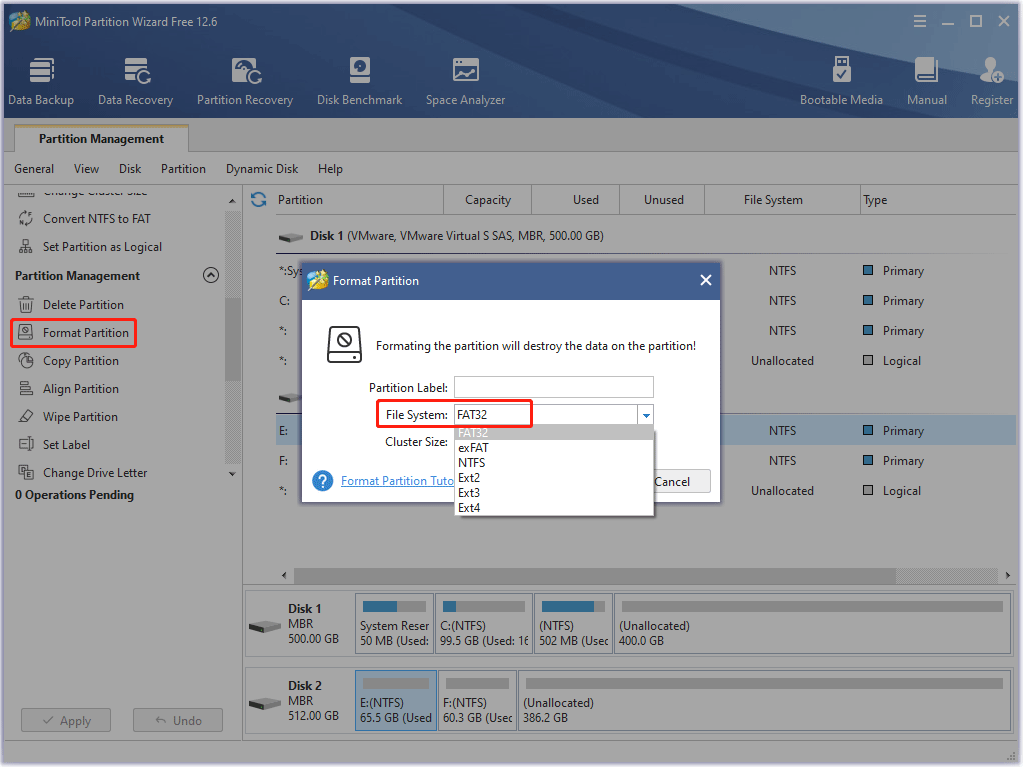
Step 4: When you go back to the main interface, click on Apply to perform the pending operation.
2. Download the Update File to USB Flash Drive
Step 1: Open the USB flash drive in File Explorer. Then create a folder called PS4.
Step 2: Inside the PS4 folder, create another folder called UPDATE.
Step 3: Use any browser to visit the official PlayStation website and download the update file.
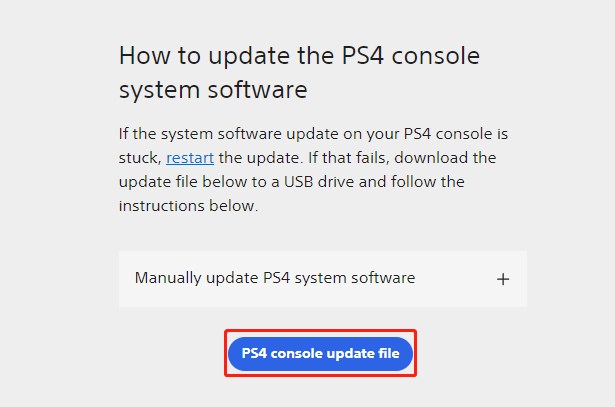
Step 4: Move the update file to the UPDATE folder on the USB flash drive.
3. Update Your PS4 in Safe Mode
Step 1: Make sure your PlayStation is completely shut down and eject the USB flash drive on your computer. Then, insert the flash drive with the update file on your PS4.
Step 2: Press and hold the PS4’s power button for 8 seconds or until you hear a second beep. Then connect the controller to your PS4 using the charging cable and press the PS button to activate it.
Step 3: In Safe Mode, select the Update System Software option.
Step 4: Finally, select Update from USB Storage Device and follow the on-screen prompts to continue the process.
After updating your PS4, try connecting to the internet again to check if the problem is resolved.
Solution 6: Put the Router in the Access Point Mode
If there are two (or more) routers connected to the network, both routers may cause the CE 33991 5 error, as their routing function may try to assign an IP to the PlayStation. In this case, putting one router into access point mode might solve the problem.
To do so, here is the guide:
Step 1: Open your web browser and go to the web portal of the Orbi router. Then enter the router’s credentials.
Step 2: On the router’s homepage, switch to the ADVANCED tab. Then, in the left pane, expand the Advanced Setup option and select the Router / AP Mode option.
Step 3: Now, in the right pane, select AP Mode and click on the Apply mode.
Step 4: Finally, confirm to apply the changes and restart the routers and PlayStation.
After restarting, you can check if the CE 33991 5 error is cleared.
If all the solutions above fail to solve the CE 33991 5 PS4 error, you may need to reset your PS4 controller to factory settings. This method can help you solve this error, but it will erase all files on the PS4. So, you’d better back up your PS4 data.
For detailed steps, you can refer to this article: How to Reset Your PS4? Here Are 2 Different Guides
I encountered the CE-33991-5 PS4 error while playing games on the PS4. I fixed this problem with the help of this post. It provides some solutions to get rid of this error.Click to Tweet
Bottom Line
After reading this post, you can try the above CE-33991-5 PS4 solutions. In addition, if you want to format a USB flash drive larger than 32 GB to FAT32, you can use MiniTool Partition Wizard.
After trying so many solutions, we believe that you may have successfully solved your problem. If you have any questions about how to fix the CE 33991 5 PS4 error, please leave them in the following comment zone and we will try our best to answer them. If you need any help when using MiniTool Partition Wizard software, you can contact us via [email protected].
Play Station’s CE 33991 5 error usually means that the console is not able to make a successful connection to the Internet. The issue is reported on a wireless as well as on a wired network.

You may encounter the CE 33991 5 error on a Play Station due to many factors but the following can be considered causes for disruption:
- ISP’s Restrictions: If the ISP is restricting the Play Station’s access to its servers, then that may result in the CE 33991 5 error.
- Incomplete Firmware Update of the PS4: If the Play Station’s firmware did not completely install, then that may cause the CE 33991 5 error on the Play Station.
- DNS Settings of the Play Station: If the network’s DNS is not able to properly translate the web addresses required by the Play Station, then that may lead to the error at hand.
- Router’s Firewall: If the router’s firewall is limiting the Play Station’s access to its servers, then that can be the reason for the Play Station’s error CE 33991 5.
- Multiple Routers: If multiple routers are used within the network, then the routing capabilities of both routers may cause the Play Station’s error CE 33991 5.
Try Another Network
The Play Station may show the error CE 33991 5 if the network (or router) is not giving Internet access to the Play Station. In this context, trying another network may solve the problem.
- Disconnect the Play Station from another network and connect to another network (like a phone’s hotspot).
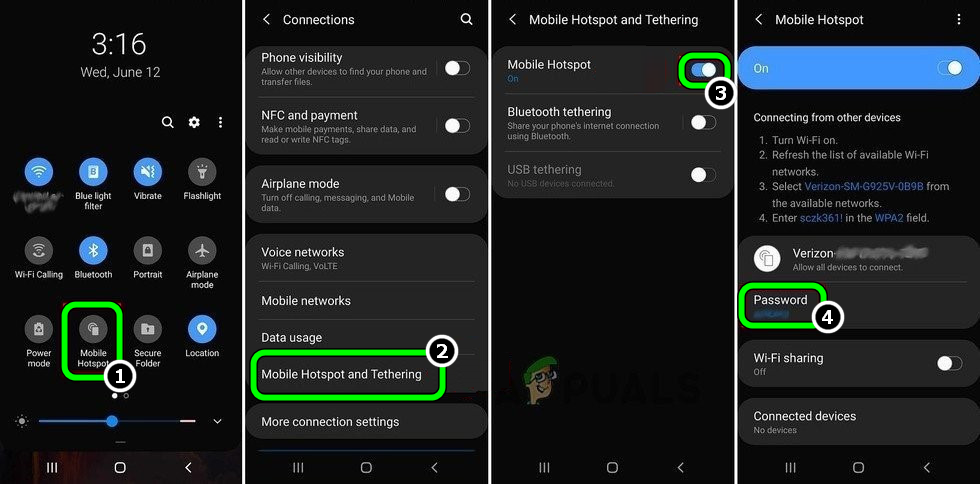
Enable Hotspot of Your Phone - Afterward, check if the CE 33991 5 issue is resolved. If so, then either the router or network was causing the issue. If possible, temporarily arrange another router and check if that resolves the issue.
If the Play Station did not connect to another network, then the issue could be a result of the Play Station’s configuration (discussed later).
Manually Complete the Firmware Update of the Play Station
You may encounter the CE 33991 5 error on a Play Station if the Play Station’s firmware update could not be complete. Here, manually completing the update of the Play Station’s firmware may solve the problem.
- Launch the Play Station Settings and select System Software Update.
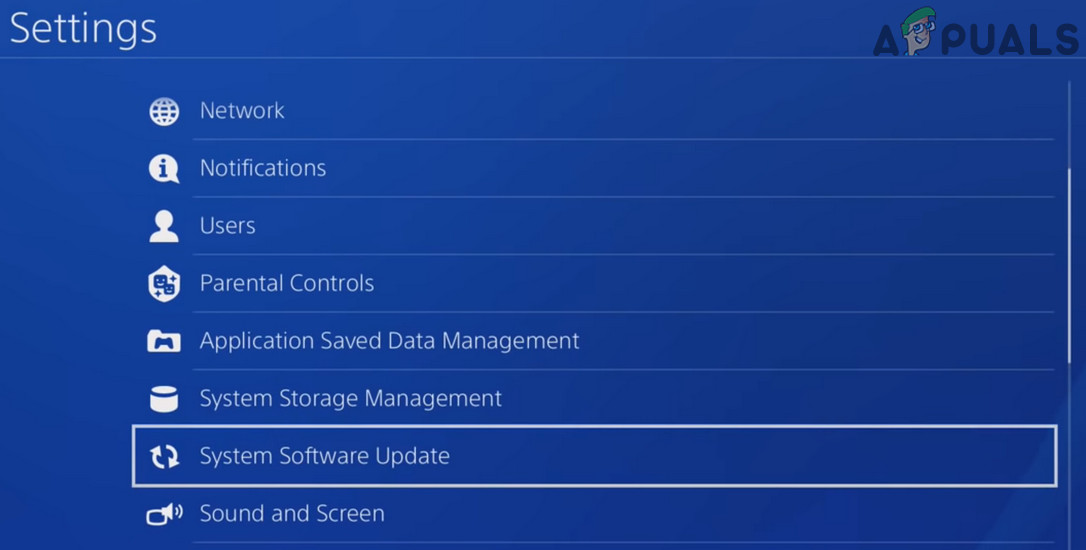
Enable Hotspot of Your Phone - If a pop-up of the pending update is received, install the update and afterward, restart the Play Station.
- Upon restart, check if the Play Station is clear of the CE 33991 5 error.
Edit the DNS Settings of the Play Station
The Play Station might show the Internet connectivity issue at hand with the error code CE 33991 5 if the DNS Settings of the Play Station are not optimal for the Play Station Network (PSN). Here, editing the DNS Settings of the Play Station to use another DNS server (like Google DNS) may solve the problem.
- Launch the Settings of the Play Station and select Network.
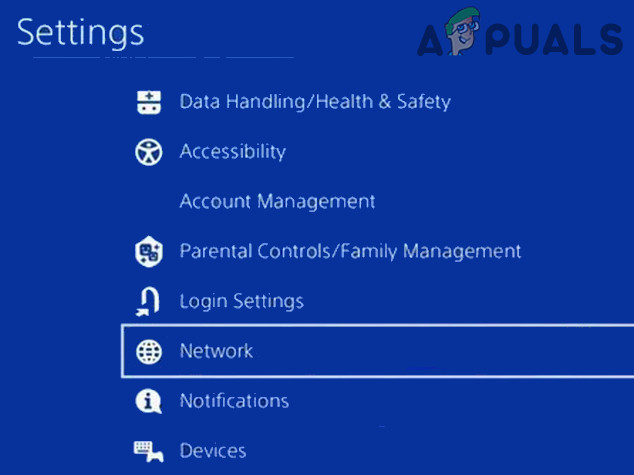
Open Network in the Settings of PS4 - Now open Set Up Internet Connection and select the required network (i.e., Wi-Fi or LAN).

Open Set UP Internet Connection and Use Wi-Fi on PS4 - Then click on Custom (or Manual) and select Automatic for the IP Address.
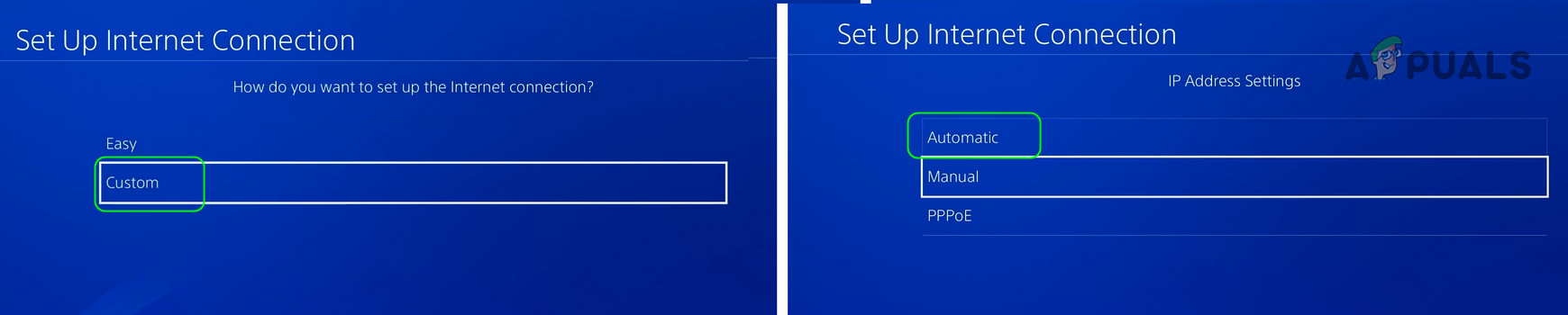
Select Custom in the Set Up Internet Connection Windows and open Automatic - Now set DHCP Host Name to Do Not Specify and on the DNS screen, select Manual.
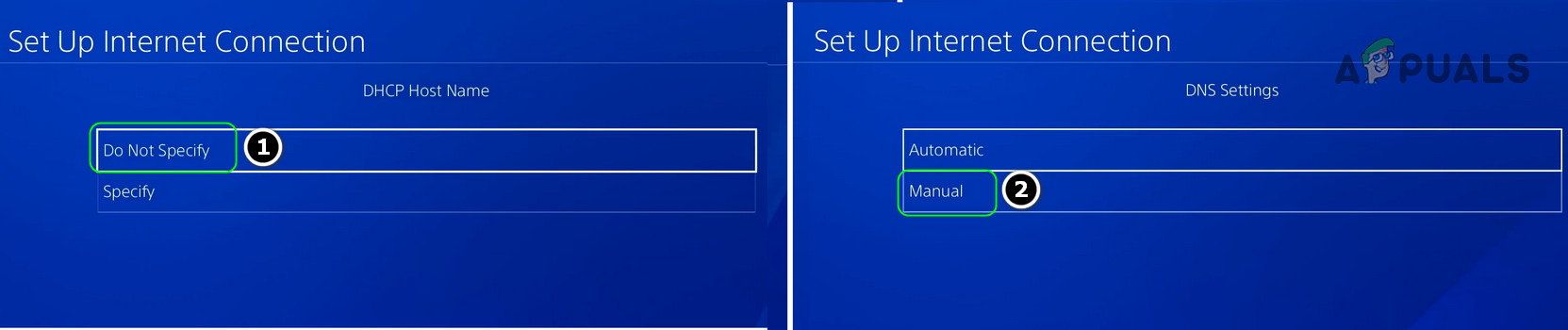
Set DHCP Host Name to Do Not Specify and DNS Settings to Manual in PS4 - Then enter the following for the DNS servers values:
Primary DNS

8.8.8.8

Secondary DNS

8.8.4.4
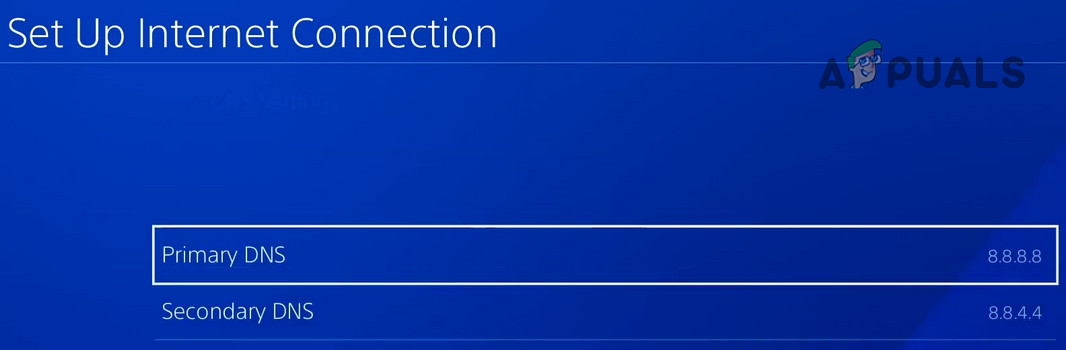
Set Primary and Secondary DNS on PS4 - Now set MTU Setting to Automatic and select Do Not Use for the Proxy Server.
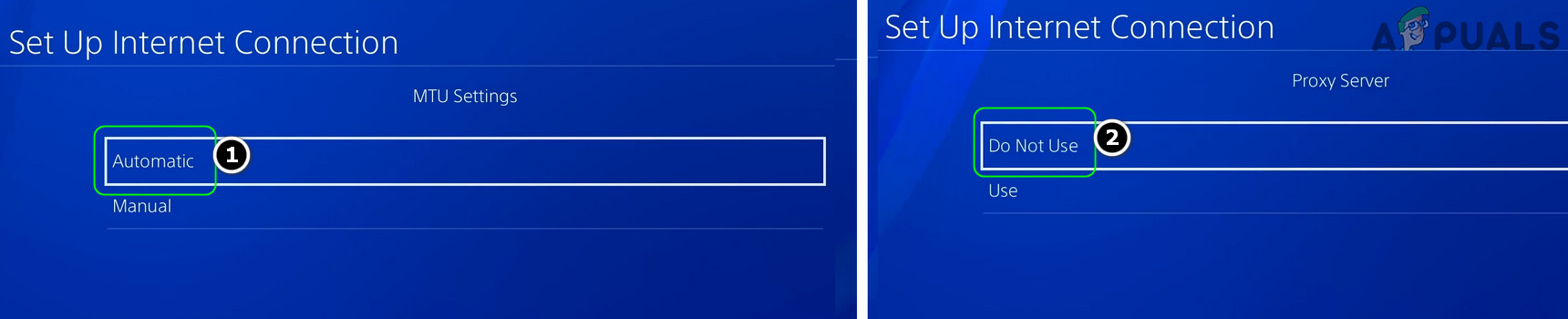
Set MTU Settings to Automatic and Proxy Server to Do Not Use in PS4 - Then save the changes and click on Test Internet Connection.
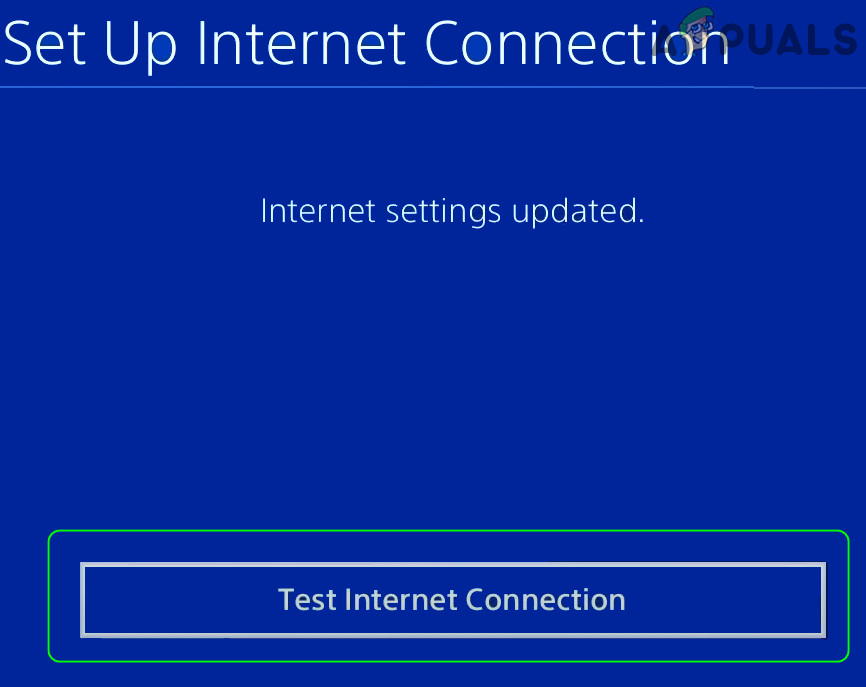
Test Internet Connections in PS4 Settings - Afterward, check if the CE 33991 5 error of the Play Station (PS4 or PS5) is cleared.
Disable the Router’s Firewall
If the router’s firewall is limiting the Play Station’s Internet connection, then that may lead to the CE 33991 5 error. In this scenario, disabling the router’s firewall may clear the CE 33991 5 error. The general guidelines will be as under:
Warning:
Advance at your own risk as disabling the router’s firewall may expose the Play Station, its data, and the network (along with other devices) to threats.
- Launch a web browser and steer to the web portal of the router.
- Now head to the Settings tab and expand Security.
- Then steer to the Firewall tab and in the right pane, uncheck Enable Firewall.
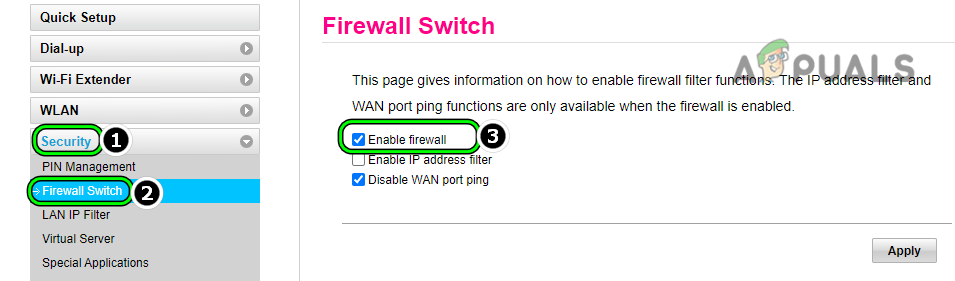
Disable Router’s Firewall - Now apply the changes and restart both devices (router and the Play Station).
- Afterward, check if the Play Station’s error CE 33991 5 is cleared.
Put the Router in the Access Point Mode
If there are two routers (or more than that) attached to the network, then that can cause the CE 33991 5 error as both routers due to their routing capabilities which may try to assign an IP to the Play Station. In this scenario, putting one router in the Access Pont Mode may solve the problem. For elucidation, we will discuss the process for an Orbi Router.
- Launch a web browser and head to the web portal of the Orbi router.
- Now enter the router’s credentials and on the router’s homepage, steer to the Advanced tab.
- Then, in the left pane, expand the Advanced Setup option and head to the Router/AP Mode tab.
- Now, in the right pane, select the radio button of AP Mode and click on Apply.
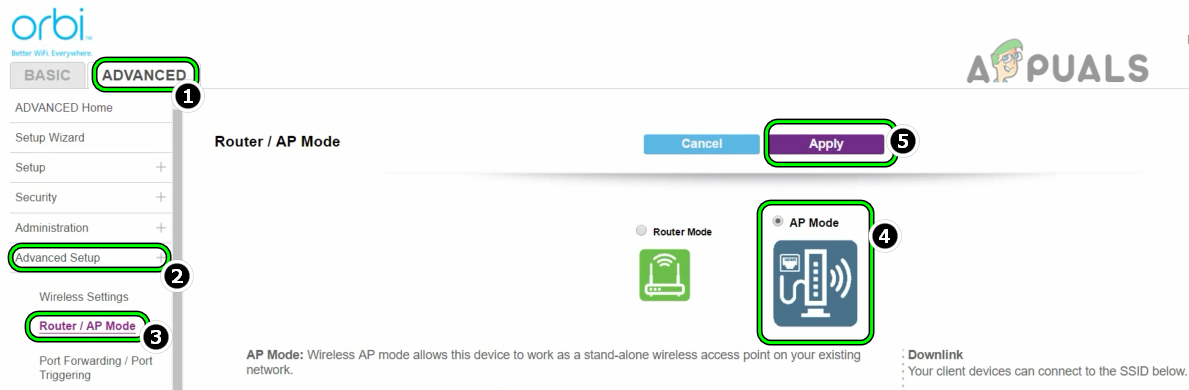
Change the Router to the Access Point Mode - Then confirm to apply the changes and restart devices (routers and Play Station).
- Upon restart, hopefully, the CE 33991 5 error is cleared.
If that did not work, you may reset the router or Play Station to the factory defaults to solve the problem.

Kevin Arrows
Kevin is a dynamic and self-motivated information technology professional, with a Thorough knowledge of all facets pertaining to network infrastructure design, implementation and administration. Superior record of delivering simultaneous large-scale mission critical projects on time and under budget.
Sometimes the PS4 console simply won’t connect to the Internet no matter what you do. When this happens, various error codes appear on the screen.
In today’s article, we’re going to focus on error CE 33991-5 and how you can fix it.
What is PlayStation error CE 33991-5? PS4 error code CE 33991-5 indicates there’s a problem connecting to your local network or the game servers are unavailable.
How do I fix error CE 33991 5 on PS4? First of all, check the PSN status and make sure that all the services are up and running. If there’s a known issue on the list, the best approach is to simply wait until Sony fixes the problem. It there’s nothing on the PSN status, restart your modem, update your router firmware and change your DNS settings.
If all Sony’s services are available, then follow the steps listed below to fix your connection issue.
Solutions to fix PS4 Internet error CE 33991-5
1. Reboot your network hardware
Yes, sometimes a simple power cycle works wonders. So, go ahead and disconnect your modem/router and do the same with your console. Unplug all the cables and wait for a couple of minutes before powering everything back on. Restart your console and wait until the connection is established again. Check if the error is gone after restarting your devices.
2. Update your router’s firmware
Make sure that you’ve installed the latest firmware update for your router. The quickest way to do that is to go to your router manufacturer’s official website and check if there are any updates available. You can also contact your ISP for further guidance.
3. Use a cable connection
If error CE 33991-5 persists, try using a cable connection for a few minutes. You can then switch to a wireless connection and check if this solved the problem.
4. Change your DNS settings
If nothing fixed this error, you can try changing your DNS settings. Use 8.8.8.8 as your primary DNS and 8.8.4.4 as your secondary DNS and check if you can connect to the Internet.
- Go to Network > Set up Internet connection > select your connection type (LAN or Wi-Fi)
- When asked how you want to set up your Internet connection, select Custom
- Go to IP address settings > select Manual
- Set .8.8.8 as your primary DNS and 8.8.4.4 as your secondary DNS.
We hope something helped.
You can help us improve this guide by listing additional troubleshooting solutions in the comments below.
References:
- PS4 Connection Error Codes, PlayStation Support.