17.11.2016
Ремонт принтеров и МФУ Canon
56
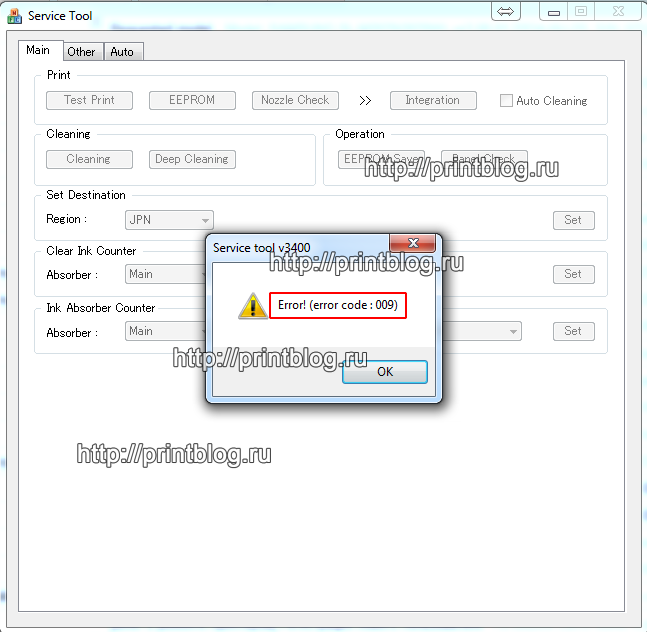 Если вы пробуете сбросить счетчик памперса (абсорбер, отработка) у принтера Canon, чаще всего это происходит с помощью программы Service tool. Но не всегда эта процедура гладко проходит, даже если четко следовать инструкции, часто складывается так, что программа выдает ошибку, что это за ошибки рассмотрим далее…
error code 009
– сообщает о том, что присутствует дополнительная ошибка, которая мешает работе Service tool. Прежде, чем работать с программой, необходимо устранить эту ошибку. Что бы понять, в чем причина, необходимо посчитать количество миганий индикатора “молния”, количество миганий сообщает код дополнительной ошибки, в других случаях она основная. Например, если индикатор “молния” мигает 16 раз, это означает, что ошибка у принтера E16, которая устраняется простым нажатием и удержанием кнопки СТОП более 10 сек.
error code 006
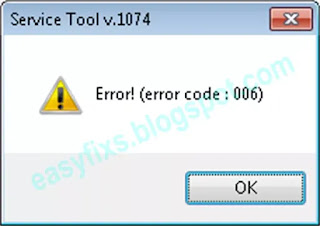
– чаще всего, причиной этой ошибки в программе Service tool, есть банальное – не правильно вошел в сервисный режим или не отменил “Мастер установки нового оборудования”. В некоторых случаях необходимо перезагрузить компьютер, подключить принтер в другой USB порт.
error code 005
– программа не видит ваш принтер, смените USB кабель или подключите в другой USB разъем компьютера, часто помогает перезагрузка компьютера.
error code 002
– эта ошибка говорит о том, что программа не поддерживает функцию для текущей модели принтера. Зачастую это ошибка появляется при попытке сбросить счетчик памперса, при этом другие сервисные функции программа вполне может выполнять.
И самое главное, в любом из этих случаев не забывайте программу извлекать из архива, т.к. работать нормально она не будет.
Осуществить ремонт или прошивку вашего принтера в г. Симферополь вы можете в сервисном центре по ул. Старозенитная, д.9 (вход со стороны забора). Обращайтесь пожалуйста в рабочее время с 9.00-18.00 по номеру +7 (978) 797-66-90
Не забывайте оценить запись и поделится ей с друзьями в социальных сетях, нажав специальные кнопки ниже.
Не забудь оставить комментарий и подписаться на наш канал Youtube 
Рекомендуемые товары:
-
В наличии
Код: 00024
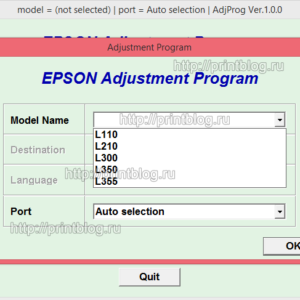
Adjustment program для Epson L110, L210, L300, L350, L355, L550, L555
799.00 руб.
Купить -
5 в наличии
Код: 50021
Микросхема MX29LV160AT для Canon imageRUNNER 1133
599.00 руб.
Купить -
8 в наличии
Код: 00008
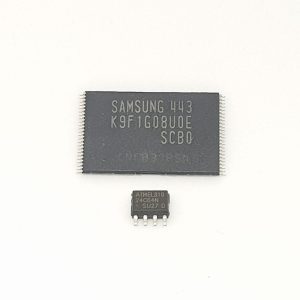
Микросхемы K9F1G08U0E и 24C64 для Samsung CLX-3305, C460 прошитые фикс прошивкой
799.00 руб.
Купить -
В наличии
Код: 00022
Дамп микросхемы 25Q32 для Canon i-SENSYS MF3010
228.00 руб.
Купить
Комментарии для сайта Cackle
Думаю, тем, кто читает эту статью, не нужно объяснять, для чего используются различные версии программы Service Tool. Самая распространенная версия на момент написания статьи — Service Tool v3400
Очень часто, при попытке сброса,»памперса», меня спрашивают, почему программа выдает ошибку.
При чем основных ошибок две. Появляется окно с сообщением «Error! (error code 006)» или 009.
Error code 006, чаще всего, означает, что Вы не вошли в сервисный режим. Напомню, что при входе в сервисный режим устройство должно определяться как CanonDevice. Иногда такая ошибка появляется даже тогда, когда Вы правильно вошли в сервисный режим. Тогда может помочь перезагрузка компьютера или подсоединение принтера к другому USB порту.
Error code 009 означает, что у принтера существует какая-то дополнительная ошибка, кроме переполнения счетчика отработанных чернил. И перед сбросом «памперса» ее необходимо будет устранить. Узнать, какая ошибка можно по количеству миганий индикатора «молния». Подробнее об этом можете прочесть тут. Например, при отсутствующем или неисправном картридже Вы не сможете воспользоваться программой и она будет выдавать Вам Error code 009.
И не забывайте извлекать программу из архива. Запущенная в архиве корректно работать она не будет.

The service tool V3400 is used to reconfigure some of the settings of the Canon printers, but just after you have replaced some of the parts such as the print head. The tool is an application, but one that is also portable and therefore, does not require installation. The service tool has been designed to run many different functions and can be used to set destination, CD-R correction, Left margin correction, Panel rank, Ink Absorber Counter, and Test print among others.
To fully exploit the potential of this service tool, the printer must first be in service mode. This mode is better described as a condition where the Canon printers enter the repair mode. So, what happens is that once the printer enters the service mode, all you have to do is open the service tool and choose the relevant function key. The service tool V3400 is closely used with the service tool V3600 and they are both efficient when used to reset the waste pad ink counter on the Canon printers.
The service tool will, therefore, allow you to solve a variety of message errors such as the “Waste Ink Pad Full,” or “Waste Ink Tank Full,” you can also use the tool to clear the error code “5B00” or the error code “P07.” Notable is that this service tool will not just work on any kind of printer but some specific series from Canon such as the Canon Pixma iP2700, MP230, IX6500, IP3600, PRO900, MG2120, and MX397 among others.
Error Code 009-Cause
When your printer presents you with the error code 009, it usually means that it is not able to enter service mode, because of another failure. Or better yet, this could be an indication that two different errors occurred at the same time. And which means that you could also be presented with the error code 007 and the error code 009.
To understand the above codes better, here is a little explanation. When a printer has a double error it means that both errors occur simultaneously, the first error could be that the “Waste ink absorber is full” and the second error could be that the “ink has run out.” Now, this might seem like a complex problem, in fact almost irresolvable but there is a solution.
To fix the error code 009, you will first turn on your printer and then press and hold the Resume/Cancel/Stop button for about 10-15 seconds. And once the printer’s head begins to move you can release the button. The second step is that after the cartridge reads normally you will turn off the printer and repeat the procedure and which will enable you to enter service mode. From there you can proceed with the reset process.
How to use the Service tool
So the first thing to do is you must download the service tool Canon V3400, and then enter in maintenance mode with the printer. Power down your printer, and then connect it to the central unit using a USB cable. Hold on to the “Resume button and then press power. You will hold on to these buttons simultaneously up until the led power lights up.
You will then release the resume button but keep pressing the power button, and then press the resume button at least five times. Release the resume button and the led lights will flash. From here you will wait until the led lights stop where you will now be in maintenance mode.
The next step is to run the service tool V3400, but be sure to use the right USB PORT. And in the section “Ink Absorber Counter,” you will select main. And in the section counter value (%) you will choose the number that is closest to the counter number and click the option “SET.” You will then find the counter number in the section “EEPROM.”
As you perform the above process there is every likely hood that you will be presented with the error code 002, and which will mean that a function is not supported by the printer. You could also receive the error code 005 and which will mean that the printer is not compatible with this particular service tool. There are also occasions where the service tool V3400 could be inactive and in such a case you could power off your computer, then plug the power cable in another USB port and restart the procedure.
Alternatively, you could detach the USB cable from the printer, wait for a few seconds, and then power it back. And on windows, you will select “next” when presented with the text “NEW peripherals, you will then open the service tool and then rest.
Service tool not responding-How to Fix
On other occasions the service tool might fail to respond, and which will be an indication that your PC or laptop does not communicate with the printer. To solve this problem you could detach the USB printer cable that has been connected to the computer and then close the service tool. You will then turn off the printer by either unplugging the computer or by pressing the power button. You will then repeat the service mode entry procedure and then open the service tool.
If the above proves futile, you could find another USB cable. The service tool could also freeze and which will mean that it does not detect the printer. To remedy this situation you can detach the printer USB cable from the computer and plug it back into the PC using a different USB port.
Conclusion
The service tool V3400 is used to reset the ink counter in some of the Canon printers, the service tool is, however, prone to many errors and you will, therefore, be presented with error codes such as 002, 005, 006, 009, and 007. For the service tool to integrate with your printer, it must be in service mode but at times your printer might fail to enter the service mode because two different errors occurred simultaneously represented by the error code 007 and 009.
FAQ’s
What is the meaning of the error code 005?
It means that the service tool doesn’t detect the printer, or that the printer is not ready to receive commands from the service too.
What is the meaning of the error code 002?
It means that the service tool does not support the requested operation.
December 01, 2020
Canon Service Tool is a tool used to reset Canon printers after replacing parts such as: Logic Board Ass’y, Ink Absorber Kit, Print Head, etc. Canon Service Tool is a portable application so it does not require installation. In the Service Tool there are several functions such as; Test Print, Cleaning, Set Destination, Clear Ink Counter, Ink Absorber Counter, CD-R Correction, Auto LF/EJ, Left Margin Correction, Wetting Liquid Counter, Panel Rank, Flatbed Scanner, Data Save, etc.
In order for the Service Tool to be used to reset Canon printers, the printer must be in Service Mode. Service Mode is a condition where the Canon printer enters repair mode. After the printer enters Service Mode, open the Service Tool then select the desired function key.
.webp "Canon Service Tool Error Code Mean (Error code 002, 005, 006, 007, 009, etc)")
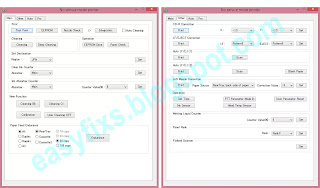
When a button is clicked in the Service Tools dialog box, that function is executed. While the selected function is in operation, all buttons on the Service Tool are dimmed or inactive. When the operation is finished, the message «A function was finished» will appear and other functions can be selected later.

Canon Service Tool Error Code Mean (Error code: 002, 005, 006, 007, 009, etc)
If an unsupported function button is selected, an error message will be displayed, click OK to close the error message. Regarding the error messages that appear when using the Service Tool, there are several kinds of error messages that have different meanings. The following is the error message that appears when using a Canon Service Tool.

Error code: 002
Meaning: The service tool doesn’t support the requested operation.
Solution: Unfortunately not all functions in the Service Tool can be used. When the function key in the Service Tool is pressed, and an error code: 002 appears, it means that the Service Tool does not support the requested command. The conclusion is that not all buttons in the Service Tool can be used, so just ignore this error message and then select a function key that is supported by the Service Tool.

Error code: 005
Meaning:
- The Service Tool doesn’t detect the printer.
- The printer is not ready to accept commands from the Service Tool.
Solution:
- Unplug the printer USB cable that goes to the computer then reconnect it to the computer on a different USB port.
- After the Service Mode entry procedure is complete, the Power LED will flash. When the Power LED is still blinking and the button in the Service Tool is pressed (the Service Tool sends a command to the printer), an error code: 005 will appear. The solution is after the Service mode entry procedure is complete, wait for the Power LED to stop blinking, then run the Service Tool.
Error code: 006
Meaning: The printer is not in Service Mode, or the Service Tool does not support the printer.
Solution: Turn off the printer and then repeat the procedure to enter Service Mode correctly. If the procedure for entering Service Mode has been done correctly, but the error code: 006 still occurs, it means that the Service Tool doesn’t support your printer.

Error code: 007 and 009
Meaning: The printer cannot enter Service Mode due to another failure, or two different errors occurred. See the picture above.

Example: The printer has a double error. Error #1. Ink has run out, and Error #2. Waste ink absorber is full [5B00]. Both errors occur simultaneously.
Solution:
1. Turn on the printer, then press and hold the Resume/Cancel/Stop button for about 10-15 seconds, when you hear the sound of the print head starting to move, release the Resume/Cancel/Stop button.
2. After the cartridge reads normally, turn off the printer and repeat the procedure to enter Service Mode, then continue the reset process.

Error: Service Tool (Not Responding)
Meaning: the PC/Laptop can’t communicate with the printer.
Solution: disconnect the USB printer cable connected to the computer, close the service tool, then turn off the printer by pressing the power button or unplug the power cable. Repeat the Service Mode entry procedure, then open Service Tool. If this solution doesn’t work, check the printer’s USB port or change the printer’s USB cable.

Error: Service Tool Freezes
Meaning: The Service Tool does not detect a printer.
Solution:
1. Disconnect the printer USB cable that is connected to the computer. Plug it back into the computer in a different USB port. If it fails!
2. Turn off the printer, open Control Panel — Devices and Printers — Set as default printer that was repaired. Check the Printer Properties — the USB port of the printer. Make sure the USB port of the printer is checked. If all the settings have been done correctly, then repeat the procedure to enter Service Mode, then open the Service Tool. If it fails!
3. Replace the printer USB cable with a new one.

Error: The indicator light flashes orange when entering Service Mode
Meaning: there is damage to Service Mode (Service Mode is damaged).
Cause: the user uses more than one different Service Tool, when entering Service Mode.
Example: Printer user is Canon G3000. After the printer enters Service Mode, to reset the user using Service Tool v.3400, but it fails. Then the user uses Service Tool v.4718 to reset, but it fails. This is the beginning of trouble. When the printer enters Service Mode, the user uses two different Service Tools, namely ST.3400 and ST.4718. Using two different Service Tools in Service Mode will result in damage to Service Mode. When the printer enters Service Mode, the user uses ST.3400 but fails. If the user wants to try with ST.4718, turn off the printer first, then repeat the procedure to enter Service Mode, then reset it with ST.4718.

Solution: Replace the EEPROM IC with a new one, or reset the EEPROM IC manually.

Error: printer can’t enter Service Mode
Solution:
1. To enter the Service Mode, press the Resume/Cancel/Stop button 5 times. If the Resume/Cancel/Stop button is pressed 5 times but fails to enter Service Mode, repeat the procedure to enter Service Mode, then press the Resume/Cancel/Stop button 6 times (connected to the operation panel without a scanner).
2. To enter the Service Mode, press the Resume/Cancel/Stop button 2 times. If the Resume/Cancel/Stop button is pressed 2 times but fails to enter Service Mode, repeat the procedure to enter Service Mode, then press the Resume/Cancel/Stop button 3 times (connected to the operation panel without a scanner).
Conclusion:
— For printers where the Resume/Cancel/Stop button is pressed 5 times.
If the Resume/Cancel/Stop button is pressed 5 times and it fails to enter Service Mode, repeat the procedure then press the Resume/Cancel/Stop button 6 times.
— For printers where the Resume/Cancel/Stop button is pressed 2 times.
If the Resume/Cancel/Stop button is pressed 2 times and it fails to enter Service Mode, repeat the procedure then press the Resume/Cancel/Stop button 3 times.

Error: I can’t open the Service Tool on macOS X, Linux, etc. What should I do?
Cause
Service Tool is a portable software that only supports Windows Operating System. If your computer uses an operating system other than Windows, the Service Tool cannot be used.
Solution
1. If your home/office has a PC/Laptop that uses Windows OS, please install the printer driver, then do a reset with that computer.
2. If you don’t have a computer/laptop that uses Windows OS, please install Windows onto a USB Flash. Boot Windows from USB Flash, then install printer driver to USB Flash. After that, open the Service Tool and reset the printer. This method is applicable for Linux OS, MacOS, etc.

Error: I am using the Windows Operating System, but the Service Tool cannot be opened. What to do?
Cause
If Service Tool.exe is double-clicked but the program does not open automatically, right-click Service Tool — Properties, if under Attributes there is a message «Security: This file came from another computer and might be blocked to help protect this computer.»,
Solution
1. Check the «Unblock» — Apply — OK. If you are unsure about this solution, please follow the solution below.
2. Make sure your computer has the Winrar/Winzip/7zip application installed, etc.
Figure 1. Right click Service Tool (1), Add to archive (2), Set password (3), Enter password (4), OK (5)
Figure 2. Right-click the rar file (6), choose Cut (7) then paste it into a different folder.
Figure 3. Right click rar file (8), Extract rar file (9), Enter password (10), OK (11)
Figure 4. Right-click the folder (12), select Open (13) then open the Service Tool. Done.


Questions and Answers
Q: The printer printout is bad, is the print head clogged/damaged, should I replace the cartridge?
Q: Where can I get other Canon Service Tools?
A: For complete information regarding Canon Service Tool collection, please open Canon Service Tool Version
Q: I don’t know which Service Tool supports my printer, where can I get information about it?
A: For complete information regarding Canon printers and the Service Tools used, please open the Canon Service Tools and Supported Printers
If you are having trouble repairing a Canon printer yourself, it is highly recommended to ask the nearest Canon Service Center for help or the nearest printer repair professional.

(нажмите для увеличения)
Для сброса счетчика отработанных чернил (памперса) в принтерах Canon MP190, MP230, MP250, MP280, IP2700 и MG2440 нужно:
- Зайти в сервисный режим.
- Выключаете устройство.
- Подключаете его к компьютеру по USB.
- Зажимаем кнопку «Отмена» (Красный кружечек внутри перевернутый треугольник).
- Зажимаем кнопку «Power».
- Отпускаем кнопку «Отмена».
- 5 раз нажимаем кнопку «Отмена» (для Canon MP250 — 2 раза) при каждом нажатии будет реагировать индикатор ошибки.
- Отпускаем кнопку «Power».
Если вы попали в сервисный режим, то индикаторы не должны мигать.
- Скачать программу для сброса ошибки принтера Canon (переполненный памперс) — утилиту Service Tool
- v.3600 — st_v3600.rar — [0.18 MB];
- v.3400 — servicetoolv3400.zip — [0.2 MB].
- Распаковать скачанный фай.
- Запустить файл ST_V3600.exe или Service tool v3400.exe (покажу на примере Service tool v3400.exe так как последняя версия загружается с непонятным шрифтом). Если утилита не смогла обнаружить принтер — все поля будут не активны. Желательно отключить другие USB устройства и проверить подключение принтера (подключить его заново).
- В последнем разделе «Ink Absorber Counter» выбираем значение «Counter Value = 0» и жмем «Set» (сморите рисунок выше).
- Памперс сброшен. Выключаем принтер кнопкой.
- Сброс памперса для Canon IP1000, IP1500, IP1900.
Печатайте с удовольствием.