Microsoft SQL Server 2005 Standard Edition Microsoft SQL Server 2005 Enterprise Edition Microsoft SQL Server 2005 Developer Edition Microsoft SQL Server 2005 Workgroup Edition Microsoft SQL Server 2005 Express Edition SQL Server 2008 Developer SQL Server 2008 Enterprise SQL Server 2008 Express SQL Server 2008 Express with Advanced Services SQL Server 2008 R2 Datacenter SQL Server 2008 R2 Developer SQL Server 2008 R2 Enterprise SQL Server 2008 R2 Express SQL Server 2008 R2 Express with Advanced Services SQL Server 2008 R2 Standard SQL Server 2008 R2 Standard Edition for Small Business SQL Server 2008 R2 Web SQL Server 2008 R2 Workgroup SQL Server 2008 Standard Edition for Small Business SQL Server 2008 Web SQL Server 2008 Workgroup SQL Server 2012 Developer SQL Server 2012 Enterprise SQL Server 2012 Express SQL Server 2012 Standard SQL Server 2012 Web SQL Server 2012 Enterprise Core SQL Server 2014 Developer SQL Server 2014 Developer SQL Server 2014 Enterprise SQL Server 2014 Enterprise SQL Server 2014 Express SQL Server 2014 Express SQL Server 2014 Standard SQL Server 2014 Standard SQL Server 2014 Web SQL Server 2014 Web SQL Server 2016 Standard SQL Server 2016 Enterprise Core SQL Server 2016 Developer SQL Server 2016 Enterprise SQL Server 2017 on Windows (all editions) Еще…Меньше
Симптомы
Каждый пользователь имеет базу данных по умолчанию. При подключении к компьютеру, на котором выполняется Microsoft SQL Server, имя входа базы данных не указано, используется база данных по умолчанию. Тем не менее, если база данных по умолчанию во время подключения недоступна, подключение будет невозможно. Вместо этого появляется сообщение об ошибке 4062 или ошибка 4064, который напоминает следующие:
Не удается открыть базу данных пользователя по умолчанию
Причина
Во время подключения к базе данных пользователя по умолчанию недоступна. Возможно, база данных:
-
Находится в подозрительном режиме.
-
Больше не существует.
-
Находится в однопользовательском режиме и единственным доступным подключение уже используется кем-то или что-нибудь еще.
-
Была отсоединена.
-
Был установлен в состояние RESTRICTED_USER.
-
Находится в автономном режиме.
-
Устанавливается в аварийном состоянии.
-
Не имеют учетной записи входа сопоставлено с пользователем, или пользователь не обладает правами доступа.
-
Является частью зеркальной базы данных.
Кроме того учетная запись может быть членом нескольких групп, и базу данных по умолчанию для одной из этих групп недоступен во время подключения.
Временное решение
Для временного решения этой проблемы укажите допустимый, доступные базы данных в строке подключения. Чтобы избежать ошибки, когда недоступна база данных пользователя по умолчанию, войдите в систему как пользователь, можно изменить имена входа. Измените базу данных пользователя по умолчанию для базы данных, которая в настоящее время доступна для подключения.
SQL Server 2005 и более поздних версий
Чтобы изменить базу данных по умолчанию в SQL Server 2005 можно использовать программу sqlcmd. Чтобы сделать это, выполните следующие действия.
-
Нажмите кнопку Пуск, выберите пункт Выполнить, введите cmd и нажмите клавишу ВВОД.
-
Воспользуйтесь одним из следующих способов, в зависимости от вида проверки подлинности с использованием имени входа SQL Server.
-
Если имя входа SQL Server использует проверку подлинности Microsoft Windows для подключения к экземпляру, введите в командной строке следующую команду и нажмите клавишу ВВОД:
главный sqlcmd E -S d имя_экземпляра
-
Если имя входа SQL Server используется проверка подлинности SQL Server для подключения к экземпляру, введите в командной строке следующую команду и нажмите клавишу ВВОД:
главные sqlcmd -S имя_экземпляра -d — U SQLLogin -P пароль
Примечание. Имя_экземпляра — это имя экземпляра SQL Server 2005, к которой вы подключаетесь. SQLLogin — местозаполнитель для имени входа SQL Server, база данных по умолчанию которого была удалена. Пароль — это пароль для имени входа SQL Server.
-
-
В командной строке sqlcmd, введите следующую команду и нажмите клавишу ВВОД:
ALTER LOGIN SQLLogin with DEFAULT_DATABASE = AvailDBNameПримечание. AvailDBName — это имя существующей базы данных, которая может осуществляться путем входа в экземпляре SQL Server.
-
В командной строке sqlcmd введите GOи нажмите клавишу ВВОД.
SQL Server 2000 и SQL Server 7.0
Чтобы изменить базу данных по умолчанию в SQL Server 2000 и SQL Server 7.0, можно использовать программу osql. Чтобы сделать это, выполните следующие действия.
-
В командной строке введите следующую команду и нажмите клавишу ВВОД:
C: > osql -E -d образца
-
В командной строке программы osql введите следующую команду и нажмите клавишу ВВОД:
1 > sp_defaultdb «пользователь «s_login», «Главная»
-
Во второй строке введите следующую команду и нажмите клавишу ВВОД:
2 > Перейти
Статус
Данное поведение является особенностью.
Дополнительные сведения
Чтобы воспроизвести проблему, попробуйте подключиться с OSQL и используйте параметр -d с существующей базы данных, который находится в обычном состоянии. Подключение выполняется без сообщения об ошибке.
И наоборот получать ответы, следующим из различных клиентских средств SQL Server при недоступности базы данных:
-
SQL Server Management Studio (SQL Server 2005)
Не удается подключиться к имя_сервера
ДОПОЛНИТЕЛЬНЫЕ СВЕДЕНИЯ:
Не удается открыть базу данных пользователя по умолчанию. Ошибка входа. Ошибка входа пользователя «имя пользователя». (Microsoft SQL Server, ошибка: 4064) -
В SQL Server 2005 с помощью программы Sqlcmd
Сообщение 4064, уровень 11, состояние 1, сервер имя_сервера, строка 1
Не удается открыть базу данных пользователя по умолчанию. Ошибка входа.Сообщение об ошибке 18456, уровень 14, состояние 1, строка 1 вход, сервер имя_сервераошибка пользователя «имя пользователя».
-
Анализатор запросов SQL Server 2000 (QA)
Не удается подключиться к серверу TESTSERVER:
Сервер: Сообщение 4064, уровень 16, состояние 1
[Microsoft] [Драйвер ODBC SQL Server] [SQL Server] Не удается открыть базу данных пользователя по умолчанию. Ошибка входа. -
SQL Server 2000 Server Enterprise Manager (SEM)
Не удалось подключиться к TESTSERVER — не удается открыть базу данных пользователя по умолчанию «dbid». Вместо этого с помощью базы данных master.
Убедитесь, что запущен SQL Server и проверьте свойства регистрации SQL Server (щелкнув правой кнопкой мыши на узле TESTSERVER) и повторите попытку.
-
Из командной строки с помощью программы OSQL SQL Server 2000
Появляется следующее сообщение об ошибке при использовании C: > osql -E команды:
Не удается открыть базу данных пользователя по умолчанию. Ошибка входа.
-
Анализатор запросов SQL Server 7.0 (QA)
Не удается подключиться к серверу \TESTSERVER:
Сервер: Сообщение 4062, уровень 16, состояние 1
[Microsoft] [Драйвер ODBC SQL Server] [SQL Server] Не удается открыть базу данных по умолчанию пользователя «< ID >». Вместо этого с помощью базы данных master. -
Из командной строки с помощью программы OSQL SQL Server 7.0
Появляется следующее сообщение об ошибке при использовании C: > osql -E команды:
Не удается открыть базу данных пользователя по умолчанию «dbid».
Вместо этого с помощью базы данных master.
Следующая таблица предоставляет дополнительные сведения о продуктах и средства, которые автоматически проверки данного условия на экземпляр SQL Server и на версиях продукта SQL Server, для которой проверяется правило.
|
Правила программы |
Название правила |
Описание правила |
Версии продуктов, для которых вычисляется правило |
|
Советник по System Center |
Участников уровня сервера SQL Server с базой данных по умолчанию отсутствует |
System Center ядра СУБД проверяет, если имена входа в экземпляре SQL Server настроены по умолчанию базы данных, которая больше не существует. Просмотрите подробности, которые приведены в разделе сбор информации оповещения ядра СУБД и выполните действия, описанные в этой статье, чтобы устранить проблему. |
SQL Server 2008 SQL Server 2008 R2 SQL Server 2012 SQL Server 2017 г. в Windows |
Нужна дополнительная помощь?
If the user tries to connect to a computer which runs MS SQL but fails to specify the login database while establishing the connection, then the computer uses the default database. Sometimes the default database is not available. And you receive «Cannot open user default database. Login failed. Login failed for user ‘UserName’. (Microsoft SQL Server, Error: 4064)» SQL Server Error message, you cannot open user default database.
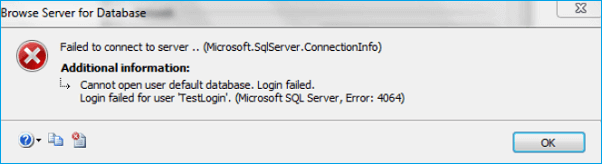
Possible Reasons — Cannot Open User Default Database
The user default database is unavailable at the time of connection. The main causes are listed below:
- The database is in suspect mode.
- It is set to emergency status or it is part of a database mirror.
- The default database (DB) is missing or has been set to the offline, detached or RESTRICTED_USER state.
- The DB does not have the login account mapped to a user, or the user has been denied access.
- The DB is in single user mode and the only available connection is already being used by someone or something else.
- The login account may be a member of multiple groups, and the default database for one of those groups is unavailable at the time of connection.
There are more possible causes that may lead to error code 4064/4062. But the way to repair the SQL Server error remains the same. Read on to see fix SQL database error 4064/4062 and repair the database.
Solutions to Fix the «Cannot Open User Default Database» Error
According to the causes above, the first thing to do is log in another user account that can modify logins and change the user’s default database that is available during the time of connection. Then, specify a valid database in the connection string. If this not working, change the default database.
Solution 1: Change the Default Database in SQL Server 2005 and Later Versions
You can use the sqlcmd utility to change the default database in SQL Server 2005, SQL Server 2000 and SQL Server 7.0. To do this, follow these steps:
For SQL Server 2005 and later versions
Step 1: Click «Start», click «Run», type cmd, and then press «Enter». Use one of the following methods, depending on the kind of authentication that the SQL Server login uses:
1. If the SQL Server login uses Microsoft Windows authentication to connect to the instance, type the following at the command prompt, and then press «Enter»:
sqlcmd E -S InstanceName d master
2. If the SQL Server login uses SQL Server authentication to connect to the instance, type the following at the command prompt, and then press «Enter»:
sqlcmd -S InstanceName -d master -U SQLLogin -P Password
- Tip
- InstanceName is a placeholder for the name of the SQL Server 2005 instance to which you are connecting.
- SQLLogin is a placeholder for the SQL Server login whose default database has been dropped.
- Password is a placeholder for the SQL Server login password.
Step 2: At the sqlcmd prompt, type the following, and then press «Enter»:
ALTER LOGIN SQLLogin WITH DEFAULT_DATABASE = AvailDBName
Note: AvailDBName is a placeholder for the name of the existing database that can be accessed by the SQL Server login in the instance.
Step 3: At the sqlcmd prompt, type GO, and then press «Enter».
For SQL Server 2000 and SQL Server 7.0
The steps to change the default database seem to be easier for SQL Server 2000 and SQL Server 7.0 users.
Step 1: At a command prompt, type the following and then press «Enter»:
C:>osql -E -d master
Step 2: Type the following and then press «Enter»:
1>sp_defaultdb ‘user’s_login’, ‘master’
Step 3: Type the following and then press «Enter»:
2>go
Solution 2: Use the SQL Database Recovery Software (Professional and Reliable)
In most of the cases, users will repair the database and access it again by following the steps above. What if you still can’t open it? If you are in such a situation, don’t hesitate to try EaseUS MS SQL recovery tool to repair your database.
This software can fix the corruption errors where the inbuilt utilities fail. And the same software resolves the problem in SQL 2005 and also on SQL 2007 and above. Follow the steps to perform a database repair:
Step 1: Select the corrupted database for recovery
- Launch EaseUS MS SQL Recovery.
- Select the corrupted database file by clicking «Browse» (the two dots) or «Search».
- After selecting the file, click the «Repair» button to start the Analyzing process.
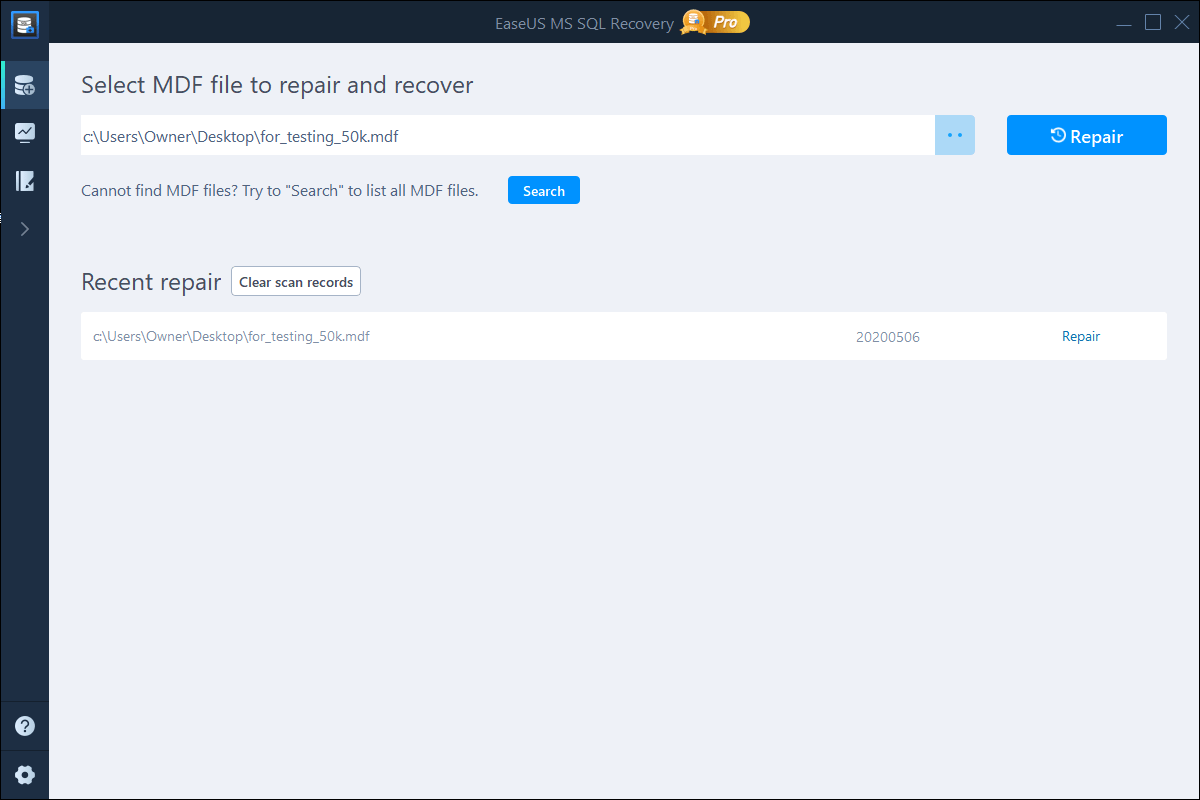
Note: To use this software, you need to stop the SQL Server service.
Step 2: Repair the corrupted database
- The software displays all the recoverable items in a tree-like structure. The items are shown in a left pane.
- Select the desired component to be recovered. From the window, click the «Export» button.
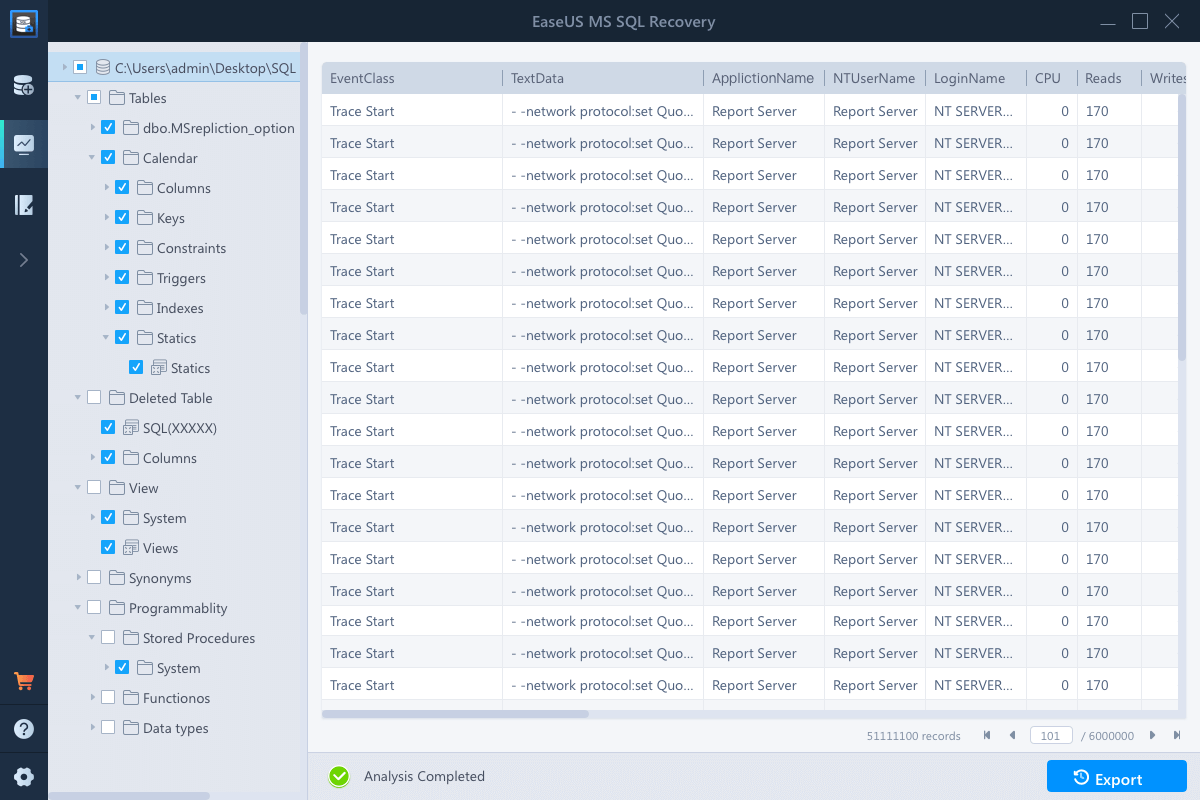
Step 3: Export to the database or as scripts
- Choose to export the database objects to database or export the items as scripts
- If you choose «Export to database», enter the information required and choose the target database.
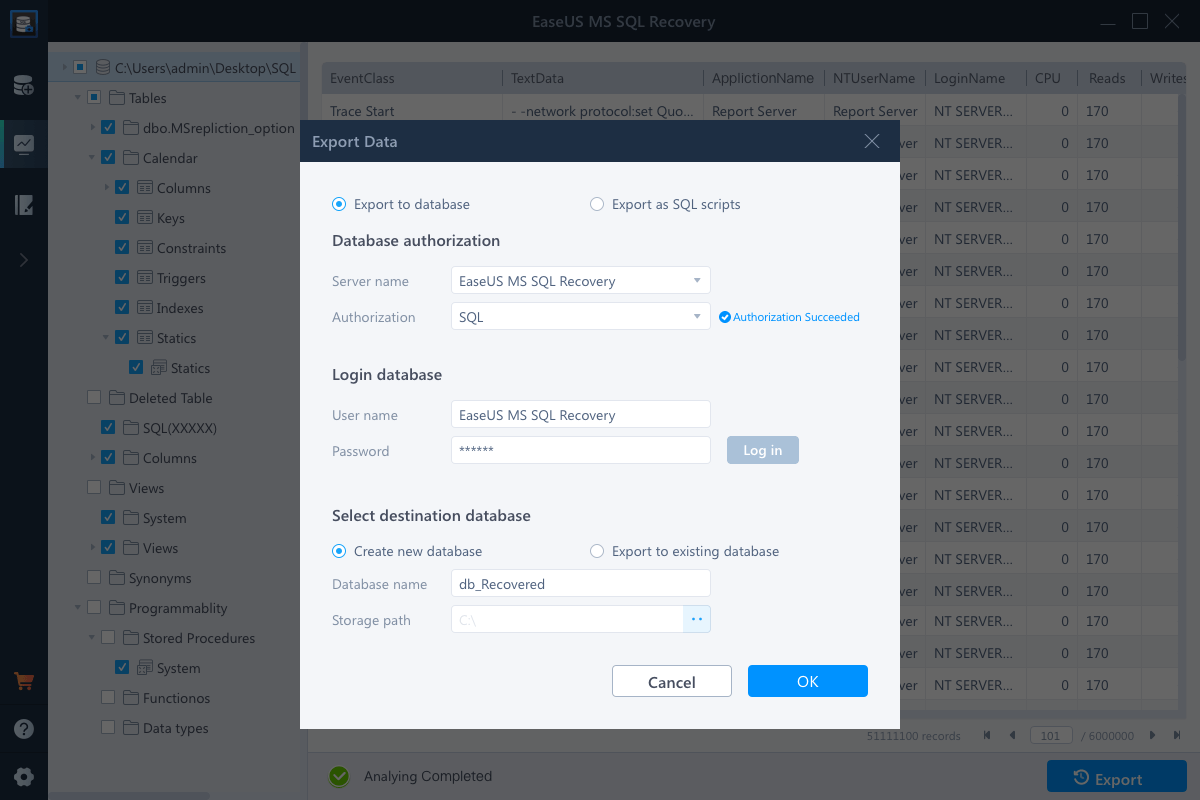
- A window appears up asking you to provide credentials to connect to the server and the destination to save the recovered items. In order to begin the repairing process, click «OK».
Note: Before clicking «OK», you need to restart the SQL Server service.
If the user tries to connect to a computer which runs MS SQL but fails to specify the login database while establishing the connection, then the computer uses the default database. Sometimes the default database is not available. And you receive «Cannot open user default database. Login failed. Login failed for user ‘UserName’. (Microsoft SQL Server, Error: 4064)» SQL Server Error message, you cannot open user default database.
Possible Reasons — Cannot Open User Default Database
The user default database is unavailable at the time of connection. The main causes are listed below:
- The database is in suspect mode.
- It is set to emergency status or it is part of a database mirror.
- The default database (DB) is missing or has been set to the offline, detached or RESTRICTED_USER state.
- The DB does not have the login account mapped to a user, or the user has been denied access.
- The DB is in single user mode and the only available connection is already being used by someone or something else.
- The login account may be a member of multiple groups, and the default database for one of those groups is unavailable at the time of connection.
There are more possible causes that may lead to error code 4064/4062. But the way to repair the SQL Server error remains the same. Read on to see fix SQL database error 4064/4062 and repair the database.
Solutions to Fix the «Cannot Open User Default Database» Error
According to the causes above, the first thing to do is log in another user account that can modify logins and change the user’s default database that is available during the time of connection. Then, specify a valid database in the connection string. If this not working, change the default database.
Solution 1: Change the Default Database in SQL Server 2005 and Later Versions
You can use the sqlcmd utility to change the default database in SQL Server 2005, SQL Server 2000 and SQL Server 7.0. To do this, follow these steps:
For SQL Server 2005 and later versions
Step 1: Click «Start», click «Run», type cmd, and then press «Enter». Use one of the following methods, depending on the kind of authentication that the SQL Server login uses:
1. If the SQL Server login uses Microsoft Windows authentication to connect to the instance, type the following at the command prompt, and then press «Enter»:
sqlcmd E -S InstanceName d master
2. If the SQL Server login uses SQL Server authentication to connect to the instance, type the following at the command prompt, and then press «Enter»:
sqlcmd -S InstanceName -d master -U SQLLogin -P Password
- Tip
- InstanceName is a placeholder for the name of the SQL Server 2005 instance to which you are connecting.
- SQLLogin is a placeholder for the SQL Server login whose default database has been dropped.
- Password is a placeholder for the SQL Server login password.
Step 2: At the sqlcmd prompt, type the following, and then press «Enter»:
ALTER LOGIN SQLLogin WITH DEFAULT_DATABASE = AvailDBName
Note: AvailDBName is a placeholder for the name of the existing database that can be accessed by the SQL Server login in the instance.
Step 3: At the sqlcmd prompt, type GO, and then press «Enter».
For SQL Server 2000 and SQL Server 7.0
The steps to change the default database seem to be easier for SQL Server 2000 and SQL Server 7.0 users.
Step 1: At a command prompt, type the following and then press «Enter»:
C:>osql -E -d master
Step 2: Type the following and then press «Enter»:
1>sp_defaultdb ‘user’s_login’, ‘master’
Step 3: Type the following and then press «Enter»:
2>go
Solution 2: Use the SQL Database Recovery Software (Professional and Reliable)
In most of the cases, users will repair the database and access it again by following the steps above. What if you still can’t open it? If you are in such a situation, don’t hesitate to try EaseUS MS SQL recovery tool to repair your database.
This software can fix the corruption errors where the inbuilt utilities fail. And the same software resolves the problem in SQL 2005 and also on SQL 2007 and above. Follow the steps to perform a database repair:
Step 1: Select the corrupted database for recovery
- Launch EaseUS MS SQL Recovery.
- Select the corrupted database file by clicking «Browse» (the two dots) or «Search».
- After selecting the file, click the «Repair» button to start the Analyzing process.
Note: To use this software, you need to stop the SQL Server service.
Step 2: Repair the corrupted database
- The software displays all the recoverable items in a tree-like structure. The items are shown in a left pane.
- Select the desired component to be recovered. From the window, click the «Export» button.
Step 3: Export to the database or as scripts
- Choose to export the database objects to database or export the items as scripts
- If you choose «Export to database», enter the information required and choose the target database.
- A window appears up asking you to provide credentials to connect to the server and the destination to save the recovered items. In order to begin the repairing process, click «OK».
Note: Before clicking «OK», you need to restart the SQL Server service.
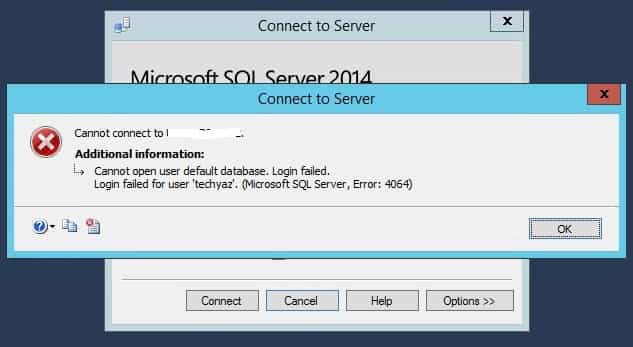
Today, I got Microsoft SQL Server error 4064 while I was trying to connect to my SQL Server Instance using my login id techyaz. Read this article to fix this SQL Server error 4064. The error text of this error is “Cannot open user default database. Login failed.” This solution is apply to both SQL logins as well as windows logins. The error details are given below:
Cannot open user default database. Login failed.
Login failed for user “techyaz”. (Microsoft SQL Server, Error: 4064)
Related Articles:
- Fix 15170: Logins owns one or more Agent Jobs
- How to fix error 15434: Could not drop login as the user is currently logged in
- Error Code 15174: Login ‘xxxyyy’ Owns one or more databases(s). Change the owner of database(s) before dropping the login.
Microsoft SQL Server Error 4064
SQL Server Error 4064 generates because the default database set for your login has been dropped or becomes inaccessible by any reason. Whenever we create any SQL Server or windows login, we mention a default database. If you don’t mention any database during login creation then SQL Server set default database as master database.
You might also get this error on secondary replica of AlwaysON Availability Group because that database on secondary replica remains into inaccessible mode. So, don’t do any changes if you are getting this error in AOAG environment. You just need to connect to the primary replica because it is designed to keep secondary replica database into inaccessible mode.
Here, we had a database named “TechyazDB” that was set as default database for my login techyaz. This database was dropped by someone and when I tried to connect to SQL Server, it gave me below Microsoft SQL Server error 4064 because database was not there on SQL Server instance. Below is the screenshot of Microsoft SQL Server error 4064 that is clearly saying “Cannot open user default database. Login failed.”
Solution
There are two solutions to fix this issue. Either make your database online by restoring it or by anyway or change the default database of this login to master or any other database that is online on the instance. As you cannot bring your database online because you can’t connect to the instance so your first option is to connect to the instance.
If you have other DBAs or sysadmin accounts, you can connect using those accounts to SQL Server and change the default database for your login to master and then you can make database connection.
Let’s consider only you are the admin on this instance so how will you fix it. Follow below steps:
Launch SSMS and click on connect to database engine. Enter server name and login details for which you are facing issue.

Now click on Options tab of above image. You will get below screenshot.

You can see Connect to Database option is set to default database that was TechyazDB for this login. Now we need to change this default to any accessible database. It will not allow you to select from drop down. If you will browse the database it will give you same error. You need to enter or type the database name. I typed as master database as shown in below image.

Now click on connect button to establish the database connection. This time you can connect to your SQL Server instance.
Now, it’s your wish whether you want to bring your database online first or you want to change the default database of your login. Generally, if database has been dropped as a planned activity then you need to change the default database of your login. Read below section to know how to change default database of your login.
Change default database of Login Name
There are two options to change the default database set to any login. One is by using T-SQL code and another is by using GUI. Let’s start with GUI method.
As you have connected to your SQL Server Instance. Expand Security Folder followed by Logins folder. Now double click on your login name or right click on login and choose properties tab. You will get below property window.

You can see default database is showing as blank. This was the main issue because your database has dropped from the instance. Now change it to master database and click on OK button to proceed.

Second method is T-SQL method. Run below ALTER command to set the default database of your login.
--Change techyaz with your login name.
ALTER LOGIN [techyaz] WITH DEFAULT_DATABASE = master
Below is the screenshot of this command.

Related Articles:
- Fix Error 15173: Revoke the permission(s) before dropping the login
- How to fix error 15141: The Server Principal owns one or more endpoints.
- How to fix error 15138 and Error 3729
Here, I have explained step by step solution to fix SQL Server error 4064: Cannot open user default database. I hope you like this article. Please follow our Facebook page and Twitter handle to get latest updates.
- Author
- Recent Posts

I am working as a Technical Architect in one of the top IT consulting firm. I have expertise on all versions of SQL Server since SQL Server 2000. I have lead multiple SQL Server projects like consolidation, upgrades, migrations, HA & DR. I love to share my knowledge. You can contact me on my social accounts for any consulting work.
Summary
Article Name
Fix Error 4064: Cannot open user default database. Login failed.
Description
Today, I got this error 4064 while I was trying to connect to my SQL Server Instance using my login id techyaz. Read this article to fix this error. This solution is apply to both SQL logins as well as windows logins.
Author
Manvendra Deo Singh
Publisher Name
www.techyaz.com
I have received following question nearly 10 times in last week though emails. Many users have received following error while connecting to the database. This error happens when database is dropped for which is default for some of the database user. When user try to login and their default database is dropped following error shows up.
Cannot open user default database. Login failed.
Login failed for user ‘UserName’. (Microsoft SQL Server, Error: 4064)

The fix for this problem is very simple.
Fix/Workaround/Solution:
First click on Option>> Button of “Connect to Server” Prompt.

Now change the connect to database to any existing database on your server like master or msdb.

Now click on connect and it will successfully log you in. Once you login in the system run following statement for your username and it should fix your problem. Make sure to replace [test] with your username and master with yourdatabase name.
ALTER LOGIN [test] WITH DEFAULT_DATABASE = master
GO

Watch SQL in Sixty Seconds video to Resolve Connection Error:
Reference : Pinal Dave (http://www.SQLAuthority.com)
Related Posts
- Remove From My Forums
-
Question
-
Hi,
SQL Server 2005 installed on my computer. i was trying to make a login page with VS.2005 pro. But i got some errors on Website Administration Tool. Whatsoever, i registered a database (aspnetdb) . Then, i think i made my default database to aspnetdb. Something went wrong and i decided to delete aspnetdb and start whole procces from the begining and i did it. AAANDD WHOOOLA. I got this error:
Cannot Open User Default Database, Login Failed
Microsoft SQL Server, Error 4064
Is there anyway to change my default database to «master» again? Or simply will i uninstall all the sql server 2005?
(ıf you say uninstall, answer this:: Will be any problem on VS 2005? I can’t uninstall both 🙂 )
Answers
-
You can resolve this by specifying another database you want to connect to; master, for example. Then you can reset the login’s default database. With sqlcmd, you can do the following:
sqlcmd -d master -U sa -P mypassword
and then:
alter login sa with default_database = master
Thanks
Laurentiu -
I see now that you mentioned that you don’t know sa’s password.
sa was just provided as an example, for this operation you don’t necessarily need to use sa to connect. You just need to connect with the login for which you’ve received this error. If you use Windows authentication, then you should connect like this:
sqlcmd -E -d master
then issue the ALTER LOGIN statement.
It’s the «-d master» that’s the key here — it specifies that the connection should be made to the master database, so the login won’t try to connect to the database that no longer exists.
Hope this makes the solution clearer. If you still have problems with resetting the default database, let us know.
Thanks
Laurentiu -
I just ran into the same issue after I dropped a database that was mistakenly set to be the default database. I found the information posted here pointed me in the right direction, but it didn’t really help much because I couldn’t figure out which user should be modified when SQL Server 2005 is configured to use Windows authentication (e.g. trusted connections) exclusively. After a lot of digging through SQL Server Books Online, executing various stored procedures to dump login information, and experimentation, I finally stumbled on the right combination.
C:> sqlcmd -E -d master
1> ALTER LOGIN [BUILTINAdministrators] WITH DEFAULT_DATABASE=master
2> GO
I show the prompts above so you can see where to type the commands and the expected results (e.g. SQLCMD does not output any information or error messages).
-
You should determine what is the login you are connecting at, then login as administrator and issue an ALTER LOGIN statement to set the default database for that login to master. See Books Online for additional information on using the ALTER LOGIN statement.
Thanks
Laurentiu -
I had the same problem, I was using SQL Server 2005 and deleted the database to which my default Windows Authenticated login maps. (I had my sa password but it would not let me log in using it saying that account was not assocaited with a trusted connection.)
Anyway, when I tried to connect to the server via management studio it also told me it could not connect because it can not open the default database. So at first I also thought I could not fix this since I could not log in.
After reading this post, here is how I got around it:
Run SQL Server Management Studio, and on the initial «Connect To Server» dialog box, click «Cancel». Now under your regsitered server list, find the local server, right click on it and select properties. Go to the connection properties tab and enter «master» for «Connect to Database:». Now save it, and voila, you can connect again!
When I want to connect to SQL Server 2008, I get this message:
Cannot connect to server.
Additional Information: Cannot open user default database. Login failed. Login fail for user ‘sa’. (Microsoft SQL Server. Error:4064)
How do I resolve this error?

asked Apr 4, 2012 at 11:21

0
This error (Microsoft SQL Server.Error:4064) occurs when the database which is dropped is default for some database user.
When the user tries to login and their default database is dropped the error shows up.
Cannot open user default database. Login failed. Login failed for user
‘UserName’. (Microsoft SQL Server, Error: 4064)
The way to resolve this is given here, summarized below.
The solution to log on is:
- From the Connect to Server dialog, click Options
- Change value of Connect to database: to any valid database on the server
The permanent solution to fix the server is to run SQL like:
ALTER LOGIN [test] WITH DEFAULT_DATABASE = master
GO

Abacus
2,0011 gold badge18 silver badges22 bronze badges
answered Apr 4, 2012 at 11:52

painotpipainotpi
6,8521 gold badge36 silver badges69 bronze badges
3
In my case this was due to a user being a member of multiple groups, each group having its own login. All groups’ logins need to have their default database set to a database accessible to the user.
Other possible problems are listed at https://support.microsoft.com/en-us/kb/307864.
You can set each login with an invalid default database to have a default database of master (accessible to all logins):
alter login [loginname] with DEFAULT_DATABASE = master
answered Jun 23, 2015 at 7:21

Simon DSimon D
4,0805 gold badges39 silver badges47 bronze badges
The user default database is unavailable at the time of connection so that this error message will popup .SO check which server you tagged to that particular user to access whether it is online or offline mode.
answered Aug 23, 2016 at 4:58

BhanuBhanu
31 silver badge
Summary: This blog outlines the causes of ‘SQL database error: cannot open user default database.’ The error doesn’t let you connect to the server and access the database. The blog further discusses various troubleshooting methods to fix this error. You can also try using Stellar Repair for MS SQL software to restore the database and recover its data.

Contents
- What Causes ‘Cannot Open User Default Database’ Error?
- How to Fix the ‘SQL Database Error: Cannot Open User Default Database’?
- Conclusion
Whenever a user establishes a database connection on SQL server, then the SQL database also creates a default database. If the user tries to connect to a computer which runs MS SQL but fails to specify login database while establishing the connection, then the computer uses the default database. However, sometimes, the default database is also not available? The MS SQL server is unable to establish connectivity in the absence of a default database, and the user experiences ‘SQL Database Error: Cannot Open User Default Database’.
Cannot connect to ServerName
Additional Information
Cannot open user default database. Login failed.
Login failed for user ‘UserName’. (Microsoft SQL Server, Error: 4064)
 Figure – Cannot Connect to Server. Unable to Open User Default Database.
What Causes ‘Cannot Open User Default Database’ Error?
Following are some possible reasons causing the error:
- The Login account is a member of multiple groups, and default database for one of the user is not connected when the user establishes a connection.
- The database is in Suspect Mode or is part of Database Mirror.
- DB ‘no longer exists’, ‘is offline’, ‘has been detached’, or ‘set to Restricted_User state’.
- DB is in single user mode and the only available connection to the DB is already being used by some other process.
- The Login account is not mapped to the user or access is denied.
How to Fix the ‘SQL Database Error: Cannot Open User Default Database’?
Try implementing the following workarounds to fix the ‘cannot open user default database error 4064’:
Workaround 1 – Connect to SQL Instance using an Available Database
Specify a valid (and an available) database in the connection string.
Workaround 2 – Change the Default User Database
If the default database is not available, try to log in with the user account who can modify logins and change the user’s default database with the one which is available during the time of connection. For changing the default db:
- Use sqlcmd utility for SQL Server 2005, 2008 and later versions
- Use osql utility for SQL Server 2000 and SQL Server 7.0
Steps to Change User’s Default Database in SQL Server 2005, 2008 and later versions
To solve ‘cannot open user default database login failed SQL 2008’ error, do the following:
Step 1: For Windows authentication with MS SQL to connect to the instance, type the following in command prompt:
sqlcmd E -S InstanceName d master
Step 2: For SQL server authentication with MSSQL to connect to the instance, type the following in command prompt:
sqlcmd -S InstanceName -d master -U SQLLogin -P Password
Note: Name of the Placeholders are –
- InstanceName – Name of SQL server 2005 instance to connect with
- SQLLogin – SQL server login for which default database is dropped
- Password – SQL Server Login Password
- For SQLCMD prompt, type “ALTER LOGIN SQLLogin WITH DEFAULT_DATABASE = AvailDBName” and press Enter, AvailableDBName is a placeholder for the name of the existing database that is accessed by SQL Server login in the instance
- Type GO at SQLCMD prompt followed by Enter button
Steps to Change User’s Default Database in SQL Server 2000 and SQL Server 7.0
Follow these steps in SQL Server 2000 to fix the ‘cannot open user default database login failed’ problem:
Step 1: Go to the Command prompt and type “C:>osql -E -d master” followed by Enter.
Step 2: At the OSQL prompt, type “1>sp_defaultdb ‘user’s_login, “master” followed by Enter.
Step 3: For the second prompt, type “2>go” and click on Go button.
Workaround 3 – Deploy a Professional SQL Database Recovery Software
If the above workarounds fail to fix the error, use a professional software for SQL database recovery like Stellar Repair for MS SQL.
The software is not version-specific, meaning the same software can be used to resolve the ‘cannot open user default database login failed’ issue in SQL 2008, 2012, 2014, 2016, and 2019 versions. Secondly, the software can fix the corruption errors where the built-in utilities fail.
Perform the following steps to resolve the error after downloading and installing the software:
Step 1: Launch Stellar Repair for MS SQL software. When the main software interface window opens, select the SQL database which is affected.

Step 2: Click ‘Repair’ to scan and repair the corrupt database.
Step 3: Verify the content from the preview as available on the screen.
Step 4: Save the repaired database on the same or different location. There are four different formats to save the repaired database.

After completion of these steps, the user will be able to access the database.
Conclusion
SQL Database error “Cannot open user default database” occurs when the user does not specify the database for connection and the default database is not available. Resolve this error by establishing connection to an instance of SQL Server. In most cases, the connectivity is not available, the SQL server remains inaccessible thereby increasing database downtime.
Prevent database downtime by using a reliable SQL database repair tool like Stellar Repair for MS SQL software. It helps repair SQL db (.MDF/.NDF) files to get database up and running in no time.
About The Author
Priyanka
Priyanka is a technology expert working for key technology domains that revolve around Data Recovery and related software’s. She got expertise on related subjects like SQL Database, Access Database, QuickBooks, and Microsoft Excel. Loves to write on different technology and data recovery subjects on regular basis. Technology freak who always found exploring neo-tech subjects, when not writing, research is something that keeps her going in life.
Best Selling Products

Stellar Repair for MS SQL
Stellar Repair for MS SQL is an enterpri
Read More

Stellar Toolkit for MS SQL
3-in-1 software package, recommended by
Read More

Stellar Converter for Database
Stellar Converter for Database is an eff
Read More

Stellar Repair for Access
Powerful tool, widely trusted by users &
Read More
I was trying to connect to the database when I received this error – Cannot open user default database.Login failed. Login failed for user ‘UserName’. (Microsoft SQL Server, Error: 4064)
My authentication mode is SQL Server and the user is a part of the Active Directory. AdventureWorks is set as a default database. If someone has an idea on how to fix error code 4064 login failed, then please let me know.

The error usually come when the database is no longer exists or somehow anyone dropped the default database or has been getting detached. As a result, users will get SQL Server Error 4064 Login Failed message.
Note: The user can take the help of manual methods(discussed below) to resolve this problem. But in case if you want a Quick solution to recover your crucial SQL database objects. User can take the help of SQL Database Recovery Software.
Download Purchase Now
Therefore, in the upcoming section, we are going to explain efficient technique to fix this technical issue of Microsoft SQL Server.
SQL Server Error 4064 Login Failed – Potential Reasons
It is evident from above that there is the connection issue with Default database. It means either the database is invalid or lacking connect permission. Multiple reasons are responsible for this error code 4064. Here, we mentioned all of them.
- It might be possible that the login account of SQL Server is associate with multiple groups, and default database for one of the user is not connected while a user login to the account.
- Database has Suspect, Offline or Detached state.
- It can be possible that SQL database is in a single user mode where other connection is already being used.
- The login account is not getting mapped to a user.
- In case if the database is a part of database mirror.
- If the database is offline or in emergency state.
Workarounds to Fix “Cannot Open User Default Database.Login Failed – Error 4064” Issue
Before performing this method, you must specify a valid database in the connection string. To prevent an error when the user’s default database is missing or unavailable, log in as a user who can modify all the logins. After that, change the user’s default database with the current database. Let us have a look how to do this:
Method #1: Resolve Error 4064 Login Failed in SQL Server 2005 & Later Versions
Users can use sqlcmd utility to change a default database in Microsoft SQL Server 2005. For this, the user need to follow the below steps.
Step 1 – Click the Start icon, choose Run, type cmd, and then press Enter.
Step 2 – Users can use any of the workarounds, depending on the type of authentication that MS SQL Server login uses:
- If the SQL Server login uses Windows authentication to connect with an instance, execute the below command in prompt, and press Enter.
sqlcmd E -S InstanceName d master
- If the SQL Server login uses SQL Server authentication to connect with the Database engine, then input the following command in the prompt.
sqlcmd -S InstanceName -d master -U SQLLogin -P Password
You have noticed that InstanceName is the placeholder for the name of the SQL Server 2005 instance to which you are going to connect. MS SQLLogin is equivalent to the login whose database is missed or deleted and Password is a placeholder for the password associated with the login name.
Step 3 – For the sqlcmd prompt, type the given below command, and then press Enter:
ALTER LOGIN SQLLogin WITH DEFAULT_DATABASE = AvailDBName
Note: AvailDBName is the placeholder for the name of an existing database that can be accessed by SQL Server login in the instance.
Step 4 – In the sqlcmd prompt, type GO inside the field and then click on Enter button.
Method #2: SQL Server 2000 & SQL Server 7.0
Users can avail the osql utility to change a default database in Microsoft SQL Server 2000 and SQL Server 7.0. Here we have mentioned the steps.
Step 1. Now, go to the command prompt, enter the following cmdlet and then, press Enter key.
C:>osql -E -d master
Step 2. At the osql command prompt, type the following command and press Enter.
1>sp_defaultdb 'user's_login', 'master'
Step 3. At the second cmd prompt, type the following and then click the Go button.
2>go
Final Words
Users may encounter an error – Cannot open user default database.login failed sql server, when the SQL Server is unable to find the default database. To troubleshoot this situation, we discussed the reason behind this error and the workarounds to resolve error code 4064 in SQL Server 2019 / 2017 / 2016 / 2014 / 2012 / 2008 / 2005 and below versions.
SQL server error 4064 triggers while connecting to Microsoft SQL Server. This generally happens when the default database is not available to complete the connection requests.
As a part of our Server Management Services, we help our Customers to fix SQL related errors regularly.
Let us today discuss the possible causes and fixes for this error.
What is SQL server error 4064?
Each user has a default database. It by default uses this database for login if no other database is explicitly specified. But, what happens if the default database is unavailable at the time of the connection?
This normally triggers the 4064 error message with the message below:

What are the causes of SQL server error 4064?
Microsoft SQL Error 4064 occurs when the default database for a user is dropped. Thus when the user tries to log in, this error shows up. This error will occur whenever the user’s default database is offline as well.
In general, the error 4064 triggers when the user default database is unavailable at the time of connection. It may happen when the database:
1. Is in suspect mode.
2. No longer exists.
3. Is in single-user mode and the only available connection is already being used by someone or something else.
4. Has been detached.
5. Has been set to the RESTRICTED_USER state.
6. Is offline.
7. Is set to emergency status.
8. Does not have the login account mapped to a user, or the user has been denied access.
9. Is part of a database mirror.
Additionally, this may also happen when the login account is a member of multiple groups, and the default database for one of those groups is unavailable at the time of connection.
How to fix SQL server error 4064?
To resolve this error message, we need to specify a valid, available database in the connection string. To prevent the error when the user’s default database is unavailable, log on as a user who can modify logins. Then, change the user’s default database to a database that’s currently available for a connection.
We can use the sqlcmd utility to change the default database. To do this, follow these steps:
- Click Start, click Run, type cmd, and then press ENTER.
- Use one of the following methods, depending on the kind of authentication that the SQL Server login uses:
* If the SQL Server login uses Microsoft Windows authentication to connect to the instance, type the following at the command prompt, and then press ENTER:sqlcmd E -S InstanceName d master* If the SQL Server login uses SQL Server authentication to connect to the instance, type the following at the command prompt, and then press ENTER:
sqlcmd -S InstanceName -d master -U SQLLogin -P Password
Replace the InstanceName in the command above with the name of the SQL Server instance to which you are connecting. Likewise, replace SQLLogin with the SQL Server login whose default database has been dropped and Password with the SQL Server login password.
- At the sqlcmd prompt, type the following, and then press ENTER:ALTER LOGIN SQLLogin WITH DEFAULT_DATABASE = AvailDBName
Replace AvailDBName with the name of the existing database that can be accessed by the SQL Server login in the instance.
- At the sqlcmd prompt, type GO, and then press ENTER.
Using SQL Server Management Studio
We can perform this same task via SQL Server Management Studio as well. The steps to perform it include:
- Launch SSMS and click on connect to database engine. Enter server name and login details for which you are facing issue.
- Now click on Options tab.
- You can see Connect to Database option is set to default database.
- Now we need to change this default to any accessible database. You need to enter or type the database name.
- Now click on connect button to establish the database connection. This time you can connect to your SQL Server instance.
- You can bring your database online first or can change the default database for the login. If the database is dropped you need to change the default database of your login.
Change default database of Login Name
Once we have found the database, next step would be to change the default database set for the login. There are two options to change the default database set to any login. One is by using T-SQL code and another is by using GUI. Let’s start with GUI method.
1. Expand Security Folder followed by Logins folder. Now double click on your login name or right click on login and choose properties tab.
2. You can see default database is showing as blank. This was the main issue because your database has dropped from the instance. Now change it to master database and click on OK button to proceed.
3. Now change the connect to database to any existing database on your server like master or msdb
We can use the Alter command to set the default database for the login using the T-SQL method.
ALTER LOGIN [loginname] WITH DEFAULT_DATABASE = master
Replace loginname with your login name.
[Need any further assistance in fixing SQL errors? – We’re available 24*7]
Conclusion
In short, the SQL server error 4064 triggers while connecting to Microsoft SQL Server. This generally happens when the default database is not available to complete the connection requests. Today, we saw how our Support Engineers fix this error.
PREVENT YOUR SERVER FROM CRASHING!
Never again lose customers to poor server speed! Let us help you.
Our server experts will monitor & maintain your server 24/7 so that it remains lightning fast and secure.
GET STARTED
var google_conversion_label = «owonCMyG5nEQ0aD71QM»;