Want to see this guide in your language:
 Français
  Deutsch
  Español
  Português
  عربي
عربي
FAQ
Q: How do I install Plutonium T6 / Black Ops 2 game files?
A: Simply follow this step by step install guide: https://plutonium.pw/docs/install/#t6
Q: How do I open the console?
A: The console can be opened with:
^on QWERTZ.~on QWERTY (US).'on QWERTY (UK).- the key above tab on most keyboard.
Q: How do I unlock all (max rank)?
A: Open the console while in the menu (not in-game) and type unlockall and then hit the enter key.
Q: Can I select my steam copy of Black Ops 2 as the game folder?
A: Yes, you can use your steam install of Black Ops 2, however if you don’t have the DLC on steam you will have to install them, and we have a guide here explaining how to.
Q: How can I re-open the server browser?
A: Press F10 or Home.
Q: Can I use a SKIDROW or NOSTEAM copy of the game?
A: No you cannot! These two repacks come with outdated and incomplete files making them incompatible with Plutonium. Please follow our install guide which outlines how to download a clean up to date copy of the game: https://plutonium.pw/docs/install/#t6
Q: Can I play against bots?
A: To play with bots and rank up you must play on a dedicated server that has bots on it, either join an existing one or host your own.
Q: Can my friends join custom matches?
A: Yes, follow this guide.
Q: How can I join a password protected server?
A: By setting the password via the console with password followed by your passwort (eg.: password swordfish, password "A password with a space").
Q: How do I host a server?
A: Our PlutoniumT6 server guide.
Q: Can I use PlutoT6 to play over LAN, fully offline?
A: No. Currently, we do not support fully offline play.
Q: Does PlutoniumT6 contain a virus?
A: No it does not, it most likely is a false positive from your antivirus. However like any and all software downloads you should use only trustworthy sources and not download random dlls off of the internet.
Q: How can I add a folder exclusion to Plutonium to prevent antivirus detections?
A: Follow this guide: https://plutonium.pw/docs/antivirus/
Q: How can i change my in-game name?
A: Click your avatar on the top right -> edit profile -> change username.
COMMON ISSUES
Error: It appears you have selected an invalid game folder

Fix: You selected the wrong game directory in the Plutonium launcher. You must select your Black Ops 2 game folder. If you do not have the base game installed follow this guide https://plutonium.pw/docs/install/#t6
Error: Error during initialization: Missing config file ‘default_mp.cfg’
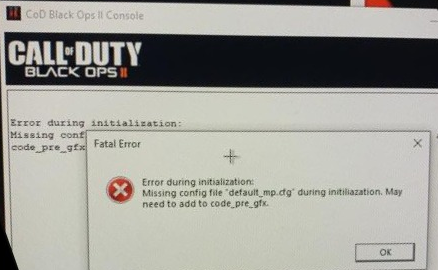
Fix: This is caused by a broken or incomplete base game (Black Ops 2), if you own the game on steam use steam to verify the game files, doing so will repair it and fix the error. If you do not own it follow this guide to repair your installation https://plutonium.pw/docs/repair/
Error: Fastfile for zone is corrupt or unreadable / image/sound not found / similar error messages
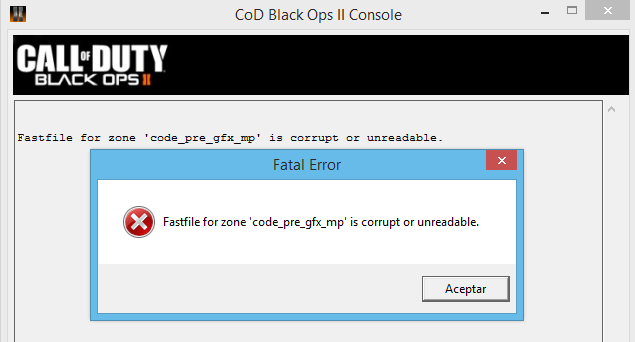
Fix: Fix is same as the above error^^.
Error: Piry.exe stuck on 0 / errors
Fix: Don’t use Piry.exe it not longer works, instead follow the instructions in the install guide:
https://plutonium.pw/docs/install/#t6
Error: Unable to refresh server list
Fix: These are all likely firewall problems, ensure Plutonium T6 (both launcher and game) is allowed through your Windows firewall, ensure your ISP doesn’t have a router Firewall such as Xfinity. https://forums.xfinity.com/t5/Email-Web-Browsing/Unblock-all-websites/m-p/3303661/highlight/true#M215393
https://internet.xfinity.com/more/my-services go there and disable the xfi advanced security.
Error: Could not authenticate to Plutonium: Unknown error or Could not authenticate to Plutonium: An error occured while connecting to the server
Fix: Your DNS provider (likely your ISP) is filtering requests. Change your computers DNS servers to something that does not filter requests, such as 1.1.1.1 — Follow this guide if you don’t know how to change your DNS: https://www.windowscentral.com/how-change-your-pcs-dns-settings-windows-10. If this doesn’t work, use a VPN.
Error: I can’t see (all) servers in the server list
Cause : Game in offline mode
Fix: Don’t start the game in offline mode.
Fix: Make sure your 3rd party Firewall does not block PlutoT6.
Cause: Miss behaving network equipment
Fix: Your router might be too weak to handle all the traffic and drops packages. Try a firmware upgrade.
Fix: Your router does detect the network traffic from the server list as attempted DDoS attack and blocks it. Look for a setting to turn this off.
Fix: You are living in a «free» country and your government blocks certain countries
Error: The procedure entry point AddDllDirectory could not be located in the dynamic link library KERNEL32.dll
Fix: Running an outdated Windows install is a bad idea, running an outdated Windows version that is so badly cracked you can’t even update it is even worse. Install all Windows updates.
Error: The code execution cannot proceed because D3DCompiler_47.dll was not found. Reinstalling the program may fix this problem.
Fix: You are missing redists the game needs to run. To fix this download and run the following redist installer then restart your pc and it will be fixed: https://github.com/ChxseH/Redist-Installer/releases/download/latest/Redist-Installer.bat
Error: The code execution cannot proceed because D3DCompiler_43.dll was not found. Reinstalling the program may fix this problem.
Fix: Same as above ^
Error: The code execution cannot proceed because MSVCP140.dll was not found. Reinstalling the program may fix this problem.

Fix: Same as above ^
Error: The code execution cannot proceed because XINPUT1_3.dll was not found. Reinstalling the program may fix this problem.
Fix: Same as above ^
Error: The code execution cannot proceed because XINPUT1_4.dll was not found. Reinstalling the program may fix this problem.
Fix: Pluto doesn’t support Windows 7, upgrade to Windows 10.
Error: PlutoT6 crashes when a fifth player connects on Origins
Fix: Origins doesn’t support more than 4 players and when a 5th player joins it crashes with an out of bound exception in the gsc.
Error: UI ERROR 5XXXX (eg 58339)
Fix: Your stats file is corrupted, either use resetStats or delete your dw folder inside %localappdata%Plutoniumstoragedemonware18397. ALL PROGRESS WILL BE LOST!
Error: UI Error 71562
Fix: Uninstall the base game and re-install making sure to follow our install guide. This error is caused by broken or incomplete game files.
Error: EXE_CONFIGSTRINGMISMATCH
Fix: You are either missing some DLC files or you suck at pirating, either way download some clean files.
Error: EXE_CLIENT_FIELD_MISMATCH
Fix: This error is a known bug that is caused by a player trying to join a custom game hosted on easy mode Buried (ZM). Simply have the host set the difficulty to Original and you should be good to go.
Error: Checkboard loading screens
Fix: You’re either missing the DLCs or your basegame’s corrupted, follow this guide.
Error: Waiting for more players…
Fix: Open the console and type xpartygo (This will force start the game)
Error: Could not load default asset » for asset type ‘ddl’

Fix: If you receive this error it means you are using an outdated version of the game (SKIDROW/NOSTEAM) or your game files are corrupted. The only solution is to delete the game files and reinstall using clean files.
Error: Can’t find any games through match-making.
Fix: This is not a error, Pluto does not support match-making use the server browser to join a server.
Error: After clicking ‘Play’ or ‘Setup’ the launcher closes and nothing happens
Fix: You may be missing a required runtime, please download and run the Redist Installer. If this does not help, exclude your Plutonium installation from Windows Defender’s scanning by following this guide.
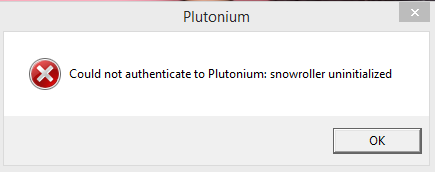
Error: Could not authenticate to Plutonium: snowroller uninitialized
OR
Error: Handshake: certificate verify failed
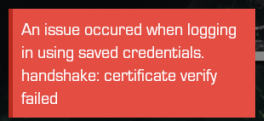
Fix: This error occurs when you are trying to launch an outdated version of Plutonium. However, this should not happen if you are launching the game via Plutonium.exe which checks for updates on each launch. So if you are starting the launcher via plutonium-launcher-win32.exe please do not. Launch via plutonium.exe
Error: Black screen when starting the game but can hear the menu music
Fix: This issue can be caused by outdated GPU drivers, use Nvidia GeForce Experience to update your drivers or AMD equivalent. Restart your PC then try launching Plutonium again, the issue should now be resolved. If this doesn’t work, r_fullscreen 0 followed by vid_restart in the external game console window should hopefully resolve the issue.
Error: Direct X encountered an unrecoverable error

Fix: Caused generally by a broken direct x install, the following video can be followed to reinstall Direct X: https://www.youtube.com/watch?v=FPPzri5pGkw
Error: Extremely Low FPS (Gaming Laptop)
Fix: This documentation page
Error: EXE_CLIENT_FIELD_MISMATCH — Zombies Custom games

Fix: This error occurs when the host tweaks the custom game settings and then a friend joins who hadn’t matched their settings. E.g. Host sets difficulty to easy, if the friend doesn’t set their difficulty to easy before connecting they will mismatch as by default the games difficulty is original and that won’t match the host in this example.
Error: Your game is outdated (rxxxx against rxxxx).
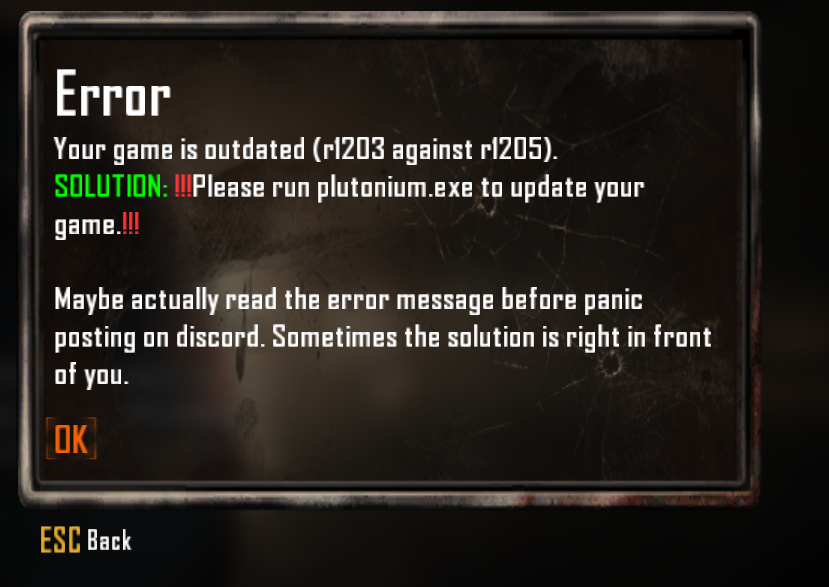
Fix: This is caused when your client is out of date and you try to join a server. Generally this is caused by you pinning the launcher to your taskbar while the launcher is open. This pins the wrong exe and skips the auto update process allowing your client to get outdated. Please make sure you instead always launch from Plutonium.exe you can also simply pin this exe to your taskbar by storing it in a safe place like your game folder then right clicking the exe -> pin to taskbar. If you can’t find Plutonium.exe you can download a fresh copy here: https://cdn.plutonium.pw/updater/plutonium.exe
Still not found your issue?
Make a new post in: https://forum.plutonium.pw/category/9/bo2-client-support

-
#3
Are you using Skidrow or nosTeam?
«skidrow» i download again files fitgirl and same error:
Download the game from Drive — zone & sound 12GB LINK REMOVED BY MOD — «Fitgirl»
Last edited by a moderator: Dec 22, 2018
-
#13
Send an updated screenshot of your game folder.
i rename folder Call of [email protected] Black Ops II To Call of Duty — Black Ops II and now working fine xd
thanks for nothing %^^%
-

Screenshot_1.png
185.3 KB
· Views: 952
Last edited: Dec 25, 2018

Homer
Secondary Administrator
-
#19
Seems t6rceflibcef.dll didn’t copy over your zip. Make sure you extract them all and overwrite them
libcef.dll needs to there or your game won’t start.
Информация о файле
Цитата
Plutonium предлагает уникальные функции для таких игр как Black Ops, Black Ops 2, Modern Warfare 3 и World at War, дополненный выделенными серверами, поддержкой модов и многим другим. Вся модификация предоставляется бесплатно, мы лишь просим вас наслаждаться игрой и относиться к нам с уважением.
Plutonium — это проект / хобби, которым наша команда занимается в свободное от работы или учебы время. Мы используем его как ценный инструмент, который помогает нам учиться и приобретать опыт в обратном проектировании, инфраструктуре, архитектуре, программировании и в ряде других информационных тем. В глубине души мы очень любим возиться с нашими старыми любимыми играми и доводить их до новых пределов.
~ Plutonium Team
Для запуска Plutonium нужны, установленная игра (поддерживаются игры Black Ops, Black Ops 2, Modern Warfare 3 и World at War) или образ игры, лаунчер Plutonium и регистрация на сайте Plutonium.
Установка лаунчера Plutonium: скачиваем файл (plutonium.exe) отсюда или с официального сайта, сохраняем допустим на рабочем столе и запускаем.
Появится окошко лаунчера, который проверит обновления и сразу загрузит актуальную версию.

После проверки всех обновлений появится окошко с регистрацией.
Далее переходим на официальный сайт и регистрируемся. После регистрации вводим данные аккаунта в окошко лаунчера, Username (это и будет игровой Ник) и пароль. После входа появится меню игр.
T4, T5, T6, IW5 — что это означает?
Короче говоря, это относятся к кодовому имени, на котором основана каждая игра во время ее разработки.
- T4 — World at War
- T5 — Black Ops I
- T6 — Black Ops II
- IW5 — Modern Warfare 3
Они основаны на том, кто разработал игру и какой номер игры был для этой студии. Например, T4 была четвертой игрой Treyarch Call Of Duty, а IW5 — пятой игрой Infinity Ward.
Установка Plutonium для World at War — T4:
После запуска лаунчера, выбираем T4 — Multiplayer или T4 — Co-Op/ Zombies и нажимаем Setup, далее нужно указать путь где установлена игра.
Есть 2 режима запуска игры, зеленая кнопка PLAY означает что вам доступны сервера в интернете и включен анти-чит, а если вы нажмете на правую половинку кнопки PLAY, то вы сможете переключится на режим PLAY IN LAN MODE, где вам будут доступны только локальные сервера и выключен анти-чит.
Если вы указали неверный путь то появится ошибка.
Если игра запустилась, то вам нужно будет заново настроить разрешение экрана и прочие настройки для комфортной игры.
Карты и модификации для «Co-Op / Zombies» вместо стандартного пути «%localappdata%ActivisionCoDWaWmods«, теперь загружаются в директорию Plutonium «%localappdata%Plutoniumstoraget4mods» — наберите в командной строке.
Если вы играете через Plutonium, то вам не нужно устанавливать модификацию T4M, все основные функции он поддерживает.
Установка Plutonium для Black Ops — T5:
Установка Plutonium для Black Ops 2 — T6:
Установка Plutonium для Modern Warfare 3 — IW5:
Что нового в версии r3327
Размещено 26 декабря, 2022
- Консольная команда мертвой зоны контроллера больше не защищена от читов
- Функция FastDL исправлена после появления ошибки в r3321
The latest Call of Duty fan project is back with upgraded features and a cleaner user interface. Plutonium dubs itself as the Black Ops 2 Remastered that fans have been asking for.
Here it is straight from their website:
“Building on many years of research and development, Plutonium delivers a solid and refreshing gaming experience like none other. Experience the best CoD has to offer, with a grain of nostalgia!”
The Plutonium project launched in 2017 and has been growing strong since. It has had a whole 3 years of research and development to bring it to what it is today.
We must say it’s pretty epic to be able to go back and play Black Ops 2 again without the hackers. If you want some of that nostalgia back too. Check out our guide on how to download and play Black Ops 2 Plutonium.
Plus, the great thing about downloading Plutonium is you get a free copy of Black Ops 2.
If you’re interested in reliving Modern Warfare 2. Check out our guide on how to download IW4x and play MW2 again hacker-free.
We also have a guide on how to download MW3 Plutonium, that you should check out while you’re here.
- Step 1: Download the plutonium.exe file by clicking the button below.
- Step 2: Head to the official Plutonium site and download the torrent file. You should find the link to download it under the section: Installing the base game(BO2), Step 3.
- Step 3: Download BitTorrent, you will need it to download the game using the torrent file you downloaded in step 2.
If you’re unfamiliar with BitTorrent, below is an image of the user interface. Simply click on File, Add Torrent, then look for the torrent you downloaded, it should be called “pluto_t6_full_game.torrent”. After you select the file, you will be given prompts to create a new folder for your file. Create a folder called Plutonium in your desired drive and select ok. The game will begin downloading.
Keep in mind that the game is 13GB so you will need some space on your drive.
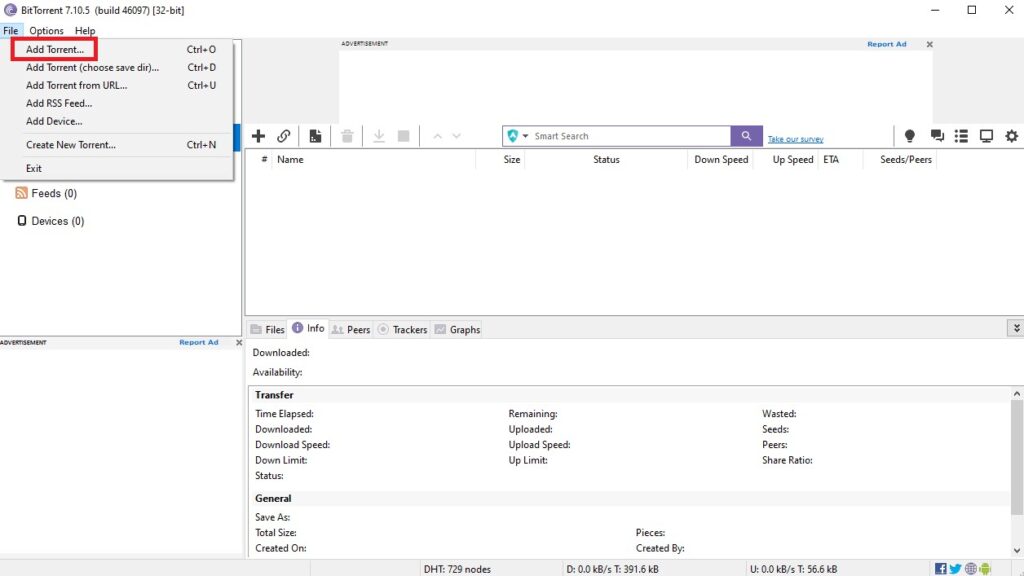
Once it is downloaded, BitTorrent will say “seeding” in the status bar. Don’t mind this, the game is now downloaded and can be found in the folder you created.
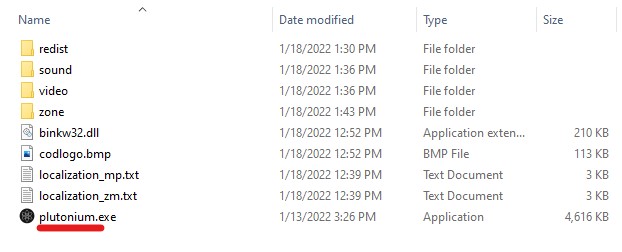
- Step 4: Now place the “plutonium.exe” file that you downloaded in step 1 and place it into your Plutonium game folder.
- Step 5: After you download the game, you need to create an account on Plutonium’s official forums. You will need these account details to sign in when you start playing the game.
To play the game double click this and run the launcher. Follow the prompts, sign in using the credentials you used when registering on the Plutonium forums above. There may be an update for the game that shouldn’t take too long.
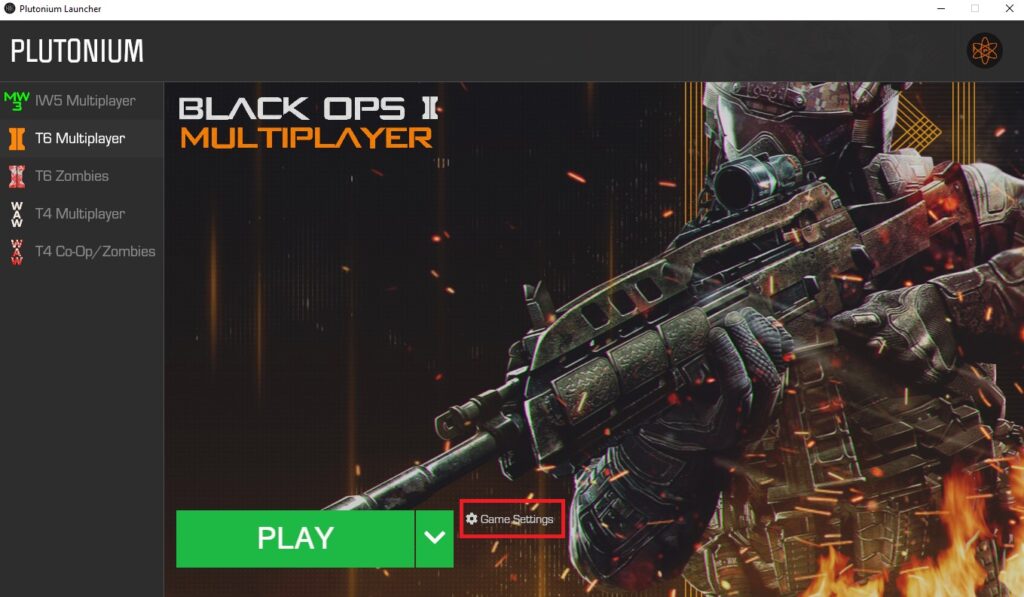
Note: When you boot the launcher, you will see all the games available on the launcher. Select T6 Multiplayer, this is Black Ops 2. First, you need to go to “game settings” to select the correct folder first. Click on Game Settings(marked in red below) and then choose select drive. Choose the folder where your Plutonium game files are located.
Nice, now check out this section below for known problems after downloading Plutonium.
Plutonium BO2 Trouble Shooting & FAQ
Can I use a controller to play Plutonium?
Yes, Black Ops 2 is fully controller compatible. Just plug in your controller and game. It also has a gamepad option in the settings menu. Here you can adjust things such as sensitivity and button layout.
Is there aim assist for controllers?
Yes, Black Ops 2 Plutonium is fully controller compatible and has aim assist. Aim assist was added on August 28th, 2021. Check out our guide to setup your PS4/PS5 controller on Plutonium.
How do I change my Gamertag?
Press the Tilde key(this is the button below Esc in the top left corner of the keyboard on Windows. This will open the T6r console. To change your name type “name” followed by your chosen Gamertag.
For example: name mychosenname
I keep getting this message «The code execution cannot proceed because t6r/t6r.dll was not found». How to fix it?
Your antivirus has blocked this file because it thinks it is Malware. Deactivate your antivirus, delete the installation and download it again. It should work.
I get this message “Steam: Callback dispatched: 72”, How do I fix?
Go to your Task Manager and End all Steam processes entirely. Try launch the game, it should work now.
Do I need to own Black Ops 2 on Steam to play Plutonium?
If you have the game on Steam it will work. However, if you don’t have the game, you can use the link above to get the Torrent file.
What are the minimum specs to run Black Ops 2?
OS: Win 7 32
Processor: Intel Celeron E1200 Dual-Core 1.6GHz / AMD Athlon 64 X2 Dual Core 3600+
Graphics: AMD Radeon HD 4650 1GB or NVIDIA GeForce GT 230
System Memory: 2 GB RAM
Storage: 10 GB Hard drive space
DirectX 11 Compatible Graphics Card
>> So basically, your laptop doesn’t need to be that good to run the game at minimum specs.
I get this message when I launch Plutonium «“authentication error. Game will run in offline mode.”
This guide was made a while ago and there have since been changes made. You need to download the Plutonium Launcher. Please follow the new guidelines above. For more information go to the Plutonium Discord.
The game just wont launch. Whats up?
For all other issues, try run as administrator. Do this by right-clicking on the game icon and clicking “Run as administrator”.
If you followed the process step by step. You will now have Plutonium installed complete with Multiplayer and Zombies mode.
If you have any problems with this download. Try going to the official Plutonium website. Here you can download a fresh copy of the game which requires a full installation.
На чтение 5 мин. Просмотров 72 Опубликовано 27.04.2021
Call of Duty: Black Ops 2 – это современный шутер от первого лица, входящий в самую успешную франшизу шутеров от первого лица Call of Duty. Игра считается одной из лучших во франшизе, но многие пользователи страдают от серьезных сбоев, которые делают игру практически неиграбельной. 
Сбои являются серьезной проблемой, и отображается следующее сообщение:« Ошибка во время инициализации – обнаружено необработанное исключение ». Ошибка появляется в различных версиях Windows, и причин для нее тоже немало. Мы подготовили несколько методов работы, поэтому обязательно следуйте инструкциям!
Содержание
- Что вызывает Black Ops 2 Обнаружено необработанное исключение?
- Решение 1. Установите соответствующие библиотеки Visual C и версии DirectX
- Решение 2. Запустите игру в режиме совместимости для Windows 8 или 7
- Решение 3. Удалите файл и повторно загрузите его с помощью Steam
Что вызывает Black Ops 2 Обнаружено необработанное исключение?
Наиболее частыми причинами этой ошибки являются неправильно установленные важные библиотеки, такие как Visual C и DirectX. Пользователи часто пропускают эти установки во время первоначального процесса установки, но возможно, что игра лучше всего работает, когда установлены ее собственные библиотеки.
Кроме того, новые обновления Windows 10 еще больше отодвигают ее от полной совместимости со старыми games, поэтому возможно, что запуск игры в режиме совместимости со старыми версиями Windows может решить проблему.
Решение 1. Установите соответствующие библиотеки Visual C и версии DirectX
Игра предложит установить эти библиотеки, но многие пользователи пропускают это во время установки, так как другие игры также устанавливают их. Однако есть причина, по которой игра поставляется с этой версией инструментов, таких как Visual C ++ и DirectX. Попробуйте переустановить их из корневой папки игры и проверьте, помогает ли это.
- Убедитесь, что вы запускаете Steam, дважды щелкнув его значок на рабочем столе или выполнив поиск. в меню “Пуск”. Перейдите в подраздел «Библиотека» и найдите Black Ops 2 в списке игр, которыми вы владеете, в своей библиотеке.
- Щелкните правой кнопкой мыши по его записи и выберите «Свойства». Перейдите на вкладку “Локальные файлы” и нажмите кнопку “Обзор локальных файлов”.

- Если у вас есть автономная версия игры, вы можете найти папку с установкой игры вручную, щелкнув правой кнопкой мыши ярлык игры на рабочем столе или в другом месте и выбрав в меню команду «Открыть расположение файла».
- В любом случае, оказавшись внутри корневой папки, найдите и откройте папку «redist», просто дважды щелкнув по ней. Внутри вы должны увидеть файл с именем vcredist_x86.exe. Откройте этот файл и следуйте инструкциям на экране, чтобы установить Visual C.

- Внутри той же папки ‘redist’ вы должны увидеть файл с именем ‘dxsetup.exe’, поэтому обязательно запустите его и установите DirectX, следуя инструкциям на -экран. Проверьте, отображается ли в игре то же сообщение «Обнаружено необработанное исключение»..
Решение 2. Запустите игру в режиме совместимости для Windows 8 или 7
Игра более старая один, если честно, и он должен работать лучше всего на операционных системах, которые были самыми популярными на момент выпуска игры. Windows 10 определенно является новейшей системой, и все еще существуют проблемы совместимости со старыми играми и инструментами.
- Убедитесь, что вы запускаете Steam, дважды щелкнув его значок на рабочем столе или выполнив поиск в меню «Пуск». Перейдите на вкладку «Библиотека» в окне Steam, нажав кнопку «Библиотека» в верхней части окна, и найдите Black Ops 2 в списке игр, которыми вы владеете в своей библиотеке.
- Щелкните правой кнопкой мыши. на его входе и выберите Свойства. Перейдите на вкладку “Локальные файлы” и выберите “Обзор локальных файлов”.
- Если у вас есть отдельная версия игры, отличная от Steam, вы все равно можете найти папку с установкой игры вручную. Самый простой способ – щелкнуть правой кнопкой мыши ярлык игры на рабочем столе или в любом другом месте и выбрать в меню «Открыть расположение файла».
- После его открытия щелкните правой кнопкой мыши исполняемый файл игры (как одиночный, так и мультиплеер) и выберите Свойства. Перейдите на вкладку “Совместимость”.

- Убедитесь, что вы отметили поле рядом с параметром «Запустить эту программу в режиме совместимости для». В появившемся меню выберите Windows 7 или 8 (попробуйте оба варианта).
- Примените внесенные вами изменения и попробуйте перезапустить игру, чтобы проверить, не возникла ли ошибка Black Ops 2 «Необработанное исключение обнаружено» сообщение продолжает появляться.
Решение 3. Удалите файл и повторно загрузите его с помощью Steam
Этот метод будет очень полезно для пользователей, купивших игру через Steam. Они могут воспользоваться функцией Steam «Проверить целостность игровых файлов», которая сэкономит вам время, необходимое для переустановки игры, просто загрузив отсутствующие или поврежденные файлы игры. Мы повторно загрузим исполняемые файлы игры, используя этот метод!
- Выполните шаги 1-3 из приведенного выше метода, чтобы открыть корневую папку игры.

- Обязательно удалите из папки игры исполняемый файл t6mp.exe, а также одиночную игру. один (в зависимости от того, какой из них вылетает). Щелкните их правой кнопкой мыши и выберите в контекстном меню команду «Удалить».
- После этого перейдите на вкладку «Библиотека» в окне Steam, нажав кнопку «Библиотека» в верхней части окна, и найдите Black Ops 2 в списке игр, которыми вы владеете в своей библиотеке.
- Щелкните правой кнопкой мыши запись и выберите «Свойства». Перейдите на вкладку “Локальные файлы” и выберите параметр “Проверить целостность файлов игры”.

- Этот инструмент немедленно просканирует установку вашей игры на наличие пропавших или поврежденных файлов, а также повторно загрузит исполняемые файлы, которые вы удалили выше. Попробуйте перезапустить игру после завершения процесса. окончена, чтобы проверить, происходит ли по-прежнему сбой.
Некоторые геймеры на своих игровых установках с Windows 11 или Windows 10 сообщают, что сталкиваются с целым рядом проблем / ошибок с франшизой Call of Duty — например, Call of Duty Warzone Freezing или Crashing, COD Vanguard продолжает зависать или дает сбой, не говоря уже о печально известном COD Modern Warfare DEV ERROR 6068, 6606, 6065, 6165, 6071. В этом посте мы определяем причины, а также предлагаем решения по устранению необработанного исключения Black Ops 2 в Windows 11/10.
Двумя наиболее известными виновниками этой конкретной ошибки являются:
- Неправильно установленные важные библиотеки, такие как Visual C ++ и DirectX.
- Несовместимость с новыми версиями ОС Windows.
Что такое необработанное исключение?
Если вы столкнулись с ошибкой, вызванной необработанным исключением, на вашем компьютере с Windows 11/10, это просто означает, что ошибка возникает, когда код приложения не обрабатывает исключения должным образом. Например, когда вы пытаетесь открыть файл на диске — это обычная проблема, когда файл не существует, потому что файл мог быть удален, поврежден или заражен вредоносным ПО или вирусом.
Если вы столкнулись с этой проблемой, вы можете попробовать наши рекомендуемые решения ниже в произвольном порядке и посмотреть, поможет ли это решить В Black Ops 2 обнаружена ошибка необработанного исключения это произошло в вашей системе Windows 11/10.
- Установите Visual C ++ и DirectX из корневой папки игры.
- Запустите игру в режиме совместимости
- Удалить и проверить файлы игры
Давайте посмотрим на описание процесса, связанного с каждым из перечисленных решений.
Перед тем, как попробовать приведенные ниже решения, проверьте наличие обновлений и установите все доступные биты на свой игровой компьютер с Windows 11/10 и посмотрите, появится ли ошибка снова.
1]Установите Visual C ++ и DirectX из корневой папки игры.
Некоторые пользователи часто пропускают эти установки во время первоначального процесса установки игры, но возможно, что игра работает лучше всего, когда установлены ее собственные библиотеки. Итак, чтобы определить, так ли это здесь, вы можете установить библиотеки Visual C ++ и версию DirectX из корневой папки игры и посмотреть, В Black Ops 2 обнаружена ошибка необработанного исключения проблема, возникшая в вашей системе Windows 11/10, будет решена.
Сделайте следующее:
- Запустите Steam на своем игровом ПК.
- Перейдите в подраздел «Библиотека».
- Найдите Black Ops 2 в списке ваших игр в вашей библиотеке.
- Щелкните правой кнопкой мыши запись игры и выберите «Свойства».
- Перейдите на вкладку «Локальные файлы».
- Нажмите кнопку «Обзор локальных файлов».
Примечание: если у вас есть автономная версия игры, вы можете найти папку установки игры вручную — щелкните правой кнопкой мыши ярлык игры на рабочем столе или в другом месте и выберите Откройте расположение файла из меню.
- В корневой папке игры найдите и откройте папку Redist.
- В открытой папке найдите файл с именем vcredist_x86.exe.
- Теперь запустите исполняемый файл и следуйте инструкциям на экране, чтобы установить библиотеки Visual C ++.
- Таким же образом, все еще находясь в папке, запустите исполняемый файл с именем dxsetup.exe и следуйте инструкциям на экране, чтобы установить DirectX.
- После этого перезагрузите компьютер.
При загрузке проверьте, решена ли проблема. В противном случае посмотрите, помогает ли установка последней версии распространяемого пакета Visual C ++ и последней версии DirectX от Microsoft, или попробуйте следующее решение.
2]Запустите игру в режиме совместимости
Игра Black Ops 2 — COD — это устаревшая игра. И, как уже отмечалось, возможно, что с каждым новым обновлением Windows 11/10 игра все дальше отодвигается от полной совместимости с новой версией / сборкой ОС. В этом случае, чтобы решить возникшую проблему, вы можете запустить игру в режиме совместимости со старыми версиями Windows.
Чтобы запустить старую игру или программное обеспечение в режиме совместимости на игровом ПК, сделайте следующее:
- Запустите Steam на своем игровом ПК.
- Перейдите в подраздел «Библиотека».
- Найдите Black Ops 2 в списке ваших игр в вашей библиотеке.
- Щелкните правой кнопкой мыши запись игры и выберите «Свойства».
- Перейдите на вкладку «Локальные файлы».
- Нажмите кнопку «Обзор локальных файлов».
Примечание: если у вас есть автономная версия игры, вы можете найти папку установки игры вручную — щелкните правой кнопкой мыши ярлык игры на рабочем столе или в другом месте и выберите Откройте расположение файла из меню.
- В корневой папке игры щелкните правой кнопкой мыши исполняемый файл игры (как для одиночной, так и для многопользовательской игры) и выберите «Свойства».
- Перейдите на вкладку «Совместимость».
- Теперь отметьте опцию Запустить эту программу в режиме совместимости.
- В раскрывающемся меню выберите Windows 7 или 8.
- Щелкните Применить> ОК.
Теперь проверьте, решена ли проблема. Если нет, вы можете запустить средство устранения неполадок совместимости программ и посмотреть, поможет ли это, или попробовать следующее решение.
3]Удалить и проверить файлы игры
Для компьютерных геймеров, которые приобрели игру через Steam, это решение будет работать для вас, удалив и проверив файлы игры. С помощью этого метода вы можете сэкономить время при переустановке игры, просто загрузив отсутствующие или поврежденные файлы игры.
Сделайте следующее:
- Повторите описанные выше шаги, чтобы получить доступ к корневой папке игры.
- В открытой папке найдите и щелкните правой кнопкой мыши значок t6mp.exe файл для одиночной игры (смотря какой вылетает).
- Выберите Удалить из контекстного меню.
- Закройте проводник.
- Затем перейдите на вкладку «Библиотека» в Steam.
- Найдите Black Ops 2 в списке ваших игр в вашей библиотеке.
- Щелкните правой кнопкой мыши запись игры и выберите «Свойства».
- Перейдите на вкладку «Локальные файлы».
- Выберите параметр «Проверить целостность файлов игры».
Теперь установка вашей игры будет сканировать отсутствующие или поврежденные файлы, а также повторно загрузить исполняемые файлы, которые вы удалили выше. После успешного завершения процедуры вы можете попробовать перезапустить игру и посмотреть, происходит ли сбой.
Связанное сообщение: Исправить ошибку прерывания соединения в COD Black Ops Cold War
Как исправить Black Ops 2, если он не запускается?
Если Black Ops 2 не запускается на вашем игровом ПК, для исправления ошибки вы можете попробовать следующие предложения:
- Переустановите игру.
- Проверьте целостность игрового кеша.
- Удалить iw6mp64_ship.exe файл.
- Удалите файлы конфигурации и вернитесь к настройкам по умолчанию.
- Установите бета-драйверы для вашей видеокарты.
- Используйте выделенную вместо встроенной графики.
Надеюсь, этот пост окажется для вас полезным!
Содержание
- Call of duty black ops 2 unhandled exception caught windows 10
- [Solved] “Unhandled Exception Caught” Error in Call Of Duty: Black Ops II
- Minimum System Requirement:
- How to Fix “Unhandled Exception Caught” Error?
- Fix 1: Verify Visual C Library
- Fix 2: Fix DX9 Libraries
- Fix 3: Verify integrity of call of duty
- Fix 4: Check for the Compatibility Mode
- Fix 5: Delete iw6mp64_ship.exe File
- Fix 6: Reset Default Setting
- Conclusion:
- Ошибка Unhandled exception caught в Black Ops 2 — как исправить
- Причины бага в серии Black Ops 2
- Исправляем проблему
- Часовой пояс
- Время
- Steam
- Кэш и реестр
- Обновление
- Call of Duty
- Skidrow
- Еще варианты решения ошибки «Unhandled Exception Caught»:
- Заключение
- Unable to play Call of Duty Black Ops 2 on Windows 10
- How can I fix Call Of Duty Black Ops 2 on Windows 10?
- 1. Reinstall the game
- 2. Verify integrity of the game cache
- 3. Delete the iw6mp64_ship.exe file
- 4. Delete the configuration files and revert to default settings
- 5. Install the Beta drivers for your graphics card
- DriverFix
- 6. Use dedicated instead of built-in graphics
- Run a System Scan to discover potential errors
- 7. Make sure that you install DirectX and C++ Redistributables
- 8. Run the game in Compatibility mode
- 9. Close problematic applications
- 10. Run the Steam as administrator
- Call of Duty: Black Ops 2 — ошибка Error during initialization unhandled exception caught
Call of duty black ops 2 unhandled exception caught windows 10
OK, I’m writing this guide as this is a problem that continues to occur, with every update to the tech preview for Windows 10
The «Error during initialisation» «unhandled exception caught» errors that happen everytime windows 10 updates.
Many supposed ‘fixes’ for this problem are «revert to windows 7»
That is not a fix, That is uninformed people providing bad advice.
I will teach you now, how to fix the issue. Properly, without uninstalling windows 10 and going back to 7 or 8.
I am writing this guide to help anyone that will encounter this issue, particularly as we get closer to the official release of Windows 10.
First thing you need to do is ensure your visual c libraries are up to date and installed.
you can locate the correct redist for Visual C. only the x86 version is required here.
you can find this in your black ops 2 folder, under redist
eg. mine is located here:
«E:SteamsteamappscommonCall of Duty Black Ops IIredistvcredist_x86.exe»
run that, install it. now the next thing to do, is make sure you have the correct DX9 libraries installed.
these are also located in the redist folder. run dxsetup.exe which is located in the redistdirectx folder,
eg. mine is here:
«E:SteamsteamappscommonCall of Duty Black Ops IIredistDirectXDXSETUP.exe»
after this is done,
right click on t6mp.exe
click on the compatability tab, check the following options.
let this process complete, and once done. run the game.
it will likely pop up that the game is installing for a few seconds, and then it will work.
I have been running windows 10 for a while now, and with every update, I have needed to perform these actions to make Black Ops II work again.
Источник
[Solved] “Unhandled Exception Caught” Error in Call Of Duty: Black Ops II
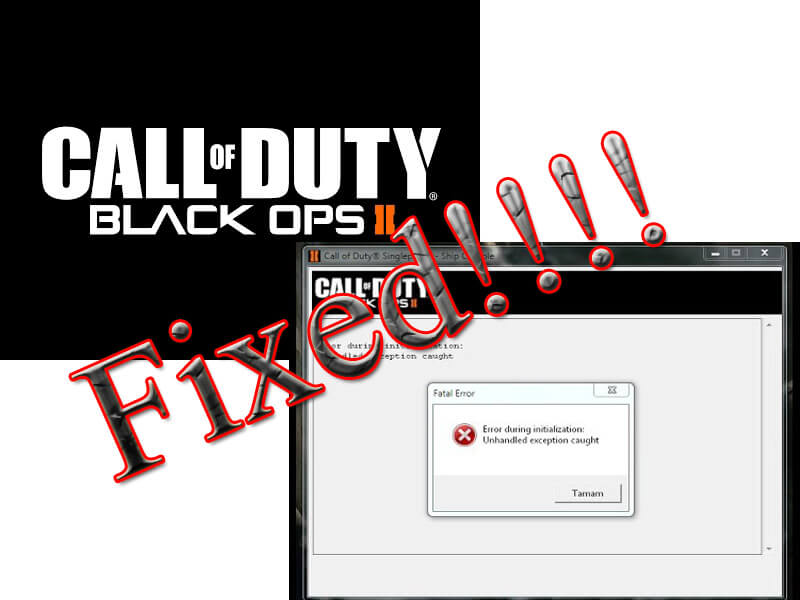 Are you getting an “Unhandled Exception Caught” error message while playing or running Call Of Duty: Black Ops II game on your Windows system?
If YES then don’t worry, this troubleshooting guide will help you to get rid of Call Of Duty: Black Ops II errors with ease.
Lots of gamers reported that they are not able to play the game properly on their Windows 10 PC, as the game displays the “Error during initialization-Unhandled exception caught” error message during running.
The error during initialization unhandled exception caught is very popular as it appears not only on Windows 10 system but the Windows 8.1, Windows 8, and Windows 7 users are also complaining about this error message.
But no need to worry as there are few working solutions to fix “Error during initialization-Unhandled exception caught” error message. So, below check out the fixes and follow them one by one.
Minimum System Requirement:
OS: Windows Vista SP2 / Windows 7
CPU: Intel Core2 Duo E8200 2.66 GHz / AMD Phenom X3 8750 2.4 GHz
RAM 32-Bit OS: 2 GB RAM
RAM 64-Bit OS: 4 GB RAM
GPU RAM: 512MB
GPU: Nvidia GeForce 8800 GT / ATI Radeon HD 3870
DirectX: 11
How to Fix “Unhandled Exception Caught” Error?
Fix 1: Verify Visual C Library
First of all, it is recommended to make sure that your computer’s visual c libraries are properly installed and updated.
“C:SteamsteamappscommonCall of Duty Black Ops IIredistvcredist_x86.exe”
Run and install it.
Fix 2: Fix DX9 Libraries
After it, double sure that DX9 libraries are not corrupt and properly installed.
“C:SteamsteamappscommonCall of Duty Black Ops IIredistDirectXDXSETUP.exe“
Double click and run the DXSETUP.exe file.
Having trouble performing the fixes to solve the “Unhandled Exception Caught” error, then try Game Booster to enhance the gaming experience.
Fix 3: Verify integrity of call of duty
Now, verify the integrity of call of duty: black ops II cache, run steam, right-click on the call of duty: black ops II and go to the properties.
After it goes to the Local Files tab, and then “verify the integrity of game cache”
This will take a few seconds to complete let the process finish, sometime it will take more time as some missing files might get downloaded.
Fix 4: Check for the Compatibility Mode
This fix is recommended for Windows 10 users after this is done right click on the t6mp.exe file (generally located at
C:SteamsteamappscommonCall of Duty Black Ops IIt6mp.exe)
Click on the compatibility tab and very the below-given options.
Try to run and play this program in compatibility mode for windows 8 or 7. If one compatibility mode is not working then try another.
Also, try to play this game as an administrator mode.
Fix 5: Delete iw6mp64_ship.exe File
Try to run this game after deleting the iw6mp64_ship.exe file
Fix 6: Reset Default Setting
Erase the configuration files and reset to the default settings, to do this follow the below-given solution:
hardware_mp.chp
hardware_zm.chp
Conclusion:
So these were the errors and their fixes in “Unhandled Exception Caught” Call Of Duty.
It is hoped that you will enjoy playing Black Ops II error-free after applying the above-given fixes.
If you still face problems after performing the above fixes then it might be the problem of your PC. Some times due to PC issues you encounter these errors. So, try PC Repair Tool to solve the issue and you can play your game with ease.
If you are having any queries, comment or suggestion then feel free to share with us in the comment section below.
Источник
Ошибка Unhandled exception caught в Black Ops 2 — как исправить


Такие игры как «Call of Duty: Black Ops 2» часто отказываются запускаться на ПК. Одной из причин может стать ошибка «Error during initialization: Unhandled exception caught». Уведомление появляется после попытки получить доступ к игре, хотя еще вчера все было хорошо. Мы постараемся дать все возможные решения по данной проблеме.
Причины бага в серии Black Ops 2
Стоит заметить, что производительность ПК тут ни причем. Проблема скрыта только в системных несоответствиях игры с Windows. То есть, как вариант, ошибка может проявляться при отсутствии Стима. Также виной становится другой часовой пояс, падение реестра, битые файлы в игре и т. д.

Ошибка Error during initialization: Unhandled exception caught
Исправляем проблему
Конкретную причину можно определить только поочередной проверкой соответствия всех параметров. Начнем как обычно с самых очевидных решений.
Часовой пояс
Ошибку «Unhandled Exception Caught» в большинстве случаев устраняет переход на другой часовой пояс. В ПК нужно изменить его на +8. Это будет приравниваться Гонконгу. Подобную процедуру нужно повторять всегда перед запуском Call of Duty.
Время
Изменять время нужно всегда назад. Иногда хватает установить дату на несколько недель назад. Другим же пользователям нужно откатиться к 13.11.2012. Перед запуском игры всегда следует выставлять такой показатель, так как он будет сам исправляться на сегодняшнюю дату после рестарта ПК.

Смена настроек даты, времени и часового пояса
Steam
Стим незаменим во многих случаях. Часть «Black Ops 2» не исключение. Инсталлируете Стим к себе на компьютер. Запускайте Call of Duty только из него. Для тех, что не хочет устанавливать Стим можно попробовать обойти его. Есть специальные утилиты, имитирующие его работу.
Кэш и реестр
Эти два понятия объединены по причине одного для них решения: просканируйте их на ошибки. Кэш Call of Duty следует починить через Стим. Выбрав игру, перейдите в ее свойства. Там в локальных файлах внизу будет необходимая команда. Насчет реестра все решаемо через CCleaner. Качаете утилиту, и в ней будет пункт насчет ремонта реестра.
Обновление
Иногда, обновив звуковую карту или ОС, ошибка «Unhandled Exception Caught» устраняется. Точно не известно, почему так происходит, но обязательно сделайте это, если вышли более новые драйвера.
Call of Duty
Лицензионные игры всегда работаю стабильней. Если покупка для вас не вариант, тогда скачайте «пиратскую» версию с другого сайта. Возможно нынешний «Black Ops 2» собран некорректно, что и привело к сбою. Всегда ориентируйтесь, по отзывам игроков на форумах и обходите стороной сомнительные ресурсы.
Skidrow
Skidrow по сути обычный «кряк». Попробуйте отдельно скачать «кряк» из сети интернета. Нынешний обход блокировки удаляете или просто качаете чистую игру, а к ней уже в процессе инсталляции кидаете «кряк». Ошибка проявилась из-за некачественного обхода лицензии.
Еще варианты решения ошибки «Unhandled Exception Caught»:
Заключение
Напоследок рекомендуется обратиться к Valve. Техподдержка возможно сможет проанализировать ваш конкретный случай в индивидуальном порядке, так как в 90% случаях вышеописанные способы помогают – скорее всего, самостоятельно ошибку вам уже не решить.
Источник
Unable to play Call of Duty Black Ops 2 on Windows 10

Compatibility issues aren’t that uncommon on newer operating systems such as Windows 10.
Speaking of which, it seems that some users are getting errors while trying to run Call of Duty Black Ops 2 on Windows 10.
Users report that they are able to start the game, and after seeing the logo the game crashes while giving users the Error during initialization-Unhandled exception caught message.
This is an unusual issue, but there are few available solutions, so be sure to check them out.
Call of Duty Black Ops 2 is a great game, however, certain issues can prevent you from playing it. Speaking of issues, users reported the following problems with this game:
How can I fix Call Of Duty Black Ops 2 on Windows 10?
1. Reinstall the game
Many users claim that they fixed problems with Black Ops 2 simply by reinstalling the game. To do that, just follow the above steps.
Once you reinstall the game, all problems with Call of Duty Black Ops 2 should be resolved.
If you need more info on how to safely uninstall Steam games on Windows 10, check out this simple guide.
2. Verify integrity of the game cache
Another way to fix this and many other problems is to verify the integrity of the game cache. This process won’t reinstall your game, but it might fix various Call of Duty Black Ops 2 issues.
After verifying the integrity of the game, try to run it again to see if it works.
Game Fire is a game booster that will get rid of freezes, lags, low FPS and other issues while playing. Download it now (free) for a better gaming experience.
3. Delete the iw6mp64_ship.exe file
If you can’t run Steam games on your Windows 10 PC, check out this guide to solve the issue in no time.
4. Delete the configuration files and revert to default settings
5. Install the Beta drivers for your graphics card
If you’re having frequent crashes with Call of Duty Black Ops 2, the problem might be related to your graphics drivers.
According to users, they were unable to play the game due to constant crashes, but they managed to fix the issue simply by downloading the latest drivers for their graphics card.
We suggest you automatically update your graphics card driver with a professional tool that safely scans, installs, and updates your drivers in seconds.
To make sure that everything goes smoothly and avoid any kind of GPU driver errors, be sure to use a complete driver update assistant that will solve your problems with just a couple of clicks, and we strongly recommend DriverFix. Follow these easy steps to safely update your drivers:
DriverFix
Keep you GPU on the peaks of their performance without worrying about its drivers.
Disclaimer: this program needs to be upgraded from the free version in order to perform some specific actions.
Several users reported that using the latest Beta drivers fixed the problem, so you might want to do that as well.
Once you update your drivers, the game should start working again without any problems.
6. Use dedicated instead of built-in graphics
Many users reported that they are unable to play Call of Duty Black Ops 2 on their PC due to the game being stuck on a loading screen.
However, there’s a way to fix that. Many PCs have both dedicated and integrated graphics, and using your integrated graphics can cause this problem to appear.
To fix the issue, you need set your dedicated graphics card as the main graphics. This is rather simple and you can do it using Nvidia Control Panel or AMD Catalyst Control Center.
Run a System Scan to discover potential errors


Click Start Scan to find Windows issues.

Click Repair All to fix issues with Patented Technologies.
If the Nvidia Control Panel doesn’t work on Windows 10, check out this dedicated guide and fix it with ease. If you’re having the same problem with AMD Catalyst Control Center, you can check out this guide.
If you can’t find the option to switch to dedicated graphics in these tools, you might be able to do that from BIOS. Accessing BIOS seems too big of a task? Let us make things easier for you with the help of this amazing guide!
Your BIOS is a bit more complex, and to see how to turn off an integrated graphics card, we advise you to check your motherboard manual for detailed instructions.
Once you disable your integrated graphics, check if the problem is resolved.
You can’t switch your graphics cards in Windows 10? Follow the steps from this guide to fix the issue quickly.
7. Make sure that you install DirectX and C++ Redistributables
Many applications require certain components in order to work properly, and the same goes for Call Of Duty Black Ops 2. In order to run the game, you need to have the proper version of C++ Redistributables and DirectX installed.
Sometimes, these components aren’t installed automatically on your PC and that can cause problems with Black Ops 2. However, you can easily fix the issue simply by installing the necessary components.
You can download DirectX and C++ Redistributables online, but there’s a faster way. There are different versions of DirectX and C++ Redistributables available, and you need to download and install the correct version in order to play the game.
Many games already have the necessary components available, and you just need to install them manually. To do that for Black Ops 2, you just need to follow these steps:
Once you install both components, try running Black Ops 2 again. Many users reported that they fixed the problem after installing these two components, so you might want to try that.
8. Run the game in Compatibility mode
According to users, if you’re unable to play Call of Duty Black Ops 2 on your PC, you might be able to fix the problem by running the game in Compatibility mode.
If you need an FPS counter for Call of Duty Black Ops 2, check out this list with our best picks.
9. Close problematic applications
Sometimes third-party applications can interfere with Call of Duty Black Ops 2 and prevent it from starting. Many applications can interfere, but users reported they fixed the issue after closing Sonic Studio.
This application is part of ASUS Audio software, and if you have it on your PC, be sure to close it or remove it and check if that solves the problem.
If you want smoother gameplay, check out this guide to learn what services you need to disable.
10. Run the Steam as administrator
Several users reported that they fixed the issue simply by running the Steam as administrator. To do that, just follow the above steps.
If that solves the problem, you might want to change Steam’s configuration and always run it with administrative privileges. To do that, just do the following:
After doing that, Steam will always run with administrative privileges, and problems with Black Ops 2 should be resolved.
Nothing happens when you click on Run as administrator? Don’t worry, we’ve got the right fix for you! Check out this article and fix it no time.
That’s about it, I hope at least some of these solutions were helpful to you, and that you’re able to play Call of Duty Black Ops on Windows 10 now.
If you have any suggestions or questions, just reach for the comments section below.
Restoro has been downloaded by 0 readers this month.
Источник
Call of Duty: Black Ops 2 — ошибка Error during initialization unhandled exception caught
Всем привет! В очередной раз пытаюсь создать полезный пост для таких же как я, то есть, для пользователей пиратской продукции 🙂 На это раз речь пойдет об игре Call of Duty: Black Ops 2, а точнее, об ошибке, которая у многих появляется при запуске игры. Я имею ввиду ошибку с текстом: «Error during initialization unhandled exception caught«. Погуглив, я нашел несколько вариантов решения, смотрите, какой вам подойдет.
Все просто: необходимо поставить дату на своем компьютере 13.11.2012. Если на следующий день не запустится — снова менять дату. Если не помогло, то скачайте и установите steam. Перед запуском игры запустите стим, должно помочь. Если игра опять не запускается, что вряд ли, то попробуйте сменить часовой пояс на +8, выбрав, например, Гонконг. Ну а уж если и это не помогло, то в настройках вашего аудиоустройства, зайдите в Панель управления->Оборудование и звук->Управление звуковыми устройствами->Выбор вашего текущего устройства->Свойства->вкладка «Дополнительно» ставим в списке «16 бит, 44100 Гц (Компакт-Диск)». Лично мне помог первый шаг, т.е установка даты на 13.11.2012.
Если же у вас все равно осталась эта ошибка, то попробуйте удалить steam. Это решение подсказал Aleks, спасибо ему)
Я знаю и еще об одной проблеме у геймеров с Black Ops 2 — вылеты во время миссии в Афганистане. Здесь можно порекомендовать только одно: скачайте и киньте в папку с игрой crackfix 2 от Skidrow. Или просто установите вот этот репак. Не забудьте вынуть свои сохранки из папки с игрой (они лежат в папке players), после установки закиньте их обратно, а то придется проходить всю игру заново.
Источник