При попытке ввести новый или изменить старый ключ продукта в Windows 10 или Windows Server Standard и Evaluation может появиться ошибка 0xc004f069. В сообщении также указано: «Служба лицензирования программного обеспечения сообщила, что SKU продукта не найден». Повтор процедуры регистрации ключа ни к чему не приведет, снова появится то же самое окно с ошибкой.
Как устранить ошибку с кодом 0xc004f069?
Для активации операционной системы с подобной ошибкой, будь то Windows Server или Windows 10, потребуется выполнить следующие шаги. Они позволяют ввести ключ продукта не через графический интерфейс, традиционный способ, а из командной строки. Скорее всего этот процесс завершится успешно:
- Авторизуемся в операционной системе, открываем «Пуск» и переходим в «Панель управления», а оттуда – в «Система».
- Смотрим версию Windows и ее разрядность, а затем сравниваем с ключом. Он должен быть предназначенным именно для этого версии системы (Standard или Evaluation в случае с Windows Server).
- Если все сходится, запускаем командную строку (можем найти через поиск или клик правой кнопкой мыши по Пуску).
- Вставляем slmgr /ipk ваш_ключ_продукта и жмем Enter.
- После появления сообщения «Ключ продукта установлен успешно» нажимаем Ок.
- Активируем лицензионный ключ командой slmgr /ato.
- Если появляется сообщение «Продукт успешно активирован», закрываем консоль и можем пользоваться ОС без необходимости в перезагрузке.
Что делать, если ошибка 0xc004f069 выводится в ознакомительной версии Windows?
В случае с версией для ознакомления Windows Server, решение ошибки 0xc004f069 требует ее преобразование в стандартную версию. Для этого потребуется ключ продукта и серия команд. Это не займет много времени.
Инструкция:
- В строку «Выполнить» или поиск вводим cmd и открываем консоль.
- Задействуем команду DISM /Online /Set-Edition:ServerStandard /ProductKey:12345-12345-12345-12345-12345 /AcceptEula.
- Перезагружаем компьютер, нажав клавишу Y на клавиатуре.
После перезапуска операционная система будет активирована и ошибка активации Windows Server 0xc004f069 больше не появится. Если это не помогло, можно попробовать активировать Windows 10 с помощью телефона.
- 15.07.2020
В данной статье рассмотрим ошибку при активации Windows — 0xC004F069. Данная ошибка как правило выходит, если Вы пытаетесь активировать через терминал, но так же она может появиться, если активировать стандартным способом.
1) Вы пытаетесь активировать ключ, который не соответствует Вашей системе. К примеру у Вас установлена «Windows 10 Домашняя», а у Вас ключ от «Windows 10 Pro». Проверьте правильность версии Вашей системы и ключа.
2) Вы пытаетесь активировать «ознкомительную версию» системы. К примеру «Ознакомительная версия Windows 10 Корпоративная». Ознакомительне (Evaluation) версии не активируются ключами и работают только свой «триальный» период. Установите полную версию системы. Подробнее об этом в нашей прошлой статье.
3) Как еще один вариант выхода данной ошибки может быть то, что у Вас задано не верное системное время Вашего ПК. Синхронизируйте его с серверами Microsoft.
Помимо всего, мы настоятельно рекомендуем использовать только лицензионные ключи активации во избежании подобных проблем. Приобрести их можете в нашем каталоге по самым низким ценам. Моментальная доставка ключей на Ваш Email в автоматическом режиме. Гарантия и круглосуточная техподдержка.
Если у Вас остались дополнительные вопросы, можете задать их нашей поддержке в правом нижнем углу окна, либо на Email: admin@softcomputers.org
In this article, we will discuss the possible solutions for Windows Server Activation Error 0xc004f069. Windows displays the error code 0xc004f069 when you try to install or change the product key on Windows 10. Once the error message is displayed on the screen, you will not be able to install the product key. Here, we will see the method to install the license key on Windows Server Standard and Evaluation editions.
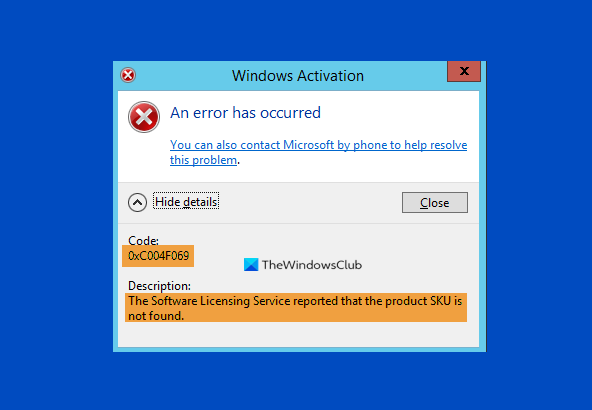
Error Code 0xc004f069, The Software Licensing Service reported that the product SKU is not found
If you have an evaluation server edition, you cannot use slmgr /ipk command with the VLSC MAK key or Retail directly for activating it.
Let’s see the steps to fix the Windows Server activation error code 0xc004f069.
1] Log into Windows Server.
2] Right-click on the “Start” menu and select “Settings” to open the “Settings” app. Now, click on the “System” option.
3] Now, scroll down the left panel and select the “About” section to view which edition of Windows you have.
4] If you have the Windows Server Standard edition, you need not reboot your PC.
5] If you use GUI to activate it, you may get an error message on the screen. So, do not use it.
6] Launch the “Command Prompt” or “PowerShell” in the “Administrator mode” and type the following command and hit the “Enter” button.
slmgr /ipk your_product_key
7] A popup window will appear on your screen displaying the message, “Installed product key successfully.” Click OK.
8] Now, you have to activate the license key. For this, type the following command and press the “Enter” button.
slmgr /ato
9] A popup window will appear on your screen with the message, “Activating Windows, Server Standard edition… Product activated successfully.” Now, click OK.
By following the above-listed steps, you can activate your Windows server without reboot.
Now, we are listing the steps to fix the Windows Server Activation error code 0xc004f069 for the evaluation edition. For this, you have to convert the evaluation edition to the Standard edition. You have to use the retail product key and the DISM command to convert the evaluation edition to the standard or datacenter edition. Please follow the below-listed steps:
1] Type the following command in the cmd prompt and press the “Enter” button.
DISM /Online /Set-Edition:ServerStandard /ProductKey:12345-12345-12345-12345-12345 /AcceptEula
To convert the version into Datacenter edition, type the following command and press the “Enter” button:
DISM /Online /Set-Edition:ServerDatacenter /ProductKey:12345-12345-12345-12345-12345 /AcceptEula
2] After the execution of the command, the system will ask you to restart the computer. Press the “Y” button on your keyboard to restart. Your license will be updated after reboot.
If you have a VLC MAK license key and not the retail one, you have to follow the below-listed steps to activate your server.
1] Login to your server after reboot and launch the command prompt or PowerShell as administrator and type the following command and press the “Enter” key:
slmgr /ipk 12345-12345-12345-12345-12345
Here you have to use your VLSC MAK key.
2] A new window will appear on the screen with a message, “Installed product key successfully.” Click OK.
3] Now, you have to activate the license key. For this, type the following command and press the “Enter” button.
slmgr /ato
4] A popup window will appear on your screen with the message, “Activating Windows, Server Standard edition. Product activated successfully.” Click OK.
After these steps, your server will be activated.
We hope the article will solve your issue of Windows server activation error 0xc004f069.If it does not, then you may try to Activate Windows 10 by Phone.
Related links that will help you:
- Troubleshoot MAK Activation errors
- Troubleshoot KMS Activation errors
- Troubleshoot Volume Activation errors.
In this article, we will discuss the possible solutions for Windows Server Activation Error 0xc004f069. Windows displays the error code 0xc004f069 when you try to install or change the product key on Windows 10. Once the error message is displayed on the screen, you will not be able to install the product key. Here, we will see the method to install the license key on Windows Server Standard and Evaluation editions.
Error Code 0xc004f069, The Software Licensing Service reported that the product SKU is not found
If you have an evaluation server edition, you cannot use slmgr /ipk command with the VLSC MAK key or Retail directly for activating it.
Let’s see the steps to fix the Windows Server activation error code 0xc004f069.
1] Log into Windows Server.
2] Right-click on the “Start” menu and select “Settings” to open the “Settings” app. Now, click on the “System” option.
3] Now, scroll down the left panel and select the “About” section to view which edition of Windows you have.
4] If you have the Windows Server Standard edition, you need not reboot your PC.
5] If you use GUI to activate it, you may get an error message on the screen. So, do not use it.
6] Launch the “Command Prompt” or “PowerShell” in the “Administrator mode” and type the following command and hit the “Enter” button.
slmgr /ipk your_product_key
7] A popup window will appear on your screen displaying the message, “Installed product key successfully.” Click OK.
8] Now, you have to activate the license key. For this, type the following command and press the “Enter” button.
slmgr /ato
9] A popup window will appear on your screen with the message, “Activating Windows, Server Standard edition… Product activated successfully.” Now, click OK.
By following the above-listed steps, you can activate your Windows server without reboot.
Now, we are listing the steps to fix the Windows Server Activation error code 0xc004f069 for the evaluation edition. For this, you have to convert the evaluation edition to the Standard edition. You have to use the retail product key and the DISM command to convert the evaluation edition to the standard or datacenter edition. Please follow the below-listed steps:
1] Type the following command in the cmd prompt and press the “Enter” button.
DISM /Online /Set-Edition:ServerStandard /ProductKey:12345-12345-12345-12345-12345 /AcceptEula
To convert the version into Datacenter edition, type the following command and press the “Enter” button:
DISM /Online /Set-Edition:ServerDatacenter /ProductKey:12345-12345-12345-12345-12345 /AcceptEula
2] After the execution of the command, the system will ask you to restart the computer. Press the “Y” button on your keyboard to restart. Your license will be updated after reboot.
If you have a VLC MAK license key and not the retail one, you have to follow the below-listed steps to activate your server.
1] Login to your server after reboot and launch the command prompt or PowerShell as administrator and type the following command and press the “Enter” key:
slmgr /ipk 12345-12345-12345-12345-12345
Here you have to use your VLSC MAK key.
2] A new window will appear on the screen with a message, “Installed product key successfully.” Click OK.
3] Now, you have to activate the license key. For this, type the following command and press the “Enter” button.
slmgr /ato
4] A popup window will appear on your screen with the message, “Activating Windows, Server Standard edition. Product activated successfully.” Click OK.
After these steps, your server will be activated.
We hope the article will solve your issue of Windows server activation error 0xc004f069.If it does not, then you may try to Activate Windows 10 by Phone.
Related links that will help you:
- Troubleshoot MAK Activation errors
- Troubleshoot KMS Activation errors
- Troubleshoot Volume Activation errors.

- Remove From My Forums
-
Question
-
Hi,
I get following error, when I try to activate WS 2012 Datacenter evaluation version. I would like to activate 180 days trial.
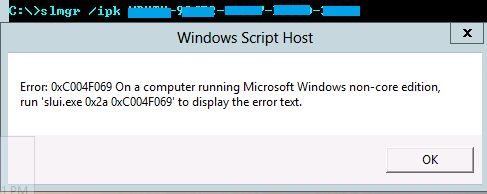
Error: 0xC004F069 On a computer running Microsoft Windows non-core edition, run ‘slui.exe 0x2a 0xC004F069’ to display the error text.
How do I fix this ?
-
Edited by
бытие человечий
Wednesday, March 20, 2013 10:47 AM
screenshot added
-
Edited by
All replies
-
Two things can be going on here. Either 1. the time/region is incorrect in Windows OR the BIOS. 2. your using volume media with a non-volume key.
Be kind and Mark as Answer if I helped.
-
This is probably a silly question, but are you even required to activate an evaluation? You can check how many days it’s «licenced» for by running the following from an elevated command prompt:
cscript %windir%system32slmgr.vbs /dlv
Look for the «Time remaining» field.
Cheers,
Lain -
Two things can be going on here. Either 1. the time/region is incorrect in Windows OR the BIOS. 2. your using volume media with a non-volume key.
Be kind and Mark as Answer if I helped.
I did check time /region, they are correct. It’s an evaluation edition which I was trying to activate.
-
This is probably a silly question, but are you even required to activate an evaluation? You can check how many days it’s «licenced» for by running the following from an elevated command prompt:
cscript %windir%system32slmgr.vbs /dlv
Look for the «Time remaining» field.
Cheers,
LainI had been given with the trial key which I can use to activate the OS, I couldn’t find remaining days in System information hence thought of activating the OS.
slmgr /dlv gives following output
Software licensing service version: 6.2.9200.16384
Name: Windows(R), ServerDatacenter edition
Description: Windows(R) Operating System, VOLUME_KMSCLIENT channel
Activation ID: d3643d60-0c42-412d-a7d6-52e6635327f6
Application ID: 55c92734-d682-4d71-983e-d6ec3f16059f
Extended PID: 05426-01849-000-000001-03-1033-9200.0000-0512013
Installation ID: 360630249053240855816438834358367301309105744213248118853158722Partial Product Key: 8W85P
License Status: Notification
Notification Reason: 0xC004F056.
Remaining Windows rearm count: 1000 — what does this signify ?
Trusted time: 3/21/2013 4:04:37 PM
Configured Activation Type: All
Please use slmgr.vbs /ato to activate and update KMS client information in order
to update values. -
The exact replica of the problem but in Windows 8 Single Language license pack. Looks like there has been no any way out till now.
-
DISM.exe /Online /Get-TargetEditions
Change your target edition
DISM /online /Set-Edition:ServerStandard /ProductKey:XXXXX-XXXXX-XXXXX-XXXXX-XXXXX /AcceptEula
-
Proposed as answer by
ART River
Wednesday, July 17, 2019 7:39 PM
-
Proposed as answer by
-
this was the solution for me, thank you so much.
-
I was trying to activate an eval Server 2016 STD virtual machine (host was also Server 2016 STD) and this worked perfectly. Alternatively, using slmgr.exe commands which did not work for me.
-
You saved me. Very much thanks to you.
-
I tried but still getting below message
The specified product key could not be validated.
Check that the specified product key is valid and that it matches the target edition.kindly advise
also tried with
slmgr /ipk <Windows Key>
but error message is Error: 0xC004F069 Ona Computer running Microsoft Windows Non-Core Edition, Run 'slui.exe 0xC004F069' to display the error text.
what does it mean?
-
Edited by
Mahendra S
Tuesday, September 24, 2019 8:40 AM
-
Edited by
-
When i type that in to the command prompt it says
Error: 50
Setting an edition is not supported with online images.
Thes DISM log file can be found at C:windowslogsDISMdism.log
What do i do now?