Доброе утро!
Borderland 2 хорошая качественная игра. Но даже в хороших играх игрок сталкивается с не игровыми трудностями.
После первого патча от 1с у меня отпал кооператив, т.е я не мог никому подключиться и после не сильно продолжительных поисков нашел решение проблемы. И хотел бы помочь другим пользователям, у которых возникли трудности не игрового характера, «компиляцию» решения проблем с данной игрой:
1# Borderlands 2 – не могу установить, вылетает при запуске
Проверьте целостность кэша. Вручную запустите вторичные установщики необходимые для игры тут – C:Program filesSteamSteamappscommonBorderlands 2
Найдите файлы и запустите их:
BinariesRedistDXRedistCutdownDXSETUP.exe
BinariesRedistvcredist_2005_x86.exe
BinariesRedistvcredist_2005_atl_x86.exe
BinariesRedistvcredist_x86.exe.exe
BinariesRedistdotNetFx40_Client_x86_x64.exe
Перезапустите компьютер.
2# Borderlands 2 Виснет при подготовке к запуску
Проверьте целостность кэша.
3# Borderlands 2 низкая частота кадров
Если у вас видео-карта AMD/ATI и процессор AMD, можно попробовать установить Orochi-CEG (google)
4# Borderlands 2 притормаживает и лагает
Проверьте соединение с роутеом. Отключите firewall и установите Steam в оффлайновый режим и вырубите сетевое подключение.
5# Borderlands 2 – Как отключить Шейдер Обводки
Идем в C:/Users/Yourname/My Games/Borderlands 2/WillowGame/Config/.
Открываем Willowgame.ini
Находим: DefaultPostProcessName=WillowEngineMaterials.Willo wScenePostProcess
Меняем на: DefaultPostProcessName=EngineMaterials.DefaultUIPo stProcess
Обязательно отключите в игре опцию Глубина резкости (Depth of Field) иначе все будет размыто.
6# Borderlands 2 Лагает
Поставьте PhysX на минимум и перезагрузите игру.
7# Не получается подключиться к друзьям в Borderlands 2
Необходимо включить режим DMZ на вашем роутере, с открытыми протоколами TCP: 7777,7778, 28900, 28902,28910 и UDP: 7777,7778, 27900, 28902.
В самой игре установите Сетевые Настройки на Online Invite Only. Теперь должно работаь
8# Borderlands 2 – Время подключения истекло
Идем в Steam Game Library и правый клик на Borderlands 2. Свойства – Основные – Стартовые опции. Введите “-tcp”.
9# Курсор мыши в Borderlands 2 невидимый
Отключите контроллер или любой другой USB девайс.
10# Как включить гибридную PhysX в Borderlands 2
Если вы играете в Borderlands 2 на ATI/nVidia hybrid PhysX, вот как влючить PhysX.
Скачайте ForceWare от nVidia и установите.
Установите версию 1.05ff мода Hybrid Mod.
Запустите файл PhysX-HwSelection-set-GPU.cmd в папке Extras мода Hybrid Mod.
Вы увидите, как опция PhysX стала серой. Далее идем в My DocumentsMy Games, и папку с игрой.
Далее > WillowGame -> Config папки. Путь должнн быть чем-то вроде этого: C:UsersDocumentsMy GamesBorderlands 2WillowGameConfig
Запустите WillowEngine.ini
Найдите строку “PhysXLevel=”
PhysXLevel=1 – это средняя физика и PhysXLevel=2 – это максимальная
Сохраните и запустите игру, чтобы насладиться PhysX
11# .Net Framework Loop – Borderlands 2 не запускается.
Ищем в папке с игрой исполнительный файл .Net. На Win7: Program Files(x86)/Steam/steamapps/common/Borderlands 2/Binaries/Redist/dotNetFx40_Client_x86_x64.exe.
Запустите и установите этот файл и игра должна заработать.
12# DISK IO Failure – Borderlands 2
Перезагрузите PC и Steam. Не помогло? Удалите локальный контент и перекачайте игру.
13# Как отключить эффект Cell Shading в Borderlands 2
Если вам не нравится эффект Cell Shading в Borderlands 2, то вы можете отключить его вручную. Однако учтите, что это делается на собственный риск.
Найдите ваши конфигурационные файлы .ini. Если Windows 7, то они тут – Documents/My Games/Borderlands 2/WillowGame/Config.
Найдите файл WillowEngine.ini
Ctrl-F чтобы найти строку “WillowScenePostProcess”
Замените этим – “RyanScenePostProcess”*
Так же можно изменить тип файла на – только чтение.
Это значительно повысит частоту кадров в игре Однако это сделает Borderlands 2 полностью не играбельным с эффектом глубины резкости и очень вероятно, что отключит другие шейдеры, так что вам необходимо отключить все остальные эффекты.
14# Borderlands 2 зависания на картах ATI
Скачайте и установите фикс отсюда.
15# Borderlands 2 – синий экран смерти
Обновите BIOS вашей материнской платы. Учтите, что это рискованное занятие и возможно не приведет к разрешению проблемы. Убедитесь, что компьютер не перегревается во время игры.
16# Borderlands 2 проблема с ATI Crossfire
Используйте Этоо Приложение.
17# Borderlands 2 зависает во время загрузки
Убедитесь, что у вас не запущены сторонние процессы, способные вызвать конфликт с игрой. Проверьте целостность файлов в Steam, возможно повреждение одного из ключевых файлов. Если не помогает, попробуйте переустановить игру.
18# Borderlands 2 – Вылетает ланчер
Проверьте целостность файлов в Steam
19# Черная рамка в Borderlands 2 на полноэкранном режиме
You might have to manually change the resolution to fix this issue.
20# Borderlands 2 вылетает с ошибкой связанной с Launch Direct3D
Обновите DirectX и драйвер видео-карты.
21# Частота кадров падает во время боя Borderlands 2
Скачайте и установите драйвара PhysX отсюда. После установки, включите PhysX на минимум и снова запустите игру.
За пост не судите строго, т.к. первый.
Содержание
- 1. Как играть в Borderlands 2 в кооперативе, если у вас игра в Steam, а у друга в Epic Games
- 2. Как играть в кооперативе на macOS или Linux с игроками на Windows. Откат Borderlands 2 до старой версии
Недавно в Epic Games стартовала бесплатная раздача Borderlands 2. Но те, кто хочет поиграть в кооперативе вместе с владельцами Steam-версии, могут столкнуться с проблемами. В этом гайде мы расскажем, как их исправить. А еще коснемся кооператива на разных операционных системах.
Как играть в Borderlands 2 в кооперативе, если у вас игра в Steam, а у друга в Epic Games
Для начала установите обычную версию игры в Steam, а не Borderlands 2 RU, чтобы получить доступ к социальному функционалу (Social). Если вам необходим русский язык, можете установить русификатор, при этом у друга должна быть абсолютно такая же локализация.
После запуска Borderlands 2 выберите в меню «Дополнительно» (Extras) — SHiFT — Sign UP. В итоге появится регистрационная форма, где вы сможете создать аккаунт.

Если вы все сделали правильно, у вас должно открыться это окноЕсли вы все сделали правильно, у вас должно открыться это окно
Далее укажите дату рождения: месяц (month), день (day) и год (year). После введите Email и придумайте пароль (password). Затем зайдите на свою почту и подтвердите регистрацию. В итоге ваш SHiFT-аккаунт будет создан, и вы можете использовать социальный функционал (Social). Ваш друг должен проделать то же самое.
После в социальном функционале (Social) воспользуйтесь «поисковиком» (SHiFT Search) и введите никнейм зарегистрированного второго игрока. Добавьте его в друзья (Friends) и зайдите в одноименную вкладку. Там вы сможете пригласить напарника в игру (Game Invite).
Как играть в кооперативе на macOS или Linux с игроками на Windows. Откат Borderlands 2 до старой версии
Если у вас возникла проблема в кооперативе между разными операционными системами, то прежде всего рекомендуется откатить версию Steam до той, которая присутствует у другого человека на macOS или Linux. Прежде всего необходимо узнать, какая у игры версия. Это можно сделать в Borderlands 2 через «поиск игр» (Matcxhmakink) — «просмотр игр» (Matchbrowser):

Затем вам необходимо скачать файлы для отката до той версии, что актуальна для macOS или Linux:
- Версию 1.8.5 (должна совпадать с mac Os) можно скачать здесь.
- Версию 1.8.4 (должна совпадать с Linux) можно скачать здесь.
Если игра на macOS или Linux имеет другую версию, то либо владельцу Windows необходимо найти такую же, либо пользователям других систем нужно откатить свою игру.
После загрузки необходимой версии следует зайти в папку с файлами игры. Быстрее всего это можно сделать через Steam. Нажмите в библиотеке правой кнопкой мыши на Borderlands 2, а затем выберите «управление» — «посмотреть локальные файлы». Напоследок отключите Steam полностью.
Затем распакуйте содержимое скачанного архива и скопируйте его в папку с игрой, подтвердив замену файлов. Далее перейдите в папку steamapps:

Найдите файл «appmanifest_49520.acf», откройте его блокнотом и найдите следующую строку: «»StateFlags» «4»». Если вместо цифры 4 стоит что-то другое, исправьте это.
Теперь в «просмотре игр» (Match Browser) должна отобразиться версия игры, до которой сделан откат. Но учитывайте, что после этих действий вы не сможете скооперироваться с другими игроками на Windows. Для того, чтобы откатить все изменения, нажмите в библиотеке Steam на Borderlands 2 правой кнопкой мыши и выберите «свойства» — «локальные файлы» — «проверить целостность файлов игры».
Другие гайды
- В новом бесплатном DLC для Borderlands 2 нашли пасхалку на «Игру Престолов»
- Культовую Borderlands 2 можно будет пройти в виртуальной реальности
- Группа моддеров выпустила масштабный патч для Borderlands 2
Known issues
Gamespy
- Cannot host public games
- Cannot join public games
- Cannot host private games
- Cannot join or invite from friends menu
- Cannot connect at all
LAN
- Cannot see LAN servers
- If you have an old computer, you will be dropped from the server due to loading time, when changing areas.
Solutions
- If you cannot host public games, but do want to use gamespy to do it, first configure your router.
- If you cannot join public games, make sure the host has configured their router. using SkUT.
- If you want to join public games, but do not want to use gamespy, use GameRanger
- If you just want to play with your friends, consider either using GameRanger, Hamachi, or Tunngle.
(You can also try; leaf networks, remobo and teamviewer vpn.)
- If you are trying to play on LAN (Either real or virtual), but cannot see games you know are there, try directly connecting. Otherwise, try forcing the correct interface to be used.
Router configuration
To host (and sometimes join) online/games, ports must be opened. Ports are numbers that represent entry points to your computer from the internet. Your house has an address (Just like your IP Address), but you can’t just walk through the wall. Ports would be doors, in this comparison. When you have a router sharing your internet connection between multiple computers, the router holds the single address that the outside internet can see, so you must tell it which ports should go to which computers. Otherwise, it simply ignores all incoming requests (like people trying to join your game).
Borderlands uses only UDP connections for hosting and running games, TCP/IP connections are used only to connect to the GameSpy servers. To be able to host and play games, the following ports need to be forwarded to your computer (See wikihow or portforward.com for help):
-
- 7777 TCP/UDP (in/out) — actual game data port
In addition the game opens the following connections to the internet. In most cases it is not necessary to specifically open these ports, as this is an outgoing connection that routers usually detect and open properly. However some firewall/router configurations might be more restrictive, so if you still have troubles to connect and/or host, you have to manually open the ports above and the following additional ones as well:
-
- 29900 TCP (out) — Gamespy persistent connection
- 27900 UDP (out) — Gamespy info broadcast, used for public hosts
-
- 9989 UDP (in/out) — game broadcast port for LAN play only
Please note that there has been a lot of frustration about how to properly setup this game to allow for online connections, resulting in many rumors and false information (even from the readme file itself: some ports listed there are actually never used). The above data has been collected through port and firewall monitoring and has been confirmed to be correct.
Automatic port forwarding
An alternative to manually forwarding ports on your router is using UPnP to request forwarded ports on your router.
In order to do this you must:
- Have a router that supports UPnP
- Have UPnP enabled on your router
- Know your own internal IP
Further instructions located in the forum thread and the steam forums thread.
Need Router contact vonage canada login
Another way to automatically forward your ports is to use an automatic port forwarding program like This One.
This program allows you to select your program from a drop down list, only in the paid premium version, in this case Borderlands, and it will automatically forward the ports.
Further instructions are located in This Thread.
Firewall configuration for hosting
An extensive guide to configuring the windows firewall has been posted on the steam forums
Alternate server browsers
GameRanger
Originally announced on the forums, GameRanger added support for Borderlands quickly. It provides a server list, a friends list, and the ability to host your own games with your friends. Support is available either in the forums thread or on GameRanger’s own support section.
When you host a game with GameRanger, it will start Borderlands for you. Once it creates the game, other people will join automatically.
SkUT
SkUT is a UT3 (The same engine that Borderlands uses) game browser for the mIRC IRC client.
There is a forum thread detailing how to get it and a tutorial on how to get it working here.
Virtual LANs (VPN)
There are several applications that allow you to join virtual private networks with your friends. These then play over them like you were all on the same LAN. This is sometimes easier than attempting to get a gamespy game working. Some of these even provide advanced server browsers.
Hamachi
This is the veteran of the bunch. Hamachi has been facilitating LAN games for quite a while.
- Download the latest version at the LogMeIn Hamachi site (Client version), or the simply get the last 1.0 release at FileHippo.
- Once it is installed, if you do not want to make a direct shortcut, make sure to set hamachi as the first connection as shown on the forums.
- Disable your firewall on the Hamachi connection. Make sure pinging
- Join or create a group/network (There is a button on the bottom in the 1.0 client, Hamachi2 has it under Network at the top)
- Make sure everyone can ping the host (Double click them in hamachi’s list, make sure it returnTimed out»)
- If no one can, the host needs to disable their computer’s firewall.
- If only one can’t, they need to check their firewall settings.
- This may not always have any effect. Being able to join the game is the only true indicator.
- Make a LAN game, have your friends join it. (Or vice-versa). If there are any problems seeing the game, take a look at the Direct Connect section or how to force Borderlands to use the Hamachi interface here (both are found further down the page).
Tunngle
NOTE: Tunngle is still in beta, and therefore has limited support.
Creating an account in Tunngle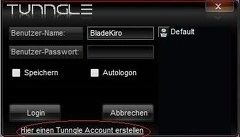
- Download here
- Install
- Restart computer
- Run Tunngle
- Create account (Click the link at the bottom, check the picture to the right)
- Check email, activate account with given link
- Log in
You’re now at the general interface. To join a network room (Chat and game room), start the network browser from the menu bar. «Community» — «Netzwerke» — «Browser»
From this point, you can pick any room. Get your friends to join the same room, and then you can start and play a LAN game together.
You can also search through the rooms using «Community» — «Netzwerke» — «Suchen». Try typing «Borderlands» to find the main Borderlands VLAN room. Double click it to join.
There is a forum thread dedicated to Tunngle here
Garena
According to a forum thread, success has also been had with this.
Once installed and started, you must first join a room (EG: Europe 1). Once in the room, click settings at the bottom, Borderlands in the game settings, and finally browse to find your Borderlands.exe or shortcut.
Direct Connect
- You want to join a LAN game, but it won’t find the game
- You want to use Hamachi, but again, it won’t find the game
- You’re trying to join an online game, have your ports open, and don’t feel like using SkUT or GameRanger.. But know the person you want to connect to
- Your Lan/Hamachi/Tunngle/Gamespy games work fine for you, but a friend on the LAN/online with a static IP always hosts, and you just want to connect to them quickly
Create a shortcut to borderlandsborderlands.exe. Put this shortcut wherever you want, it doesn’t matter.
(Create a shortcut from inside steam and modify that one instead, if you are using steam)
Open the properties of the shortcut.
In the «Target» field, add this AFTER «….borderlands.exe», with a space in between:
x.x.x.x -login=yyyyy -password=zzzzz
Where…
- x.x.x.x is your friend’s ip (Shown in hamachi, shown via whatsmyip.org, whatever)
- yyyyy is your gamespy login name
- zzzzz is your gamespy password
(You can leave out -login and -password for lan/hamachi/tunngle games)
Here is a example, this will not work for *you* but shows how it should end up.
"C:GamesBorderlandsBinariesBorderlands.exe" 5.171.18.89 -login=foo -password=bar
You will need to figure out how to properly configure Tunngle/Hamachi to host games — e.g. disable firewall on those connections, perhaps move them up in the adapter list — but after that, this lets you connect without any fuss.
Force Borderlands to use the correct interface
Changing the priority of the network connections doesn’t always work and you might still not see LAN games where there should be one or more. It’s possible, with a tiny application, to force Borderlands to use the network connection of your choice. This works in combination with Hamachi (confirmed) but should work with all other VPN as well as long as those programs install a network on your PC
ForceBindIP is a tiny application (80 kB) which can be downloaded here. The instructions are not directly clear so here is how to get it to work.
Once installed you have three options. Either you type in a command line in command prompt for a one time only run, or you create a batch file which can be run, or you edit the/create a Borderlands shortcut to execute the command line.
For the one time only run, simply go to start -> run -> ‘cmd’ and hit enter. You are now in command promt. Type:
c:windowssystem32forcebindip x.x.x.x "d:games2k gamesgearbox softwareborderlandsbinariesborderlands.exe"
x.x.x.x is the IP address which the computer has now on the network you want to be (for hamachi it will look like 5.x.x.x)
This is an example, though ForceBindIP is always in c:windowssystem32, Borderlands may be installed in a different location. Do note that if there’s a space in the full path of your borderlands i.e. ‘2k games’ or ‘gearbox software’ you are required to use the » to open and close the full path of borderlands.exe
If you choose to create or edit the shortcut, simply make the ‘target’ as shown above in the command line example and change ‘start in’ to:
c:windowssystem32
This will produce a shortcut with no icon or break the icon of the original shortcut, the icon can be found in:
d:games2k gamesgearbox softwareborderlandsbinariesborderlands.ico
Finally you can create a batch file, simply open notepad and type the command line as shown in the command line example, then save the file using ‘save as’, make sure to select ‘All files (*.*)’ in the ‘Save as type’ and give it a name that ends in ‘.bat’. You can save the file anywhere you want. Example:
Borderlands.bat
Slow loading players timing out
Sometimes people with bad computers take long enough to join the server or load new areas that the host’s server will disconnect them. These defaults can be changed to get around this problem. (Thread here)
Open this ini file with notepad or another text editor:
DocumentsMy GamesBorderlandsWillowGameConfigWillowEngine.ini
Find these lines:
ConnectionTimeout=#
InitialConnectTimeout=#
AckTimeout=#
Change the # values to match these:
ConnectionTimeout=300.0
InitialConnectTimeout=300.0
AckTimeout=300.0
This will cause the game to wait five minutes before disconnecting anyone.
Host-Leave-Host trick
Common wisdom holds that, somehow: if you start a private match, leave it, then make another, you can invite friends successfully afterwards.
If your ports are correctly forwarded but you cannot host a private match, log into Gamespy in-game, enter and exit the lobby, start the game in single player mode and invite friends by pressing «O» (default).
Known issues
Gamespy
- Cannot host public games
- Cannot join public games
- Cannot host private games
- Cannot join or invite from friends menu
- Cannot connect at all
LAN
- Cannot see LAN servers
- If you have an old computer, you will be dropped from the server due to loading time, when changing areas.
Solutions
- If you cannot host public games, but do want to use gamespy to do it, first configure your router.
- If you cannot join public games, make sure the host has configured their router. using SkUT.
- If you want to join public games, but do not want to use gamespy, use GameRanger
- If you just want to play with your friends, consider either using GameRanger, Hamachi, or Tunngle.
(You can also try; leaf networks, remobo and teamviewer vpn.)
- If you are trying to play on LAN (Either real or virtual), but cannot see games you know are there, try directly connecting. Otherwise, try forcing the correct interface to be used.
Router configuration
To host (and sometimes join) online/games, ports must be opened. Ports are numbers that represent entry points to your computer from the internet. Your house has an address (Just like your IP Address), but you can’t just walk through the wall. Ports would be doors, in this comparison. When you have a router sharing your internet connection between multiple computers, the router holds the single address that the outside internet can see, so you must tell it which ports should go to which computers. Otherwise, it simply ignores all incoming requests (like people trying to join your game).
Borderlands uses only UDP connections for hosting and running games, TCP/IP connections are used only to connect to the GameSpy servers. To be able to host and play games, the following ports need to be forwarded to your computer (See wikihow or portforward.com for help):
-
- 7777 TCP/UDP (in/out) — actual game data port
In addition the game opens the following connections to the internet. In most cases it is not necessary to specifically open these ports, as this is an outgoing connection that routers usually detect and open properly. However some firewall/router configurations might be more restrictive, so if you still have troubles to connect and/or host, you have to manually open the ports above and the following additional ones as well:
-
- 29900 TCP (out) — Gamespy persistent connection
- 27900 UDP (out) — Gamespy info broadcast, used for public hosts
-
- 9989 UDP (in/out) — game broadcast port for LAN play only
Please note that there has been a lot of frustration about how to properly setup this game to allow for online connections, resulting in many rumors and false information (even from the readme file itself: some ports listed there are actually never used). The above data has been collected through port and firewall monitoring and has been confirmed to be correct.
Automatic port forwarding
An alternative to manually forwarding ports on your router is using UPnP to request forwarded ports on your router.
In order to do this you must:
- Have a router that supports UPnP
- Have UPnP enabled on your router
- Know your own internal IP
Further instructions located in the forum thread and the steam forums thread.
Need Router contact vonage canada login
Another way to automatically forward your ports is to use an automatic port forwarding program like This One.
This program allows you to select your program from a drop down list, only in the paid premium version, in this case Borderlands, and it will automatically forward the ports.
Further instructions are located in This Thread.
Firewall configuration for hosting
An extensive guide to configuring the windows firewall has been posted on the steam forums
Alternate server browsers
GameRanger
Originally announced on the forums, GameRanger added support for Borderlands quickly. It provides a server list, a friends list, and the ability to host your own games with your friends. Support is available either in the forums thread or on GameRanger’s own support section.
When you host a game with GameRanger, it will start Borderlands for you. Once it creates the game, other people will join automatically.
SkUT
SkUT is a UT3 (The same engine that Borderlands uses) game browser for the mIRC IRC client.
There is a forum thread detailing how to get it and a tutorial on how to get it working here.
Virtual LANs (VPN)
There are several applications that allow you to join virtual private networks with your friends. These then play over them like you were all on the same LAN. This is sometimes easier than attempting to get a gamespy game working. Some of these even provide advanced server browsers.
Hamachi
This is the veteran of the bunch. Hamachi has been facilitating LAN games for quite a while.
- Download the latest version at the LogMeIn Hamachi site (Client version), or the simply get the last 1.0 release at FileHippo.
- Once it is installed, if you do not want to make a direct shortcut, make sure to set hamachi as the first connection as shown on the forums.
- Disable your firewall on the Hamachi connection. Make sure pinging
- Join or create a group/network (There is a button on the bottom in the 1.0 client, Hamachi2 has it under Network at the top)
- Make sure everyone can ping the host (Double click them in hamachi’s list, make sure it returnTimed out»)
- If no one can, the host needs to disable their computer’s firewall.
- If only one can’t, they need to check their firewall settings.
- This may not always have any effect. Being able to join the game is the only true indicator.
- Make a LAN game, have your friends join it. (Or vice-versa). If there are any problems seeing the game, take a look at the Direct Connect section or how to force Borderlands to use the Hamachi interface here (both are found further down the page).
Tunngle
NOTE: Tunngle is still in beta, and therefore has limited support.
Creating an account in Tunngle
- Download here
- Install
- Restart computer
- Run Tunngle
- Create account (Click the link at the bottom, check the picture to the right)
- Check email, activate account with given link
- Log in
You’re now at the general interface. To join a network room (Chat and game room), start the network browser from the menu bar. «Community» — «Netzwerke» — «Browser»
From this point, you can pick any room. Get your friends to join the same room, and then you can start and play a LAN game together.
You can also search through the rooms using «Community» — «Netzwerke» — «Suchen». Try typing «Borderlands» to find the main Borderlands VLAN room. Double click it to join.
There is a forum thread dedicated to Tunngle here
Garena
According to a forum thread, success has also been had with this.
Once installed and started, you must first join a room (EG: Europe 1). Once in the room, click settings at the bottom, Borderlands in the game settings, and finally browse to find your Borderlands.exe or shortcut.
Direct Connect
- You want to join a LAN game, but it won’t find the game
- You want to use Hamachi, but again, it won’t find the game
- You’re trying to join an online game, have your ports open, and don’t feel like using SkUT or GameRanger.. But know the person you want to connect to
- Your Lan/Hamachi/Tunngle/Gamespy games work fine for you, but a friend on the LAN/online with a static IP always hosts, and you just want to connect to them quickly
Create a shortcut to borderlandsborderlands.exe. Put this shortcut wherever you want, it doesn’t matter.
(Create a shortcut from inside steam and modify that one instead, if you are using steam)
Open the properties of the shortcut.
In the «Target» field, add this AFTER «….borderlands.exe», with a space in between:
x.x.x.x -login=yyyyy -password=zzzzz
Where…
- x.x.x.x is your friend’s ip (Shown in hamachi, shown via whatsmyip.org, whatever)
- yyyyy is your gamespy login name
- zzzzz is your gamespy password
(You can leave out -login and -password for lan/hamachi/tunngle games)
Here is a example, this will not work for *you* but shows how it should end up.
"C:GamesBorderlandsBinariesBorderlands.exe" 5.171.18.89 -login=foo -password=bar
You will need to figure out how to properly configure Tunngle/Hamachi to host games — e.g. disable firewall on those connections, perhaps move them up in the adapter list — but after that, this lets you connect without any fuss.
Force Borderlands to use the correct interface
Changing the priority of the network connections doesn’t always work and you might still not see LAN games where there should be one or more. It’s possible, with a tiny application, to force Borderlands to use the network connection of your choice. This works in combination with Hamachi (confirmed) but should work with all other VPN as well as long as those programs install a network on your PC
ForceBindIP is a tiny application (80 kB) which can be downloaded here. The instructions are not directly clear so here is how to get it to work.
Once installed you have three options. Either you type in a command line in command prompt for a one time only run, or you create a batch file which can be run, or you edit the/create a Borderlands shortcut to execute the command line.
For the one time only run, simply go to start -> run -> ‘cmd’ and hit enter. You are now in command promt. Type:
c:windowssystem32forcebindip x.x.x.x "d:games2k gamesgearbox softwareborderlandsbinariesborderlands.exe"
x.x.x.x is the IP address which the computer has now on the network you want to be (for hamachi it will look like 5.x.x.x)
This is an example, though ForceBindIP is always in c:windowssystem32, Borderlands may be installed in a different location. Do note that if there’s a space in the full path of your borderlands i.e. ‘2k games’ or ‘gearbox software’ you are required to use the » to open and close the full path of borderlands.exe
If you choose to create or edit the shortcut, simply make the ‘target’ as shown above in the command line example and change ‘start in’ to:
c:windowssystem32
This will produce a shortcut with no icon or break the icon of the original shortcut, the icon can be found in:
d:games2k gamesgearbox softwareborderlandsbinariesborderlands.ico
Finally you can create a batch file, simply open notepad and type the command line as shown in the command line example, then save the file using ‘save as’, make sure to select ‘All files (*.*)’ in the ‘Save as type’ and give it a name that ends in ‘.bat’. You can save the file anywhere you want. Example:
Borderlands.bat
Slow loading players timing out
Sometimes people with bad computers take long enough to join the server or load new areas that the host’s server will disconnect them. These defaults can be changed to get around this problem. (Thread here)
Open this ini file with notepad or another text editor:
DocumentsMy GamesBorderlandsWillowGameConfigWillowEngine.ini
Find these lines:
ConnectionTimeout=#
InitialConnectTimeout=#
AckTimeout=#
Change the # values to match these:
ConnectionTimeout=300.0
InitialConnectTimeout=300.0
AckTimeout=300.0
This will cause the game to wait five minutes before disconnecting anyone.
Host-Leave-Host trick
Common wisdom holds that, somehow: if you start a private match, leave it, then make another, you can invite friends successfully afterwards.
If your ports are correctly forwarded but you cannot host a private match, log into Gamespy in-game, enter and exit the lobby, start the game in single player mode and invite friends by pressing «O» (default).
Кто знает как решить проблему с подключением к другу? Я и 3 моих друга, не можем подключиться друг к другу. Просто висит табличка с ожиданием в 30 секунд( Искал сервера в нете, нашёл и подключился, а к друзьям не могу( Что делать?
[quote=»AHHKY;157781″]дарк ушёл печалька
он хотябы разруливвал момент такие(
верните дарка…[/quote]

-
1
- Наверх
21 сентября 2012 — 06:14

-
Пользователь
С нами с 14 июля 11 -

511
0
0
NoCry
[quote name=’Dark Soul’]Кто знает как решить проблему с подключением к другу? Я и 3 моих друга, не можем подключиться друг к другу. Просто висит табличка с ожиданием в 30 секунд( Искал сервера в нете, нашёл и подключился, а к друзьям не могу( Что делать?[/quote]
Лицензия?пиратка?
-
0
- Наверх
21 сентября 2012 — 06:16

-
Пользователь
С нами с 21 января 11 -
556
0
-5
Dark Soul
NoCry, Лицензия
[quote=»AHHKY;157781″]дарк ушёл печалька
он хотябы разруливвал момент такие(
верните дарка…[/quote]
-
0
- Наверх
21 сентября 2012 — 06:19

-
Пользователь
С нами с 11 декабря 10 -
667
0
-8
3vErb
Dark Soul, ну а что ты хотел?) Игра только вышла, явно, что сразу же идеальной не будет, сразу же понятно, что баг) Пиши разрабам игры, если знаешь куда)
-
0
- Наверх
21 сентября 2012 — 06:20
-
Пользователь
С нами с 21 января 11 -
556
0
-5
Dark Soul
-=[Zv][Er]=-, Я ещё утром в саппорт написал, жду ответа. Ладно если бы у меня была такая проблема, но такая фигня у каждого 3-го( Ещё возможно нужно ждать версию 1.0.1. как на международной.
[quote=»AHHKY;157781″]дарк ушёл печалька
он хотябы разруливвал момент такие(
верните дарка…[/quote]
-
1
- Наверх
21 сентября 2012 — 06:24

- Этот Гость не с нами
Гость_TENb_*
Я точно не знаю, но вроде там 2 разных версии, русская и интернациональная. Мб вы разные версии запускаете ?
-
0
- Наверх
21 сентября 2012 — 06:26

-
Пользователь
С нами с 13 февраля 11 -
487
0
0
PaRkOUR#SA
-
0
- Наверх
21 сентября 2012 — 06:26
-
Пользователь
С нами с 14 июля 11 -
511
0
0
NoCry
[quote name=’PaRkOUR#SA’][OFFTOP][/quote]
Есть,уже с ним гоняю.ток в нем 1 минус..
мультик не пашет с ним
-
0
- Наверх
22 сентября 2012 — 09:11
-
Пользователь
С нами с 21 января 11 -
556
0
-5
Dark Soul
Цитата с форума.
[quote]7# Не получается подключиться к друзьям в Borderlands 2
Необходимо включить режим DMZ на вашем роутере, с открытыми протоколами TCP: 7777,7778, 28900, 28902,28910 и UDP: 7777,7778, 27900, 28902.
В самой игре установите Сетевые Настройки на Online Invite Only. Теперь должно работаь
8# Borderlands 2 – Время подключения истекло
Идем в Steam Game Library и правый клик на Borderlands 2. Свойства – Основные – Стартовые опции. Введите “-tcp”.[/quote]
Буду теперь искать как сменить протокол на роутере)
[quote=»AHHKY;157781″]дарк ушёл печалька
он хотябы разруливвал момент такие(
верните дарка…[/quote]
-
0
- Наверх
22 сентября 2012 — 09:15

-
Пользователь
С нами с 11 марта 11 -
468
0
13
Mr.ToBi
с фоксиком вчера поиграл все норм)
Ставим + буду рад
Извините меня за грамматические ошибки
-
0
- Наверх
22 сентября 2012 — 11:19

-
Пользователь
С нами с 29 сентября 10 -
344
0
57
Серебряный Дождь
Dark Soul, поставь в сетевых настройках для всех, и приглашай всех друзей когда ты в лобби игры, а не когда играешь. (с Нельсоном проверили, норм все)
[OFFTOP]
-
1
- Наверх
23 сентября 2012 — 11:07
Broadlands 2 is a very popular game that can be downloaded and played online via Steam. A number of Broadland 2 players have frequently encountered a fatal error that arises when they launch the game or click the continue button after loading their character to continue the campaign. The borderlands 2 fatal error prevents the gamer to play the game which can be a headache. You can solve this issue after going through the solutions explained in this article.

What causes this Fatal error?
When this error message appears out of nowhere, you can consider different reasons that might be causing this to happen in different cases.
- In most cases, this issue is caused by discord.
- This error might occur due to corrupted game files.
- Another application that is already installed on your PC might be blocking some of the features of this game.
- The game might be installed in the wrong directory.
- The video game might not be given administrative privileges.
- This error might appear due to Dolby DAX API Service.
Pre Tips
If you encounter the borderlands 2 fatal error when joining game, before going to any major solution, try to clear the game’s cache by going to the properties first. In most of the cases, clearing the game’s cache has been proven the simplest solution to this problem.
What can I do if I get the “Fatal Error” on Borderlands 2?
Solution 1: Verify the Game’s Integrity
If you are facing the fatal error problem at join, verify the game’s integrity before gong to any major solution.
- Close your steam.
- Restart your computer.
- Launch Steam.
- Right-click the game. Select properties and then select local. Verify the game by clicking the verify button.
- Launch the game you are facing this issue in.
If you are still having this issue, just try the solutions for this problem given below and check if this problem is removed.
Solution 2: Give the game administrator privileges
If the fatal error is still occurring on your PC, try to run this game as an administrator.
- Launch Steam.
- Doube-click on Borderlands 2 in the library.
- Go to the Local Files tab and then click the Browse Local Files option.

Browse Local Files - Now note the location to the executable file of this game.
- Go to the location and right-click on the executable file.
- Click Run as administrator.
Solution 3: Edit the Installation Directory
Many users install their games in the Program Files directory of the Windows drive normally. In this directory, there are many permission restrictions that are the sole reason behind the occurrence of this error. To avoid the error due to this reason, follow the steps below:
- Right-click in the root of the drive.
- Hover to the New tab and cick on Folder.
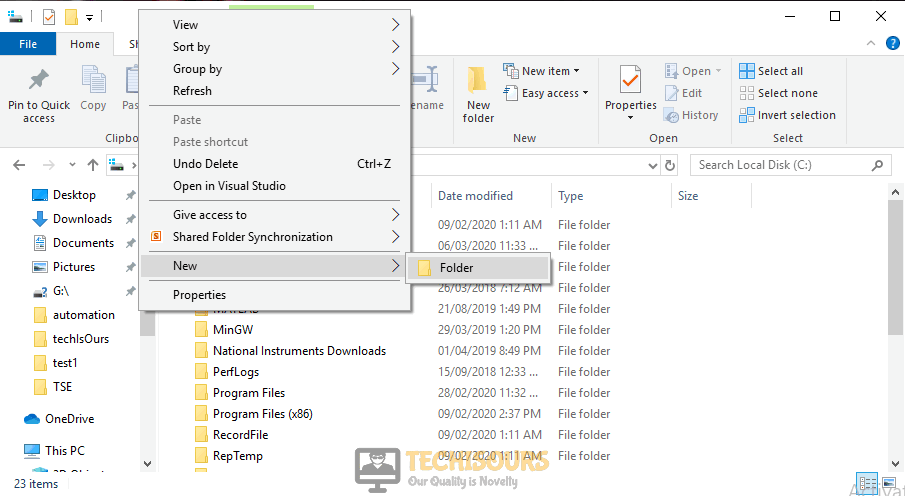
New Folder - Name the folder as Games.
- Cut the steam folder from the Program Files directory and paste it in the new folder that you just created.
- Now create a new shortcut of the Steam to the desktop from here.
Solution 4: Disable the Dolby DAX API Service
If you still can’t get rid of this error, follow the steps given below to disable the Dolby DAX API Service.
- Click the search button in the taskbar. Type and open services.msc.
- Locate and double-click Dolby DAX API service from the list shown in the window.

Dolby DAX API - In the properties window, click Disable from the Startup dropdown menu.
- Click Apply and then OK.
- Restart your PC and check if the issue is resolved.
Solution 5: Renew the config files
If this error is still occurring in your game, try to edit your config files and check if the issue is resolved or not.
- Go to the My Documents directory.
- Locate and open the Borderlands 2 folder.
- Now make a backup of the save game files by copying them somewhere else and delete al the other files.
- Restart your PC and launch the game again.
Solution 6: Uninstall Discord
In most of the cases, Discord is causing this trouble. Follow the steps below to uninstall discord.
- Click the search button in the taskbar. Type and open Control Panel.
- Click on Uninstall a program.

Uninstall a program - Now locate Discord. Right-click on it and select uninstall.

Uninstall Discord
If you need further assistance, contact here. You can also get support from here.
Borderlands 2 fatal error при подключении к другу

Borderlands 2


Try verifying game files first. Right click Borderlands 2 in your Steam library, go to:
Properties
Local files
Then hit «Verify integrity of game file». Don’t fret if there’s a file that doesn’t get validated; that’s normal.

Sounds like maybe his savefile was corrupted. Maybe he can try using his backup savefile (same number savexxx.sav) but with a .bak extension. Google will tell you where the saves are, depending what OS you are using.
Also. There is a known bug where attempting to join a host who is in the Mines of Avarice in the Tiny Tina DLC crashes the guest copy of the game. If this is the case, have him travel to another map, where you can join and then you can travel wherever you want together.
Sounds like maybe his savefile was corrupted. Maybe he can try using his backup savefile (same number savexxx.sav) but with a .bak extension. Google will tell you where the saves are, depending what OS you are using.
Also. There is a known bug where attempting to join a host who is in the Mines of Avarice in the Tiny Tina DLC crashes the guest copy of the game. If this is the case, have him travel to another map, where you can join and then you can travel wherever you want together.
Источник
Borderlands 2: Fatal Error at Join [Fixed Completely]
Broadlands 2 is a very popular game that can be downloaded and played online via Steam. A number of Broadland 2 players have frequently encountered a fatal error that arises when they launch the game or click the continue button after loading their character to continue the campaign. The borderlands 2 fatal error prevents the gamer to play the game which can be a headache. You can solve this issue after going through the solutions explained in this article.
Error Message
What causes this Fatal error?
When this error message appears out of nowhere, you can consider different reasons that might be causing this to happen in different cases.
- In most cases, this issue is caused by discord.
- This error might occur due to corrupted game files.
- Another application that is already installed on your PC might be blocking some of the features of this game.
- The game might be installed in the wrong directory.
- The video game might not be given administrative privileges.
- This error might appear due to Dolby DAX API Service.
Pre Tips
If you encounter the borderlands 2 fatal error when joining game, before going to any major solution, try to clear the game’s cache by going to the properties first. In most of the cases, clearing the game’s cache has been proven the simplest solution to this problem.
What can I do if I get the “Fatal Error” on Borderlands 2?
Solution 1: Verify the Game’s Integrity
If you are facing the fatal error problem at join, verify the game’s integrity before gong to any major solution.
- Close your steam.
- Restart your computer.
- Launch Steam.
- Right-click the game. Select properties and then select local. Verify the game by clicking the verify button.
- Launch the game you are facing this issue in.
If you are still having this issue, just try the solutions for this problem given below and check if this problem is removed.
Solution 2: Give the game administrator privileges
If the fatal error is still occurring on your PC, try to run this game as an administrator.
- Launch Steam.
- Doube-click on Borderlands2 in the library.
- Go to the Local Files tab and then click the BrowseLocalFiles option. Browse Local Files
- Now note the location to the executable file of this game.
- Go to the location and right-click on the executable file.
- Click Run as administrator.
Solution 3: Edit the Installation Directory
Many users install their games in the Program Files directory of the Windows drive normally. In this directory, there are many permission restrictions that are the sole reason behind the occurrence of this error. To avoid the error due to this reason, follow the steps below:
- Right-click in the root of the drive.
- Hover to the New tab and cick on Folder. New Folder
- Name the folder as Games.
- Cut the steam folder from the Program Files directory and paste it in the new folder that you just created.
- Now create a new shortcut of the Steam to the desktop from here.
Solution 4: Disable the Dolby DAX API Service
If you still can’t get rid of this error, follow the steps given below to disable the Dolby DAX API Service.
- Click the search button in the taskbar. Type and open services.msc.
- Locate and double-click Dolby DAXAPI service from the list shown in the window. Dolby DAX API
- In the properties window, click Disable from the Startup dropdown menu.
- Click Apply and then OK.
- Restart your PC and check if the issue is resolved.
Solution 5: Renew the config files
If this error is still occurring in your game, try to edit your config files and check if the issue is resolved or not.
- Go to the My Documents directory.
- Locate and open the Borderlands2 folder.
- Now make a backup of the save game files by copying them somewhere else and delete al the other files.
- Restart your PC and launch the game again.
Solution 6: Uninstall Discord
In most of the cases, Discord is causing this trouble. Follow the steps below to uninstall discord.
- Click the search button in the taskbar. Type and open Control Panel.
- Click on Uninstall a program. Uninstall a program
- Now locate Discord. Right-click on it and select uninstall.Uninstall Discord
If you need further assistance, contact here. You can also get support from here.
Источник
Borderlands 2 fatal error при подключении к другу
When i start up the game have to load my character every time and when i click on continue I’m getting a Fatal Error and get this
Address = 0x10d5681 (filename not found) [in E:SteamsteamappscommonBorderlands 2BinariesWin32Borderlands2.exe]
Address = 0x1246044 (filename not found) [in E:SteamsteamappscommonBorderlands 2BinariesWin32Borderlands2.exe]
AK::MemoryMgr::GetPoolName() Address = 0x1cfe524 (filename not found) [in E:SteamsteamappscommonBorderlands 2BinariesWin32Borderlands2.exe]
Address = 0x1088cfd (filename not found) [in E:SteamsteamappscommonBorderlands 2BinariesWin32Borderlands2.exe]
GetStackOwnerClass() Address = 0x18a596e (filename not found) [in E:SteamsteamappscommonBorderlands 2BinariesWin32Borderlands2.exe]
GetStackOwnerClass() Address = 0x1879eff (filename not found) [in E:SteamsteamappscommonBorderlands 2BinariesWin32Borderlands2.exe]
AK::MemoryMgr::GetPoolName() Address = 0x1cfe840 (filename not found) [in E:SteamsteamappscommonBorderlands 2BinariesWin32Borderlands2.exe]
AK::MemoryMgr::SetPoolName() Address = 0x1400220 (filename not found) [in E:SteamsteamappscommonBorderlands 2BinariesWin32Borderlands2.exe]
GetStackOwnerClass() Address = 0x18a596e (filename not found) [in E:SteamsteamappscommonBorderlands 2BinariesWin32Borderlands2.exe]
GetStackOwnerClass() Address = 0x1879eff (filename not found) [in E:SteamsteamappscommonBorderlands 2BinariesWin32Borderlands2.exe]
AK::MemoryMgr::GetPoolName() Address = 0x1cfe840 (filename not found) [in E:SteamsteamappscommonBorderlands 2BinariesWin32Borderlands2.exe]
AK::MemoryMgr::SetPoolName() Address = 0x1400220 (filename not found) [in E:SteamsteamappscommonBorderlands 2BinariesWin32Borderlands2.exe]
GetStackOwnerClass() Address = 0x18a596e (filename not found) [in E:SteamsteamappscommonBorderlands 2BinariesWin32Borderlands2.exe]
GetStackOwnerClass() Address = 0x1879eff (filename not found) [in E:SteamsteamappscommonBorderlands 2BinariesWin32Borderlands2.exe]
AK::MemoryMgr::GetPoolName() Address = 0x1cfe840 (filename not found) [in E:SteamsteamappscommonBorderlands 2BinariesWin32Borderlands2.exe]
AK::MemoryMgr::SetPoolName() Address = 0x1400220 (filename not found) [in E:SteamsteamappscommonBorderlands 2BinariesWin32Borderlands2.exe]
GetStackOwnerClass() Address = 0x18a596e (filename not found) [in E:SteamsteamappscommonBorderlands 2BinariesWin32Borderlands2.exe]
AK::MemoryMgr::GetPoolName() Address = 0x1d3a8a9 (filename not found) [in E:SteamsteamappscommonBorderlands 2BinariesWin32Borderlands2.exe]
GetStackOwnerClass() Address = 0x18a596e (filename not found) [in E:SteamsteamappscommonBorderlands 2BinariesWin32Borderlands2.exe]
GetStackOwnerClass() Address = 0x1879eff (filename not found) [in E:SteamsteamappscommonBorderlands 2BinariesWin32Borderlands2.exe]
AK::MemoryMgr::GetPoolName() Address = 0x1cfe840 (filename not found) [in E:SteamsteamappscommonBorderlands 2BinariesWin32Borderlands2.exe]
Address = 0x1088cfd (filename not found) [in E:SteamsteamappscommonBorderlands 2BinariesWin32Borderlands2.exe]
GetStackOwnerClass() Address = 0x18a596e (filename not found) [in E:SteamsteamappscommonBorderlands 2BinariesWin32Borderlands2.exe]
GetStackOwnerClass() Address = 0x1879eff (filename not found) [in E:SteamsteamappscommonBorderlands 2BinariesWin32Borderlands2.exe]
AK::MemoryMgr::GetPoolName() Address = 0x1cfe840 (filename not found) [in E:SteamsteamappscommonBorderlands 2BinariesWin32Borderlands2.exe]
AK::MemoryMgr::SetPoolName() Address = 0x1400220 (filename not found) [in E:SteamsteamappscommonBorderlands 2BinariesWin32Borderlands2.exe]
GetStackOwnerClass() Address = 0x18a596e (filename not found) [in E:SteamsteamappscommonBorderlands 2BinariesWin32Borderlands2.exe]
AK::MemoryMgr::GetPoolName() Address = 0x1d3a8a9 (filename not found) [in E:SteamsteamappscommonBorderlands 2BinariesWin32Borderlands2.exe]
GetStackOwnerClass() Address = 0x18a596e (filename not found) [in E:SteamsteamappscommonBorderlands 2BinariesWin32Borderlands2.exe]
GetStackOwnerClass() Address = 0x1879eff (filename not found) [in E:SteamsteamappscommonBorderlands 2BinariesWin32Borderlands2.exe]
AK::MemoryMgr::GetPoolName() Address = 0x1cfe840 (filename not found) [in E:SteamsteamappscommonBorderlands 2BinariesWin32Borderlands2.exe]
AK::MemoryMgr::SetPoolName() Address = 0x1400220 (filename not found) [in E:SteamsteamappscommonBorderlands 2BinariesWin32Borderlands2.exe]
GetStackOwnerClass() Address = 0x18a596e (filename not found) [in E:SteamsteamappscommonBorderlands 2BinariesWin32Borderlands2.exe]
GetStackOwnerClass() Address = 0x1879eff (filename not found) [in E:SteamsteamappscommonBorderlands 2BinariesWin32Borderlands2.exe]
AK::MemoryMgr::SetPoolName() Address = 0x1513f65 (filename not found) [in E:SteamsteamappscommonBorderlands 2BinariesWin32Borderlands2.exe]
AK::MemoryMgr::SetPoolName() Address = 0x16b6223 (filename not found) [in E:SteamsteamappscommonBorderlands 2BinariesWin32Borderlands2.exe]
AK::MemoryMgr::SetPoolName() Address = 0x143d262 (filename not found) [in E:SteamsteamappscommonBorderlands 2BinariesWin32Borderlands2.exe]
GetOutermost() Address = 0x19ebfa2 (filename not found) [in E:SteamsteamappscommonBorderlands 2BinariesWin32Borderlands2.exe]
AK::MemoryMgr::GetPoolName() Address = 0x1c8ded8 (filename not found) [in E:SteamsteamappscommonBorderlands 2BinariesWin32Borderlands2.exe]
AK::MemoryMgr::SetPoolName() Address = 0x15352ef (filename not found) [in E:SteamsteamappscommonBorderlands 2BinariesWin32Borderlands2.exe]
Address = 0x12b360d (filename not found) [in E:SteamsteamappscommonBorderlands 2BinariesWin32Borderlands2.exe]
AK::SoundEngine::StopOutputCapture() Address = 0x1378089 (filename not found) [in E:SteamsteamappscommonBorderlands 2BinariesWin32Borderlands2.exe]
AK::MemoryMgr::SetPoolName() Address = 0x13e4aaa (filename not found) [in E:SteamsteamappscommonBorderlands 2BinariesWin32Borderlands2.exe]
GetOutermost() Address = 0x1a2e1bf (filename not found) [in E:SteamsteamappscommonBorderlands 2BinariesWin32Borderlands2.exe]
AK::MemoryMgr::SetPoolName() Address = 0x170a36c (filename not found) [in E:SteamsteamappscommonBorderlands 2BinariesWin32Borderlands2.exe]
CreateAudioInputSourceParams() Address = 0x1ff1cc7 (filename not found) [in E:SteamsteamappscommonBorderlands 2BinariesWin32Borderlands2.exe]
BaseThreadInitThunk() Address = 0x766333aa (filename not found) [in C:Windowssyswow64kernel32.dll]
RtlInitializeExceptionChain() Address = 0x77829ed2 (filename not found) [in C:WindowsSysWOW64ntdll.dll]
RtlInitializeExceptionChain() Address = 0x77829ea5 (filename not found) [in C:WindowsSysWOW64ntdll.dll]
RtlInitializeExceptionChain() Address = 0x77829ea5 (filename not found) [in C:WindowsSysWOW64ntdll.dll]
I all so cant get the game out of lan mode.
I have uninstalled/reinstalled the game and Verify integrity of game cache and restored my save to one from 2 weeks ago and still getiing a Fatal Error


I actually tried all those things. sorry I didn’t post back sooner but I actually fixed the problem with the age-old windows fix. I rebooted.
Yeah, turned it off, turned it on, and suddenly everything worked great LOL
Источник
Друг не видит меня в Borderlands 2.
Помнится тоже была такая проблема, решили с помошью прямого подключения по айпи. Вот инструкция:1)Качаем программу Хамачи 2)Устанавливаем и запускаем программу, после этого заходим в Сеть — Создаем новую сеть — пишем название сети и пароль, даем данные друзьям, чтобы они подключались 3)После подключения к сети к человеку, который создал сервер, запускаете игру, включаете в игре Локальная Сеть и нажимаете на Продолжить Игру. 4)Все другие люди должны нажать на кнопку на «ник» в Хамачи друга (сервера) и копируете IPv4 адрес. 5)Если у вас нет ярлыка Borderlands2.exe, то поместите его сюда. 6)Нажимаете на ярлык правой кнопкой мыши, выбираете «Свойства» , в «Объект» после …Win32Borderlands2.exe ставите пробел и вставляете IPv4 сервера, нажимаем ОК. 7)После всего этого запускаете игру по этому ярлыку и будете сразу присоединены к серверу. 8)Если даже после этого вас не будет закидывать в игру, то попросите других стать «сервером» и начиная с 4 сделайте все. (делают все кроме сервера)
Проблема в том что у тебя наверное русская версия (не мультиплеерная) борду в томто и дело вроде бы но нет! У меня точно такая же проблема такчто ты не один! (((
Войдите, чтобы написать ответ