BAD_OBJECT_HEADER – является ошибкой, относящейся к типу “синий экран смерти”. Она прерывает всю работу компьютера и принудительно перезагружает систему. Такая ситуация может не только раздражать, но и привести к потере данных и прогресса работы. Однако сообщение говорит о том, что с программным обеспечением Windows не всё в порядке.
Причин появления ошибки может быть несколько – от проблем с памятью до неисправных драйверов. Во многих случаях нарушение заключается именно в устаревшем программном обеспечении или несовместимости с новым обновлением Windows. К сожалению, из-за широких возможностей настройки, которые предоставляет ОС, не существует универсального способа исправить BSOD BAD_OBJECT_HEADER. Поэтому ниже приведены несколько вариантов решения, один из которых должен устранить проблему.
Содержание
- Решение 1. Обновите Windows
- Решение 2. Отключите автоматический перезапуск Windows
- Решение 3. Обновите драйверы
- Решение 4. Проверьте память с помощью средства диагностики Windows
- Решение 5. Запустите средство проверки системных файлов
Решение 1. Обновите Windows
Всегда необходимо следить за актуальными обновлениями Windows, так как они исправляют ошибки и недоработки предыдущих версий. Как правило, они включены по умолчанию, и устанавливаются автоматически. Однако, если они отключены, следует сделать это вручную:
- Нажмите правой кнопкой мыши по значку Windows (левый, нижний угол).
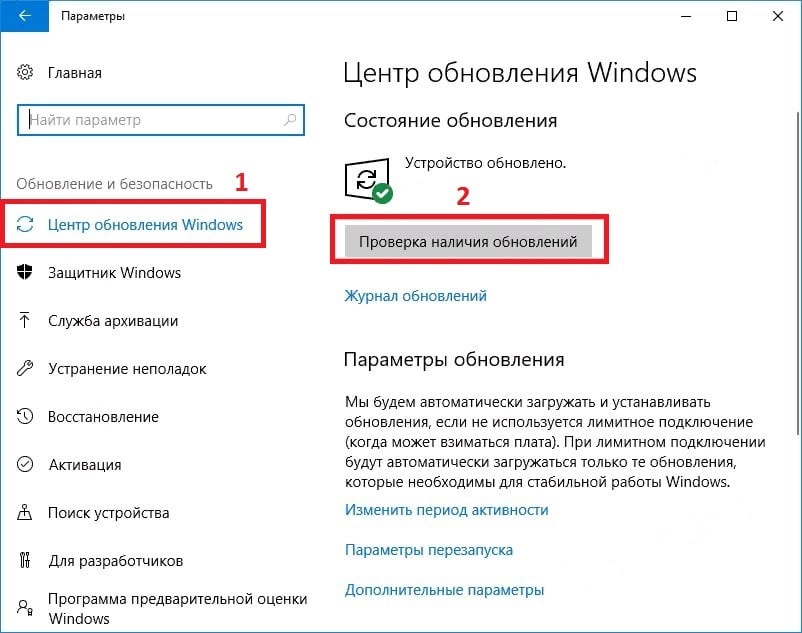
- Выберите Параметры, и перейдите в раздел Центр Обновления Windows.
- Справа запустите Проверку наличия обновлений, и установите их, если таковые имеются.
- Затем перезагрузите систему.
Решение 2. Отключите автоматический перезапуск Windows
В некоторых случаях ошибку BAD OBJECT HEADER невозможно устранить из-за постоянного цикла перезапуска, сопровождающегося также сообщениями: BAD_POOL_HEADER и PAGE_FAULT_IN_NONPAGED_AREA. В этом случае стоит отключить автоматическую перезагрузку Windows.
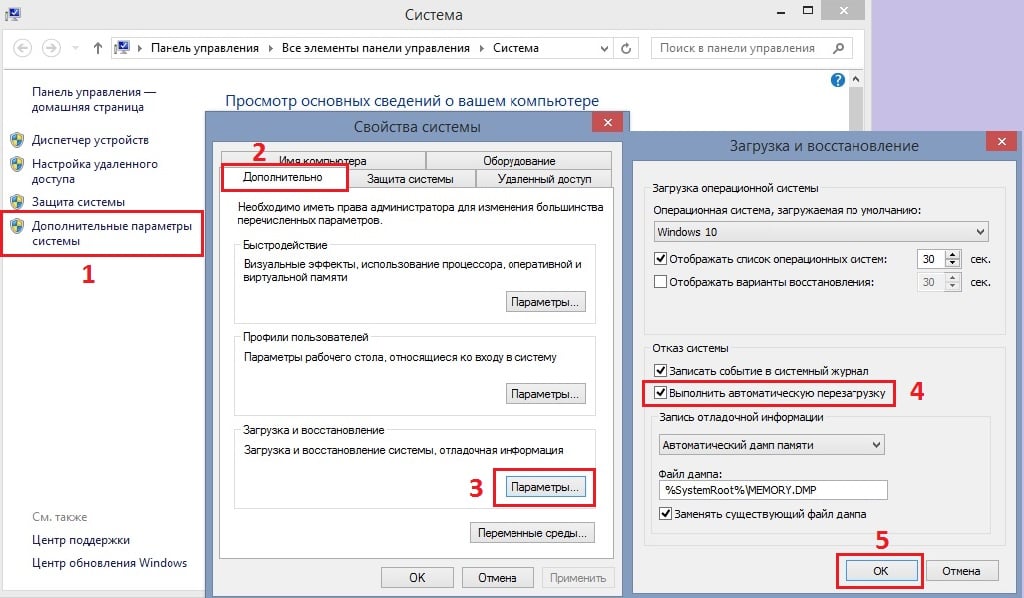
- Нажмите ПКМ по значку Windows, и выберите Система.
- Далее пройдите в Дополнительные параметры системы.
- Откройте вкладку Дополнительно, и нажмите Параметры в разделе Загрузка и восстановление.
- В новом окне снимите галочку с настройки Выполнить автоматическую перезагрузку, и кликните Ок.
- Это предотвратит автоматический перезапуск системы.
Решение 3. Обновите драйверы
Хотя некоторые драйверы устанавливаются вместе с обновлениями Windows, этот метод применим во многих случаях.
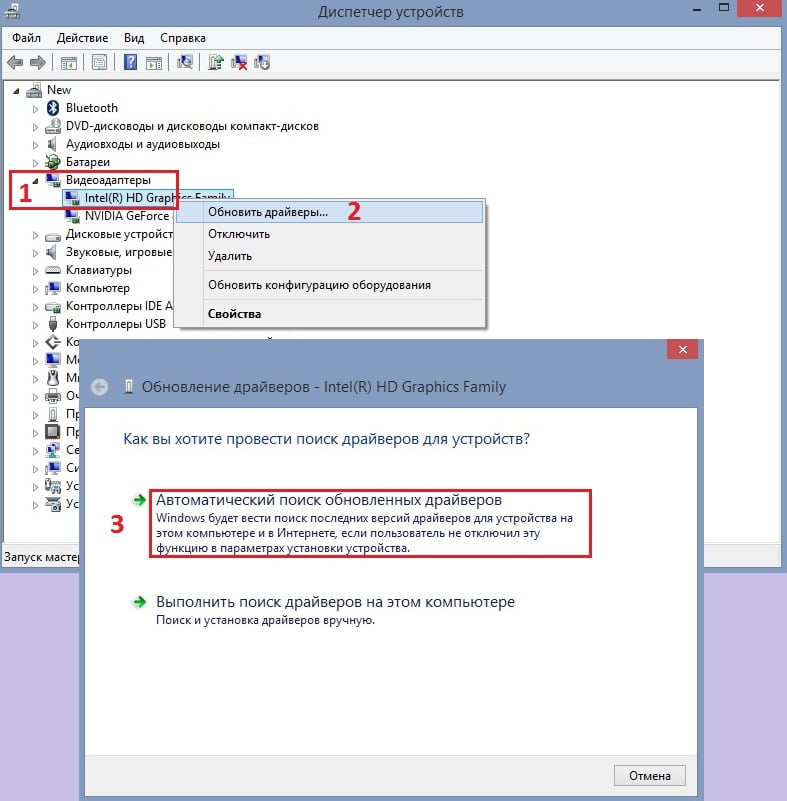
- Нажмите ПКМ по значку Windows, и перейдите в Диспетчер устройств.
- Разверните раздел Видеадаптеры и щёлкните ПКМ по драйверу Intel.
- Обновите программные обеспечения, выбрав в следующем окне Автоматический поиск обновлённых.
- Также следует загрузить новый драйвер Thunderbolt, если вы используете это оборудование.
- После этого перезагрузите компьютер.
Решение 4. Проверьте память с помощью средства диагностики Windows
Повреждение памяти является одной из основных причин появления экрана BSOD. Поэтому следует запустить автоматическую проверку оперативы. Сделать это можно следующим образом:
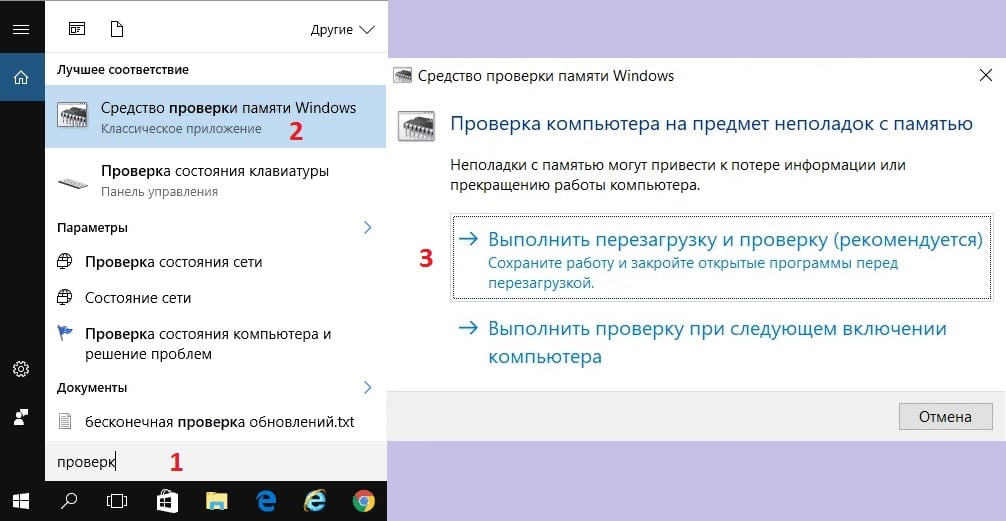
- Введите в поиск Windows Средство проверки памяти, и нажмите Enter.
- В появившихся результатах выберите аналогичную строку и запустите диагностику.
- Этот процесс автоматически перезагрузит компьютер и выполнит проверку памяти, поэтому перед этим следует сохранить все документы и приложения, открытые на рабочем столе.
Решение 5. Запустите средство проверки системных файлов
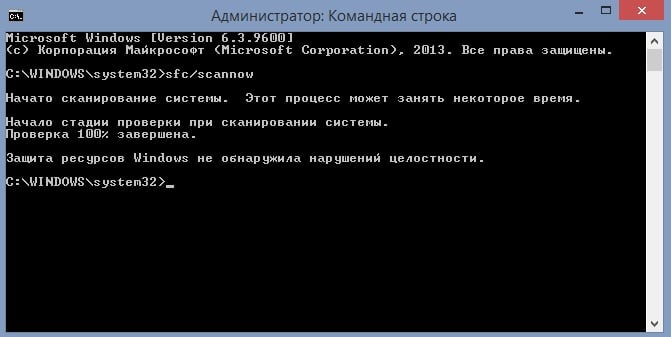
Проверьте системные файлы на предмет нарушений целостности следующим образом:
- Нажмите ПКМ по значку Windows, и выберите Командная строка (Администратор).
- В открывшемся окне введите команду sfc/scannow и нажмите Enter.
- Дождитесь окончания процесса, после чего система сообщит о результатах.
- Перезагрузите компьютер, чтобы исправления вступили в силу.
Вопрос
Проблема: как исправить BAD_OBJECT_HEADER в Windows 10?
Привет. В последнее время мой ноутбук несколько раз вылетал с ошибкой BAD_OBJECT_HEADER. Что это значит? Думаю, что-то не так, и я не знаю, как это исправить. Не могли бы вы мне с этим помочь?
Решенный ответ
BAD_OBJECT_HEADER — синий экран смерти[1] ошибка, которая прерывает всю работу компьютера в Windows и немедленно перезагружается. Без сомнения, ошибки BSOD могут не только раздражать, приводить к потере данных или хода работы, но также могут указывать на то, что что-то не так с программным обеспечением Windows или даже с оборудованием.
Windows 10 — сложная операционная система с тысячами различных параметров, процессов, служб и миллионами файлов, которые работают вместе. К сожалению, из-за широких возможностей настройки, которые предоставляет ОС, у некоторых людей что-то может пойти не так. Из-за этого не существует универсального способа исправить BSOD BAD_OBJECT_HEADER, который работал бы для всех, поэтому вам придется выполнить некоторые действия по устранению неполадок.
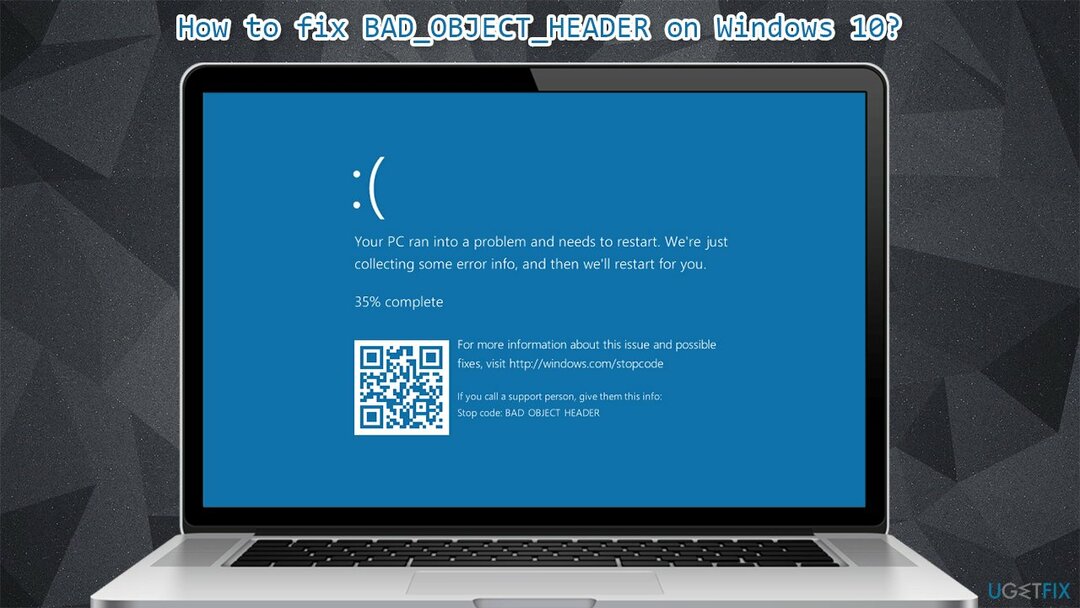
Пользователи, которые получают сообщение об ошибке, вынуждены перезагружать свои компьютеры (точнее, это происходит автоматически), и единственное сообщение, которое они могут увидеть, выглядит следующим образом:
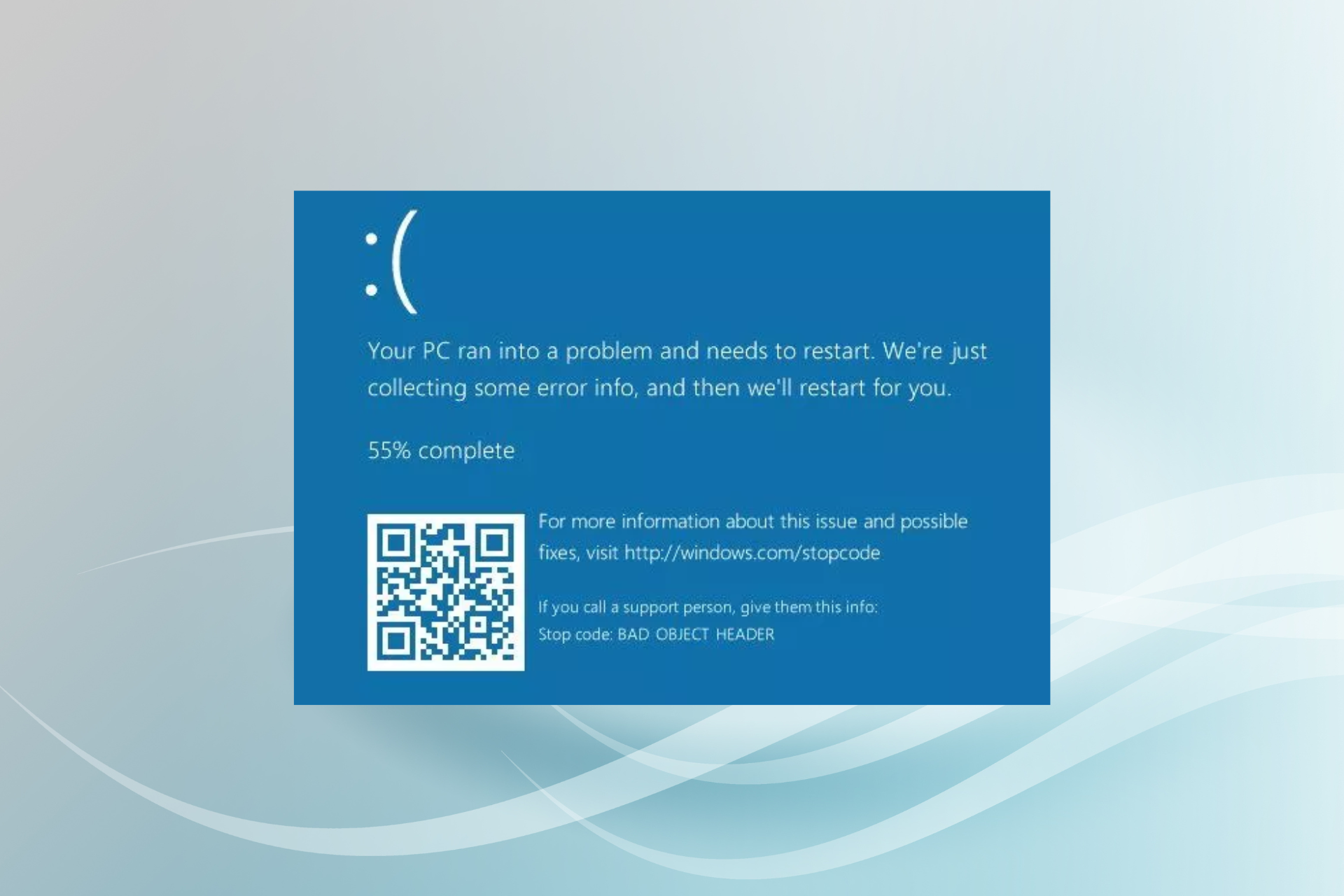
На вашем ПК возникла проблема, и вам необходимо перезагрузить компьютер. Мы просто собираем дополнительную информацию, а затем перезапустим для вас.
1% завершено
Если вы звоните в службу поддержки, сообщите ему эту информацию:
Код остановки: BAD OBJECT HEADER
Очевидно, что хотя название кода ошибки полезно при попытке найти способ исправить это, оно не говорит напрямую о том, что вызывает проблему или что делать для ее решения. К счастью, вы попали в нужное место, и мы поможем вам с этой проблемой. Также стоит отметить, что пользователи, которые столкнулись с этой ошибкой позже, также столкнулись с BAD_POOL_HEADER и PAGE_FAULT_IN_NONPAGED_AREA.
Причин ошибки BSOD BAD OBJECT HEADER может быть много — от проблем с памятью до неисправных драйверов. Однако похоже, что причиной могут быть драйверы, поэтому их обновление или переустановка может решить проблему. Помимо этого, ниже мы также предлагаем другие способы решения этой проблемы раз и навсегда.
Если вам нужно автоматическое исправление BAD_OBJECT_HEADER, вы можете попробовать использовать ReimageСтиральная машина Mac X9 инструмент восстановления вместо этого — он специально разработан для исправления BSOD (поэтому вам не придется сталкиваться с аналогичными ошибками, такими как СПЕЦИАЛЬНЫЙ БАССЕЙН ОБНАРУЖИЛ ПОВРЕЖДЕНИЕ ПАМЯТИ или APC_INDEX_MISMATCH), отсутствующие библиотеки DLL,[2] ошибки реестра и многое другое — все автоматически, без необходимости переустанавливать Windows.
Решение 1. Обновите Windows
Исправить это сейчас!Исправить это сейчас!
Для восстановления поврежденной системы необходимо приобрести лицензионную версию Reimage Reimage.
Обновления Windows чрезвычайно важны и могут помочь в исправлении различных ошибок в системе, поэтому вы должны убедиться, что установлены все критические и дополнительные обновления.
- Введите Центр обновления Windows в поиске Windows и нажмите Входить
- В правой части окна нажмите Проверить обновления
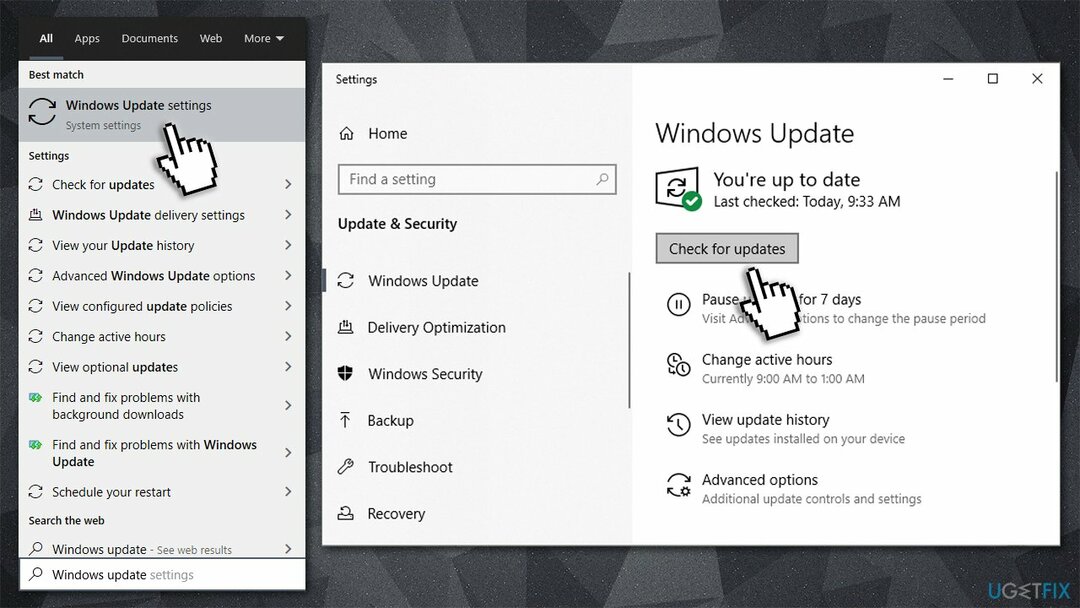
- Подождите, пока все соответствующие обновления будут установлены автоматически
- Начать сначала твой компьютер.
Решение 2. Остановить Windows от автоматического перезапуска
Исправить это сейчас!Исправить это сейчас!
Для восстановления поврежденной системы необходимо приобрести лицензионную версию Reimage Reimage.
Некоторые пользователи утверждали, что они не смогли исправить BAD OBJECT HEADER из-за постоянного цикла перезапуска, в котором их Windows зависала на некоторое время. Если вы столкнулись с этой проблемой, вы можете предотвратить перезагрузку Windows каждый раз:
Решение 3. Обновите ваши драйверы
Исправить это сейчас!Исправить это сейчас!
Для восстановления поврежденной системы необходимо приобрести лицензионную версию Reimage Reimage.
Хотя некоторые драйверы устанавливаются вместе с обновлениями Windows, это применимо не ко всем. Многие люди сказали, что обновление их Intel и видеодрайверов помогло им решить проблему. Вот как это можно сделать через диспетчер устройств:
- Щелкните правой кнопкой мыши на Начинать и выбрать Диспетчер устройств
- Расширять Видеоадаптеры
- Щелкните правой кнопкой мыши свое устройство и выберитеt Обновить драйвер
- Выбирать Автоматический поиск драйверов и ждать
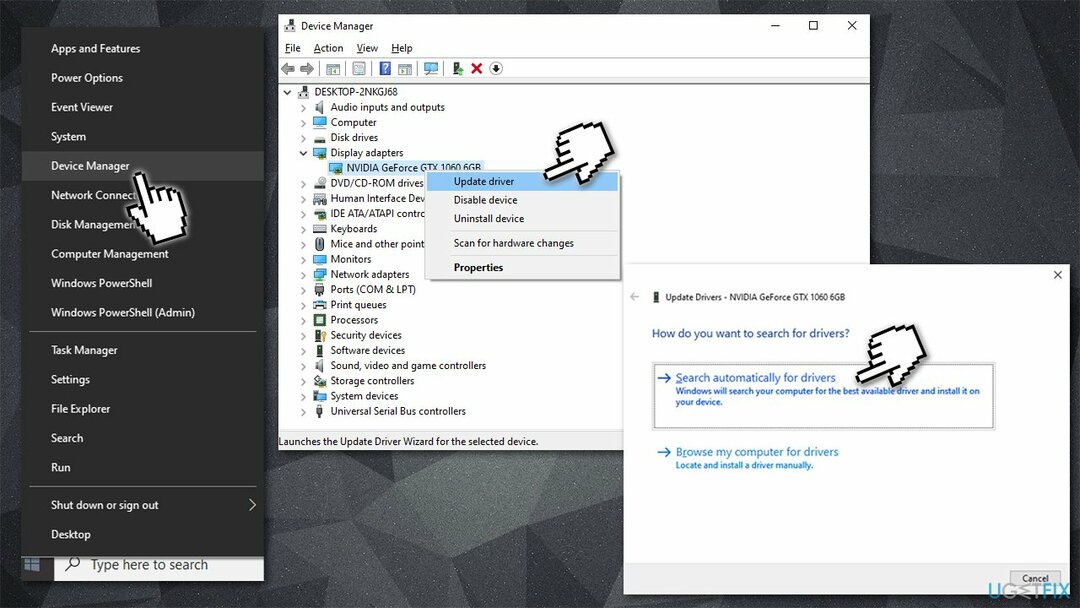
- Начать сначала ваш компьютер когда-то готов.
Примечание: также обновите драйверы Thunderbolt, если вы используете это оборудование.
Однако настоятельно рекомендуется загрузить последние версии драйверов с официального сайта производителя устройства, например Nvidia или AMD. В качестве альтернативы вы можете использовать автоматическое обновление драйверов, например DriverFix который автоматически загрузит и установит соответствующие драйверы для всех ваших устройств.
Решение 4. Проверьте свою память с помощью средства диагностики Windows Media
Исправить это сейчас!Исправить это сейчас!
Для восстановления поврежденной системы необходимо приобрести лицензионную версию Reimage Reimage.
Повреждение памяти является одним из основных виновников определенных ошибок BSOD. Это, вы должны запустить автоматическую проверку вашей оперативной памяти.[3] следующее:
- Введите объем памяти в поиске Windows и нажмите Входить
- Когда появится новое окно, выберите Перезагрузите сейчас и проверьте наличие проблем (рекомендуется)
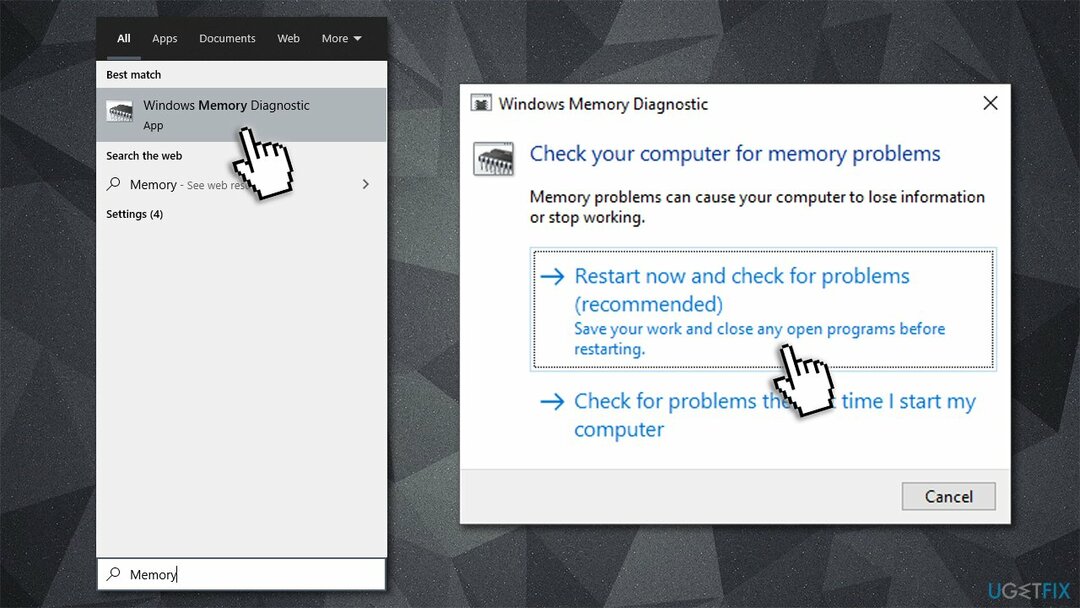
- Это автоматически перезагрузит ваш компьютер и выполнит проверку памяти.
Решение 5. Запустить проверку системных файлов
Исправить это сейчас!Исправить это сейчас!
Для восстановления поврежденной системы необходимо приобрести лицензионную версию Reimage Reimage.
Проверьте системные файлы на предмет нарушений целостности следующим образом:
- Введите cmd в поиске Windows
- Щелкните правой кнопкой мыши на Командная строка и выберите запуск от имени администратора
- В новом окне введите sfc / scannow и ударил Входить
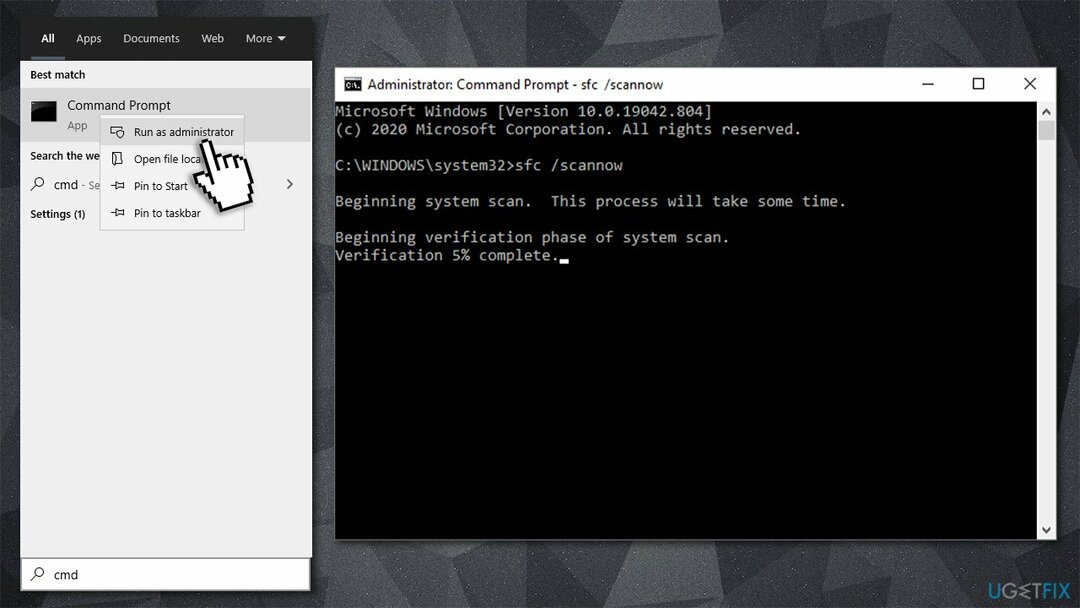
- Подождите, пока Windows завершит сканирование и сообщит о результатах.
- Начать сначала ваш компьютер.
Исправляйте ошибки автоматически
Команда ugetfix.com делает все возможное, чтобы помочь пользователям найти лучшие решения для устранения их ошибок. Если вы не хотите бороться с методами ручного ремонта, используйте автоматическое программное обеспечение. Все рекомендованные продукты были протестированы и одобрены нашими профессионалами. Инструменты, которые можно использовать для исправления ошибки, перечислены ниже:
Предложение
сделай это сейчас!
Скачать Fix
Счастье
Гарантия
сделай это сейчас!
Скачать Fix
Счастье
Гарантия
Совместим с Майкрософт ВиндоусСовместим с OS X По-прежнему возникают проблемы?
Если вам не удалось исправить ошибку с помощью Reimage, обратитесь за помощью в нашу службу поддержки. Сообщите нам все подробности, которые, по вашему мнению, нам следует знать о вашей проблеме.
Reimage — запатентованная специализированная программа восстановления Windows. Он диагностирует ваш поврежденный компьютер. Он просканирует все системные файлы, библиотеки DLL и ключи реестра, которые были повреждены угрозами безопасности.Reimage — запатентованная специализированная программа восстановления Mac OS X. Он диагностирует ваш поврежденный компьютер. Он просканирует все системные файлы и ключи реестра, которые были повреждены угрозами безопасности.
Этот запатентованный процесс восстановления использует базу данных из 25 миллионов компонентов, которые могут заменить любой поврежденный или отсутствующий файл на компьютере пользователя.
Для восстановления поврежденной системы необходимо приобрести лицензионную версию Reimage инструмент для удаления вредоносных программ.

Нажмите
Условия использования Reimage | Политика конфиденциальности Reimage | Политика возврата денег за товар | Нажмите
VPN имеет решающее значение, когда дело доходит до конфиденциальность пользователя. Онлайн-трекеры, такие как файлы cookie, могут использоваться не только платформами социальных сетей и другими веб-сайтами, но также вашим интернет-провайдером и правительством. Даже если вы примените самые безопасные настройки через веб-браузер, вас все равно можно будет отслеживать через приложения, подключенные к Интернету. Кроме того, браузеры, ориентированные на конфиденциальность, такие как Tor, не являются оптимальным выбором из-за пониженной скорости соединения. Лучшее решение для вашей максимальной конфиденциальности — это Частный доступ в Интернет — быть анонимным и безопасным в сети.
Программное обеспечение для восстановления данных — один из вариантов, который может вам помочь восстановить ваши файлы. После удаления файла он не исчезает в воздухе — он остается в вашей системе до тех пор, пока поверх него не записываются новые данные. Восстановление данных Pro это программа для восстановления, которая ищет рабочие копии удаленных файлов на вашем жестком диске. Используя этот инструмент, вы можете предотвратить потерю ценных документов, школьных заданий, личных фотографий и других важных файлов.
Effortlessly fix the error with our solutions in no time!
by Vlad Turiceanu
Passionate about technology, Windows, and everything that has a power button, he spent most of his time developing new skills and learning more about the tech world. Coming… read more
Published on December 6, 2022
Reviewed by
Alex Serban

After moving away from the corporate work-style, Alex has found rewards in a lifestyle of constant analysis, team coordination and pestering his colleagues. Holding an MCSA Windows Server… read more
- The Bad Object Header is a BSOD error that can arise due to hardware and software issues.
- In most cases, outdated drivers or issues with the RAM and CPU triggered the error.
- To fix things, you can scan the PC for malware, check for hardware conflicts, and update the driver, amongst other solutions.
XINSTALL BY CLICKING THE DOWNLOAD FILE
This software will repair common computer errors, protect you from file loss, malware, hardware failure and optimize your PC for maximum performance. Fix PC issues and remove viruses now in 3 easy steps:
- Download Restoro PC Repair Tool that comes with Patented Technologies (patent available here).
- Click Start Scan to find Windows issues that could be causing PC problems.
- Click Repair All to fix issues affecting your computer’s security and performance
- Restoro has been downloaded by 0 readers this month.
Blue Screen of Death is one of the most dreaded errors in Windows, and each time it’s encountered, the OS crashes, leading to data loss. One of these, the Bad Object Header error, is slightly intricate to resolve.
The tricky part which makes troubleshooting a tad more difficult is that the underlying cause could have to do with both the hardware and the software. So, let’s find out all about the stop code Bad Object Header with a bug check value of 0x00000189.
Here are a few reasons you might be getting the error:
- Incompatible or outdated drivers – In most cases, it was either incompatibility or running an outdated driver that triggered the error.
- Issues with the RAM modules – If the RAM modules malfunction, chances are you will encounter this error and several others.
- Corrupt system files – When the system files are corrupt, the OS won’t function effectively, trigger BSOD errors, and Windows will abruptly crash.
Before we try the slightly complex and time-consuming solutions, here are a few quick tricks:
- Check for Windows Updates and make sure you are running the latest version. If there are any updates available, install them right away.
- Make sure the hardware components are correctly connected, including the RAM and CPU.
- Scan your PC for malware using Windows Security, the built-in antivirus, or a reliable third-party antivirus that detects all malware and viruses.
- Look for issues with the storage drive using an effective health check tool since a failing hard drive can also trigger the Bad Sector Header error.
If none of these work, head to the solutions listed next.
1. Use a specialized software
Since any BSOD problem is rather complex, then using software that will scan your entire device and fix the cause of the Blue Screen error is indicated.
Restoro is a reliable tool for repairing and updating all outdated drivers on your device.
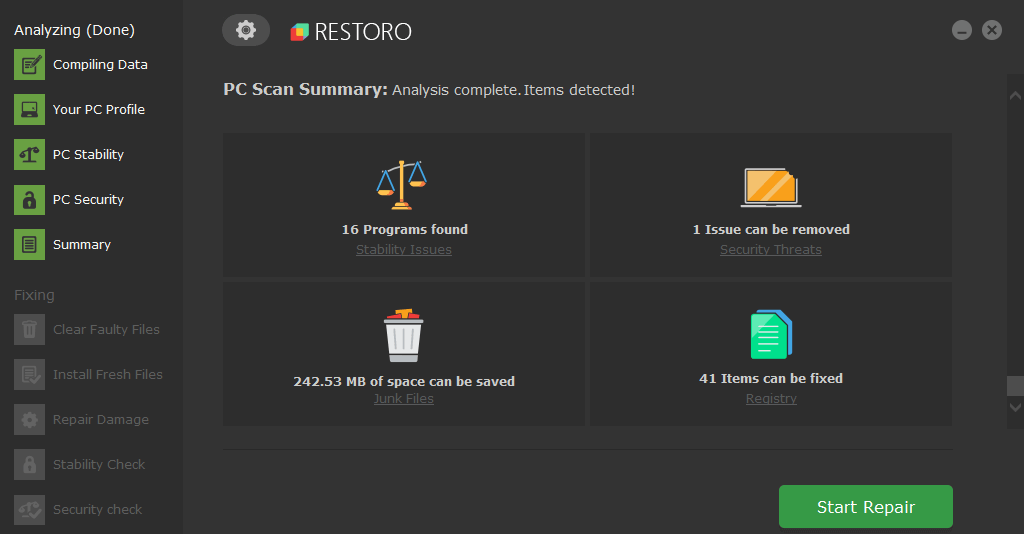
Restoro is powered by an online database that features the latest functional system files for Windows 10 PCs, allowing you to easily replace any elements that can cause a BSoD error.
This software can also help you by creating a restore point before starting the repairs, enabling you to easily restore the previous version of your system if something goes wrong.
This is how you can fix registry errors using Restoro:
- Download and install Restoro.
- Launch the application.
- Wait for the software to identify stability issues and possible corrupted files.
- Press Start Repair.
- Restart your PC for all the changes to take effect.
As soon as the fixing process is completed, your PC should work without problems, and you will not have to worry about BSoD errors or slow response times ever again.
⇒ Get Restoro
Disclaimer: This program needs to be upgraded from the free version in order to perform some specific actions.
2. Update the drivers
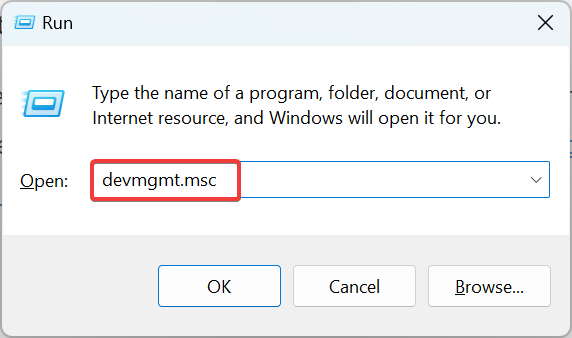
- Press Windows + R to open Run, type devmgmt.msc, and hit Enter.
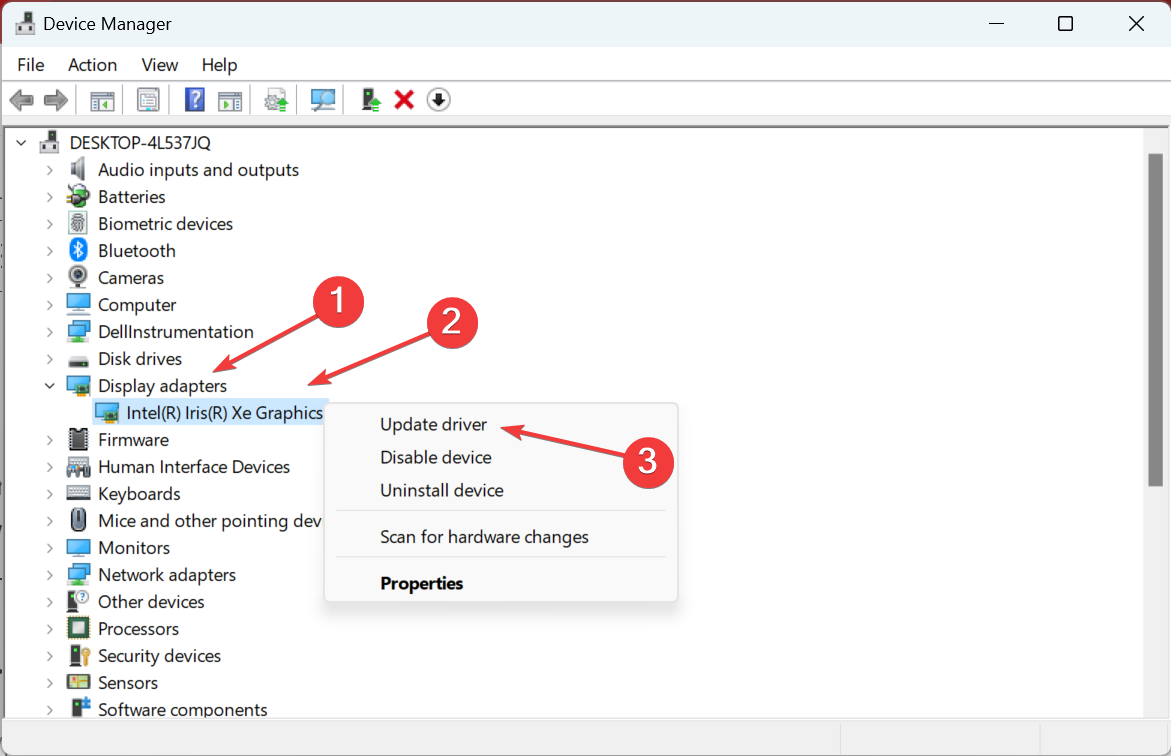
- Expand the Display adapters entry, right-click on the graphics adapter, and choose Update driver.
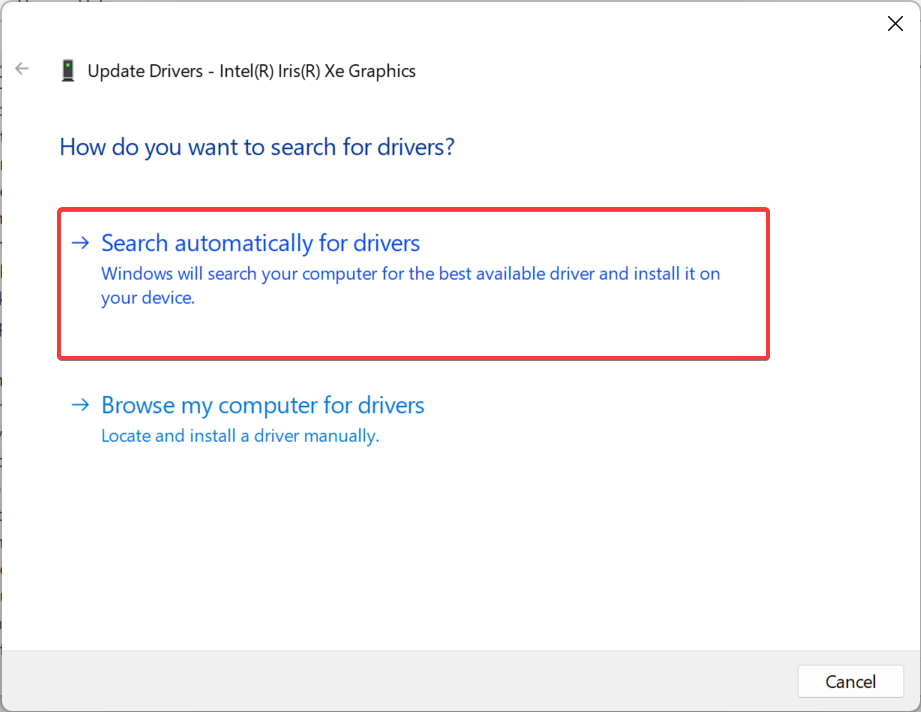
- Now, select Search automatically for drivers.
Some PC issues are hard to tackle, especially when it comes to corrupted repositories or missing Windows files. If you are having troubles fixing an error, your system may be partially broken.
We recommend installing Restoro, a tool that will scan your machine and identify what the fault is.
Click here to download and start repairing.
Drivers are an integral part of the computer and allow the effective functioning of the hardware. If Windows cannot find a newer version, you can constantly manually update the driver. To find out which driver needs to be updated, check the log files.
3. Test the RAM
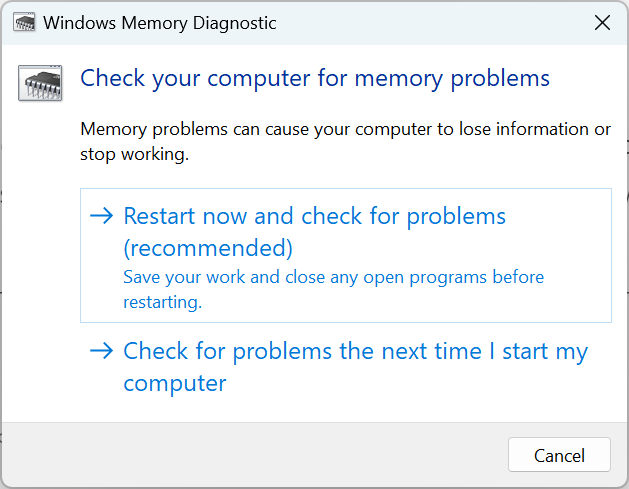
An easy way to test the RAM is to run Windows Memory Diagnostic, a tool that comes installed in Windows and eliminates trivial issues. It runs a few quick tests and lists out the problems with the RAM if any.
Another more reliable option is to run MemTest86+, an open-source tool that does extensive testing on all RAM modules identifies even the minutest of the issues, and lists them. However, it will take a few hours for a complete scan.
If the RAM modules turn out to be faulty, we recommend replacing them immediately since the constant BSOD errors followed by OS crashes can lead to other severe issues.
- Werfault.exe Error on Windows 10: How to Fix & Main Causes
- Fix: Windows Cannot Access the Specified Device, Path or File
- Driver PNP Watchdog: 9 Easy Fixes For Windows
- Esent Error [Event ID 455] On Windows: Quick Fix
- Fix Windows Resource Protection Could not Start Repair Service
4. Disable automatically restart
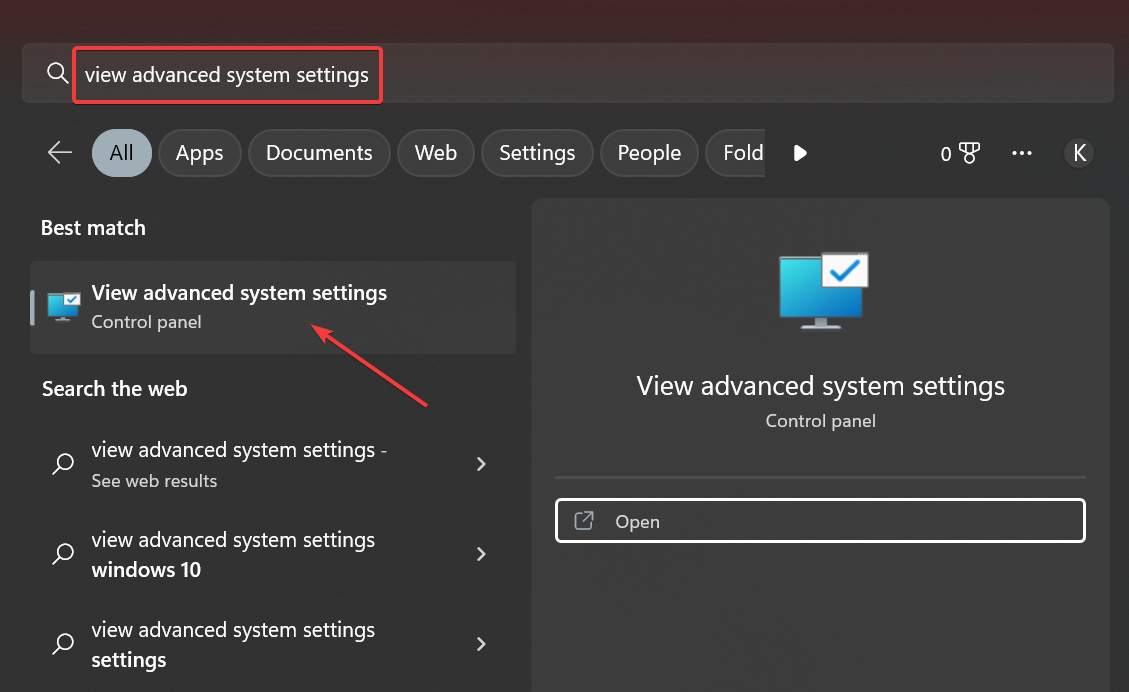
- Press Windows + S to open Search, type View advanced system settings in the text field, and click on the relevant search result.
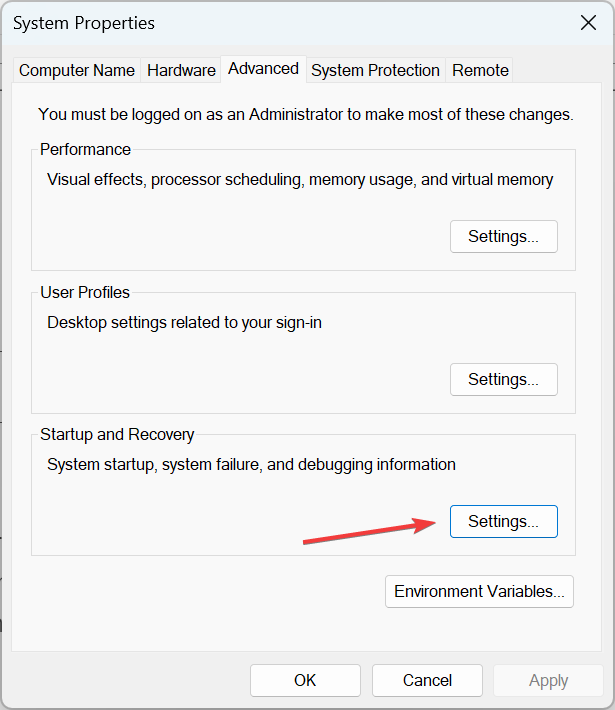
- In the Advanced tab, click on Settings under Startup and Recovery.
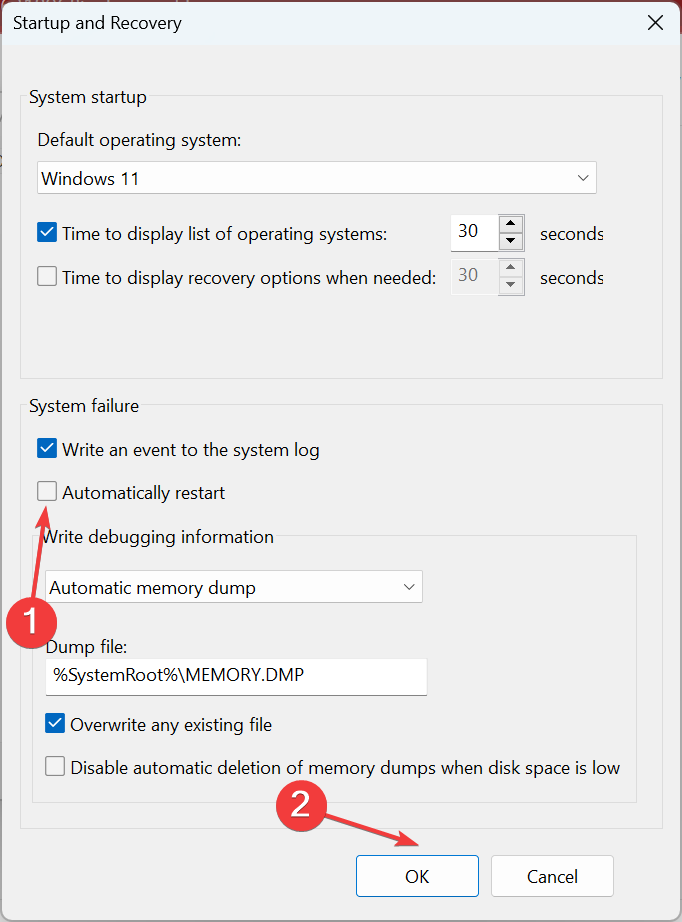
- Now, untick the checkbox for Automatically restart under System failure, and click OK to save the changes.
Once done, verify whether the BAD_OBJECT_HEADER 189 error is resolved. In case you still come across Bad Object Header, take your PC to a repair shop and get the various hardware components and connections checked.
Also, discover the best Windows 11 hidden tips and tricks for a seamless experience.
Please tell us which fix worked for you in the comments section below. And do not forget to drop any solutions that we may have missed.
Still having issues? Fix them with this tool:
SPONSORED
If the advices above haven’t solved your issue, your PC may experience deeper Windows problems. We recommend downloading this PC Repair tool (rated Great on TrustPilot.com) to easily address them. After installation, simply click the Start Scan button and then press on Repair All.

Newsletter
You will find effective workarounds to resolve BAD_OBJECT_HEADER BSOD Error in Windows 10 in this article. The issue represents actually corruption in The OBJECT_HEADER and for obvious reason, it has got a bug check value of 0x00000189. Once detected in the user PC, Windows will have a proclivity to restart without notifying the person dealing with. In addition, people might experience hanging resulting in making device inaccessible and frequent showing of error messages. In a nutshell, like seems at a stake when a device is detected with this notorious error.
BAD OBJECT HEADER Error in Windows 10 aka BAD_OBJECT_HEADER will shout its presence in the system mostly when you have outdated, old and troublesome device drivers. With that, malicious threats deleting important windows components, corrupted system files as well as missing DLL ones, leaving update patches pending for longer time, incorrect allocating of memory will add extra momentum from software end. Hardware troubles like the presence of dreadful areas in the Disk drive, running in low space can also cause the same. Hence, in the latter part, we will be presenting some powerful workarounds to dismiss this error. So, let’s begin –
Here is how to fix BAD_OBJECT_HEADER BSOD Error in Windows 10 –
Obstruct Automatic Restarting of Windows
Since Windows goes under continuous rebooting after being affected with BAD_OBJECT_HEADER blue screen of death error, this has become the most annoying issue. We can neither take it normally nor can resolve the error as insufficient time to deploy workarounds. Therefore, the prime workaround is to stop this restarting.
Step-1: Save and close ongoing processes if have any and straightway head to Desktop area by pressing Win+D hotkeys combined.
Step-2: When in place, do a right click on This PC icon here and select Properties eventually.
Step-3: Once System window comes into view, select “Advanced system settings” from the left sidebar of this page.
Step-4: A wizard will be visible, move on to its Advanced tab.
Step-5: Move straight down to the Startup and Recovery section and hit Settings button.
Step-6: After the next wizard unrolls, come down to System failure area and remove the checkmark from the box beside Automatically restart.
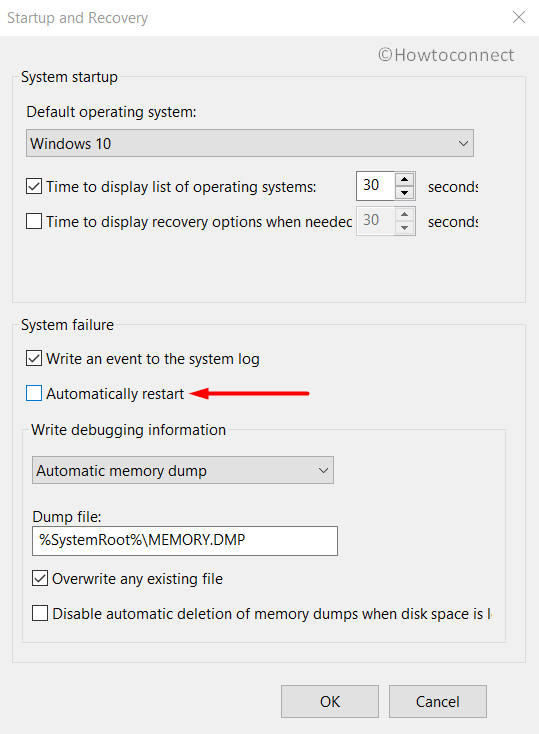
Step-7: Now, hit the OK button located at the bottom and leave the wizard as well.
Make the Operating System up to date by installing every single available patch
Well, when we talk about the operating system, obviously an updated one comes to the imagination. Outdated ones lack features, bugs and are naturally weak in strength which is incapable to fight BSOD errors. We are now moving out to download and install all the available update patches using Windows Settings app to fix BAD OBJECT HEADER Blue Screen of death.
Important – Ensure you are connected with a high-speed internet connection, broadband or a wireless one. In case of using the “Mobile Data”, disable the Metered Connection in the Network Settings, otherwise, downloading will not take place.
- Make a combined press of Win+I hotkeys and open Windows Settings app.
- While in the app accessible area, head to Update & Security and perform a click on it.
- On the following page, select Windows Update located at the left-hand side.
- Shifting on the right side, you might see the dialog “You’re up to date”. Be less bothered and directly click on the button saying Check for updates.
- Once the searching is finished and available patches are previewed, select the Download button under each of these.
- After all the files get into the system, the installation will take place automatically.
- Windows will prompt for restart, and attend all the requirements in the process.
Once the Windows are up to date, there might not be any BSOD error in the system.
Allow Default Blue Screen Troubleshooter to work by your side
Windows has its own built-in utility in the name of Blue Screen Troubleshooter to fight for you in BAD OBJECT HEADER issue. To avail this privilege, you have to upgrade the OS to Windows 10 Fall Creators update or above. This is a handy and light tool that can potentially remove stop errors. The most amazing fact is, you don’t need to go for any installation as it is a default utility.
- Get access to Windows Settings app using the above guidelines and head straightway to the additional settings of Update & Security.
- Once the next page comes in the view, select Troubleshoot from the left sidebar and jump to the adjacent side.
- Here, locate the Blue Screen option and perform a click on it.
- When expanded downward, hit Run the Troubleshooter and let it do the rest.
The troubleshooter will start detecting the possible causes and will eventually make an attempt to repair them as well.
Eliminate Problems in Windows Memory and RAM issues
Windows memory itself often create malfunction and end up calling BAD_OBJECT_HEADER BSOD Error. However, the wrong allocation of memory devices, defective areas in RAM will cost you badly. Therefore, let’s use the “Windows Memory Diagnostic” to eliminate these problems. Move forward with below instructions-
- Manage to open the Windows Settings app using the same instructions stated above.
- When you will see a search box here in this page, start typing memory here.
- Once the results start peeking up, select Diagnose your computer’s memory problems.
- Sharply Windows Memory Diagnostic will open up on the screen and here, perform a click on “Restart now and check for problems (recommended)”.
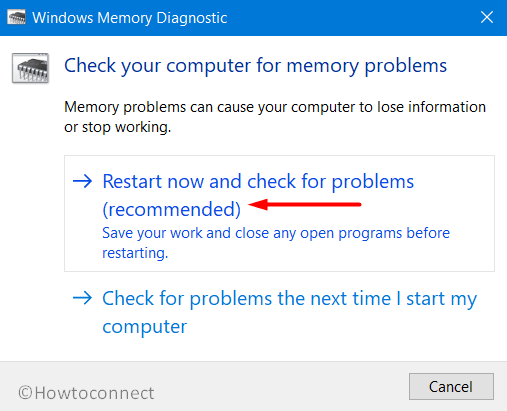
- Windows will, therefore, reboot initially in accordance with the command and once it completes the first cycle of this task, you will experience a blue screen.
- This Blue screen will start detecting the memory issues present in the system and progress will be previewed in percentage. When it reaches 100%, Windows will again restart for the second time.
- Result of the diagnosis will be available in the System tray- notification area once it gets back to operation further.
Safe Boot- the most reliable resort to solve BAD_OBJECT_HEADER BSOD Error
Starting from the development of Windows as an operating system, booting in Safe Mode continuously serving best for critical issues such as BAD OBJECT HEADER. This as renowned in work as upon application Windows loads only basic services and programs. Most of the error take leave in this process and like every other time, let’s try this method in the following steps –
Step#1: Move the pointer to the extreme left bottom end of Desktop and eventually do a click on Start menu.
Step#2: Once the options are loaded, hit the Power icon from here and also select the Restart. At the same time, press and hold the Shift key.
Step#3: The device will restart and upon powering ON, there will be a blue screen with few options on the page.
Step#4: Select the option saying Troubleshoot and move ahead to the consequent page.
Step#5: Choose Advanced options => Startup settings.
Step#6: Proceeding ahead to the right bottom end of this page, hit Power => Restart.
Step#7: Windows will prepare for the second tier of rebooting. Upon startup, you will find some more options including “Boot in Safe Mode“.
Step#8: Now, keep pressing the F4 key continuously and lead to the Safe Mode on the further move.
Correct the Windows System components and recover missing DLL files
Windows tends to damage its necessary system elements and lose DLL files once fall into corruption. In the process, the ultimate result is BAD_OBJECT_HEADER BSOD Error. We really cannot afford this to happen in our systems. Therefore, System File Checker is developed by Microsoft and undoubtedly it can serve the best. You just need to run a command line tool in “elevated Command Prompt“.
- Execute a right-click on the taskbar and choose Task Manager from the pop-up menu.
- Hit on File option located at the top left end and select Run new task once visible.
- When a dialog box appears, type cmd in the empty text field provided here and also put a checkmark before “Create this task with administrative privileges”. Click OK.
- In the black window, type the following command where cursor blinks and hit Enter key-
sfc /scannow
Immediately, System File Checker will be executed and start checking the corrupted elements. If any discrepancy is discovered, it will resolve automatically also resulting in fixing BAD OBJECT HEADER.
Give a break to Hardware components
We often use Hardware items as well as external HDD to serve respective purposes. Some people have discovered BAD_OBJECT_HEADER BSOD Error in their system after connecting an additional Hard Disk. It might seem little weird but yes this is true but the solution is simple as well. You just need to offer them a pause and then reconnect again once issue resolves.
- Unhook all the accessories along with additional Hard Disk from the computer.
- Leave them separate in a safer place to avoid any damage.
- Open the Start menu and hit on Power sign.
- Select the Restart option and allow it to reboot at once.
- When the device gets back to normal activity, perform a thorough checking for the existence of the issue.
- Hopefully, the result will be on your side and if happen so, start connecting them again.
- Now, launch Edge browser, and in the process make a visit to the manufacturer website of those hardware items.
- Download the latest Drivers and install them in the system.
Never Allow Malware to stay over in the system, Dismiss in Windows Security
We all are well aware that, a virus is moving to and fro everywhere on the web. Still, these bugs manage to get inside of our system and cause vulnerabilities. Once they get the pass to Windows, have a tendency to remove the necessary components required to run OS. Therefore, the result is a BAD_OBJECT_HEADER BSOD Error in Windows 10. Windows has its own security system offers you the opportunity to resolve this notorious malware.
- Hover the cursor to the right side of the taskbar and do a click on the “Shield” icon and head to Windows Security app.
- Moving ahead to the app area, choose Virus and threat protection from the left-hand side and move sideward.
- On this place, make a click on the link Scan options and once all of them are displayed, hit the radio button behind Full scan.
- Proceeding forward, select Scan now button located here and allow Windows to carry out malware checking.
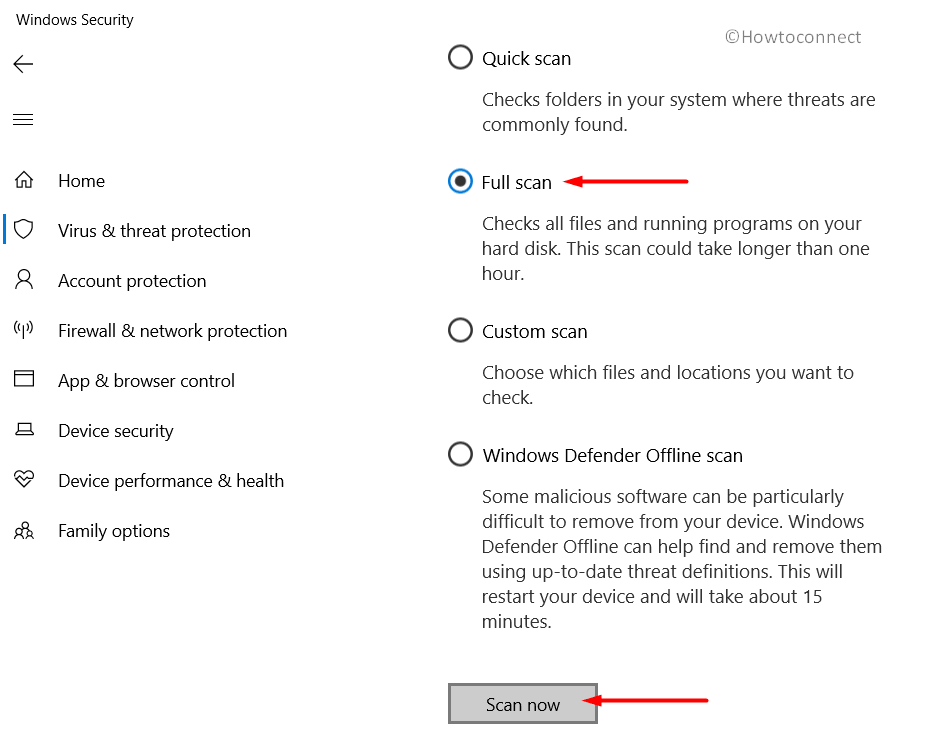
- When the result is upfront after searching, wipe out all the viruses by clicking Clean threats option.
- Proceeding ahead to the next page, three will be three option left for you. Choose Remove and finally hit the Start actions option.
Restrict staying over of similar programs in the system
Once similar programs get a chance to stay side by side, they are prone to be in collision with each other. This act results in removing some vital components in the system and hence, BAD_OBJECT_HEADER Error in Windows 10 is imminent. To stop this, we can uninstall one of such applications and if the error resolves, reinstall the removed one once necessary.
- Do a combined press of “Win+R” hotkeys and open the Run dialog box on the screen.
- Once seen, type appwiz.cpl in the blank search box and hit the Enter key.
- Programs and Features window upon unrolling on display, locate the programs causing BAD_OBJECT_HEADER BSOD Error in Windows 10.
- Perform a right click on each and select Uninstall option from there.
- Perform the upcoming tasks as will be displayed on the screen to completely remove these.
- Once all these programs get dismissed, restart the device using normal procedure.
- When returning back to the desktop again, check if there are any issues present like BAD_OBJECT_HEADER BSOD Error.
- If there is no problem in the system and in case the removed program is necessary, download them again.
Clear up the Storage from Junk and make some more space
Junk files are fabricated by processes to accomplish tasks. When they grow large in amount, take up huge space in storage and eventually the volume run in low space. “Disk Cleanup” utility comes handy in freeing up job ending up as a solution to BAD OBJECT HEADER.
- Make a conjugal press of Windows and S keys together and open the Taskbar Search.
- Fill the blank text area here with cleanmgr and when Disk Cleanup Desktop app is visible in the list, select it.
- A small popup dialog will open up shortly asking the drive where the task will be carried out. Select C: by clicking on the dropdown menu and press Enter key.
- The Disk Cleanup Utility will start the action by calculating the space it can bring out from the system and unroll a wizard.
- Move down in the wizard and hit on “Clean up system files” option.
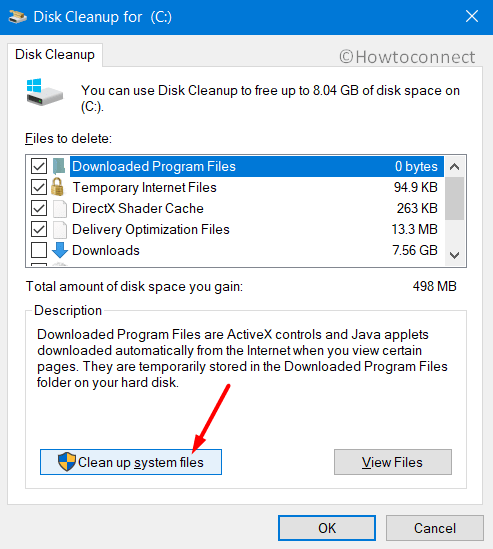
- The small popup will ask one more time for selecting the preferable drive. Choose C: again and hit the Enter button.
- Disk Cleanup for C: will appear after doing the calculation again.
- Check all the boxes here only except Downloads and then perform a click on the Ok button located at the bottom.
- This process involves several deleting and hence might take a quite long time, wait patiently until it gets over.
Note- Before proceeding with this workaround, make sure there is nothing important left in Recycle Bin folder as everything will be deleted.
Assign Deployment Image Servicing and Management (DISM) tool to repair dreadful image files
When Windows Image files run in disruption, so many errors are like to occur in the system. Among them, BAD_OBJECT_HEADER BSOD Error can damage the most. However, a simple tool namely DISM can save you from a devastating case.
- Access Command Prompt with administrative rights using the same instruction we have shown before.
- When in the dark window, type or copy-paste the below-mentioned command and at the hit of the Enter key, DISM tool will be activated and rectify defective image files once detected.
DISM.exe /Online /Cleanup-image /Restorehealth
- Thus you can get rid of the BAD_OBJECT_HEADER BSOD Error in Windows 10.
Bade Farewell to Defective Windows Update Files
We recommend all users update their OS by installing all available patches. This process is autonomous and rarely fall into manipulation. Once it undergoes such malfunction or stops at the midway of installation, BSOD error like BAD OBJECT HEADER is impending as a result. So, the best deal is to erase them from device going through the below steps.
- Launch the built-in Settings app by clicking the gear icon located on the Start menu.
- Straightway move to Update & Security tile when in the app UI and perform a click on it.
- Once the next page is upfront, select Windows Update from the left wing and then transfer to the alongside pane.
- On this side, hit a click on View update history link and open all the received patches list.
- Proceeding forward, execute a hit on Uninstall updates.
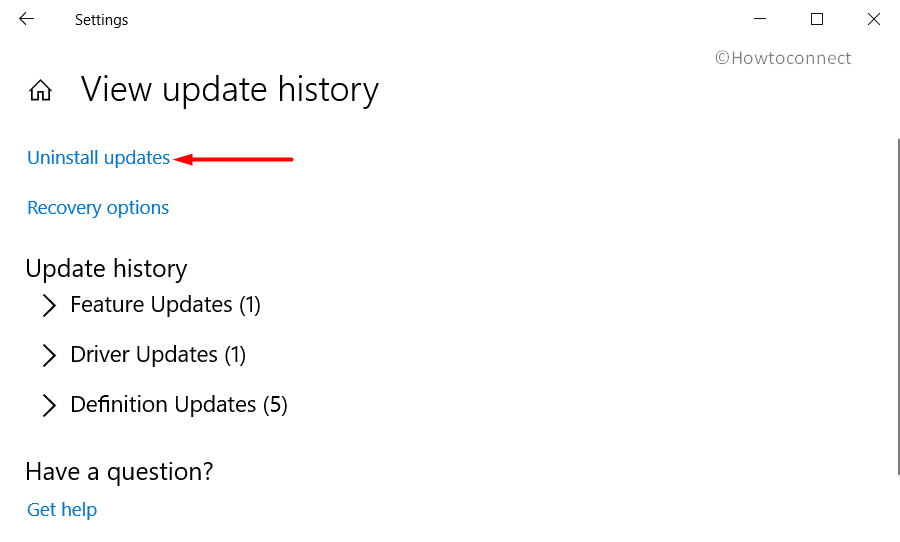
- By default, you will be guided to the “Installed Updates” page from Control Panel.
- Move ahead to the last received patch and do a right click on it.
- Select the Uninstall option and go through the on-screen guidelines to get rid of them.
Recruit Disk Checking Utility in Elevated Command Prompt to deal with bad Hard Disk areas
“CHKDSK” command is basically a Disk Checking utility which potentially detects as well as fix the worse sectors present in HDD. Since it may resolve the BSOD BAD OBJECT HEADER error also, we can definitely give it a try.
- Roll the cursor to the left bottom side of Taskbar and make a click on the Search icon.
- Once the Taskbar Search launches, type cmd.exe in the empty text field.
- When Command Prompt shows in the result, hit a right click on it and select “Run as Administrator” option.
- When UAC prompts for permission, hit Yes to continue.
- On the Elevated Command Prompt window, type the following command where the cursor winks.
chkdsk C: /f /r /x
Here, CHKDSK will only show the Disk status upon activation. We have used a few other notations indicating following-
f- represents fixing the detected problems.
r- represents detecting the existing problems in the Disk.
x- represents splitting up of the disk volume to facilitate the detection process.
C: - represent the Disk where the OS is installed. You can change this to D:, E: or any depending upon your usage.
- Once you hit Enter key, the Disk Checking Utility will detect and fix all the problems immediately. This process will take some time, so, hold the patience and wait until it gets over.
- Restart Windows 10 PC and upon startup, check for the occurrence of BAD OBJECT HEADER error codes.
Perform updating Drivers having Yellow indication Mark in Device Manager
Outdated and troublesome device drivers came out strongly to cause BAD_OBJECT_HEADER BSOD Error in Windows 10. Every time we experience this BSOD error, the solution is indeed singular and simple. Drivers having yellow indication mark in Device Manager needs to update.
- Perform a right click on Start icon and choose Run from Win+X menu.
- When it is visible, type devmgmt.msc in the search box located here and press Enter key.
- “Device Manager” will open and if you see any mark of exclamation, expand that specific device.
- Perform a right click on the driver and select “Update driver” option.
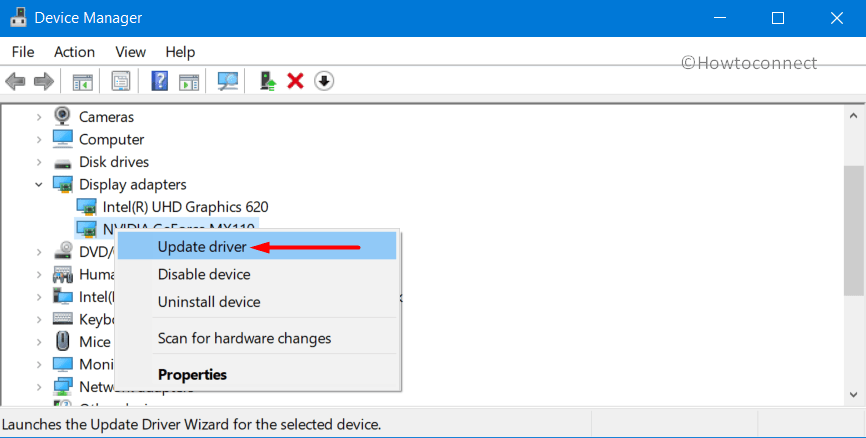
- Keep cooperating with Windows by following shown instruction until the drivers are up to date.
Go back to last created Point and revert all the recent changes
If you have a previously created restore point, you can straightway go back to a point where there was no BSOD error. As recent modifications in the registry by installing or removing a program can be guilty, and hence, System Restore will provide you the ultimate relief from BAD OBJECT HEADER problem.
- On Cortana search, type rstrui and hit Enter key to launch the System Restore.
- When the popup window is visible on display, hit the Next button to move ahead.
- On the consequent page, uncover all the past created points by clicking the Show more restore points.
- Select the recently created one from the list and hit Next again.
- Once the next page unrolls, select Finish to start the Restoring process.
Use only Windows Security, remove all other third-party anti-virus programs
Windows Security offers the best deal in malware issues and this is also a built-in program. So, if you have a third party anti-malware tool, it’s really meaningless and might cause BAD OBJECT HEADER. So, we will show you how to remove these completely from the system in the below instructions.
- Launch Settings => Apps.
- Hit Apps & features option from the left side and jump to the corresponding pane.
- On the right, when the apps are loaded, find out antivirus programs installed in the system.
- Select to expand in the pane and hit Uninstall option once seen.
- If User Account Control prompts for permission, give consent by selecting Yes.
- Perform the on-screen guidelines to completely remove the programs.
Hereby we have discussed all the best available workarounds to resolve BAD_OBJECT_HEADER BSOD Error in Windows 10. Bravo! If you have finally succeeded to fix this notorious issue and the hard work has come out victorious. It’s a matter of frustration if you are having the issue still in the device after performing all these tasks. Well, there is no problem on the earth without a solution we believe. You can perform “Clean installation of Windows 10” and that will be the ultimate solution for ending all problems.
After being assured of doing this task, make sure you have already saved all the required data, files, images as back up in the external drive. We recommend you to seek help from experts for doing this task if you are not confident enough. Hopefully, you can recover the device from all issues including BAD OBJECT HEADER after doing so.
That’s all!!
Repair any Windows problems such as Blue/Black Screen, DLL, Exe, application, Regisrty error and quickly recover system from issues using Reimage.
Question
Issue: How to fix BAD_OBJECT_HEADER on Windows 10?
Hello. Recently, my laptop has crashed several times with an error BAD_OBJECT_HEADER. What does this mean? I guess something is wrong and I don’t know how to fix this. Could you help me with this?
Solved Answer
BAD_OBJECT_HEADER is a Blue Screen of Death[1] error that interrupts all computer work on Windows and reboots immediately. Without a doubt, BSOD errors might not only be annoying, can result in data or work progress loss, but might also indicate that there is something wrong with Windows software or even hardware.
Windows 10 is an intricate operating system with thousands of different parameters, processes, services, and millions of files that work altogether. Unfortunately, due to the high customization options that the OS provides, things are bound to go wrong for some people. Due to this, there is no universal way to fix BAD_OBJECT_HEADER BSOD that would work for everybody, so you will have to perform some troubleshooting.
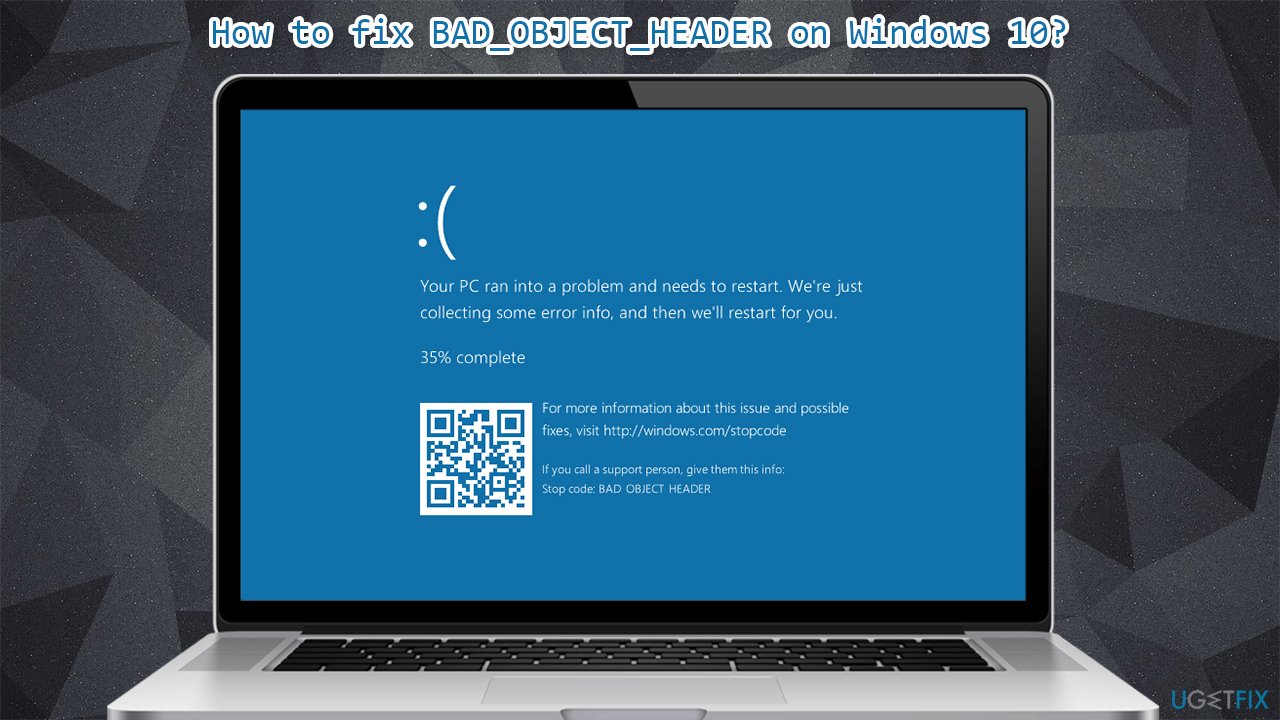
Users who receive the error are forced to restart their PCs (or rather, it happens automatically), and the only message they can see is as follows:
You PC ran into a problem and needs to restart. We’re just collecting some more info, and then we’ll restart for you.
1% complete
If you call a support person, give them this info:
Stop code: BAD OBJECT HEADER
As evident, while the error code name is useful when trying to find a way to fix this, this does not directly tell what is causing the problem or what to do to solve it. Luckily, you are in the right place for it, and we will help you with this problem. It is also worth motioning that users who dealt with this error later also encountered BAD_POOL_HEADER and PAGE_FAULT_IN_NONPAGED_AREA.
Reasons for the BSOD error BAD OBJECT HEADER might be plenty – from memory issues to faulty drivers. However, it seems like drivers are likely to be the cause, so updating or reinstalling them might solve the issue. Besides this, we also provide other ways on how to solve this problem once and for all below.
If you want an automatic BAD_OBJECT_HEADER fix, you can try using the ReimageMac Washing Machine X9 repair tool instead – it is particularly designed to fix BSODs (so you will not have to deal with similar errors, such as SPECIAL POOL DETECTED MEMORY CORRUPTION or APC_INDEX_MISMATCH), missing DLLs,[2] registry errors, and much more – all automatically, without you having to reinstall Windows.
Solution 1. Update Windows
Fix it now!
Fix it now!
To repair damaged system, you have to purchase the licensed version of Reimage Reimage.
Windows updates are extremely important and can help patching various bugs on the system, so you should ensure that all the critical and optional updates are installed.
- Type in Windows Update in Windows search and press Enter
- On the right side of the window, press Check for updates
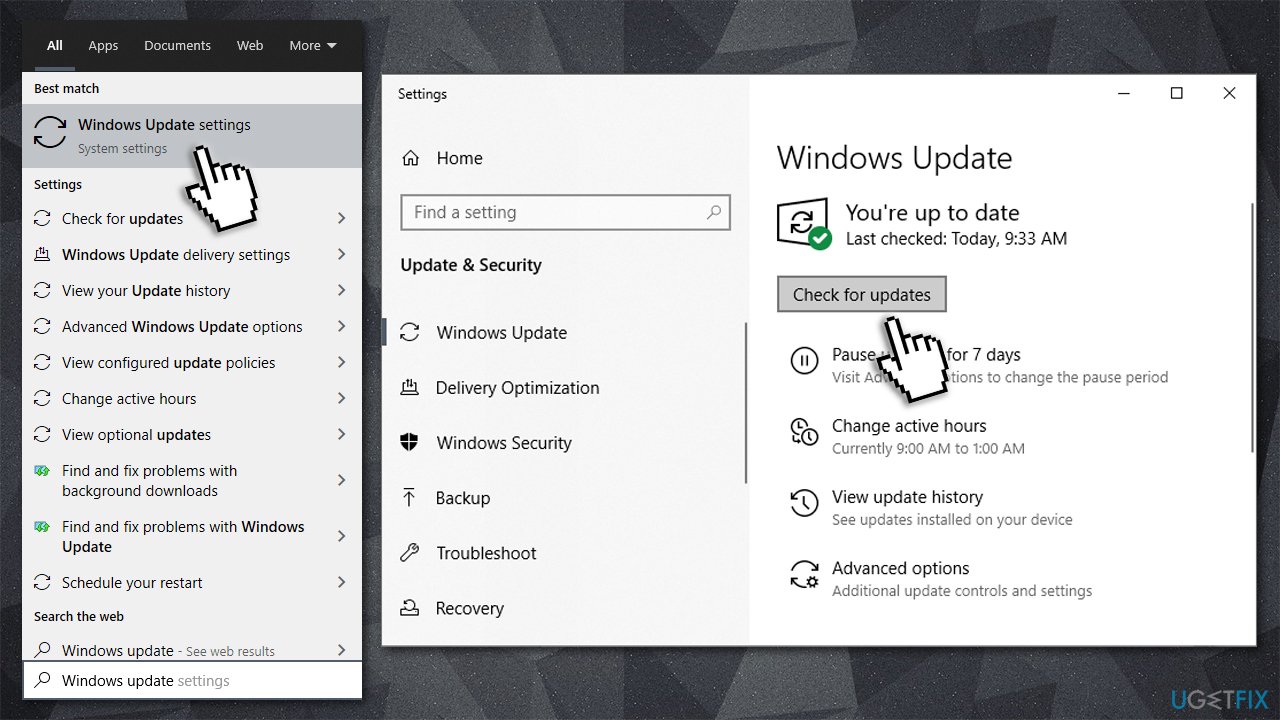
- Wait till all the relevant updates are installed automatically
- Restart your computer.
Solution 2. Stop Windows from automatically restarting
Fix it now!
Fix it now!
To repair damaged system, you have to purchase the licensed version of Reimage Reimage.
Some users claimed that they were unable to fix BAD OBJECT HEADER due to constant restart loop their Windows got stuck in for awhile. If you are affected by this issue, you can prevent Windows from rebooting each time:
Solution 3. Update your drivers
Fix it now!
Fix it now!
To repair damaged system, you have to purchase the licensed version of Reimage Reimage.
While some of the drivers are installed along with Windows updates, it does not apply to everything. Many people said that updating their Intel and video drivers helped them to solve the issue. Here’s how you can do that via the Device Manager:
- Right-click on Start and pick Device Manager
- Expand Display Adapters
- Right-click on your device and select Update Driver
- Pick Search automatically for drivers and wait
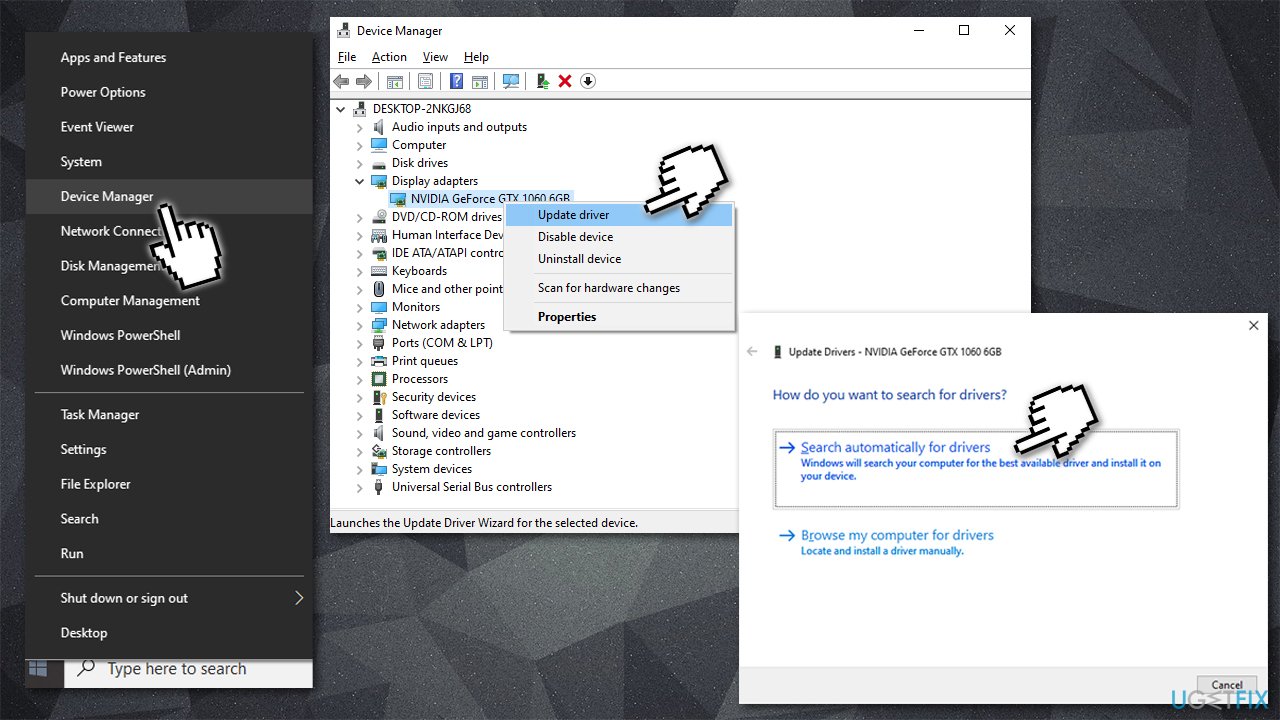
- Restart your computer once done.
Note: also update Thunderbolt drivers if you are using this hardware
It is, however, highly recommend you download the latest drivers from the official website of the device manufacturer, such as Nvidia or AMD. Alternatively, you can employ an automatic driver updater such as DriverFix which would download and install appropriate drivers for all your devices automatically – fast.
Solution 4. Check your memory with Windows Media Diagnostic Tool
Fix it now!
Fix it now!
To repair damaged system, you have to purchase the licensed version of Reimage Reimage.
Memory corruption is one of the main culprits of certain BSOD errors. This, you should run the automatic check of your RAM[3] as follows:
- Type in Memory in Windows search and press Enter
- Once the new window pops up, select Restart now and check for problems (recommended)
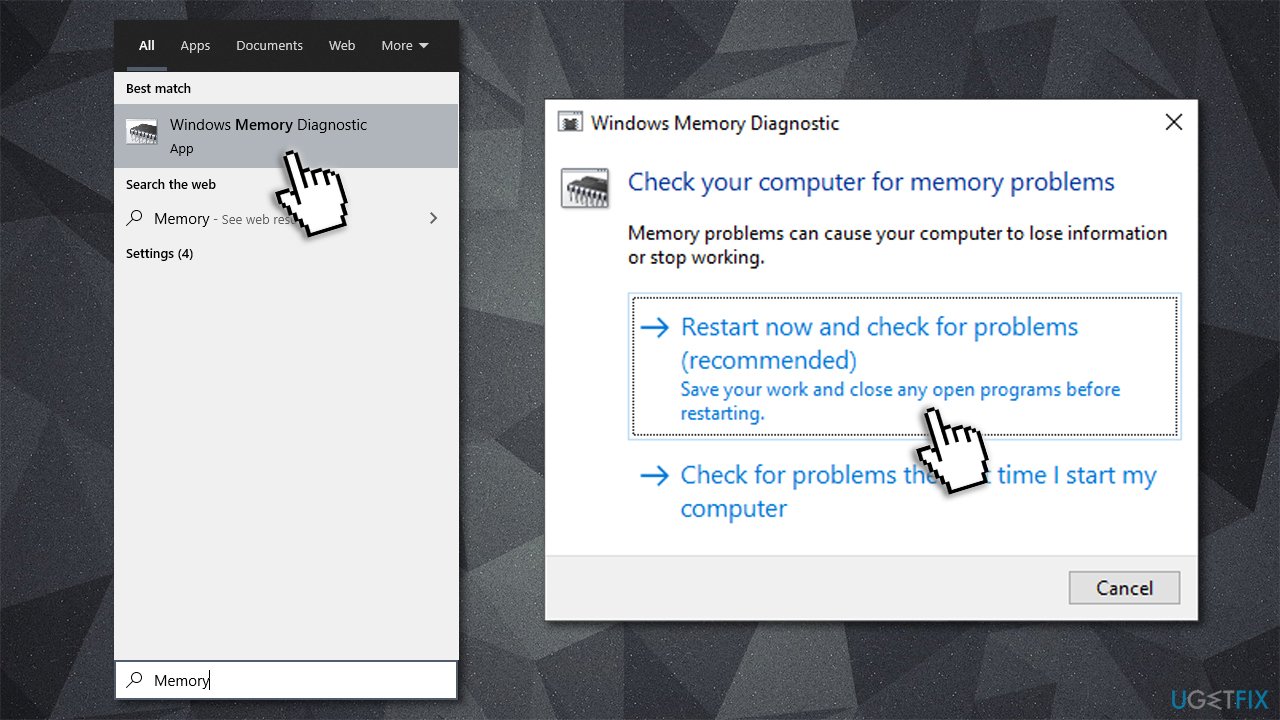
- This will automatically restart your computer and perform a memory check.
Solution 5. Run System File Checker
Fix it now!
Fix it now!
To repair damaged system, you have to purchase the licensed version of Reimage Reimage.
Check your system files for integrity violations as follows:
- Type in cmd in Windows search
- Right-click on Command Prompt and select run as administrator
- In the new window, type in sfc /scannow and hit Enter
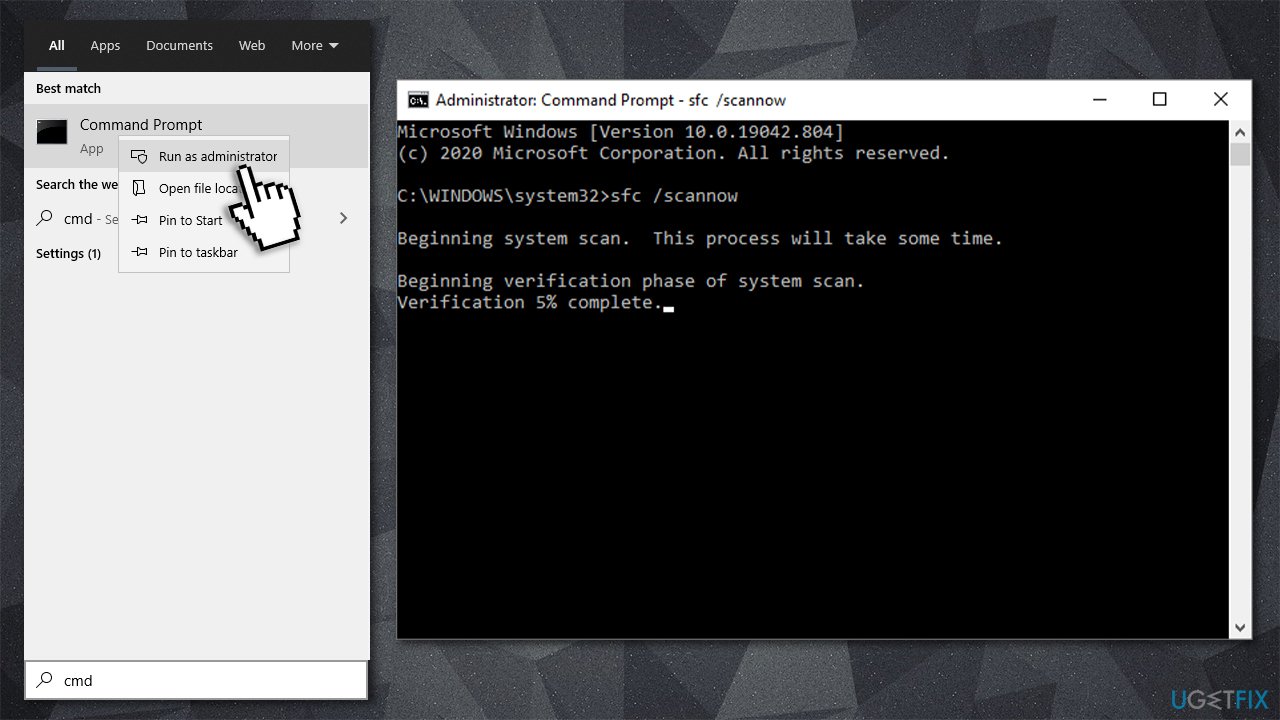
- Wait till Windows finishes the scan and reports the findings
- Restart your PC.
Repair your Errors automatically
ugetfix.com team is trying to do its best to help users find the best solutions for eliminating their errors. If you don’t want to struggle with manual repair techniques, please use the automatic software. All recommended products have been tested and approved by our professionals. Tools that you can use to fix your error are listed bellow:
do it now!
Download Fix
Happiness
Guarantee
do it now!
Download Fix
Happiness
Guarantee
Compatible with Microsoft Windows
Compatible with OS X
Still having problems?
If you failed to fix your error using Reimage, reach our support team for help. Please, let us know all details that you think we should know about your problem.
Reimage — a patented specialized Windows repair program. It will diagnose your damaged PC. It will scan all System Files, DLLs and Registry Keys that have been damaged by security threats.Reimage — a patented specialized Mac OS X repair program. It will diagnose your damaged computer. It will scan all System Files and Registry Keys that have been damaged by security threats.
This patented repair process uses a database of 25 million components that can replace any damaged or missing file on user’s computer.
To repair damaged system, you have to purchase the licensed version of Reimage malware removal tool.

A VPN is crucial when it comes to user privacy. Online trackers such as cookies can not only be used by social media platforms and other websites but also your Internet Service Provider and the government. Even if you apply the most secure settings via your web browser, you can still be tracked via apps that are connected to the internet. Besides, privacy-focused browsers like Tor is are not an optimal choice due to diminished connection speeds. The best solution for your ultimate privacy is Private Internet Access – be anonymous and secure online.
Data recovery software is one of the options that could help you recover your files. Once you delete a file, it does not vanish into thin air – it remains on your system as long as no new data is written on top of it. Data Recovery Pro is recovery software that searchers for working copies of deleted files within your hard drive. By using the tool, you can prevent loss of valuable documents, school work, personal pictures, and other crucial files.
Summary: Bad_object_header BSOD error occurs due to corrupt device driver, RAM, bad sectors, and other hard drive issues. This article will guide you on how to resolve bad_object_header in Windows 11.

Contents
- What causes the Bad_object_header error on Windows 11?
- How to Fix Bad_object_header BSOD in Windows 11?
BAD OBJECT HEADER is a common Windows 11 Blue Screen of Death (BSOD) error code 0x00000189. When this error occurs, it immediately interrupts all your running tasks on Windows and reboots your system.
In this situation, you need to first understand the reason behind the occurrence of this error and then how to fix the bad_object_header BSOD error in Windows 11.
What causes the Bad_object_header error on Windows 11?
Various factors might cause you to face a bad_object_header BSOD error in your Windows 11 system. Some of the most common causes are:
- Outdated or incompatible device drivers.
- The system driver is missing or corrupted.
- The hard drive is running low on space.
- Corrupted system files.
- Deletion of important Windows components.
- Hardware conflicts.
- Incorrect allocation of memory.
- Leaving Windows update patches pending to install.

How to Fix Bad_object_header BSOD in Windows 11?
Here are the steps to fix the bad_object_header Blue Screen of Death error in Windows 11:
- Obstruct Automatic Restarting of Windows
Sometimes, due to a bad_object_header BSOD error, your Windows system may go under a continuous reboot loop. To fix this issue, you need to stop Windows from restarting.
- Ensure Operating System is up to date
Windows Updates are critical as they help patch up various bugs on your system. Follow these steps to download and install all the available Windows Updates to fix the bad_object_header BSOD error:
- Use the Blue Screen Troubleshooter
Windows has its in-built utility Blue Screen Troubleshooter to fix the bad object header issue. This handy tool can be found on PC with Windows 10 Fall Creators update or above operating system and can remove the stop error.
- Eliminate Memory and RAM issues
Sometimes, corrupted memory and bad sectors in RAM can be the reason behind bad_object_header BSOD error, so use Windows Memory Diagnostic to fix these problems.
- Safe Boot
Booting your system in Safe mode can fix critical issues, such as the bad_object_header blue screen of death error.
- Update Disk Drivers
Updating your system drivers can help fix the bad_object_header error in Windows 11.
- Give a break to Hardware components
Bad object header errors can occur because of external hardware. Therefore, it is recommended to disconnect all unessential hardware components, reboot your system, and then check if the error is fixed.
- Remove Malware from your System
Sometimes, the presence of viruses in your system can result in causing the BSOD error. In this case, you can use the built-in Windows Defender app to detect and remove notorious viruses and malware.
- Clear up the Storage from Junk
When junk files increase in your system, resulting in low space, you need to free up this space using the Disk Cleanup utility.
- Type disk clean in the Windows Search box.

- Click to open Disk Cleanup from the search result.
- Select the drive you want to clean in the drop-down menu, and click OK.

- Under the Files to Delete, select the files like Temporary Files, Temporary Internet Files, and others you want to remove.

- Select OK, and the selected files will be deleted within a few minutes.
- Uninstall problematic software
If the bad_object_header BSOD error started occurring after installation of any specific program or software, then uninstall it immediately to fix this issue.
- Press Windows + X key together and click App & Features.

- Find the program causing the error, click on it and select Uninstall.

- Follow the onscreen instruction to uninstall the program and restart your PC.
- Use Disk Checking Utility
The CHKDSK command is a Disk Checking utility that detects and fixes the bad sectors in your hard drive. For example, removing the bad sector may fix the BSOD bad_object_header error.
- Type Command Prompt in the Windows search.
- Run it as Administrator.
- Type chkdsk disk drive letter: /f /r /x and hit the Enter key to start the process to detect and fix the driver issue.
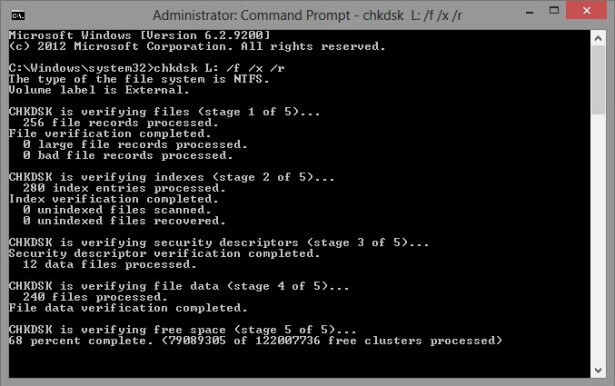
- Reboot your system and check if the bad object header error code is fixed.
- Use System File Checker
Windows system components and recovering missing DLL files may be the reason behind the bad_object_header BSOD error. Use the built-in Windows System File Checker utility to fix this error.
- Type Command Prompt in the search box.
- Run it as Administrator.
- Type sfc/scannow and hit the Enter key to start the system scan.

- Wait for the process to complete, and then restart your PC.
- Uninstall Defective Windows Update Files
If this error is due to problematic Windows update files, then uninstalling it might solve your issue.
- Right-click on it and select Uninstall. Once done, check if the bad_object_header BSOD error is resolved.

- Perform System Restore
If a recent modification in your system is responsible for a BSOD error, you should use System Restore to return to a point when there was no error.
- Use Stellar Data Recovery Software
You can use the Drive Monitor feature of the Stellar Data Recovery Professional for Windows to check bad sectors in your hard drive as they are responsible to cause BSOD errors. In addition, the drive monitor checks the overall health, temperature, and performance of the HDD/SSD/USB drive and a specific partition of the drive.
We highly recommend you take the free trial to see the health of your hard drive.
- Download and launch the Stellar Data Recovery Professional for Windows.

- Navigate to waffle icon and click on Monitor Drive.

- The Drive Monitor window will open.
- Go to the Scan Disk tab and click Scan to start the scanning process.

- Once the Scan is completed, you can see bad sectors in the result. If bad sectors are in huge numbers, clone your disk so you don’t lose any data.
Conclusion
To avoid Blue Screen of Death (BSOD) errors like the bad_object_header 0x00000189 error, you must regularly monitor the health of your hard disk, update your OS, scan your system using Windows Defender, and repair the memory and RAM issues.
Additionally, BSOD errors are sudden errors that can occur without warning signs, often resulting in data loss scenarios. Use efficient data recovery software like Stellar Data Recovery Professional for Windows to restore any files lost due to bad_object_header errors in your system. Moreover, to avoid data loss due to BSOD errors, create at least two backups of your data on either the cloud or external drive.
FAQ
2. How do I fix a bad pool header error?
Use the DISM tool to rectify defective image files. Once detected, the tool will eventually will fix the bad pool header error in Windows 11:
– Type Command Prompt in the search box.
– Run it as Administrator.
– Type exe /Online /Cleanup-image /Restorehealth and hit Enter key.
About The Author
Vishakha
Vishakha Singh is attached with Stellar® as a Senior Content Writer. She is a technology enthusiast and a Computer Science graduate who loves to share data recovery tutorials and DIY tips for Windows systems and storage drives. She loves exploring new technologies and aims to make her readers’ tech life easy and enjoyable.
Best Selling Products

Stellar Data Recovery Premium
Stellar Data Recovery Premium for Window
Read More

Stellar Data Recovery Technician
Stellar Data Recovery Technician intelli
Read More

Stellar Data Recovery Toolkit
Stellar Data Recovery Toolkit is an adva
Read More

BitRaser File Eraser
BitRaser File Eraser is a 100% secure so
Read More
| title | description | keywords | ms.date | topic_type | api_name | api_type | ||
|---|---|---|---|---|---|---|---|---|
|
Bug Check 0x189 BAD_OBJECT_HEADER |
The BAD_OBJECT_HEADER bug check has a value of 0x00000189. This indicates that The OBJECT_HEADER has been corrupted. |
|
05/23/2017 |
apiref |
BAD_OBJECT_HEADER |
NA |
Bug Check 0x189: BAD_OBJECT_HEADER
The BAD_OBJECT_HEADER bug check has a value of 0x00000189. This indicates that The OBJECT_HEADER has been corrupted.
[!IMPORTANT]
This topic is for programmers. If you are a customer who has received a blue screen error code while using your computer, see Troubleshoot blue screen errors.
BAD_OBJECT_HEADER Parameters
| Parameter | Description |
|---|---|
| 1 | Pointer to bad OBJECT_HEADER |
| 2 | Pointer to the resulting OBJECT_TYPE based on the TypeIndex in the OBJECT_HEADER |
| 3 |
Type of corruption. 0x0 : The type index is corrupt |
| 4 | Reserved |
I am getting an unusual error with some simple mnesia code. This question is a followup to this other question of mine, but now I have code to reproduce the issue.
I am using this erlang:
Erlang R16B01 (erts-5.10.2) [source] [64-bit] [smp:4:4] [async-threads:10] [hipe] [kernel-poll:false]
on Arch Linux.
If I have this code:
-module(test).

-export([test/0, tryread/0]).

-record(rec, { a, b }).

test() ->
    install(),

    {atomic, ok} = mnesia:transaction(fun() -> mnesia:write({rec, y, y}) end),
    {atomic, ok} = mnesia:transaction(fun() -> mnesia:write({rec, z, z}) end).

tryread() ->
    mnesia:transaction(fun() ->
                               mnesia:read(rec, y)
                       end).

install() ->
    mnesia:create_schema([node()]),

    ok = mnesia:start(),

    {atomic, ok} = mnesia:create_table(rec, [
                                             {attributes,       record_info(fields, rec)},
                                             {disc_only_copies, [node()]},
                                             {type,             set}
                                            ]).
in a file called test.erl and I start erl and type the following in:
1> c(test).
{ok,test}
2> test:test().
{atomic,ok}
3> test:tryread().
{atomic,{error,{bad_object_header,"/.../Mnesia.nonode@nohost/rec.DAT"}}}
As a side note, if I exit erl and restart it, and do mnesia:start(), I get this warning:
dets: file «/…/Mnesia.nonode@nohost/rec.DAT» not properly closed, repairing …
This is very reliable behaviour for me. I can delete the entire database, rerun the test, and get the exact same results.
One thing is that if I put the call to tryread inside the test function right after the two transactions, it works fine. It is calling tryread from the REPL that causes the error.
If I downgrade my erlang Arch installation package to R16B-3 from R16B01-1, I do not get this error. Any version newer than that gives this error.
Can anyone else reproduce this error? What is causing it?