Некоторые пользователи Audacity сталкиваются с кодом ошибки 9999 (непредвиденная ошибка хоста) всякий раз, когда пытаются что-то записать. Обычно эта проблема возникает в Windows 10.
Код ошибки Audacity 9999 (непредвиденная ошибка хоста)
После изучения этой конкретной проблемы выяснилось, что есть несколько причин, по которым вы можете увидеть этот код ошибки при попытке что-то записать в Audacity. Вот список потенциальных виновников:
- Доступ к микрофону отключен для Audacity — если вы столкнулись с этой проблемой в Windows 10, скорее всего, эта проблема возникает из-за настройки безопасности, которая запрещает сторонним инструментам доступ к вашему записывающему устройству по умолчанию. Если этот сценарий применим, вы сможете решить эту проблему, изменив настройки конфиденциальности по умолчанию для записывающих устройств в приложении «Настройки».
- Конфликт со Skype. Один из самых популярных конфликтов, из-за которого Audacity отображает эту ошибку, — это конфликт со Skype. Как оказалось, вы можете ожидать увидеть этот код ошибки в случае, когда обе программы пытаются использовать записывающее устройство одновременно.
- Ограничение, установленное антивирусом. Еще одна довольно распространенная причина, которая может вызвать эту проблему, — это параметр безопасности, называемый Host Intrusion Protection. Если этот сценарий применим, вы можете решить эту проблему, отключив этот параметр (или его эквивалент) в меню «Параметры» вашего антивируса. Если это не сработает, вам следует отключить сторонний пакет или удалить его, чтобы устранить конфликт.
Метод 1: разрешение приложениям доступ к микрофону
Если вы столкнулись с этой проблемой в Windows 10, наиболее распространенной проблемой, которая вызывает этот код ошибки, является новый параметр конфиденциальности, который по умолчанию отключает доступ к микрофону для сторонних приложений, таких как Audacity.
Имейте в виду, что после обновления для авторов этот параметр применяется по умолчанию. Поэтому, если вы не потратите время на специальную настройку своего компьютера, чтобы разрешить сторонним приложениям доступ к вашему микрофону, вы продолжите сталкиваться с этой ошибкой.
Следуйте инструкциям ниже, чтобы разрешить Audacity доступ к вашему микрофону:
- Убедитесь, что все экземпляры Audacity закрыты.
- Откройте диалоговое окно «Выполнить», нажав клавиши Windows + R. Затем введите «ms-settings: privacy-микрофон» и нажмите «Ввод», чтобы открыть окно «Конфиденциальность микрофона» в приложении «Настройки».
Запуск ms-settingsprivacy-микрофон в команде Run
- Как только вы окажетесь на вкладке Конфиденциальность микрофона, перейдите на правую панель и включите переключатель, связанный с Разрешить приложениям доступ к вашему микрофону.
Разрешить приложениям доступ к микрофону
- После предоставления доступа на системном уровне прокрутите список разрешенных приложений и посмотрите, включен ли переключатель, связанный с Audacity. Если это не так, включите его.
- Как только доступ к микрофону будет разрешен, снова откройте Audacity и посмотрите, решена ли проблема.
Если вы все еще сталкиваетесь с кодом ошибки -9999, перейдите к следующему потенциальному исправлению ниже.
Метод 2: закрытие Skype
Как оказалось, Skype — одно из тех приложений, которые могут конфликтовать с Audacity. По словам некоторых затронутых пользователей, Skype может вызывать ошибку 9999 с Audacity даже при работе в фоновом режиме.
Причина в том, что с некоторыми гарнитурами Skype «резервирует» записывающее устройство по умолчанию, что делает его недоступным для Audacity.
Если этот сценарий применим, вы сможете исправить этот конфликт, закрыв Skype всякий раз, когда вы захотите использовать записывающее устройство в Audacity.
Даже если активное окно Skype не открыто, вы должны закрыть любой фоновый процесс, щелкнув правой кнопкой мыши значок Skype на значке панели задач и выбрав «Выйти из Skype» в контекстном меню.
Выход из скайпа
После успешного закрытия Skype откройте Audacity и попробуйте снова использовать функцию записи, чтобы увидеть, устранена ли ошибка.
Если вы по-прежнему сталкиваетесь с тем же кодом ошибки 9999 при использовании функции записи, перейдите к следующему потенциальному исправлению ниже.
Метод 3: Отключение защиты от вторжений хоста в Антивирусе Касперского
Если вы используете Kasperksy или другой сторонний пакет, скорее всего, вы видите код ошибки 9999 из-за функции безопасности, защищающей вас от ненадежных приложений, прослушивающих ваш микрофон — в Kaspersky эта функция называется Host Intrusion Protection.
Если вы действительно используете Kaspersky в качестве основного антивирусного ПО, вы сможете решить проблему, открыв меню «Настройки» Kaspersky Endpoint Security и выбрав Advanced Threat Protection-> Host Intrusion Prevention.
Доступ к экрану приложений Kaspersky Endpoint Security
На экране приложения просто переместите Audacity из группы Low Restricted в группу Trusted перед сохранением изменений.
Примечание. Имейте в виду, что если вы используете другой антивирус, эта функция безопасности может называться по-другому и находиться в другом месте. В этом случае вам следует поискать в Интернете конкретные шаги по отключению функций Host Intrusion Prevention.
После этого снова запустите Audacity и посмотрите, устранена ли проблема.
Если вы используете другой антивирусный пакет и не можете найти эквивалент Host Intrusion Prevention, следуйте следующему методу ниже, чтобы избавиться от конфликтующего антивируса.
Метод 4: отключение или удаление стороннего AV (если применимо)
Если вы используете сторонний пакет и подозреваете, что он может конфликтовать с программным обеспечением Audacity, вам следует попробовать отключить защиту в реальном времени или даже временно удалить пакет безопасности — это позволит вам подтвердить, имеете ли вы дело с конфликт или нет.
Идеальное место для начала — отключить функцию защиты в реальном времени и посмотреть, решит ли это проблему. В подавляющем большинстве сторонних пакетов безопасности вы можете сделать это, щелкнув правой кнопкой мыши значок панели задач вашего антивируса.
Щелкните значок антивируса на панели задач и выберите Отключить.
Однако, если эта проблема связана с ограничением брандмауэра, отключения защиты в реальном времени будет недостаточно. В этом случае вам следует найти время, чтобы удалить пакет безопасности и посмотреть, перестает ли код ошибки появляться в Audacity.
Вот краткое пошаговое руководство по удалению конфликтующего стороннего пакета:
- Нажмите клавишу Windows + R, чтобы открыть диалоговое окно «Выполнить». Затем введите appwiz.cpl в текстовое поле и нажмите Enter, чтобы открыть меню «Программы и файлы».
Введите appwiz.cpl и нажмите Enter, чтобы открыть список установленных программ.
- Зайдя в меню «Программы и компоненты», прокрутите список установленных приложений и найдите антивирус, который вы хотите удалить.
Удаление антивируса с помощью панели управления
- На экране удаления следуйте инструкциям на экране, чтобы завершить удаление стороннего пакета, затем перезагрузите компьютер и дождитесь завершения следующего запуска.
- При следующем запуске откройте Audacity и запустите сеанс записи, чтобы проверить, устранена ли проблема.
Audacity – это звуковой редактор с открытым исходным кодом, который широко используется по всему миру. Хотя это программное обеспечение почти не содержит багов и проблем, как и любое другое приложение, оно не на 100% защищено от ошибок.
Одна из основных ошибок Audacity – это «Код ошибки -9999». За этой проблемой часто следует сообщение об ошибке – «Непредвиденная ошибка хоста».
Отключите или удалите антивирус (Kaspersky / Avast) на вашем компьютере. Проверьте, решает ли это проблему.
Содержание
- Разрешите приложению доступ к микрофону
- Закрыть фоновые программы
- Установите микрофон в качестве устройства по умолчанию
- Выйти из Skype
Разрешите приложению доступ к микрофону
Вы должны настроить разрешение на использование микрофона в окне настроек.
1. Прежде всего, одновременно нажмите клавишу Windows + I (на англ клавиатуре)
2. Затем нажмите на настройки «Конфиденциальность», чтобы получить к нему доступ.

3. Затем нажмите « Микрофон » слева.

4. В настройках «Доступ к микрофону для этого устройства» нажмите «Изменить». Переключите его на «ВКЛ».

5. Затем прокрутите вниз до «Разрешить настольным приложениям доступ к вашему микрофону».
6. Здесь переключите эту настройку на «ВКЛ».
Это включит доступ к микрофону для компьютера.
Закрыть фоновые программы
Audacity не сможет получить доступ к микрофону, если другое приложение использует его в фоновом режиме.
1. Одновременно нажмите клавишу Windows + X.
2. Затем щелкните «Диспетчер задач».
3. Когда открывается диспетчер задач, проверьте, какой процесс использует микрофон в фоновом режиме (например, Skype, Zoom и т. д.).
4. Щелкните правой кнопкой мыши процесс, использующий микрофон, и нажмите «Завершить задачу», чтобы убрать этот процесс.
5. Таким же образом завершите все процессы, связанные с микрофоном.
Проверьте, решает ли это вашу проблему.
Установите микрофон в качестве устройства по умолчанию
Вы должны установить микрофон в качестве устройства по умолчанию.
1. Нажмите клавишу Windows + R, чтобы открыть «Выполнить».
2. После этого введите «mmsys.cpl » и нажмите « ОК ».

3. Затем, когда откроется окно «Звук», щелкните вкладку « Запись ».
4. Затем щелкните правой кнопкой мыши используемый микрофон и выберите «Установить как устройство по умолчанию».
Это должно установить устройство в качестве аудиодрайвера по умолчанию на вашем компьютере.
Это должно было решить вашу проблему.
Выйти из Skype
Skype – одно из приложений, которое часто конфликтует с Audacity.
1. Закройте приложение Skype.
Но закрытие приложения Skype не означает его полный выход. Обычно закрытие Скайп просто скрывает его в панель задач и по сути Скайп продолжает использовать доступ к микрофону.
2. Чтобы окончательно закрыть приложение, щелкните стрелку на панели задач. Затем щелкните правой кнопкой мыши значок Skype и нажмите «Выйти из Skype», чтобы полностью закрыть приложение.

Точно так же, если у вас есть другие приложения, использующие микрофон, например команды Microsoft, также закройте их.
Теперь попробуйте снова использовать Audacity и проверьте, работает ли это исправление.
Ваша проблема должна быть решена.
Просмотров 2.6к.
Обновлено 08.05.2021
С помощью платформы Audacity легко записывать и редактировать аудио. Однако некоторые пользователи сообщают код ошибки -9999, что указывает на непредвиденную ошибку хоста. Эта ошибка возникает из-за конфликта в настройках безопасности. Audacity может не распознавать сторонние инструменты, такие как ваш микрофон. Ваш антивирус также мог заблокировать платформу.
Полное сообщение об ошибке выглядит так:
«Ошибка открытия записывающего устройства.
Код ошибки: -9999 Непредвиденная ошибка хоста ».
Если вы видите код ошибки 9999 при использовании Audacity, вы можете исправить его, используя следующие методы.
Код ошибки Audacity 9999: неожиданный хост при открытии записывающего устройства
Решение №1 — Закройте приложения для видеоконференцсвязи
 Кредит: Freepik
Если вы используете Skype, вы можете сначала закрыть приложение. Audacity может не распознавать ваши записывающие устройства, поскольку они помечены по умолчанию в Skype или любом другом приложении для видеоконференцсвязи. Закройте приложения и попробуйте снова запустить Audacity.
Решение №2 — Отключите антивирус.
 Предоставлено: Krisikorn / Freepik.
Одна из причин ошибки — когда ваш антивирус обнаруживает, что приложение представляет угрозу для вашего компьютера или устройства. Вы можете выключить антивирус и проверить, сохраняется ли ошибка. Если нет, то ваш антивирус может вызвать появление ошибки. Временно отключайте его каждый раз, когда открываете Audacity.
- Чтобы отключить антивирус, перейдите в меню настроек.
- Перейдите в раздел «Обновление и безопасность».
- Выберите Безопасность Windows.
- Щелкните Защита от вирусов и угроз.
- Выберите Управление настройками.
- В разделе Защита в реальном времени выберите Выкл.
Решение №3 — Разрешить сторонним приложениям доступ к микрофону

- Во-первых, вам нужно закрыть программное обеспечение Audacity.
- Перейдите в Настройки.
- Найдите раздел «Конфиденциальность микрофона» и нажмите, чтобы открыть. Вы также можете ввести ms-настройки: конфиденциальность-микрофон в диалоговом окне «Выполнить».
- Найдите Разрешить приложениям доступ к вашему микрофону.
- Под разделом переключите кнопку на Вкл.
- Просмотрите список разрешенных приложений и убедитесь, что Audacity включен.
Какое из приведенных выше решений поможет вам исправить ошибку? Мы хотели бы знать, так что оставьте нам комментарий ниже.
Forum rules
 This forum is for Audacity on Windows.
Please state which version of Windows you are using,
and the exact three-section version number of Audacity from «Help menu > About Audacity«.
Audacity 1.2.x and 1.3.x are obsolete and no longer supported. If you still have those versions, please upgrade at https://www.audacityteam.org/download/.
The old forums for those versions are now closed, but you can still read the archives of the 1.2.x and 1.3.x forums.
-
vetitice
- Posts: 8
- Joined: Thu Jan 31, 2019 3:57 pm
- Operating System: Windows 10 / 11
Error code -9999 attempting to record [SOLVED]
Hi All,
Audacity 2.3.0 on Windows 10 on a Dell Optiplex 3020. Attempting to record using a Logitec A-5572A USB microphone adapter and get the following error:
Error opening recording device.
Error code: -9999 Unanticipated host error.
I’ve followed the steps in the help files for this error, including checking that microphone is enabled in the Windows privacy settings.
Format on the mic in windows is set to 1-channel, 16 bit 44100 Hz. I can see audio on the bar graph in the windows sound settings. Skype works and I believe the built in voice recorder app works.
I’ve tried MME and DirectSound. WASAPI gives me error -9997 when I try to record.
The front-panel microphone input also fails to open with error -9999.
Any clues what to do at this point?
Regards,
Glenn
Audio Device info below:
Code: Select all
==============================
Default recording device number: 1
Default playback device number: 4
==============================
Device ID: 0
Device name: Microsoft Sound Mapper - Input
Host name: MME
Recording channels: 2
Playback channels: 0
Low Recording Latency: 0.09
Low Playback Latency: 0.09
High Recording Latency: 0.18
High Playback Latency: 0.18
Supported Rates:
==============================
Device ID: 1
Device name: Headset Microphone (2- Logitech
Host name: MME
Recording channels: 2
Playback channels: 0
Low Recording Latency: 0.09
Low Playback Latency: 0.09
High Recording Latency: 0.18
High Playback Latency: 0.18
Supported Rates:
==============================
Device ID: 2
Device name: Microphone (Realtek High Defini
Host name: MME
Recording channels: 2
Playback channels: 0
Low Recording Latency: 0.09
Low Playback Latency: 0.09
High Recording Latency: 0.18
High Playback Latency: 0.18
Supported Rates:
==============================
Device ID: 3
Device name: Microsoft Sound Mapper - Output
Host name: MME
Recording channels: 0
Playback channels: 2
Low Recording Latency: 0.09
Low Playback Latency: 0.09
High Recording Latency: 0.18
High Playback Latency: 0.18
Supported Rates:
    8000
    9600
    11025
    12000
    15000
    16000
    22050
    24000
    32000
    44100
    48000
    88200
    96000
    176400
    192000
    352800
    384000
==============================
Device ID: 4
Device name: Headset Earphone (2- Logitech U
Host name: MME
Recording channels: 0
Playback channels: 2
Low Recording Latency: 0.09
Low Playback Latency: 0.09
High Recording Latency: 0.18
High Playback Latency: 0.18
Supported Rates:
    8000
    9600
    11025
    12000
    15000
    16000
    22050
    24000
    32000
    44100
    48000
    88200
    96000
    176400
    192000
    352800
    384000
==============================
Device ID: 5
Device name: Speakers / Headphones (Realtek
Host name: MME
Recording channels: 0
Playback channels: 2
Low Recording Latency: 0.09
Low Playback Latency: 0.09
High Recording Latency: 0.18
High Playback Latency: 0.18
Supported Rates:
    8000
    9600
    11025
    12000
    15000
    16000
    22050
    24000
    32000
    44100
    48000
    88200
    96000
    176400
    192000
    352800
    384000
==============================
Device ID: 6
Device name: Primary Sound Capture Driver
Host name: Windows DirectSound
Recording channels: 2
Playback channels: 0
Low Recording Latency: 0.12
Low Playback Latency: 0
High Recording Latency: 0.24
High Playback Latency: 0
Supported Rates:
==============================
Device ID: 7
Device name: Headset Microphone (2- Logitech USB Headset)
Host name: Windows DirectSound
Recording channels: 2
Playback channels: 0
Low Recording Latency: 0.12
Low Playback Latency: 0
High Recording Latency: 0.24
High Playback Latency: 0
Supported Rates:
==============================
Device ID: 8
Device name: Microphone (Realtek High Definition Audio)
Host name: Windows DirectSound
Recording channels: 2
Playback channels: 0
Low Recording Latency: 0.12
Low Playback Latency: 0
High Recording Latency: 0.24
High Playback Latency: 0
Supported Rates:
==============================
Device ID: 9
Device name: Primary Sound Driver
Host name: Windows DirectSound
Recording channels: 0
Playback channels: 2
Low Recording Latency: 0
Low Playback Latency: 0.12
High Recording Latency: 0
High Playback Latency: 0.24
Supported Rates:
    8000
    9600
    11025
    12000
    15000
    16000
    22050
    24000
    32000
    44100
    48000
    88200
    96000
    176400
    192000
==============================
Device ID: 10
Device name: Headset Earphone (2- Logitech USB Headset)
Host name: Windows DirectSound
Recording channels: 0
Playback channels: 2
Low Recording Latency: 0
Low Playback Latency: 0.12
High Recording Latency: 0
High Playback Latency: 0.24
Supported Rates:
    8000
    9600
    11025
    12000
    15000
    16000
    22050
    24000
    32000
    44100
    48000
    88200
    96000
    176400
    192000
==============================
Device ID: 11
Device name: Speakers / Headphones (Realtek High Definition Audio)
Host name: Windows DirectSound
Recording channels: 0
Playback channels: 2
Low Recording Latency: 0
Low Playback Latency: 0.12
High Recording Latency: 0
High Playback Latency: 0.24
Supported Rates:
    8000
    9600
    11025
    12000
    15000
    16000
    22050
    24000
    32000
    44100
    48000
    88200
    96000
    176400
    192000
==============================
Device ID: 12
Device name: Speakers / Headphones (Realtek High Definition Audio)
Host name: Windows WASAPI
Recording channels: 0
Playback channels: 2
Low Recording Latency: 0
Low Playback Latency: 0.003
High Recording Latency: 0
High Playback Latency: 0.01
Supported Rates:
    48000
==============================
Device ID: 13
Device name: Speakers / Headphones (Realtek High Definition Audio) (loopback)
Host name: Windows WASAPI
Recording channels: 2
Playback channels: 0
Low Recording Latency: 0.003
Low Playback Latency: 0
High Recording Latency: 0.01
High Playback Latency: 0
Supported Rates:
==============================
Device ID: 14
Device name: Headset Earphone (2- Logitech USB Headset)
Host name: Windows WASAPI
Recording channels: 0
Playback channels: 2
Low Recording Latency: 0
Low Playback Latency: 0.003
High Recording Latency: 0
High Playback Latency: 0.01
Supported Rates:
    48000
==============================
Device ID: 15
Device name: Headset Earphone (2- Logitech USB Headset) (loopback)
Host name: Windows WASAPI
Recording channels: 2
Playback channels: 0
Low Recording Latency: 0.003
Low Playback Latency: 0
High Recording Latency: 0.01
High Playback Latency: 0
Supported Rates:
==============================
Device ID: 16
Device name: Headset Microphone (2- Logitech USB Headset)
Host name: Windows WASAPI
Recording channels: 1
Playback channels: 0
Low Recording Latency: 0.003
Low Playback Latency: 0
High Recording Latency: 0.01
High Playback Latency: 0
Supported Rates:
==============================
Device ID: 17
Device name: Microphone (Realtek High Definition Audio)
Host name: Windows WASAPI
Recording channels: 2
Playback channels: 0
Low Recording Latency: 0.003
Low Playback Latency: 0
High Recording Latency: 0.01
High Playback Latency: 0
Supported Rates:
==============================
Selected recording device: 17 - Microphone (Realtek High Definition Audio)
Selected playback device: 14 - Headset Earphone (2- Logitech USB Headset)
Supported Rates:
-
steve
- Site Admin
- Posts: 86153
- Joined: Sat Dec 01, 2007 11:43 am
- Operating System: Linux *buntu
Re: Error code -9999 attempting to record
Post
by steve » Thu Jan 31, 2019 5:55 pm
This is probably due to a new setting in Windows. Try this:
1) Open Settings
2) Click on Privacy
3) Click on Microphone
4)Turn on the Allow apps to access your microphone toggle switch.
Learn more about Nyquist programming at audionyq.com
-
vetitice
- Posts: 8
- Joined: Thu Jan 31, 2019 3:57 pm
- Operating System: Windows 10 / 11
Re: Error code -9999 attempting to record
Post
by vetitice » Thu Jan 31, 2019 6:10 pm
Hi Steve,
Thank you for your reply.
As stated above, I tried that, as it was the first thing suggested on the help page and on other peoples Forum posts.
Apps with mic access allowed:
Camera, Feedback Hub, Skype, Voice Recorder, Win32WebViewHost
Apps with mic access disabled:
3D Viewer, Cortana, Messaging, Microsoft Edge, Microsoft Photos, Microsoft Store, OneNote, Take A Test, Xbox.
I’ve run through everything on the audacity help file web page that opens when you click the help icon on the error box.
Regards,
Glenn
-
steve
- Site Admin
- Posts: 86153
- Joined: Sat Dec 01, 2007 11:43 am
- Operating System: Linux *buntu
Re: Error code -9999 attempting to record
Post
by steve » Thu Jan 31, 2019 7:05 pm
Is Skype still running in the background? If so, shut it down completely, then restart Audacity (if it is running, shut it down and restart it), then try recording with «host» set to MME and the microphone selected as the recording device.
Learn more about Nyquist programming at audionyq.com
-
vetitice
- Posts: 8
- Joined: Thu Jan 31, 2019 3:57 pm
- Operating System: Windows 10 / 11
Re: Error code -9999 attempting to record
Post
by vetitice » Thu Jan 31, 2019 7:19 pm
Skype *was* running, but it’s off now. Even went into task manager and killed the ‘suspended’ tasks Skype leaves in the background after you exit.
Followed your directions, but still get a -9999 error when I hit the record button.
This *was* working a few months ago, even with Skype running.
-
vetitice
- Posts: 8
- Joined: Thu Jan 31, 2019 3:57 pm
- Operating System: Windows 10 / 11
Re: Error code -9999 attempting to record [SOLVED]
Post
by vetitice » Sat Feb 02, 2019 7:07 pm
Found the Problem, Kaspersky Endpoint Security’s «Host Intrusion Protection» was protecting me from un-trusted apps listening in to my microphone.
Kaspersky Endpoint Security->Settings->Advanced Threat Protection->Host Intrusion Prevention
Moved Audacity from «Low Restricted» to «Trusted» group.
-
steve
- Site Admin
- Posts: 86153
- Joined: Sat Dec 01, 2007 11:43 am
- Operating System: Linux *buntu
Re: Error code -9999 attempting to record
Post
by steve » Sun Feb 03, 2019 10:54 am
vetitice wrote: ↑
Sat Feb 02, 2019 7:07 pm
Found the Problem, Kaspersky Endpoint Security’s «Host Intrusion Protection» was protecting me from un-trusted apps listening in to my microphone.Kaspersky Endpoint Security->Settings->Advanced Threat Protection->Host Intrusion Prevention
Moved Audacity from «Low Restricted» to «Trusted» group.
Thanks for posting the solution, that could be very useful for other users. I’ll lock this topic so that the solution doesn’t get buried.
Learn more about Nyquist programming at audionyq.com
Some Audacity users are encountering the 9999 error code (Unanticipated Host Error) whenever they attempt to record something. This issue is primarily reported to occur on Windows 10.
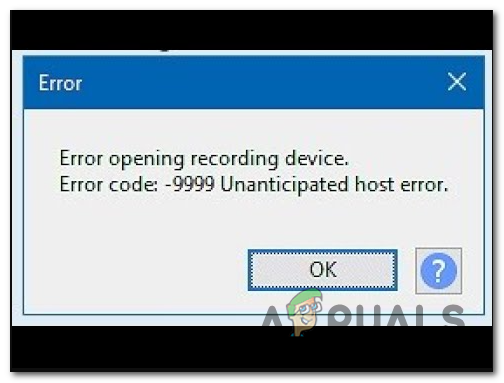
After investigating this particular issue, it turns out that there are several reasons why you might see this error code when attempting to record something in Audacity. Here’s a list of potential culprits:
- Microphone access is disabled for Audacity – If you’re encountering this problem on Windows 10, chances are this problem is occurring due to a security setting that denies 3rd party tools access to your default recording device. If this scenario is applicable, you should be able to fix this problem by modifying the default Privacy settings for recording devices from the Settings app.
- Conflict with Skype – One of the most popular conflicts that will cause Audacity to display this error is a conflict with Skype. As it turns out, you can expect to see this error code in an instance where both programs are attempting to use the recording device at the same time.
- Restriction enforced by antivirus – Another fairly common culprit that might cause this problem is a security option called Host Intrusion Protection. If this scenario is applicable, you can fix this problem by disabling this setting (or it’s equivalent) from the Setting menu of your antivirus. If that doesn’t work you should disable the 3rd party suite or uninstall it to eliminate the conflict.
Method 1: Allowing Apps to Access the Microphone
If you’re facing this issue on Windows 10, the most common problem that will cause this error code is a new privacy setting that cuts microphone access to 3rd party apps such as Audacity by default.
Keep in mind that after the Creator’s Update, this setting is enforced by default. So unless you take the time to specifically configure your computer to allow 3rd party apps access to your microphone, you’ll keep encountering this error.
Follow the instructions below to allow Audacity access to your microphone:
- Ensure that every instance of Audacity is closed.
- Open a Run dialog box by pressing Windows key + R. Next, type ‘ms-settings:privacy-microphone‘ and press Enter to open up the Microphone Privacy window of the Settings app.
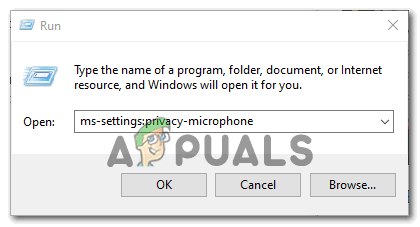
Running the ‘ms-settingsprivacy-microphone’ in Run command - Once you’re inside the Microphone privacy tab, move over to the right-hand pane and enable the toggle associated with Allow apps to access your microphone.
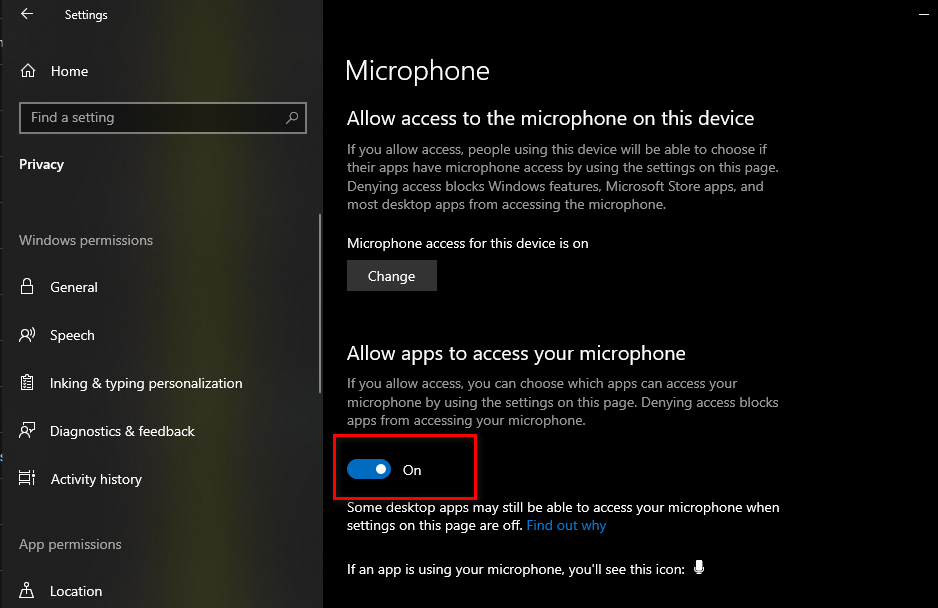
Allowing apps to access the microphone - Once access is granted at a system level, scroll down through the list of allowed apps and see if the toggle associated with Audacity is enabled. If it’s not, enable it.
- Once microphone access is allowed, open Audacity once again and see if the problem is now fixed.
In case you are still encountering the error code -9999, move down to the next potential fix below.
Method 2: Closing Skype
As it turns out, Skype is one of those apps that can conflict with Audacity. According to some affected users, Skype can cause the 9999 error with Audacity even when running in the background.
The reason for this is that with certain headsets, Skype will ‘reserve’ the default recording device, which will make it unavailable for Audacity.
If this scenario is applicable, you should be able to fix this conflict by closing Skype whenever you want to use a recording device in Audacity.
Even if there is no active Skype window open, you should close off any background process by right-clicking on the Skype icon in the tray bar icon and choosing Quit Skype from the context menu.
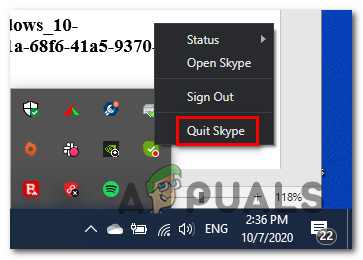
Once Skype is successfully closed, open Audacity and attempt to use the recording feature again to see if the error is now resolved.
In case you are still encountering the same error code 9999 when using the recording feature, move down to the next potential fix below.
Method 3: Disabling the Host Intrusion Protection in Kaspersky Antivirus
If you’re using Kasperksy or a different 3rd party suite, chances are you’re seeing the 9999 error code due to a security feature protecting you from untrusted apps listening in to your microphone – on Kaspersky, this feature is called Host Intrusion Protection.
If you are indeed using Kaspersky as your main AV, you should be able to resolve the issue by going by opening the Settings menu of Kaspersky Endpoint Security and going to Advanced Threat Protection->Host Intrusion Prevention.
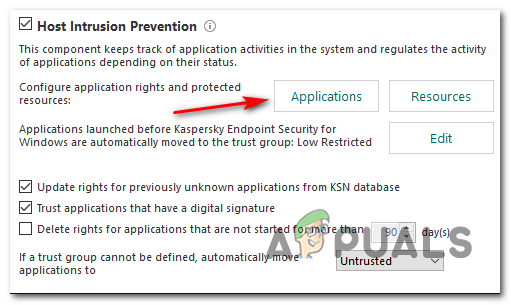
Inside the application screen, simply move Audacity from the Low Restricted group to the Trusted group before saving the changes.
Note: Keep in mind that if you’re using a different antivirus, this security feature might be called differently and be found in a different location. In this case, you should search online for specific steps of disabling the Host Intrusion Prevention features.
After you do this, launch Audacity again and see if the issue is now fixed.
In case you are using a different antivirus suite and you can’t find the equivalent of Host Intrusion Prevention, follow the next method below to get rid of the conflicting antivirus.
Method 4: Disabling or Uninstalling the 3rd party AV (if applicable)
If you are using a 3rd party suite and you suspect that it might be conflicting with the Audacity software, you should try disabling the real-time protection or even uninstalling the security suite temporarily – this will allow you to confirm whether you’re dealing with a conflict or not.
The ideal place to start is to disable the real-time protection feature and see if this ends up resolving the problem. With the vast majority of 3rd party security suites, you can do this by right-clicking on the tray bar icon of your antivirus.
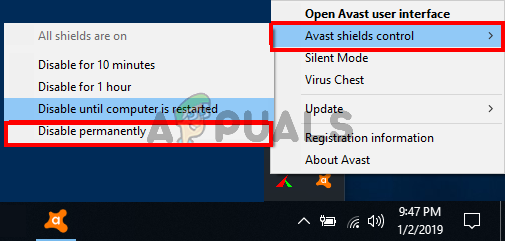
However, if this problem is related to a firewall restriction, disabling real-time protection will not be enough. In this case, you should take the time to uninstall the security suite and see if the error code stops occurring in Audacity.
Here’s a quick step-by-step guide on how to uninstall the conflicting 3rd party suite:
- Press Windows key + R to open up a Run dialog box. Next, type ‘appwiz.cpl’ inside the text box and press Enter to open up the Programs and Files menu.

Type appwiz.cpl and Press Enter to Open Installed Programs List - Once you’re inside the Programs and Features menu, scroll down through the list of installed applications and locate the antivirus that you wish to uninstall.
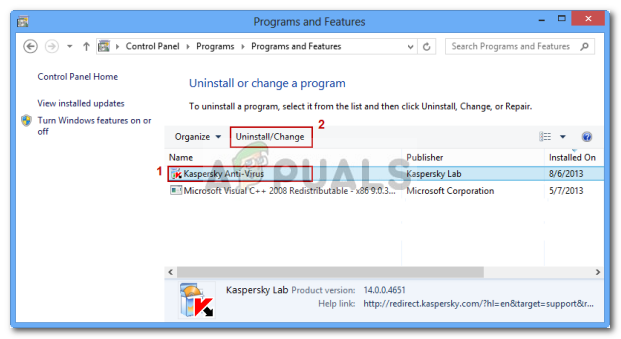
Uninstalling Antivirus Using Control Panel - Inside the uninstallation screen, follow the on-screen prompts to complete the uninstallation of your 3rd party suite, then restart your computer and wait for the next startup to complete.
- At the next startup, open Audacity and initiate a recording session to see if the problem is now fixed.

Kevin Arrows
Kevin is a dynamic and self-motivated information technology professional, with a Thorough knowledge of all facets pertaining to network infrastructure design, implementation and administration. Superior record of delivering simultaneous large-scale mission critical projects on time and under budget.
Многие пользователи жалуются, что Audacity показывает сообщение об ошибке 9999, когда они пытаются отредактировать любой звук. Есть несколько основных причин этого кода ошибки, которые можно исправить в Audacity.
Я перечислил несколько простых способов, которые можно использовать для исправления Audacity в Windows 10.
О смелости
Audacity произвела революцию в микшировании и записи звука. Он стал общедоступным в 2000 году как бесплатный, удобный многодорожечный аудиоредактор для Windows, macOS и Linux. В настоящее время это самое популярное программное обеспечение на FossHub с колоссальными 110 миллионами загрузок. До 2015 года его размещали Google Code и SourceForge. Он имеет открытый исходный код и подпадает под Стандартную общественную лицензию GNU (GPL).
Пользователи могут столкнуться с ошибкой 9999 при выполнении автоматического редактирования. Как правило, это указывает на то, что Audacity не удалось обнаружить и подключиться к микрофону, необходимому для сеанса аудиозаписи.
Если вы столкнулись с проблемой, сначала проверьте подключение внешнего микрофона к порту. В качестве меры проб и ошибок вы можете попробовать переключить порты, если конфигурация вашего компьютера поддерживает это.
Если проблема не в оборудовании, попробуйте выполнить процедуры для устранения неполадок в программном обеспечении.
Как исправить ошибку Audacity 9999?
Нажмите на настройки конфиденциальности
Первый и простой способ исправить эту ошибку — перезагрузить компьютер и убедиться, что сторонние приложения, такие как Audacity, могут получить доступ к микрофону.
Обратите внимание, что Windows 10 Creator’s Edition автоматически блокирует доступ к вашему микрофону, и пользователям необходимо включить его вручную.
Вот шаги для настройки вашей системы –
- Сначала закройте город Audacity.
- Нажмите на логотип Windows, введите «Настройки конфиденциальности» и нажмите на него.
- Слева в разделе «Разрешения приложения» нажмите «Выбрать микрофон».
- Переключите, чтобы включить параметр «Разрешить приложениям доступ к вашему микрофону».
Кроме того, есть ярлык для запуска настроек микрофона.
1) Нажмите кнопку Windows+R
2) Введите ms-settings:privacy-microphone
3) Нажмите OK, и откроется окно настроек микрофона.
Отключите или закройте приложения для видеосвязи
Пользователи сообщают, что такие программы, как Skype или Microsoft Teams, работающие в фоновом режиме, могут повлиять на Audacity. Skype имеет тенденцию блокировать записывающее устройство по умолчанию для себя, и поэтому Audacity не может получить к нему доступ.
Вы можете легко отключить фоновые приложения с помощью диспетчера задач —
- Удерживайте Ctrl + Shift + Esc, чтобы открыть диспетчер задач.
- Перейдите на вкладку «Процессы», щелкните правой кнопкой мыши программу.
- Нажмите «Завершить задачу» в раскрывающемся списке.
Вы также можете закрыть Skype, щелкнув правой кнопкой мыши значок на панели задач.
Вот как исправить неработающую USB-мышь.
Отключить антивирус
Сторонние антивирусные программы часто конфликтуют с Audacity и отображают код ошибки 9999. Вы можете попробовать временно или навсегда отключить защиту от вирусов в режиме реального времени на панели задач в Windows. Щелкните правой кнопкой мыши значок антивируса, и вы найдете опцию.
Вы также должны проверить настройки брандмауэра в Защитнике Windows на наличие ограничений.
Отключить защиту хоста от вторжений
Сторонние пользователи Kaspersky Antivirus также сообщают, что определенные функции безопасности блокируют доступ ненадежных приложений к вашему микрофону. В первую очередь, если вы используете Kaspersky, это называется Host Intrusion Protection.
Вот шаги, чтобы закрыть его:
- Перейдите в меню Настройки в Kaspersky Endpoint Security.
- В разделе «Дополнительная защита от угроз» вы найдете «Защита от вторжений хоста».
- Откройте экран «Приложения» и переместите Audacity в «Доверенные» с «Низкие ограничения».
В разных версиях Avast Antivirus действия могут немного различаться, но их можно отключить с помощью описанных выше методов.
Запустите чистую загрузку
Чистая загрузка означает загрузку критически важных процессов и служб при закрытии всех сторонних программ во время процесса загрузки. Вы можете выполнить эту процедуру с помощью утилиты настройки Microsoft (MSConfig) —
- Удерживая кнопку Win+R, введите MSConfig и нажмите кнопку Enter.
- Перейдите на вкладку «Службы», установите флажок «Скрыть все службы Microsoft».
- Нажмите «Отключить все»
- Теперь перейдите на вкладку «Автозагрузка».
- Щелкните правой кнопкой мыши каждое запускаемое приложение по одному и выберите «Отключить».
- Закройте диспетчер задач.
- Нажмите OK и перезагрузите систему.
Таким образом, вы можете проверить, отображается ли ошибка Audacity или нет.
Если все вышеперечисленные методы не сработали, следуйте следующему методу.
Переустановите программное обеспечение Audacity.
Это последний способ, которым можно попытаться исправить код ошибки 9999:
1) Нажмите клавишу Windows, введите Панель управления и нажмите на нее.
2) Нажмите «Удалить программу».
3) Найдите Audacity, щелкните правой кнопкой мыши и выберите «Удалить».
4) После этого загрузите последняя копия Audacity и установите его.
Код ошибки Audacity 9999 легко исправить, если следовать описанным выше методам.
Читать далее:
Audacity is a popular and free-to-use digital audio editor and recording application. But while using it on Windows PC, users have reported coming across Audacity Error opening recording device, 9999 Unanticipated host error. If you face this issue, then this post will help you.

The problem occurs while trying to record something on Windows PC. Thankfully, like any other issue, it can be eliminated as well with some simple fixes. Let’s check them out one-by-one.
What causes Audacity Error code 9999 Unanticipated host error?
Audacity throws Error code 9999 Unanticipated host error while trying to record something on the application. There are multiple reasons behind the culprit. Some of the most common ones are listed below.
- The problem in the question will occur if Audacity is not allowed to access the Microphone.
- If any other audio recording application is running in your system’s background, you will most likely face the problem.
- Different third-party anti-virus programs can interfere with the smooth functioning of Audacity and cause problems.
Now that you have prior knowledge of different reasons causing the issue let’s check out how to fix them.
Here are all the effective solutions to try to get rid of Audacity Error code 9999 Unanticipated host error.
- Restart the application
- Allow the application to access Microphone
- Close similar applications
- Set the Microphone as the default device
- Disable third-party antivirus software
- Troubleshoot in Clean Boot
Now, let’s check out all these fixes in detail.
1] Restart the application
Before trying any of the below technical solutions, the first step you should take is to restart the application. As it turns out, for most users, the problem resulted from a temporary glitch and was fixed upon restarting the application. So, restart Audacity and check if it fixes the problem. If yes, you are good to go. But in case the problem continues, try the next solution on the list.
See: Fix Audacity FFmpeg error on Windows PC
2] Allow the application to access Microphone
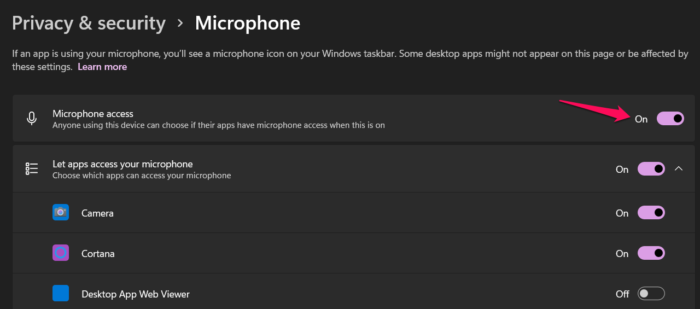
As mentioned, one of the primary reasons behind the problem in question is that you haven’t allowed Audacity to access the system microphone. You will have to allow Audacity to access the Microphone to fix the problem. Below are the steps you need to follow to fix the problem.
- Open Settings by pressing Windows + I shortcut key.
- Click on the Privacy & security options present on the left panel of the screen.
- Click on Microphone.
- In the following window, enable the toggle present next to Microphone access.
That’s it. Now reboot your Windows PC and launch Audacity. Check if you are still encountering the error message while trying to record.
See: Fix Audacity FFmpeg error on Windows PC
3] Close similar applications
Another primary reason behind the problem is the similar running applications in the background. As it turns out, different applications with Audacity-like functionalities running in the background can cause the issue in question. You will have to close all such applications to fix the problem.
To be very precise, the problem results from applications like Skype, Zoom, or Google Meet. So, open the Task Manager > Right-click on Audacity-like applications > Click on End task from the context menu. Once the process is complete, launch the application and check if the problem continues. If yes, try the next solution on the list.
4] Set the Microphone as the default device
The next solution on the list is to set the Microphone as the default device. Below are the steps to do it.
- Open Settings.
- Navigate to System > Sound > More sound settings.
- Switch to the Recording tab.
- Select the Microphone.
- Click on the Set Default option.
- Click on Apply > OK.
Launch the application and check if the problem is solved.
5] Disable third-party antivirus software
Different third-party anti-virus programs can interfere with the smooth functioning of Audacity and cause the problem in question. As a solution, disable any such application installed on your system and check if it solves the problem. If yes, then you know what is causing the issue. From the next time, temporarily disable such application before running Audacity.
Read: How to split and merge Audio files using Audacity in Windows
6] Troubleshoot in Clean Boot
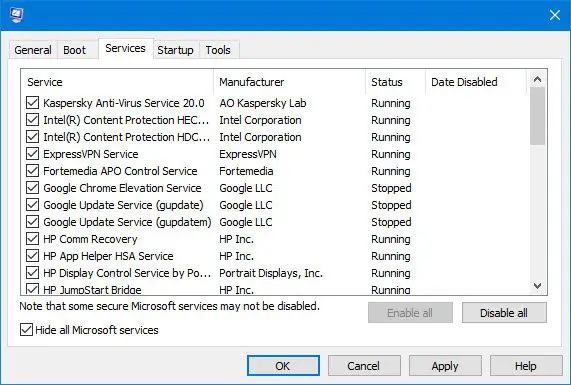
If none of the steps were helpful, you could consider troubleshooting in clean boot. The system boots up with a pre-selected minimal set of drivers and startup programs in the clean boot state. So, troubleshoot in Clean Boot and check if it fixes the problem.
How do I fix unanticipated host on Audacity?
One of the best ways to eliminate an anticipated host error on Audacity is to rescan the Audio Devices. You can do it by opening Audacity> Clicking on Transport, and then Rescan Audio Devices. Wait until the process is complete and check if it fixes the problem. If not, you will have to recheck the Audacity settings.
Read Next: Reduce or Remove Background Noise using Audacity for Windows PC
It is easy to record and edit audio using the Audacity platform. However, some users are reporting the error code -9999, which indicates Unanticipated Host Error. This error happens because of conflict in the security setting. Audacity may not recognize 3rd party tools such as your microphone. Your antivirus may have also blocked the platform.
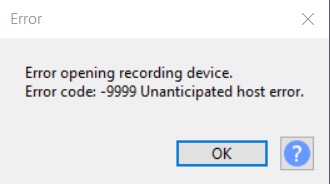
The complete error message looks like this:
“Error opening recording device.
Error code: -9999 Unanticipated host error.”
If you see the error code 9999 when you are using Audacity, you can fix it using the methods below.
Audacity Error Code 9999: Unanticipated Host when Opening Recording Device
Solution #1 – Quit Video Conferencing Apps

If you are using Skype, you may want to close the app first. Audacity may not recognize your recording devices since these are tagged as default on Skype or any other video conferencing app. Close the apps and try launching Audacity again.
Solution #2 – Disable Your Antivirus

One of the reasons for the error is when your antivirus finds the app a threat to your computer or device. You might want to turn off your antivirus and check if the error is still there. If not, then your antivirus may cause the error to appear. Disable it temporarily every time you open Audacity.
- To disable your antivirus, navigate to the Settings menu.
- Go to Update & Security.
- Select Windows Security.
- Click Virus & threat protection.
- Select Manage settings.
- Under Real-time protection, select Off.
Solution #3 – Allow 3rd Party Apps Access to Microphone
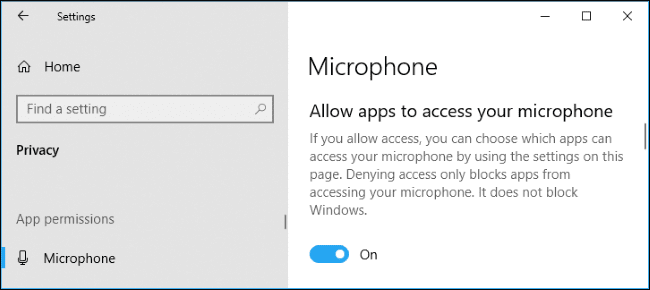
- First, you have to close the Audacity software.
- Navigate to Settings.
- Look for Microphone Privacy and click to open. You may also type ms-settings:privacy-microphone in the Run dialog box.
- Look for Allow apps to access your microphone.
- Under the section, toggle the button to On.
- Look under the allowed apps and make sure Audacity is enable.
Which of the solutions above help you fix the error? We would love to know, so drop us a comment below.
Many users have a complaint that Audacity showing an error message 9999 when they are trying to edit any audio. There are few main reasons behind this error code that can be fixed in Audacity.
I have listed some easy methods that can be used to fix the Audacity on Windows 10.
About Audacity
Audacity revolutionized sound mixing and recording. It went public in 2000 as a free, user-friendly multi-tracking audio editor for Windows, macOS, and Linux. Currently, it is the most popular software on FossHub, with a whopping 110 million downloads. Before 2015, Google Code and SourceForge hosted it. It is open-source and falls under the GNU General Public License (GPL).
Error 9999: Unanticipated Host Error
Users may face error 9999 while performing auto-editing work. Generally, it indicates that Audacity failed to detect and connect to the microphone needed for the audio recording session.
If you come across the issue, first check your external microphone’s connection to the port. As a trial and error measure, you can try switching ports if your computer configuration supports it.
If the problem is not with the hardware, attempt the procedures to troubleshoot the software.
Tap into your Privacy Settings
The first and simple method to fix this error is to reboot your PC and ensure third-party apps like Audacity can access the microphone.
Please note that Windows 10 Creator’s Edition automatically prevents access to your microphone and, users need to enable it manually.
Here are the steps to configure your system –
- Close the Audacity city first.
- Click on Windows logo, type Privacy Settings and click on it

- On left-hand-side, under the “App permissions” click on Select Microphone.
- Toggle to turn on the “Allow apps to access your microphone” option.

Alternatively, there is an shortcut to launch the Microphone Settings.
1) Press Windows+R button
2) Type ms-settings:privacy-microphone
3) Click on OK and the Microphone settings window will open.
Disable or close video communication apps
Users have reported that programs like Skype or Microsoft Teams running in the background may affect Audacity. Skype tends to block the default recording device for itself, and as such, Audacity cannot access it.
You can easily disable background apps using Task Manager –
- Hold down Ctrl + Shift + Esc to open the Task Manager.
- Navigate to the Processes tab, right-click on the program.
- Click “End task” from the drop-down list.
You can also close Skype by right-clicking the icon in the tray bar as well.
Here is how to fix the USB mouse not working.
Disable the Antivirus
Third-party antivirus programs often conflict with Audacity and show an error code 9999. You can try disabling your real-time virus protection temporarily or permanently from the tray bar in Windows. Right-click on the antivirus icon, and you will find the option.
You should also check the firewall settings on Windows Defender for restrictions.
Disable Host Intrusion Protection
Third-party Kaspersky Antivirus users have also reported that particular security features block untrusted apps from accessing your microphone. Primarily if you use Kaspersky, it is called Host Intrusion Protection.
Here are the steps to shut it down:
- Navigate to the Settings menu in Kaspersky Endpoint Security.
- Under Advanced Threat Protection, you will find “Host Intrusion Protection.”
- Open the Applications screen, and move Audacity to “Trusted” from “Low Restricted.”
Different versions of Avast Antivirus may have slightly different steps but can be disabled using the above methods.
Run a clean boot
A clean boot refers to loading the critical processes and services while closing all third-party programs during the boot process. You can perform the procedure using Microsoft Configuration Utility (MSConfig) –
- Hold down the Win+R button, type MSConfig and hit Enter button
- Click on the Services tab, check the “Hide all Microsoft services” checkbox.
- Click on “Disable All”
- Now go to the Startup Tab
- Right-click on every startup application one by one and select “Disable.”
- Close the Task Manager.
- Click on OK and reboot your system.
This way you can check whether the Audacity error is showing anymore or not.
If all of the above methods didn’t work then follow the next method.
Re-install Audacity Software
This is the last method that one can try to fix the error code 9999:
1) Press the Windows key, type Control Panel, and click on it
2) Click on Uninstall a Program
3) Locate Audacity, right-click and choose Uninstall

4) Once done then download the latest copy of the Audacity and install it.
It is easy to fix the Audacity Error code 9999 if you follow the above methods.
Read next:
- Fix Error Code 0xc000009a
- Fix: Windows Update Error Code 0x800f0984
- Top Free Video Repair Software