Содержание
- 1 Что вызывает невозможность запрашивать информацию о сервере для приглашения при игре в Ark?
- 1.1 Решение 1. Используйте полезную команду
- 1.2 Решение 2. Автоматическое подключение к серверу
- 1.3 Решение 3. Переадресация нескольких портов
- 1.4 Решение 4. Переустановите игру
ARK: Survival Evolved — это видео-игра на выживание в жанре экшн-приключения, разработанная студией Wildcard в сотрудничестве с Instinct Games, Efecto Studios и Virtual Basement. В игре игроки сталкиваются с множеством доисторических животных, и им нужно выжить, все в многопользовательской онлайн-игре!
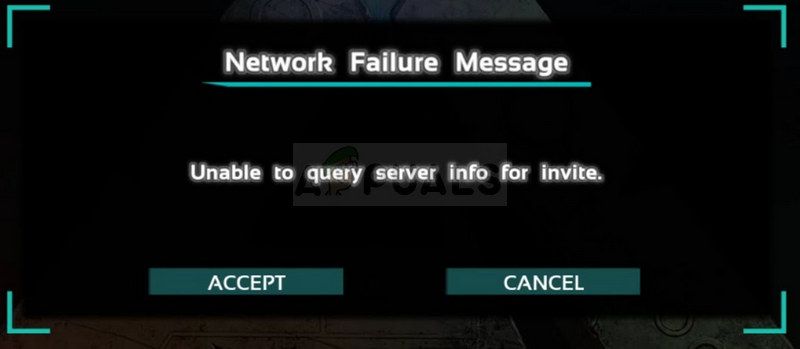
Однако, для некоторых людей игра невозможна, поскольку официальные серверы не видны. Когда люди используют браузер игрового сервера, список пуст, и браузер сервера Steam отображает сообщение «Невозможно запросить информацию о сервере для приглашения». Мы собрали несколько рабочих решений для различных причин ошибки, и мы надеемся, что это будет полезно для пользователей по всему миру.
Что вызывает невозможность запрашивать информацию о сервере для приглашения при игре в Ark?
Существует несколько основных причин этой проблемы, и она может возникать на популярном сервере, к которому вы хотите присоединиться, но вы получаете сообщение об ошибке заранее. Другой сценарий состоит в том, чтобы эта ошибка появлялась на вашем собственном сервере, где каждый, кто пытается присоединиться к серверу, получает эту печальную ошибку. Вот несколько причин:
- Неисправный каталог Winsock, который необходимо сбросить, является одной из основных причин этой проблемы, но решить ее довольно легко.
- Автоматическое подключение к серверу, который больше не существует или который переместился на новое место с использованием параметров запуска, является одной из проблем, которая также может вызвать эту ошибку.
- Кроме того, если вы хотите разместить сервер ARK: Survival Evolved, вы можете освободить определенные порты, обычно используемые игрой, так как они могут быть заняты другой программой, установленной на вашем компьютере.
Решение 1. Используйте полезную команду
«Netsh winsock reset» — это полезная команда, которую вы можете использовать в командной строке, чтобы сбросить каталог winsock к настройкам по умолчанию или к его чистому состоянию. Вы можете попробовать этот метод, если вы испытываете «Невозможно запросить информацию о сервере для приглашения» при попытке запустить ARK: Survival Evolved.
- Найдите «Командную строку», введя ее прямо в меню «Пуск» или нажав кнопку поиска рядом с ней. Щелкните правой кнопкой мыши первую запись, которая появится в результате поиска, и выберите пункт контекстного меню «Запуск от имени администратора».
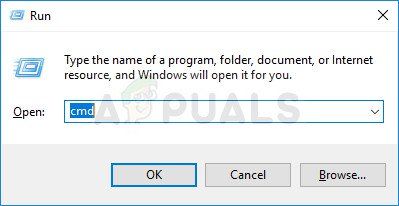
- Кроме того, вы также можете использовать комбинацию клавиш Windows Logo Key + R для вызова диалогового окна Run. Введите «cmd» в появившемся диалоговом окне и используйте комбинацию клавиш Ctrl + Shift + Enter, чтобы запустить командную строку с правами администратора.
- Введите следующую команду в окне и убедитесь, что вы нажимаете Enter после ее ввода. Дождитесь сообщения «Сброс Winsock завершен успешно» или что-то подобное, чтобы узнать, что метод сработал, и вы не допустили ошибок при связывании.
netsh winsock reset
- Снова откройте игру ARK: Survival Evolved, дважды щелкнув по ее записи на вашем компьютере, или запустив ее через Steam, и проверьте, появляется ли ошибка по-прежнему.
Решение 2. Автоматическое подключение к серверу
Эта ошибка также может появляться у пользователей, которые раньше автоматически подключались к своему любимому серверу, устанавливая параметры запуска игры. Однако, если сервер, который они использовали, исчез или если он переключился на новый IP-адрес, вам нужно будет либо удалить этот параметр запуска, либо установить его на новый сервер, к которому вы хотите подключиться.
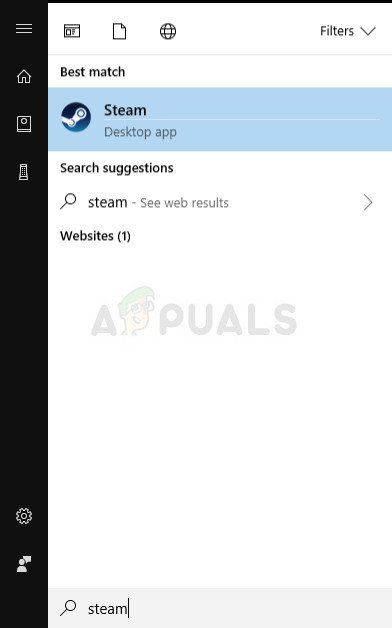
- Откройте Steam, дважды щелкнув его запись на рабочем столе или выполнив поиск в меню «Пуск». Пользователи Windows 10 также могут искать его, используя Cortana или панель поиска, оба рядом с меню «Пуск».
- Перейдите на вкладку «Библиотека» в окне Steam и найдите «ARK: Survival Evolved» в списке игр, которыми вы владеете, в соответствующей библиотеке.
- Щелкните правой кнопкой мыши запись игры в списке и выберите пункт «Свойства» в контекстном меню, которое появится. Оставайтесь на вкладке «Общие» в окне «Свойства» и нажмите кнопку «Установить параметры запуска».
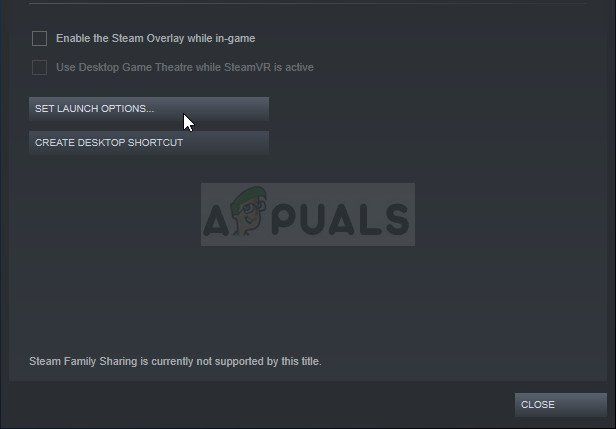
- Удалите запись «connect‘ server-IP ’:’ port »в окне« Параметры запуска », где IP-адрес сервера и порт — это действительные числа, представляющие сервер. Если этой опции запуска не было, вы можете попытаться устранить проблему, выяснив IP-адрес сервера, к которому вы хотите подключиться, и набрав «подключиться».
- Перезапустите игру и проверьте, появляется ли проблема при поиске серверов в ARK: Survival Reloaded.
Решение 3. Переадресация нескольких портов
Этот метод особенно полезен для людей, которые размещают свои собственные серверы ARK: Survival Evolved, и они не могут запустить его из-за этой ошибки. Похоже, что в игре используется несколько портов, которые обязательно должны быть перенаправлены в ваших настройках Интернета, если вы хотите, чтобы пользователи могли играть на ваших серверах.
- Откройте ваш любимый веб-браузер, введите свой номер шлюза по умолчанию (IP-адрес) в адресную строку в верхней части окна и нажмите Enter.
- Введите имя пользователя и пароль для доступа к интерфейсу маршрутизатора. Имя пользователя и пароль по умолчанию должны быть указаны в документации к вашему маршрутизатору, которую вы получили при покупке, на наклейке на боковой панели вашего маршрутизатора или на веб-сайте Port Forward.
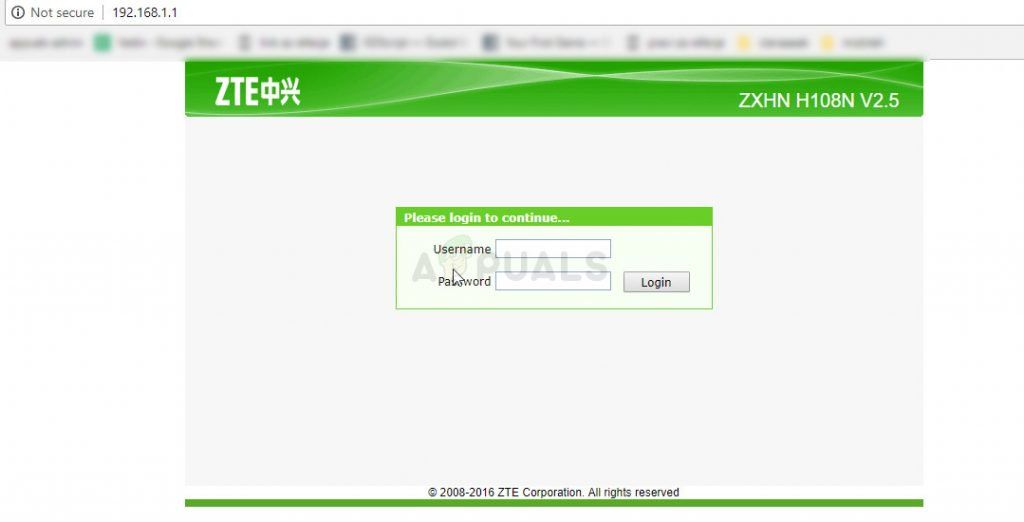
- Найдите раздел «Переадресация портов» в окне браузера, пока вы еще не подключены к маршрутизатору. Окно каждого маршрутизатора будет немного отличаться. Общими метками меню для раздела настроек, который содержит переадресацию портов, являются «Переадресация портов», «Приложения», «Игры», «Брандмауэр» и «Защищенная настройка», поэтому убедитесь, что вы просматриваете, пока не найдете его.

- Независимо от того, какой маршрутизатор или интерфейс, вам нужно будет ввести одну и ту же основную информацию. Введите порт, который вы хотите открыть в разделе «Внутренний и внешний», или введите диапазон портов, которые необходимо открыть в разделе «Начало» и «Конец». Укажите исходящие правила для всех портов ниже:
Все платформы
Порты TCP / UDP 7777 и 7778
TCP / UDP порт 27015
- Сокращения TCP и UDP — это опции, которые вы должны выбрать в разделе «Тип сервиса». Поскольку вы можете выбрать только один из вариантов, вам может потребоваться повторить эти шаги несколько раз, пока вы не охватите все диапазоны, представленные выше.
- Нажмите кнопку «Сохранить применить» и убедитесь, что вы перезагружаете маршрутизатор и компьютер, который используете в качестве сервера, чтобы увидеть, способны ли вы теперь правильно запустить сервер.
Решение 4. Переустановите игру
Переустановка игры, вероятно, является вашим последним средством, но этот метод помог решить проблему для пользователей, которые были практически вне игры. Метод зависит от скорости вашего интернета, но если вы будете терпеливы, метод может быть решен до того, как вы об этом узнаете, так как клиент Steam выполняет этот процесс почти автоматически.
Приведенные ниже инструкции разделены на две части: инструкции для пользователей, которые приобрели физическую копию игры на DVD-диске для установки игры, и альтернативный вариант для пользователей Steam, поэтому обязательно внимательно следуйте инструкциям.
- Нажмите на кнопку меню «Пуск» и откройте панель управления, выполнив поиск или найдя ее в меню «Пуск» (пользователи Windows 7). Кроме того, вы можете нажать на значок шестеренки, чтобы открыть приложение «Настройки» в качестве новой функции Windows.
- В окне панели управления переключитесь на Вид как: Категория в верхнем правом углу и нажмите Удалить программу в разделе Программы.

- Если вы используете Настройки в Windows 10, щелкнув раздел «Приложения» в окне «Настройки», откроется список всех установленных программ на вашем компьютере.
- Найдите игру ARK: Survival Reloaded в списке в настройках или на панели управления, щелкните по ней один раз и нажмите кнопку «Удалить», расположенную в окне «Удалить программу». Подтвердите любой диалог выбора, чтобы удалить игру, и следуйте инструкциям, которые появятся на экране.
Альтернатива для пользователей Steam:
- Откройте Steam, дважды щелкнув его запись на рабочем столе или выполнив поиск в меню «Пуск». Пользователи Windows 10 также могут искать его, используя Cortana или панель поиска, оба рядом с меню «Пуск».
- Перейдите на вкладку «Библиотека» в окне Steam и найдите «ARK: Survival Evolved» в списке игр, которыми вы владеете, в соответствующей библиотеке.
- Щелкните правой кнопкой мыши запись игры в списке и выберите пункт «Удалить запись» из контекстного меню, которое появится после щелчка правой кнопкой мыши.
- Следуйте инструкциям, которые появятся на экране, и подтвердите любые диалоговые окна, предлагающие подтвердить выбор для удаления игры.
Чтобы переустановить игру, приобретенную вами как физическую копию, вам нужно будет вставить диск, на котором она была куплена, и следовать инструкциям, которые появятся на экране в мастере установки.
Если вы приобрели его в Steam, вам нужно будет снова загрузить его из Steam, перейдя в библиотеку и нажав кнопку «Установить» после правого клика на нем. Проверьте, не появляется ли ошибка «Невозможно запросить информацию о сервере для приглашения» при поиске официальных игровых серверов.
ARK: Survival Evolved — отличная приключенческая игра на выживание, но многие пользователи сообщили, что не могут запросить информацию о сервере для приглашения в ARK.
Это сообщение об ошибке не позволит вам присоединиться к определенному серверу, что приведет к потере всего вашего прогресса. К счастью, есть способ решить эту проблему.
Что это значит, когда ARK говорит, что не может запросить информацию о сервере для приглашения?
Если вы присоединяетесь к своему серверу ARK прямо из списка серверов Steam, это, вероятно, является причиной сообщения, что ARK не может запросить информацию о сервере для приглашения. Если вы столкнулись с этой проблемой, значит, вы не авторизованы для присоединения к серверу. Вместо того, чтобы делать это вне игры, вы должны присоединиться к ней изнутри.
Почему я не могу присоединиться к серверу ARK?
Это происходит, когда игровой клиент ARK или игровой сервер ARK: Survival Evolved устарели. Это может быть из-за недавнего обновления самой игры или из-за недавнего обновления одной из модификаций на вашем сервере.
Обратите внимание, что следующие решения также устранят подобные проблемы, о которых сообщают наши пользователи, когда речь идет об ARK:
- Сообщение о сбое сети ARK
- ARK не может запросить информацию о сервере для приглашения не выделенного
- ARK не может запросить информацию о сервере для приглашения после обновления
Без лишних слов давайте перейдем к списку методов, с помощью которых вы можете обратиться к ARK, неспособному запросить информацию о сервере для проблемы с приглашением. Следите за собой!
Как исправить сообщение о сбое сети ARK?
1. Проверьте файлы игры
- Запустите Steam и перейдите в «Библиотека», затем выберите «Домой».
- Найдите ARK: Survival Evolved в своей игровой библиотеке и щелкните по ней правой кнопкой мыши, затем выберите «Свойства».

- Перейдите в «Локальные файлы» и нажмите «Проверить целостность файлов игры».

- Подождите, пока Steam проверит ваши файлы, затем подождите, пока он загрузит необходимые.
Это простое решение, которое может исправить сообщение о сбое сети ARK: невозможно запросить информацию о сервере для приглашения, поэтому обязательно попробуйте его.
2. Измените параметры запуска Steam
- Запустите Steam, затем перейдите в «Библиотека», выберите « Дом» и найдите свою игру.
- Щелкните его правой кнопкой мыши и выберите «Свойства».

- Выберите Установить параметры запуска.

- Найдите IP-адрес вашего сервера.
- Введите в поле connect <IP_of_the_server> и нажмите Ok.

Это простой обходной путь для ARK. Невозможно запросить информацию о сервере для приглашения невыделенного, поэтому обязательно попробуйте его.
3. Используйте команду сброса netsh winsock
- Перейдите в панель поиска Windows и введите «Выполнить».
- Откройте его, затем введите cmd в поле.

- Нажмите Ctrl+ Shift+ Enter, чтобы открыть его с правами администратора.
- В окне cmd введите следующую команду и нажмите Enter:
netsh winsock reset

- Запустите ARK: Survival Evolved и проверьте, появляется ли ошибка по-прежнему.
Иногда сброс определенных сетевых компонентов может помочь, если ARK не может запросить информацию о сервере для приглашения после ошибки обновления.
4. Переадресация портов вашего маршрутизатора
- Откройте веб-браузер, введите номер шлюза по умолчанию и нажмите Enter.
- Введите имя пользователя и пароль маршрутизатора, которые вы найдете на наклейке сбоку маршрутизатора.
- В зависимости от вашего маршрутизатора следуйте этим инструкциям, чтобы включить переадресацию портов.
- Создайте новые порты TCP/UDP с номерами 7777 и 7778, затем еще один порт TCP/UDP с номером 27015.
- Нажмите «Применить» и убедитесь, что вы перезагрузили маршрутизатор и компьютер, который собираетесь использовать в качестве сервера.
Примечание. Это решение работает только для тех, кто размещает сервер ARK: Survival Evolved на своем ПК. Для того, чтобы ваш сервер работал за пределами локальной сети, вам необходимо пробросить порт вашего роутера.
Эти простые решения должны решить ваши проблемы с подключением к серверам ARK, чтобы вы могли вернуться к действию и продолжить строить потрясающую базу со своими друзьями.
Если вы знаете что-то, что стоит отметить по этому вопросу, не стесняйтесь поделиться этим с нами в разделе комментариев ниже.
Содержание
- Исправлено: ARK Survival не может присоединиться к частному серверу или серверу друзей
- Разное / by admin / July 18, 2022
- Исправлено: ARK Survival не может присоединиться к частному серверу или серверу друзей
- 1. Проверить статус сервера
- 2. Проверьте подключение к Интернету
- 3. Выключите и снова включите ваш Wi-Fi роутер
- 4. Обновление Ark: Survival Evolved
- 5. Проверка и восстановление игровых файлов
- 6. Разрешить Ark Survival Evolved в брандмауэре Windows
- 7. Попробуйте использовать общедоступный DNS
- 8. Использовать сеанс игры по локальной сети
- 9. Переустановите игру
- 10. Свяжитесь со службой поддержки Ark: Survival Evolved
- Как исправить ошибку сети (Network failure message: unable to query server info for invite) в ARK: Survival Evolved
Исправлено: ARK Survival не может присоединиться к частному серверу или серверу друзей
Разное / by admin / July 18, 2022
2017 г. Ковчег: выживание эволюционировало — это приключенческая видеоигра на выживание в открытом мире от Studio Wildcard, в которой игрокам предстоит выживать среди монстров и динозавров, помимо других доисторических животных, стихийных бедствий и многого другого. Это многопользовательская онлайн-игра, к которой можно присоединиться с другими игроками или друзьями, игроки страдают от проблемы ARK Survival, они не могут присоединиться к частному серверу или онлайн-серверу друзей. довольно часто. Да! Это очень расстраивает.
Согласно с несколько отчетов в сообществе Steam , некоторые игроки невозможно подключиться к игровым серверам будь то общедоступный или выделенный, что кажется большой проблемой. Что ж, это стало широко распространенной проблемой среди игроков ARK Survival Evolved на ПК, которую необходимо исправить должным образом. Высоки шансы, что какая-то конкретная проблема возникает на ПК по нескольким возможным причинам, например, из-за ошибки на стороне сервера.

- Исправлено: ARK Survival не может присоединиться к частному серверу или серверу друзей
- 1. Проверить статус сервера
- 2. Проверьте подключение к Интернету
- 3. Выключите и снова включите ваш Wi-Fi роутер
- 4. Обновление Ark: Survival Evolved
- 5. Проверка и восстановление игровых файлов
- 6. Разрешить Ark Survival Evolved в брандмауэре Windows
- 7. Попробуйте использовать общедоступный DNS
- 8. Использовать сеанс игры по локальной сети
- 9. Переустановите игру
- 10. Свяжитесь со службой поддержки Ark: Survival Evolved
Исправлено: ARK Survival не может присоединиться к частному серверу или серверу друзей
В последние пару лет геймеры на ПК довольно часто сталкивались с такими проблемами, когда дело доходит до многопользовательских онлайн-игр. Теперь, если вы также сталкиваетесь с той же проблемой какое-то время, обязательно следуйте этому руководству по устранению неполадок, чтобы попытаться исправить ее. К счастью, мы поделились с вами несколькими возможными обходными путями, которые вам пригодятся. Говоря о возможных причинах, похоже, что это может быть проблема с Интернетом или проблема с файлом игры.
Кроме того, проблемы с подключением к серверу возникают из-за сбоя маршрутизатора Wi-Fi, устаревшей версии игры, проблем с антивирусом или программой безопасности и т. д. А теперь, не теряя времени, приступим к делу.
1. Проверить статус сервера
В первую очередь стоит попробовать проверить статус сервера игры Ark: Survival Evolved, посетив официальный @survivetheark Twitter ручка. Здесь вы можете довольно часто получать все отчеты и информацию, связанные с сервером. Высока вероятность того, что игровые серверы каким-то образом столкнулись с некоторыми техническими ошибками, такими как простои или проблемы с обслуживанием. В большинстве случаев ошибка подключения к серверу или не удается подключиться к матчмейкингу из-за перегрузки серверов.
В случае простоя сервера обязательно подождите пару часов, а затем попробуйте снова сыграть в игру. Вы также можете отправить отчет о проблеме с сервером в эту форму Google, если у вас часто возникают проблемы с сервером, чтобы разработчики могли над этим поработать. Если проблем с сервером нет, вы можете перейти к следующему методу.
2. Проверьте подключение к Интернету
Вы всегда должны проверять подключение к Интернету на своем конце, достаточно ли оно быстрое и стабильное или нет. Иногда плохое и нестабильное интернет-соединение может вас сильно беспокоить. Если вы используете беспроводную сеть, попробуйте использовать проводную сеть (ethernet), чтобы проверить проблему. Попробуйте использовать другую интернет-сеть для игры и подключитесь к серверам, чтобы проверить наличие проблемы.
3. Выключите и снова включите ваш Wi-Fi роутер
Также рекомендуется выполнить перезагрузку маршрутизатора Wi-Fi, чтобы устранить сетевой сбой со стороны маршрутизатора. Просто выключите маршрутизатор и отсоедините адаптер питания от маршрутизатора. Подождите пару минут и снова подключите адаптер питания к маршрутизатору. Теперь обязательно включите маршрутизатор, чтобы снова проверить наличие проблемы.
4. Обновление Ark: Survival Evolved
Если вы не обновляли свою игру Ark: Survival Evolved в течение нескольких недель, обязательно проверьте наличие последнего обновления, а затем установите его (если оно доступно). Устаревшая версия игры может в конечном итоге вызвать несколько проблем с запуском, а также с присоединением к серверу игрока или друга. Для этого:
Для Steam:
- Открой Готовить на пару клиент > Перейти Библиотека > Нажмите на Ковчег: выживание эволюционировало с левой панели.
- Он автоматически выполнит поиск доступного обновления. Если доступно обновление, обязательно нажмите на Обновлять.
- Установка обновления может занять некоторое время. После этого обязательно закройте клиент Steam.
- Наконец, перезагрузите компьютер, чтобы применить изменения, затем попробуйте снова запустить игру.
Для программы запуска Epic Games:
- Открой Программа запуска эпических игр > Отправляйся в Библиотека.
- Теперь нажмите на значок три точки следующий на Ковчег: выживание эволюционировало.
- Убедитесь, что Автоматическое обновление вариант включенный.
5. Проверка и восстановление игровых файлов
Иногда поврежденные или отсутствующие игровые файлы на ПК могут вызывать многочисленные проблемы с подключением к игровому серверу. Вы должны восстановить файлы игры, чтобы проверить наличие проблемы. Для этого:
Для Steam:
- Запуск Готовить на пару > Нажмите на Библиотека.
- Щелкните правой кнопкой мыши на Ковчег: выживание эволюционировало из списка установленных игр.
- Теперь нажмите на Характеристики > Перейти к Локальные файлы.
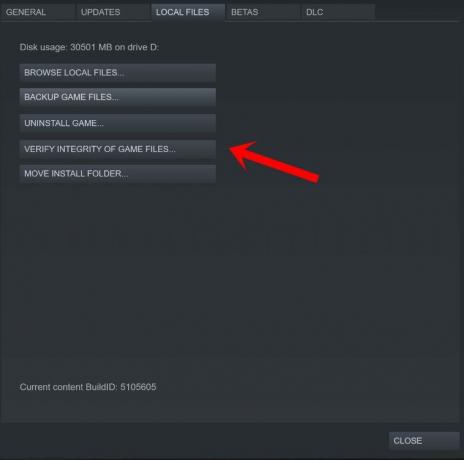
- Нажмите на Проверка целостности игровых файлов.
- Вам придется дождаться завершения процесса.
- После этого просто перезагрузите компьютер.
Для программы запуска Epic Games:
- Открой Программа запуска эпических игр > Нажмите на Библиотека.
- Нажми на значок с тремя точками из Ковчег: выживание эволюционировало.
- Нажмите на Проверять и он начнет проверять файлы игры.
- Дождитесь завершения процесса и перезапустите лаунчер.
6. Разрешить Ark Survival Evolved в брандмауэре Windows
Похоже, что добавление файла игрового приложения в брандмауэр Windows в белый список может помочь игрокам правильно подключаться к игровым серверам. В основном брандмауэр Windows блокирует текущие подключения, которые могут вызвать проблему с подключением к серверу. Вы можете выполнить следующие шаги, чтобы внести его в белый список.
- Нажми на Стартовое меню > Тип Брандмауэр.
- Выбирать Брандмауэр Защитника Windows из результатов поиска.
- Теперь откройте его> Нажмите на Разрешить приложение или функцию через брандмауэр Защитника Windows с левой панели.
- Нажмите на Изменить настройки > Нажмите на Разрешить другое приложение.
- Нажмите на Просматривать > Выберите Ковчег выживания эволюционировал заявление.
- Далее нажмите на Добавлять > Нажмите на ХОРОШО чтобы сохранить изменения.
- Наконец, перезагрузите компьютер, чтобы применить изменения.
7. Попробуйте использовать общедоступный DNS
Возможно, адрес DNS-сервера вашего интернет-провайдера имеет некоторые проблемы или блокирует доступ к онлайн-сервисам. Лучше использовать общедоступный DNS на вашем компьютере, чтобы проверить, устранена ли проблема или нет. Здесь мы поделились как Google DNS, так и Cloudflare DNS, чтобы вы могли выбрать любой из них. Эти общедоступные DNS-адреса обеспечивают лучшую доступность и скорость в многопользовательских играх и потоковом контенте.
- нажмите Виндовс + Р сочетания клавиш на клавиатуре, чтобы открыть Бежать диалоговое окно.
- Теперь введите контроль и ударил Войти открыть Панель управления.
- Нажмите на Сеть и Интернет > Выбрать Центр коммуникаций и передачи данных.
- Перейти к вашей Соединения чтобы выбрать Ethernet, Wi-Fi или другие в зависимости от того, что вы используете.
- Далее нажмите на Характеристики >Двойной щелчок на Интернет-протокол версии 4 (TCP/IPv4) чтобы открыть новое окно.
- Нажмите на Используйте следующие адреса DNS-серверов и ввод 8.8.8.8 как Предпочтительный DNS-сервер.
- Пока вам нужно будет ввести 8.8.4.4 как Альтернативный DNS-сервер > Нажмите на флажок Проверить настройки при выходе.
- Нажмите на ХОРОШО чтобы подтвердить изменения> Запустите игру ARK Survival, чтобы проверить, не можете ли вы по-прежнему присоединиться к частному серверу или серверу друзей.
Примечание: Если проблема с Google DNS по-прежнему сохраняется, вы можете попробовать использовать DNS-адрес CloudFlare путем замены 1.1.1.1 в качестве предпочтительного DNS-сервера а также 1.0.0.1 в качестве альтернативного DNS-сервера.
8. Использовать сеанс игры по локальной сети
Затронутые игроки Ark: Survival Evolved могут испытывать проблемы с подключением к серверу или проблемы с многопользовательской игрой на кросс-платформенной платформе. Это может произойти из-за межплатформенного подключения, и вам следует попытаться избежать опции кроссплатформенного воспроизведения, чтобы проверить, сохраняется ли проблема или нет. Между тем, мы предлагаем игрокам на ПК использовать сеансы локальной сети, а не обычные онлайн-режимы. Для этого:
- Во-первых, вам нужно скачать и установить бесплатное приложение Радмин на вашем ПК.
- Далее откройте Приложение Radmin > Перейти к Сеть меню.
- Вам нужно будет выбрать Создать новую сеть.
- Как только вы создать новый сеанс, обязательно запустите Ковчег: выживание эволюционировало.
- Перейти к Настройки меню > Выберите Локальная игра вариант.
- Наконец, вы можете присоединиться к сеансу локальной сети который был создан приложением Radmin.
9. Переустановите игру
Если вышеуказанные методы не сработали для вас, обязательно удалите и переустановите игру Ark: Survival Evolved на ПК. Мы понимаем, что переустанавливать игру не рекомендуется, потому что это влияет на игровые данные и требует усилий. Иногда может быть проблема в установленных файлах игры, которую можно исправить только переустановив игру. Для этого:
Для Steam:
- Открой Готовить на пару клиент > Перейти Библиотека.
- Щелкните правой кнопкой мыши на Ковчег: выживание эволюционировало с левой панели.
- Нажмите на Удалить и следуйте инструкциям на экране, чтобы завершить его.
- После этого обязательно закройте Steam и перезагрузите компьютер.
- Наконец, запустите Steam и снова установите игру.
Для программы запуска Epic Games:
- Открой Программа запуска эпических игр > Отправляйся в Библиотека.
- Теперь нажмите на значок с тремя точками Ковчег: выживание эволюционировало.
- Нажмите на Удалить и дождитесь завершения процесса.
- После этого закройте программу запуска и перезагрузите компьютер, чтобы изменения вступили в силу.
- Наконец, откройте программу запуска и снова переустановите игру Ark: Survival Evolved.
10. Свяжитесь со службой поддержки Ark: Survival Evolved
Если ни один из методов не помог вам, обязательно связаться со службой поддержки Ark Survival Evolved и отправьте отчет об ошибке. Создав заявку в службу поддержки, вы сможете получить более раннее подтверждение от разработчиков, и они смогут глубоко изучить проблему, связанную с тем, что ARK Survival не может присоединиться к частному серверу или серверу друзей.
Вот так, ребята. Мы предполагаем, что это руководство было полезным для вас. Для дальнейших запросов, вы можете оставить комментарий ниже.
Источник
Как исправить ошибку сети (Network failure message: unable to query server info for invite) в ARK: Survival Evolved

У некоторых игроков в ARK: Survival Evolved может появиться ошибка сети, которая возникает совершенно случайно после подключения к игровому серверу. В первую очередь необходимо удостовериться, что все актуальные дополнения и модификации, используемые на сервере, уже установлены. Разработчиками не предусмотрено полноценное автоматическое скачивание всех необходимых ресурсов сервера, поэтому этим действием нужно заняться самостоятельно.
При несоответствии версий игрок увидит сообщение об ошибках, поэтому обязательно обновите установленные модификации и другие файлы. Если проблема сохраняется, то рекомендуется полностью удалить сторонние данные и установить их заново. Самый быстрый способ удаления всех модификаций:
- Отключаем все сторонние данные в настройках игры.
- Открываем Steam и переходим в свойства игры.
- В разделе «Локальные файлы» нажимаем кнопку «Обзор» и открываем папку с файлами игры.
- Проходим по пути «/ShooterGame/Content/MOD» и удаляем все папки внутри. Примерный путь до папки с модификациями «C:/Steam/steamapps/common/ARK/ShooterGame/Content/MOD». Стоит учитывать, что указанный путь может быть другим, так как он зависит от расположения папки с игрой.

Также в решении проблемы могут помочь некоторые простые действия, указанные ниже. Для начала проверьте игровые файлы ARK: Survival Evolved:
- Откройте Steam и перейдите в библиотеку.
- Щёлкните правой кнопкой мыши на игре и откройте «Свойства».
- Перейдите в раздел «Локальные файлы» и используйте кнопку «Проверить целостность игровых файлов».
- Дождитесь окончания проверки данных и повторно войдите в игру.

В качестве решения проблемы может помочь изменение параметров запуска Steam. Для этого выполните следующие действия:
- Перейдите в свойства игры. Для этого воспользуйтесь первыми двумя пунктами в предыдущем списке шагов.
- В графе «Параметры запуска» введите «connect » без кавычек, где вместо «» необходимо вставить адрес необходимого сервера.
- Запустите игру.

Также рекомендуется воспользоваться командой сброса. Для этого пройдите по указанным шагам ниже:
- Зажмите комбинацию клавиш «Win+R», чтобы открыть окно «Выполнить».
- Введите «cmd» без кавычек и зажмите «Ctrl+Shift+Enter», чтобы открыть командную строку с правами администратора.
- В открывшемся окне введите «netsh winsock reset» без кавычек и нажмите «Enter».
- Зайдите в игру и попробуйте подключиться к серверу.

Если подключиться к текущему серверу не получается, то попробуйте запустить другой. Возможно, данная ошибка связана только с одним сервером. Игрокам, которые используют свои сервера, рекомендуется настроить переадресацию маршрутизатора.

Для этого, на примере TP-Link, необходимо войти в его внутреннюю оболочку и найди раздел «NAT переадресация», расположенный в дополнительных настройках. В пункте «Виртуальные серверы» нужно добавить новые порты TCP/UDP (7777, 7778 и 27015). Не забудьте нажать кнопку «Применить» и перезагрузить роутер. При использовании других роутеров путь к настройке переадресации может быть иным. Часто данный раздел называется Port Forwarding.
Источник
ARK: Survival Evolved is an action-adventure survival video game developed by Studio Wildcard, in collaboration with Instinct Games, Efecto Studios, and Virtual Basement. In the game, players are stranded with plenty of prehistoric animals and they need to survive, all in online multiplayer!
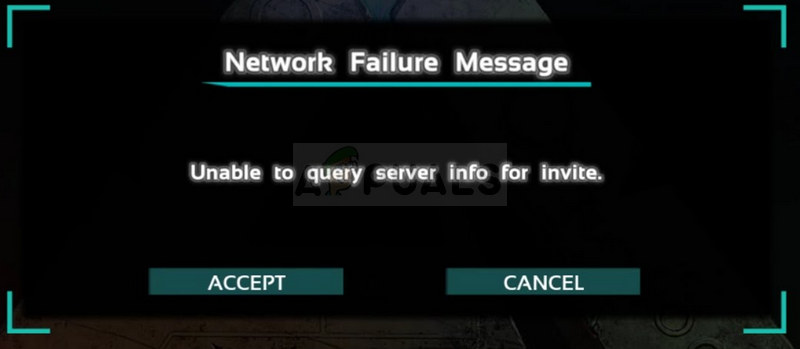
However, the game appears to be impossible to play for some people as the official servers appear to be invisible. When people use the in-game server browser, the list is empty and the Steam server browser displays the “Unable to query server info for invite” message. We have gathered several working solutions for various causes of the error and we hope it would be helpful to users around the world.
What Causes Unable to Query Server Info for Invite When Playing Ark?
There are several major causes for the problem and it can occur either with a popular server you want to join but you receive the error beforehand. The other scenario is to have this error appear on your own server where everyone who tries to join the server receives this unfortunate error. Here are some causes:
- A faulty Winsock catalog which needs to be reset is one of the major causes for the problem yet it can be resolved quite easily.
- Auto-connecting to a server which no longer exists or which has moved onto a new location using the launch options is one of the problems which may cause this error as well.
- Additionally, if you want to host a ARK: Survival Evolved server, you might want to free certain ports usually used by the game as they may be busy by another program you have installed on your computer.
Solution 1: Use a Helpful Command
“netsh winsock reset” is a helpful command that you can use in Command Prompt to reset winsock catalog back to default setting or its clean state. You can try this method if you are experiencing the “Unable to query server info for invite” when trying to launch ARK: Survival Evolved.
- Search for “Command Prompt” by typing it either right in the Start menu or by pressing the search button right next to it. Right-click the first entry which will pop up as a search result and select the “Run as administrator” context menu entry.
- Additionally, you can also use the Windows Logo Key + R key combination in order to bring up the Run dialog box. Type in “cmd” in the dialog box which appears and use the Ctrl + Shift + Enter key combination in order to run Command Prompt using administrator privileges.
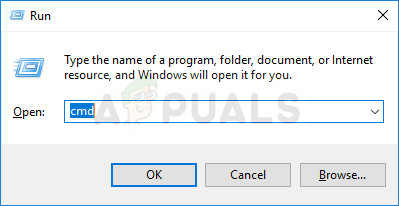
- Type in the following command in the window and make sure you press Enter after typing it. Wait for the “Winsock reset completed successfully” message or something similar to know that the method has worked and you haven’t made any mistakes while tying.
netsh winsock reset
- Reopen the ARK: Survival Evolved game either by double-clicking its entry on your computer or by launching it through Steam and check to see if the error still appears.
Solution 2: Auto-Connecting to the Server
This error can also appear to users who used to connect automatically to their favorite server by setting the launch options for the game. However, if the server they used has disappeared or if it has switched to a new IP address, you will need to either remove this launch option or to set it to the new server you want to connect to.
- Open up Steam by double-clicking its entry on the Desktop or by searching for it in the Start menu. Windows 10 users can also search for it using Cortana or the search bar, both of them next to the Start menu.
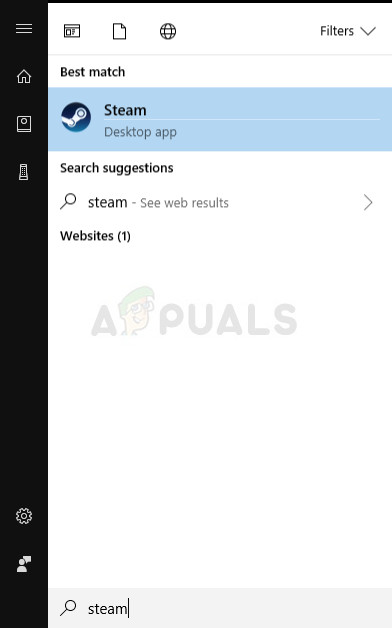
- Navigate to the Library tab in the Steam window, and locate ARK: Survival Evolved in the list of the games you own in your respective library.
- Right-click on the game’s entry in the list and choose the Properties option from the context menu which will pop up. Stay in the General tab in the Properties window and click the Set launch options button.
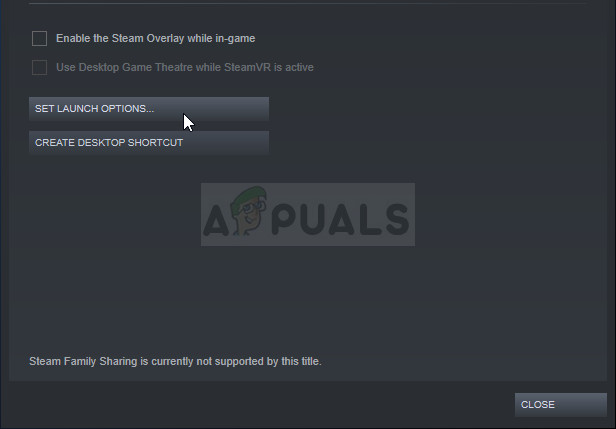
- Delete the “connect ‘server-IP’:’port” entry in the Launch Options window where the server-IP and port are actual numbers representing the server. If this launch option wasn’t there, you can try to fix the problem by finding out the IP address of the server you want to connect to and typing “connect <your_server’s_IP>”.
- Relaunch the game and check to see if the issue still appears when searching for servers in ARK: Survival Reloaded.
Solution 3: Forward Several Ports
This method is especially useful to people who are hosting their own ARK: Survival Evolved servers and they are unable to start it because of this error. It seems that the game uses several ports which definitely need to be forwarded in your Internet settings if you want users to be able to play on your servers.
- Open a your favorite web browser, type your Default Gateway number (IP address) into the address bar at the top of the window, and press Enter.
- Enter your username and password to access the router’s interface. The default username and password should be listed in your router’s documentation you received when you purchased it, on a sticker on the side of your router, or on the Port Forward website.
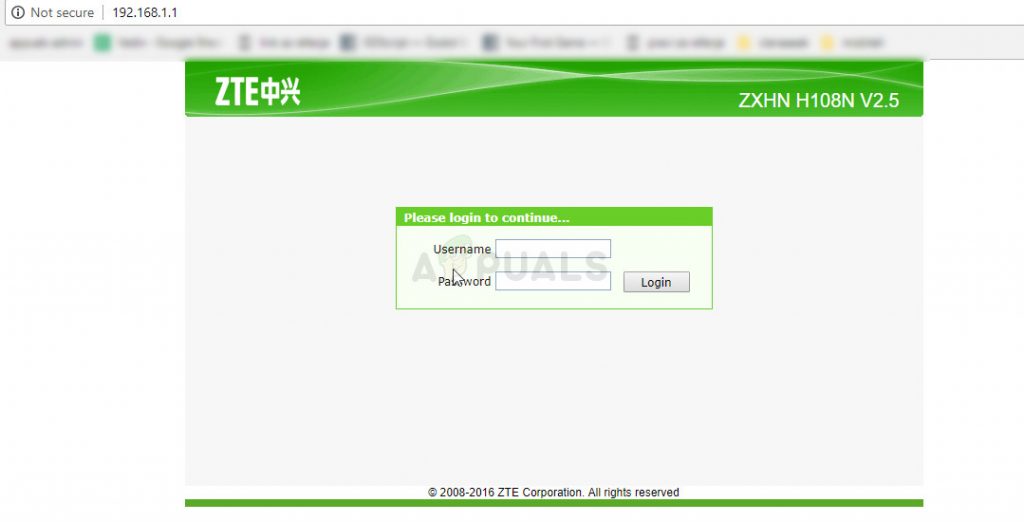
- Find the Port Forwarding section in the browser window while still logged into your router. Each router’s window will appear to be slightly different. Common menu labels for the section of settings that contains Port Forwarding are “Port Forwarding”, “Applications”, “Gaming”, “Firewall”, and “Protected Setup” so make sure you browse until you find it.

- No matter what the router or interface, you’ll need to enter the same basic information. Enter the port you want to open under Internal and External, or enter a range of ports to open under Start and End. Specify Outbound rules for all ports below:
All Platforms
TCP / UDP Ports 7777 and 7778
TCP / UDP Port 27015
- The TCP and UDP abbreviations are the options you should select under the Type of Service Type option. Since you can only select one of the options, you might need to repeat these steps several times until you have covered all of the ranges presented above.
- Click on the Save of Apply button and make sure you restart your router and the computer you are using as the server to see if you are now able to run your server properly.
Solution 4: Reinstall the Game
Reinstalling the game is probably your last resort but this method has helped fix the problem for users who were almost out of ides. The method depends on your Internet speed but if you stay patient the method might be resolved before you know it as the Steam client takes care of the process for you almost automatically.
Note: Before going for a reinstall of the game, try to verify the integrity of the game cache and check if that fixes the issue, if it doesn’t, go for the reinstall.
The instructions below are divided into two parts: instructions for users who purchased a physical copy of the game on a DVD to install the game and an alternative for Steam users so make sure you follow the instructions carefully.
- Click on the Start menu button and open Control Panel by searching for it or by locating it in Start menu (Windows 7 users). Alternatively, you can click on the gear icon in order to open the Settings app as a new feature of the Windows
- In the Control Panel window, switch to View as: Category at the top right corner and click on Uninstall a Program under the Programs section.

- If you are using the Settings on Windows 10, clicking on Apps section from the Settings window should open the list of all installed programs on your computer.
- Locate ARK: Survival Reloaded game in the list either in Settings or Control Panel, click on it once and click the Uninstall button located in the Uninstall a program window. Confirm any dialog choices to uninstall the game, and follow the instructions which will appear on screen.
Alternative for Steam Users:
- Open up Steam by double-clicking its entry on the Desktop or by searching for it in the Start menu. Windows 10 users can also search for it using Cortana or the search bar, both of them next to the Start menu.
- Navigate to the Library tab in the Steam window, and locate ARK: Survival Evolved in the list of the games you own in your respective library.
- Right-click on the game’s entry in the list and choose Uninstall entry from the context menu which will appear after right-clicking.
- Follow the instructions which will appear on screen and confirm any dialogs prompting you to confirm your choice to uninstall the game.
In order to reinstall the game you purchased as a physical copy, you will need to insert the disk you bought it on and follow the instructions which will appear on screen in the installation wizard.
If you have purchased it on Steam, you will need to download it again from Steam by locating in the Library and choose the Install button after right-cling on it. Check to see if the “Unable to query server info for invite” error still appears when searching for official game servers.

Kevin Arrows
Kevin is a dynamic and self-motivated information technology professional, with a Thorough knowledge of all facets pertaining to network infrastructure design, implementation and administration. Superior record of delivering simultaneous large-scale mission critical projects on time and under budget.
One of the most frustrating parts of ARK: Survival Evolved is trying to connect to a server and not making the connection. Most players have experienced an issue that can be due to the game, your mods, the server, or the way you’re trying to connect.
Since there are so many potential solutions, the best thing to do is work your way through them to get back to fighting and taming dinosaurs.
Why Does Unable to Query Server Info for Invite Happen?
When you try to log onto a server, your computer has to reach out, connect to it, verify your compatibility, and then let you into the server. Unfortunately, many factors can prevent the connection from completing.
- Your computer may be experiencing issues making a connection. Even if you aren’t aware of it, a bug can prevent you from connecting to specific servers, including ARK servers.
- Your modem and router may need reset.
- You could be connecting to the server in a way that isn’t working. If that’s the case, there are a few other ways to connect, depending on the server you’re attempting to connect to.
- The server itself might have an issue.
- You may be missing game or mod updates that prevent you from connecting to the server.
The reason why you see the error won’t always be apparent. Going through each step can help you quickly determine the cause and solution.
Start by checking the settings on your computer. From there, you can decide which steps you need to follow to restore your connection to the desired server.
Check Your PC Settings
There are two PC settings you should check if you’re getting this error when connecting to an ARK server: your firewall settings and your DNS cache.
Your firewall manages what programs can access your PC with incoming and outgoing connections. If ARK isn’t added as an exception in the Windows firewall, it can prevent you from successfully reaching a server.
- Press Windows key + X.
- Choose Settings.
- Click Update and Security.
- Choose Windows Security from the left pane.
- Click Firewall and Network Protection.
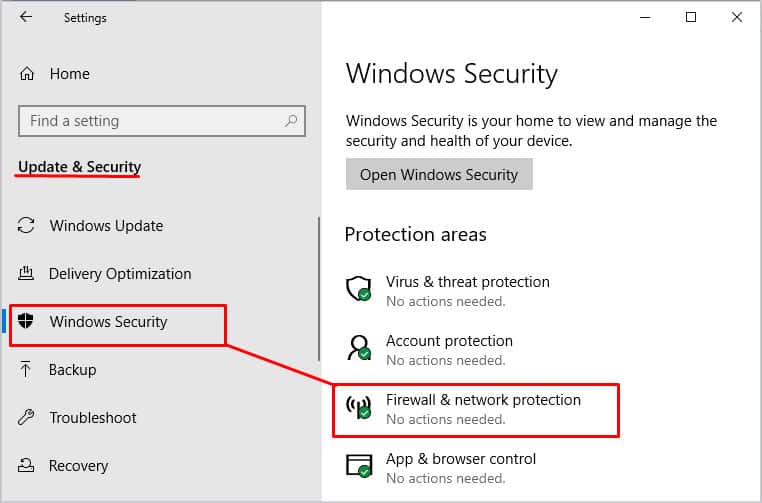
- Click Allow an App Through Firewall.
- Look for the entry in the list for ARK: Survival Evolved. There may be two listings.
- Click the box next to ARK – or both entries for ARK, if needed – to allow it to operate through the firewall.
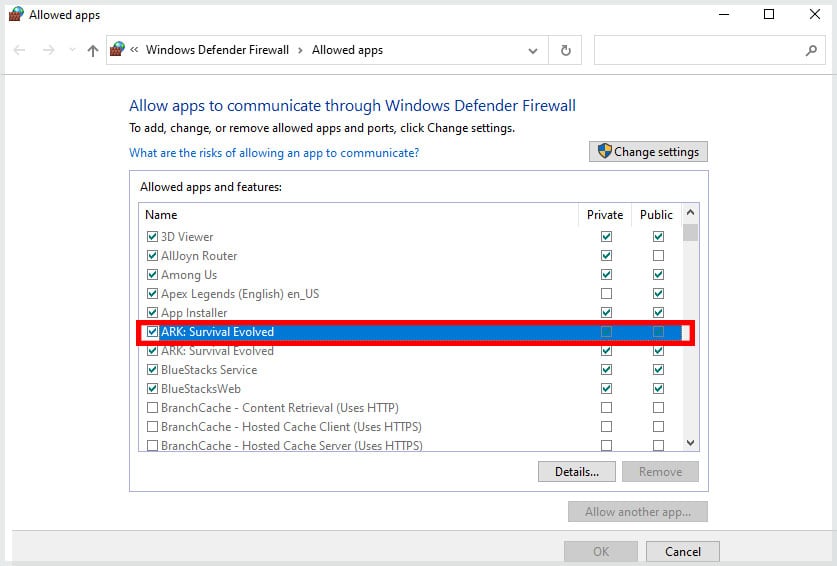
- Click OK.
- Try to connect to the server again.
If your firewall was the issue, you will be able to connect. If not, you can try to flush your DNS cache. Sometimes the records your computer keeps of connections you’ve made can have errors or old data. Flushing the DNS cache allows you to start fresh and can sometimes fix errors involving querying an ARK server.
- Press Windows key + X.
- Choose Windows Power Shell (Admin.) If you have the option for an elevated Command Prompt there instead, you can use that. These commands work in Power Shell and Command Prompt, but they need to be run as an administrator.
- Type the following commands. Press Enter after each one to execute it and wait for it to complete before entering the next.
- Restart your computer.
- Try to connect to ARK again.
If it still doesn’t work, your next step should be to ensure your Internet connection is working correctly.
Troubleshooting Your Internet
Sometimes even when things seem to be working correctly, your connection might have a flaw. Resetting your modem and router is simple and worth the few moments it takes to be sure that isn’t the issue with connecting to your ARK server.
- Shut down your computer.
- Unplug your router and modem. Wait for five minutes before proceeding.

- Plug the modem back in. It takes a bit for a modem to grab a connection from your ISP and start to transmit it. Wait until all the lights on it are functioning to show that it is working before continuing.
- Plug the router back in. As with the modem, it can take some time for it to take and send out the connection. Wait until the lights are lit to know it’s working. In both cases, waiting two minutes should be sufficient.
- Turn on your computer. Let everything load before trying to start ARK.
- Try to rejoin the server.
Now that you know your firewall and connection are functioning correctly, you can start working with ARK itself.
Use Different Connection Methods
There are three ways to connect to an ARK server. You can connect through the search function of the game itself, through Steam, or your server management panel if you have an external server host. Each should work – but sometimes one of them bugs and says it’s unable to query the server to invite you aboard.
Trying another may help fix the problem when you see this error.
Connecting through ARK itself is how most people join a server. It works for everyone, no matter what their server permissions. You don’t have to know the IP or have a previous connection to the server to get on.
- Start ARK.
- Click Join ARK.
- Click the drop-down by Session Filters. You can choose which kind of server you want to look for here.
- You can search for servers that are official, unofficial, and other classifications if you’re looking for a new server.
- The Friends filter is helpful if you have Steam friends playing on a server you’re trying to join. Sometimes it can bring up the correct server if other search methods don’t.
- Use the My Survivors filter if you have a character already on the server giving you the error.
- Favorites is another good filter option to help you quickly find a frequently-played server.
- Click to highlight the server you want to join from the list of available sessions.
- Click Join.
The game should start loading you in. While it is, don’t switch to a different program. Let it go entirely through the process without touching anything.
If that doesn’t work, try connecting through Steam. This is usually the connection method that players say gives them the most trouble, so it’s always good to try it after trying the standard connection method.
- Open the Steam desktop application.
- Open ARK.
- Click Join.
- Return to Steam.
- Click View.
- Click Servers. Steam maintains a list of servers you’ve connected to for multiple games, including ARK. You can filter them using the tabs at the top of the server list.
The Recent and Friends tabs are particularly helpful for finding relevant ARK servers. On the Internet tab, you can adjust your filters, choose ARK only, and change any other options that might help you find the correct server. - Highlight the server you want to join.
- Click Connect. Switch back to ARK to see whether the connection is successful.
If the server isn’t listed, right-click in the empty space in the server browser on the Favorites tab and then click Add Server by IP Address.
If that doesn’t work and you have a server hosted externally, you can click to connect from the Control Panel. It should work in the same way that the Steam connection does.
Check the Server Status
One thing to consider is whether the server itself is having issues. If there are problems with the server, you might not be able to connect to it.
- Sometimes the server host goes down, and the server isn’t available.
- Sometimes the server is experiencing errors, so it shows as available but can’t accept connections.
- The server might also be experiencing too many incoming connections so that it starts rejecting new ones.
Use the Steam server browser to see whether the server is available and functioning properly. If the server is in your history, it’s easy to check and see whether it’s working.
- Open Steam.
- Click View.
- Click Servers.
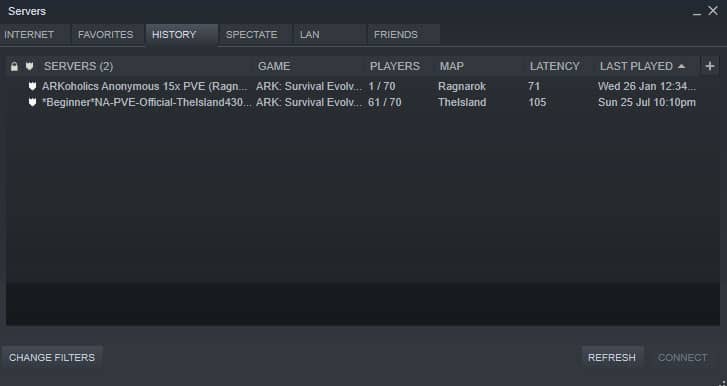
- Find the server to which you want to connect in the list. If it’s in Favorites, it will be easiest. If the server isn’t responding, it might say so next to it on the list.
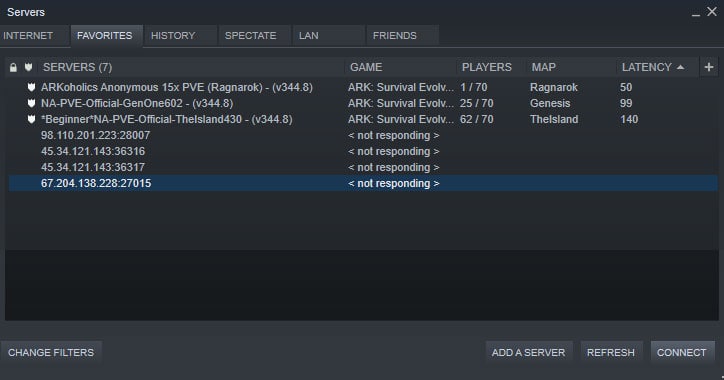
- Right-click on the server.
- Click View Server Info.
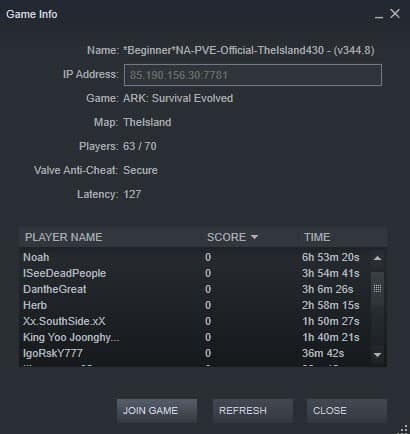
- Check whether the server is working, whether there are other players, and how long they’ve been connected. If everyone has only gotten on very recently, the server might be recovering from an error. If the server isn’t responding, no one will be able to connect.
If the server is working and you still can’t connect, check to ensure your game and mods are updated. ARK servers reject connections from those with outdated games or mods.
- Shut down any Steam games you have running.
- Close Steam.
- Reopen Steam.
- Click Downloads to see whether any ARK updates are pending.
- Wait for the downloads to complete.
- Attempt to rejoin ARK.
Keep in mind that if the server isn’t updated, but your game is, you may also not be able to connect. At that point, all you can really do is reach out to the server owner and ask when they might update the server.

ARK: Survival Evolved was developed by Studio Wildcard in association with Instinct Games, Virtual Basement, and Efecto Studios. It is an adventurous game where you have to survive on an island among giant dinosaurs and other prehistoric animals and natural disasters. It was launched in August 2017, and since its release, it can be accessed on PlayStation 4, Xbox One, Android, iOS, Nintendo Switch, Linux, & Microsoft Windows. It has received mixed feedback, but most people enjoy playing it on their desktops and laptops. ARK is equally fun as a single-player or a multiplayer game. Often, when you request a player to join you in a multiplayer game, you might encounter Unable to query server info for an invite error. Many gamers reported that the official servers cannot be accessed as they turn invisible. An empty list is displayed for the in-game browser as well as the official Steam server. This error blocks you from joining the game servers. If you are also facing the same problem, read our perfect guide to help you fix unable to query server info for invite issue on Windows 10 PC.

Contents
- How to Fix ARK Unable to query server info for invite Error
- Method 1: Reset Windows Sockets
- Method 2: Auto-Connect to the Game Server
- Method 3: Redirect Port for Your Router
- Method 4: Verify Integrity of Game Files
- Method 5: Join Using In-Game Server
- Method 6: Disable or Uninstall Third-party Antivirus
- Method 7: Allow ARK: Survival Evolved through Firewall
- Method 8. Use ARK Server Hosting
- Method 9: Reinstall Steam
There are a variety of reasons behind it. However, some primary reasons are listed below:
- Problem with Windows Sockets: The Unable to query server info for invite issue occurs due to connectivity issues with Windows Sockets. Thus, resetting these should help.
- Auto-Connection Failure: If the auto-connection feature is not enabled in the game, then this error will be triggered on your device.
- Port Unavailability: If you have multiple ports in your system engaged with other programs, the said issue arises. You should unblock some essential ports to be used by the game. The internet settings also need to be adjusted accordingly.
- Conflict with Third-Party Antivirus: Some third-party antivirus software prevents potentially harmful programs from being accessed on your system. However, in some cases, trusted applications are also blocked, leading to unable to query server info for an invite issue.
- Issues with Windows Firewall: Windows Firewall is an in-built application on Windows systems that acts as a filter. It scans all information received online and blocks out the unsafe data but, might cause this too.
Follow the below-mentioned methods, one by one, till you find a fix to this issue.
Method 1: Reset Windows Sockets
The primary root cause behind this problem is a faulty Winsock catalog. Hence, this catalog needs to be reset to its original settings, as follows:
1. Type cmd in the Windows search bar and click on Run as administrator to launch Command Prompt with administrative privileges.

2. Type netsh winsock reset and hit Enter, as shown.

3. Wait for the reset process of Windows Sockets to be completed and a confirmation message to appear.
Method 2: Auto-Connect to the Game Server
Using the Launch option, you can connect to your favorite server automatically and avoid ARK keeps crashing or Unable to Query Server Info for Invite issue. For example, if your server has switched to a new IP address or facing connectivity issues with the current server, you can remove it and connect to a new server. Follow the given steps to implement this server change using the Launch option:
1. Search for Steam in Windows search bar to launch it, as shown.

2. Switch to the LIBRARY tab, as highlighted.

3. Right-click on ARK: Survival Evolved and select the Properties option in the context pop-up menu.
4. Under the GENERAL tab, select SET LAUNCH OPTIONS…, as depicted below.

5. Here, delete Connect Server-IP: port entry.
Note 1: The server-IP and port fields are actual numbers, and they represent the server.
Note 2: If you cannot find server details in the SET LAUNCH OPTIONS window, then find the IP address of your server by typing connect <your_server_IP>
6. Save the changes and exit Steam.
Verify if you can play ARK: Survival Evolved game without facing unable to query server info for invite issue. If not, try the next fix.
Also Read: How to Open Steam Games in Windowed Mode
Method 3: Redirect Port for Your Router
1. Launch a Web browser. Then, type your IP address in the URL bar, as shown.

2. Type the username and password of your router.
Note: You can find your login details on the sticker pasted on the router.
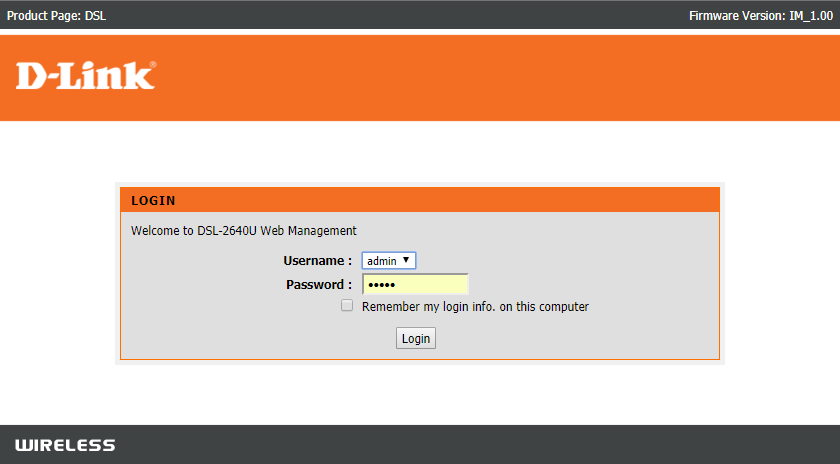
3. Click on the option titled Enable Port Forwarding or something similar.
4. Now, create the following Ports:
TCP / UDP Ports: 7777 and 7778
TCP / UDP Port: 27015
5. Apply the changes and restart your router and computer.
Method 4: Verify Integrity of Game Files
Read our guide on How to Verify Integrity of Game Files on Steam to repair ARK game files and to fix all errors & glitches being caused by corrupt or missing game files. This method worked for many users hence, we recommend it as well.
Method 5: Join Using In-Game Server
When gamers tried to join ARK server from the Steam Server directly, they experienced unable to query server info for invite issues more often. Hence, we might be able to fix it by joining ARK using an in-game server, as explained below:
1. Launch Steam and click on View from the toolbar.
2. Select Servers, as shown.

3. Redirect to the FAVORITES tab and select the ADD A SERVER option from the bottom of the screen.

4. Now, type the server IP address in the Enter the IP address of the server you wish to add field.

5. Then, click on ADD THIS ADDRESS TO FAVORITES option, as highlighted.

6. Now, launch ARK and select the Join ARK option.
7. From the bottom left corner, expand the Filter options and add the Session Filter to Favorites.
8. Refresh the page. You will be able to see the server you have just created.
Here onwards, join ARK using this server to avoid the unable to query server info for invite issue altogether.
Method 6: Disable or Uninstall Third-party Antivirus
Method 6A: You can temporarily disable the third-party antivirus installed on your system to resolve conflicts between it and the game.
Note: The steps will vary according to the Antivirus program. Here, Avast Free Antivirus has been taken as an example.
1. Right-click on the Avast Free Antivirus in the Taskbar.
2. Now, select Avast shields control, as shown.

3. Choose any of these options to disable Avast temporarily:
- Disable for 10 minutes
- Disable for 1 hour
- Disable until computer is restarted
- Disable permanently
Try connecting to the game server now.
Method 6B: To resolve this issue, you can uninstall the third-party antivirus software, as follows:
1. Launch Avast Free Antivirus program on your computer.
2. Click on Menu visible in the top right corner.
3. Now, click on Settings, as shown.

4. Under the General tab, navigate to the Troubleshooting section.
5. Uncheck the box next to Enable Self-Defense, as depicted.
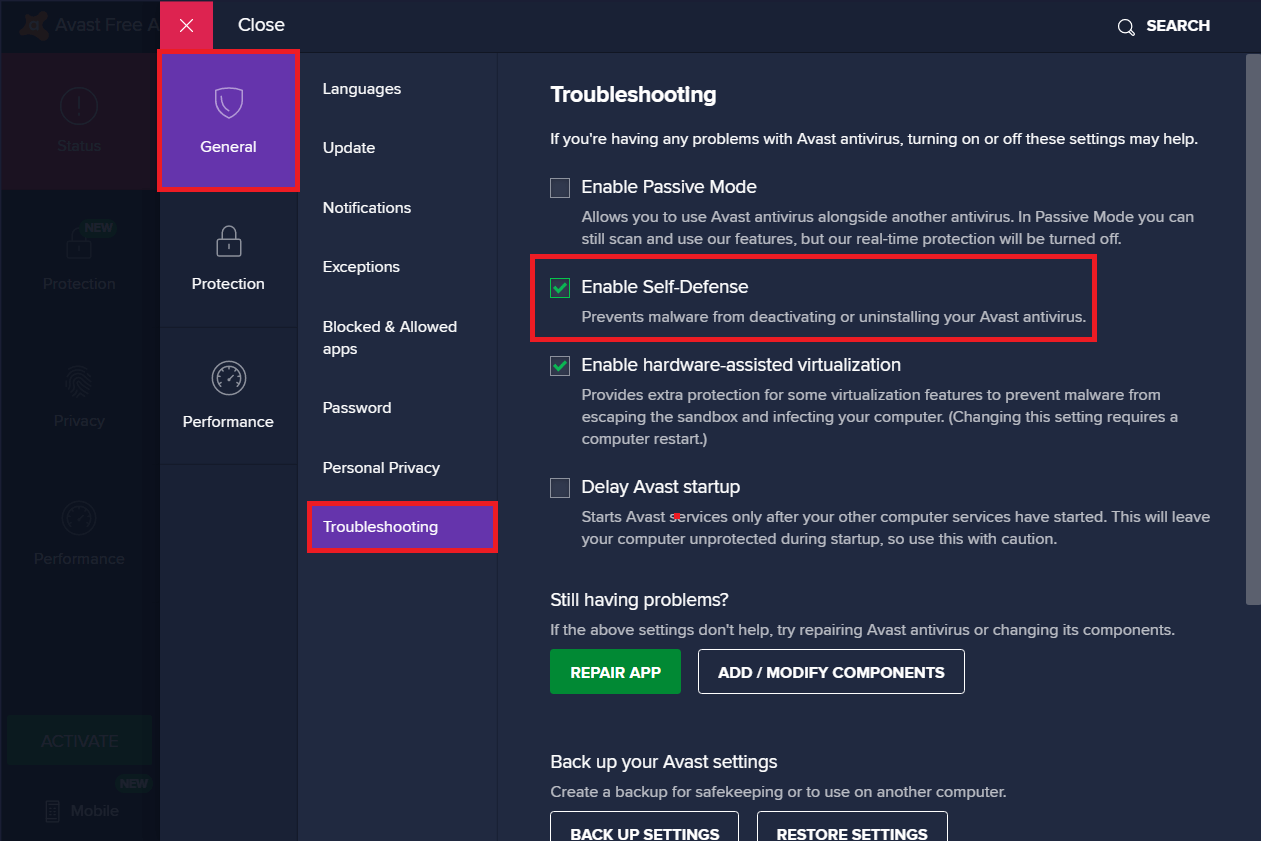
6. A prompt will be displayed on the screen. Click on OK to disable Avast.
7. Exit Avast Free Antivirus program.
8. Next, launch Control Panel by searching for it, as shown.

9. Select View by > Small icons and then, click on Programs and Features, as depicted.

10. Right-click on Avast Free Antivirus and then, click on Uninstall, as illustrated below.

11. Proceed by clicking Uninstall in the confirmation prompt. Then, wait for the uninstallation process to finish.
Note: Depending on the file size of the Antivirus software, the time taken to uninstall it, will vary.
12. Reboot your Windows PC and check if this could fix ARK unable to query server info for invite issue.
Also Read: 5 Ways to Completely Uninstall Avast Antivirus in Windows 10
Method 7: Allow ARK: Survival Evolved through Firewall
Whenever you install a new application on your device, a prompt will appear on your screen asking whether the application should be added as an Exception to Windows Defender Firewall or not.
- If you click YES, the application you have recently installed is added as an exception to Windows Firewall. All its features will work, just as expected.
- But, if you select NO, then Windows Firewall will block the application from connecting to the Internet whenever it scans your system for suspicious content.
This feature helps to maintain and protect system information and privacy. But it may still cause conflicts with trustworthy applications like Steam and ARK: Survival Evolved. Like third-party antivirus software, you can temporarily disable Windows Defender Firewall or allow access to ARK: Survival Evolved program permanently.
Method 7A: Disable Windows Defender Firewall Temporarily
Several users reported that when Windows Defender Firewall was turned OFF, the unable to query server info for invite issue didn’t occur. You can try it too, by following these steps:
1. Launch Control Panel as instructed in the previous method.
2. Click on Windows Defender Firewall, as shown.

3. Select the Turn Windows Defender Firewall on or off option from the left panel.

4. Now, check the box titled Turn off Windows Defender Firewall (not recommended) option for Domain, Private & Public network settings.

Method 7B: Allow ARK: Survival Evolved in Windows Defender Firewall
1. Launch Control Panel. Navigate to Windows Defender Firewall, as per Method 7A.
2. Click on the Allow an app or feature through the Windows Defender Firewall option from the left panel, as highlighted.

3. Now, click on the Change settings button.
4. Select ARK: Survival Evolved program in the list and check the boxes under Private and Public options, as highlighted.
Note: Remote Desktop has been taken as an example in the screenshot given below.

5. Finally, click on OK to implement these changes.
It is recommended to allow ARK: Survival Evolved program rather than blocking the application or disabling Windows Defender Firewall because it is a safer option.
Method 7C: Block Incoming Connections in Windows Defender Firewall
In the last decade, cybercrime has reached its peak. So, we need to be more cautious while surfing online. In addition to the above, you can disallow all incoming data connections with the help of a Windows Firewall, as explained below:
1. Navigate to Control Panel >Windows Defender Firewall, as earlier.
2. Under Public network settings, check the box marked Block all incoming connections, including those in the list of allowed programs, as depicted.

3. Click on OK.
Also Read: How to Fix Steam Not Downloading Games
Method 8. Use ARK Server Hosting
Even the most popular games encounter errors, and you can fix these by fetching help from professional support services like ARK Server Hosting. It provides better network availability and quickly resolves all server connectivity errors. It also offers an excellent file management system. Furthermore, it has been known to fix unable to query server info for invite issue. Hence, both novice and advanced users are advised to utilize ARK Server Hosting. If you want to create your own ARK server hosting, then you can read this guide on how to create an ARK server hosting.
Method 9: Reinstall Steam
If none of the above methods have worked, the last resort is to reinstall Steam. Here’s how to fix ARK unable to Query Server Info for Invite error:
1. Type Apps in the Windows search bar. Click on Apps & features to launch it, as shown.

2. Type Steam in Search this list field.
3. Finally, click on Uninstall under Steam app, as depicted below.

4. Once the program has been deleted from your system, you can confirm by searching for it again. You should receive this message We couldn’t find anything to show here. Double-check your search criteria.
5. Restart your computer, once you complete all the steps mentioned above.
6. Click here to download Steam on your Windows 10 PC.

7. Go to My downloads folder and double-click on SteamSetup to open it.
8. Here, click on the Next button until you see the Choose Install Location screen.

9. Next, choose the Destination Folder by using the Browse… option. Then, click on Install.

10. Wait for the installation to be completed and click on Finish.

11. Now, wait for all Steam packages to be installed in your system.

Now, you have successfully reinstalled Steam on your system. Download ARK: Survival Evolved game and enjoy playing it, without any errors.
Recommended:
- How to Fix Hulu Token Error 3
- Fix Destiny 2 Error Code Broccoli
- Fix Fallout 3 Ordinal 43 Not Found Error
- 18 Ways to Optimize Windows 10 for Gaming
- Fix io.netty.channel.AbstractChannel$AnnotatedConnectException Error in Minecraft
We hope that this guide was helpful and you were able to fix the ARK Unable to query server info for invite issue in your device. Let us know which method worked for you the best. Also, if you have any queries/comments regarding this article, then feel free to drop them in the comments section.