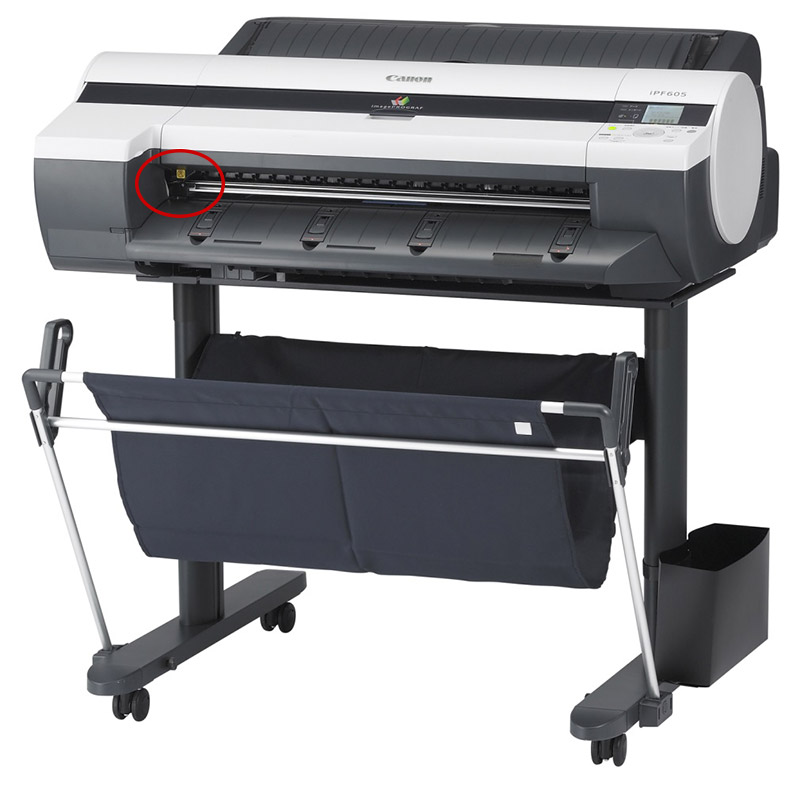
Canon IPF 765 ошибка 03130031-2f1f
помогите решить проблему
| Сообщение #1
Отправлено 28 июля 2020 — 19:29
Всем привет, имеем выпавшую ошибку,аппарат IPF765.Ошибка указывает на блок прочистки
Что на данный момент сделано и заменено:
Головка,новая,оригинальная
Блок прочистки стоит новый
На днях заменили главную плату б/у
В данный момент принтер выходит в рабочий режим но при установке(заправке) бумаги выпадает сразу в ошибку
Через сервисное меню дает заправить бумагу и даже можно сделать тест или отпечатать одно задание и ВСЕ
Куда копать дальше, кончились мысли,может кто что дельное предложит?
- Наверх of the page up there ^
-
0
| Сообщение #2
Отправлено 17 декабря 2020 — 18:31
Robinzon54
Если голова заведомо рабочая (не факт), то или мать или датчик позиционирования на каретке (из разряда вариантов)
03130031-2F1F Pump cam sensor error Check the purge unit.
А вообще ошибка на помпу указывает как я понимаю
- Наверх of the page up there ^
-
0
- ← Предыдущая тема
- Широкоформатные плоттеры Canon
- Следующая тема →
- Вы не можете создать новую тему
- Вы не можете ответить в тему
1 человек читают эту тему
0 пользователей, 1 гостей, 0 скрытых пользователей
По целому ряду причин в плоттерах Canon imagePROGRAF могут возникнуть ошибки связанные с заполнением промежуточных чернильных ёмкостей (субтанков):
- 03130031-2F70 (общая ошибка)
- 03130031-2F71 (левый блок подачи чернил)
- 03130031-2F72 (правый блок подачи чернил)
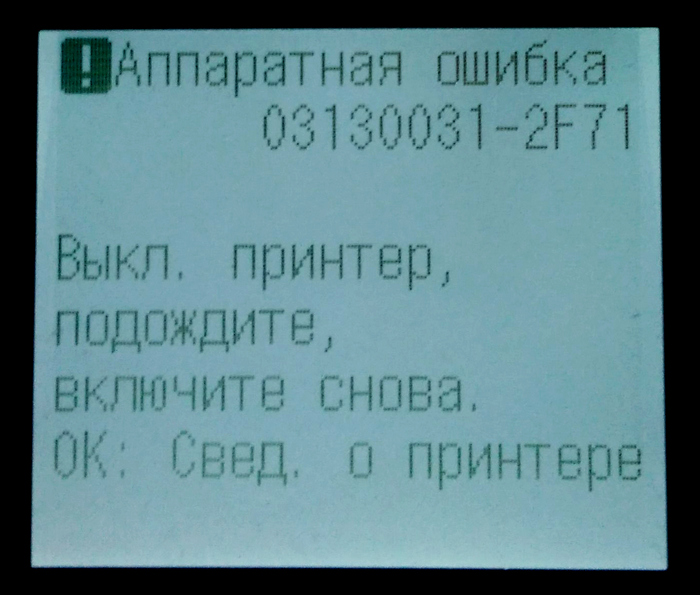
Одной из наиболее вероятных причин можно считать аппаратную ошибку работы циклов прокачки картриджей.
Устранить проблему можно исключительно установкой оригинального картриджа. Причём после того, как проблема будет устранена, стоит дать плоттеру какое-то время поработать на оригиналах, а спустя время — менять на ПЗК или перезаправленные картриджи (оригинальные или совместимые, не принципиально). В таких условиях комплект оригиналов можно будет растянуть на достаточно большое количество циклов перезарядки.
- Вставить новые оригинальные картриджи, либо ПЗК с чипами, снятыми с новых оригинальных картриджей.
- Печатающее устройство проверяет список использованных ранее картриджей и видит, что картридж оригинальный и новый.
- iPF проверяет с помощью давления полноту и проходимость чернил. Если всё в порядке, то принтер выходит в готовность практически без заполнения.
Следует контролировать время работы подкачки, чтобы препятствовать износу шестерней.
Можно также попробовать ещё один способ сбросить ошибку:
- Заправьте картриджи и установите в плоттер.
- Включите плоттер и зайдите в сервисное меню.
- Через сервисное меню заменить печатающую голову.
- Выключить плоттер и снова включить.
Также проблема может быть в некачественных чернилах. Если показатели текучести и электропроводности существенно отличаются от оригинальных, плоттер выдаст ошибку.
Canon imagePROGRAF Hardware Error 03130031 Introduction
When your Canon imagePROGRAF Plotter is stuck with an on-screen hardware error 0313003, you need to call the service center to get assistance to get your Canon large format printer back into working state. In this printer service guide, we will give you some ideas to decode Hardware Error 03130031 and its subcodes of the 4 digits in the end. You can Buy Printer Spare Parts from here
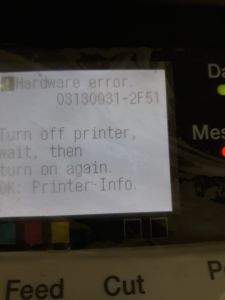
Decoding the Error 03130031
Since we have detailed documentation about this error, it will be easier for you to diagnose the error. The hard part is, this error is closely related to the ‘print head’ and in most cases, you need to replace it to fix the plotter. To diagnose the error in the right way, we need subcode, which is the last four characters of the error code followed by 03130031, for example, ‘2F51’. The whole error code will look like this, 03130031-2F51. Ca’t find the subcode? Contact us for plotter repair in Dubai
Now you know how to find the sub error code, But how to understand the meaning of the 4-digit code followed by 03130031?
Fixing HP Designjet plotter error codes
Hardware Error 03130031 Codes and their Meaning
The 03130031-[Sub Code] error codes are about 45 variants. They all have different meanings and here is how to clear/fix them.
Below are the list of Hardware Error 03130031 Codes
03130031-260E – Gap detection failure
03130031-2618 – VH voltage error
03130031-290A – HDD not connected/not detected
03130031-291B – Lift shift timeout
03130031-291D – Spur cam sensor detector failure
03130031-2E23 – Cutter unit failure
03130031-2F13 – A/D converter external trigger output stop
03130031-2F14 – ASIC register not writable
03130031-2F16 – Mist fan error
03130031-2F17 – Platen fan lock detection error
03130031-2F1F – Purge sensor error
03130031-2F20 – Cap motor cam positioning error
03130031-2F22 – Pump shift timeout
03130031-2F23 – Purge motor error
03130031-2F24 – Cutter shift timeout error
03130031-2F25 – Carriage motor HP not detectable
03130031-2F26 – Carriage Motion Error
03130031-2F27 – Carriage shift timeout
03130031-2F28 – Lift shift timeout
03130031-2F2A – Cannot detect the LF home position
03130031-2F2B – LF operation failure
03130031-2F2C – Cassette shift timeout
03130031-2F2E – Roll shift timeout
03130031-2F3A – Ink supply valve open/close monitor timeout
03130031-2F3B – CS communication error
03130031-2F3C – LP nip sensor error
03130031-2F3D – HP pre-ejection pump motor overload error
03130031-2F3E – HP pre-ejection pump motor shift timeout
03130031-2F3F – An error other than overload error or shift timeout error
03130031-2F46 – The shutter HP sensor did not respond at startup
03130031-2F48 – VHT (heater drive power supply for printhead) error
03130031-2F49 – Left side printhead
03130031-2F4A – Main controller PCB error
03130031-2F4D – VHT leak detection error of left printhead
03130031-2F4E – VHT leak detection error of right printhead
03130031-2F4F – VHT leak detection error of left and right printhead or a single printhead
03130031-2F50 – Right side printhead
03130031-2F51 – Both printheads
03130031-2F52 – Detect that a carriage unit of a legacy model has been mounted
03130031-2F53 – Supply valve motor error of the left ink tank
03130031-2F54 – Supply valve motor error of the right ink tank
03130031-2F6C – Failed self-testing
03130031-2F70 – Indication at ink priming error in both sub tanks
03130031-2F71 – Indication at ink priming error in the left sub tank
03130031-2F72 – Indication at ink priming error in the right sub tank
03130031-4027 – Lift shift timeout error
How to fix Canon imagePROGRAF Hardware Error 03130031
Fixing Canon imagePROGRAF Hardware Error 03130031 can be a simple power-cycle or a replacement of very expensive spare parts. The first thing you need to do is to make sure there isn’t any paper stuck inside the Canon imagePROGRAF Plotter. And that the carriage assembly is in the docked state on the right side hand side of the plotter. You can verify this by opening the top cover or the Canon imagePROGRAF Plotter.
The second step is to turn off the Canon Plotter by pressing the power button. You should NEVER unplug the Plotter power code while it is ‘ON’. Once you turn the power off, turn the plotter ‘ON’ in the usual way. If it clears the error message, consider you are lucky and continue your print job as usual.
If the steps as mentioned above, don’t fix the error, you will need to may need to call Plotter Service Center in Dubai.
Cube’about Technology LLC. has been rated
4.5 out of
5 based on
4 reviews as of May 2018. —
Read all customer reviews.
Модератор: Коурдаков Алексей
- Ответить с цитатой
CANON ipf610
Подскажите пожалуйста, есть ли возможность по коду ошибки определить в чем заключается поломка?
Код ошибки :
03130031-2F1F
Во время печати принтер пискнул показал ошибку и предложил отключить — включить питание.
При этом головка остановилась не в правой(зона парковки) а в левой части принтера.
При включении головка едет в зону парковкино не доезжает и возвращается влево. а в правой части — в узле очистки головки несколько раз что-то щелкает и после этого принтер снова говорит показывает ошибку.
- v-pro
- Участник форума
- Сообщения: 2
- Зарегистрирован: 28 окт 2010 12:19
- Ответить с цитатой
Re: CANON ipf610
 v-pro » 28 окт 2010 13:39
Вошел в сервисный режим, при попытке распечатать принтер попросил перезагрузить рулон и показал ошибку
03130031-2F13
больше я его пытать не стал )
- v-pro
- Участник форума
- Сообщения: 2
- Зарегистрирован: 28 окт 2010 12:19
- Ответить с цитатой
Re: CANON ipf610
Багама » 10 июн 2015 10:02
Добрый день всем! Были и у меня точно такие же проблемы. Открой правую сторону плоттера, чтобы был доступ, до нижней части (механизмы) парковочной площадки внимательно посмотри, есть ли посторонние предметы, или все ли шестерни на своих местах, у меня было слетела 1 на шестерня видимо для привода прижима капы к ПГ, я его аккуратно посадил на место и сразу всё заработало. Желаю Удачи! Багама.
- Багама
- Участник форума
- Сообщения: 1
- Зарегистрирован: 17 мар 2015 17:40
Вернуться в Форум по офисной технике Canon
Кто сейчас на конференции
Сейчас этот форум просматривают: нет зарегистрированных пользователей и гости: 1
Check printing results
Call for service.
Call for service.
The memory is full.
The memory is full.
The memory is full.
The parameter is out of range.
This command is not supported.
Delete unwanted data
Now printing without saving data.
Prepare to replace the ink.
Prepare to replace the ink.
Prepare to replace the ink.
Prepare to replace the ink.
Prepare to replace the ink.
Replace the ink tank.
Replace the ink tank.
Replace the ink tank.
Replace the ink tank.
Replace the ink tank.
Check ink tank.
Check ink tank.
Check ink tank.
Check ink tank.
Check ink tank.
Delete unwanted data.
Delete unneeded jobs stored on the hard disk.
Press Online to clear error.
Lift the release lever and reload the paper.
Lift the release lever and align leading edge with orange line.
Lift the release lever and reload the paper.
Lift the release lever and reload the paper.
Check the paper type.
Press Online to clear the error and readjust printhead.
Clean the printhead.
Press Online to clear the error and readjust printhead.
Clean the printhead.
Lift the release lever and replace paper with A4/ LTR (vertical) or larger.
Lift the release lever and replace paper with A3/ Ledger (vertical) or larger.
Lift the release lever and replace roll with 10 in. wide or larger roll.
Remove paper and press Load/Eject.
Lift the release lever and reload paper.
Check supported paper sizes.
Check supported paper sizes.
Press Online to clear the error.
Lift the release lever.
Reload paper.
Press Load/Eject and reload the paper.
Lift the release lever and reload the paper.
Press Online to clear the error.
Press Load/Eject and load sheets.
Press OK, remove the sheets, and load a roll.
Press Load/Eject and load a roll.
Turn printer off and install roll feed unit.
Lift the release lever and replace the roll.
Press Load/Eject and reload the paper.
Press Load/Eject and remove the roll.
03130031-2E23
Turn off printer, wait, then turn on again.
03130031-2E14
Turn off printer, wait, then turn on again.
03130031-2E16
Turn off printer, wait, then turn on again.
03130031-2E17
Turn off printer, wait, then turn on again.
03130031-2E20
Turn off printer, wait, then turn on again.
03130031-2E22
Turn off printer, wait, then turn on again.
03130031-2E23
Turn off printer, wait, then turn on again.
03130031-2E25
Turn off printer, wait, then turn on again.
03130031-2E26
Turn off printer, wait, then turn on again.
03130031-2E27
Turn off printer, wait, then turn on again.
03130031-2E1F
Turn off printer, wait, then turn on again.
03130031-2E2A
Turn off printer, wait, then turn on again.
03130031-2E29
Turn off printer, wait, then turn on again.
03130031-2E2E
Turn off printer, wait, then turn on again.
03130031-4027
Turn off printer, wait, then turn on again.
03130031-2E13
Turn off printer, wait, then turn on again.
03130031-2F32
Turn off printer, wait, then turn on again.
Replace the multi sensor unit.
03130031-2F3A
Turn off printer, wait, then turn on again.
03130031-2F3B
Turn off printer, wait, then turn on again.
03130031-260E
Turn off printer, wait, then turn on again.
03130031-2618
Turn off printer, wait, then turn on again.
03130031-260F
Turn off printer, wait, then turn on again.
Turn off printer and check roll feed unit
Turn off printer, wait a while, then turn it on again.
Turn off printer, wait a while, then turn it on again.
03130031-2F2B
Turn off printer, wait, then turn on again.
Open top cover and replace the printhead.
Open top cover and replace the right printhead.
Open top cover and replace the right printhead.
03800500-2F2F
Turn off printer, wait, then turn on again.
Replace the head management sensor unit
Replace the printhead
03800500-2F30
Turn off printer, wait, then turn on again.
Replace the head management sensor unit
Replace the printhead
Press OK and replace ink tank.
Press OK and replace ink tank.
Press OK and replace ink tank.
Press OK and replace ink tank.
Press OK and replace ink tank.
Press OK and replace ink tank.
Press OK and replace ink tank.
Press OK and replace ink tank.
Press OK and replace ink tank.
Press OK and replace ink tank.
Press OK and replace ink tank.
Press OK and replace ink tank.
Press OK and replace ink tank.
Press OK and replace ink tank.
Press OK and replace ink tank.
Press OK and replace ink tank.
Press OK and replace ink tank.
Press OK and replace ink tank.
Press OK and replace ink tank.
Press OK and replace ink tank.
Press OK and replace ink tank.
Press OK and replace ink tank.
Press OK and check ink tank.
Press OK and check ink tank.
Press OK and check ink tank.
Press OK and check ink tank.
Press OK and check ink tank.
Press OK and check ink tank.
Turn off printer, wait a while, and turn it on again.
Turn off printer, wait a while, and turn it on again.
Replace the maintenance cartridge.
Cartridge capacity.
Replace the maintenance cartridge.
Replace the maintenance cartridge.
Replace the maintenance cartridge.
Check roll position.
Online: Print Load/Eject:
Change Paper
Check paper size setting.
Online: Print
Load/Eject: Change Paper
Online: Print
Stop: Stop Printing
Load/Eject: Change Paper
Lift the release lever and reload the paper.
Press Online to clear the error.
Check the head management sensor.
Online: Print
Stop: Stop Printing
Load/Eject: Change Paper
Delete unwanted data on your computer to resume printing.
Press Stop to cancel printing.
Cannot save. Delete unwanted data on your computer to resume printing.
Press Stop to cancel printing.
Press OK to reformat
Turn off printer, wait a while, and turn it on again.
Invalid files will be deleted.
Turn off printer, wait, then turn on again.
Turn off printer, wait, then turn on again.
Install printhead.
Check the maintenance cartridge.
Lift the release lever and reload the paper.
Manually rewind roll all the way and press OK.
Confirm usage cond. of the paper.
 Dislikes: 0
-
10-11-2021
#1

Senior Tech
100+ Posts

- Rep Power
- 14
 Canon IPF 770 Plotter Hardware Error 03130031-2F1F
From what I have read does this mean the Purge Unit is Defective? I also noticed A lot of Air in the ink lines. If this is the Purge Unit could someone get me the part number?
Thanks in advance!
Hoosierdaddy
-
10-12-2021
#2
Re: Canon IPF 770 Plotter Hardware Error 03130031-2F1F
It’s the same purge unit used on all the iPFs: 650, 655, 680, 685, 750, 755, 760, 765, 770, 780, 785
Originally QM3-5988-000 … updated many times to currently QM4-3670-020.
If you turn the motor manually, you should be able to watch it work mechanically … pump in one direction, capping assembly in the other. When that ink starts hardening up into a rock the gears will break … you’ll hear the crunching.
Keep in mind that this may be just the first of a string of expensive issues. You can expect to need a printhead, at minimum. It probably hasn’t been properly capped in a while. =^..^=
Last edited by blackcat4866; 10-12-2021 at 01:11 AM.
If you’d like a serious answer to your request:
1) demonstrate that you’ve read the manual
2) demonstrate that you made some attempt to fix it.
3) if you’re going to ask about jams include the jam code.
4) if you’re going to ask about an error code include the error code.
5) You are the person onsite. Only you can make observations.
blackcat: Master Of The Obvious =^..^=
-
10-12-2021
#3
Senior Tech
100+ Posts
- Rep Power
- 14
Re: Canon IPF 770 Plotter Hardware Error 03130031-2F1F
 Originally Posted by blackcat4866

It’s the same purge unit used on all the iPFs: 650, 655, 680, 685, 750, 755, 760, 765, 770, 780, 785
Originally QM3-5988-000 … updated many times to currently QM4-3670-020.
If you turn the motor manually, you should be able to watch it work mechanically … pump in one direction, capping assembly in the other. When that ink starts hardening up into a rock the gears will break … you’ll hear the crunching.
Keep in mind that this may be just the first of a string of expensive issues. You can expect to need a printhead, at minimum. It probably hasn’t been properly capped in a while. =^..^=
Does the air in the line point to anything? Or does the Purge Unit and the Printhead cause that issue?
-
10-12-2021
#4
Re: Canon IPF 770 Plotter Hardware Error 03130031-2F1F
That’s further down that road, after you solve the first issue(s). =^..^=
If you’d like a serious answer to your request:
1) demonstrate that you’ve read the manual
2) demonstrate that you made some attempt to fix it.
3) if you’re going to ask about jams include the jam code.
4) if you’re going to ask about an error code include the error code.
5) You are the person onsite. Only you can make observations.
blackcat: Master Of The Obvious =^..^=
Tags for this Thread
Bookmarks
Bookmarks

Posting Permissions
- You may not post new threads
- You may not post replies
- You may not post attachments
- You may not edit your posts
- BB code is On
- Smilies are On
- [IMG] code is On
- [VIDEO] code is On
- HTML code is Off
Forum Rules
-
Опубликовано: 10 августа 2017
-
Просмотров: 11195
Сегодня меня позвали найти причину, почему плоттер Canon iPF-605 при включении выдаёт такое сообщение:
! Аппаратная ошибка 03130031-2E23
Выкл. принтер, подождите, включите снова.
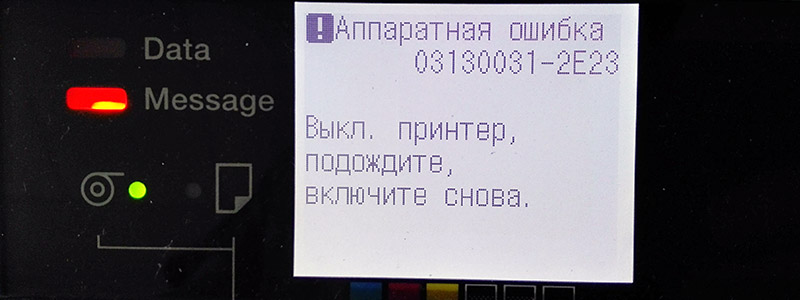
Дальше не загружается, до меню не доходит и не даёт ничего сделать. Выполнение совета выключить и включить устройство также эффекта не имеет.
Рунет ничего не подсказал по данной ошибке, пришлось покопаться по англоязычным форумам. Выяснилось, что эта ошибка означает проблемы с ножом для отрезания бумаги.
Нож при включении плоттера должен быть расположен в крайнем левом положении, со стороны передней части плоттера. Возьмите его и протяните немного вправо-влево. Он должен легко скользить на своих полозьях. Если нож двигается с трудом или со звуками – значит его где-то подклинивает. Именно в этом и причина ошибки.
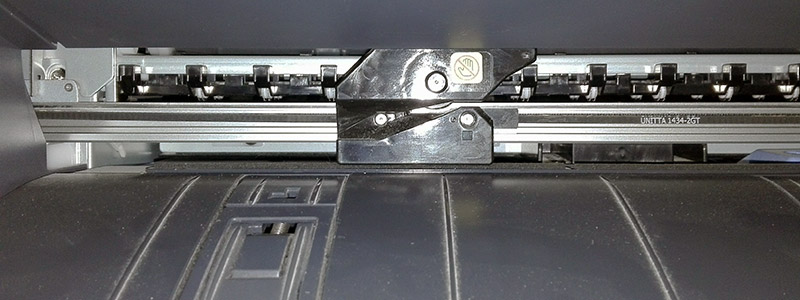
В моём случае – маленький кусочек бумаги застрял в полозьях и не давал ножу свободно перемещаться. Я его вытащил, проверил, что нож стал снова свободно скользить, сдвинул его до упора влево и включил питание.
Ура, проблема решена!