С каждым днем разработчики пытаются удивить пользователей новыми играми и даже игровыми жанрами. С ростом их количества, увеличивается и число новых, до этого неизвестных ошибок. При запуске таких популярных игр, как Tom Clancy’s Ghost Recon Wildlands, CrossOut, Dead by Daylight, Fortnite и других в компьютере появляется сообщение с кодом ошибки 30005 (CreateFile Failed with 32.). Как её решить — читайте в этой статье.
Содержание
- Причины появления окна с ошибкой 30005
- Быстрые решения ошибки
- Работа с антивирусом
- Удаление установочного файла EasyAntiCheat
- Переустановка компонентов Windows
Причины появления окна с ошибкой 30005
Код рассматриваемой ошибки в нашем случае поясняется в скобках, что не удалось создать файл для 32 битной системы. Об этой ошибке сообщает модуль проверки клиентов EasyAntiCheat. Код может говорить о разных причинах её появления. Единой инструкции по исправлению, к сожалению, не существует. Поэтому будут приведены разные способы исправления этой проблемы с играми и «АнтиЧитом».
Ошибка может появляться в результате нарушения файлов игры. Или при блокировке некоторых игровых файлов вашим антивирусным программным обеспечением. В отдельных случаях этот сбой может быть временным. Если попытаться через некоторое время снова запустить игру вы заметите, что она решилась сама собой. Следуйте всем приведенным далее инструкциям, и вы с большей степенью вероятности сможете исправить ошибку 30005 (CreateFile failed with 32.). Если вам не удастся это сделать — обязательно напишите об этом в комментариях, чтобы мы смогли найти для вас новые способы устранения.
Читайте также: как исправить Unable to Initialize Steam API?
Быстрые решения ошибки
Как это ни банально звучит, но многим помогает избавиться от ошибки простая перезагрузка компьютера. Можно предположить, что пользователи в первую очередь выполняют это действие. И все же тем, кто еще не пробовал — перезагрузите систему. Если игра заработала после перезагрузки, то скорее всего это были незначительные сбои в оперативной памяти вашего компьютера. Поэтому вы можете больше не встретить её при запуске.
Даже если она и появится еще раз через время, снова перезагрузите компьютер. А лучше — почистите его от ненужных файлов и программ.
Еще один совет — не запускайте вместе несколько программ одновременно. Особенно, если в вашем компьютере мало оперативной памяти (до 2Гб). Чтобы продолжить, нам нужны быть уверенным, что файлы игры в порядке. Для этого запустите клиент Steam и выполните проверку.
- Запустите игровой клиент Стим или откройте свой аккаунт через браузер (Google Chrome, Mozilla Firefox и т.д.);
- Откройте библиотеку и найдите свою игру в списке;
- Нажмите её ПКМ и выберите последнюю строчку — «Свойства»;
- Нажмите на вкладку вверху окна «Локальные файлы» и выберите последний пункт для проверки целостности.
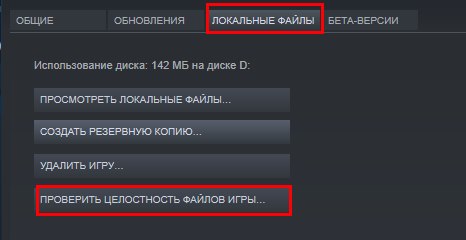
Проверьте целостность файлов
Если проверкой будут найдены отсутствующие файлы игры, необходимо переустановить игру.
В Steam еще может появляться такая ошибка: Internal Error 0x06 System Error, как исправить?
Работа с антивирусом
Перед следующими действиями проверьте свою систему на вирусы средством, которое есть у вас в компьютере. Чтобы устранить ошибку с кодом 30005 CrateFile Failed with 32, в некоторых случаях достаточно отключить на время ваш антивирус. Если вы не устанавливали дополнительных, нужно выключить встроенный Защитник Windows.
Для отключения дополнительного вируса необходимо нажать на стрелочку внизу экрана и ПКМ выбрать ваш антивирус. Выберите «Управление экранами» (Avast) или подобный пункт в других антивирусах и укажите время, на сколько нужно деактивировать программу. Если этой возможности нет — удалите антивирус и запустите игру. Если игра заработает, скачайте снова антивирусную программу и добавьте игру в её исключения. Как это сделать, вы можете найти на сайте разработчика антивируса.
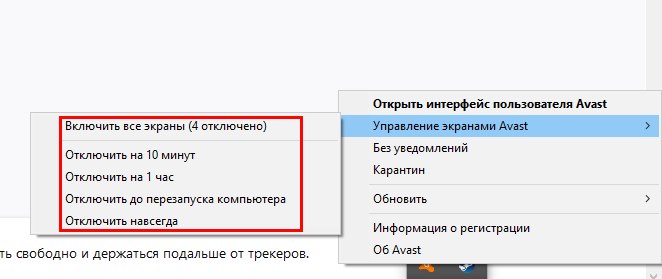
Удаление установочного файла EasyAntiCheat
Следующий метод основан на удалении установочного файла АнтиЧита из папки с игрой. Вам необходимо найти полный путь к папке с игрой. Если установка производилась по умолчанию, значит ваша игра должна находится на диске C:. В других случаях ищите папку там, куда вы указали установку.
- Будем считать, что установка была произведена по умолчанию. Откройте проводник (WIN+E) и выберите папку C: (если здесь установлен Windows);
- Выберите Users;
- Затем найдите папку с вашим именем учетной записи — например, C:UsersAnton;
- Далее выберите папки «AppDataLocal»;
- И откройте папку с названием игры;
- Здесь найдите файл EasyAntiCheat Setup. Перенесите его на другой диск или скопируйте на флэшку (удалите из диска C: любым способом, но не удаляйте вообще);
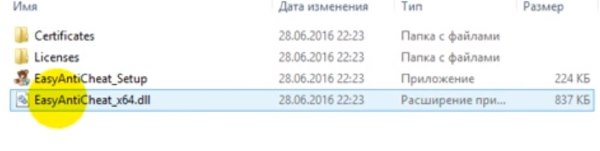
- Запустите игру.
Такой же файл есть в папке Steam на вашем компьютере, например, C:Usersимя пользователяSteamsteamappscommomназвание игры. Если вы не нашли его в папке с игрой, попробуйте удалить в папке Стим. Если результатов нет — верните файл на прежнее место.
Переустановка компонентов Windows
Ошибка может появляться в том случае, если у вас на компьютере установлены устаревшие компоненты Visual C++, которые необходимы для большинства игр. Их переустановка может решить сбой с кодом 30005 (CreateFile Failed with 32.) при запуске популярных игр. Поэтому перейдите по ссылке на официальную страницу поддержки Microsoft и загрузите подходящую версию компонентов для своего компьютера — https://www.microsoft.com/ru-ru/download/details.aspx?id=48145.
Продукт: Apex Legends
Платформа:PC
Укажите, на какой платформе вы играете. ПК
Номер модели видеокарты AMD или Nvidia Nvidia
Укажите объем памяти в Гб 4
Какой у вас тег игрока/PSN ID/учетная запись EA? *
Укажите свой Тег игрока/PSN ID/Учетную запись EA
Вы используете дополнительное программное обеспечение с функцией Оверлей? Нет
Какой Легендой вы играли?
Какими Легендами играли ваши напарники по отряду?
Где возникла проблема? В Лобби
В какой части карты или меню вы находились? Если не помните точное название, опишите местность или свои действия в меню Загрузка игры
Что происходило в момент возникновения ошибки? Например: использовали умение или определенное оружие, ваш напарник покинул игру и т.д. Запуск античит и все.
Испытали ли ваши напарники такую же ошибку? Да
Сколько матчей вы сыграли на момент появления ошибки 2
Когда произошла эта ошибка? (ДД/ММ/ГГГГ, часы и минуты)
Как часто возникает ошибка? 100%
Насколько серьезной была ваша ошибка? Серьезно влияет на геймплей
Что происходит, когда возникает ошибка? Ошибка не дает мне играть!
Что должно происходить? Я должен играть!
Шаги. Как нам воспроизвести данную ошибку? Попробуйте поиграть в АРЕХ!
Игра не запускается уже почти неделю, бывало смог запустить пару раз. Перепробовал все способы решения, даже полностью форматировал и переустанавливал Windows! Пропускаю событие сейчас из-за этого. С этой ошибкой столкнулись уже многие и никто не знает как решить. Удаление sys файла не помогает уже. Ничего не помогает уже вообще, что делать не знаю. ПАМАГИТЕЕЕЕ!!!!


При попытке запустить игру, защищенную Easy Anti-Cheat можно столкнуться с сообщением «Код ошибки 3005: CreateFile failed with 32». Это происходит потому, что приложение не может создать файл в папке, в которой установлен античит EAC. Сбой также указывает на повреждение программного обеспечения.
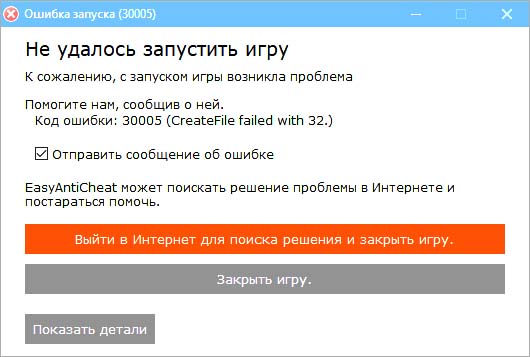
Чем вызвана ошибка?
Сбой при запуске приложений, связанный с кодом ошибки 3005 возникает по следующим причинам:
- Находящийся в папке Easy Anti-Cheat файл sys препятствует приложению создать другой файл, что влечет за собой указанную проблему.
- Повреждены или отсутствуют некоторые компоненты игры. Целостность можно проверить с помощью сервиса Easy Anti-Cheat. Если установлена через steam, проверьте ее путем встроенной функции.
- Служба античита отключена пользователем или программой оптимизации системы. Игры, которые связаны с ней, нуждаются в том, чтобы она была включена.
- Доступ в интернет для приложения был заблокирован антивирусом.
Удаление файла SYS
В каталоге EAC находится sys, который препятствует созданию любого другого файла службой античита. Поэтому попробуйте его удалить, он будет автоматически заменен другим.
Перейдите в папку с EAC и щелкните на EasyAntiCheat.sys правой кнопкой мыши. В контекстном меню нажмите на «Удалить».
Попробуйте запустить игру, которая вызывала ошибку 3005.
Проверка целостности игры
Сообщение о сбое может возникнуть в случае, когда файлы игры отсутствуют или повреждены. Проверьте целостность с помощью EAC.
В папке щелкните на EasyAntiCheat.exe. При отображении списка, выберите игру, с которой возникли проблемы.
Кликните на «Восстановить» и дождитесь завершения процесса.
Запуск службы
Если служба была отключена пользователем, то загрузка будет прервана кодом 3005. Для ее включения выполните следующие шаги:
Откройте системные службы командой services.msc, запущенной из окна командного интерпретатора (Windows + R).
Найдите в списке Easy Anti-Cheat. Щелкните на ней правой кнопкой мыши и выберите из контекстного меню «Свойства».
В открывшемся окне кликните на раскрывающееся меню типа запуска и выберите значение «Автоматически». После этого нажмите на кнопку Запустить.
Проверьте, прерывается ли запуск ошибкой 3005.
Заблокировать загрузку может антивирусная программа. Поэтому временно отключите защиту в реальном времени, чтобы избежать блокировки.
Having an issue launching apex, usually when i first turn on my computer im able to launch the game one time with no issues, the problem is after launching the game one time if i exit the game and try to launch again I’m met with Error Code: 30005 (CreateFile Failed with 32.), when I get this error I delete the .sys file in my easy anti cheat folder and that fixes that error but when launching the game I’m met with Error Code: 30005 (CreateService Failed with 1072.) and I can’t figure out how to fix this myself
I have tried:
Reinstalling/Repairing eac
Performing a clean boot( The game works the first launch when i do this)
Disabling my anit virus
Disabling my firewall
Verifying my game
Reinstalling the game
Installing the game on a different platform
Changing the service from manual to automatic and vice versa
Deleting the .sys file
Updated windows
Earlier today someone recommended me to update windows and at the time it worked for acouple hours but after a while it went back to the same issue
Please help
Having an issue launching apex, usually when i first turn on my computer im able to launch the game one time with no issues, the problem is after launching the game one time if i exit the game and try to launch again I’m met with Error Code: 30005 (CreateFile Failed with 32.), when I get this error I delete the .sys file in my easy anti cheat folder and that fixes that error but when launching the game I’m met with Error Code: 30005 (CreateService Failed with 1072.) and I can’t figure out how to fix this myself
I have tried:
Reinstalling/Repairing eac
Performing a clean boot( The game works the first launch when i do this)
Disabling my anit virus
Disabling my firewall
Verifying my game
Reinstalling the game
Installing the game on a different platform
Changing the service from manual to automatic and vice versa
Deleting the .sys file
Updated windows
Earlier today someone recommended me to update windows and at the time it worked for acouple hours but after a while it went back to the same issue
Please help
-
Partition Wizard
-
Partition Manager
- Fixed: Apex Legends Error Code 30005 – CreateFile Failed with 32
By Sherry | Follow |
Last Updated May 19, 2022
Apex Legends is a free-to-play shooter game. Unfortunately, you might encounter various problems while playing the game. In this post from the MiniTool Partition Wizard website, you can learn some solutions to Apex Legends error code 30005.
Apex Legends, a free-to-play battle royale-hero shooter game, was first released in February 2019. Nowadays, this game is available on a lot of platforms, including Microsoft Windows, PS4 (PlayStation 4), PS5 (PlayStation 5), Xbox One, Xbox Series X/S, Nintendo Switch, Android, and iOS.
Apex Legends is quite popular among game lovers. By April 2021, this game had approximately 100 million players.
It is a wonderful game. However, similar to other games, Apex Legends might also come with errors or problems sometimes. Error code 30005 is one of the most common ones. This error code often appears when users are trying to launch Apex Legends, and it usually comes along with an error message “CreateFile failed with 32” or “StartService failed with –2145452015”.
Why does Apex launch error 30005 happen? How to fix the error? If you encounter the same error code, you can try the following solutions.
Solution 1: Delete the EasyAnticheat.sys File
An Epic Game is usually installed along with an anti-cheat program. Apex Legends error code 30005 indicates that the Easy Anti-Cheat program stops working. Some users have solved the problem by deleting the EasyAnticheat.sys file. You can also have a try.
Step 1: Press Win + E to open File Explorer.
Step 2: Navigate to your Apex Legends installation folder and find the folder where Easy Anti-Cheat is installed.
Step 3: Right-click the EasyAnticheat.sys file and select Delete.
Step 4: Restart your Apex Legends.
If the error code 30005 still exists, you can move on to the next solution.
Solution 2: Repair Corrupted Game Files
Corrupted or missing game files could also prevent Easy Anti-Cheat from working properly, leading to Apex Legends error code 30005. In this case, you should check and repair your game files.
Step 1: Navigate to the Anti-Cheat folder in File Explorer and run the EasyAntiCheat.exe file.
Step 2: Select Apex Legends.
Step 3: Click the Repair option.
Then the program will check and repair problematic game files automatically. You just need to wait until the process is finished and restart Apex Legends.
Solution 3: Disable Your Antivirus Program Temporarily
Antivirus programs are used to protect your PC from viruses and dangerous threats. However, sometimes the antivirus program might detect your game file as a threat by mistake, which could also be one of the reasons for Apex Legends error code 30005.
In this case, you can try to disable your antivirus program temporarily and check if the error code disappears. Alternatively, you can also add your Easy Anti-Cheat program to the exclusion list.
If all the solutions above failed to solve the Apex launch error code 30005, you might consider reinstalling the game.
There are many ways to uninstall Apex Legends. You can use the Control Panel, App Settings, or a professional third-party uninstaller program. Here I take Control Panel as an example.
Step 1: Press Windows + S to open the Windows Search utility. Then search for Control Panel and open it.
Step 2: Select View by Category from the upper right corner. Then click Uninstall a program.
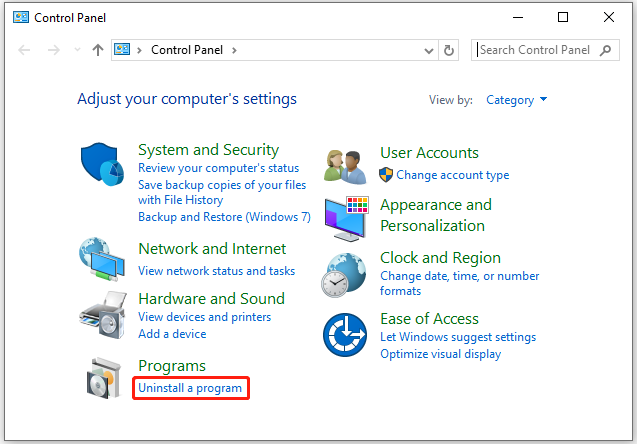
Step 3: Right-click your Apex Legends and select Uninstall. Then follow the on-screen instructions to uninstall the game.
Step 4: Download Apex Legends and install it again on your PC.
After reinstalling Apex Legends, you can run the game and check if it works properly.
About The Author

Position: Columnist
Sherry has been a staff editor of MiniTool for a year. She has received rigorous training about computer and digital data in company. Her articles focus on solutions to various problems that many Windows users might encounter and she is excellent at disk partitioning.
She has a wide range of hobbies, including listening to music, playing video games, roller skating, reading, and so on. By the way, she is patient and serious.
Is Apex Legends Error Code 30005 continuing to plague your battle royale experience? You’re not alone.
Released back in February 2019, Apex Legends has established itself as a popular online battle royale game. As with so many online games though, EA has been unable to avoid error codes. Today, we’ll take a look at Error Code 30005, which prevents the game from launching successfully — a key error to fix ahead of Season 10’s release.
We’ll consider what causes it, and what the possible fixes for it might be. You’ll be back in the heat of battle in no time.

How To Fix Apex Legends Error Code 30005
The good news is that with problems, come answers. So try these fixes, and see if they resolve this frustrating error for you.
Delete the sys file inside the Easy Anti-Cheat folder. To do this:
- Go to the folder where you installed Easy Anti-Cheat
- Open the folder and right-click on the EasyAntiCheat.sys file
- Select Delete
- Restart the game
If there is a potential issue with damaged game files:
- From the Easy Anti-Cheat folder, launch EasyAntiCheat.exe
- Select Apex Legends
- Choose the Install or repair option
- The system will identify and repair any corrupted files
- Once complete, restart the game
Finally, make sure your Anti-Virus has Easy Anti-Cheat on its safe list so that it won’t interfere with it as it tries to perform its role. These solutions are likely to remedy the vast majority of cases. If you are still struggling, you can consider uninstalling and then reinstalling Apex Legends and Easy Anti-Cheat from your device.
Read More: Apex Legends Slow Download: How To Speed Up Your Update On PS4, Xbox One Or PC
What Is Apex Legends CreateFile Failed With 32 Error?
Error Code 30005 happens when a player tries to launch the game. Specifically, it is caused by an issue with the Easy Anti-Cheat software which runs in the background. As the name suggests, Easy Anti-Cheat is designed to prevent players from gaining an unfair advantage in the game. So when it isn’t working properly, the game simply won’t load correctly.
There are a few reasons why there might be an issue with Easy Anti-Cheat:
- Sys File: The sys file that is located inside the Easy Anti-Cheat folder might be stopping it from creating another file. The creation of this file is necessary as it contains the launch data for the game. So if it can’t be created, the game won’t launch.
- Anti-Virus: An over-enthusiastic anti-virus can block Easy Anti-Cheat from doing its job, by preventing it from accessing the internet. If it can’t communicate with the game, the game won’t launch.
- Damaged files: If the game files have become corrupted, or some components are missing, this can also trigger this error. Easy Anti-Cheat needs to verify all the game files before the game can launch.
When you are hit by the Apex Legends Error Code 30005, try the troubleshooting tips we mentioned here and you will be back in the game in no time.
Once you are in the game, and in case you experience Apex Legends game chat issues, we can help you with that too.
«Ошибка 3005: Создать файл не удалось с 32» ошибка отображается, когда пользователь пытается запустить игру, защищенную Easy Anti-Cheat, и это происходит из-за того, что приложение не может создать файл в папке, где установлен Easy Anti-Cheat , Это также может указывать на повреждение программного обеспечения.
Ошибка 3005. Ошибка создания файла с 32
Что вызывает ошибку «Ошибка 30005: создать файл с ошибкой 32» на Easy Anti-Cheat и как ее исправить?
Мы обнаружили, что основными причинами являются:
- Файл Sys. Иногда файл sys, расположенный в главной папке, в которой установлен Easy Anti-cheat, может препятствовать программному обеспечению создавать другой файл, из-за которого возникает ошибка. Этот файл содержит только данные запуска определенной игры в определенное время.
- Проверка игры. Иногда игра, которую вы пытаетесь запустить, может быть повреждена или некоторые ее файлы могут отсутствовать из-за ошибки. Очень важно, чтобы все файлы игры проверялись службой Easy Anti-Cheat перед запуском игры. Если игра была установлена через Steam, целостность файла также должна быть проверена.
- Служба отключена: в некоторых случаях служба Easy Anti-Cheat могла быть отключена пользователем или программой оптимизации. Однако для игр, связанных с Easy Anti-Cheat Protection, необходимо, чтобы эта служба была запущена и запущена до запуска. Если служба отключена или ее функциональность ограничена, эта ошибка может быть вызвана.
- Антивирус. Возможно, антивирусное или антивирусное программное обеспечение, установленное на вашем компьютере, блокирует доступ службы Easy Anti-Cheat к Интернету, из-за которой возникает ошибка.
Решение 1. Удаление файла SYS
Внутри папки Easy Anti-Cheat находится файл SYS, который может препятствовать созданию любого другого файла службой Easy Anti-Cheat. Поэтому на этом этапе мы будем удалять этот файл, и он будет автоматически заменен другим. Для этого:
- Перейдите в папку, где вы установили Easy Anti-Cheat Service.
- Откройте папку и щелкните правой кнопкой мыши файл «EasyAntiCheat.sys».
Удаление «EasyAntiCheat.sys.» файл
- Выберите опцию «Удалить», чтобы удалить файл с вашего компьютера.
- Запустите игру и проверьте, сохраняется ли проблема.
Решение 2. Проверка игры
В некоторых случаях файл игры может отсутствовать, возможно, он не был проверен, из-за чего возникает ошибка. Поэтому на этом этапе мы будем проверять игру с помощью Easy Anti-Cheat. Для этого:
- Перейдите в папку EasyAntiCheat и запустите EasyAntiCheat.exe.
- Он появится, чтобы выбрать игру, затем выберите игру, с которой вы столкнулись с проблемами.
- Выберите Установить или восстановить.
Нажав на кнопку «Ремонт»
- Дождитесь завершения процесса и проверьте, сохраняется ли проблема.
Решение 3. Включение службы
Если служба Easy Anti-Cheat была отключена пользователем, это может помешать запуску игры. Поэтому на этом этапе мы запустим этот сервис. Для этого:
- Нажмите «Windows» + «R», чтобы открыть окно «Выполнить».
- Введите «services.msc» и нажмите «Enter».
Чтобы открыть сервисы, наберите «services.msc» в команде RUN.
- Дважды щелкните сервис Easy Anti-Cheat и выберите кнопку «Пуск».
- Нажмите на «Тип запуска» и выберите «Автоматически» .a
Установите тип запуска службы на Автоматический
- Выберите «Применить», а затем нажмите «ОК».
- Попробуйте запустить игру и проверьте, сохраняется ли проблема.
Примечание. Отключите антивирус, установленный в системе, чтобы игра не блокировалась.
‘Error 3005: Create File Failed with 32’ error is displayed when a user tries to launch a game that is protected by Easy Anti-Cheat and it occurs because the application fails to create a file in the folder where Easy Anti-Cheat is installed. It might also indicate a corruption of the software.
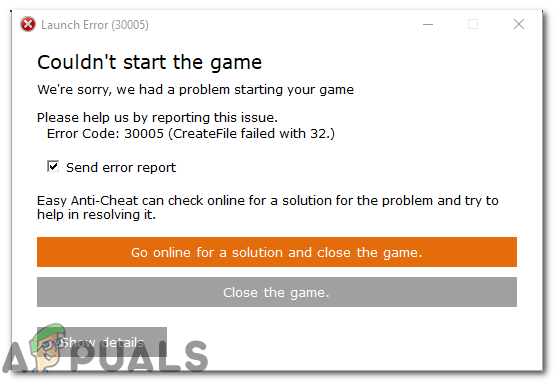
What Causes the “Error 30005: Create File Failed with 32” Error on Easy Anti-Cheat & How to Fix it?
We found the underlying causes to be:
- Sys File: Sometimes the sys file located inside the main folder where Easy Anti-cheat has been installed might be preventing the software from being able to create another file due to which the error is being triggered. This file only contains the launch data of a particular game at a particular time.
- Game Verification: Sometimes, the game that you are trying to launch might have gotten corrupted or some of its files might be missing due to which the error is being triggered. It is very important that all of the game files are verified by the Easy Anti-Cheat service before the game is launched. If the game has been installed through steam, the file integrity also needs to be verified.
- Service-Disabled: In some cases, the Easy Anti-Cheat service might have either been disabled by the user or by optimization software. However, the Games associated with the Easy Anti-Cheat Protection need this service to be up and running before they can be launched. If the service is disabled or its functionality has been limited, this error might be triggered.
- Anti-Virus: It is possible that the Anti-virus or the Anti-malware software that you have installed on your computer might be blocking the Easy Anti-Cheat service from being able to access the internet due to which the error is being triggered.
Solution 1: Deleting the SYS File
There is an SYS file located inside the Easy Anti-Cheat Folder that might be preventing the creation of any other file by the Easy Anti-Cheat Service. Therefore, in this step, we will be deleting that file and it will automatically be replaced by another. For that:
- Navigate to the folder where you installed Easy Anti-Cheat Service.
- Open the folder and right-click on the “EasyAntiCheat.sys” file.
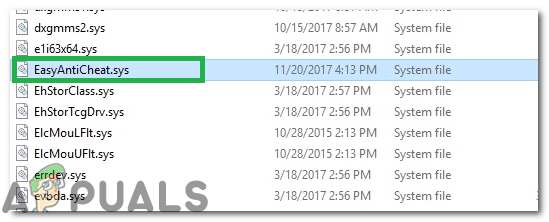
Deleting the “EasyAntiCheat.sys.” File - Select the “Delete” option to remove the file from your computer.
- Start the game and check to see if the issue persists.
Solution 2: Verifying Game
In some cases, the game file might be missing it might have gotten unverified due to which the error is being triggered. Therefore, in this step, we will be verifying the game through Easy Anti-Cheat. For that:
- Go in the EasyAntiCheat folder and launch the EasyAntiCheat.exe
- It will show up to select a game, then select the game you are facing issues with.
- Select Install or repair.
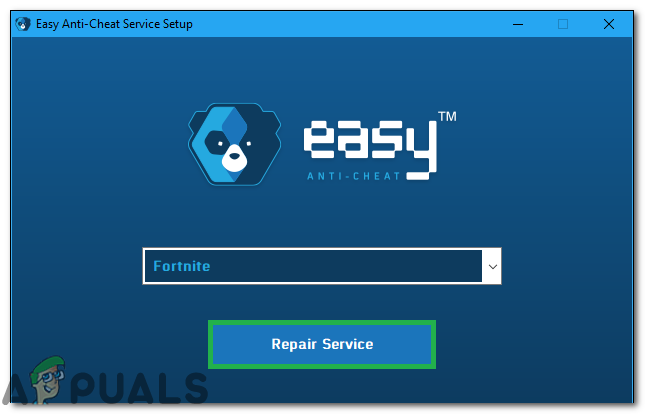
Clicking on the “Repair” button - Wait for the process to be completed and check to see if the issue persists.
Solution 3: Enabling Service
If the Easy Anti-Cheat service has been disabled by the user, it might prevent the game from being able to launch. Therefore, in this step, we will be starting that service. For that:
- Press “Windows” + “R” to open the Run prompt.
- Type in “services.msc” and press “Enter”.
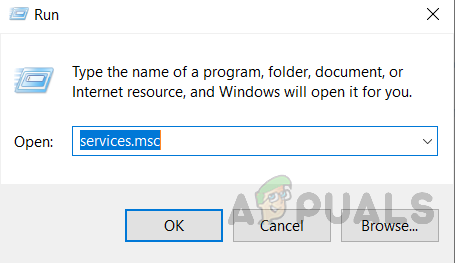
Opening services by typing “services.msc” in the RUN command. - Double-click on the Easy Anti-Cheat service and select the “Start” button.
- Click on the “Startup Type” option and select “Automatic”.a
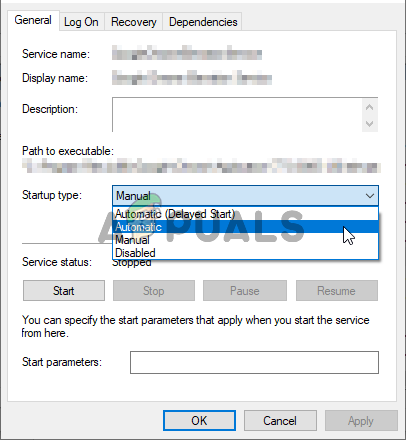
Set the service’s startup type to Automatic - Select “Apply” and then click on “OK”.
- Try to start the game and check to see if the issue persists.
Note: Disable the Antivirus installed on the system to avoid the game from being blocked.

Kevin Arrows
Kevin is a dynamic and self-motivated information technology professional, with a Thorough knowledge of all facets pertaining to network infrastructure design, implementation and administration. Superior record of delivering simultaneous large-scale mission critical projects on time and under budget.
Back to top button