Hi Guys, Today I am Going to Show You How to Fix “A low-level exception occurred in ImporterMPEG” Error in Adobe Premiere Pro?
If You’re Looking for the Commonly Searched Term “How to Fix Low-Level exception importer MPEG in Abo Premiere Pro?” (or) “A low-level exception occurred in ImporterMPEG”.You are at the Right Place to Get Your Answers & Solve the Issue/Error.
Adobe Premiere Pro is a top-selling and most often used Video Editing Program in the world. Adobe Premiere is a Non-Linear Video Editing Program launched in 2003 and was developed by Adobe Inc.Adobe Premiere Pro is used for editing videos along with audio editing ability. It can be used for many film projects, Professionals works, and much more. Adobe Premiere Pro is very useful for Individuals who are very much interested in creating and Editing video content. Adobe Premiere Pro can also be used alongside After Effects and Photoshop on many projects. Premiere Pro can be used on any platform like Mac OS or Windows computers. Adobe Premiere Pro has a very good attractive, flexible interface which makes everyone a fan of it.
If You’re a Normal Video Editor or Video Editing Professional, then You must have faced the low-level exception that occurred in ImporterMPEG Error. When You’re Working on Video Projects for a Long time, then This Error Often Appears at some point of time while editing a video. This Errors Can Come and Go Without any Indication. This low-level exception that occurred in ImporterMPEG Error can also be caused on some of the following occasions Like If you’re Using Older Versions without Updating, Accelerated Intel H.264 decoding is Enabled and sometimes it happens when you Didn’t Delete the Media Cache for a long period of time. Usually, a Simple PC Restarting (or) Reinstallation of the Program Can Fix the Issue in Some Cases. But This can’t Work for All Users.You Don’t Need to Worry About the Error, We are Here to Help you to Solve this Issue Easily. We Provide You the Help Guides Below, Just Follow the Below Given Methods One by One Correctly.
Check Out This: How to Transfer a Domain Easily from One Registrar to Another (In 3 Steps)? | Step-By-Step Domain Transfer Tutorial
Steps For How to Fix “A low-level exception occurred in ImporterMPEG” Error in Adobe Premiere Pro?
Method 1: Update Your Adobe Premiere to Latest Version
Whenever You Face any Issues or any Bugs with it, Try to Update Your Software to the Latest Version ( Not Only Adobe Premiere Pro, Whatever the Software it is).
Method 2: Disabling Intel H.264 Decoding Option
Step 1: First of all Run Adobe Premiere Pro and Navigate to Edit Tab and Select Preferences Option
Step 2: Under Preference Tab, Select the Media Option.
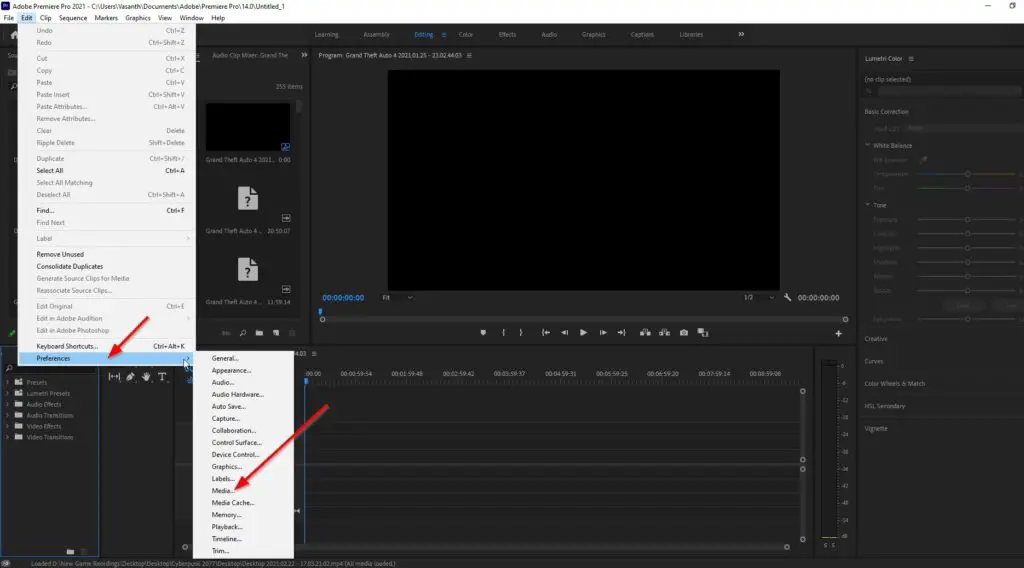
Step 3: Uncheck the Enable accelerated Intel H.264 decoding Option.
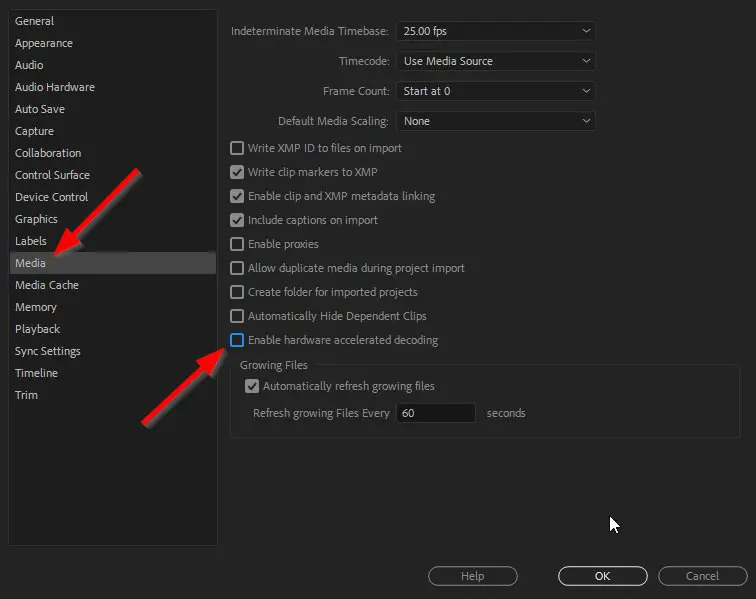
Step 4: Restart Adobe Premiere Pro.
Method 3: Switching the Mercury Playback Engine GPU Acceleration CUDA to Software Only
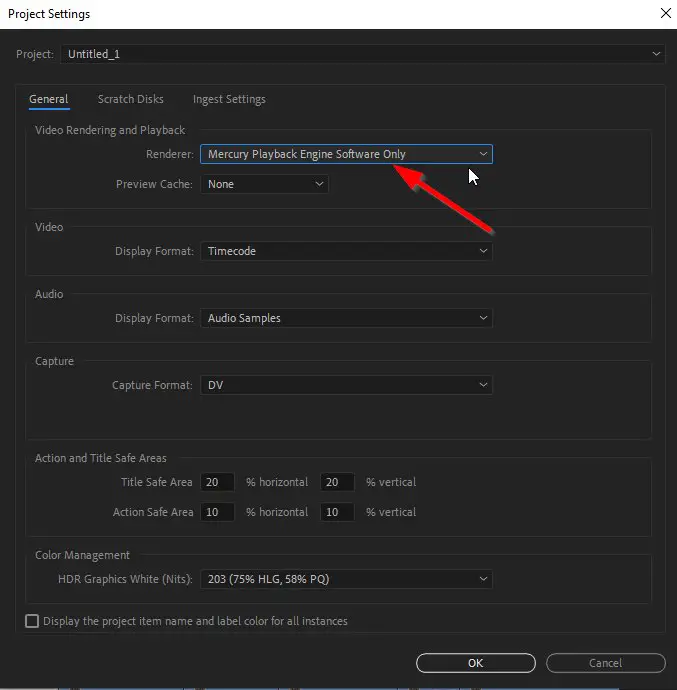
Step 1: First of all Run Adobe Premiere Pro and Navigate to File Tab and Select Project Settings Option
Step 2: In Project Settings, Select the General Option.
Step 3: Under Video Rendering and Playback, Change the Mercury Playback Engine GPU Acceleration CUDA to Mercury Playback Engine Software Only.
Step 4: Click Ok to Save and Restart Adobe Premiere Pro.
Method 4: Deleting the Media Caches
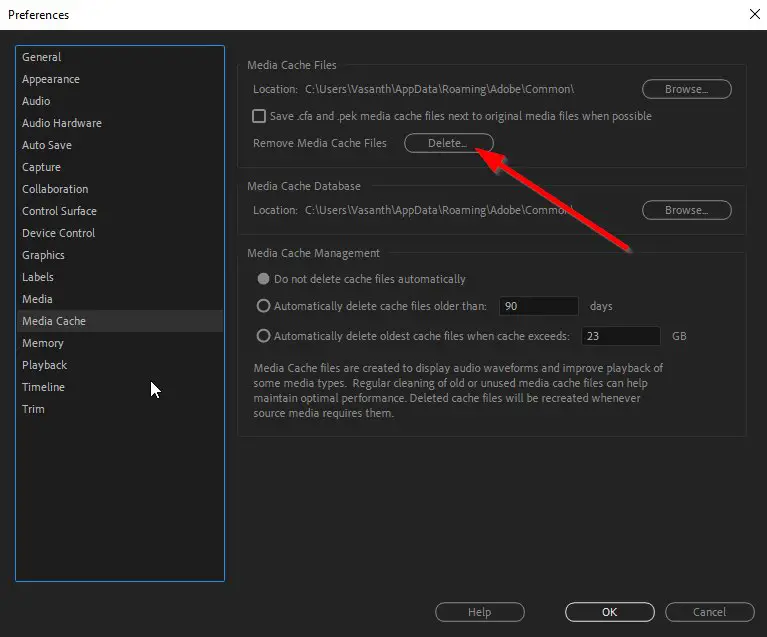
Step 1: First of all Run Adobe Premiere Pro and Navigate to Edit Tab and Select Preferences Option
Step 2: Under Preference Tab, Select the Media Cache Option.
Step 3: Click Delete Button to Remove the Media Cache Files.
Step 4: Restart Adobe Premiere Pro.
That’s It! You’re Done Man!
That’s All About this Post. Give Your Reviews / Reactions about this Post and Leave Comments, Ask Your Doubts, We are here to Help You!
Okay, first some system specs:
Macbook Pro
2.2 GHz Intel Core i7
8 GB RAM
Radeon HD 6750
OSX Lion 10.7.5
Premiere Pro CS6 (updated to lastest available version)
—I remember installing updates a few days ago (maybe last week), but don’t remember if any of them were for Premiere and could possibly be the problem.
The trouble I’m having is with one .MTS clip. I have a timeline about 20 minutes in length. I edited the whole thing and had no problems the whole time, with any clip. All clips originally imported correctly, played back fine, etc.
I exported a copy for client review (from Media Encoder CS6) the other day. One clip (the .MTS clip in question) showed as «Media Offline». It is not offline, I did not move the clip, etc. I unlinked the clip in the project, relinked it, and it did show up in the project and was able to be played back.
Exported another copy, found the same error occured with just this one clip. Now I’m noticing that when I open the project, I receive the error in the topic title (A low level exception occured in: Importer MPEG (Importer). The clip will not play back and shows up as «Media Pending», as if it’s not coming in correctly. Unlinking and relinking doesn’t fix the issue.
I have many other .MTS clips in my timeline. All of them work correctly, play back correctly, and export correctly. There doesn’t seem to be any inherent problem with the clip itself; it plays back smoothly in VLC, and I’ve transcoded it to a .mov to try and just bring that in and get around this stupid issue. This didn’t work either; I unlink the clip, then relink to the transcoded .mov — it actually will play back in the preview monitor, but will not display when trying to view it on my timeline. I have also created a copy of the project, tried this inside of the copy, as well as created a new sequence and pasted over the information; none of that worked either. There are also other sequences this clip is on, and it will not play back in any of them either, but as I mentioned, plays back in the preview.
I did find one other topic with a similar issue; they recommend deactivating Premiere, restarting the computer, and activating it again. I did do a restart initially to try and diagnose the problem, but to no avail. I tried deactivating the program, but the Adobe Application Manager doesn’t load; it has almost never loaded for me whenever I try to use it, which is frustrating in and of itself.
I tried creating an entirely new project and importing the other project. When I did this Premiere just froze; I’m assuming it can’t handle all the pieces (it’s a fairly complex project with hundreds of clips) and they are also coming off an external drive through a USB 3.0 cable.
I’ve temporarily «fixed» this by bringing in the transcoded clip, resyncing it to to the spot I need it in, and cutting it as necessary. I typed this post as I went and tried various things, and while I’ve found my way around the problem, it doesn’t really solve it. I opened another old project that was very similar to this one and also encountered the same error message. I didn’t stick around to find out if there was just one clip causing the issue; the fact that it was there was enough for me.
So, what do I need to be doing here? I’m guessing the stock answer is to uninstall Premiere and reinstall it, which I don’t want to do unless I have to since it’s a pain in the ass. I’m kind of through the problem for this project, but want to be able to deal with it for the future. Hoping someone with knowledge can chime in and tell me whether it’s the update from the other day causing this.
If the answer is to uninstall and reinstall Premiere, do I need to run some cleaner tool? I vaguely remember hearing about that before in regards to uninstalling and reinstalling.
Okay, first some system specs:
Macbook Pro
2.2 GHz Intel Core i7
8 GB RAM
Radeon HD 6750
OSX Lion 10.7.5
Premiere Pro CS6 (updated to lastest available version)
—I remember installing updates a few days ago (maybe last week), but don’t remember if any of them were for Premiere and could possibly be the problem.
The trouble I’m having is with one .MTS clip. I have a timeline about 20 minutes in length. I edited the whole thing and had no problems the whole time, with any clip. All clips originally imported correctly, played back fine, etc.
I exported a copy for client review (from Media Encoder CS6) the other day. One clip (the .MTS clip in question) showed as «Media Offline». It is not offline, I did not move the clip, etc. I unlinked the clip in the project, relinked it, and it did show up in the project and was able to be played back.
Exported another copy, found the same error occured with just this one clip. Now I’m noticing that when I open the project, I receive the error in the topic title (A low level exception occured in: Importer MPEG (Importer). The clip will not play back and shows up as «Media Pending», as if it’s not coming in correctly. Unlinking and relinking doesn’t fix the issue.
I have many other .MTS clips in my timeline. All of them work correctly, play back correctly, and export correctly. There doesn’t seem to be any inherent problem with the clip itself; it plays back smoothly in VLC, and I’ve transcoded it to a .mov to try and just bring that in and get around this stupid issue. This didn’t work either; I unlink the clip, then relink to the transcoded .mov — it actually will play back in the preview monitor, but will not display when trying to view it on my timeline. I have also created a copy of the project, tried this inside of the copy, as well as created a new sequence and pasted over the information; none of that worked either. There are also other sequences this clip is on, and it will not play back in any of them either, but as I mentioned, plays back in the preview.
I did find one other topic with a similar issue; they recommend deactivating Premiere, restarting the computer, and activating it again. I did do a restart initially to try and diagnose the problem, but to no avail. I tried deactivating the program, but the Adobe Application Manager doesn’t load; it has almost never loaded for me whenever I try to use it, which is frustrating in and of itself.
I tried creating an entirely new project and importing the other project. When I did this Premiere just froze; I’m assuming it can’t handle all the pieces (it’s a fairly complex project with hundreds of clips) and they are also coming off an external drive through a USB 3.0 cable.
I’ve temporarily «fixed» this by bringing in the transcoded clip, resyncing it to to the spot I need it in, and cutting it as necessary. I typed this post as I went and tried various things, and while I’ve found my way around the problem, it doesn’t really solve it. I opened another old project that was very similar to this one and also encountered the same error message. I didn’t stick around to find out if there was just one clip causing the issue; the fact that it was there was enough for me.
So, what do I need to be doing here? I’m guessing the stock answer is to uninstall Premiere and reinstall it, which I don’t want to do unless I have to since it’s a pain in the ass. I’m kind of through the problem for this project, but want to be able to deal with it for the future. Hoping someone with knowledge can chime in and tell me whether it’s the update from the other day causing this.
If the answer is to uninstall and reinstall Premiere, do I need to run some cleaner tool? I vaguely remember hearing about that before in regards to uninstalling and reinstalling.
Okay, first some system specs:
Macbook Pro
2.2 GHz Intel Core i7
8 GB RAM
Radeon HD 6750
OSX Lion 10.7.5
Premiere Pro CS6 (updated to lastest available version)
—I remember installing updates a few days ago (maybe last week), but don’t remember if any of them were for Premiere and could possibly be the problem.
The trouble I’m having is with one .MTS clip. I have a timeline about 20 minutes in length. I edited the whole thing and had no problems the whole time, with any clip. All clips originally imported correctly, played back fine, etc.
I exported a copy for client review (from Media Encoder CS6) the other day. One clip (the .MTS clip in question) showed as «Media Offline». It is not offline, I did not move the clip, etc. I unlinked the clip in the project, relinked it, and it did show up in the project and was able to be played back.
Exported another copy, found the same error occured with just this one clip. Now I’m noticing that when I open the project, I receive the error in the topic title (A low level exception occured in: Importer MPEG (Importer). The clip will not play back and shows up as «Media Pending», as if it’s not coming in correctly. Unlinking and relinking doesn’t fix the issue.
I have many other .MTS clips in my timeline. All of them work correctly, play back correctly, and export correctly. There doesn’t seem to be any inherent problem with the clip itself; it plays back smoothly in VLC, and I’ve transcoded it to a .mov to try and just bring that in and get around this stupid issue. This didn’t work either; I unlink the clip, then relink to the transcoded .mov — it actually will play back in the preview monitor, but will not display when trying to view it on my timeline. I have also created a copy of the project, tried this inside of the copy, as well as created a new sequence and pasted over the information; none of that worked either. There are also other sequences this clip is on, and it will not play back in any of them either, but as I mentioned, plays back in the preview.
I did find one other topic with a similar issue; they recommend deactivating Premiere, restarting the computer, and activating it again. I did do a restart initially to try and diagnose the problem, but to no avail. I tried deactivating the program, but the Adobe Application Manager doesn’t load; it has almost never loaded for me whenever I try to use it, which is frustrating in and of itself.
I tried creating an entirely new project and importing the other project. When I did this Premiere just froze; I’m assuming it can’t handle all the pieces (it’s a fairly complex project with hundreds of clips) and they are also coming off an external drive through a USB 3.0 cable.
I’ve temporarily «fixed» this by bringing in the transcoded clip, resyncing it to to the spot I need it in, and cutting it as necessary. I typed this post as I went and tried various things, and while I’ve found my way around the problem, it doesn’t really solve it. I opened another old project that was very similar to this one and also encountered the same error message. I didn’t stick around to find out if there was just one clip causing the issue; the fact that it was there was enough for me.
So, what do I need to be doing here? I’m guessing the stock answer is to uninstall Premiere and reinstall it, which I don’t want to do unless I have to since it’s a pain in the ass. I’m kind of through the problem for this project, but want to be able to deal with it for the future. Hoping someone with knowledge can chime in and tell me whether it’s the update from the other day causing this.
If the answer is to uninstall and reinstall Premiere, do I need to run some cleaner tool? I vaguely remember hearing about that before in regards to uninstalling and reinstalling.
On opening the project all media loading normaly and after that program crashes without any error, just gone…
Sometimes it shows this error before closing itself.
I have worked with this project quit a while, all media clips have been imported and edited already without issues, so it can not depend on some demaged videos.
After last Premiere CC 13.1.2 this problem occurs.
But not always, sometimes the project loads normaly, but I would say 90% it crashes..
When the project is laoded and did not crash there is no problem after that with any clip, issues occurs just on loading the project media…!?
And yes I have tried all of this :
— enough space on disk, used different disks
— enough RAM (Windows 10 / i5)
— deleted all media cache, tried different new cache locations
— user preferences deleted
— reboots
— reinstall premiere
— used different devices (ssd, hdd)
— made a new admin user in windows and complete install of premiere
Please help or fix!
I can not work at all at this project!
Thx
On opening the project all media loading normaly and after that program crashes without any error, just gone…
Sometimes it shows this error before closing itself.
I have worked with this project quit a while, all media clips have been imported and edited already without issues, so it can not depend on some demaged videos.
After last Premiere CC 13.1.2 this problem occurs.
But not always, sometimes the project loads normaly, but I would say 90% it crashes..
When the project is laoded and did not crash there is no problem after that with any clip, issues occurs just on loading the project media…!?
And yes I have tried all of this :
— enough space on disk, used different disks
— enough RAM (Windows 10 / i5)
— deleted all media cache, tried different new cache locations
— user preferences deleted
— reboots
— reinstall premiere
— used different devices (ssd, hdd)
— made a new admin user in windows and complete install of premiere
Please help or fix!
I can not work at all at this project!
Thx
Автор:
Roger Morrison
Дата создания:
17 Сентябрь 2021
Дата обновления:
19 Январь 2023

Содержание
- Что вызывает сообщение об ошибке «Импортер сообщил об общей ошибке» в Adobe Premiere?
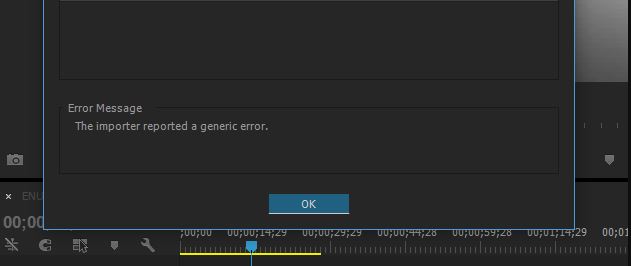
Adobe Premiere — одно из ведущих программ для редактирования видео. Adobe Premiere Pro является преемником Adobe Premiere. Программа была впервые представлена в 2003 году и вскоре получила известность благодаря удобному интерфейсу, функциям и эффективности. Как и любое другое приложение, оно время от времени вызывает у пользователей несколько ошибок. Один из них — «Импортер сообщил об общей ошибке‘ сообщение об ошибке. Это появляется, когда вы пытаетесь импортировать видео на временную шкалу с помощью импортера. Это может быть связано с множеством причин, например, неподдерживаемым кодеком или форматом видеофайла.

В этой статье мы рассмотрим сообщение об ошибке, обсудив его причины, а затем упомянем решения, которые вы можете применить, чтобы избавиться от сообщения об ошибке; тщательно. Итак, начнем с причин.
Как мы упоминали ранее, сообщение об ошибке появляется, когда вы используете импортер для импорта видеофайлов. Это может быть связано со следующими причинами:
- Неподдерживаемый кодек: Все устройства видеозаписи используют разные кодеки. Если кодек не поддерживается программным обеспечением Adobe Premiere Pro, вы не сможете импортировать его на шкалу времени. В таком случае вам придется изменить кодек видеофайлов.
- Неподдерживаемый формат видеофайлов: Adobe Premiere довольно щедро предлагает формат видеофайлов, однако он не поддерживает все форматы видеофайлов по очевидным причинам. Поэтому, если видео, которое вы пытаетесь импортировать, не поддерживается приложением, вы, в конечном итоге, наткнетесь на сообщение об ошибке.
- Проблемы с активацией: По словам Adobe, проблемы с активацией иногда могут нарушить некоторые функции импортера. Поэтому убедитесь, что программное обеспечение активировано и вы вошли в свою учетную запись Creative Cloud.
- Имя видео файла: В некоторых случаях проблема также может быть вызвана названием видеофайла. В имени файла могут быть символы, которые вызывают всплывающее окно.
С учетом сказанного, давайте перейдем к реальной части и поможем вам пройти через это испытание. Пожалуйста, следуйте всем предложенным решениям, если одно или два из них не работают для вас.
Решение 1. Проверьте формат видеофайла и кодек
Первое, что вам следует сделать, когда вы столкнетесь с сообщением об ошибке, — это убедиться, что формат видео и кодек поддерживается Adobe. Некоторые кодеки не поддерживаются Adobe Premiere, например, Adobe отказалась от поддержки кодека QuickTime. В таком случае вам придется перекодировать отснятый материал в более новый / современный кодек.
Точно так же, если формат видеофайла не поддерживается Adobe, вы не сможете импортировать файл. Точно так же вам придется изменить формат видеофайла, что довольно просто. Пожалуйста, обратитесь к этому ссылка на сайт список поддерживаемых форматов видеофайлов.
Решение 2. Очистка кеша файлов мультимедиа
Еще вы можете попытаться удалить кэш медиафайлов, а затем попытаться импортировать файлы. Когда вы импортируете видео или аудио файлы в Adobe Premiere, он сохраняет версии этих файлов, к которым он может быстро получить доступ снова для повышения производительности. Эти сохраненные версии называются файлами кэша мультимедиа. Вот как удалить файлы:
- близко Adobe Premiere Pro а затем перейдите к Users AppData Roaming Adobe Common каталог. Обратите внимание, что Данные приложения По умолчанию папка скрыта, поэтому убедитесь, что вы ее открыли.
- Если вы используете Mac, пожалуйста, перейдите к / Пользователи // Библиотека / Поддержка приложений / Adobe / Common каталог.
- Удалите файлы а затем запустите Adobe Premiere Pro.
- Если у вас возникли трудности с поиском указанного выше пути, вы также можете просто перейти на Предпочтения а затем перейдите к Медиа-кеш таб.

Решение 3. Переместите файлы в другое место или переименуйте их
В некоторых случаях проблема может быть связана с указанным путем к видео- или аудиофайлам. В таком случае вам придется изменить путь к файлам, то есть переместить их на другой диск или просто в другую папку. Об этом сообщили многие пользователи, и это помогло им решить проблему.
Вы также можете попробовать просто переименовать файлы в том же каталоге, а затем попробовать импортировать файлы. Если не работает, просто переместите их в другое место.
Решение 4. Переустановите Premiere Pro
Если все вышеупомянутые решения не работают для вас, возможно, возникла проблема с установкой программного обеспечения, и вам придется переустановить его. Вот как это сделать:
- Открыть Creative Cloud.
- Удалить Adobe Premiere Pro при сохранении настроек (опция при удалении).

- После этого установите его снова и посмотрите, решит ли он проблему.
Обновлено 2023 января: остановите эти сообщения об ошибках и устраните распространенные проблемы с помощью этого инструмента. Получить сейчас в эту ссылку
- Скачайте и установите программного обеспечения.
- Он просканирует ваш компьютер на наличие проблем.
- Затем инструмент исправить проблемы которые были найдены.
Adobe Premiere Pro, несомненно, является одним из самых популярных и широко используемых программ для редактирования видео. Это программное обеспечение имеет множество расширенных функций, которые позволяют пользователю создавать потрясающие фильмы и высококачественный контент.
Хотя Adobe Premiere Pro очень популярен и широко используется, он иногда характеризуется нестабильностью и необычным поведением из-за постоянных обновлений и новых функций.
Итак, в этой статье мы рассмотрим две наиболее распространенные проблемы с Premiere Pro, а именно сообщение Premiere Pro Importer о распространенной ошибке.
В большинстве случаев проблем с видео нет, это проблема, связанная с тем, что программное обеспечение не может его обработать и обнаружить.
Регулярное развитие и гибкость могут быть важными факторами в этом отношении. Вот почему бета-версии и недоработанные программы так распространены в современном цифровом мире. Это приводит к следующей проблеме: Importer сообщает об общей ошибке, Importer Premiere Pro сообщает об общей ошибке.
Кодек не поддерживается:
Все устройства видеозахвата используют разные кодеки. Если кодек не поддерживается в Adobe Premiere Pro, вы не сможете импортировать его на временную шкалу. В этом случае необходимо изменить кодек видеофайла.
Неподдерживаемый формат видеофайла:
Adobe Premiere довольно щедр на форматы видеофайлов, но по понятным причинам поддерживает не все форматы видеофайлов. Таким образом, если видео, которое вы пытаетесь импортировать, не поддерживается приложением, вы получите сообщение об ошибке.
Проблемы с активацией:
По словам Adobe, проблемы с активацией иногда могут мешать работе некоторых функций импортера. Поэтому убедитесь, что программа активирована и вы вошли в свою учетную запись Creative Cloud.
Имя видеофайла:
В некоторых случаях имя видеофайла также может вызвать проблему. Некоторые символы в имени файла могут быть причиной проблемы.
Как исправить ошибку?
Обновлено: январь 2023 г.
Этот инструмент настоятельно рекомендуется, чтобы помочь вам исправить вашу ошибку. Кроме того, этот инструмент обеспечивает защиту от потери файлов, вредоносных программ и аппаратных сбоев, а также оптимизирует работу вашего устройства для достижения максимальной производительности. Если у вас уже есть проблема с компьютером, это программное обеспечение может помочь вам решить ее и предотвратить повторение других проблем:
- Шаг 1: Установите инструмент восстановления и оптимизации ПК. (Виндовс 10, 8, 7, ХР, Виста).
- Шаг 2: Нажмите Начать сканирование чтобы определить, какие проблемы вы испытываете с вашим компьютером.
- Шаг 3: Нажмите Починить всечтобы решить все проблемы.

Решение 1. Проверьте формат и кодек видеофайла.
Первое, что нужно сделать, когда вы видите сообщение об ошибке, — это проверить, поддерживаются ли формат видео и кодек Adobe. Некоторые кодеки не поддерживаются Adobe Premiere, например, поддержка кодека QuickTime была удалена Adobe. В этом случае вам необходимо перекодировать фильм на более новый/современный кодек.
Кроме того, если формат видеофайла не поддерживается Adobe, вы не сможете импортировать файл. Точно так же вам нужно изменить формат видеофайла, что довольно просто. По этой ссылке приведен список поддерживаемых форматов видеофайлов.
Решение 2. Очистите кеш медиафайлов
Другой вариант — очистить кэш мультимедиа, а затем попытаться импортировать файлы. Когда вы импортируете видео- или аудиофайлы в Adobe Premiere, программа сохраняет версии этих файлов, к которым вы можете быстро получить доступ снова для повышения производительности. Эти сохраненные версии называются файлами кэша мультимедиа. Вот как удалить файлы:
1.) Закройте Adobe Premiere Pro и перейдите в Пользователи AppDataРоумингAdobeОбщие каталог. Обратите внимание, что папка AppData по умолчанию скрыта, поэтому убедитесь, что она не видна.
2.) Если вы используете Mac, перейдите к /Пользователи//Библиотека/Поддержка приложений/Adobe/Общие.
3.) Удалите файлы, а затем запустите Adobe Premiere Pro.
4.) Если у вас возникли проблемы с поиском указанного выше пути, вы также можете просто перейти в «Настройки», а затем в Вкладка «Медиа-кэш».

Решение 3. Переместите файлы в другое место или переименуйте их
В некоторых случаях проблема может быть связана с указанным путем к видео- или аудиофайлам.
В этом случае нужно изменить путь к файлам, т.е. переместить их на другой диск или просто в другую папку.
Многие пользователи сообщили об этом, и это помогло им решить проблему.
Вы также можете попробовать просто переименовать файлы в том же каталоге, а затем попытаться импортировать файлы. Если это не сработает, просто переместите их в другое место.
Решение 4. Переустановите Premiere Pro
Если все вышеперечисленные решения не работают для вас, возможно, возникла проблема с установкой программного обеспечения, и вам может потребоваться его переустановка. Вот как это сделать:
1.) Откройте Creative Cloud.
2.) Удалите Adobe Premiere Pro, сохранив настройки по умолчанию (параметр удаления).

3.) Затем переустановите его и посмотрите, решит ли это проблему.
ОДОБРЕННЫЙ: Чтобы исправить ошибки Windows, нажмите здесь.
Часто задаваемые вопросы
1) Закрыть Premiere Pro и открыть снова. Затем создайте новый проект и попробуйте импортировать MP4 в Premiere Pro.
2) Сохраните другие запущенные проекты и перезагрузите компьютер.
3) Отключите и снова включите аппаратное ускорение.
Если вы видите «Файл имеет неподдерживаемый тип сжатия«, проверьте кэш мультимедиа и базу данных кэша мультимедиа в Premiere Pro. Выберите «Правка» > «Установки» > «База данных кэша мультимедиа» в Windows или Premiere Pro > «Установки» > «База данных кэша мультимедиа» в Mac OS. Запишите это расположение.
Один из них «Импортер сообщил о распространенной ошибке» сообщение об ошибке. Оно появляется при попытке импортировать видео на временную шкалу с помощью средства импорта. Это может быть вызвано многими причинами, например неподдерживаемым кодеком или форматом видеофайла.
Единственный реальный способ открыть файлы, которые не поддерживаются используемым вами программным обеспечением, — преобразовать тип файла в поддерживаемый файл. Преобразование гарантирует, что файл останется целым, и вы всегда сможете открыть его нужной вам программой. Вы можете сделать это с помощью онлайн-конверсионных сайтов.
Сообщение Просмотров: 124