I am running Windows 10 Pro 1809
I wish to install active directory on the computer; however, when I attempt to use powershell command:
Get-WindowsCapability -Name RSAT* -Online | Add-WindowsCapability -Online
I get the following error:
Add-WindowsCapability : Add-WindowsCapability failed. Error code = 0x800f0950
At line:1 char:45
+ ... WindowsCapability -Name RSAT* -Online | Add-WindowsCapability -Online
+                                             ~~~~~~~~~~~~~~~~~~~~~~~~~~~~~
    + CategoryInfo          : NotSpecified: (:) [Add-WindowsCapability], COMException
    + FullyQualifiedErrorId : Microsoft.Dism.Commands.AddWindowsCapabilityCommand
It is also worth noting the command:
Get-WindowsCapability -Name RSAT* -Online | Select-Object -Property DisplayName, State
Displays the following:
DisplayName                                                                          State
-----------                                                                          -----
RSAT: Active Directory Domain Services and Lightweight Directory Services Tools NotPresent
RSAT: BitLocker Drive Encryption Administration Utilities                       NotPresent
RSAT: Active Directory Certificate Services Tools                               NotPresent
RSAT: DHCP Server Tools                                                         NotPresent
RSAT: DNS Server Tools                                                          NotPresent
RSAT: Failover Clustering Tools                                                 NotPresent
RSAT: File Services Tools                                                       NotPresent
RSAT: Group Policy Management Tools                                             NotPresent
RSAT: IP Address Management (IPAM) Client                                       NotPresent
RSAT: Data Center Bridging LLDP Tools                                           NotPresent
RSAT: Network Controller Management Tools                                       NotPresent
RSAT: Network Load Balancing Tools                                              NotPresent
RSAT: Remote Access Management Tools                                            NotPresent
RSAT: Remote Desktop Services Tools                                             NotPresent
RSAT: Server Manager                                                            NotPresent
RSAT: Shielded VM Tools                                                         NotPresent
RSAT: Storage Migration Service Management Tools                                NotPresent
RSAT: Storage Replica Module for Windows PowerShell                             NotPresent
RSAT: System Insights Module for Windows PowerShell                             NotPresent
RSAT: Volume Activation Tools                                                   NotPresent
RSAT: Windows Server Update Services Tools                                      NotPresent
asked Dec 24, 2018 at 21:26
1
Try this:
Open Powershell with Admin permissions and add the folowing:
Set Windows Update Server Key to 0
Set-ItemProperty -Path HKLM:SOFTWAREPoliciesMicrosoftWindowsWindowsUpdateAU -Name UseWUServer -Value 0
Restart Windows Update Service
Restart-Service -Name wuauserv -Force
Get RSAT Tools
Get-WindowsCapability -Name RSAT* -Online | Add-WindowsCapability -Online
Set Windows Update Server Key to 1
Set-ItemProperty -Path HKLM:SOFTWAREPoliciesMicrosoftWindowsWindowsUpdateAU -Name UseWUServer -Value 1
Restart Windows Update Service
Restart-Service -Name wuauserv -Force
Done

Theo
55.3k8 gold badges23 silver badges40 bronze badges
answered Jun 7, 2019 at 15:49

3
Apparently error code 0x800f0950 means «not enough sources to install something«, it’s possible that one or more of RSAT tools require .NET 3.5 which requires additional sources to be installed. Please check if you have .NET 3.5 installed, then install it if not and run RSAT install again.
answered Dec 25, 2018 at 8:12

VesperVesper
18.5k6 gold badges37 silver badges60 bronze badges
On my system, I did this to add the RepairContentServerSource right :
> New-ItemProperty -Path HKLM:SoftwareMicrosoftWindowsCurrentVersionPoliciesServicing -Name RepairContentServerSource -Type dword -Value 2
To install the specific RSAT.ActiveDirectory, type this :
> Get-WindowsCapability -Name RSAT.ActiveDirectory.* -Online | Add-WindowsCapability -Online

Path          :
Online        : True
RestartNeeded : False
To install ALL the RSAT Tools, type this :
> Get-WindowsCapability -Name RSAT.* -Online | Add-WindowsCapability -Online

Path          :
Online        : True
RestartNeeded : False

... # There are actually 21 RSAT components, so this appears 21 times

Path          :
Online        : True
RestartNeeded : False
and finally, type this :
> Set-ItemProperty -Path HKLM:SoftwareMicrosoftWindowsCurrentVersionPoliciesServicing -Name RepairContentServerSource -Type dword -Value 0
See this document for the registry values : https://admx.help/?Category=Windows_10_2016&Policy=Microsoft.Policies.Servicing::Servicing
answered Jul 22, 2022 at 11:51

SebMaSebMa
3,74528 silver badges35 bronze badges
- Remove From My Forums
-
Вопрос
-
Good afternoon,
We’re starting to push out Windows 10 v1809 for our new workstations and we’ve hit a bump — I can’t get snmp to work on those workstations. If I go to Control Panel > Windows Features there’s no snmp option. Using the following command:
Add-WindowsCapability -Online -Name "SNMP.Client~~~~0.0.1.0"
under PowerShell as administrator gives the following error message:
Access is denied.
+ CategoryInfo : NotSpecified: (:) [Add-WindowsCapability], COMException
+ FullyQualifiedErrorId : Microsoft.Dism.Commands.AddWindowsCapabilityCommand
I tried changing to the domain admin account but I get the same «Access is denied» error.
I found this command:
dism.exe /online /enable-feature /featurename:"SNMP" /featurename:"WMISnmpProvider"
but that gives me this error:
PS C:WINDOWSsystem32> dism.exe /online /enable-feature /featurename:"SNMP" /featurename:"WMISnmpProvider"

Deployment Image Servicing and Management tool
Version: 10.0.17763.1

Image Version: 10.0.17763.134

Error: 0x800f080c

Feature name SNMP is unknown.
Feature name WMISnmpProvider is unknown.
A Windows feature name was not recognized.
Use the /Get-Features option to find the name of the feature in the image and try the command again.

The DISM log file can be found at C:WINDOWSLogsDISMdism.log
PS C:WINDOWSsystem32>
I looked up Error: 0x800f080c and found several posts regarding .Net. These computers have 3.5 and 4.7 installed.
Any ideas, suggestions, or recommendations on how we can get snmp working on our v1809 computers?
Thanks,
Joe B
Ответы
-
i also have something that can help you.
In my company we do not have access to microsoft servers (firewall rules, no windows update, no catalog…)
In my case, to install SNMP on 1809 i have to :
1) Have an internet access without restriction (my cellphone)
2) set to 0 the following registry key : HKEY_LOCAL_MACHINESOFTWAREPoliciesMicrosoftWindowsWindowsUpdateAUusewuserver en 0
launch the following commands :
netshh winhttp reset proxy
net stop wuauserv
net start wuauservedit : those commands and the registry key are about specific configuration in professionnal environment (proxy server, wsus etc…) that can mess installation from microsoft servers
3) launch the following powershell command : add-windowscapability -online -name «SNMP.Client~~~~0.0.1.0»
and it works in my case !
sorry english is not my mother tongue
-
Изменено
14 февраля 2019 г. 9:17
adding a comment -
Помечено в качестве ответа
JBruyet
14 февраля 2019 г. 15:57
-
Изменено
Содержание
- Add windowscapability сбой add windowscapability код ошибки 0x800f0907
- Вопрос
- [FIX] Error 0x800F0907 While Installing .NET Framework 3.5 In Windows 10
- Windows couldn’t complete the requested changes.
- Error: 0x800F0907
- An error has occurred. Not all of the features were successfully changed.
- FIX : Error 0x800F0907 While Installing .NET Framework 3.5 In Windows 10
- RSAT — ошибка при установке
- Ошибка 0x8024001d
- Ошибка 0x800f0954
- Add windowscapability сбой add windowscapability код ошибки 0x800f0907
- Вопрос
- Ответы
- Все ответы
Add windowscapability сбой add windowscapability код ошибки 0x800f0907

Вопрос
So I’ve been trying to add the RSAT for AD LDS by using either Powershell or Server Manager>Add Roles and Features, and the result is the same. «The referenced assembly could not be found. Error: 0x80073701.» I’ve seen in multiple posts where they found a referenced language package in the CBS log at c:windowsLogsCBSCBS.log and once they either remove the references in the registry key or install/re-install the language pack, the issue then goes away. I’m looking in my CBS.log and I don’t see anything about a language package missing. I do see some things about a different package though called «Microsoft-Windows-Foundation-Package
10.0.14393.0″ and immediately following that is errors about «ERROR_SXS_ASSEMBLY_MISSING.» When I do a «DISM /Online /Get-Package» that exact package shows up at the top of the list and says it is installed. Below is a screen shot of the error:
All of that to say, other posts I’ve seen mentioning to do a «sfc /scannow» and a «DISM /Online /Cleanup-Image /RestoreHealth.» When I tried the DISM command, it gave me another error that just simply outputs «0x800f0907» and that more can be found in the DISM.log. So I went there. It’s less helpful than the other log. All I can find there is this:
That’s all that looks relevant out of those two logs. An SFC /Scannow reports back that everything is fine. I’d copy and paste the text from the log, but I’m having issues pasting into this box right now and I don’t want to scrap this post. I’ll probably post it in a comment.
Источник
[FIX] Error 0x800F0907 While Installing .NET Framework 3.5 In Windows 10
6 Comments · Updated: November 14, 2016 · 05:37 PM · By Kapil Arya · Applies to: Troubleshooting, Windows 10
Earlier, we have seen how to enable .NET Framework in Windows 10, in following article:
However the PowerShell method discussed in above mentioned article requires you to specify the source files using Windows 10 ISO file. But if you’ve upgraded your earlier version of Windows to Windows 10, you may not have the source files with you. In that case, you can try enabling .NET Framework via Turn Windows Features On or Off page in Control Panel. However, when we tried to enable .NET 3.5 from there, we got this message:
Windows couldn’t complete the requested changes.
Windows couldn’t find required files to complete the requested changes. Make sure you’re connected to the Internet and try again.
Error: 0x800F0907
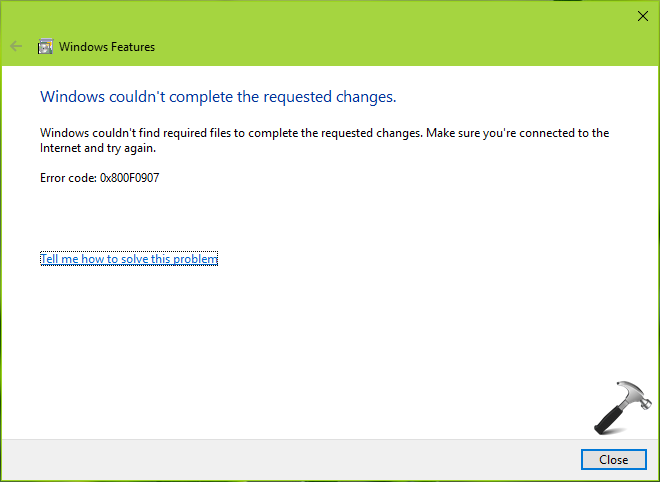
Closing the message ends operation with this message:
An error has occurred. Not all of the features were successfully changed.
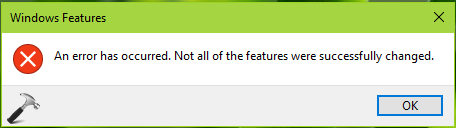
When you try to enable the .NET 3.5 from Control Panel, Windows 10 try to activate the feature by installing some required Windows Updates. This issue can be easily solved by configuring the alternative source path which can help Windows to enable the feature without much relying on Windows Update. If you’ve source path located on some network share, you can use it here. This issue can also occur if your system is configured to get upgrades via Windows Server Update Services (WSUS) instead Windows Updates. Whatever is the case, the steps mentioned below will help you to fix this error.
FIX : Error 0x800F0907 While Installing .NET Framework 3.5 In Windows 10
1. Press  + R and put gpedit.msc in Run dialog box to open Local Group Policy Editor. Click OK.
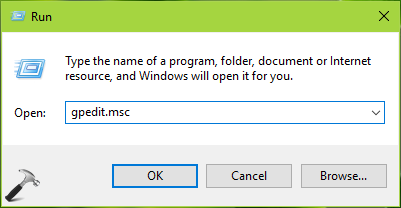
2. Next, in the Local Group Policy Editor window, navigate here:
Computer Configuration > Administrative Templates > System
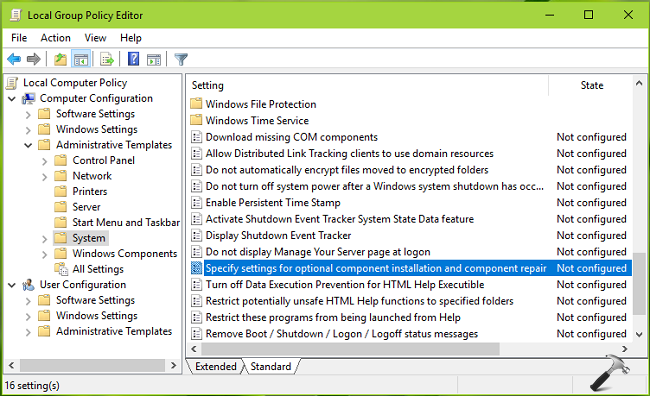
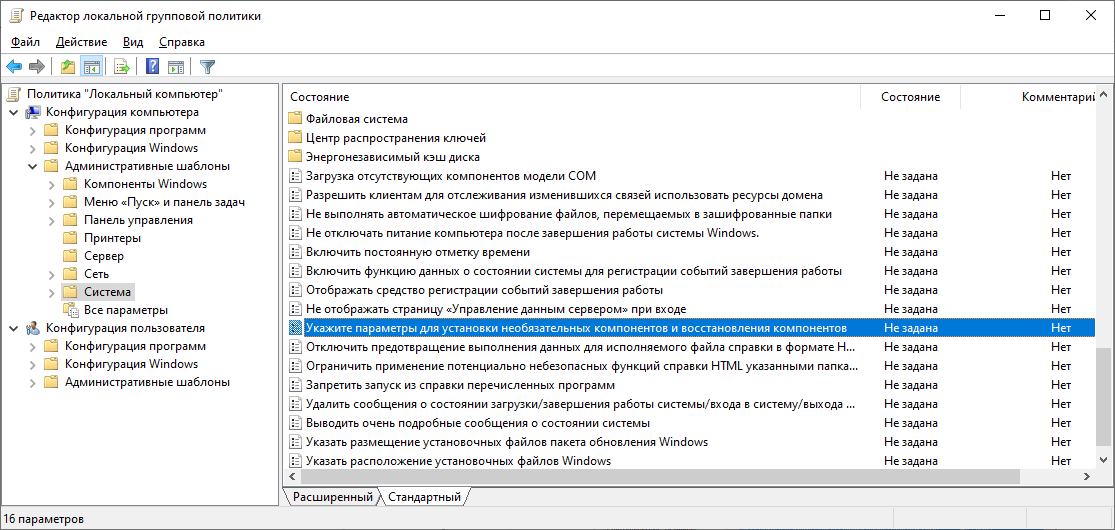
3. In the right pane of System, look for Setting named Specify settings for optional component installation and component repair. Double click on this setting to modify it:
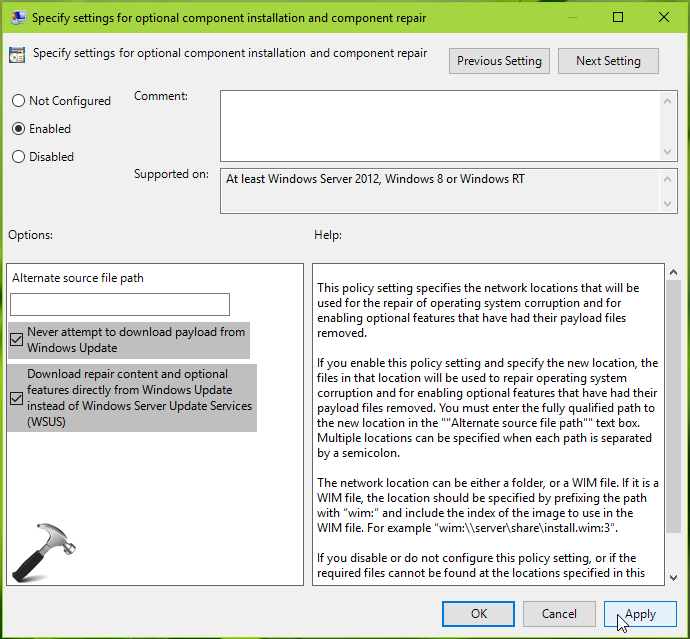
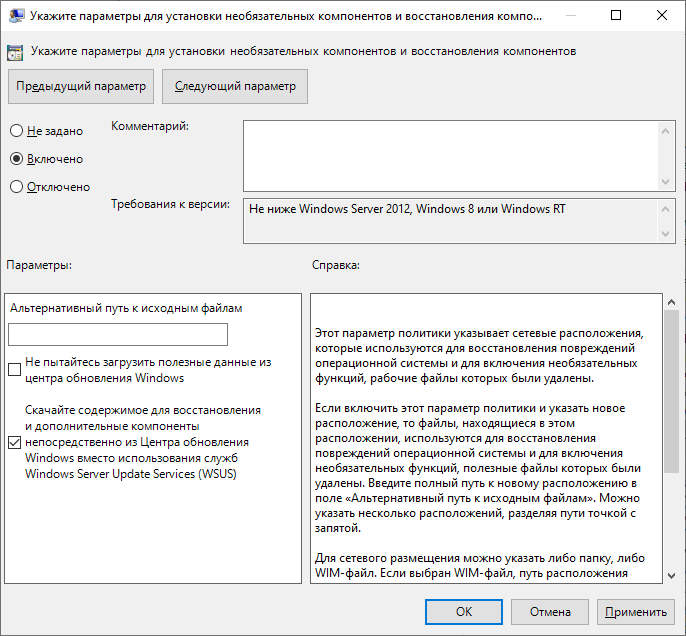
4. In the policy configuration window shown above, click on Enabled to activate the policy. Then in Options, you can specify valid alternate source file path which could have .NET Framework feature files which we’re required to enable it. You can refer policy explanation for detailed info about adding alternative source here. Also make sure Never attempt to download payload from Windows Update and Download repair content optional features directly from Windows Update instead of Windows Server Update Services (WSUS) options are checked here. Click Apply followed by OK. Close Local Group Policy Editor.
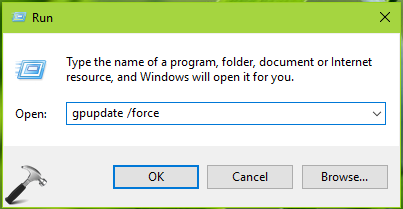
5. Press + R and put gpupdate /force in Run dialog box to update Group Policy engine. Click OK.
After updating policies, re-try to enable .NET Framework and this time it should get activated without pushing any error code.
Источник
RSAT — ошибка при установке

Remote Server Administration Tools — позволяет администрировать контроллер домена со своего рабочего компа. В моём случае с Windows 10.
Есть три способа установки:
- Общий вариант, когда мы качаем пакет и устанавливаем его вручную.
- Через дополнительные компоненты.
- Через PowerShell.
Ошибка 0x8024001d
При общем варианте установки вы можете увидеть ошибку:
Установщик обнаружил ошибку 0x8024001d
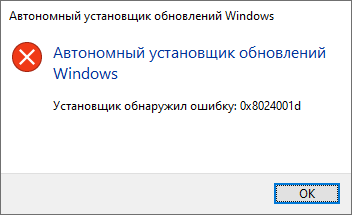
Это означает, что ваша версия Windows больше не поддерживает общий вариант установки RSAT. Устанавливайте через дополнительные компоненты или через PowerShell.
Ошибка 0x800f0954
При попытке установить RSAT через дополнительные компоненты вы можете столкнуться с ошибкой «сбой установки».
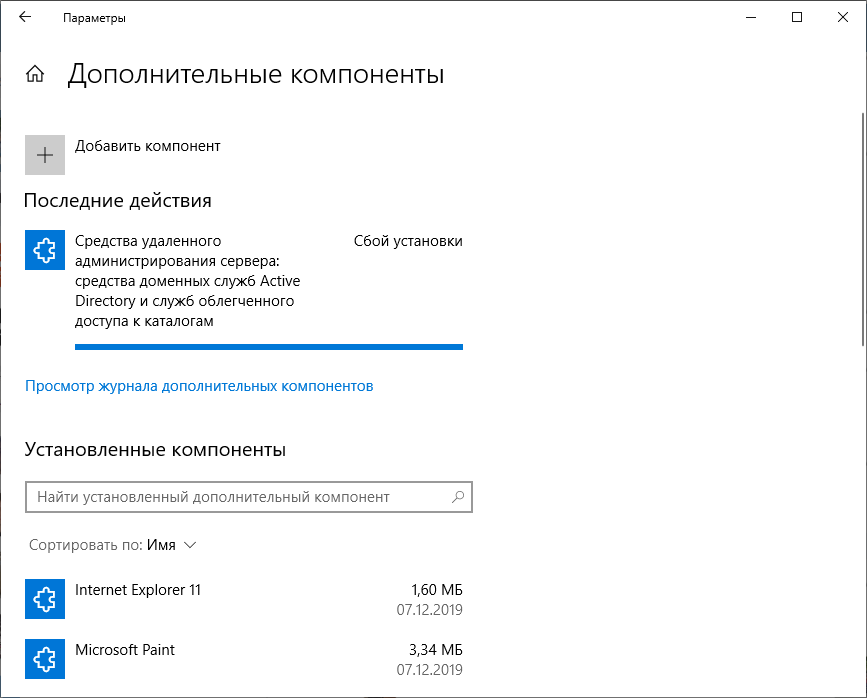
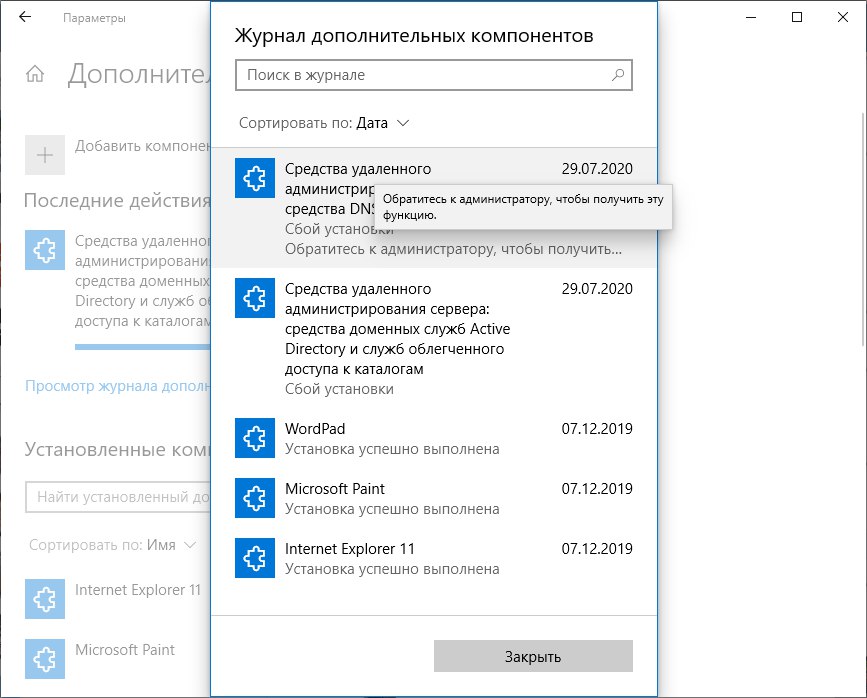
В журнале при этом ничего вразумительного не написано.
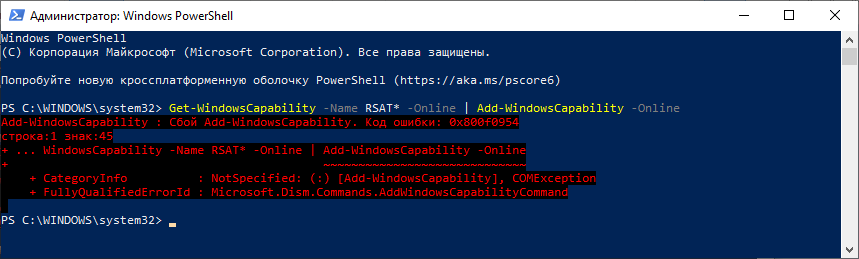
При попытке установить RSAT через PowerShell та же ошибка выглядит несколько иначе.
Сбой Add-WindowsCapability. Код ошибки: 0x800f0954
Покопавшись я понял, что проблема кроется в политиках домена, скорее всего, дополнительные компоненты пытаются установиться через доменный WSUS, а нужных пакетов там нет. С одной стороны это и не плохо, нечего юзерам ставить всякое админское ПО. С другой стороны, мне-то оно нужно.
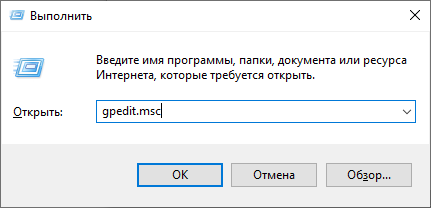
Решим проблему через локальные политики. Запускаем gpedit.msc:
Открывается редактор локальной групповой политики. Нам нужен раздел Конфигурация компьютера > Административные шаблоны > Система > Укажите параметры для установки необязательных компонентов и восстановления компонентов. Или Computer Configuration > Administrative Templates > System > Specify settings for optional component installation and component repair.
Редактируем политику. Включаем и ставим галку «Скачайте содержимое для восстановления и дополнительные компоненты непосредственно из Центра обновления Windows вместо использования служб Windows Server Update Services (WSUS)».
Теперь, если доступ в Интернет есть, всё установится. Проверяем установку RSAT через дополнительные компоненты.
Источник
Add windowscapability сбой add windowscapability код ошибки 0x800f0907
Вопрос
We’re starting to push out Windows 10 v1809 for our new workstations and we’ve hit a bump — I can’t get snmp to work on those workstations. If I go to Control Panel > Windows Features there’s no snmp option. Using the following command:
under PowerShell as administrator gives the following error message:
I tried changing to the domain admin account but I get the same «Access is denied» error.
I found this command:
but that gives me this error:
I looked up Error: 0x800f080c and found several posts regarding .Net. These computers have 3.5 and 4.7 installed.
Any ideas, suggestions, or recommendations on how we can get snmp working on our v1809 computers?
Ответы
i also have something that can help you.
In my company we do not have access to microsoft servers (firewall rules, no windows update, no catalog. )
In my case, to install SNMP on 1809 i have to :
1) Have an internet access without restriction (my cellphone)
2) set to 0 the following registry key : HKEY_LOCAL_MACHINESOFTWAREPoliciesMicrosoftWindowsWindowsUpdateAUusewuserver en 0
launch the following commands :
netshh winhttp reset proxy
net stop wuauserv
net start wuauserv
edit : those commands and the registry key are about specific configuration in professionnal environment (proxy server, wsus etc. ) that can mess installation from microsoft servers
3) launch the following powershell command : add-windowscapability -online -name «SNMP.Client
and it works in my case !
sorry english is not my mother tongue
Все ответы
I also found a suggestion to change this setting from 1 to 0 but no joy there either:
Get-WindowsCapability -Online -Name «SNMP*»
Add-WindowsCapability -Online -Name «SNMP.Client
Please remember to mark the replies as answers if they help.
If you have feedback for TechNet Subscriber Support, contact tnmff@microsoft.com.
Good morning Teemo,
I ran those two commands but neglected to include the first one. Here’s a copy of both commands and their results:
I ran this as administrator.
PS C:UsersjobeeDocuments> Add-WindowsCapability -Online -Name «SNMP.Client
Access is denied.
Please note your PS command path is C:UsersjobeeDocuments>, not C:WINDOWSsystem32>, this might be reason.
Press Win + X, then you will see a menu, click Windows PowerShell(Admin), the type our commands again for test.
Please remember to mark the replies as answers if they help.
If you have feedback for TechNet Subscriber Support, contact tnmff@microsoft.com.
Any other ideas?
Your command pat is still C:UsersjobeeDocuments>
Try to use built-in Administrator for test. Enable it via Computer ManagementLocal Users and GroupsUsers
Run PowerShell as administrator
Please remember to mark the replies as answers if they help.
If you have feedback for TechNet Subscriber Support, contact tnmff@microsoft.com.
Nope, it still won’t work:
This was done as the Domain Administrator and by running PowerShell as administrator. I checked the Event Log on that computer but nothing was noted from when I was trying to do the install. What is my next diagnostic option?
I just found out I can go to Settings > Apps & Features > Manage Optional Features > Add a Feature > SNMP and click on the INSTALL button to install it. BUT, when I click on it the snmp option disappears for about two minutes then that page refreshes and SNMP is once again an available option. I checked in Services to see if maybe it actually was getting installed but no joy. I tried installing WMI SNMP Provider thinking there was a dependency issue but I get the same results as the SNMP install. I even tried it on another computer but I’m getting the same results.
Ideas? Suggestions? Recommendations?
I was checking the event logs for snmp installation errors on the target machines and wasn’t finding anything. Today I tried a couple of times to install snmp using PowerShell and saw that three entries go into the Application log on the target computer. The first section of two of the three entries look like this:
There are some other entries about files but the only file I found was a .XML file and it didn’t have anything about snmp or errors in it.
The third entry has the same information except for the Fault Bucket line:
I finally gave up and tried to contact Microsoft support but after about 20 minutes of latency-ridden chat support I was given a phone number to call. I’ll give that a shot tomorrow morning.
If anyone has any idea on what the problem might be please let me know. You may be directly responsible for saving my sanity.
Have you tried to install this SNMP.Client via DISM? If not, here is a little instruction:
1. On problematic machine (where you tring to install this client) run command-line as an administrator.
2. Check your DISM from command:
a. Look at list and find: «Capability Identity : SNMP.Client
b. It must to have state: «Not Present»
3. Start to trying install SNMP.Client
a. In my situation the percentage is stopping at start of operation (maybe 5%) and I’m getting a error, like: 0x800f0954 — DISM failed.
4. After that I change registry, like You wrote before:
5. And try with install, again.
In my case, command-line has showed me a message: «The operation completed successfully.» and I can start to using SNMP.
Please, let me know.
Good evening Fyshek,
I tried your process but I’m still getting the «Access is denied» error:
I got the same result before and after I changed the registry setting to 0. I checked the DISM log hoping to find some help but there were no entries from when I tried the snmp install.
Thanks for info, but I would like to ask You, if you are certainly issuing a command locally from «CMD» or «PS» in admin rights?
I’ve making this same mistake, becouse I wanted to deploy remotly via PS session (command):
and after that I have this same situation:
So I login locally (via remote desktop) on workstation and run PS or CMD in admin right, therefore I don’t have problems with «Error: 5 — Access is denied»
Try to cleanup your dism before adding capabilities, here is commands:
Good morning Fyshek,
I tried running the commands locally but still no joy. Here’s a screen shot of the commands I ran. I tried the install twice; one without the registry tweak and one with the registry tweak. They both failed with the same error.
I saved the dism log and then ran the install again. I included all of the package manager entries because after a couple of them appear in the log the errors start.These are the only errors in the log.
Looking up that error code refers to the 1 to 0 registry tweak for the fix but that didn’t help.
This is getting very strange.
I want to propose you other solution, but not tested by my.
Please check yours locally policies (gpedit.msc).
Find on: «Computer Configuration -> Administrative Templates -> System», a policy named
«Specify settings for optional component installation and component repair»
Change yours settings to «Enabled» and check the box with:
«Download repair content and optional features directly from Windows Update instead of Windows Server Update Services (WSUS)»
Apply the settings and try again.
KK.
Edit 1.:
I’ve tried on fresh OS installed on workstation and it’s worked!
I don’t changed anything before that (I’ haven’t used any command). Only what I do, it was change this policy and tried to install from windows metro panel (Settings -> Application -> Apps and Function -> Manage optional features -> add new -> SNMP protocol).
Источник

Remote Server Administration Tools — позволяет администрировать контроллер домена со своего рабочего компа. В моём случае с Windows 10.
RSAT — Remote Server Administration Tools
Есть три способа установки:
- Общий вариант, когда мы качаем пакет и устанавливаем его вручную.
- Через дополнительные компоненты.
- Через PowerShell.
Ошибка 0x8024001d
При общем варианте установки вы можете увидеть ошибку:
Установщик обнаружил ошибку 0x8024001d
Это означает, что ваша версия Windows больше не поддерживает общий вариант установки RSAT. Устанавливайте через дополнительные компоненты или через PowerShell.
Ошибка 0x800f0954
При попытке установить RSAT через дополнительные компоненты вы можете столкнуться с ошибкой «сбой установки».
В журнале при этом ничего вразумительного не написано.
При попытке установить RSAT через PowerShell та же ошибка выглядит несколько иначе.
Get-WindowsCapability -Name RSAT* -Online | Add-WindowsCapability -OnlineСбой Add-WindowsCapability. Код ошибки: 0x800f0954
Покопавшись я понял, что проблема кроется в политиках домена, скорее всего, дополнительные компоненты пытаются установиться через доменный WSUS, а нужных пакетов там нет. С одной стороны это и не плохо, нечего юзерам ставить всякое админское ПО. С другой стороны, мне-то оно нужно.
Решим проблему через локальные политики. Запускаем gpedit.msc:
gpedit.msc
Открывается редактор локальной групповой политики. Нам нужен раздел Конфигурация компьютера > Административные шаблоны > Система > Укажите параметры для установки необязательных компонентов и восстановления компонентов. Или Computer Configuration > Administrative Templates > System > Specify settings for optional component installation and component repair.
Редактируем политику. Включаем и ставим галку «Скачайте содержимое для восстановления и дополнительные компоненты непосредственно из Центра обновления Windows вместо использования служб Windows Server Update Services (WSUS)».
OK.
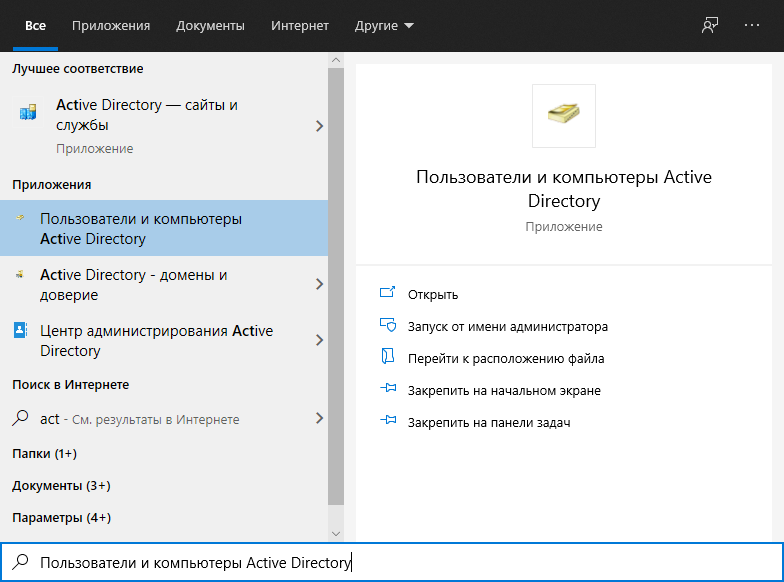
Теперь, если доступ в Интернет есть, всё установится. Проверяем установку RSAT через дополнительные компоненты.
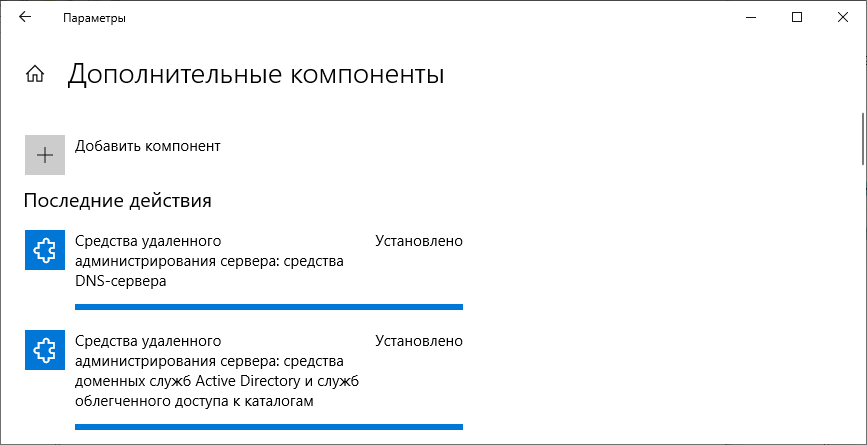
Проверяем установку RSAT через PowerShell.
Get-WindowsCapability -Name RSAT* -Online | Add-WindowsCapability -Online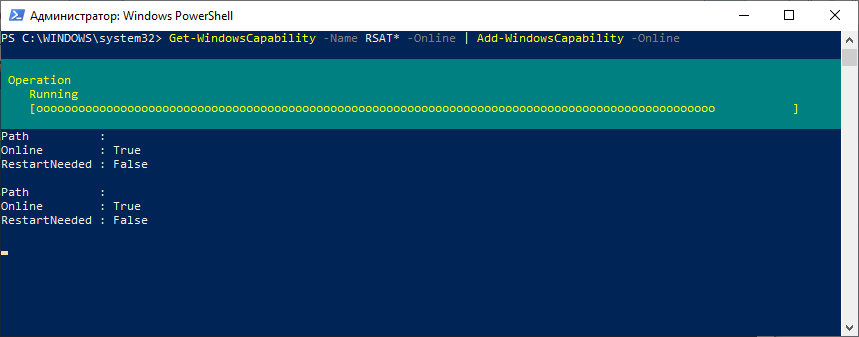
Всё устанавливается.
I just started to see this with the Feb2021 window 2019 media, this has only just started happening
TASK [systemprep : Install OpenSSH] ********************************************
fatal: [default]: FAILED! => {"changed": true, "cmd": "Get-WindowsCapability -Online -Name OpenSSH.Server* | Add-WindowsCapability -Online", "delta": "0:00:08.388772", "end": "2021-04-30 10:58:33.105127", "msg": "non-zero return code", "rc": 1, "start": "2021-04-30 10:58:24.716355", "stderr": "Add-WindowsCapability : Add-WindowsCapability failed. Error code = 0x800f0950rnAt line:1 char:119rn+ ... ability -Online -Name OpenSSH.Server* | Add-WindowsCapability -Onlinern+                                             ~~~~~~~~~~~~~~~~~~~~~~~~~~~~~rn    + CategoryInfo          : NotSpecified: (:) [Add-WindowsCapability], COMExceptionrn    + FullyQualifiedErrorId : Microsoft.Dism.Commands.AddWindowsCapabilityCommand", "stderr_lines": ["Add-WindowsCapability : Add-WindowsCapability failed. Error code = 0x800f0950", "At line:1 char:119", "+ ... ability -Online -Name OpenSSH.Server* | Add-WindowsCapability -Online", "+                                             ~~~~~~~~~~~~~~~~~~~~~~~~~~~~~", "    + CategoryInfo          : NotSpecified: (:) [Add-WindowsCapability], COMException", "    + FullyQualifiedErrorId : Microsoft.Dism.Commands.AddWindowsCapabilityCommand"], "stdout": "", "stdout_lines": []}