Обновлено 12.11.2020
Добрый день! Уважаемые читатели и гости одного из крупнейших IT блогов рунета Pyatilistnik.org. В прошлый раз мы с вами устранили на сервере ошибку «запуск этого устройства невозможен. (код 10)», из-за которой у нас некорректно работало устройство. Двигаемся дальше и сегодня вновь поговорим про сторонние утилиты которые очень часто используем на RDS фермах, а именно разберем ошибку при выборе PDF файла «Произошла внутренняя ошибка в Acrobat Reader DC 11«.
Описание ошибки An internal error occurred
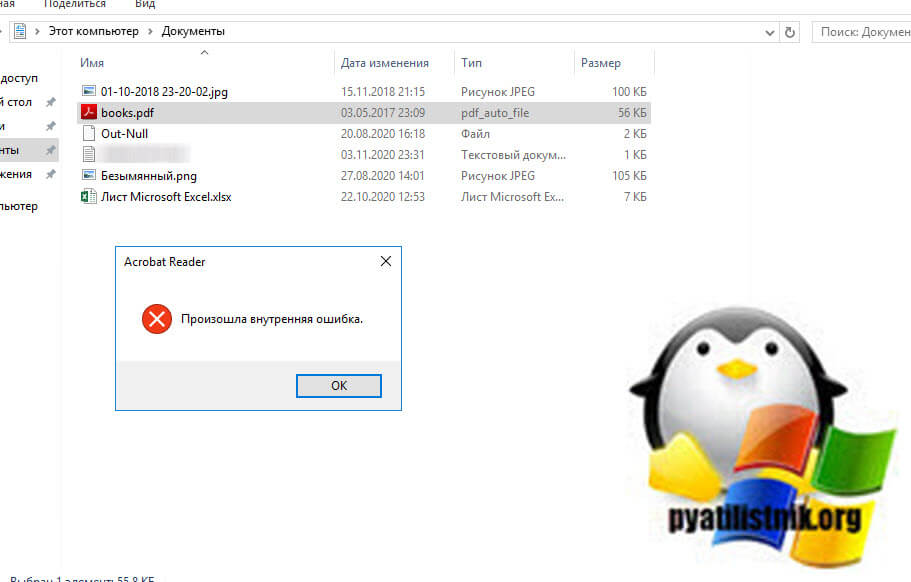
И так у меня есть новенькая Терминальная ферма Remote Desktop Services High Availability на базе Windows Server 2019. Я накатил на нее весь набор программ и успешно перевел на нее пользователей организации, путем миграции перемещаемых профилей. В какой-то момент стали поступать жалобы, что при выборе в проводнике WIndows любого файла в формате PDF появляется вот такая ошибка:
Произошла внутренняя ошибка в Acrobat Reader DC
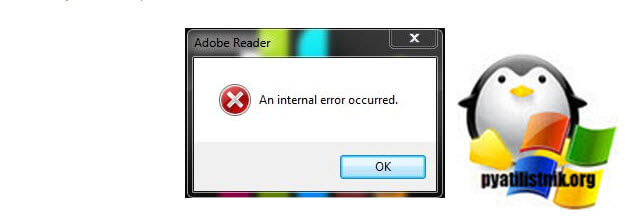
В английском варианте она звучит вот так:
An internal error occurred.
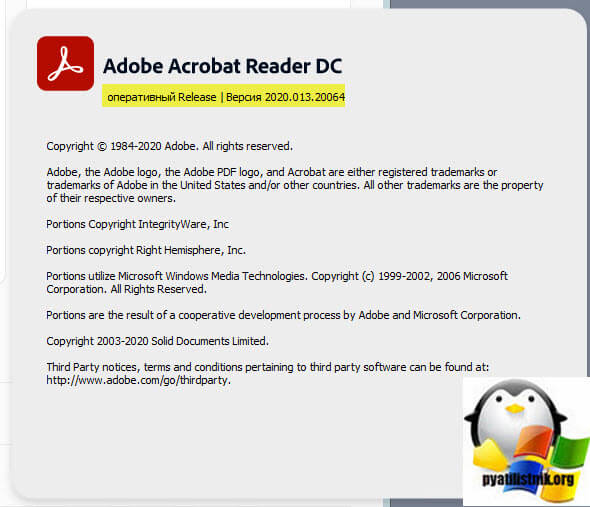
После закрытия данного окна с ошибкой, PDF файл корректно открывается. На серверах установлена последняя версия Acrobat Reader DC 2020.013.20064.
Методы устранения ошибки «An internal error occurred»
- Отключение повышенного уровня защиты через Acrobat Reader DC
- Создание ключа реестра, который так же отключает повышенный уровень защиты
- Переустановка Acrobat Reader DC
- Проверка прав доступа на
Переустановка Acrobat Reader DC
Первое с чего бы я начал, это переустановка самой программы. Это может устранить большую часть проблем, которые могут вылезти если дистрибутив поврежден. Для этого откройте окно выполнить и введите:
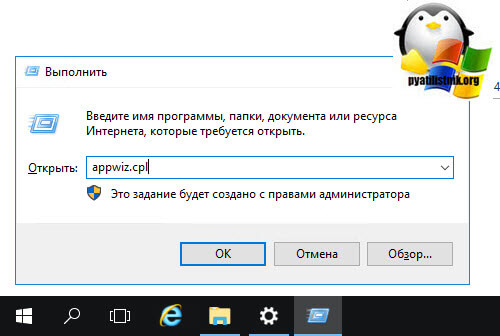
В результате чего у вас будет открыта оснастка «Программы и компоненты«. Найдите в списке приложений Acrobat Reader DC и произведите его удаление.
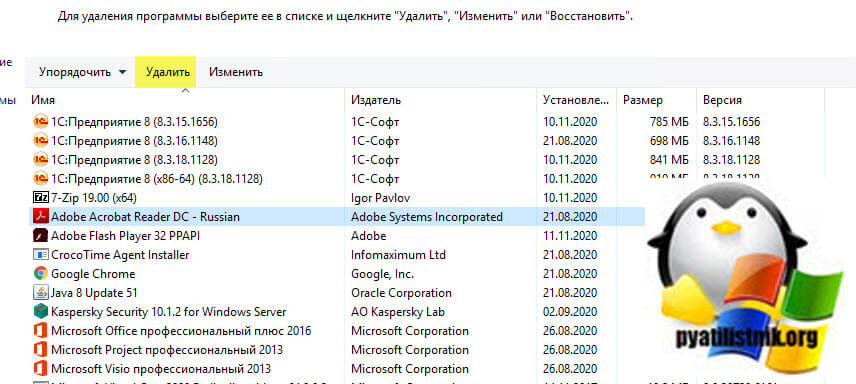
После чего перезагрузите компьютер или сервер. Далее установите приложение с нуля.
Как отключить повышенный уровень защиты
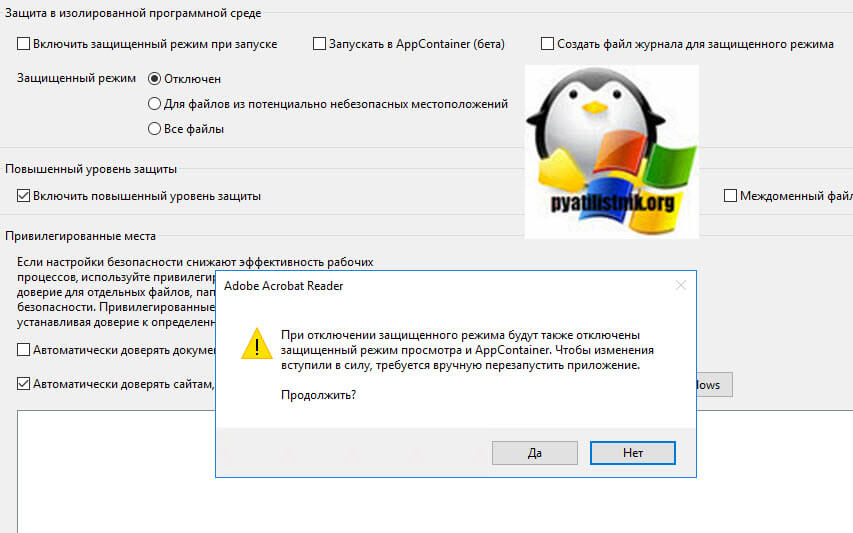
итак, чтобы отключить защищенный режим при запуске вам нужно открыть Acrobat Reader DC и нажать сочетание клавиш CTRL+K или же открыть меню «Редактирование — Установки (Edit — Preferences)«
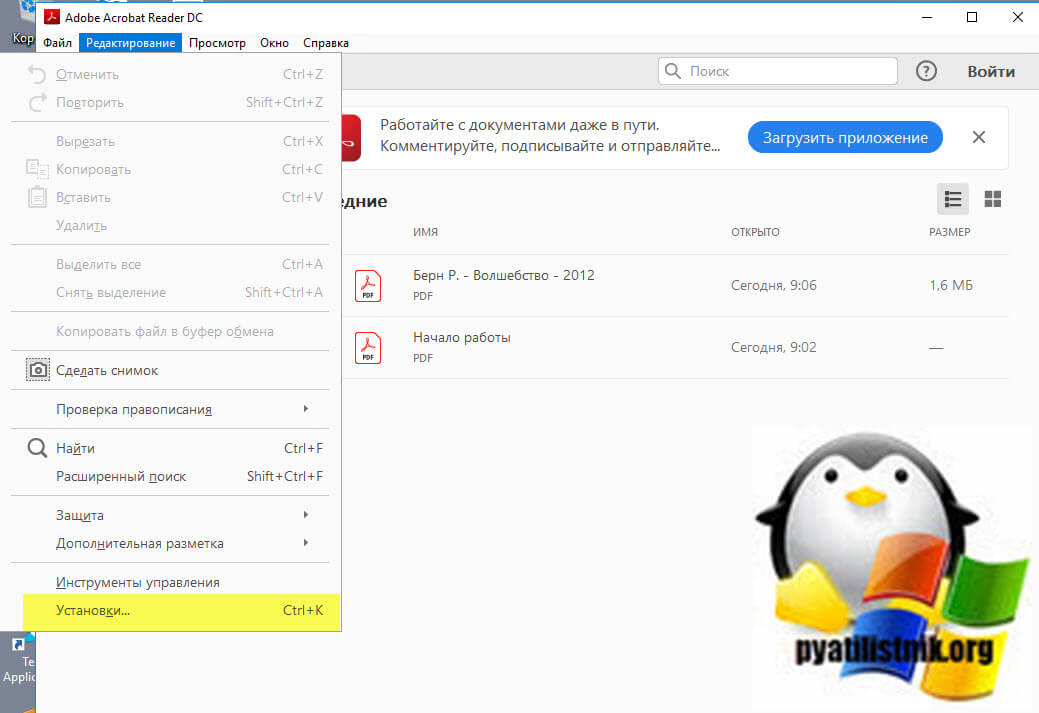
Далее открываем раздел «Защита (повышенный уровень) Security (Enhanced)«, где вам необходимо снять две галки:
-
- Включить защищенный режим при запуске (Enable Protected View Mode at Startu);
- Включить повышенный уровень защиты (Enable increased protection level)
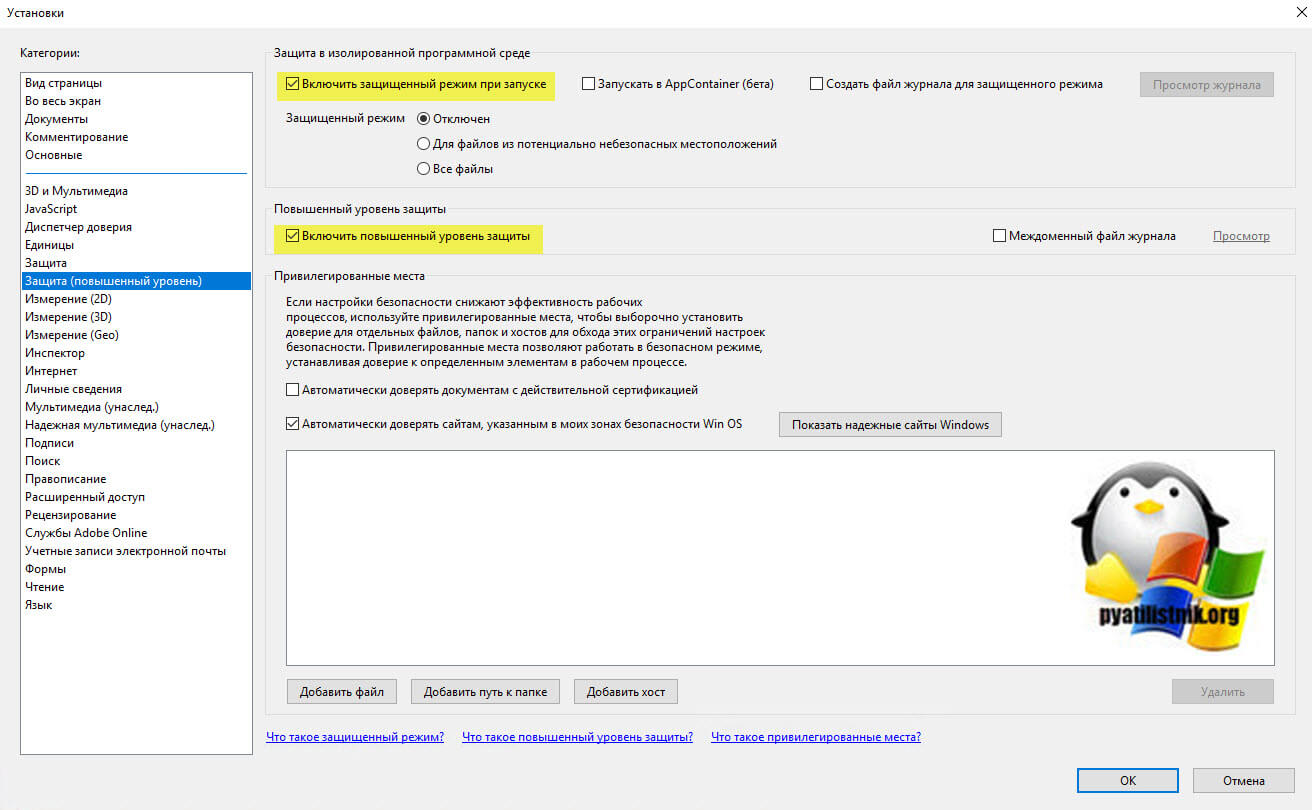
Обратите внимание, что данная настройка будет активна только после перезагрузки вашего Windows. В результате чего должно пропасть окно «Произошла внутренняя ошибка (An internal error occurred)» при запуске Acrobat Reader DC.
Как отключить повышенный уровень защиты через реестр
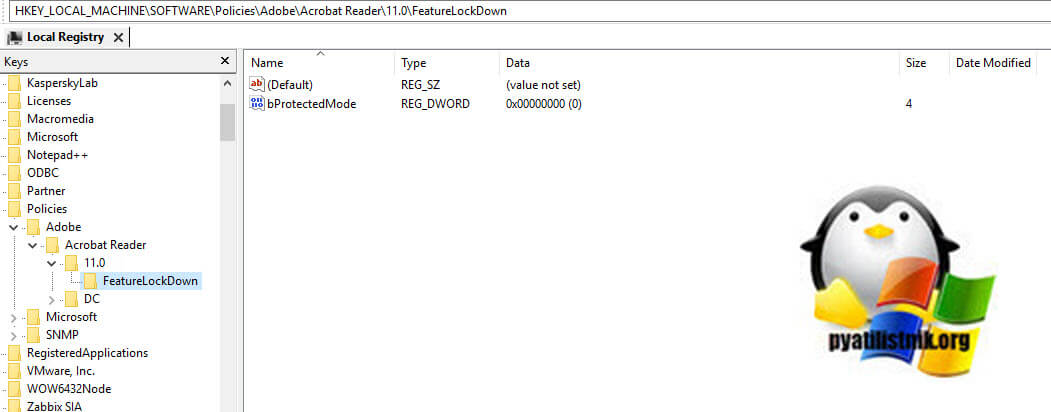
Если хотите деактивировать защищенный режим через реестр, а у этого огромный плюс, который заключается в том, что если у вас терминальная ферма как у меня состоит из 50 RDSH хостов, то ходить по каждому это очень долго, можно конечно сделать скрипт на PowerShell и создать ключ реестра удаленно, но плохо это тем, что если появится новый хост или старый будет заменен ключ автоматически не появится, а хочется полную автоматику и использование всех инструментов Active Directory. Данный ключ я вам предлагаю при желании распространять через групповую политику, о том как это делать я писал. Ниже я лишь приведу саму ветку и значение ключа.
HKEY_LOCAL_MACHINESOFTWAREPoliciesAdobeAcrobat Reader11.0FeatureLockDown
Там нужно создать ключ bProtectedMode RED_DWORD со значением «0». Не забываем рестартнуть вашу систему.
Об этом кстати есть ветка обсуждений — https://www.adobe.com/devnet-docs/acrobatetk/tools/PrefRef/Windows/Privileged.html
Проверка прав доступа
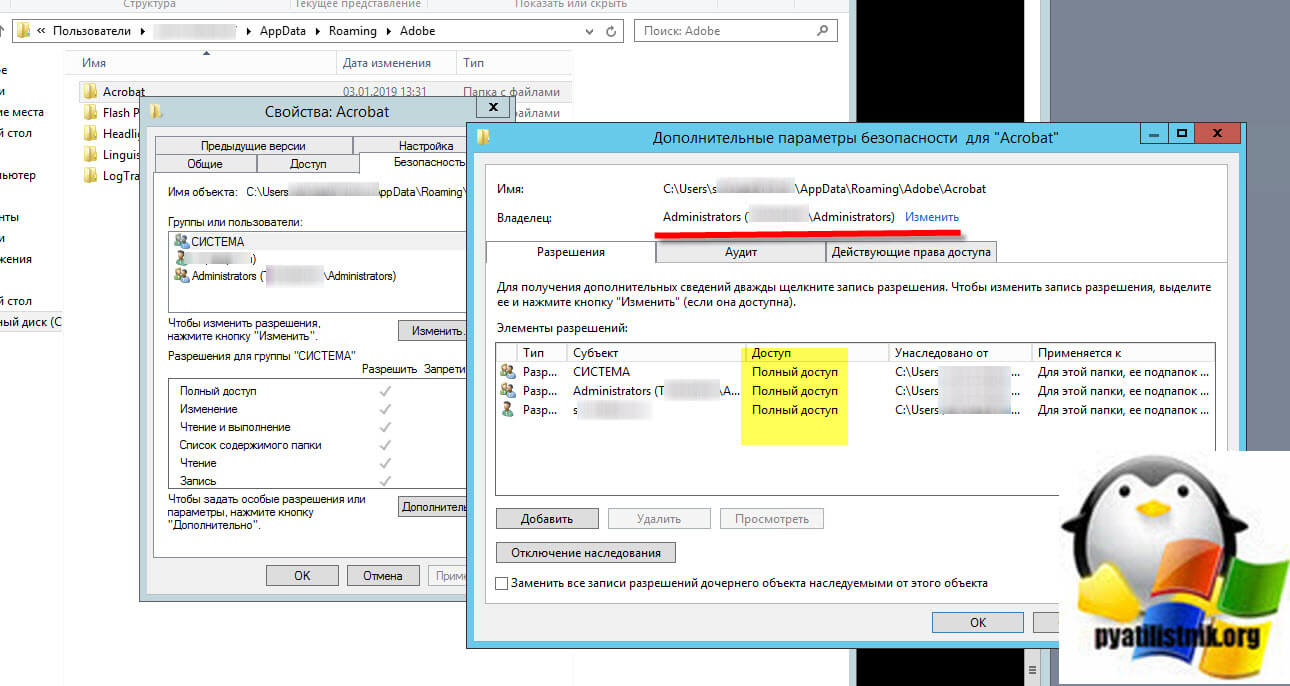
Еще одним моментом, который может влияет на наличие ошибки «An internal error occurred», это слетевшие права в профиле. Путь к профилю:
C:Usersимя пользователяAppDataRoamingAdobe
Обратите внимание, что данная папка скрыта и нужно включить ее отображение в Windows. Далее откройте свойства и перейдите на вкладку «Безопасность — Дополнительно». Посмотрите кто является владельцем папки и есть ли у вас вообще полные права на нее. В моем примере, папка Adobe принадлежит администраторам сервера, это нормально, но у моей основной учетной записи полные права. Если у вас не так, то измените это.
Дополнительно
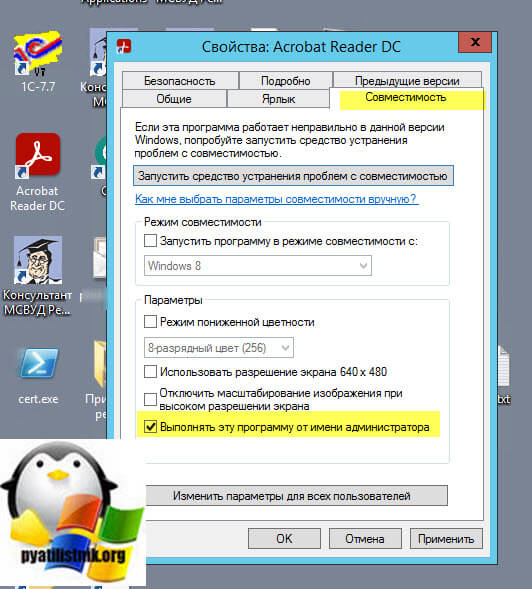
Если у вас все еще появляется окно «Произошла внутренняя ошибка (An internal error occurred)», то попробуйте запускать Acrobat Reader DC в режиме администратора. Для этого откройте его свойства. Далее выберите вкладку «Совместимость» и поставьте галку «Выполнять эту программу от имени администратора».
На этом у меня все, надеюсь, что мой скромный опыт помог вам в вашей задаче. С вами был Иван Семин, автор и создатель IT портала Pyatilistnik.org.

Adobe Support Community

-
Global community
- Language:
-
Deutsch
-
English
-
Español
-
Français
-
Português
-
日本語コミュニティ
- 한국 커뮤니티
-
-
Home
-
Acrobat Reader
-
Discussions
-
- Acrobat Reader: «An internal error occurred» popup…

1 Correct answer

Sep 17, 2015
Sep 17, 2015
Hi bobl6606355,
It seems to be the issue with permissions.
Please unhide all files & folders on your system.
Navigate to [drive]Users[user_name]AppDataRoamingAdobe & then provide all the permissions to the complete folder.
How to give permissions on a folder
— Right click -> Properties -> Security -> Advanced -> Owner -> Select the account
Let me know if it resolves the issue.
Regards,
Aadesh

25
Replies
25

-
- 1
- 2
Adobe Support Community
-
Global community
- Language:
-
Deutsch
-
English
-
Español
-
Français
-
Português
- 日本語コミュニティ
- 한국 커뮤니티
-
-
Home
-
Acrobat Reader
-
Discussions
-
- Acrobat Reader: «An internal error occurred» popup…
1 Correct answer
Sep 17, 2015
Sep 17, 2015
Hi bobl6606355,
It seems to be the issue with permissions.
Please unhide all files & folders on your system.
Navigate to [drive]Users[user_name]AppDataRoamingAdobe & then provide all the permissions to the complete folder.
How to give permissions on a folder
— Right click -> Properties -> Security -> Advanced -> Owner -> Select the account
Let me know if it resolves the issue.
Regards,
Aadesh
25
Replies
25

-
- 1
- 2
Проблема
При попытке установки Adobe Reader появляется следующее сообщение об ошибке:
«Внутренняя ошибка 2753 Updater.api_NON_OPT» (или похожее сообщение), после чего происходит завершение работы программы установки.
Иногда такое сообщение об ошибке появляется в процессе удаления предыдущей версии Adobe Reader.
Решения
Решение 1. Удалите все предыдущие версии Acrobat и Adobe Reader с помощью функции «Установка и удаление программ».
-
На панели управления выберите «Установка и удаление программ».
-
Выберите наиболее позднюю версию Acrobat или Adobe Reader в списке и нажмите кнопку «Удалить».
-
В ответ на запрос подтвердите, что вы хотите удалить приложение.
-
Повторяйте эти действия до тех пор, пока в списке больше не останется записей Acrobat или Reader.
Если с помощью функции «Установка и удаление программ» в меню «Панель управления» не удается удалить приложение, попробуйте сначала исправить установку Reader, переустановив его текущую версию.
Решение 2. Удалите разделы реестра для программы установки Acrobat или Reader в Windows.
Отказ от ответственности: в реестре Windows содержится важная информация, необходимая для работы компьютера и приложений. Компания Adobe не оказывает помощь в устранении проблем, связанных с некорректным изменением реестра. Компания Adobe рекомендует заниматься изменением реестра только пользователям, имеющим опыт редактирования системных файлов. Создайте резервную копию реестра, прежде чем редактировать его. Дополнительные сведения о редакторе реестра Windows можно найти в руководстве пользователя Windows или связавшись с технической поддержкой компании Microsoft.
Важно! Убедитесь в том, что выбран правильный раздел реестра. При просмотре ветви HKEY_CLASSES_ROOTInstallerFeatures68AB67CA330100007706000000000030 должен быть выбран только раздел 68AB67CA330100007706000000000030. Не выбирайте этот элемент, если его имя не соответствует указанному.
-
Выберите «Пуск» > «Выполнить».
-
В поле «Открыть» введите regedit и затем нажмите кнопку «OK».
-
В редакторе реестра выберите соответствующий раздел реестра Acrobat
- Для Reader 8.0.0 удалите следующие элементы:
- 32-разрядная версия ОС Windows
- HKEY_LOCAL_MACHINESOFTWAREClassesInstallerFeatures68AB67CA7DA73301B7448A0000000020
- HKEY_LOCAL_MACHINESOFTWAREClassesInstallerProducts68AB67CA7DA73301B7448A0000000020
- HKEY_LOCAL_MACHINESOFTWAREMicrosoftWindowsCurrentVersionInstallerUserDataS-1-518Products68AB67CA7DA73301B7448A0000000020
- HKEY_LOCAL_MACHINESOFTWAREMicrosoftWindowsCurrentVersionUninstall{AC76BA86-7AD7-1033-7B44-A80000000002}
- HKEY_LOCAL_MACHINESOFTWAREAdobeAdobe Reader
- 64-разрядная версия ОС Windows
- HKEY_LOCAL_MACHINESOFTWAREWOW6432NodeClassesInstallerFeatures68AB67CA7DA73301B7448A0000000020
- HKEY_LOCAL_MACHINESOFTWAREWOW6432NodeClassesInstallerProducts68AB67CA7DA73301B7448A0000000020
- HKEY_LOCAL_MACHINESOFTWAREWOW6432NodeMicrosoftWindowsCurrentVersionInstallerUserDataS-1-518Products68AB67CA7DA73301B7448A0000000020
- HKEY_LOCAL_MACHINESOFTWAREWOW6432NodeMicrosoftWindowsCurrentVersionUninstall{AC76BA86-7AD7-1033-7B44-A80000000002}
- HKEY_LOCAL_MACHINESOFTWAREWOW6432NodeAdobeAdobe Reader
- 32-разрядная версия ОС Windows
- Для Acrobat X (10):
- 32-разрядная версия ОС Windows
- HKEY_LOCAL_MACHINESOFTWAREMicrosoftWindowsCurrentVersionInstaller UserDataS-1-5-18Products68AB67CA3301004F7706000000000050
- HKEY_LOCAL_MACHINESOFTWAREMicrosoftWindowsCurrentVersionUninstall {AC76BA86-1033-F400-7760-000000000005}
- HKEY_LOCAL_MACHINESOFTWAREClassesInstallerProducts68AB67CA3301004F7706000000000050
- HKEY_LOCAL_MACHINESOFTWAREClassesInstallerFeatures68AB67CA3301004F7706000000000050
- 64-разрядная версия ОС Windows
- HKEY_LOCAL_MACHINESOFTWAREWOW6432NodeMicrosoftWindowsCurrentVersionInstaller UserDataS-1-5-18Products68AB67CA3301004F7706000000000050
- HKEY_LOCAL_MACHINESOFTWAREWOW6432NodeMicrosoftWindowsCurrentVersionUninstall {AC76BA86-1033-F400-7760-000000000005}
- HKEY_LOCAL_MACHINESOFTWAREWOW6432NodeClassesInstallerProducts68AB67CA3301004F7706000000000050
- HKEY_LOCAL_MACHINESO FTWAREWOW6432NodeClassesInstallerFeatures68AB67CA3301004F7706000000000050
- 32-разрядная версия ОС Windows
- Для Reader 8.0.0 удалите следующие элементы:
-
Выберите «Правка» > «Удалить».
-
При появлении запроса нажмите «Да», чтобы подтвердить удаление.
-
Повторите шаги 3-5 для оставшихся разделов реестра и любых перечисленных обновлений, которые были применены.
-
Закройте редактор реестра.
Дополнительная информация
Ошибка 2753 может появляться в случае повреждения (предыдущей) версии Adobe Reader. Она также возникает в случае повреждения записей в реестре, связанных с Adobe Reader, в связи с чем прерывается процесс установки.
by Tashreef Shareef
Tashreef Shareef is a software developer turned tech writer. He discovered his interest in technology after reading a tech magazine accidentally. Now he writes about everything tech from… read more
Updated on November 30, 2022
- The Acrobat Reader internal error occurred happens when trying to open a password—protected file.
- You can fix the error by disabling the Protect View feature, as described in the article below.
- Check out our dedicated Adobe section for more resources on Adobe software.
- Our Adobe Acrobat Reader hub has more troubleshooting guides for the software.

XINSTALL BY CLICKING THE DOWNLOAD FILE
This software will repair common computer errors, protect you from file loss, malware, hardware failure and optimize your PC for maximum performance. Fix PC issues and remove viruses now in 3 easy steps:
- Download Restoro PC Repair Tool that comes with Patented Technologies (patent available here).
- Click Start Scan to find Windows issues that could be causing PC problems.
- Click Repair All to fix issues affecting your computer’s security and performance
- Restoro has been downloaded by 0 readers this month.
When trying to open a document in Adobe Acrobat Reader and Acrobat X, you may encounter An internal error that occurred error followed by a blank page.
This error occurs when accessing a password-protected page. The reason for the error can vary, including permission issues as well as incorrect Adobe Acrobat Reader configuration.
If you are also troubled by this error, here are a couple of troubleshooting steps to help you resolve the An internal error occurred error in Acrobat on Windows 10.
How to fix an internal server error occurred for Adobe Acrobat?
1. Reinstall Adobe Reader
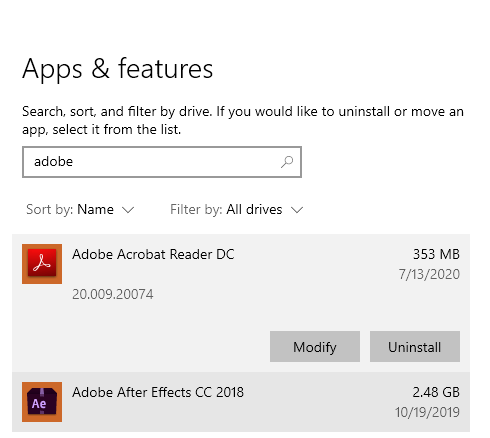
- Press Windows Key + R to open Run.
- Type control and click OK.
- Go to Programs > Programs and Features.
- Select Acrobat Reader from the list of installed apps.
- Click on Uninstall.
- Select Yes to confirm the action.
Wait for the app to uninstall successfully. If the app is not removed completely, you can use the Adobe Creative Cloud Cleaner Tool to solve the installation files.
- Download the Creative Cloud Cleaner Tool.
- Right-click on the file and select Run as Administrator.
- Select the program to remove.
Once uninstalled, you will need to download and install the latest version of Adobe Acrobat Reader.
This great software enables you to have the full Adobe experience, while also taking advantage of its amazing PDF writing and editing.
⇒ Get Adobe Acrobat Reader
2. Disable Protected Mode at Startup
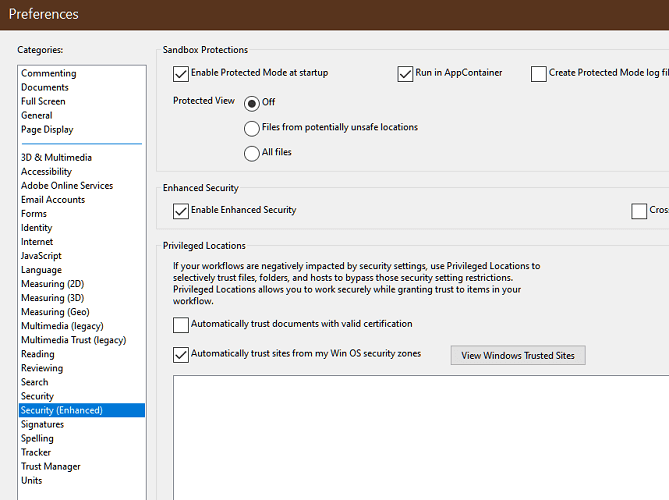
- Launch Adobe Reader X.
- Go to Edit.
- Select Preferences.
- In the new window, select the General tab.
- Scroll down to the end of the page.
- Uncheck the “Enable Protected Mode at Startup”.
- Click OK to save the changes.
Once you have applied the changes, close and relaunch Adobe Acrobat Reader. Try to open the password-protected PDF file and check if the error is resolved.
Disable Protected View on Adobe Acrobat Reader DC
- Click Edit.
- Select Preferences.
- Select the Security (Enhanced) category from the left.
- Uncheck ‘Enable Protected View Mode at Startup‘.
- Click OK to save the changes.
Some PC issues are hard to tackle, especially when it comes to corrupted repositories or missing Windows files. If you are having troubles fixing an error, your system may be partially broken.
We recommend installing Restoro, a tool that will scan your machine and identify what the fault is.
Click here to download and start repairing.
Note: Make sure you enable the Protected View option once the error is resolved.
3. Check for permission issues
- Open File Explorer.
- Navigate to the following location:
C:Users[user_name]AppDataRoamingAdobe - Make sure all the files and folders are visible (Unhidden). To do this, click the View tab, and check the Hidden Items box.
- Right-click on the Adobe folder.
- Select Properties.
- Open the Security tab.
- Click the Advanced button.
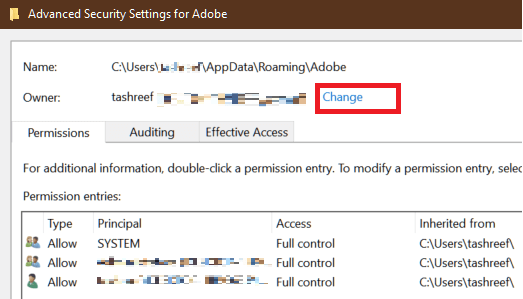
- Click the Change link beside the Owner tag.
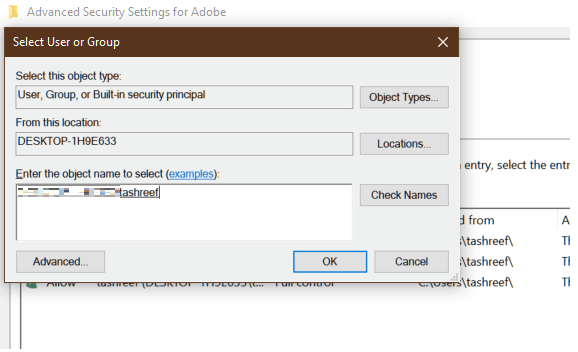
- Enter the name of your user account and click on Check Names.
- If found, click OK to save the changes.
Once done, close the properties window, and then try to access the PDF file with the error to see if the error failed to load the application resource (internal error Acrobat) is resolved.
At times, permission issues can prevent the Adobe software from making changes to the PDF file resulting in an error.
3.1 Run as Administrator
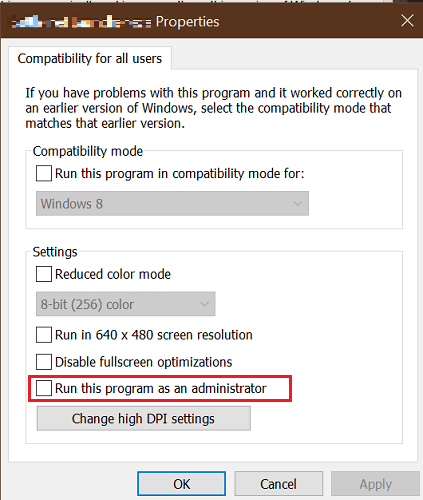
- From the desktop, right-click on Adobe Acrobat Reader shortcut.
- Select Run as Administrator.
- Check if the file opens without any issues.
- If the error is resolved, right-click on the Adobe Acrobat Reader shortcut again.
- Open the Compatibility tab.
- Under Setting, check the ‘Run this Program as an administrator’ box.
- Click Apply, and then OK to save the changes.
By setting to run the Adobe AR as an administrator, you don’t need to run the software in administrator mode manually every time.
4. Repair Installation
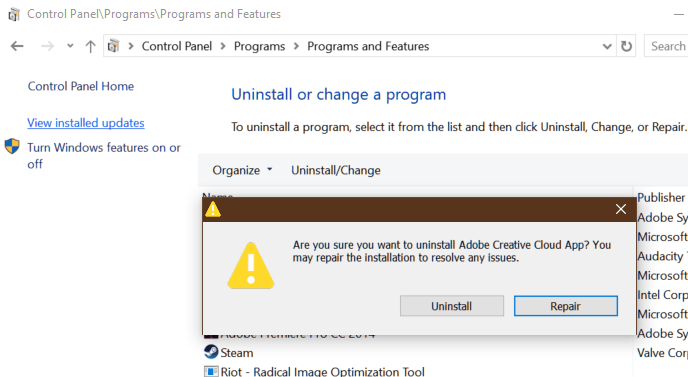
- Launch the Adobe Acrobat Reader app installed on your system.
- Click on Help.
- Select Repair Installation.
- Click Yes when the confirmation box appears.
- The repair tool will scan and repair any issues with the software.
- Once complete, relaunch the Acrobat Reader app and check if the error is resolved.
The built-in repair tool can fix many issues with the app. By doing so, you can avoid having to reinstall the app all over again.
5. Force open the files with Adobe Reader
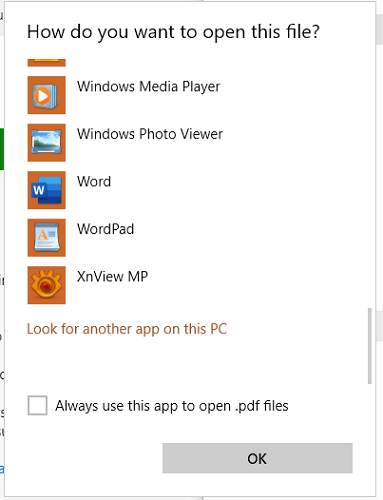
- Open File Explorer.
- Navigate to the location where your file is stored.
- Right-click on the PDF file.
- Select Open With > Choose another app.
- Scroll down and click on More apps.
- Scroll down again and click on Look for another app on this PC.
- Navigate to the Adobe Reader installation, such as:
C:Program Files (x86)Adobe Reader - Select the .exe file and click Open.
Double-click on the PDF file and check if the file opens without any error.
The Adobe Acrobat An internal error occurred error can occur due to several reasons, including permission issues as well as incorrect configuration.
Follow all the steps in the article one by one to resolve the error.

Newsletter
by Tashreef Shareef
Tashreef Shareef is a software developer turned tech writer. He discovered his interest in technology after reading a tech magazine accidentally. Now he writes about everything tech from… read more
Updated on November 30, 2022
- The Acrobat Reader internal error occurred happens when trying to open a password—protected file.
- You can fix the error by disabling the Protect View feature, as described in the article below.
- Check out our dedicated Adobe section for more resources on Adobe software.
- Our Adobe Acrobat Reader hub has more troubleshooting guides for the software.
XINSTALL BY CLICKING THE DOWNLOAD FILE
This software will repair common computer errors, protect you from file loss, malware, hardware failure and optimize your PC for maximum performance. Fix PC issues and remove viruses now in 3 easy steps:
- Download Restoro PC Repair Tool that comes with Patented Technologies (patent available here).
- Click Start Scan to find Windows issues that could be causing PC problems.
- Click Repair All to fix issues affecting your computer’s security and performance
- Restoro has been downloaded by 0 readers this month.
When trying to open a document in Adobe Acrobat Reader and Acrobat X, you may encounter An internal error that occurred error followed by a blank page.
This error occurs when accessing a password-protected page. The reason for the error can vary, including permission issues as well as incorrect Adobe Acrobat Reader configuration.
If you are also troubled by this error, here are a couple of troubleshooting steps to help you resolve the An internal error occurred error in Acrobat on Windows 10.
How to fix an internal server error occurred for Adobe Acrobat?
1. Reinstall Adobe Reader
- Press Windows Key + R to open Run.
- Type control and click OK.
- Go to Programs > Programs and Features.
- Select Acrobat Reader from the list of installed apps.
- Click on Uninstall.
- Select Yes to confirm the action.
Wait for the app to uninstall successfully. If the app is not removed completely, you can use the Adobe Creative Cloud Cleaner Tool to solve the installation files.
- Download the Creative Cloud Cleaner Tool.
- Right-click on the file and select Run as Administrator.
- Select the program to remove.
Once uninstalled, you will need to download and install the latest version of Adobe Acrobat Reader.
This great software enables you to have the full Adobe experience, while also taking advantage of its amazing PDF writing and editing.
⇒ Get Adobe Acrobat Reader
2. Disable Protected Mode at Startup
- Launch Adobe Reader X.
- Go to Edit.
- Select Preferences.
- In the new window, select the General tab.
- Scroll down to the end of the page.
- Uncheck the “Enable Protected Mode at Startup”.
- Click OK to save the changes.
Once you have applied the changes, close and relaunch Adobe Acrobat Reader. Try to open the password-protected PDF file and check if the error is resolved.
Disable Protected View on Adobe Acrobat Reader DC
- Click Edit.
- Select Preferences.
- Select the Security (Enhanced) category from the left.
- Uncheck ‘Enable Protected View Mode at Startup‘.
- Click OK to save the changes.
Some PC issues are hard to tackle, especially when it comes to corrupted repositories or missing Windows files. If you are having troubles fixing an error, your system may be partially broken.
We recommend installing Restoro, a tool that will scan your machine and identify what the fault is.
Click here to download and start repairing.
Note: Make sure you enable the Protected View option once the error is resolved.
3. Check for permission issues
- Open File Explorer.
- Navigate to the following location:
C:Users[user_name]AppDataRoamingAdobe - Make sure all the files and folders are visible (Unhidden). To do this, click the View tab, and check the Hidden Items box.
- Right-click on the Adobe folder.
- Select Properties.
- Open the Security tab.
- Click the Advanced button.
- Click the Change link beside the Owner tag.
- Enter the name of your user account and click on Check Names.
- If found, click OK to save the changes.
Once done, close the properties window, and then try to access the PDF file with the error to see if the error failed to load the application resource (internal error Acrobat) is resolved.
At times, permission issues can prevent the Adobe software from making changes to the PDF file resulting in an error.
3.1 Run as Administrator
- From the desktop, right-click on Adobe Acrobat Reader shortcut.
- Select Run as Administrator.
- Check if the file opens without any issues.
- If the error is resolved, right-click on the Adobe Acrobat Reader shortcut again.
- Open the Compatibility tab.
- Under Setting, check the ‘Run this Program as an administrator’ box.
- Click Apply, and then OK to save the changes.
By setting to run the Adobe AR as an administrator, you don’t need to run the software in administrator mode manually every time.
4. Repair Installation
- Launch the Adobe Acrobat Reader app installed on your system.
- Click on Help.
- Select Repair Installation.
- Click Yes when the confirmation box appears.
- The repair tool will scan and repair any issues with the software.
- Once complete, relaunch the Acrobat Reader app and check if the error is resolved.
The built-in repair tool can fix many issues with the app. By doing so, you can avoid having to reinstall the app all over again.
5. Force open the files with Adobe Reader
- Open File Explorer.
- Navigate to the location where your file is stored.
- Right-click on the PDF file.
- Select Open With > Choose another app.
- Scroll down and click on More apps.
- Scroll down again and click on Look for another app on this PC.
- Navigate to the Adobe Reader installation, such as:
C:Program Files (x86)Adobe Reader - Select the .exe file and click Open.
Double-click on the PDF file and check if the file opens without any error.
The Adobe Acrobat An internal error occurred error can occur due to several reasons, including permission issues as well as incorrect configuration.
Follow all the steps in the article one by one to resolve the error.
Newsletter
Adobe Acrobat не работает?
Скачайте 100% рабочую версию аналогичного софта
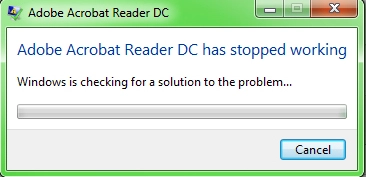
Как исправить ошибку «Прекращена работа программы Adobe Acrobat Reader DC»
В последнее время пользователи продуктов Adobe все чаще сообщают о возникающих ошибках. Например, при
печати, запуске софта или просмотре ПДФ может возникнуть окно с надписью «Прекращена работа программы Adobe
Reader». Такая проблема возникает при работе на слабых компьютерах или отсутствии установленных обновлений.
При открытии ПДФ-документа или запуске ридера может появиться окно AppCrash. Это происходит из-за различных
причин: например, при отсутствии установленных обновлений или использовании неактивированной версии.
Возникшая проблема приводит к аварийному отключению программы. Существует несколько способов исправить вылет
софта.
Решение 1. Обновление программного обеспечения
Для использования этого способа:
1. Повторно откройте Adobe Reader 11.
2. Далее обновите софт до последней версии: нажмите на верхней панели на кнопку «Справка» — «Проверка
обновлений».
3. При наличии доступных версий вам будет предложено загрузить файлы с официального сайта.
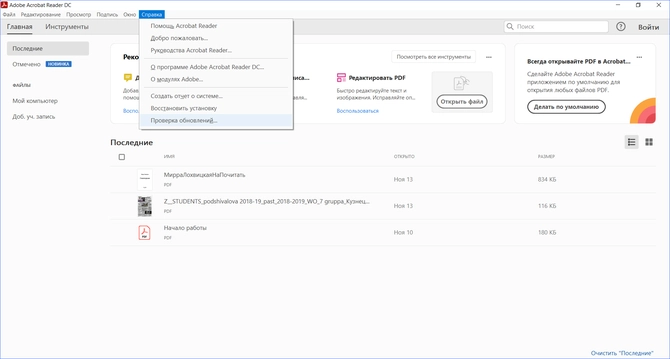
Если Акробат XI продолжает вылетать после установки обновления, вам необходимо воспользоваться другим
способом из списка.
Решение 2. Выполнение специальной команды
Перед сбросом настроек закройте все запущенные программы. Затем выполните несколько простых действий:
1. Запустите Adobe Reader.
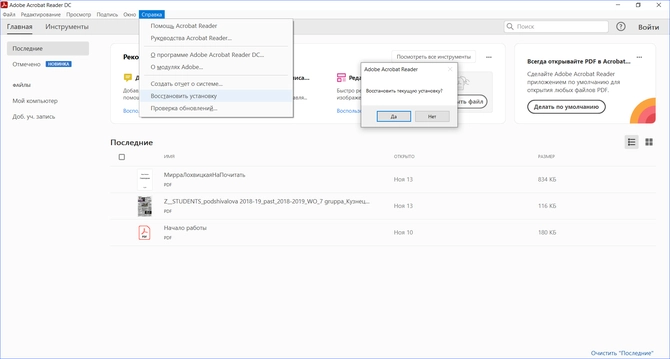
2. Кликните «Справка» — «Восстановить установку». Windows 10/8/7 автоматически настроит приложение.
3. После завершения обработки перезагрузите систему ПК.
Решение 3. Отключение защищенного просмотра
В открытом ридере необходимо:
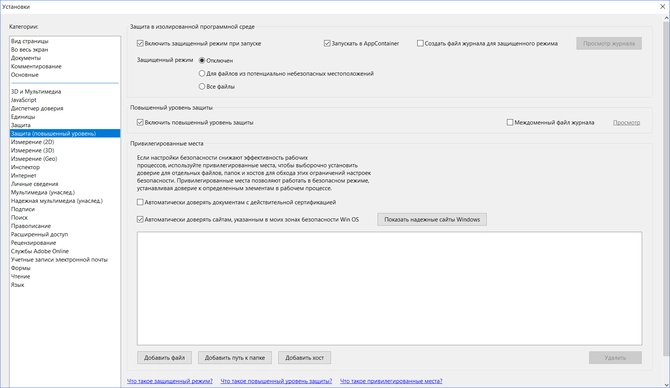
1. Нажать на «Редактирование» — «Установки».
2. В новом окне перейти в раздел «Защита (повышенный уровень)».
3. В блоке «Защищенный режим» выберите вариант «Отключен».
4. Примените изменения и перезагрузите программу.
Решение 4. Открытие Distiller DC
Чтобы использовать этот способ, следуйте инструкции:
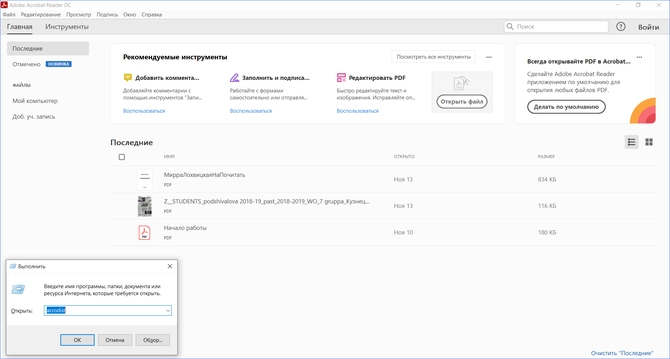
1. Зажмите комбинацию клавиш Win+R.
2. В новом окне введите acrodist.
3. Если программное обеспечение Acrobat не активировано, то возникнет сообщение с надписью «Требуется
вход». В таком случае кликните «Войти сейчас» и введите необходимые данные.
4. После завершения активации перезагрузите софт.
Решение 5. Переход в другой профиль Windows
Выйдите из учетной записи Виндовс, в которой возникла ошибка и смените профиль. Проверьте приложение на
неполадки.
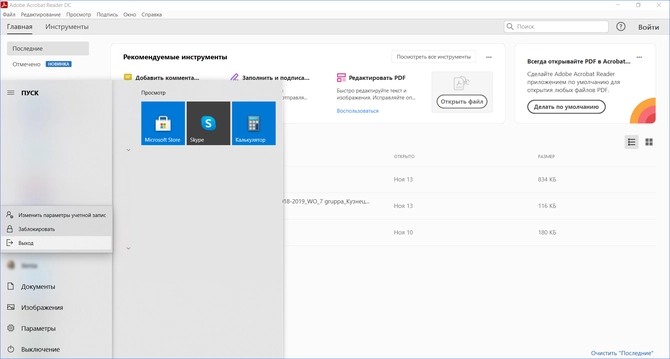
Если ни один вариант не помог решить проблему, необходима полная переустановка Акробата.
Как отправить аварийный отчёт об ошибке при прекращении работы Adobe Reader
Вы также можете написать компании Adobe об ошибке. Это позволит разработчикам исправить недочеты в новых
версиях или обновлениях программного обеспечения. Поэтому важно сообщать даже о нерегулярных неполадках.
Чтобы написать о прекращение работы Adobe Reader, есть несколько вариантов отправки данных:
1. Автоматически на Windows 7/8/10. Это вариант подходит, если возникнет окно «Сообщения об
ошибках Windows». В таком случае просто кликните на «Отправить сведения».
2. Отправка данных на macOS. Автоматически сообщить об ошибке можно при появлении окон «Отправить
в Apple» и Adobe CrashReporter. В обоих блоках необходимо нажать «Отправить» и «Отчет».
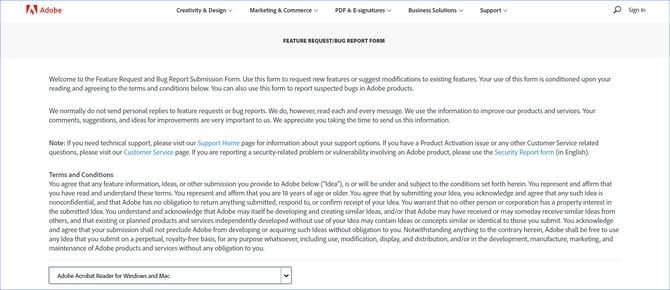
3. С помощью специальной формы.Этот вариант позволит вручную ввести данные о неполадках. Для этого
перейдите на официальный сайт Adobe и найдите раздел Feature Request/Bug Report Form. В ней нужно указать
продукт, а затем написать о проблеме. Форма представлена только на английском языке.
Теперь вы знаете, из-за чего возникает неполадка «Прекращена работа программы Adobe Acrobat Reader DC»,
что делать в такой ситуации и как отправить отчет о проблеме. Она может возникнуть при печати или открытии
документа. Решить ошибку можно с помощью обновления софта, восстановления установок, отключения защитного
просмотра, активации приложения или использования другой учетной записи Виндовс. Если софт продолжает
вылетать, выдавать ошибки и крашиться, обратите внимание на другую программу для просмотра и редактирования ПДФ.
Почему Adobe Reader может не запускаться в Windows 10
Во время работы в версиях для Windows 10 может возникнуть еще одна проблема: при попытке открытия файлов
ничего не происходит. Система не выдает никакой ошибки и просто игнорирует действия пользователя. Давайте
разберемся, из-за каких причин Adobe Reader не открывается и не читает PDF.
Повреждение установочных файлов
Иногда документ не загружается после обновления системы или самого Adobe Reader. При этом сама программа
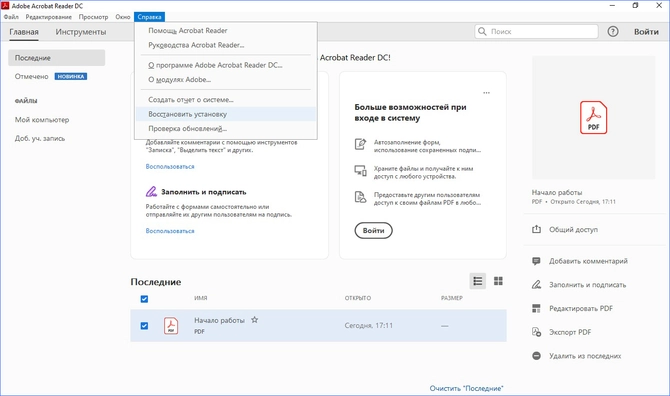
открывается, но ее функциональность может быть нарушена. Чтобы исправить это, раскройте пункт «Справка» в
верхнем меню программы. Нажмите «Восстановить установку» и в выскочившем окошке кликните «Да». После этого
перезагрузите софт.
Устаревшая версия
Если предыдущий способ не сработал, проверьте актуальность версии, что у вас установлена. Компания Adobe
постоянно совершенствуют свой продукт, устраняя баги и добавляя новые опции. Для установки обновлений не
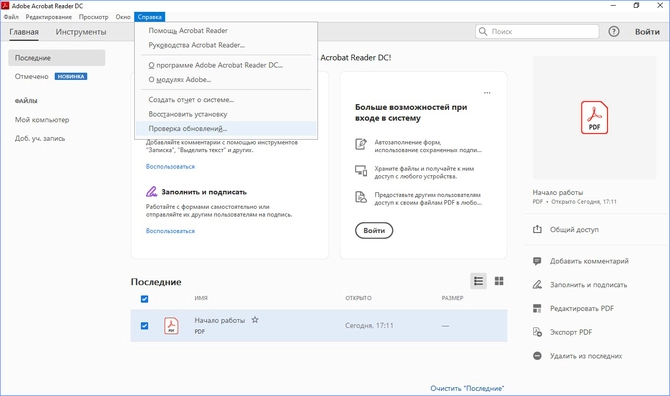
нужно полностью удалять и снова устанавливать софт. Нужная функция также вызывается через пункт «Справка».
Выберите строчку «Проверка обновлений» и после окончания процесса снова попробуйте открыть документ.
Неактуальная программа PDF
Если вы использовали приложение, установленное по умолчанию на компьютере, а затем удалили его, возможно,
система скинула значения чтения этих файлов. Поэтому они никак не реагируют на ваши действия. Чтобы
установить Adobe Acrobat в качестве главной «читалки» документов, выделите любой файл PDF правой кнопкой
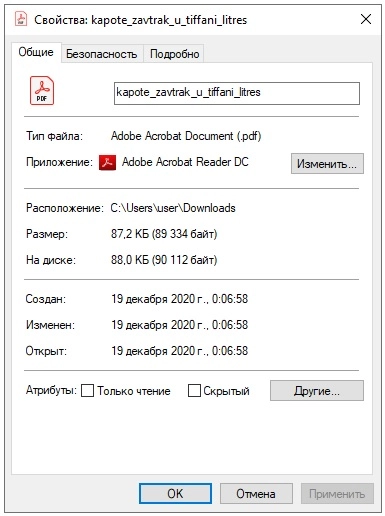
мыши, нажмите «Свойства» и во вкладке «Общие» установите Adobe как приложение для чтения по умолчанию.
Заключение
В большинстве случаев предложенные варианты решения проблем помогают, если Аdobe Reader не запускается на
вашем компьютере. Но могут возникать и другие ошибки, например известная проблема «Неверный параметр», возникающая из-за неправильных тэгов.
Если вы не можете справиться с возникшей проблемой, обратитесь в службу техподдержки продукта. Но имейте в
виду, что для этого потребуется вход в аккаунт Adobe.