Сообщение об ошибке сервера 500 на стороне клиента или в панели администрирования может стать источником серьезных проблем и причиной потери посетителей. Устранить внутреннюю ошибку сервера HTTP 500 особенно сложно, потому что причины возникновения подобной неполадки могут быть самыми разными.
Формат сообщения о внутренней ошибке сервера 500 не предполагает никаких пояснений о возможном источнике проблемы, и на поиск причины возникновения неполадки могут уйти часы терпеливой работы. В это время сайт теряет посетителей и возможные продажи, страдает репутация компании.

Если на вашем сайте появилось сообщение о внутренней ошибке сервера HTTP 500, понадобятся все возможные способы устранения возникшей проблемы, которые рассмотрены в этой статье. Надеюсь, это руководство поможет вернуть сайт в рабочее состояние в кратчайшие сроки.
- Краткая справка: внутренняя ошибка сервера 500 в WordPress
- Создайте резервную копию сайта
- Перезагрузите страницу
- Проверьте журнал сервера
- Очистите кэш браузера
- Проверьте доступность панели администратора
- Отключите тему оформления или плагин, вызывающие ошибку
- Проверьте файл .htaccess
- Увеличьте лимит памяти для PHP
- Проверьте права доступа
- Переустановите WordPress
- Обратитесь в техподдержку
- Обратитесь к специалисту по отладке
- Заключение

Подобное сообщение уведомляет пользователей о том, что неполадка в работе WordPress-сайта возникла на стороне сервера. В браузерах посетителей сайт не отображается. Эта ошибка особенно опасна тем, что может помешать входу в панель администрирования.
Вопреки распространенному мнению, подобная ошибка не связана с неполадками в работе сервера. Она указывает на проблему с корневым каталогом WordPress-сайта. Это означает, что для обнаружения истинной причины возникшей проблемы понадобится немало проб и ошибок. В зависимости от используемого браузера, сообщение об ошибке выглядит по-разному:
- 500 internal server error (500 внутренняя ошибка сервера);
- Internal server error (внутренняя ошибка сервера);
- Error 500 (ошибка 500);
- HTTP error 500 (HTTP ошибка 500);
- HTTP error 500-internal server error (HTTP ошибка 500 – внутренняя ошибка сервера);
- Temporary error (500) (временная ошибка 500);
- Error code: 500 (код ошибки: 500).
Независимо от формата сообщения, ошибка 500 возникшая на WordPress, негативно повлияет на индексирование в поисковиках, репутацию, трафик, и, конечно же – продажи. Ниже приведена инструкция с перечнем наиболее эффективных методов решения проблемы.

До начала каких-либо действий по поиску причин возникновения ошибки 500 следует провести резервное копирование сайта, если бекапа у вас нет или он уже устарел. Процесс решения подобной проблемы может вызвать серьезные изменения в корневом каталоге, где хранятся все файлы WordPress. При наличии резервной копии сайта можно не опасаться любых изменений. Используйте плагин для автоматического создания резервной копии, затем сохраните бекап на внешнем носителе или в облачном хранилище.
Это самое первое, что стоит сделать – возможно, серверу просто понадобилось очистить кэш или удалить временные файлы. Внутренние ошибки сервера часто возникают после обновления сайта, активации новой темы, добавления плагинов. Сервер может быть перегружен, и сообщение об ошибке просто исчезнет после перезагрузки сайта. Если такое случается часто – это повод подыскать более надежный хостинг для WordPress.
Также стоит проверить работоспособность сайта с помощью сервиса downforeveryoneorjustforme.com – он покажет, если интернет-ресурс полностью недоступен всем посетителям, либо проблема находится на вашей стороне.
Содержимое лога сервера может пролить свет на причины возникновения проблемы. Журналы сервера предоставляют ценную информацию, и помогут выяснить многие причины возникновения неполадки. Среди возможных причин может оказаться установка некорректной темы оформления, плагина; ошибки при установлении соединения с базой данных.
При ошибках, связанных с базами данных, браузер обычно показывает пустую страницу, которую иногда называют «белым экраном смерти». Вследствие отсутствия соединения с базой на экране не будет никаких данных. Эта неполадка не только уничтожает клиентскую часть сайта, но и лишает администратора доступа в панель управления.
Основные причины подобной проблемы следующие:
- Поврежденный файл базы данных WordPress.
- Повреждение файлов движка WordPress злоумышленниками или вирусами.
- Перегрузка базы данных запросами при большом объеме трафика – такое чаще всего происходит на общих хостингах.
Для решения возникшей проблемы, прежде всего, проверьте корректность параметров конфигурации базы данных, или восстановите базу данных из резервной копии. WordPress также предоставляет встроенный метод исправления нерабочей базы данных следующей командой:
Define(‘WP_ALLOW_REPAIR’, true);

Очистка кэша улучшает производительность браузера и решает многие проблемы с неправильной загрузкой сайтов. Существует множество эффективных и бесплатных утилит для полной очистки кэша.
Попробуйте зайти в панель управления по стандартной ссылке. Если попытка не удалась, сообщение о внутренней ошибке сервера 500 может указывать на проблему с недавно установленными темами оформления и плагинами.

Если вам не удается войти в панель администрирования WordPress для отключения некорректной темы оформления или плагина, придется действовать обходным путем. Способ прост, хотя и займет некоторое время. Понадобится FTP-клиент для прямого доступа к файлам сайт. Скачайте, например, FileZilla, введите в параметрах соединения адрес сайта, логин и пароль, подключитесь к серверу – файлы вашего сайта будут в окне справа.
Найдите папку под названием plugins и переименуйте ее в plugins_deactivate. Все плагины будут отключены. Перезагрузите сайт – если ошибка исчезла, значит, причина была в плагине. Теперь вы можете войти в панель администрирования. Войдите и начните активировать плагины по одному. Перезагружайте сайт после активации каждого плагина – так вы обнаружите проблемный. Удалите его, найдите ему замену или уведомите разработчика о проблеме, с которой вы столкнулись. Не забудьте вернуться в FTP-клиент и переименовать директорию обратно, чтобы исправные плагины стали активными.
Если окажется, что ошибку вызывают не плагины, проделайте эти же самые шаги, последовательно проверяя все темы оформления в папке themes. Удалите проблемную тему оформления и перезагрузите сайт.

Установка новой темы оформления или плагина могут вызвать изменения в файле .htaccess, что также может стать причиной сообщения о внутренней ошибке сервера. Эту проблему легко решить с помощью FTP-клиента.
Найдите файл .htaccess, кликните по нему правой кнопкой мыши и переименуйте в .htaccess_old. Перезагрузите файл – если сообщение об ошибке исчезло, значит, проблема действительно была связана с файлом .htaccess. Войдите в панель администрирования, выберите раздел «Постоянные ссылки» в меню «Настройки», затем нажмите кнопку «Сохранить изменения». Эта процедура восстановит оригинальный файл .htaccess и избавит вас от ошибки 500.
Если ваш WordPress-сайт использует множество скриптов, перегружающих доступный объем памяти, это также может стать причиной возникновения ошибки 500. Объем памяти регулируется настройками хостинга и движком WordPress. Увеличить объем памяти для PHP можно несколькими способами.
- Изменить параметры в файле wp-config.php. Зайдите в папку сайта с помощью FTP-клиента, найдите файл wp-config.php, кликните по нему правой кнопкой мыши и выберите в контекстном меню пункт «Просмотр/Редактирование». В качестве редактора по умолчанию можно использовать «Блокнот». Перед строкой «Happy Blogging» добавьте следующий фрагмент кода:
define(‘WP_MEMORY_LIMIT’,’64’);
Сохраните отредактированный в «Блокноте» файл на своем жестком диске, найдите его в левом окне FTP-клиента, кликните по нему правой кнопкой мыши и выберите в контекстном меню пункт «Загрузить». Если после перезагрузки сайта ошибка 500 исчезла – проблема была в доступном объеме памяти.
- Отредактировать файл php.ini. Чтобы найти этот файл, активируйте опцию «Показывать скрытые файлы»; файл php.ini расположен в подкаталоге wp-admin корневой директории. Откройте файл php.ini, найдите строку, начинающуюся с «memory_limit». Если указанное значение составляет 64 Мб и менее, замените его новым параметром:
Если вам не удалось найти файл php.ini, создайте его самостоятельно с помощью программы «Блокнот». Вставьте в созданный файл приведенный выше код и загрузите его на хостинг, в папку wp-admin.
- Изменить файл .htaccess. С помощью FTP-клиента найдите файл на хостинге и добавьте в него следующую строку:
php_value memory_limit 256M
Это увеличит лимит памяти до 256 Мб. Если вы не смогли найти файл .htaccess – активируйте опцию «Показывать скрытые файлы» или создайте подобный файл самостоятельно, после чего загрузите его в папку wp-admin.
Чтобы избежать повторного появления ошибки 500, придется выяснить, какой именно компонент сайта перегружает память. Это может быть некорректно написанный плагин или тема оформления. Можно обратиться за помощью в техподдержку хостинга – специалисты смогут выявить проблемный компонент с помощью журнала сервера.
В соответствии с правилами безопасности WordPress, протокол назначения прав доступа выглядит следующим образом:
- Все директории должны иметь права 755 или 750.
- Для файлов назначают права 644 или 640, кроме файла wp-config.php, который должен иметь права 400 или 440 с целью обеспечения защиты от несанкционированного доступа.
- Ни в коем случае не назначайте права 777 для директорий.
Если права доступа имеют какие-либо другие параметры, возможно появление ошибки 500. Параметры можно проверить с помощью FTP-клиента – они указаны в «Разрешениях». Если вы обнаружите файл или папку с правами доступа, отличающимися от регламентированных – кликните правой кнопкой и измените соответствующий параметр на правильный.

Системные файлы могут повреждаться со временем, в таком случае понадобится переустановка WordPress. Такие повреждения случаются редко, но если все рассмотренные выше методы не помогли, это единственный оставшийся вариант. Переустановка ничем не отличается от первоначальной установки WordPress – скачайте свежий установочный файл с www.wordpress.org и установите WordPress на свой хостинг.
Установочные файлы находятся в папке WordPress. Подключитесь к серверу с помощью FTP-клиента, найдите папки wp-admin и wp-includes, начните загрузку файлов. Когда появится запрос о действиях с существующими файлами, выберите «Переписать». Эта операция заменит все старые файлы в директориях wp-admin и wp-includes новыми. Если после перезагрузки сайта все заработает правильно – проблема была в поврежденных файлах WordPress.
Если все приведенные выше способы не решили проблему, обратитесь в техподдержку хостинга. При выборе надежного хостинга для WordPress всегда важно учитывать наличие в штате специалистов, имеющих опыт в решении проблем с внутренней ошибкой сервера 500. Специалисты исправят подобную ошибку самостоятельно или проведут владельца сайта шаг за шагом через все этапы, необходимые для решения проблемы.
WordPress включает в себя инструмент для тестирования и отладки. Он пригодится, если источник возникшей проблемы остается неясным. В ходе отладки в файл wp-config.php вставляют фрагменты кода, который поможет определить причины неполадок. Результаты тестов записываются в файл, расположенный в корневом каталоге. Для интерпретации и последующей настройки лучше обратиться к опытному профессионалу: новичку сложно отличить незначительную ошибку от серьезной. Кроме того, в процессе тестирования фрагменты кода могут быть видны посетителям сайта.
Внутренняя ошибка сервера 500 досадна – особенно потому, что причины ее появления часто неясны, а единственного простого решения не существует. Приведенные в этой статье методы не требуют навыков программирования, но в большинстве случаев помогут решить возникшую проблему.
Если сайт расположен на бюджетном общем хостинге, лучше сменить тарифный план или выбрать хостинг-провайдера, который возьмет на себя обязательства по обеспечению стабильной работы вашего интернет-ресурса.
Сен 28, 2022
Elena B.
7хв. читання
Столкнулись с ошибкой 500 Internal Server Error в WordPress? Ну что же, вы не одни! Ошибка 500 Internal Server Error — одна из самых распространённых ошибок с которой сталкиваются пользователи WordPress. Среди возможных причин появления ошибки: повреждённые файлы .htaccess, неправильно установленные права, задержки скрипта, неправильная версия PHP или неудачное обновление WordPress.
Однако выявить истинную причину не так просто, как, например, в случае ошибки 404, которую могут вызвать либо неработающие постоянные ссылки, либо изменённые URL-адреса страниц.
Вот краткое руководство по исправлению ошибки 500 в WordPress с помощью 9 различных способов. Давайте не будем терять время и начнём данное руководство по WordPress.
Обратите внимание, что Hostinger предлагает специальный оптимизированный для WordPress хостинг. Воспользуйтесь предложением и получите WordPress хостинг со скидкой до 82%!
К предложению
Что вам понадобится
Перед тем, как вы начнёте это руководство, вам понадобится следующее:
- Доступ к панели управления вашим хостингом
- Доступ к панели управления WordPress
ВАЖНО! Безопасность прежде всего. Перед началом данного руководства, мы рекомендуем произвести резервное копирование вашего сайта для предотвращения потери данных.
Способ 1 — Ошибка 500 в WordPress из-за плагинов или тем
В большинстве случаев, ошибка 500 Internal Server Error возникает из-за установки или обновления плагинов или тем. Если вы уже знаете какой из плагинов мог вызвать данную проблему, вы уже на пол пути к её решению.
Способ 1.1 — Ошибка 500 в WordPress из-за обновления или установки плагина
Если страница перестала работать после установки или обновления плагина, вы можете починить её, просто отключив или удалив плагин. В зависимости от ситуации, существует два пути для достижения цели.
Отключение плагинов через панель управления WordPress
Если вы можете войти в вашу панель управления WordPress, следуйте данным этапам:
- Войдите в вашу панель управления WordPress.
- Нажмите на Плагины → Установленные в левом меню навигации.
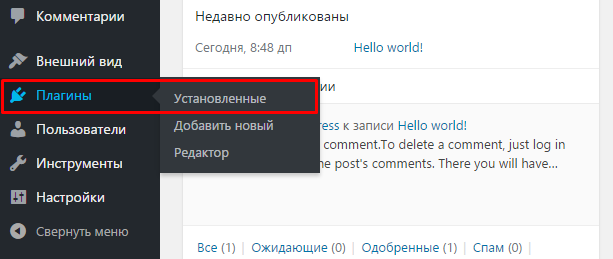
- Отключите проблемный плагин.
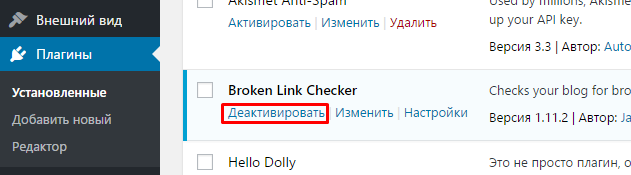
- Обновите сайт в браузере, чтобы проверить решена ли проблема.
- Если нет, отключите другой плагин и повторяйте данный процесс, пока все плагины не будут отключены (или сайт не заработает).
- Как только вы найдёте плагин, ответственный за появление ошибки, попробуйте переустановить его заново. Вы также можете поискать другие плагины на его замену или связаться с разработчиками плагина для уточнения информации о его работе на вашем WordPress.
Отключение плагинов WordPress через Файловый Менеджер или FTP
Существуют ситуации, когда ошибка не позволяет получить доступ к панели управления WordPress. В этом случае, вам придётся отключить или удалить плагин с помощью Файлового Менеджера в панели управления вашим хостингом или FTP-клиентом вроде FileZilla.
- Пройдите в корневой каталог вашего WordPress и войдите в папку wp-content/plugins.
- Найдите проблемный плагин и переименуйте его для отключения. К примеру, вы можете добавить .отключён в конец файла, чтобы не забыть об этом плагине. Если вы хотите удалить его полностью, просто удалите папку с плагином.
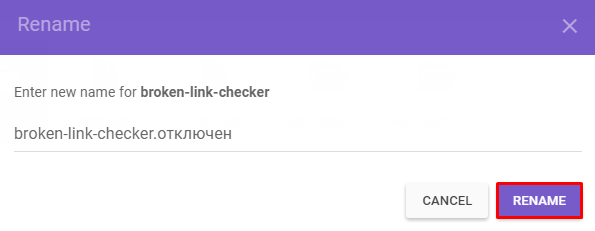
- После этого, обновите ваш сайт. В случае, если проблема остаётся, произведите данные действия для оставшихся плагинов до их полного отключения (или пока ваш сайт не заработает).
- Как только вы найдёте сломанный плагин, вы можете попытаться переустановить его, найти замену или связаться с разработчиками плагина для получения консультации.
Способ 1.2 — Ошибка 500 в WordPress из-за установки или обновления темы
Если ваш сайт перестал работать после установки или обновления темы, вы можете решить проблему изменив тему вашего сайта. Для этого существует два пути:
Изменение темы с помощью панели управления WordPress
Если вы можете получить доступ к вашей панели управления, вот что вы должны предпринять:
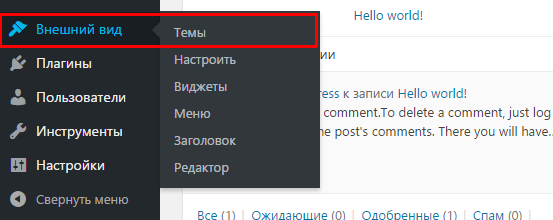
- Перейдите в раздел Внешний вид → Темы.
- Выберите любую другую тему и нажмите кнопку Активировать.
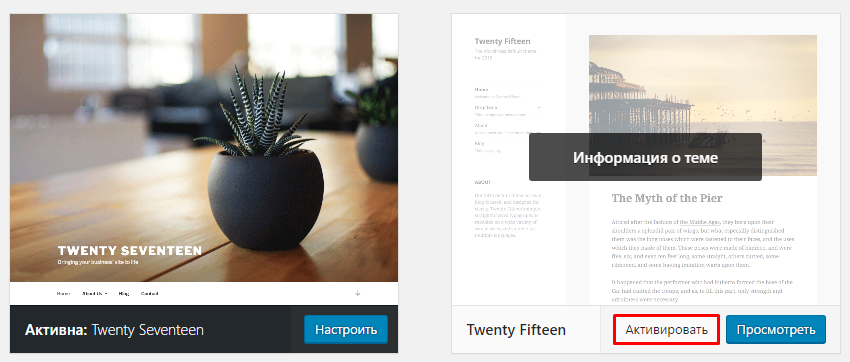
- Как только вы закончите изменение темы, вы увидите подтверждающее сообщение со ссылкой на ваш сайт.

Изменение темы с помощью phpMyAdmin
Другой способ для изменения темы, это редактирование значений вашей базы данных MySQL через phpMyadmin, в панели управления вашим хостингом. Этот способ может быть полезен, если ваша панель управления WordPress не работает. Вот, что вы должны сделать:
- Найдите таблицу wp_options и откройте её.
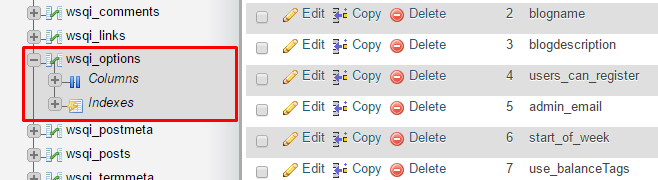
ЗАМЕТКА! В зависимости от значений таблицы, выбранных вами в процессе установки, префикс таблиц не всегда будет wp_.
- Перейдите на Страницу 2.

- Найдите раздел template и stylesheet

- Узнайте название темы на которую вы хотите её поменять. Для этого перейдите в каталог wp-content/themes с помощью Файлового Менеджера.

- Скопируйте название темы, которую вы хотели бы использовать. Далее, измените значения template и stylesheet в базе данных на название вашей новой темы. В данном примере, мы изменим тему twentyfifteen на twentysixteen

Теперь вы снова можете перезагрузить ваш сайт в браузере, и он загрузится с новой темой. Если ошибка 500 была связана с вашей старой темой, то это должно решить проблему. Вы можете попытаться переустановить вашу старую тему или связаться с разработчиком для получения информации о правильной установке темы для вашего WordPress.
Способ 2 — Проверка файла .htaccess
Ещё одним способом для избавления от ошибки internal server error, является проверка состояния вашего файла .htaccess. Вероятность того, что ваш нынешний файл .htaccess был повреждён, весьма высока. Это могло случиться из-за огромного количества причин; самые распространённые из них это установка нового плагина или другие изменения на вашем сайте.
Лучшим методом для проверки состояния вашего файла .htaccess является создание нового. Всё, что вам нужно сделать это:
- Войти в панель управления вашим хостингом, далее в Файловый Менеджер в разделе Файлы. Альтернативный способ, это использовать FTP-клиент вроде FileZilla.
- Перейдите в корневой каталог вашего WordPress сайта (если вы видите файлы вроде wp-content и wp-includes, вы в правильном месте).
- Найдите здесь файл .htaccess и отключите его. Это можно сделать задав ему другое имя. К примеру, .htaccess1.
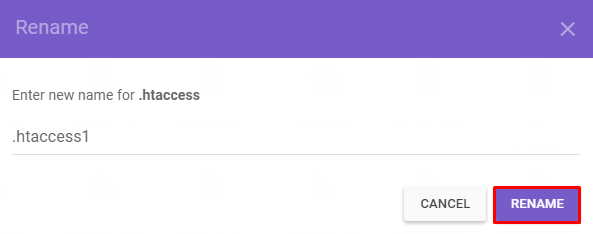
- После этого, создайте новый файл .htaccess и вставьте в него стандартный код .htaccess:
# BEGIN WordPress
<IfModule mod_rewrite.c>
RewriteEngine On
RewriteBase /
RewriteRule ^index.php$ - [L]
RewriteCond %{REQUEST_FILENAME} !-f
RewriteCond %{REQUEST_FILENAME} !-d
RewriteRule . /index.php [L]
</IfModule>
# END WordPress
- Убедитесь, что сохранили файл.
Теперь, откройте ваш сайт в браузере и посмотрите исправлена ли ошибка. Если нет, продолжите чтение руководства.
Способ 3 — Увеличение лимитов PHP
Если два способа описанных выше не принесли никакого результата, то неправильные значения PHP или нехватка памяти могли стать причиной появления ошибки 500. Это происходит из-за того, что скрипты и плагины требуют определённое количество памяти для своей правильной работы. В дополнение к этому, когда загружается ваш сайт, браузер делает огромное количество запросов для загрузки скриптов, плагинов и контента. Когда количество памяти для загрузки скриптов и плагинов не хватает, WordPress, скорее всего, выдаст ошибку 500 Internal Server Error. Именно поэтому, важно увеличить значение памяти вашего сайта и других PHP настроек. Вы можете это сделать с помощью файла .htaccess. Вот несколько строк, которые мы рекомендуем вам добавить:
php_value upload_max_filesize 128M
php_value post_max_size 128M
php_value max_execution_time 300
php_value max_input_time 300
php_value memory_limit 256M
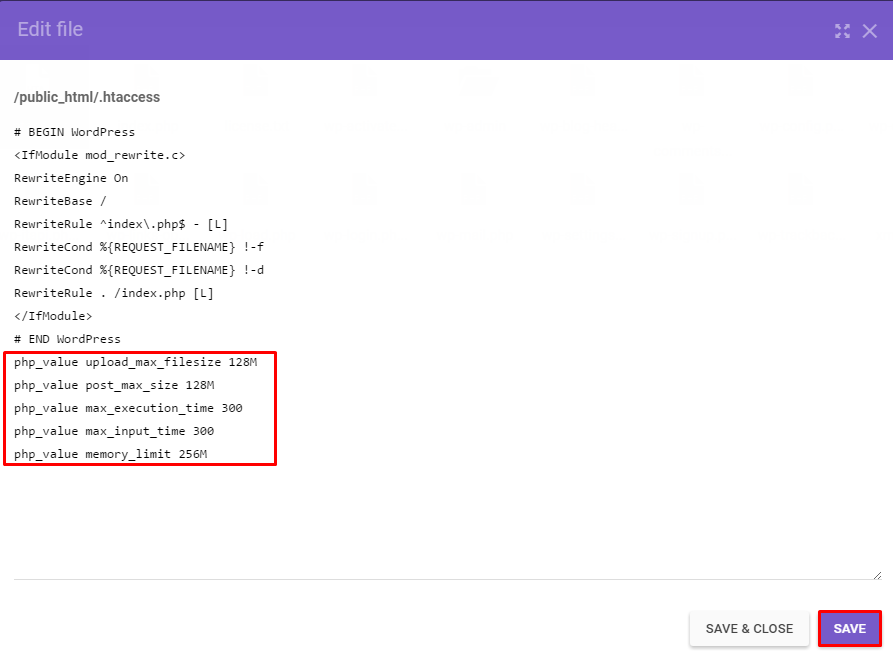
Не забудьте Сохранить изменения. Теперь, обновите ваш сайт. Если проблема возникала из-за недостаточных лимитов PHP, то этот способ должен помочь с её решением.
Способ 4 — Изменение версии PHP
Некоторые скрипты или плагины для WordPress требуют определённую версию PHP. Если рекомендуемые требования для них не выполнены, то в следствии этого может появиться ошибка 500. Вы можете проверить вызвана ли она версией PHP, изменив её. Это можно сделать через панель управления хостингом в разделе Дополнительно → Выбор PHP версии.
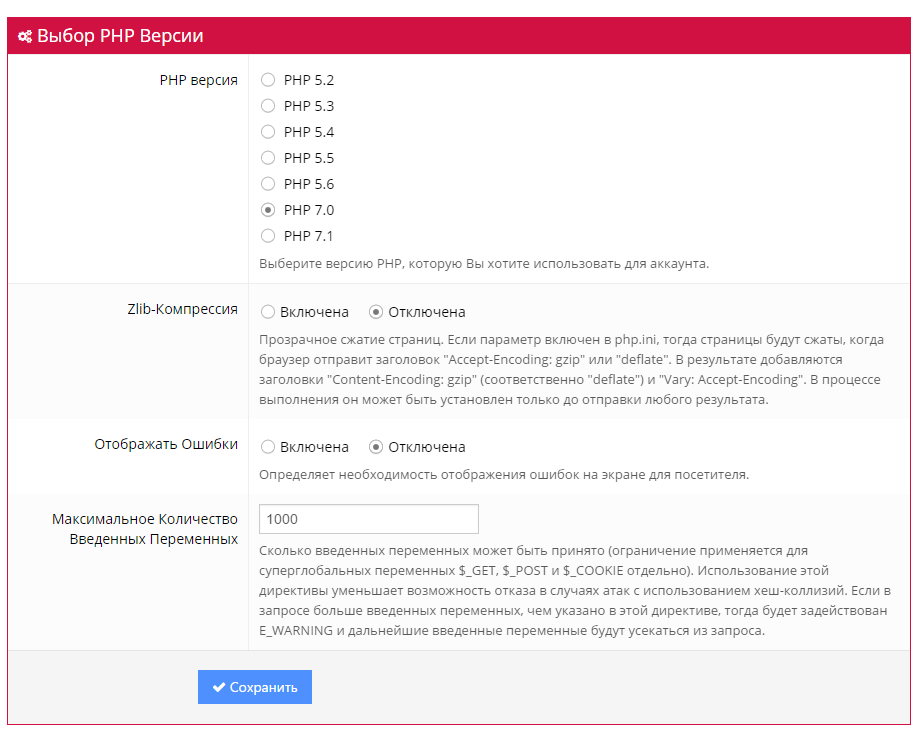
В случае, если вы не знаете какая версия PHP вам необходима, попробуйте поочередно включать каждую из них. Не забудьте Сохранять ваши настройки и обновлять сайт при каждом изменении. Если ни одна из данных версий не помогла в решении ошибки 500, то верните вашу прошлую версию PHP и перейдите к следующем способу.
Способ 5 — Включение отображений ошибок
Поиск причины возникновения ошибки WordPress 500 Internal Server Error — это самая сложная часть в процессе её исправления. Если ни один из предыдущих способов вам не помог, значит вам необходимо начать поиски поглубже — проверив ваши ошибки. Существует несколько способов для этого:
Включение отображение ошибок
Включив отображение ошибок, вы сможете найти определённый код вашего сайта, который её вызывает. Это можно сделать в том же разделе, где мы меняли версию PHP. Дополнительно → Выбор PHP версии. Установите значение Отображать Ошибки на Включена и нажмите кнопку Сохранить.
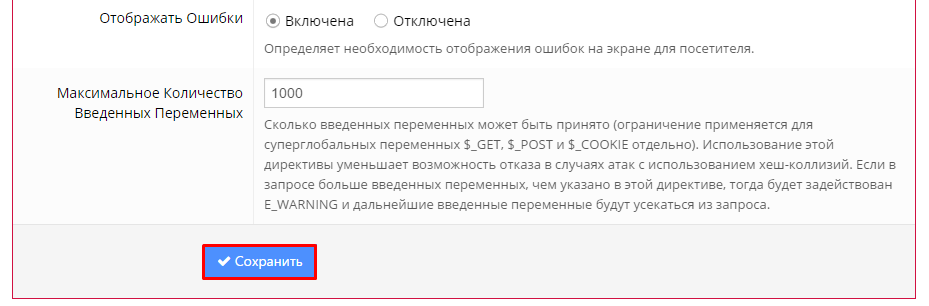
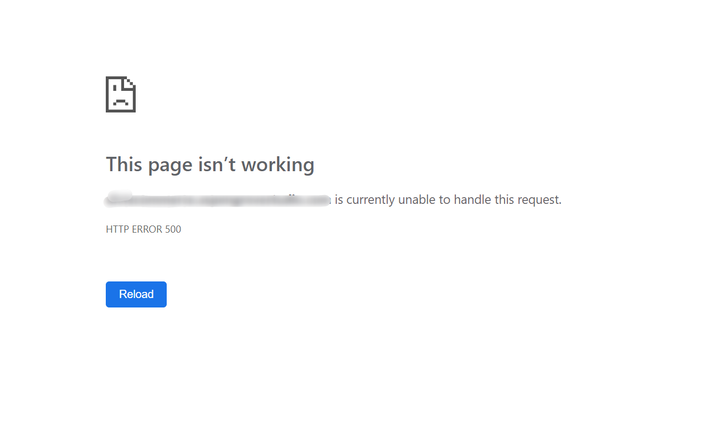
Теперь, вы должны перезагрузить ваш сайт. Все ошибки кода будет отображены на экране, как на картинке ниже:

Как только вы найдёте ошибку, откройте указанный в ней файл и посмотрите нужную строку. Вы можете использовать Google, Stackoverflow, WordPress Форум, или связаться с вашим разработчиком для получения информации о решении данной проблемы.
Способ 6 — Использование отладки WordPress
WordPress имеет свою собственную систему отладки, которую вы можете использовать для решения проблем с вашим кодом. Это также может помочь решить проблему ошибки 500. Для начала её использования, вам необходимо сделать несколько изменений в вашем файле wp-config.php.
- Найдите следующую строчку в файле wp-config.php:
define('WP_DEBUG', false);
- Удалите и вставьте на её место следующий код:
 // Enable WP_DEBUG mode
define( 'WP_DEBUG', true );

// Enable Debug logging to the /wp-content/debug.log file
define( 'WP_DEBUG_LOG', true );

// Disable display of errors and warnings
define( 'WP_DEBUG_DISPLAY', false );
@ini_set( 'display_errors', 0 );

// Use dev versions of core JS and CSS files (only needed if you are modifying these core files)
define( 'SCRIPT_DEBUG', true );
- Обновите ваш сайт и откройте Файловый Менеджер. Перейдите в каталог wp-content и найдите файл debug.log. Откройте редактирование данного файла для просмотра его значений.

- Теперь вы знаете, что является причиной возникновения ошибки и сможете решить её, обратившись к разработчику или Google, Stackoverflow, WordPress Форуму. Более детальная информации о системе отладки может быть найдена здесь.
Способ 7 — Восстановление резервной копии
Если вы сделали бэкап WordPress до его поломки, восстановление резервное копии тоже может стать решением. Для начала, удалите все файлы WordPress. Затем, загрузите ваш бэкап, перепроверьте, работает ли ваш сайт.
Ручной способ восстановления WordPress может подойти не всем. Если вам кажется это слишком сложным, то мы можем подсказать вам другой способ. К сожалению, это не поможет вам, если ваш сайт не работает, но он точно поможет вам избежать подобных проблем в будущем.
- Установите и активируйте плагин All-in-One WP Migration.
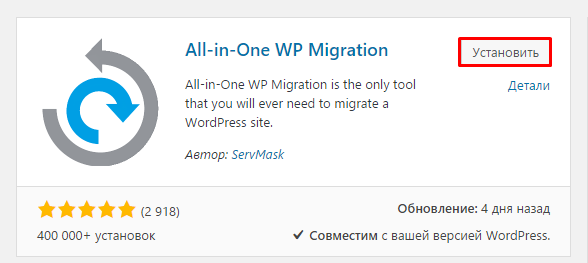
- Найдите его в панели управления вашим WordPress и нажмите кнопку Export.
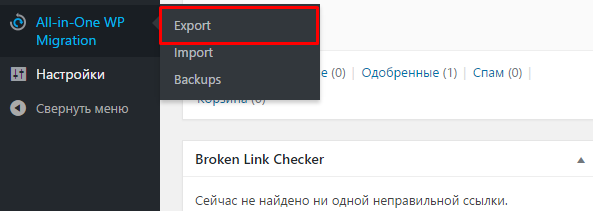
- Выберите опцию File (Файл), если вы хотите скачать резервную копию на ваш компьютер.
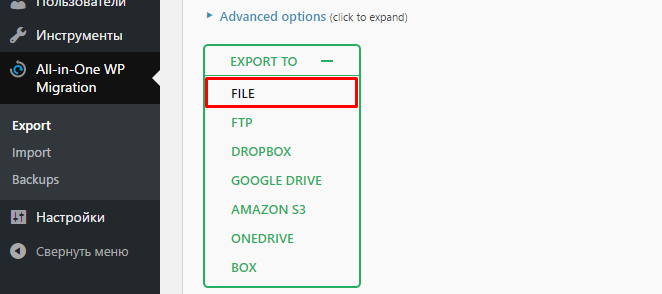
- Скачайте сгенерированную резервную копию на ваш компьютер. Она содержит файлы вашего сайта и базы данных.
- Теперь в случае появления ошибки 500 Internal Server Error (или любой другой проблемы) и невозможности её решения, вы можете просто восстановить ваш сайт с помощью резервной копии.
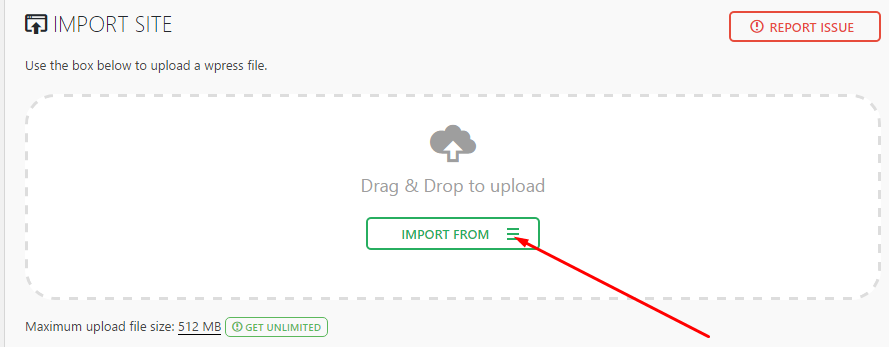
- Для восстановления сайта с помощью сгенерированной резервной копии, вам необходимо полностью удалить ваш сайт и установить новый WordPress, вместе с плагином All-in-One. После этого, выберите функцию Import (Импорт), выберите сгенерированный бэкап и продолжите процедуру восстановления.
Способ 8 — Переустановка файлов WordPress
Если ошибка ещё появляется, есть кардинальное средство для её решения. Всё, что вам нужно сделать это:
- Скачать последнюю версию WordPress.
- Сохранить и распаковать её на вашем компьютере.
- Удалить файл wp-config-sample.php и папку wp-content для избежания перезаписи важной информации.
- Переместить все корневые файлы на ваш хостинг аккаунт и перезаписать их. Это можно сделать с помощью FTP-клиента FileZilla.
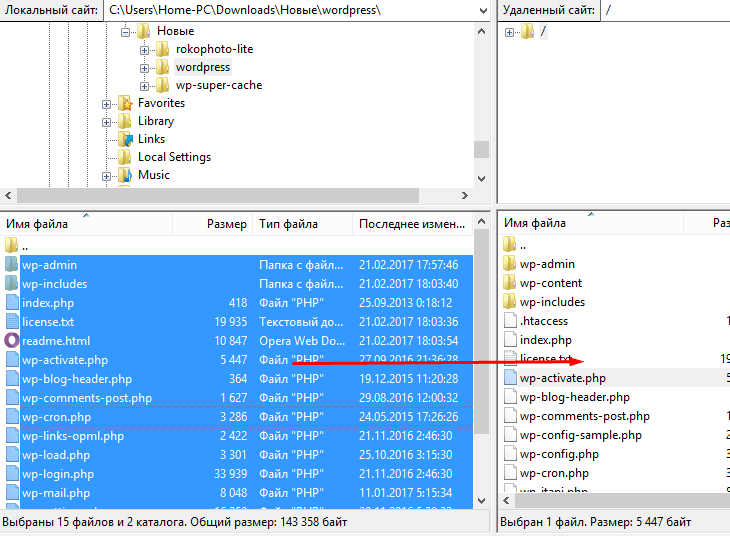
- Далее, должно появиться окно с разрешением на перезапись файлов. Поставьте значения как на изображении для автоматизации процесса.
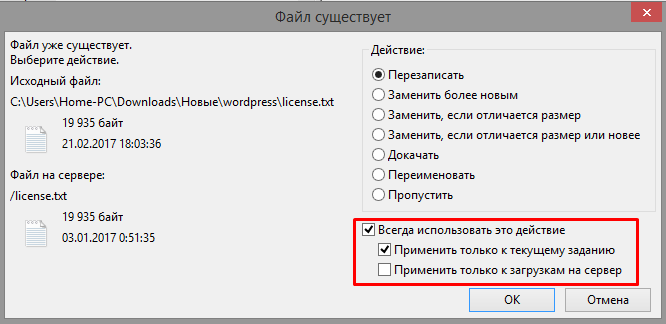
ЗАМЕТКА! Убедитесь, что вы сделали резервное копирование вашего сайта перед началом данного процесса. Это позволит избежать потери важной информации.
Процесс загрузки может занять от 10 до 20 минут. После завершения, попробуйте вновь обновить ваш сайт в браузере. Если ошибка 500 Internal Server Error была связана с корневыми файлами WordPress, этот способ должен помочь решить проблему.
Способ 9 — Начать всё заново
Если все из приведённых способов вам не помогли, вам придется начать создание вашего сайта с нуля. Хорошей новостью является то, что вы можете восстановить ваш сайт даже с помощью резервной копии базы данных. Загляните в данное руководство для пошаговой инструкции по восстановлению вашего сайта только с помощью базы данных MySQL.
Заключение
Все, кто используют WordPress хотя бы раз сталкивались с ошибкой internal server error. Являетесь ли вы продвинутым разработчиком или начинающим пользователем, исправление ошибки 500 является довольно простым процессом, если вы знаете, где искать её причину. Как и в реальной жизни, для решения проблемы нужно сначала найти её источник. После этого, вы можете использовать онлайн ресурсы или это руководство для решения данной проблемы.
У вас есть чем с нами поделиться? Расскажите о ваших идеях или советах в комментариях!

Елена имеет профессиональное техническое образование в области информационных технологий и опыт программирования на разных языках под разные платформы и системы. Более 10 лет посвятила сфере веб, работая с разными CMS, такими как: Drupal, Joomla, Magento и конечно же наиболее популярной в наши дни системой управления контентом – WordPress. Её статьи всегда технически выверены и точны, будь то обзор для WordPress или инструкции по настройке вашего VPS сервера.
Большинству из нас, будь то разработчики, дизайнеры или даже конечные пользователи, приходилось хотя бы раз в жизни пережить. То есть болезненный процесс получения внутренней ошибки сервера и попытки ее исправить. Многие люди не хотят знать больше – они просто хотят это исправить. Но если вы не попытаетесь хотя бы понять это, вам придется чаще страдать от этой участи. Ошибка внутреннего сервера 500 очень важна, поскольку она полностью останавливает все процессы и может вывести из строя весь ваш сайт. Так что, если мы когда-нибудь захотим от него избавиться, нам нужно сначала лучше понять, что это значит.
В этой статье я расскажу, что означает эта ошибка, как определить проблему и, конечно же, как ее исправить. Но прежде чем начать, я хочу провести вас через различные существующие ошибки http (сайта) и то, что они потенциально могут означать. Если хотите, можете сразу перейти к тому, как исправить ошибку WordPress 500.
Общие коды состояния и ошибок HTTP
Перво-наперво – я собираюсь объяснить, что на самом деле означают эти ошибки. В настоящее время существует список состояний и ошибок для HTTP, к которым можно получить доступ, чтобы лучше устранить проблему. Эти ошибки обычно делят по типам. Итак, чтобы сократить этот вопрос, мы рассмотрим наиболее важные ошибки и информационные коды состояния, которые вы найдете при работе со своим сайтом WordPress.
100x ответ (статус)
Этот тип ответа предоставляется непосредственно веб-сервером. В зависимости от вашей хостинговой компании ответ может быть предоставлен Apache, nginx или любым другим веб-сервером, который использует компания. Этот тип ответа не связан с ошибками. Обычно они используются, чтобы указать, что соединение установлено. Это коды состояния ответа на соединения.
200x ответ (успех)
Я называю их успешными. Такой ответ всегда свидетельствует об успехе. Это означает, что либо сервер успешно подключился к вам, что запрашиваемые ресурсы были предоставлены правильно, либо было установлено прокси-соединение.
Самый распространенный успешный код известен как 200 OK. Вы можете увидеть примеры этого, если используете инструмент тестирования скорости WordPress, скажем, в Pingdom Tools, и пытаетесь узнать FTTB (первый раз в байтах). Ответ 200 OK всегда выдается на первый сделанный запрос.
300x ответ (перенаправления)
Ребята перенаправления. Эти коды всегда передаются, если данная ссылка переадресовывается. 300 кодов состояния указывают на успешное перенаправление и также не считаются ошибкой.
Предположим, у вас есть сайт SSL (HTTPS), и у вас также есть прямой доступ к HTTP (незащищенный), и вы хотите перенаправить всех на HTTPS-версию своего сайта. Вы можете создать перенаправление для всех запросов, поступающих с HTTP, на HTTPS. Если вы случайно попытаетесь зайти на свой сайт по HTTP, ваш браузер получит ответ 300, указывающий на перенаправление на версию HTTPS.
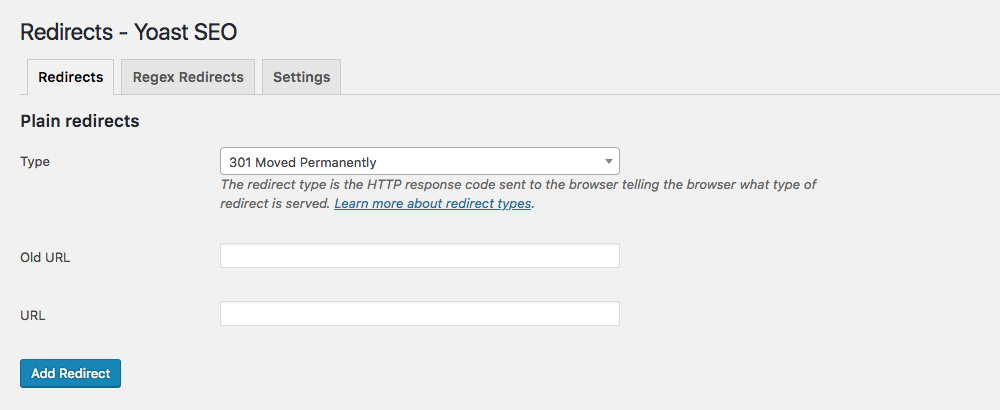
Другой распространенный пример, с которым вы, возможно, знакомы, – это локальные перенаправления для SEO. Возможно, вы удалили старые сообщения или страницы. С помощью такого плагина, как Yoast SEO, вы можете 301 перенаправить их на новые, более релевантные страницы. Или используйте временное перенаправление 307, если вы работаете над обновлением и хотите ненадолго перенаправить пользователей на другую страницу.
Ответ 400x (ошибки клиента)
Известные клиентские ошибки. Эти типы ошибок связаны с проблемами в вашем браузере. Как правило, не удается загрузить определенный актив (наиболее известной является ошибка 404). Это коды ошибок, которые не считаются серьезными.
Та же ошибка может появиться, если вы попытаетесь получить доступ к несуществующему изображению на вашем сайте. Например, вы можете использовать перенаправление 410, чтобы сообщить поисковым системам, что контент был окончательно удален, или 451, если вы сделали страницу недоступной по юридическим причинам (например, по запросу DMCA).
Ответ 500x (ошибки сервера)
И вот мы подошли к нашему главному герою. 500 ошибок. Как видите, это важные ошибки, которые всегда связаны с самим сервером. Ошибки сервера важны, потому что они могут привести к сбою вашего сайта. Из этих ошибок наиболее важными являются:
- Услуга A 503 недоступна
- Ошибка 502 неверного шлюза
- Внутренняя ошибка сервера 500
Давайте рассмотрим 3 из них в порядке важности.
сервис 503 недоступен
Наименее серьезным является недоступность службы 503. Если эта ошибка появляется, у вас проблема с ресурсами на веб-сервере. Почти всегда это появляется, когда ваш сервер перегружен. Проще говоря, если вы видите эту ошибку, знайте, что она временная и напрямую связана со слишком большим объемом трафика, и это приводит к перегрузке процессора. Когда ЦП и сам веб-сервер не могут обрабатывать больше входящих подключений, потому что он достиг 100% загрузки ЦП, вы увидите это всплывающее окно с ошибкой.
Вы можете исправить это, либо переключившись на лучший веб-сервер (например, с Apache на Nginx), либо внедрив плагин кэширования WordPress на свой сайт.
502 Неверный шлюз
Это то, что я назвал ошибкой неправильной конфигурации. Эта ошибка не появляется без причины. Если у вас когда-либо возникала эта ошибка, скорее всего, причина в том, что вы что-то сделали, но сделали это неправильно. Обычно это происходит, когда люди пытаются настроить Apache и конфигурацию PHP или при попытке оптимизировать nginx. Плохой шлюз – это ошибка, которая почти всегда возникает, когда PHP FPM (Fast Process Manager) теряет соединение. Либо из-за неправильной настройки, либо из-за сбоя процесса. Это приводит к тому, что веб-сервер отвечает неверным шлюзом.
Самый простой способ исправить эту ошибку – дважды проверить конфигурацию PHP-FPM, поскольку это наиболее вероятная причина этой ошибки. Это происходит чаще на стороне Nginx, чем на Apache, и почти никогда не происходит на службах хостинга, предоставляемых cPanel или Plesk. На последних двух панелях предусмотрены меры предосторожности для предотвращения ошибки неправильной конфигурации. Но это происходит очень часто при управлении собственным VPS.
Нужна дополнительная помощь с этим? Следуйте нашему руководству о том, как исправить ошибку 502 неверного шлюза.
500 – внутренняя ошибка сервера
Большой плохой мальчик ошибок. Внутренняя ошибка сервера 500 – худшая из них, прежде всего потому, что это такая общая ошибка. Если у вас нет достаточных знаний о том, как с этим бороться, это может стать настоящей болью, поскольку может вывести из строя весь ваш сайт. Ошибка 502 неверного шлюза также вызывает сбой вашего сайта, но ее легче диагностировать и исправить. Как уже упоминалось, это почти всегда связано с конфигурацией FPM.
Причины 500 внутренних ошибок сервера и способы их устранения
Первое, что нужно понять об ошибке 500, – это то, что она может быть вызвана рядом различных факторов, которые почти всегда связаны с сбоями в выполнении кода. Вместо того, чтобы пытаться диагностировать все сразу, я дам вам список ошибок по типу проблемы и тому, что вы делали.
- Путем переноса старого сайта на новый хостинг
- Ошибка в .htaccess в конфигурации apache
- Ошибка выполнения PHP-кода
Существуют и другие, менее распространенные случаи, которые могут вызвать внутреннюю ошибку сервера 500, но для простоты и удобства использования этой статьи я сосредоточусь на этих трех.
1 Перенос старого сайта на новый хостинг
Эта ошибка может появиться несколькими способами, но почти всегда кажется, что это связано с версией PHP, привязанной к вашему веб-серверу. Более новые версии PHP могут немедленно вызвать внутреннюю ошибку сервера 500, если текущий сайт или плагины не поддерживают текущую версию.
Эта ошибка является классической, например, когда вы переносите свой сайт с посредственного хостинга со старой версией PHP на более новый хостинг, который принимает только более новые версии (7.0 и выше). Если ваш сайт не обновлялся в последнее время, возможно, проблема связана со старым плагином. Я называю это «внутренней ошибкой сервера миграции», потому что это почти всегда происходит при миграции сайта.
Решение
Лучший способ исправить эту ужасную ошибку, когда вы так сильно пытаетесь перенести свой сайт WordPress на новый хостинг, – это сделать полную копию ваших плагинов и темы вашего сайта. После этого удалите все плагины со своего сайта и попробуйте еще раз. Если ошибка исчезнет, почти гарантировано, что ошибка была сгенерирована более новой версией PHP на вашем хостинге, которая просто отказывается выполнять код в вашем более старом плагине. Повторно загружая один плагин за раз, вы можете легко узнать, какой из них вызвал проблему.
Эти ошибки почти всегда проявляются при переносе старых сайтов, работающих на PHP 5.4 и 5.6, на новый хостинг с PHP 7.0, 7.1 или 7.2.
То же самое относится и к вашей теме. Поскольку темы могут реализовывать и реализуют дополнительный PHP-код в файлах functions.php, single и page.php. Скорее всего, более старая тема без обновлений может сломать ваш сайт после переноса на хостинг с более новой версией PHP. Эта ситуация прискорбна, поскольку единственный способ исправить это – изменить тему и перестроить ваш сайт. Это наихудший сценарий.
2 Ошибка конфигурации .htaccess Apache
Допустим, вы настраивали плагин, и вдруг все вылетает. Если вы получаете внутреннюю ошибку сервера 500 при настройке, например, плагина кэширования или любого плагина, связанного с оптимизацией, вам необходимо проверить, добавил ли плагин дополнительный код в ваш файл .htaccess.
Поскольку apache можно изменять в реальном времени, настраивая функции в файле .htaccess (который почти всегда скрыт), неправильная конфигурация может нарушить работу вашего сайта.
Решение
Чтобы исправить это, либо войдите в свой сайт через FTP и измените файл .htaccess, либо путем прямого редактирования, например, с помощью проводника файлов на cPanel или Plesk.
Если вы не знаете, как отменить то, что сделал плагин, и вам снова нужен ваш сайт, сделайте копию существующего содержимого в виде текстового файла. Сохраните это как резервную копию. Затем замените весь .htaccess следующим кодом:
# BEGIN WordPress
<IfModule mod_rewrite.c>
RewriteEngine On
RewriteBase /
RewriteRule ^index.php$ - [L]
RewriteCond %{REQUEST_FILENAME} !-f
RewriteCond %{REQUEST_FILENAME} !-d
RewriteRule. /index.php [L]
</IfModule>
# END WordPress
Это файл .htaccess WordPress по умолчанию. Он должен работать с любым сайтом. Итак, если вы в отчаянии и не знаете, какую часть удалить, просто удалите все и вставьте этот код. Он мгновенно вас спасет. Позже вы можете удалить плагин или попробовать настроить его снова. Теперь вы знаете, как спасти вас от этой катастрофической ошибки. По крайней мере, если это связано с .htaccess.
Если вы не знаете, связана ли это с .htaccess, или эта ошибка начала появляться, даже если вы не касались каких-либо плагинов, не рискуйте. Просто скопируйте содержимое вашего .htaccess и скопируйте приведенный выше код, чтобы попытаться диагностировать. Если это не помогло, оставьте .htaccess как есть, а затем попробуйте следующее предложение.
3 Ошибка выполнения кода PHP.
Ошибки такого типа встречаются чаще, чем вы думаете, и обычно они возникают, если плагин выполняет недопустимый код. Самый распространенный способ выполнения недопустимого кода – это попытка выполнить устаревшие инструкции. Возможно, вы пытаетесь запустить старый плагин, который был разработан для работы только с PHP 5.4 или 5.6 с PHP 7.0 или более новыми версиями. Устаревшие и недопустимые функции вызовут внутреннюю ошибку сервера, которую можно диагностировать только путем включения режима отладки WP.
Включить wp_debug
Режим отладки WordPress предоставит вам подробную информацию об ошибке, которая остановила выполнение. Мы включаем его, изменяя значение с «false» на «true» в wp_debug внутри файла wp-config.php в корневой папке вашего сайта.
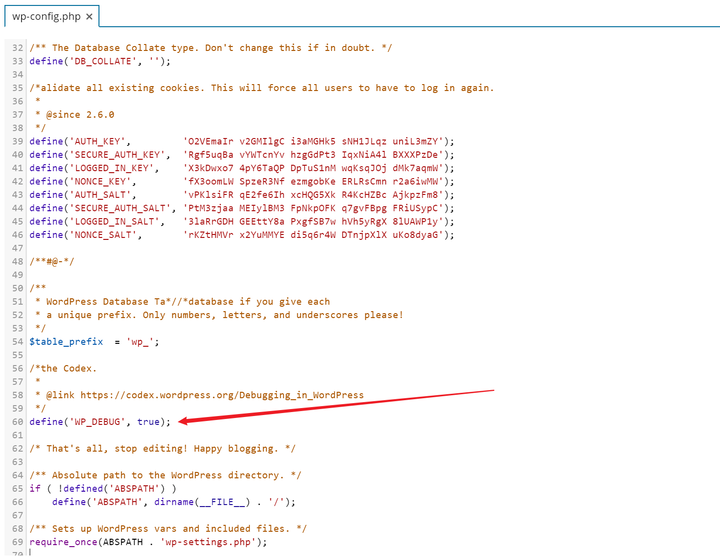
Если вы используете Plesk или cPanel, вы можете сделать это, просто изменив это значение с помощью проводника и отредактировав wp-config.php. Вы также можете следовать этому руководству по отладке от Blogvault, чтобы получить более подробные инструкции.
Как только файл будет отредактирован, вы сможете увидеть фактическую ошибку, которая остановила выполнение. В ошибке также будет указан путь и файл, в котором это произошло, поэтому легко догадаться, какой плагин вызвал ее. При отключении его можно пропустить ошибку, а затем обновить плагин или удалить его, в зависимости от ситуации.
Решение
Подавляющее большинство случаев внутренней ошибки сервера 500 связано с более старыми версиями тем или плагинами. Переключив вашу тему на любую стандартную тему WP, вы сможете восстановить доступ к своему сайту. Отключение конфликтующих плагинов также вернет вам доступ к панели управления. Если вы столкнулись с ситуацией, когда ваша тема является ответственной за нарушение работы сайта, лучший способ исправить это – создать zip-файл указанной темы из папки темы wp-content / themes / yourtheme, а затем удалить его из твой сайт. Это устранит ошибку, и вы сможете восстановить доступ к своему сайту. Затем вы можете повторно загрузить его и обновить, не активируя. То же самое можно сделать и с плагинами.
Наиболее частые ситуации для 500 внутренних ошибок сервера можно исправить обновлением. В случаях, когда для указанного плагина / темы нет доступных обновлений, вы можете попробовать переключиться на более старую версию PHP. Но знайте, что это временное решение. Новые версии PHP становятся стабильными, а старые версии регулярно объявляются устаревшими. Рано или поздно ваш сайт точно перестанет работать. Лучшим подходом всегда будет обновить или удалить / заменить соответствующие плагины.
Всегда помните, что лучше предотвратить и обновить, чем пытаться устранить повреждения позже.
Завершение нашего руководства по внутренним ошибкам сервера WordPress 500
Внутренняя ошибка сервера WordPress 500 может стать настоящей проблемой. Но в большинстве случаев их можно легко диагностировать и исправить, просто удалив / обновив конфликтующие части вашего сайта. Хотя могут быть ситуации, когда эти ошибки выходят за рамки нормы (например, при разработке плагина), это выходит за рамки цели данной статьи.
Для подавляющего большинства людей приведенный выше совет должен решить вашу проблему. Помните, что wp-debug – ваш лучший друг, и всегда внимательно следуйте инструкциям. Ваш сайт будет снова в сети в кратчайшие сроки.
Остались вопросы? Или советы по устранению внутренней ошибки сервера WordPress 500? Дай мне знать!
Источник записи: https://www.wpexplorer.com
Ошибки WordPress — это то, с чем рано или поздно столкнется каждый владелец сайта. Они возникают по разным причинам. Порой из-за неправильно кода, а иногда — из-за сервера или слишком больших нагрузок. В любом случае они приносят вред вашему сайта. Пользователь, который хотел зайти на страницу вашего ресурса, и увидел вместо главной сообщение с ошибкой, возможно, больше никогда не вернется. А если ошибку длительно не устранять, об этом узнают поисковики, и тогда сайт лишиться своих прежних позиций.
Одна из самых частых ошибок — это 500 internal server error. Такая ошибка отравляет жизнь многим вебмастерам.
Порой вывести ее очень трудно. А трудно, потому что не все догадываются о достоверных причинах возникновения неполадки. Ошибка будет устранена, если вы сумеете найти корень проблемы. В данной статье будут описаны возможные (по крайней мере, самые частые) причины возникновения надписи 500 internal server error.

Содержание
- Почему возникает ошибка 500 internal server error
- Как исправить неполадку в файле .htaccess
- Что делать, если ошибка возникла из-за длительной работы скрипта
- Ошибка из-за превышения лимита оперативной памяти скриптом — что делать
Почему возникает ошибка 500 internal server error
Итак, основные причины возникновения такого сбоя следующие:
- В файле .htaccess допущены ошибки.
- Какой-либо скрипт на вашем сайте работает слишком длительно.
- Один из скриптов берет на себя слишком много оперативной памяти сервера.
- Какой-либо файл WordPress повредился.
Порой ошибка 500 internal server error появляется и не на движке WordPress. Это может быть связано с активацией двух расширений на хостинге, которые нельзя совмещать в работе. Либо, если сайт неправильно работает с заголовками — сервер их не понимает. Но данная статья посвящена WordPress, потому решение проблем других движков рассмотрены не будут. Разберем способы исправления ошибки.
Как исправить неполадку в файле .htaccess
Это одна из самых популярных причин, почему появляется ошибка 500 internal server error. Но нельзя наверняка сказать, что на вашем ресурса ошибка появляется именно из-за неправильной работы файла .htaccess. Сначала это нужно доказать!
Чтобы определить работоспособность файла .htaccess, достаточно удалить его из хостинга. Только не забудьте предварительно скопировать его в файловую систему компьютера, чтобы потом можно было восстановить конфигурации. Итак, при помощи FTP-клиента удаляем возможную причину возникновения ошибки на сайте WordPress, и запускаем ресурс повторно. Если ничего не изменилось — ошибка 500 internal server error вновь появляется на странице, значит проблема не в файле .htaccess. Если сайт заработал — вы нашли корень проблемы.
Файл .htaccess необходим, чтобы допускать сервер к директориям загруженным на хостинге. Файл указывает возможности доступа для сервера. В основном он применяется, когда вы используете не автоматически сгенерированные ссылки, а «человекопонятные», то есть те, которые отражают название статьи. Также файл часто запрашивают плагины для резервного копирования данных (например, во время автоматического обновления модулей).
Проблема в том, что файл .htaccess достаточно создать единожды, занеся в него необходимые функции. Но почему-то движок WordPress постоянно норовит внести свои изменения, и меняет содержимое файла по десять раз в сутки! Это немыслимо, ведь со временем из-за такой частотности изменений в файле появляются какие-то несоответствия и ошибки. В результате, в один прекрасный день, когда вы попытаетесь открыть сайт, перед вами выскочит ошибка 500 internal server error.
Обычно, не весь файл .htaccess является непригодным, а лишь какая-то его часть. Дело в том, что разные элементы могут несогласованно вносить изменения в файл — сначала свою лепту вносит движок, потом плагин, и напоследок — сам шаблон WordPress. Чтобы восстановить прежний необновленный файл .htaccess, вам придется проверить весь его код. Если вы в этом не разбираетесь, тогда можете попробовать поочередно деактивировать плагины, возможно причина в них.
Если вы не желаете копаться во внутренностях файла .htaccess, тогда можете заняться обновлением движка WordPress до последней доступной версии. Дело в том, что вместе с техническими релизами вы скачаете и новый файл .htaccess. Он наверняка будет рабочим, так как никакие скрипты еще не внесли в него изменения.
Чтобы навсегда избавиться от злостной ошибки 500 internal server error, вам необходимо деактивировать автоматическое обновление системой файла .htaccess. Но многие вебмастера не рекомендуют применять этот метод устранения проблемы — рано или поздно, вам все равно необходимо будет восстанавливать файл. Вы можете деактивировать обновление временно, пока не пришла новая версия движка WordPress.
Для деактивации обновлений файла .htaccess вам предстоит зайти на сервер через FTP и скачать сам файл, а также конфигурацию misc.php. Именно в этой конфигурации содержится описание функции обновления. Найдите строку «return insert_with_markers…» и замените все ее содержимое на «return true». Теперь при помощи клиента удаляем прежнюю версию файла misc.php, и на ее место ставим новую конфигурацию misc.php. Все, дело сделано! Теперь файл .htaccess не будет изменяться, если того пожелает WordPress или какой-нибудь плагин. Но в этом-то и кроется недостаток этого метода решения проблемы — может возникнуть ошибка во время пользования каким-либо плагином. Потому относитесь к этому способу, как к временному средству решения неполадки.
Что делать, если ошибка возникла из-за длительной работы скрипта
Настоятельно рекомендуется хоть изредка заглядывать на хостинг в личные сообщения. Вы платите серверу деньги, потому он обязан следить за работоспособностью вашего сайта. Порой техническая поддержка присылает вам сообщения о выходе из строя каких-либо скриптов, или если они слишком грузят ваше рабочее пространство. Чтобы решить проблему с долго работающими скриптами, воспользуйтесь одним из двух методов:
- Сделайте запрос в службу поддержки клиентов хостинга. Они просто обязаны вас выручить. В крайнем случае пригрозите сменой сервера. Обычно до этого не доходит, но на всякий случай можете воспользоваться таким методом легкого шантажа.
- Если вы человек скромный, и не хотите ухудшать кому-то жизнь, тогда придется искать корень проблемы самостоятельно. Для этого просмотрите log файлы. у каждого сервера есть своя панель, куда записывают ошибки сайта. Найдите такую панель на вашем хостинге, и просмотрите ее на наличие файлов error. В этом файле будет записано время и причина возникновения ошибки. Вам останется лишь подкорректировать работу вредоносного файла: обновить или самостоятельно изменить его.
Ошибка из-за превышения лимита оперативной памяти скриптом — что делать
Эта проблема касается исключительно ваших договоренностей с хостингом. Некоторые скрипты порой по-разному загружают сервер, потому вы могли не заметить, что какая-то функция берет на себя слишком много памяти с хостинга. Чтобы выявить «прожорливый» скрипт, из-за которого возникла ошибка, вам вновь придется зайти в админку хостинга. Сбоку админ-панели обычно есть специальная шкала загрузки хостинга. При помощи нее вы сможете найти причину, а при помощи лога — файл, который вызывает ошибку.
The dreaded 500 internal server error. It always seems to come at the most inopportune time and you’re suddenly left scrambling to figure out how to get your WordPress site back online. Trust us, we’ve all been there. Other errors that behave similarly that you might have also seen include the frightening error establishing a database connection and the dreaded white screen of death. But from the moment your site goes down, you’re losing visitors and customers. Not to mention it simply looks bad for your brand.
Today we’re going to dive into the 500 internal server error and walk you through some ways to get your site back online quickly. Read more below about what causes this error and what you can do to prevent it in the future.
- What is a 500 internal server error?
- How to fix the 500 internal server error
500 Internal Server Error (Most Common Causes):
500 Internal server error in WordPress can be caused by many things. If you’re experiencing one, there’s a high chance one (or more) of the following elements is causing the issue:
- Browser Cache.
- Incorrect database login credentials.
- Corrupted database.
- Corrupted files in your WordPress installation.
- Issues with your database server.
- Corrupted WordPress core files.
- Corrupted .htaccess file and PHP memory limit.
- Issues with third-party plugins and themes.
- PHP timing out or fatal PHP errors with third-party plugins.
- Wrong file and folder permissions.
- Exhausted PHP memory limit on your server
- Corrupted or broken .htaccess file.
- Errors in CGI and Perl script.
Check Out Our Ultimate Guide to Fixing the 500 Internal Server Error
What is a 500 Internal Server Error?
The Internet Engineering Task Force (IETF) defines the 500 Internal Server Error as:
The 500 (Internal Server Error) status code indicates that the server encountered an unexpected condition that prevented it from fulfilling the request.
When you visit a website your browser sends a request over to the server where the site is hosted. The server takes this request, processes it, and sends back the requested resources (PHP, HTML, CSS, etc.) along with an HTTP header. The HTTP also includes what they call an HTTP status code. A status code is a way to notify you about the status of the request. It could be a 200 status code which means “Everything is OK” or a 500 status code which means something has gone wrong.
There are a lot of different types of 500 status error codes (500, 501, 502, 503, 504, etc.) and they all mean something different. In this case, a 500 internal server error indicates that the server encountered an unexpected condition that prevented it from fulfilling the request (RFC 7231, section 6.6.1).
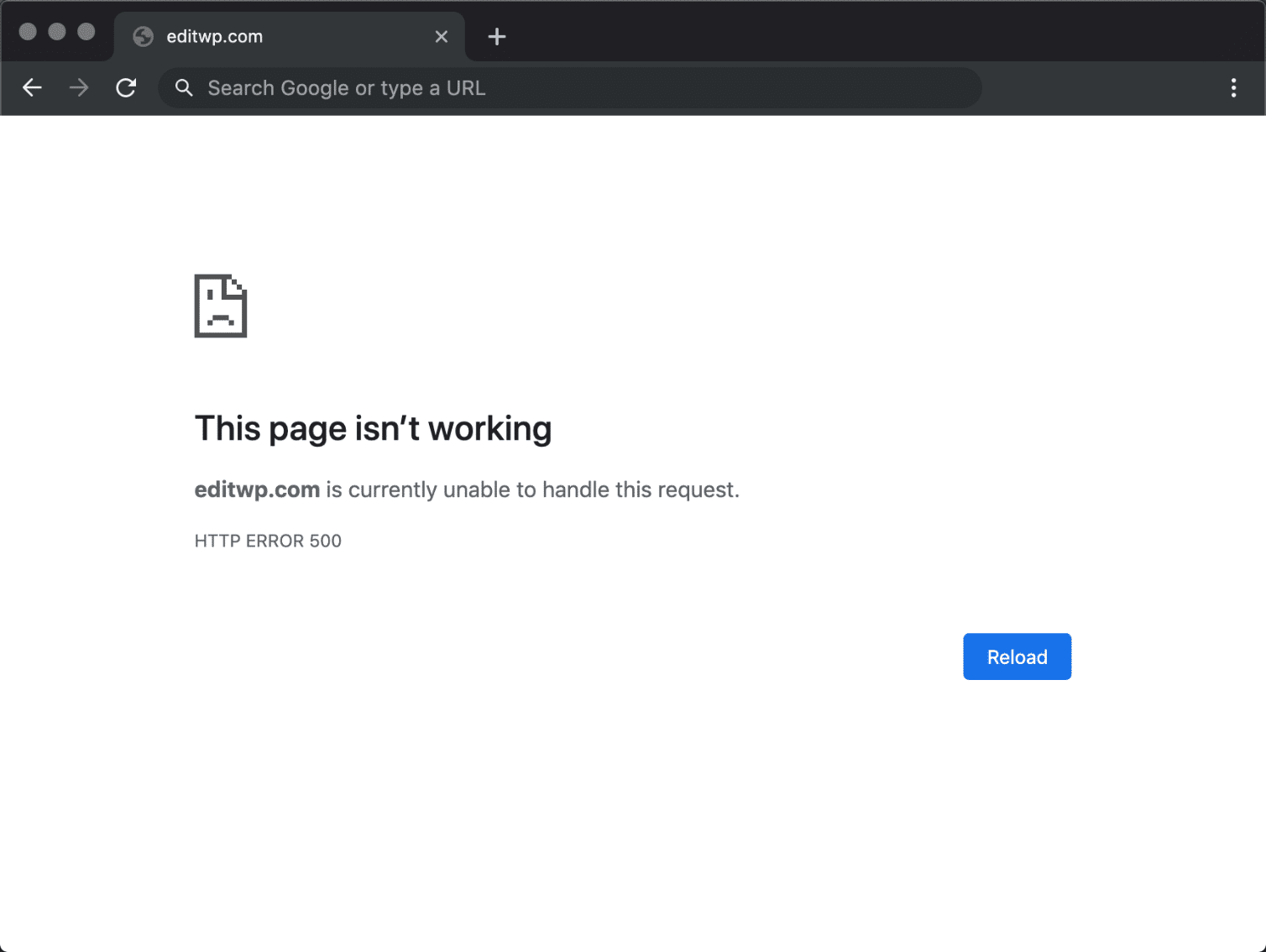
500 Internal Server Error Variations
Due to the various web servers, operating systems, and browsers, a 500 internal server error can present itself in a number of different ways. But they are all communicating the same thing. Below are just a couple of the many different variations you might see on the web:
-
- “500 Internal Server Error”
- “HTTP 500”
- “Internal Server Error”
- “HTTP 500 – Internal Server Error”
- “500 Error”
- “HTTP Error 500”
- “500 – Internal Server Error”
- “500 Internal Server Error. Sorry something went wrong.”
- “500. That’s an error. There was an error. Please try again later. That’s all we know.”
- “The website cannot display the page – HTTP 500.”
- “Is currently unable to handle this request. HTTP ERROR 500.”
You might also see this message accompanying it:
The server encountered an internal error or misconfiguration and was unable to complete your request. Please contact the server administrator, [email protected] and inform them of the time the error occurred, and anything you might have done that may have caused the error. More information about this error may be available in the server error log.
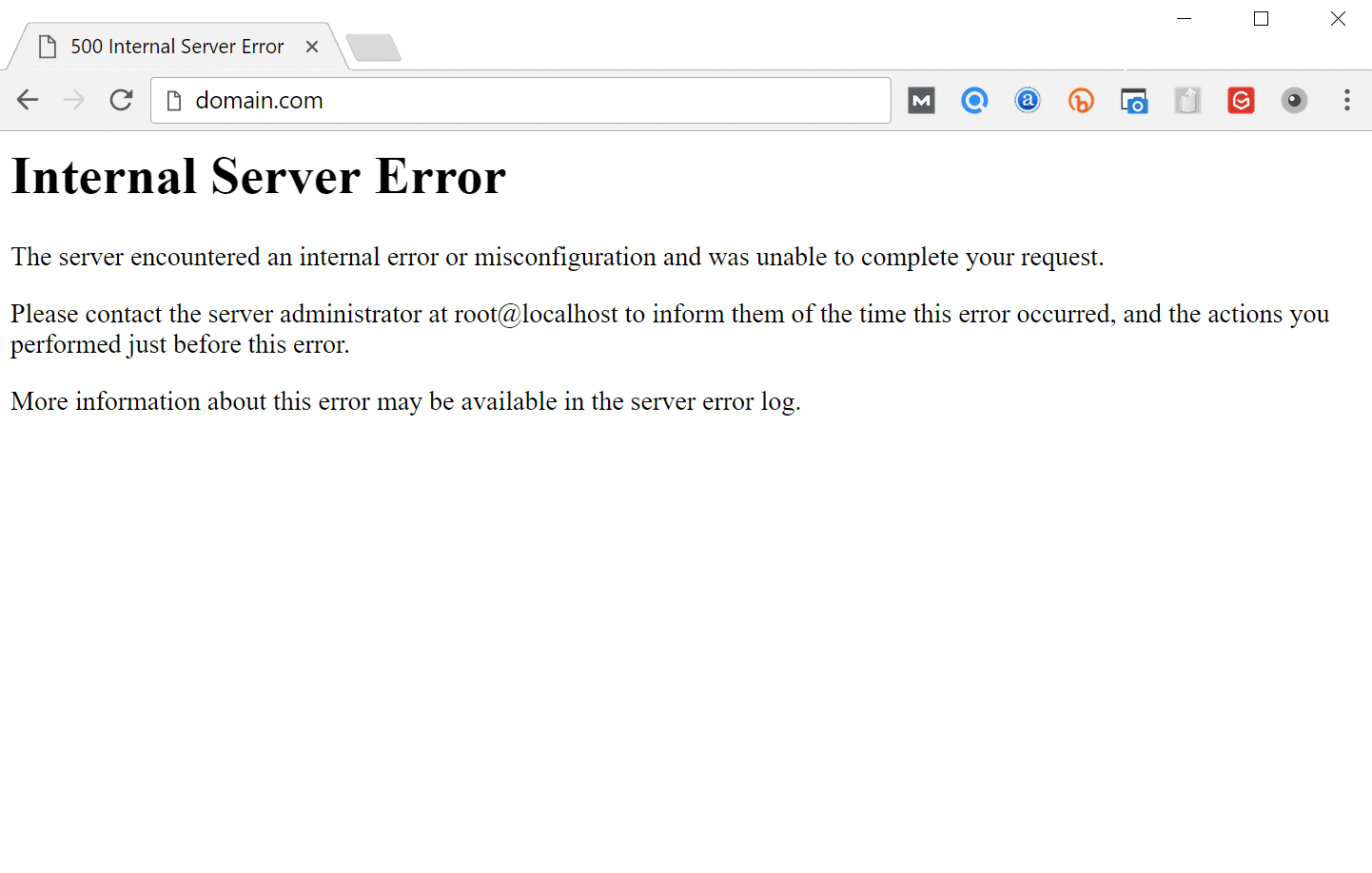
Other times, you might simply see a blank white screen. When dealing with 500 internal server errors, this is actually quite common in browsers like Firefox and Safari.

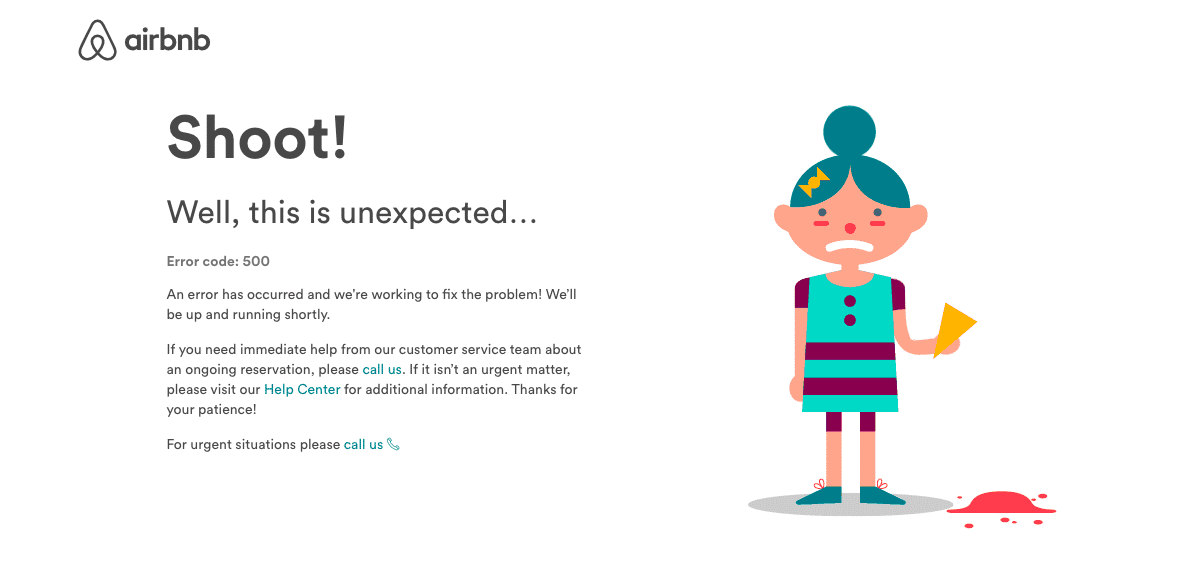
Bigger brands might even have their own custom 500 internal server error messages, such as this one from Airbnb.
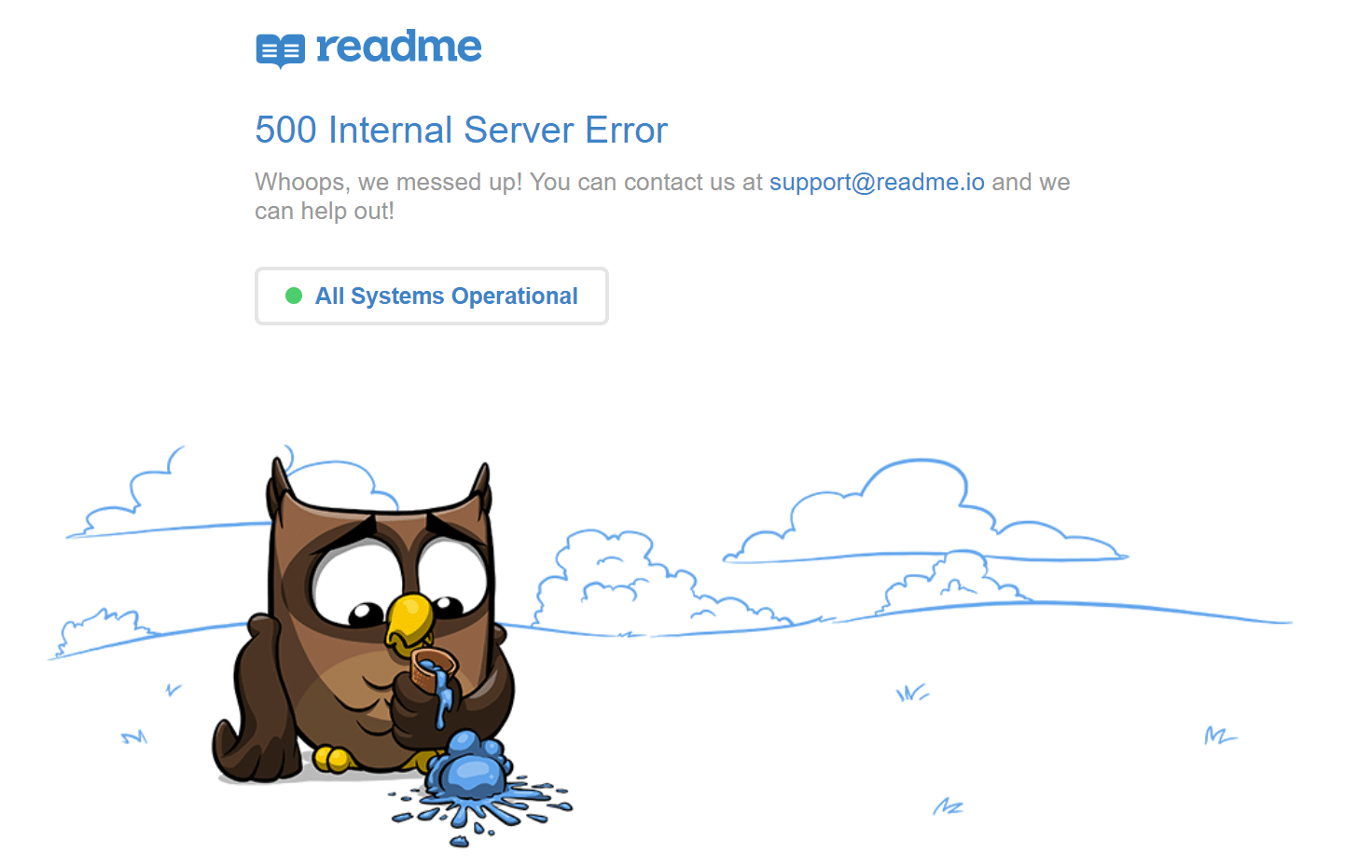
Here is another creative 500 server error example from the folks over at readme.
Even the mighty YouTube isn’t safe from 500 internal server errors.

If it’s an IIS 7.0 (Windows) or higher server, they have additional HTTP status codes to more closely indicate the cause of the 500 error:
- 500.0 – Module or ISAPI error occurred.
- 500.11 – Application is shutting down on the web server.
- 500.12 – Application is busy restarting on the web server.
- 500.13 – Web server is too busy.
- 500.15 – Direct requests for global.asax are not allowed.
- 500.19 – Configuration data is invalid.
- 500.21 – Module not recognized.
- 500.22 – An ASP.NET httpModules configuration does not apply in Managed Pipeline mode.
- 500.23 – An ASP.NET httpHandlers configuration does not apply in Managed Pipeline mode.
- 500.24 – An ASP.NET impersonation configuration does not apply in Managed Pipeline mode.
- 500.50 – A rewrite error occurred during RQ_BEGIN_REQUEST notification handling. A configuration or inbound rule execution error occurred.
- 500.51 – A rewrite error occurred during GL_PRE_BEGIN_REQUEST notification handling. A global configuration or global rule execution error occurred.
- 500.52 – A rewrite error occurred during RQ_SEND_RESPONSE notification handling. An outbound rule execution occurred.
- 500.53 – A rewrite error occurred during RQ_RELEASE_REQUEST_STATE notification handling. An outbound rule execution error occurred. The rule is configured to be executed before the output user cache gets updated.
500.100 – Internal ASP error.
500 Errors Impact on SEO
Unlike 503 errors, which are used for WordPress maintenance mode and tell Google to check back at a later time, a 500 error can have a negative impact on SEO if not fixed right away. If your site is only down for say 10 minutes and it’s being crawled consistently a lot of times the crawler will simply get the page delivered from cache. Or Google might not even have a chance to re-crawl it before it’s back up. In this scenario, you’re completely fine.
However, if the site is down for an extended period of time, say 6+ hours, then Google might see the 500 error as a site level issue that needs to be addressed. This could impact your rankings. If you’re worried about repeat 500 errors you should figure out why they are happening to begin with. Some of the solutions below can help.
How to Fix the 500 Internal Server Error
Where should you start troubleshooting when you see a 500 internal server error on your WordPress site? Sometimes you might not even know where to begin. Typically 500 errors are on the server itself, but from our experience, these errors originate from two things, the first is user error (client-side issue), and the second is that there is a problem with the server. So we’ll dive into a little of both.
This is never not annoying 😖 pic.twitter.com/pPKxbkvI9K
— Dare Obasanjo 🐀 (@Carnage4Life) September 26, 2019
Check out these common causes and ways to fix the 500 internal server error and get back up and running in no time.
1. Try Reloading the Page
This might seem a little obvious to some, but one of the easiest and first things you should try when encountering a 500 internal server error is to simply wait a minute or so and reload the page (F5 or Ctrl + F5). It could be that the host or server is simply overloaded and the site will come right back. While you’re waiting, you could also quickly try a different browser to rule that out as an issue.
Another thing you can do is to paste the website into downforeveryoneorjustme.com. This website will tell you if the site is down or if it’s a problem on your side. A tool like this checks the HTTP status code that is returned from the server. If it’s anything other than a 200 “Everything is OK” then it will return a down indication.

We’ve also noticed that sometimes this can occur immediately after you update a plugin or theme on your WordPress site. Typically this is on hosts that aren’t set up properly. What happens is they experience a temporary timeout right afterward. However, things usually resolve themselves in a couple of seconds and therefore refreshing is all you need to do.
2. Clear Your Browser Cache
Clearing your browser cache is always another good troubleshooting step before diving into deeper debugging on your site. Below are instructions on how to clear cache in the various browsers:
- How to Force Refresh a Single Page for All Browsers
- How to Clear Browser Cache for Google Chrome
- How to Clear Browser Cache for Mozilla Firefox
- How to Clear Browser Cache for Safari
- How to Clear Browser Cache for Internet Explorer
- How to Clear Browser Cache for Microsoft Edge
- How to Clear Browser Cache for Opera
3. Check Your Server Logs
You should also take advantage of your error logs. If you’re a Kinsta client, you can easily see errors in the log viewer in the MyKinsta dashboard. This can help you quickly narrow down the issue, especially if it’s resulting from a plugin on your site.

If your host doesn’t have a logging tool, you can also enable WordPress debugging mode by adding the following code to your wp-config.php file to enable logging:
define( 'WP_DEBUG', true );
define( 'WP_DEBUG_LOG', true );
define( 'WP_DEBUG_DISPLAY', false );
The logs are typically located in the /wp-content directory. Others, like here at Kinsta might have a dedicated folder called “logs”.
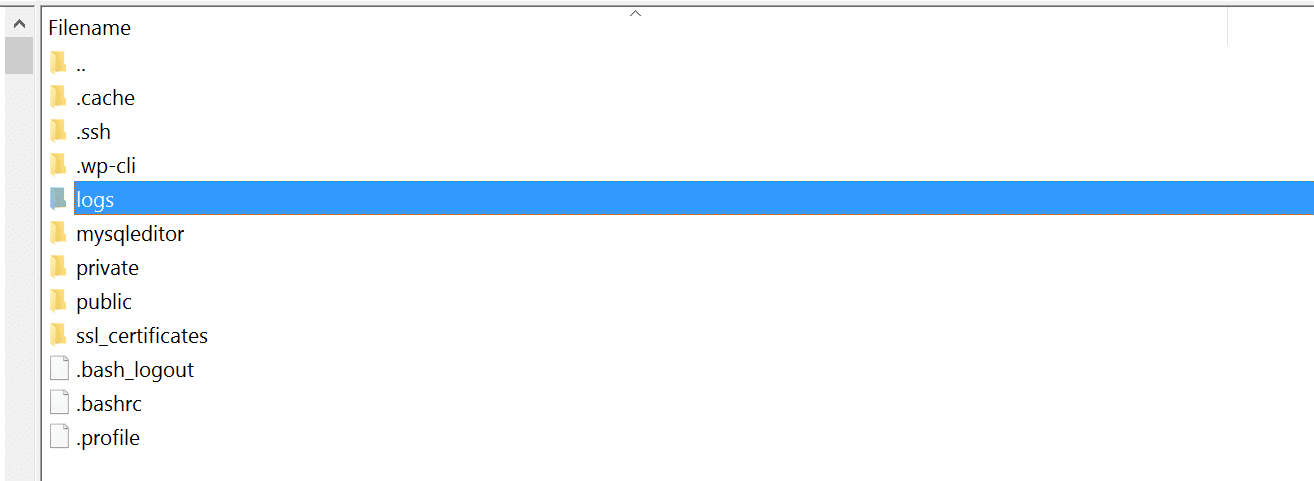
You can also check the log files in Apache and Nginx, which are commonly located here:
- Apache: /var/log/apache2/error.log
- Nginx: /var/log/nginx/error.log
If you’re a Kinsta client you can also take advantage of our analytics tool to get a breakdown of the total number of 500 errors and see how often and when they are occurring. This can help you troubleshoot if this is an ongoing issue, or perhaps something that has resolved itself.

If the 500 error is displaying because of a fatal PHP error, you can also try enabling PHP error reporting. Simply add the following code to the file throwing the error. Typically you can narrow down the file in the console tab of Google Chrome DevTools.
ini_set('display_errors', 1);
ini_set('display_startup_errors', 1);
error_reporting(E_ALL);
And you might need to also modify your php.ini file with the following:
display_errors = on4. Error Establishing a Database Connection
500 internal server errors can also occur from a database connection error. Depending upon your browser you might see different errors. But both will generate a 500 HTTP status code regardless in your server logs.
Below is an example of what an “error establishing a database connection” message looks like your browser. The entire page is blank because no data can be retrieved to render the page, as the connection is not working properly. Not only does this break the front-end of your site, but it will also prevent you from accessing your WordPress dashboard.
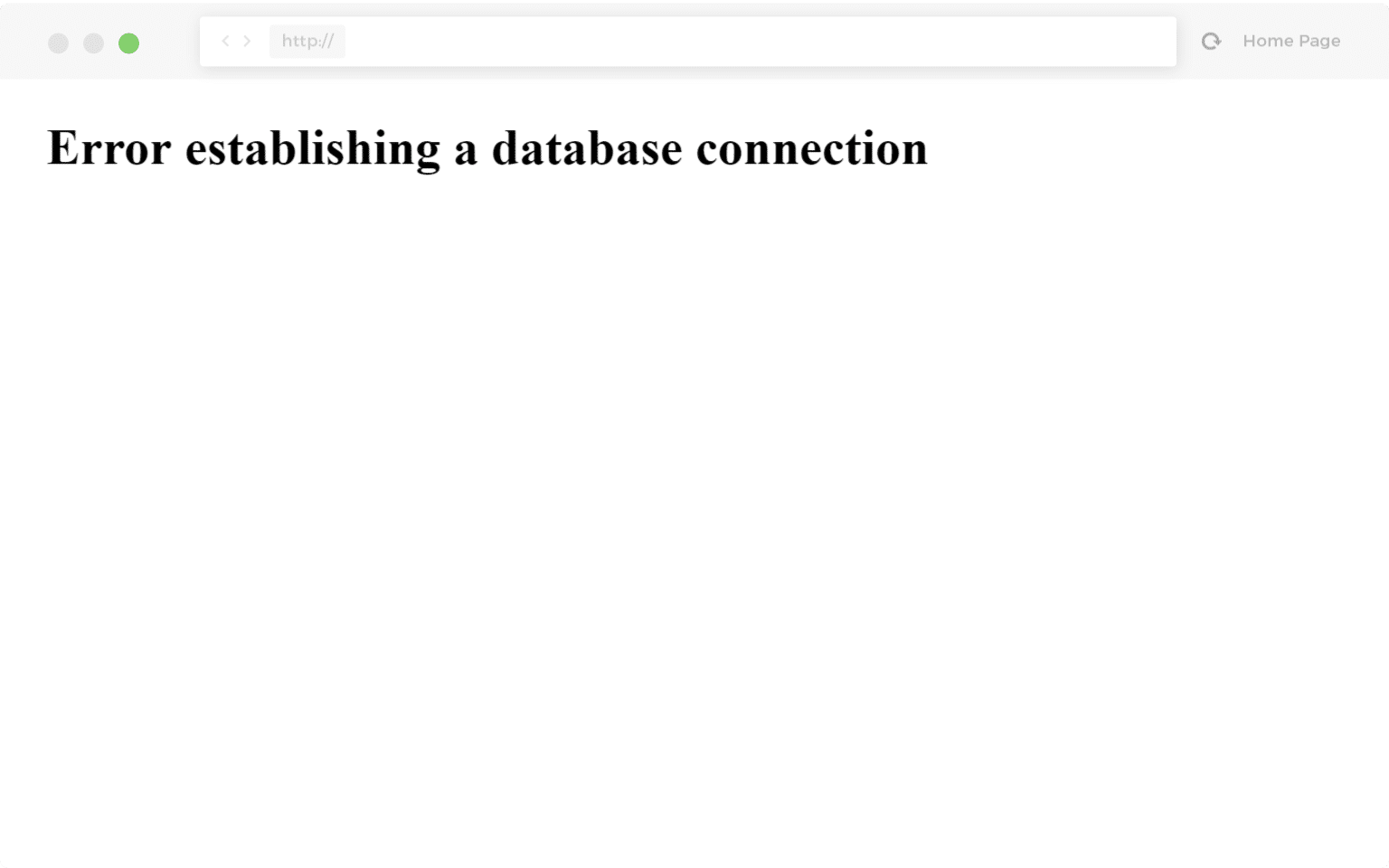
So why exactly does this happen? Well, here are a few common reasons below.
- The most common issue is that your database login credentials are incorrect. Your WordPress site uses separate login information to connect to its MySQL database.
- Your WordPress database is corrupted. With so many moving parts with themes, plugins, and users constantly deleting and installing them, sometimes databases get corrupted. This can be due to a missing or individually corrupted table, or perhaps some information was deleted by accident.
- You may have corrupt files in your WordPress installation. This can even happen sometimes due to hackers.
- Issues with your database server. A number of things could be wrong on the web hosts end, such as the database being overloaded from a traffic spike or unresponsive from too many concurrent connections. This is actually quite common with shared hosts as they are utilizing the same resources for a lot of users on the same servers.
Check out our in-depth post on how to fix the error establishing a database connection in WordPress.
5. Check Your Plugins and Themes
Third-party plugins and themes can easily cause 500 internal server errors. We’ve seen all types cause them here at Kinsta, from slider plugins to ad rotator plugins. A lot of times you should see the error immediately after installing something new or running an update. This is one reason why we always recommend utilizing a staging environment for updates or at least running updates one by one. Otherwise, if you encounter a 500 internal server error you’re suddenly scrambling to figure out which one caused it.
A few ways you can troubleshoot this is by deactivating all your plugins. Remember, you won’t lose any data if you simply deactivate a plugin. If you can still access your admin, a quick way to do this is to browse to “Plugins” and select “Deactivate” from the bulk actions menu. This will disable all of your plugins.
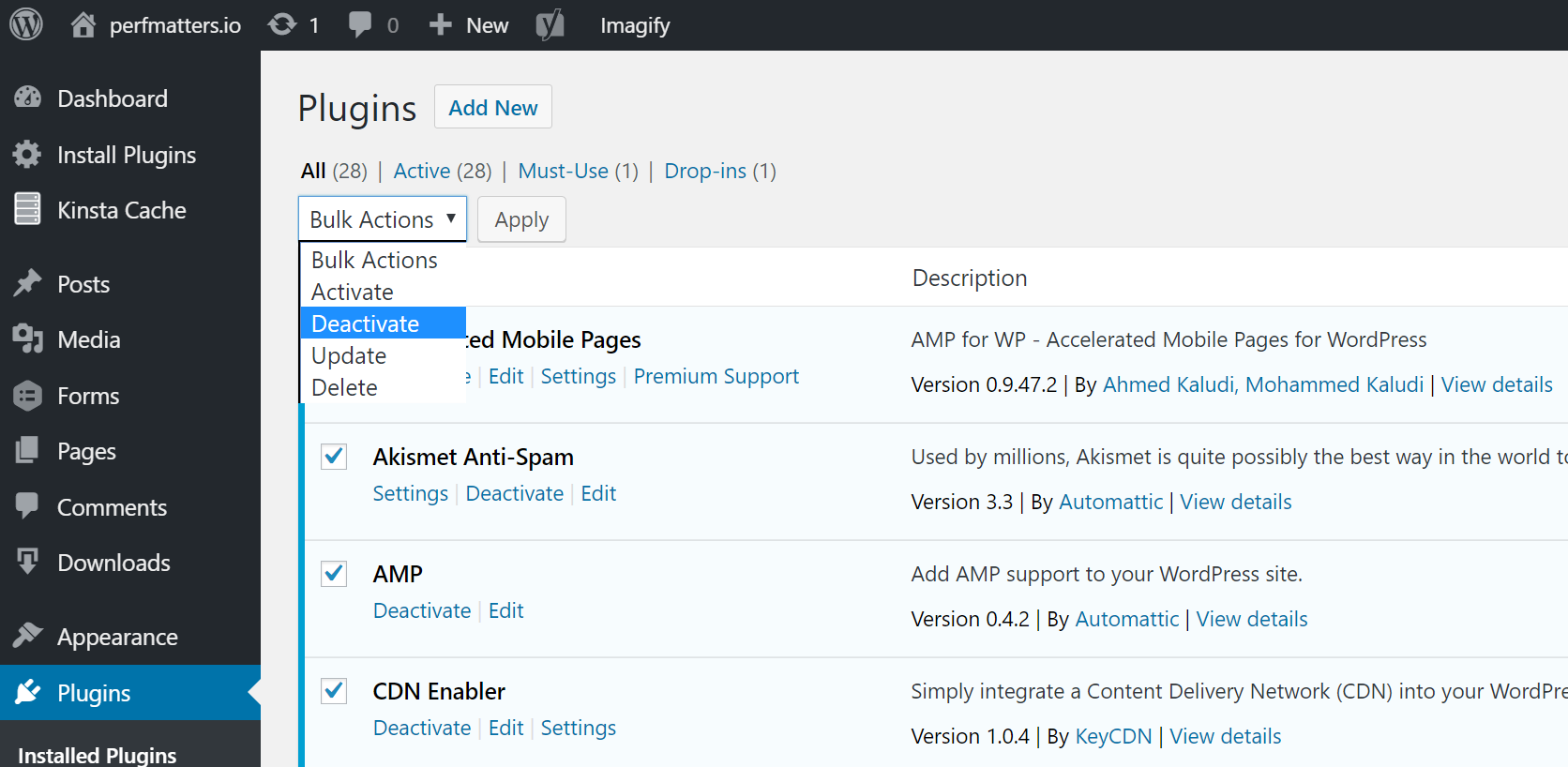
If this fixes the issue you’ll need to find the culprit. Start activating them one by one, reloading the site after each activation. When you see the 500 internal server error return, you’ve found the misbehaving plugin. You can then reach out to the plugin developer for help or post a support ticket in the WordPress repository.
If you can’t login to WordPress admin you can FTP into your server and rename your plugins folder to something like plugins_old. Then check your site again. If it works, then you will need to test each plugin one by one. Rename your plugin folder back to “plugins” and then rename each plugin folder inside of if it, one by one, until you find it. You could also try to replicate this on a staging site first.
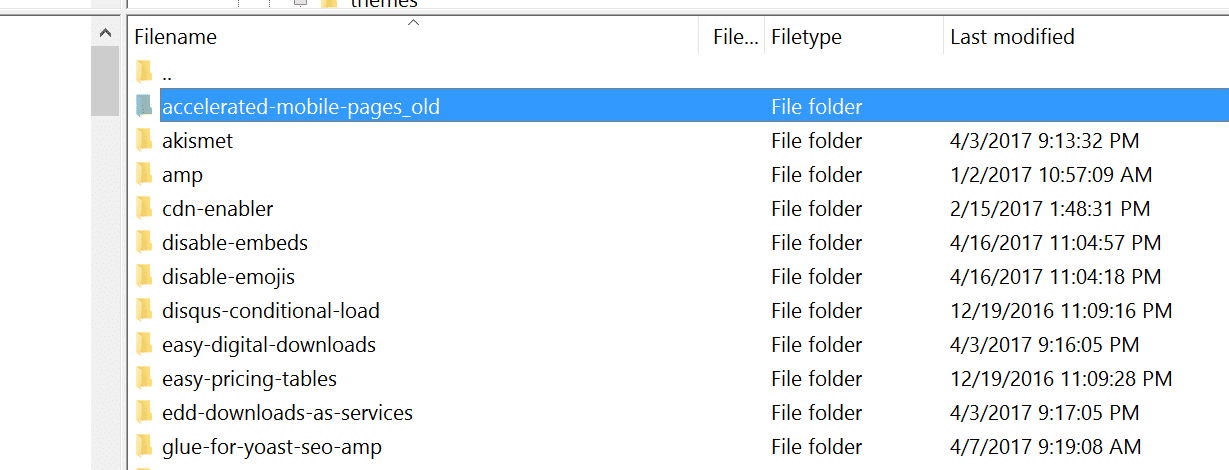
Always makes sure your plugins, themes, and WordPress core are up to date. And check to ensure you are running a supported version of PHP. If it turns out to be a conflict with bad code in a plugin, you might need to bring in a WordPress developer to fix the issue.
6. Reinstall WordPress Core
Sometimes WordPress core files can get corrupted, especially on older sites. It’s actually quite easy to re-upload just the core of WordPress without impacting your plugins or themes. We have an in-depth guide with 5 different ways to reinstall WordPress. And of course, make sure to take a backup before proceeding. Skip to one of the sections below:
- How to reinstall WordPress from the WordPress dashboard while preserving existing content
- How to manually reinstall WordPress via FTP while preserving existing content
- How to manually reinstall WordPress via WP-CLI while preserving existing content
7. Permissions Error
A permissions error with a file or folder on your server can also cause a 500 internal server error to occur. Here are some typical recommendations for permissions when it comes to file and folder permissions in WordPress:
- All files should be 644 (-rw-r–r–) or 640.
- All directories should be 755 (drwxr-xr-x) or 750.
- No directories should ever be given 777, even upload directories.
- Hardening: wp-config.php could also be set to 440 or 400 to prevent other users on the server from reading it.
See the WordPress Codex article on changing file permissions for a more in-depth explanation.
You can easily see your file permissions with an FTP client (as seen below). You could also reach out to your WordPress host support team and ask them to quickly GREP file permissions on your folders and files to ensure they’re setup properly.

8. PHP Memory Limit
A 500 internal server error could also be caused by exhausting the PHP memory limit on your server. You could try increasing the limit. Follow the instructions below on how to change this limit in cPanel, Apache, your php.ini file, and wp-config.php file.
Increase PHP Memory Limit in cPanel
If you’re running on a host that uses cPanel, you can easily change this from the UI. Under Software click on “Select PHP Version.”

Click on “Switch to PHP Options.”
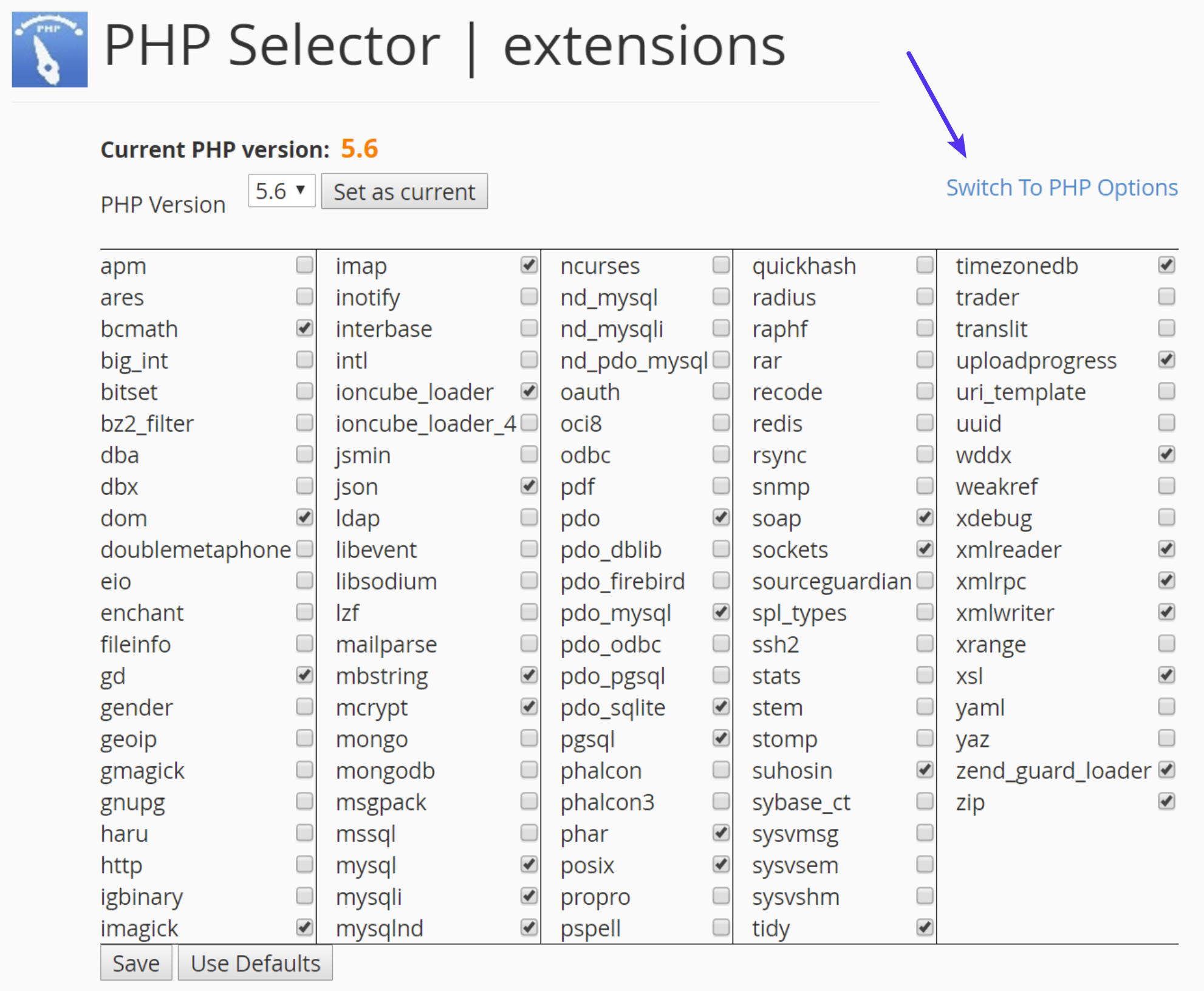
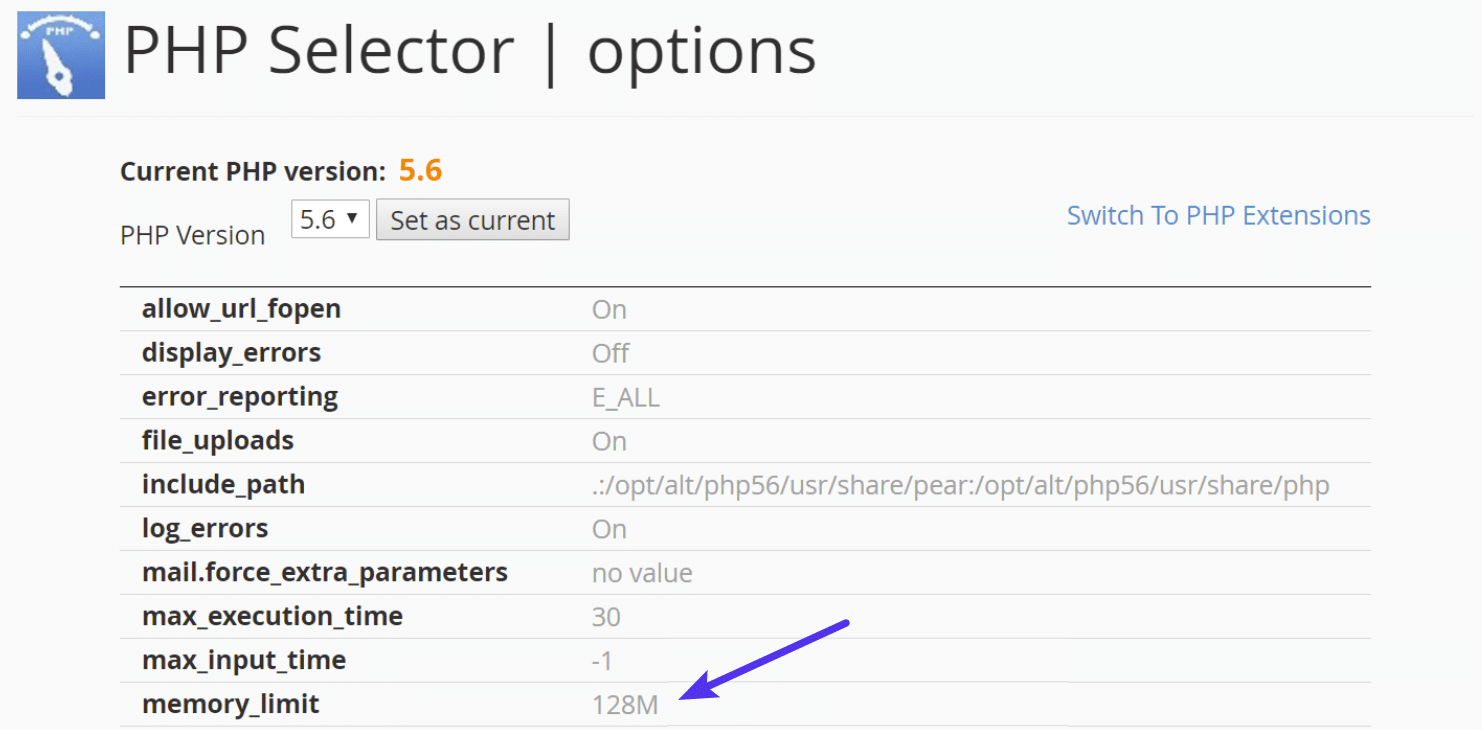
You can then click on the memory_limit attribute and change its value. Then click on “Save.”
Increase PHP Memory Limit in Apache
The .htaccess file is a special hidden file that contains various settings you can use to modify the server behavior, right down to a directory specific level. First login to your site via FTP or SSH, take a look at your root directory and see if there is a .htaccess file there.

If there is you can edit that file to add the necessary code for increasing the PHP memory limit. Most likely it is set at 64M or below, you can try increasing this value.
php_value memory_limit 128MIncrease PHP Memory Limit in php.ini File
If the above doesn’t work for you might try editing your php.ini file. Log in to your site via FTP or SSH, go to your site’s root directory and open or create a php.ini file.
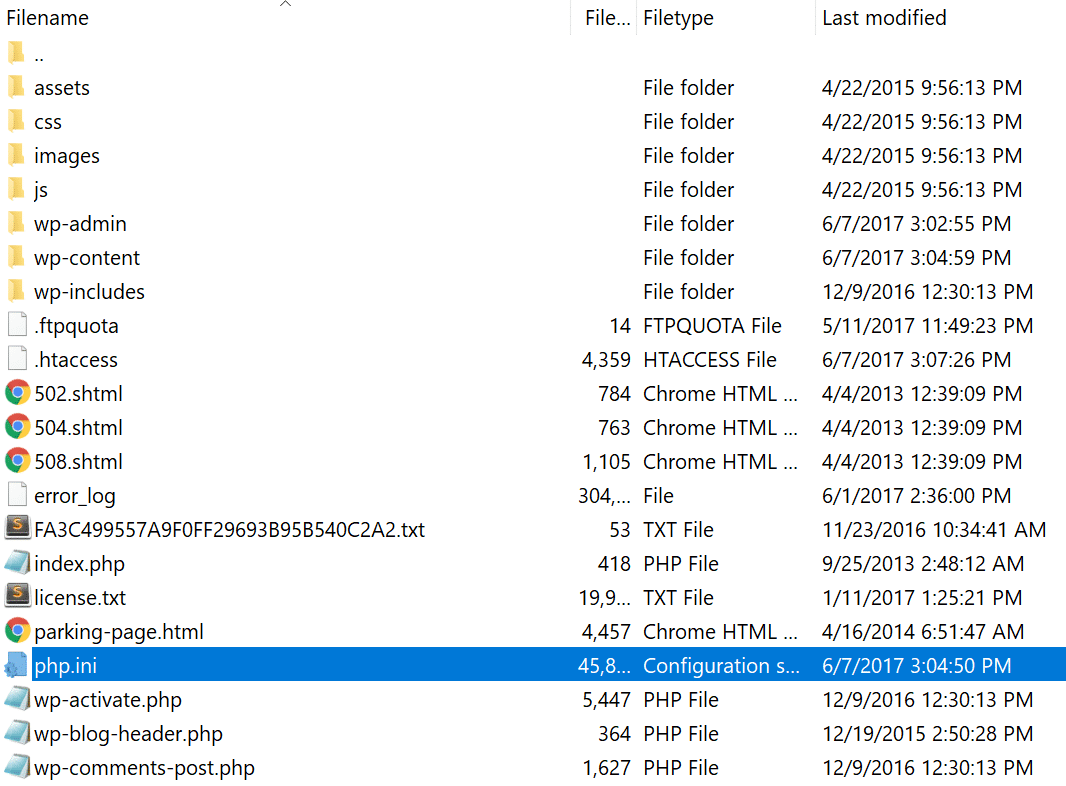
If the file was already there, search for the three settings and modify them if necessary. If you just created the file, or the settings are nowhere to be found you can paste the code below. You can modify of course the values to meet your needs.
memory_limit = 128MSome shared hosts might also require that you add the suPHP directive in your .htaccess file for the above php.ini file settings to work. To do this, edit your .htaccess file, also located at the root of your site, and add the following code towards the top of the file:
<IfModule mod_suphp.c>
suPHP_ConfigPath /home/yourusername/public_html
</IfModule>
If the above didn’t work for you, it could be that your host has the global settings locked down and instead have it configured to utilize .user.ini files. To edit your .user.ini file, login to your site via FTP or SSH, go to your site’s root directory and open or create a .user.ini file. You can then paste in the following code:
memory_limit = 128MIncrease PHP Memory Limit in wp-config.php
The last option is not one we are fans of, but if all else fails you can give it a go. First, log in to your site via FTP or SSH, and locate your wp-config.php file, which is typically in the root of your site.
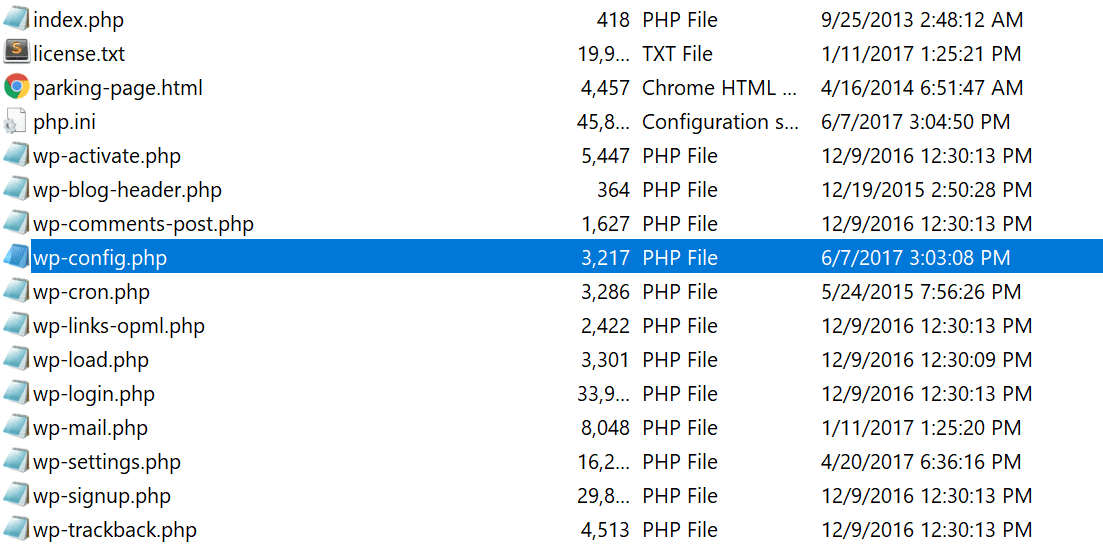
Add the following code to the top of your wp-config.php file:
define('WP_MEMORY_LIMIT', '128M');You can also ask your host if you’re running into memory limit issues. We utilize the Kinsta APM tool and other troubleshooting methods here at Kinsta to help clients narrow down what plugin, query, or script might be exhausting the limit. You can also use your own custom New Relic key from your own license.
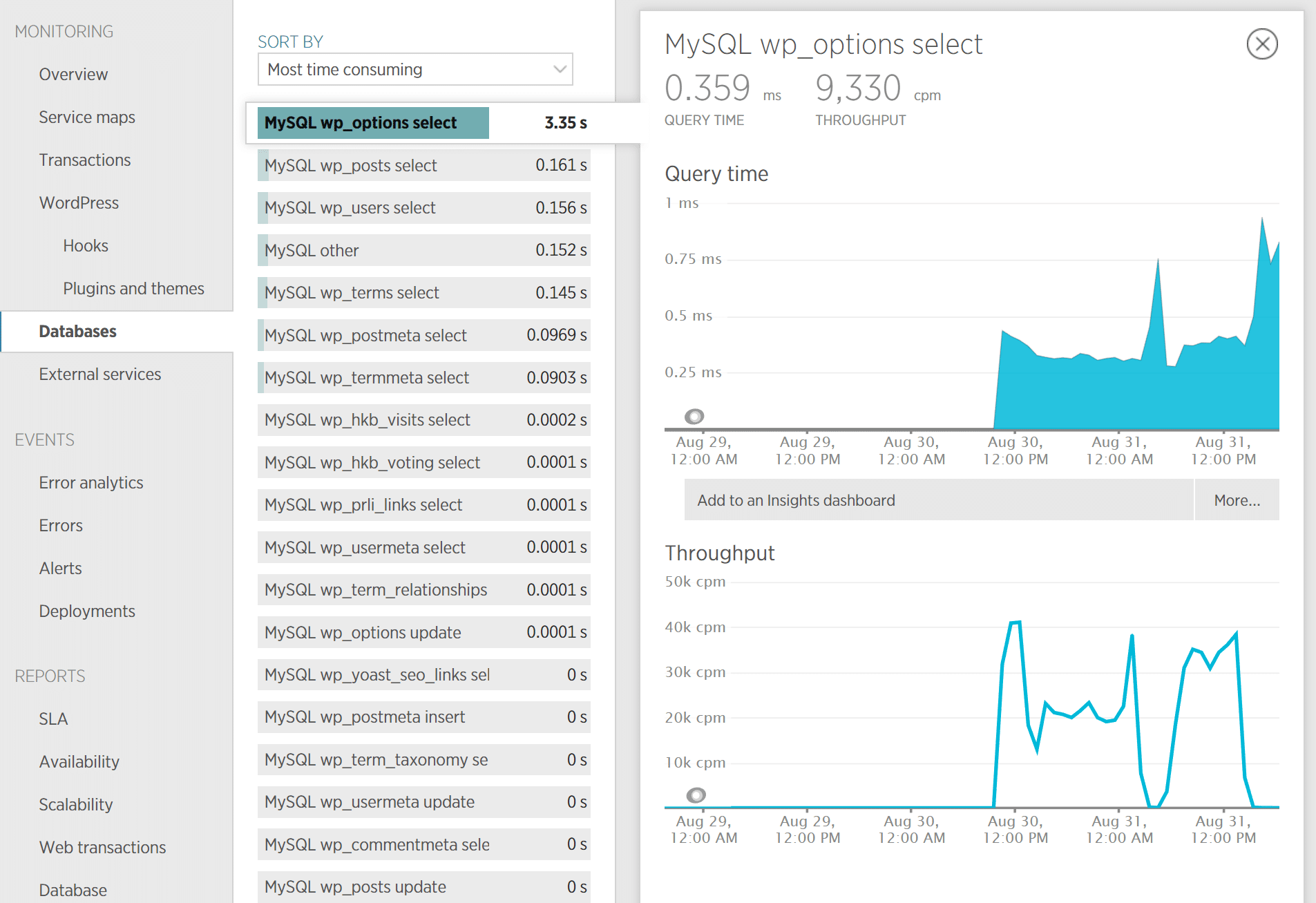
9. Problem With Your .htaccess File
Kinsta only uses Nginx, but if you’re using a WordPress host that is running Apache, it could very well be that your .htaccess file has a problem or has become corrupted. Follow the steps below to recreate a new one from scratch.
First, log in to your site via FTP or SSH, and rename your .htaccess file to .htaccess_old.
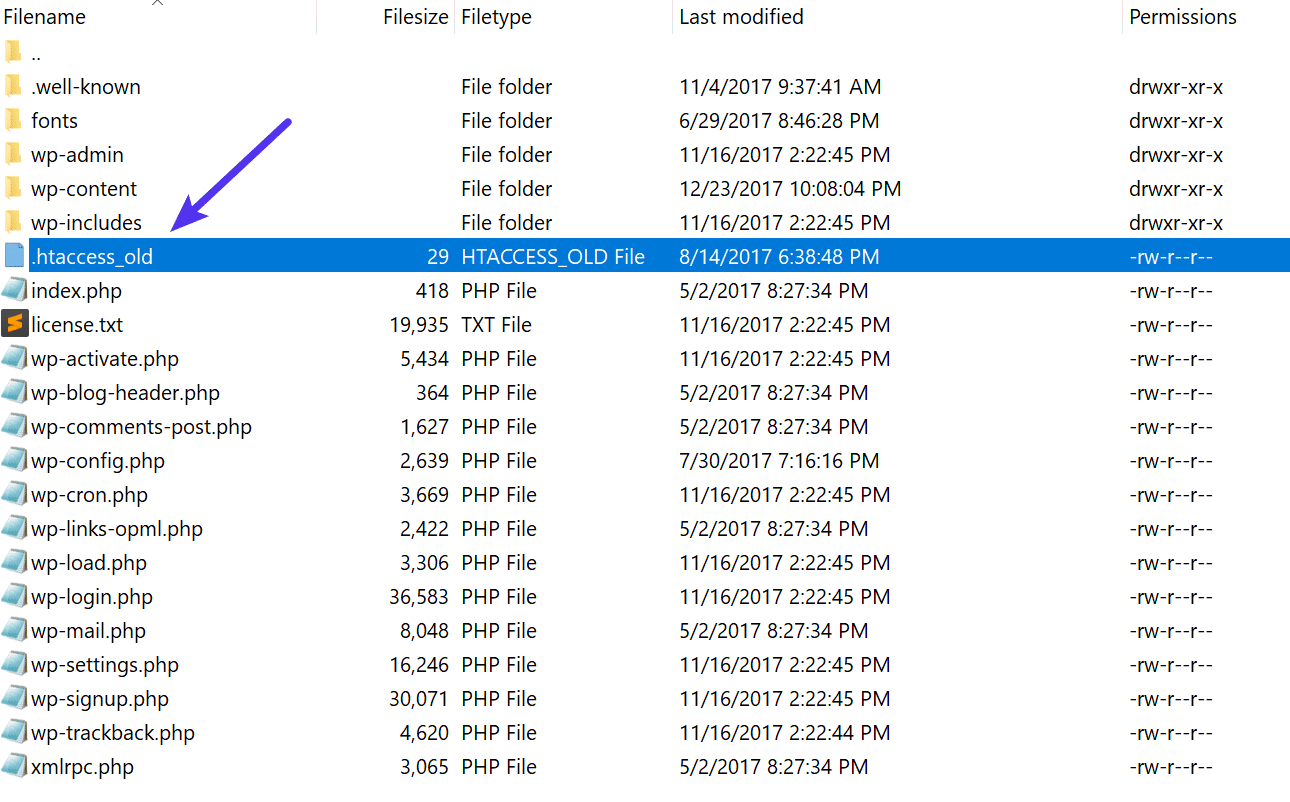
Normally to recreate this file you can simply re-save your permalinks in WordPress. However, if you’re in the middle of a 500 internal server error you most likely can’t access your WordPress admin, so this isn’t an option. Therefore you can create a new .htaccess file and input the following contents. Then upload it to your server.
# BEGIN WordPress
<IfModule mod_rewrite.c>
RewriteEngine On
RewriteBase /
RewriteRule ^index.php$ - [L]
RewriteCond %{REQUEST_FILENAME} !-f
RewriteCond %{REQUEST_FILENAME} !-d
RewriteRule . /index.php [L]
</IfModule>
# END WordPress
See the WordPress Codex for more examples, such as a default .htaccess file for multisite.
10. Coding or Syntax Errors in Your CGI/Perl Script
500 errors being caused by errors in CGI and Perl is a lot less common than it used to be. Although it’s still worth mentioning, especially for those using cPanel where there are a lot of one-click CGI scripts still being used. As AEM on Stack Overflow says:
CGI has been replaced by a vast variety of web programming technologies, including PHP, various Apache extensions like mod_perl, Java of various flavors and frameworks including Java EE, Struts, Spring, etc, Python-based frameworks like Django, Ruby on Rails and many other Ruby frameworks, and various Microsoft technologies.
Here are a few tips when working with CGI scripts:
- When editing, always used a plain text editor, such as Atom, Sublime, or Notepad++. This ensures they remain in ASCII format.
- Ensure correct permissions of chmod 755 are used on CGI scripts and directories.
- Upload your CGI scripts in ASCII mode (which you can select in your FTP editor) into the cgi-bin directory on your server.
- Confirm that the Perl modules you require for your script are installed and supported.
11. Server Issue (Check With Your Host)
Finally, because 500 internal server errors can also occur from PHP timing out or fatal PHP errors with third-party plugins, you can always check with your WordPress host. Sometimes these errors can be difficult to troubleshoot without an expert. Here are just a few common examples of some errors that trigger 500 HTTP status codes on the server that might have you scratching your head.
PHP message: PHP Fatal error: Uncaught Error: Call to undefined function mysql_error()...PHP message: PHP Fatal error: Uncaught Error: Cannot use object of type WP_Error as array in /www/folder/web/shared/content/plugins/plugin/functions.php:525We monitor all client’s sites here at Kinsta and are automatically notified when these types of errors occur. This allows us to be pro-active and start fixing the issue right away. We also utilize LXD managed hosts and orchestrated LXC software containers for each site. This means that every WordPress site is housed in its own isolated container, which has all of the software resources required to run it (Linux, Nginx, PHP, MySQL). The resources are 100% private and are not shared with anyone else or even your own sites.
PHP timeouts could also occur from the lack of PHP workers, although typically these cause 504 errors, not 500 errors. These determine how many simultaneous requests your site can handle at a given time. To put it simply, each uncached request for your website is handled by a PHP Worker.
When PHP workers are already busy on a site, they start to build up a queue. Once you’ve reached your limit of PHP workers, the queue starts to push out older requests which could result in 500 errors or incomplete requests. Read our in-depth article about PHP workers.
Monitor Your Site
If you’re worried about these types of errors happening on your site in the future, you can also utilize a tool like updown.io to monitor and notify you immediately if they occur. It periodically sends an HTTP HEAD request to the URL of your choice. You can simply use your homepage. The tool allows you to set check frequencies of:
- 15 seconds
- 30 seconds
- 1 minute
- 2 minutes
- 5 minutes
- 10 minutes
It will send you an email if and when your site goes down. Here is an example below.

This can be especially useful if you’re trying to debug a faulty plugin or are on a shared host, who tend to overcrowd their servers. This can give you proof of how often your site might actually be doing down (even during the middle of the night).
That’s why we always recommend going with an application, database, and managed WordPress host (like Kinsta).
Make sure to check out our post that explores the top 9 reasons to choose managed WordPress hosting.
Summary
500 internal server errors are always frustrating, but hopefully, now you know a few additional ways to troubleshoot them to quickly get your site back up and running. Remember, typically these types of errors are caused by third-party plugins, fatal PHP errors, database connection issues, problems with your .htaccess file or PHP memory limits, and sometimes PHP timeouts.
Was there anything we missed? Perhaps you have another tip on troubleshooting 500 internal server errors. If so, let us know below in the comments.
Get all your applications, databases and WordPress sites online and under one roof. Our feature-packed, high-performance cloud platform includes:
- Easy setup and management in the MyKinsta dashboard
- 24/7 expert support
- The best Google Cloud Platform hardware and network, powered by Kubernetes for maximum scalability
- An enterprise-level Cloudflare integration for speed and security
- Global audience reach with up to 35 data centers and 275+ PoPs worldwide
Test it yourself with $20 off your first month of Application Hosting or Database Hosting. Explore our plans or talk to sales to find your best fit.
The dreaded 500 internal server error. It always seems to come at the most inopportune time and you’re suddenly left scrambling to figure out how to get your WordPress site back online. Trust us, we’ve all been there. Other errors that behave similarly that you might have also seen include the frightening error establishing a database connection and the dreaded white screen of death. But from the moment your site goes down, you’re losing visitors and customers. Not to mention it simply looks bad for your brand.
Today we’re going to dive into the 500 internal server error and walk you through some ways to get your site back online quickly. Read more below about what causes this error and what you can do to prevent it in the future.
- What is a 500 internal server error?
- How to fix the 500 internal server error
500 Internal Server Error (Most Common Causes):
500 Internal server error in WordPress can be caused by many things. If you’re experiencing one, there’s a high chance one (or more) of the following elements is causing the issue:
- Browser Cache.
- Incorrect database login credentials.
- Corrupted database.
- Corrupted files in your WordPress installation.
- Issues with your database server.
- Corrupted WordPress core files.
- Corrupted .htaccess file and PHP memory limit.
- Issues with third-party plugins and themes.
- PHP timing out or fatal PHP errors with third-party plugins.
- Wrong file and folder permissions.
- Exhausted PHP memory limit on your server
- Corrupted or broken .htaccess file.
- Errors in CGI and Perl script.
Check Out Our Ultimate Guide to Fixing the 500 Internal Server Error
What is a 500 Internal Server Error?
The Internet Engineering Task Force (IETF) defines the 500 Internal Server Error as:
The 500 (Internal Server Error) status code indicates that the server encountered an unexpected condition that prevented it from fulfilling the request.
When you visit a website your browser sends a request over to the server where the site is hosted. The server takes this request, processes it, and sends back the requested resources (PHP, HTML, CSS, etc.) along with an HTTP header. The HTTP also includes what they call an HTTP status code. A status code is a way to notify you about the status of the request. It could be a 200 status code which means “Everything is OK” or a 500 status code which means something has gone wrong.
There are a lot of different types of 500 status error codes (500, 501, 502, 503, 504, etc.) and they all mean something different. In this case, a 500 internal server error indicates that the server encountered an unexpected condition that prevented it from fulfilling the request (RFC 7231, section 6.6.1).
500 Internal Server Error Variations
Due to the various web servers, operating systems, and browsers, a 500 internal server error can present itself in a number of different ways. But they are all communicating the same thing. Below are just a couple of the many different variations you might see on the web:
-
- “500 Internal Server Error”
- “HTTP 500”
- “Internal Server Error”
- “HTTP 500 – Internal Server Error”
- “500 Error”
- “HTTP Error 500”
- “500 – Internal Server Error”
- “500 Internal Server Error. Sorry something went wrong.”
- “500. That’s an error. There was an error. Please try again later. That’s all we know.”
- “The website cannot display the page – HTTP 500.”
- “Is currently unable to handle this request. HTTP ERROR 500.”
You might also see this message accompanying it:
The server encountered an internal error or misconfiguration and was unable to complete your request. Please contact the server administrator, [email protected] and inform them of the time the error occurred, and anything you might have done that may have caused the error. More information about this error may be available in the server error log.
Other times, you might simply see a blank white screen. When dealing with 500 internal server errors, this is actually quite common in browsers like Firefox and Safari.
Bigger brands might even have their own custom 500 internal server error messages, such as this one from Airbnb.
Here is another creative 500 server error example from the folks over at readme.
Even the mighty YouTube isn’t safe from 500 internal server errors.
If it’s an IIS 7.0 (Windows) or higher server, they have additional HTTP status codes to more closely indicate the cause of the 500 error:
- 500.0 – Module or ISAPI error occurred.
- 500.11 – Application is shutting down on the web server.
- 500.12 – Application is busy restarting on the web server.
- 500.13 – Web server is too busy.
- 500.15 – Direct requests for global.asax are not allowed.
- 500.19 – Configuration data is invalid.
- 500.21 – Module not recognized.
- 500.22 – An ASP.NET httpModules configuration does not apply in Managed Pipeline mode.
- 500.23 – An ASP.NET httpHandlers configuration does not apply in Managed Pipeline mode.
- 500.24 – An ASP.NET impersonation configuration does not apply in Managed Pipeline mode.
- 500.50 – A rewrite error occurred during RQ_BEGIN_REQUEST notification handling. A configuration or inbound rule execution error occurred.
- 500.51 – A rewrite error occurred during GL_PRE_BEGIN_REQUEST notification handling. A global configuration or global rule execution error occurred.
- 500.52 – A rewrite error occurred during RQ_SEND_RESPONSE notification handling. An outbound rule execution occurred.
- 500.53 – A rewrite error occurred during RQ_RELEASE_REQUEST_STATE notification handling. An outbound rule execution error occurred. The rule is configured to be executed before the output user cache gets updated.
500.100 – Internal ASP error.
500 Errors Impact on SEO
Unlike 503 errors, which are used for WordPress maintenance mode and tell Google to check back at a later time, a 500 error can have a negative impact on SEO if not fixed right away. If your site is only down for say 10 minutes and it’s being crawled consistently a lot of times the crawler will simply get the page delivered from cache. Or Google might not even have a chance to re-crawl it before it’s back up. In this scenario, you’re completely fine.
However, if the site is down for an extended period of time, say 6+ hours, then Google might see the 500 error as a site level issue that needs to be addressed. This could impact your rankings. If you’re worried about repeat 500 errors you should figure out why they are happening to begin with. Some of the solutions below can help.
How to Fix the 500 Internal Server Error
Where should you start troubleshooting when you see a 500 internal server error on your WordPress site? Sometimes you might not even know where to begin. Typically 500 errors are on the server itself, but from our experience, these errors originate from two things, the first is user error (client-side issue), and the second is that there is a problem with the server. So we’ll dive into a little of both.
This is never not annoying 😖 pic.twitter.com/pPKxbkvI9K
— Dare Obasanjo 🐀 (@Carnage4Life) September 26, 2019
Check out these common causes and ways to fix the 500 internal server error and get back up and running in no time.
1. Try Reloading the Page
This might seem a little obvious to some, but one of the easiest and first things you should try when encountering a 500 internal server error is to simply wait a minute or so and reload the page (F5 or Ctrl + F5). It could be that the host or server is simply overloaded and the site will come right back. While you’re waiting, you could also quickly try a different browser to rule that out as an issue.
Another thing you can do is to paste the website into downforeveryoneorjustme.com. This website will tell you if the site is down or if it’s a problem on your side. A tool like this checks the HTTP status code that is returned from the server. If it’s anything other than a 200 “Everything is OK” then it will return a down indication.
We’ve also noticed that sometimes this can occur immediately after you update a plugin or theme on your WordPress site. Typically this is on hosts that aren’t set up properly. What happens is they experience a temporary timeout right afterward. However, things usually resolve themselves in a couple of seconds and therefore refreshing is all you need to do.
2. Clear Your Browser Cache
Clearing your browser cache is always another good troubleshooting step before diving into deeper debugging on your site. Below are instructions on how to clear cache in the various browsers:
- How to Force Refresh a Single Page for All Browsers
- How to Clear Browser Cache for Google Chrome
- How to Clear Browser Cache for Mozilla Firefox
- How to Clear Browser Cache for Safari
- How to Clear Browser Cache for Internet Explorer
- How to Clear Browser Cache for Microsoft Edge
- How to Clear Browser Cache for Opera
3. Check Your Server Logs
You should also take advantage of your error logs. If you’re a Kinsta client, you can easily see errors in the log viewer in the MyKinsta dashboard. This can help you quickly narrow down the issue, especially if it’s resulting from a plugin on your site.
If your host doesn’t have a logging tool, you can also enable WordPress debugging mode by adding the following code to your wp-config.php file to enable logging:
define( 'WP_DEBUG', true );
define( 'WP_DEBUG_LOG', true );
define( 'WP_DEBUG_DISPLAY', false );
The logs are typically located in the /wp-content directory. Others, like here at Kinsta might have a dedicated folder called “logs”.
You can also check the log files in Apache and Nginx, which are commonly located here:
- Apache: /var/log/apache2/error.log
- Nginx: /var/log/nginx/error.log
If you’re a Kinsta client you can also take advantage of our analytics tool to get a breakdown of the total number of 500 errors and see how often and when they are occurring. This can help you troubleshoot if this is an ongoing issue, or perhaps something that has resolved itself.
If the 500 error is displaying because of a fatal PHP error, you can also try enabling PHP error reporting. Simply add the following code to the file throwing the error. Typically you can narrow down the file in the console tab of Google Chrome DevTools.
ini_set('display_errors', 1);
ini_set('display_startup_errors', 1);
error_reporting(E_ALL);
And you might need to also modify your php.ini file with the following:
display_errors = on4. Error Establishing a Database Connection
500 internal server errors can also occur from a database connection error. Depending upon your browser you might see different errors. But both will generate a 500 HTTP status code regardless in your server logs.
Below is an example of what an “error establishing a database connection” message looks like your browser. The entire page is blank because no data can be retrieved to render the page, as the connection is not working properly. Not only does this break the front-end of your site, but it will also prevent you from accessing your WordPress dashboard.
So why exactly does this happen? Well, here are a few common reasons below.
- The most common issue is that your database login credentials are incorrect. Your WordPress site uses separate login information to connect to its MySQL database.
- Your WordPress database is corrupted. With so many moving parts with themes, plugins, and users constantly deleting and installing them, sometimes databases get corrupted. This can be due to a missing or individually corrupted table, or perhaps some information was deleted by accident.
- You may have corrupt files in your WordPress installation. This can even happen sometimes due to hackers.
- Issues with your database server. A number of things could be wrong on the web hosts end, such as the database being overloaded from a traffic spike or unresponsive from too many concurrent connections. This is actually quite common with shared hosts as they are utilizing the same resources for a lot of users on the same servers.
Check out our in-depth post on how to fix the error establishing a database connection in WordPress.
5. Check Your Plugins and Themes
Third-party plugins and themes can easily cause 500 internal server errors. We’ve seen all types cause them here at Kinsta, from slider plugins to ad rotator plugins. A lot of times you should see the error immediately after installing something new or running an update. This is one reason why we always recommend utilizing a staging environment for updates or at least running updates one by one. Otherwise, if you encounter a 500 internal server error you’re suddenly scrambling to figure out which one caused it.
A few ways you can troubleshoot this is by deactivating all your plugins. Remember, you won’t lose any data if you simply deactivate a plugin. If you can still access your admin, a quick way to do this is to browse to “Plugins” and select “Deactivate” from the bulk actions menu. This will disable all of your plugins.
If this fixes the issue you’ll need to find the culprit. Start activating them one by one, reloading the site after each activation. When you see the 500 internal server error return, you’ve found the misbehaving plugin. You can then reach out to the plugin developer for help or post a support ticket in the WordPress repository.
If you can’t login to WordPress admin you can FTP into your server and rename your plugins folder to something like plugins_old. Then check your site again. If it works, then you will need to test each plugin one by one. Rename your plugin folder back to “plugins” and then rename each plugin folder inside of if it, one by one, until you find it. You could also try to replicate this on a staging site first.
Always makes sure your plugins, themes, and WordPress core are up to date. And check to ensure you are running a supported version of PHP. If it turns out to be a conflict with bad code in a plugin, you might need to bring in a WordPress developer to fix the issue.
6. Reinstall WordPress Core
Sometimes WordPress core files can get corrupted, especially on older sites. It’s actually quite easy to re-upload just the core of WordPress without impacting your plugins or themes. We have an in-depth guide with 5 different ways to reinstall WordPress. And of course, make sure to take a backup before proceeding. Skip to one of the sections below:
- How to reinstall WordPress from the WordPress dashboard while preserving existing content
- How to manually reinstall WordPress via FTP while preserving existing content
- How to manually reinstall WordPress via WP-CLI while preserving existing content
7. Permissions Error
A permissions error with a file or folder on your server can also cause a 500 internal server error to occur. Here are some typical recommendations for permissions when it comes to file and folder permissions in WordPress:
- All files should be 644 (-rw-r–r–) or 640.
- All directories should be 755 (drwxr-xr-x) or 750.
- No directories should ever be given 777, even upload directories.
- Hardening: wp-config.php could also be set to 440 or 400 to prevent other users on the server from reading it.
See the WordPress Codex article on changing file permissions for a more in-depth explanation.
You can easily see your file permissions with an FTP client (as seen below). You could also reach out to your WordPress host support team and ask them to quickly GREP file permissions on your folders and files to ensure they’re setup properly.
8. PHP Memory Limit
A 500 internal server error could also be caused by exhausting the PHP memory limit on your server. You could try increasing the limit. Follow the instructions below on how to change this limit in cPanel, Apache, your php.ini file, and wp-config.php file.
Increase PHP Memory Limit in cPanel
If you’re running on a host that uses cPanel, you can easily change this from the UI. Under Software click on “Select PHP Version.”
Click on “Switch to PHP Options.”
You can then click on the memory_limit attribute and change its value. Then click on “Save.”
Increase PHP Memory Limit in Apache
The .htaccess file is a special hidden file that contains various settings you can use to modify the server behavior, right down to a directory specific level. First login to your site via FTP or SSH, take a look at your root directory and see if there is a .htaccess file there.
If there is you can edit that file to add the necessary code for increasing the PHP memory limit. Most likely it is set at 64M or below, you can try increasing this value.
php_value memory_limit 128MIncrease PHP Memory Limit in php.ini File
If the above doesn’t work for you might try editing your php.ini file. Log in to your site via FTP or SSH, go to your site’s root directory and open or create a php.ini file.
If the file was already there, search for the three settings and modify them if necessary. If you just created the file, or the settings are nowhere to be found you can paste the code below. You can modify of course the values to meet your needs.
memory_limit = 128MSome shared hosts might also require that you add the suPHP directive in your .htaccess file for the above php.ini file settings to work. To do this, edit your .htaccess file, also located at the root of your site, and add the following code towards the top of the file:
<IfModule mod_suphp.c>
suPHP_ConfigPath /home/yourusername/public_html
</IfModule>
If the above didn’t work for you, it could be that your host has the global settings locked down and instead have it configured to utilize .user.ini files. To edit your .user.ini file, login to your site via FTP or SSH, go to your site’s root directory and open or create a .user.ini file. You can then paste in the following code:
memory_limit = 128MIncrease PHP Memory Limit in wp-config.php
The last option is not one we are fans of, but if all else fails you can give it a go. First, log in to your site via FTP or SSH, and locate your wp-config.php file, which is typically in the root of your site.
Add the following code to the top of your wp-config.php file:
define('WP_MEMORY_LIMIT', '128M');You can also ask your host if you’re running into memory limit issues. We utilize the Kinsta APM tool and other troubleshooting methods here at Kinsta to help clients narrow down what plugin, query, or script might be exhausting the limit. You can also use your own custom New Relic key from your own license.
9. Problem With Your .htaccess File
Kinsta only uses Nginx, but if you’re using a WordPress host that is running Apache, it could very well be that your .htaccess file has a problem or has become corrupted. Follow the steps below to recreate a new one from scratch.
First, log in to your site via FTP or SSH, and rename your .htaccess file to .htaccess_old.
Normally to recreate this file you can simply re-save your permalinks in WordPress. However, if you’re in the middle of a 500 internal server error you most likely can’t access your WordPress admin, so this isn’t an option. Therefore you can create a new .htaccess file and input the following contents. Then upload it to your server.
# BEGIN WordPress
<IfModule mod_rewrite.c>
RewriteEngine On
RewriteBase /
RewriteRule ^index.php$ - [L]
RewriteCond %{REQUEST_FILENAME} !-f
RewriteCond %{REQUEST_FILENAME} !-d
RewriteRule . /index.php [L]
</IfModule>
# END WordPress
See the WordPress Codex for more examples, such as a default .htaccess file for multisite.
10. Coding or Syntax Errors in Your CGI/Perl Script
500 errors being caused by errors in CGI and Perl is a lot less common than it used to be. Although it’s still worth mentioning, especially for those using cPanel where there are a lot of one-click CGI scripts still being used. As AEM on Stack Overflow says:
CGI has been replaced by a vast variety of web programming technologies, including PHP, various Apache extensions like mod_perl, Java of various flavors and frameworks including Java EE, Struts, Spring, etc, Python-based frameworks like Django, Ruby on Rails and many other Ruby frameworks, and various Microsoft technologies.
Here are a few tips when working with CGI scripts:
- When editing, always used a plain text editor, such as Atom, Sublime, or Notepad++. This ensures they remain in ASCII format.
- Ensure correct permissions of chmod 755 are used on CGI scripts and directories.
- Upload your CGI scripts in ASCII mode (which you can select in your FTP editor) into the cgi-bin directory on your server.
- Confirm that the Perl modules you require for your script are installed and supported.
11. Server Issue (Check With Your Host)
Finally, because 500 internal server errors can also occur from PHP timing out or fatal PHP errors with third-party plugins, you can always check with your WordPress host. Sometimes these errors can be difficult to troubleshoot without an expert. Here are just a few common examples of some errors that trigger 500 HTTP status codes on the server that might have you scratching your head.
PHP message: PHP Fatal error: Uncaught Error: Call to undefined function mysql_error()...PHP message: PHP Fatal error: Uncaught Error: Cannot use object of type WP_Error as array in /www/folder/web/shared/content/plugins/plugin/functions.php:525We monitor all client’s sites here at Kinsta and are automatically notified when these types of errors occur. This allows us to be pro-active and start fixing the issue right away. We also utilize LXD managed hosts and orchestrated LXC software containers for each site. This means that every WordPress site is housed in its own isolated container, which has all of the software resources required to run it (Linux, Nginx, PHP, MySQL). The resources are 100% private and are not shared with anyone else or even your own sites.
PHP timeouts could also occur from the lack of PHP workers, although typically these cause 504 errors, not 500 errors. These determine how many simultaneous requests your site can handle at a given time. To put it simply, each uncached request for your website is handled by a PHP Worker.
When PHP workers are already busy on a site, they start to build up a queue. Once you’ve reached your limit of PHP workers, the queue starts to push out older requests which could result in 500 errors or incomplete requests. Read our in-depth article about PHP workers.
Monitor Your Site
If you’re worried about these types of errors happening on your site in the future, you can also utilize a tool like updown.io to monitor and notify you immediately if they occur. It periodically sends an HTTP HEAD request to the URL of your choice. You can simply use your homepage. The tool allows you to set check frequencies of:
- 15 seconds
- 30 seconds
- 1 minute
- 2 minutes
- 5 minutes
- 10 minutes
It will send you an email if and when your site goes down. Here is an example below.
This can be especially useful if you’re trying to debug a faulty plugin or are on a shared host, who tend to overcrowd their servers. This can give you proof of how often your site might actually be doing down (even during the middle of the night).
That’s why we always recommend going with an application, database, and managed WordPress host (like Kinsta).
Make sure to check out our post that explores the top 9 reasons to choose managed WordPress hosting.
Summary
500 internal server errors are always frustrating, but hopefully, now you know a few additional ways to troubleshoot them to quickly get your site back up and running. Remember, typically these types of errors are caused by third-party plugins, fatal PHP errors, database connection issues, problems with your .htaccess file or PHP memory limits, and sometimes PHP timeouts.
Was there anything we missed? Perhaps you have another tip on troubleshooting 500 internal server errors. If so, let us know below in the comments.
Get all your applications, databases and WordPress sites online and under one roof. Our feature-packed, high-performance cloud platform includes:
- Easy setup and management in the MyKinsta dashboard
- 24/7 expert support
- The best Google Cloud Platform hardware and network, powered by Kubernetes for maximum scalability
- An enterprise-level Cloudflare integration for speed and security
- Global audience reach with up to 35 data centers and 275+ PoPs worldwide
Test it yourself with $20 off your first month of Application Hosting or Database Hosting. Explore our plans or talk to sales to find your best fit.
The 500 Internal Server Error is arguably the most frustrating error you can experience with WordPress because it can literally mean just about anything. That’s not to say you can’t fix it—you can, and one of the solutions below should help you get your site back up and running.
There are a few common causes, such as having a corrupted .htaccess file, exceeding your PHP memory limit, and having improper file permissions. There are less common causes, too, including issues with your plugins or server.
Unfortunately, there’s no straightforward, 5-minute fix. Solving your 500 internal server error will require troubleshooting that will take time and patience. Typically, fixing this cryptic error will help you determine what actually caused it.
To help you, I’ve put together this troubleshooting guide. Start with the first potential fix—creating a new .htaccess file—and work through each solution before moving onto the next possible fix.
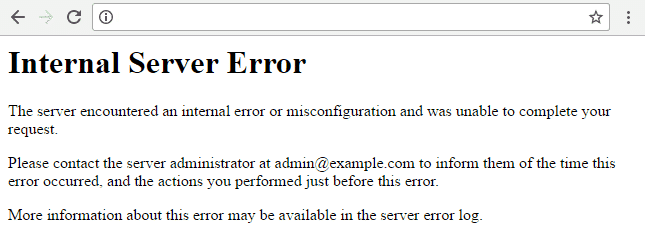
What is a 500 Internal Server Error?
When you visit a site, your browser sends a request to the site’s server. The server processes the request and sends back the resources to display the page, along with an HTTP header, which includes an HTTP status code.
The status code tells your browser the status of the request. For example, a 200 status code means smooth sailing—everything is OK. But if you get a 500 status code, it means something went wrong, and the server isn’t quite sure what went wrong.
Basically, the 500 internal server error code is a generic “catch-all” that means the server encountered an unexpected condition that prevented it from fulfilling the request.
There are several different types of 500 status error codes, which all mean something different, such as 501 Not Implemented, 502 Bad Gateway, 503 Service Unavailable, and 504 Gateway Timeout.
Naming Variations for 500 Internal Server Errors
There are many variations of the 500 internal server error message, depending on the many web servers and browsers available. The website you’re visiting might also have its own custom page for these errors.
Here are several variations of what you might see:
- 500 Internal Server Error
- Internal Server Error
- 500 Internal server error
- Error 500
- HTTP Error 500
- HTTP Error 500 – Internal Server Error
- Temporary Error (500)
No matter which of these (or other variations) you see, they all mean the same thing—something has gone wrong and the server doesn’t know what’s happened.
How to Fix the 500 Internal Server Error
Like I mentioned above, this error indicates that something went wrong, but what the cause is a mystery. With resolving these errors, you essentially need to work backward—find the fix first and then you’ll know what caused the error.
Generally, 500 errors happen due to an issue on the server, but they can also happen due to some kind of client-side issue. So we’ll work through a number of different solutions below that involve both.
Create a Backup First
The fixes below involve tinkering with your site under the hood, i.e. making changes to your site’s root directory. So it’s critical you run a backup.
And if you don’t already have a backup plugin or some other solution in place, it’s high time you got one!
Some of my favorite tools include BackUpWordPress, VaultPress, and BackupBuddy. If you’re interested in database backups, check out WP Migrate DB Pro or simply use WP-CLI to run quick exports.
If you’re with a web host that offers backups, that’s great. But I’d recommend having your own solution that you can quickly access in an emergency without having to go through your host.
1. Check Your .htaccess File
If your site is hosted on a server running Apache, there’s a chance your .htaccess file is corrupted. This can happen after installing plugins or making other changes to your site.
It’s an easy fix. All you need to do is replace your corrupted .htaccess file with a new one.
Usually, all you need to do to create a new .htaccess file is to re-save your permalinks settings in the WordPress dashboard. But if your site is down, it’s likely you can’t log in to your site, ruling out this option.
So you’ll need to use FTP or cPanel to access your site’s files and locate your .htaccess file. For a step-by-step walkthrough on how to do this with FTP and cPanel, check out What is .htaccess and How to Use it With WordPress.
Before you go replacing your old .htaccess file with a new one, create a backup of your name. To do this, simply rename your existing file something like .htaccess-old. WordPress will then stop recognizing this file.
Refresh your site and if it loads properly, you know your .htaccess file has caused the 500 error. Now, revert your .htaccess file to its proper name—the issue will return, but now we’re going to fix it.
For WP Rocket users, you’ll need to be especially careful of what you do next with your .htaccess file because it contains performance optimization rules that you shouldn’t mess around with. So check out Resolve 500 Internal Server Error for what to do next.
If you’re not a WP Rocket user (what’s going on!?), create a new .htaccess file that includes the following, and then upload it to your site’s root directory:
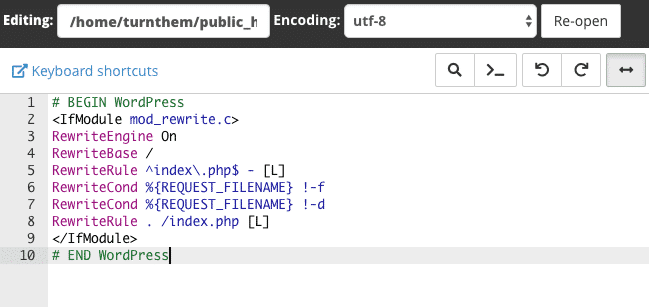
These are the rules shown in the image above:
#BEGIN WordPress

RewriteEngine On

RewriteBase /

RewriteRule ^index.php$ - [L]

RewriteCond %{REQUEST_FILENAME} !-f

RewriteCond %{REQUEST_FILENAME} !-d

RewriteRule . /index.php [L]

#END WordPress
2. Increase PHP Memory limit
The cause of your 500 error could be that you’re hitting your PHP memory limit. This often happens due to poorly-coded plugins, when a site is using a lot of plugins, or when a site is using resource-intensive plugins.
All you need to do to fix this issue is increase the PHP memory limit for your site. There are a few different ways you can do this that involve updating your .htaccess file, php.ini file, or wp-config.php file.
For each of the three memory fixes below, don’t forget to refresh your site to check if it’s working so you know what’s causing your 500 internal server error.
1. Increase PHP Memory Limit in .htaccess File
Find your .htaccess file in the root directory of your site and add the following line:php_value memory_limit 256M
This will increase your memory limit to 256 MB. If you can’t find your .htaccess, make sure you’re able to view hidden files. And if you don’t have an .htaccess file, create a new one and paste in the line above.
2. Increase PHP Memory Limit in php.ini File
You’ll find your php.ini file in the wp-admin folder in your root directory. Open it up and look for the line that starts with “memory_limit.” If it shows 64 MB or lower, replace it with this line:
memory_limit = 256M
If you can’t find your php.ini file (make sure you’ve got “show hidden files” enabled), then you’ll need to create a new file, paste in the line above, name it php.ini and save it to your wp-admin folder.
3. Increase PHP Memory Limit in wp-config.php File
If updating your .htaccess and php.ini files didn’t work, you can try increasing the memory limit in your wp-config.php file.
Add the following line to your wp-config.php file just before the “happy blogging” line:
define('WP_MEMORY_LIMIT', '256M');
Save the file and refresh your site. If it still isn’t working and you have a sneaking suspicion your plugins could be pushing your PHP memory limits, get in touch with your web host about increasing your memory on the server side.
3. Audit Your Plugins
Plugins can also cause 500 internal server errors. This includes outdated plugins causing compatibility issues and even new plugins that have been coded poorly. You might even find that you get the 500 error immediately after installing a new plugin.
To find out which, if any, of your plugins is causing your error, you’ll need to bulk deactivate your plugins and reactivate them one at a time.
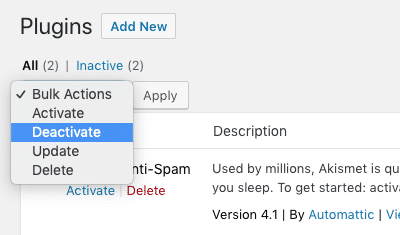
If you’re unable to access your WordPress dashboard, FTP into your server and open your wp-content folder, find your plugins folder and rename it something like plugins-old—this will effectively deactivate all of your plugins.
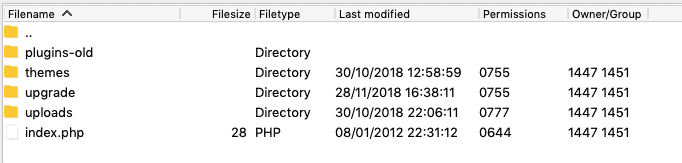
Then refresh your site. If it starts working, the cause of your 500 error is one of your plugins.
The next step is identifying which plugin is the culprit. To do this, rename your plugins folder back to “plugins” and then go into the folder and rename each individual plugin folder, one-by-one until you’re able to refresh your site and it works again.
When you find the offending plugin, get in touch with the plugin developer for help.
4. Check File Permissions
If none of the above has worked, you could have an issue with file permissions. Files in your WordPress directory should be set to 755 or 644 and when they’re mistakenly or accidentally set to anything else it can set off a 500 error.
To check your file permissions, FTP into your server and check your site’s directory. Here, I’m using Filezilla to access my test site and as you can see my permissions are set to 755 for folders and 644 for everything else.
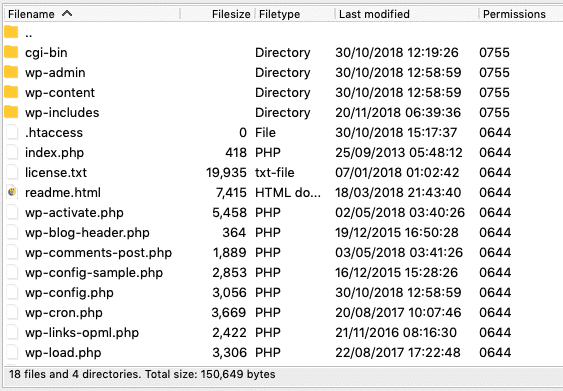
The WordPress Codex recommends the following file permissions:
- All directories should be 755 or 750.
- All files should be 644 or 640. (The exception being wp-config.php, which you can set to 440 or 400 to prevent other users on the server from reading it.)
- Directories should never be set to 777.
If you find that a certain file has the wrong permission, just right-click it in your FTP program to access file permissions and update it to the appropriate number.
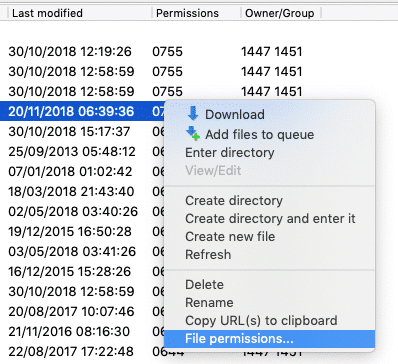
Check out How to make system files (.htaccess, wp-config.php) writeable to learn more about updating file permissions.
5. Reinstall WordPress Core Files
It’s not unusual for WordPress core files to become corrupted, especially on older sites that have been customized and updated many times.
To fix this issues, you’ll need to replace your core WordPress files with fresh ones. There’s no need to re-install WordPress—simply download the latest version of WordPress and unzip the file. FTP into your site’s root directory and upload the wp-admin and wp-includes folders from the zip file you just downloaded, overwriting the older versions.
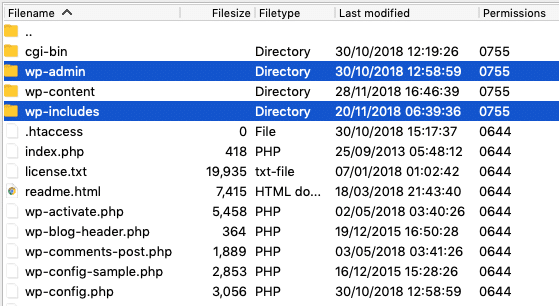
Doing it this way, you won’t overwrite your plugins and themes.
Refresh your site. If the 500 error has disappeared, you’ve pinpointed the cause—corrupted core files.
6. Contact Your Web Host
If you’re still getting the 500 internal server error after working through each of the fixes above, it’s time to contact your web host. Your host’s server logs might be able to shed some light on what’s causing the error so it can be resolved.
Rather than skip the above and go straight to your host for help, it’s a good idea to investigate the cause of your error first. This way, you can provide your host with a rundown of what you’ve tried, so your error isn’t simply dismissed as an issue with your site’s files.
This is particularly true if you’re on cheaper shared hosting. If you’re on managed WordPress hosting, it’s usually the case that your host will help you pinpoint and fix you 500 internal server error.
Wrapping Up
This is by no means an exhaustive list of 500 internal server error fixes. What’s causing your particular issue could be just about anything. But this list will give you a head start on fixing and finding the cause (in that order!).
Lastly, don’t forget to back up your site before updating files in your root directory. If you make a change that impacts your site, you’ll be able to quickly revert to a previous backup.
Have you experienced a 500 internal server error? How did you fix it? Let us know in the comments below!
WordPress (WP) вырос до одной из самых популярных систем управления контентом, доступных сегодня. Благодаря универсальности и большой базе поддержки, WordPress доверяют блоггеры и корпорации, – к тому же установка данной CMS бесплатна! Тем не менее иногда в WP возникают ошибки, которые трудно исправить, несмотря на использование всей доступной документации. Одна из таких ошибок: “WordPress 500 Internal Server Error.”
Включение режима отладки для исправления ошибки WordPress 500 Internal Server Error.
Отладка ошибки всегда является частью работы с PHP. WordPress поставляется со своими собственными системами для упрощения процесса. Вы можете включить отладку в WordPress подключившись к вашему серверу по FTP/SFTP или SSH и отредактировав файл wp-config.php, просто добавив перед строкой /* That’s all, stop editing! Happy blogging. */ такие директивы:
define(‘WP_DEBUG’, true);
define(‘WP_DEBUG_LOG’, true);
WP_DEBUG – это константа РНР, которая переключает WordPress в режим отладки.
WP_DEBUG_LOG – обеспечивает сохранение всех ошибок в файл лога, называемые debug.log
В идеале у Вас должен быть такой код в вашем файле wp-config.php:
включение режима WP_DEBUG:
define( ‘WP_DEBUG’, true );
включение отладочного логирования в файл /wp-content/debug.log
define( ‘WP_DEBUG_LOG’, true );
отключение отображения ошибок и предупреждений:
define( ‘WP_DEBUG_DISPLAY’, false );
@ini_set( ‘display_errors’, 0 );
Используйте dev-версии основных JS-файлов и CSS-файлов (требуется только при изменении этих основных файлов)
define( ‘SCRIPT_DEBUG’, true );
Увеличьте php memory limit в WP для исправления ошибки Internal Server Error
Одной из наиболее распространённых причин ошибки “500 Internal Server Error” является превышение параметра рнр memory limit. Этот параметр стандартно устанавливается в файле php.ini, который вы можете в нём увеличить и перезапустить сервер Apache/PHP-FPM. Либо можете добавить следующую строку в вашем файле wp-config.php:
define(‘WP_MEMORY_LIMIT’, ’64M’);
В случае, если ваше приложение конфликтует с другими активными плагинами и “тяжёлой” темой, то вы можете там увеличить это значение.
Создайте файл new.htaccess
Файл .htaccess может быть легко повреждён при загрузке плохого плагина или ручных изменений. Подключитесь к своему серверу через FTP/SFTP или SSH и переименуйте его в файл .htaccess.BAK или .htaccess.CORRUPTED. После этого создайте new.htaccess с его основными установками.
Деактивируйте все плагины WordPress для исправления ошибки
Если ни один из этих подходов не сработал, то вам может помочь деактивация всех плагинов WordPress. Зайдите в панель управления WordPress, перейдите в раздел Plugins и деактивируйте их одновременно. После чего обновите страницу сайта и проверьте устранена ли ошибка.
Если у вас нет доступа в панель управления WordPress, то деактивируйте плагины через доступ FTP/SFTP или SSH. Подключитесь к серверу, перейдите в папку wp-content и переименуйте папку plugins в plugins.DEACTIVATED. Либо зайдите в эту папку и переименуйте плагины по одному. Не забудьте вернуть изменения после устранения ошибки.
В случае успеха один из этих способов поможет исправить ошибку WordPress 500 Internal Server Error. Если ошибка не исправлена, то свяжитесь с техподдержкой своего хостинг-провайдера.
WordPress Toolkit для Plesk Onyx -скажи прощай ошибке “500 internal server error”
Надеемся наша статья помогла и улучшила ваше понимание WordPress. Вы можете сделать свой сайт на WordPress быстрее и более надёжным используя расширение WordPress Toolkit для Plesk Onyx. Оно доступно как часть платформы Plesk Onyx для вашего виртуального или выделенного сервера. Plesk разработал его для упрощения обычного обслуживания и таких часто используемых задач, как конфигурирование, а также для облегчения решения проблем с WordPress , в том числе ошибки “500 Internal Server Error”.
Перевод: Сергея Гордеева
Оригинал