First of all, you should know, that some of functions, used on the worksheet, have limitations. So my point is avoid of using them in VBA, if it is not necessary.
For example, function POWER() returns error on attempt to raise a zero to zero. An alternative is to use 0 ^ 0 combination, which is exactly doing the same, but looks more simply and operates without such error.
But also there is no embedded alternative in VBA to the FACT() function, so you can use it, or simply add your own function factor() — it’s uppon your choise.
If you just have started learning VBA, I would recomend you to use Option Explicit. It will help you to find out, which variables are not defined, and sometimes to avoid errors related to variable names missprint.
Here is your code, fixed and a little bit optimized:
Option Explicit' It is an option that turns on check for every used variable to be defined before execution. If this option is not defined, your code below will find undefined variables and define them when they are used. Good practice is to use this option, because it helps you, for example to prevent missprinting errors in variable names.

Sub Bezier()
    Dim C as Double , t As Double
    Dim k  As Long, n As Long, i As Long
    n = 3
    For i = 0 To 100
        t = i * 0.01
        Cells(i + 2, 6) = 0
        Cells(i + 2, 7) = 0
        For k = 0 To n
            C = (WorksheetFunction.Fact(n) / WorksheetFunction.Fact(k)) / WorksheetFunction.Fact(n - k)
            Cells(i + 2, 6) = Cells(i + 2, 6).Value + Cells(k + 2, 1).Value * C * (t ^ k) * ((1 - t) ^ (n - k))
            Cells(i + 2, 7) = Cells(i + 2, 7).Value + Cells(k + 2, 2).Value * C * (t ^ k) * ((1 - t) ^ (n - k))
        Next
    Next
End Sub
UPDATE
Here are some examples of factorial calculations.
    Public Function fnFact(number) ' a simple cycle example of Factorial function
    Dim tmp As Long ' new temporary variable to keep the "number" variable unchanged
    tmp = number
    fnFact = number
    While tmp > 1
        tmp = tmp - 1
        fnFact = fnFact * tmp
    Wend
End Function

Public Function fnFactR(number) ' a simple example of recursive function for Factorial calculation
    If number > 0 Then
        fnFactR = fnFactR(number - 1) * number ' function calls itself to continue calculations
    Else
        fnFactR = 1 ' function returns {1} when calculations are over
    End If
End Function

Sub Factor_test() 'RUN ME TO TEST ALL THE FACTORIAL FUNCTIONS
    Dim number As Long
    number = 170 ' change me to find Factorial for a different value
    MsgBox "Cycle Factorial:" & vbNewLine & number & "!= " & fnFact(number)
    MsgBox "WorksheetFunction Factorial:" & vbNewLine & number & "!= " & WorksheetFunction.Fact(number)
    MsgBox "Recursive Factorial:" & vbNewLine & number & "!= " & fnFactR(number)
End Sub
All those functions are available to calculate Factorial only for numbers before 170 inclusively, because of large result value.
So for my PC the limitation for WorksheetFunction.Fact() function is also 170.
Let me know, if your PC has different limitation for this function, — it’s quite interesting thing. 🙂
UPDATE2
It is recomended to use Long data type instead of Integer each type when integer (or whole number) variable is needed. Long is slightly faster, it has much wider limitations and costs no additional memory. Here are proof links:
1. MSDN:The Integer, Long, and Byte Data Types
2. ozgrid.com:Long Vs Integer
3. pcreview.co.uk:VBA code optimization — why using long instead of integer?
Thanks for @Ioannis and @chris neilsen for the information about Long data type and proof links!
Good luck in your further VBA actions!
First of all, you should know, that some of functions, used on the worksheet, have limitations. So my point is avoid of using them in VBA, if it is not necessary.
For example, function POWER() returns error on attempt to raise a zero to zero. An alternative is to use 0 ^ 0 combination, which is exactly doing the same, but looks more simply and operates without such error.
But also there is no embedded alternative in VBA to the FACT() function, so you can use it, or simply add your own function factor() — it’s uppon your choise.
If you just have started learning VBA, I would recomend you to use Option Explicit. It will help you to find out, which variables are not defined, and sometimes to avoid errors related to variable names missprint.
Here is your code, fixed and a little bit optimized:
Option Explicit' It is an option that turns on check for every used variable to be defined before execution. If this option is not defined, your code below will find undefined variables and define them when they are used. Good practice is to use this option, because it helps you, for example to prevent missprinting errors in variable names.

Sub Bezier()
    Dim C as Double , t As Double
    Dim k  As Long, n As Long, i As Long
    n = 3
    For i = 0 To 100
        t = i * 0.01
        Cells(i + 2, 6) = 0
        Cells(i + 2, 7) = 0
        For k = 0 To n
            C = (WorksheetFunction.Fact(n) / WorksheetFunction.Fact(k)) / WorksheetFunction.Fact(n - k)
            Cells(i + 2, 6) = Cells(i + 2, 6).Value + Cells(k + 2, 1).Value * C * (t ^ k) * ((1 - t) ^ (n - k))
            Cells(i + 2, 7) = Cells(i + 2, 7).Value + Cells(k + 2, 2).Value * C * (t ^ k) * ((1 - t) ^ (n - k))
        Next
    Next
End Sub
UPDATE
Here are some examples of factorial calculations.
    Public Function fnFact(number) ' a simple cycle example of Factorial function
    Dim tmp As Long ' new temporary variable to keep the "number" variable unchanged
    tmp = number
    fnFact = number
    While tmp > 1
        tmp = tmp - 1
        fnFact = fnFact * tmp
    Wend
End Function

Public Function fnFactR(number) ' a simple example of recursive function for Factorial calculation
    If number > 0 Then
        fnFactR = fnFactR(number - 1) * number ' function calls itself to continue calculations
    Else
        fnFactR = 1 ' function returns {1} when calculations are over
    End If
End Function

Sub Factor_test() 'RUN ME TO TEST ALL THE FACTORIAL FUNCTIONS
    Dim number As Long
    number = 170 ' change me to find Factorial for a different value
    MsgBox "Cycle Factorial:" & vbNewLine & number & "!= " & fnFact(number)
    MsgBox "WorksheetFunction Factorial:" & vbNewLine & number & "!= " & WorksheetFunction.Fact(number)
    MsgBox "Recursive Factorial:" & vbNewLine & number & "!= " & fnFactR(number)
End Sub
All those functions are available to calculate Factorial only for numbers before 170 inclusively, because of large result value.
So for my PC the limitation for WorksheetFunction.Fact() function is also 170.
Let me know, if your PC has different limitation for this function, — it’s quite interesting thing. 🙂
UPDATE2
It is recomended to use Long data type instead of Integer each type when integer (or whole number) variable is needed. Long is slightly faster, it has much wider limitations and costs no additional memory. Here are proof links:
1. MSDN:The Integer, Long, and Byte Data Types
2. ozgrid.com:Long Vs Integer
3. pcreview.co.uk:VBA code optimization — why using long instead of integer?
Thanks for @Ioannis and @chris neilsen for the information about Long data type and proof links!
Good luck in your further VBA actions!
|
Andrushka252 0 / 0 / 0 Регистрация: 26.10.2019 Сообщений: 8 |
||||
|
1 |
||||
|
Excel 26.10.2019, 16:52. Показов 9813. Ответов 13 Метки нет (Все метки)
Добрый день,написал макрос для копирования информации с одного листа на другой,но он не работает ( Вот сам макрос:
Миниатюры
__________________
0 |

|
6874 / 2806 / 533 Регистрация: 19.10.2012 Сообщений: 8,550 |
|
|
26.10.2019, 17:09 |
2 |
|
Копать отсюда и до обеда?
0 |

|
0 / 0 / 0 Регистрация: 26.10.2019 Сообщений: 8 |
|
|
26.10.2019, 17:19 [ТС] |
3 |
|
Это название страницы Добавлено через 1 минуту
0 |
|
Hugo121 6874 / 2806 / 533 Регистрация: 19.10.2012 Сообщений: 8,550 |
||||
|
26.10.2019, 17:22 |
4 |
|||
|
Поясните — что хотели сказать тут:
P.S. Вообще это не название страницы. Это теоретически могла бы быть переменная, содержащая название страницы — но это не тот случай…
0 |
|
6874 / 2806 / 533 Регистрация: 19.10.2012 Сообщений: 8,550 |
|
|
26.10.2019, 17:27 |
6 |
|
Данных вообще сколько строк? Потому что если их много — это всё желательно делать иначе (это я не про ошибку про ошибку, которая правда пока и не особо понятно на какой строке Добавлено через 1 минуту
могу поменять,это важно? — да не, пишите код как хотите
0 |
 ).
).

|
0 / 0 / 0 Регистрация: 26.10.2019 Сообщений: 8 |
|
|
26.10.2019, 17:28 [ТС] |
7 |
|
3 столбца и там и там,а строк может быть сколько угодно,но да их много
0 |
|
6874 / 2806 / 533 Регистрация: 19.10.2012 Сообщений: 8,550 |
|
|
26.10.2019, 17:32 |
8 |
|
я брал за образец макрос из этого форума — и откуда тогда взялось в коде Лист3 в том месте? Не по теме: Я пока пас, ушёл…
0 |
|
0 / 0 / 0 Регистрация: 26.10.2019 Сообщений: 8 |
|
|
26.10.2019, 17:35 [ТС] |
9 |
|
Ну если в том случае переносится информация с листа 1 на 2,то в моём с Табл2 на лист3.
0 |
|
208 / 183 / 43 Регистрация: 02.08.2019 Сообщений: 584 Записей в блоге: 23 |
|
|
26.10.2019, 17:50 |
10 |
|
Andrushka252, Привет! выложи файл, и опиши что хочешь сделать?
0 |
|
0 / 0 / 0 Регистрация: 26.10.2019 Сообщений: 8 |
|
|
26.10.2019, 18:57 [ТС] |
11 |
|
я хочу совместить эти листы по номеру азс,номеров азс может быть до тысячей,и для ускорения работы мне нужен макрос
0 |
|
0 / 0 / 0 Регистрация: 26.10.2019 Сообщений: 8 |
|
|
26.10.2019, 19:01 [ТС] |
12 |
|
art1289, Вот листы
0 |
|
6874 / 2806 / 533 Регистрация: 19.10.2012 Сообщений: 8,550 |
|
|
26.10.2019, 21:39 |
13 |
|
Вот листы — я вернулся. А файла так всё ещё и нет… Есть мутные картинки, с которых кто-то должен перерисовать инфу в файл.
0 |
|
viktor424 0 / 0 / 0 Регистрация: 31.10.2019 Сообщений: 1 |
||||||
|
31.10.2019, 20:03 |
14 |
|||||
Вложения
0 |

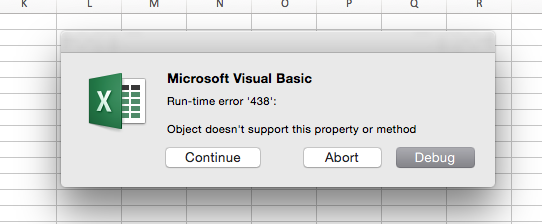
Frequently encountering Run-time error ‘438′: Object doesn’t support this property or method whenever you try to start work in Excel?
Don’t have any idea what causing this Excel runtime error 438 and how to fix it?
Well don’t get worried about it, as this post will help you to get the best fixes to resolve Excel error 438: Object doesn’t support this property or method error. Not only this, but you will also get complete information about this Excel error 438.
What Is Excel Runtime Error 438?
Mostly it is seen that the user stuck into such annoying error code in macro when the object doesn’t support by the property or method.
If any Excel user creates a toolbar in Excel by using visual basic code then also the following error code occurs:
Run-time error “438”: Object doesn’t support this property or method
To recover lost Excel objects, we recommend this tool:
This software will prevent Excel workbook data such as BI data, financial reports & other analytical information from corruption and data loss. With this software you can rebuild corrupt Excel files and restore every single visual representation & dataset to its original, intact state in 3 easy steps:
- Download Excel File Repair Tool rated Excellent by Softpedia, Softonic & CNET.
- Select the corrupt Excel file (XLS, XLSX) & click Repair to initiate the repair process.
- Preview the repaired files and click Save File to save the files at desired location.
Error Detail:
Error code: Run-time error ‘438′
Error name: Object doesn’t support this property or method
Error Screenshot:
What Are The Circumstances In Which Run-Time Error 438 In Excel Occurs?
There is not any specific reason for encountering this Excel runtime error 438: Object doesn’t support this property or method.
It is found that this Excel runtime error 438 occurs under several circumstances. So check this out:
- When anyone tries to make use of variables for workbooks and worksheet names.
- When executing a program within which form is already allotted to a variable. And that specific variable is now been used for accessing control over the form.
- This error also occurs when an installed AMD driver becomes out of date.
- The Macro you are using is maybe a wrong one or maybe it’s not working. Ultimately this will throw Excel runtime error 438.
- Runtime error 438 also encounters when you are trying to execute the designed macro of MS Excel previous version, into the latest MS Excel application.
- At the time of creating a custom toolbar in their Excel worksheet. User encounters a task failure error message i.e. “Object doesn’t support this property or method: Run-Time Error 438.
- In another instance in which this error occurs, the user tries to run the Microsoft VB for Excel macro. This macro tries to set the Excel worksheet properties but fails to complete this task which ultimately results in runtime error 438 in Excel.
After catching the complete idea of what can be the reasons for the Excel runtime error 438. Now you can easily make a keen check over the sections where this problem can generate.
How To Fix Runtime Error 438 In Excel?
Fix 1# MS Office Version Supporting Issue
Runtime error 438 in Excel also encounters while trying to work with the outdated macro function designed in older version MS Office application in some latest version of MS Office.
For this, I will recommend you to, use your macro in the respective version of MS Office application in which you have designed it. OR else you can get help from this helpful post [FIXED]: “This File is Not in Recognizable Format” Excel Error.
Fix 2# Check The Codings
As we have already discussed that Excel Runtime Error 438 also occurs due to the incorrect creation of a macro. Or when the user tries t0 run the macro which Excel objects don’t support property or method.
So, to resolve this Excel Object doesn’t support this property or method error user needs to check or rewrite the coding within the VBA module.
If you are not having good command over the programming then you can contact Microsoft Advisory Services.
Fix 3# Uninstall Microsoft Works Add-in:
It is seen that Microsoft works add-in generates this Excel Object doesn’t support this property or method error. So, uninstall this add-in just by following these steps:
- Go to the Start menu then click the Settings option and then on the Control Panel.
- Now tap to the Add / Remove Programs.
- Hit the File Location present within the Options.
- From Uninstall/Install tab, choose the add-in suit i.e Word in Works. After then tap the Add / Remove.
- Now carefully follow the screen instructions.
- Restart your PC and attempt to load Microsoft Word again.
This will stop the error from occurring again because you have successfully uninstalled the problem causing Works for Word add-in the program.
Fix 4# Use Microsoft Fix-It #50356
In many cases it is found that by downloading the Microsoft Fix-It #50356 user has successfully overcome the Excel error 438: Object doesn’t support this property or method.
So, you can also download the Microsoft Fix-It Patch from this link: https://support.microsoft.com/en-in/help/2970908/how-to-use-microsoft-easy-fix-solutions After complete downloading, the wizard will assist you throughout the tasks that you have to perform.
Through this Microsoft #50356 hotfix broken registry strings that are causing the issue can easily be repaired. This patch gives new keys on behave of broken registry keys. If your registry keys are broken then your Windows application displays the error message. But after downing this new patch in your PC your Window won’t show any error regarding Object doesn’t support this property or method.
If even after trying the above fixes the problem won’t resolve then move to the next solution.
Fix 5# Disable or Uninstall Windows Antivirus Software
Sometimes installed anti-viruses on your system also cause this runtime error 438. So, by disabling or uninstalling the anti-virus software you can easily get rid of this issue.
Steps to uninstall antivirus program from your PC:
- Open the control panel of your PC.
- After then make double-tap to Add/Remove Programs
- Choose the antivirus program which you want to uninstall from your PC. After then, tap to the Remove or Change/Remove option.

- Carefully follow the on-screen instructions for removing up the antivirus program. Once it gets over, restart your PC.
Fix 6# Reinstall The Device Drivers For The Device
Reinstalling the device driver can fix Excel Runtime Error 438. Try the following steps to resolve Object doesn’t support this property or method:
- Go to your system taskbar and make a tap on the start button. Here you will see a search box, in this box type device manager. After then choose the Device Manager.
- Make a right-click on the device name you need to uninstall and choose the Uninstall option.
- After uninstalling the device, restart your PC.
- Windows will try for driver reinstallation.

Fix 7: Resolve The Corruption Issue
Sometimes Excel sheet gets damaged or corrupt due to so many reasons like sudden system shutdown, software malfunction, virus attack, etc. Once the Excel spreadsheet gets corrupted /damaged you can’t access it anymore or it starts throwing error messages. So, the chances are high that some of your Excel file Objects got corrupted and thus it showing Object doesn’t support this property or method error.
Hence for the quick and easy solution to repair and restore corrupt Excel files go with the recommended option i.e Excel Repair Tool. It is the best software for repairing the damaged excel file.
* Free version of the product only previews recoverable data.
With this efficient repair tool, user can easily be able to fix all known errors that lead to corruption of excel files on Mac. It deeply scans the selected excel files without making any changes to the original content of the worksheet and fetches all the issues. It restores all the charts, objects, hidden sheets, pictures, clip charts, and other important Excel file content.
Wrap Up:
Carefully try all the above fixes to resolve runtime error 438 in Excel as some of the listed fixes may hamper your system settings if performed incorrectly. Even after trying all the above fixes if the Excel Object doesn’t support this property or method error won’t be resolved then let us inform by commenting in our comment section.


Priyanka is an entrepreneur & content marketing expert. She writes tech blogs and has expertise in MS Office, Excel, and other tech subjects. Her distinctive art of presenting tech information in the easy-to-understand language is very impressive. When not writing, she loves unplanned travels.
David Zemens got your answer.
Here’s how to avoid repeating it.
Looking at this line:
For Each item In Worksheets("Collector").SlicerCaches("Slicer_RptDate").SlicerItems
If we made every statement explicit, it would look like this:
For Each item In Worksheets.Item("Collector").SlicerCaches.Item("Slicer_RptDate").SlicerItems
In other words:
Worksheets.Item("Collector") _
          .SlicerCaches.Item("Slicer_RptDate") _
                       .SlicerItems
That’s a lot of member accesses for a single instruction.
By introducing intermediate variables…
Dim collectorSheet As Worksheet
Set collectorSheet = Worksheets("Collector")

Dim rptDateSlicerCache As SlicerCache
Set rptDateSlicerCache = collectorSheet.SlicerCaches("Slicer_RptDate") '*

For Each item In rptDateSlicerCache.SlicerItems
    '...
Next
…you could have noticed while typing the line marked with a '* comment, that IntelliSense doesn’t offer SlicerCaches as a member of collectorSheet.
Why? Because this:
Worksheets("Collector")
Returns an Object — and from that point on, you’re on your own: IntelliSense can’t help you with autocompletion, because members of an Object aren’t resolved until runtime.
By assigning that object to a Worksheet variable, you give yourself compile-time checking, and avoid that pesky runtime error 438.