Некоторые пользователи Windows сталкивались с ошибкой «Не удалось установить Office 30088-1021 (0)» при каждой попытке установить или обновить Microsoft Office на своем компьютере. Эта проблема чаще всего возникает в Windows 10.
Как исправить код ошибки Office 30088-1021
После тщательного изучения этой конкретной проблемы выясняется, что существует несколько основных причин, которые могут вызвать этот код ошибки при установке последней версии Microsoft Office:
- Поврежденная установка Microsoft Office. Как выяснилось, одной из наиболее частых причин этой конкретной ошибки является повреждение файлов определенного типа, влияющее на установку Office. В этом случае вы можете решить проблему, запустив средство восстановления Office и применив рекомендованное исправление.
- Повреждены / отсутствуют ключи реестра. Если проблема возникает из-за несогласованности реестра, запуск инструмента Office Fix It Tool должен позволить вам эффективно удалить любые остатки текущей установки Office перед переустановкой с нуля.
- Запрещает установку вредоносных программ. Помните, что вы также можете увидеть ошибку 3088-1021 из-за какого-либо вредоносного или шпионского ПО, которое не позволяет сторонним программам вносить изменения в реестр при установке более новой версии. Если этот сценарий применим, вам следует развернуть глубокое сканирование безопасности с помощью Malwarebytes, прежде чем повторять установку.
Теперь, когда вы знакомы со всеми потенциальными причинами этой конкретной проблемы, вот краткий список проверенных исправлений, которые другие пользователи, оказавшиеся в аналогичной ситуации, использовали, чтобы разобраться в этой проблеме:
Если вы получаете эту ошибку при попытке обновить текущую версию Microsoft Office, скорее всего, вы имеете дело с каким-либо повреждением файла или отсутствием ключей реестра, которые препятствуют процессу обновления.
По мнению некоторых затронутых пользователей, вы сможете решить проблему в этом случае, исправив установку Office с помощью встроенного инструмента.
Это будет служить цели восстановления любых поврежденных или помещенных в карантин файлов, которые могут быть причиной проблемы.
Следуйте приведенным ниже инструкциям, чтобы устранить ошибку Office не удалось установить 30088-1021 (0):
- Начните с открытия диалогового окна «Выполнить», нажав клавиши Windows + R. Затем введите «appwiz.cpl» и нажмите Enter, чтобы открыть окно «Программы и компоненты».
Открытие экрана программ и функций
- В меню «Программы и компоненты» прокрутите список установленных приложений вниз и найдите установку Office.
- Затем щелкните правой кнопкой мыши список, связанный с Office, и выберите «Изменить» в контекстном меню.
Изменить установку Microsoft Office
- Дождитесь завершения первоначального сканирования, затем выберите «Онлайн-восстановление» (если доступно) и дождитесь завершения операции.
Инициирование онлайн-ремонта
Примечание. Перед началом этой процедуры важно убедиться, что вы подключены к надежной сети.
После завершения процедуры восстановления перезагрузите компьютер и посмотрите, исправлена ли ошибка 30088-1021 при следующем запуске компьютера.
Если первое исправление не сработало в вашем случае и проблема возникла из-за какой-либо проблемы с реестром, вы должны знать, что Microsoft разработала автоматизированный инструмент, оснащенный для устранения случаев, когда функция автоматического обновления выходит из строя.
Несколько затронутых пользователей сообщили, что им удалось решить проблему, запустив инструмент Microsoft Office Fix It.
Эта утилита решает различные проблемы, которые в конечном итоге блокируют запуск, установку, обновление или удаление программ Office.
Примечание: вы можете использовать его в Windows 10, Windows 7 и Windows 8.1.
Если проблема вызвана поврежденными ключами реестра или файлами из удаленных или существующих программ, этот инструмент может решить проблему путем удаления текущего пакета Office, что позволит вам выполнить чистую установку последней версии без появления того же 30088-1021. ошибка.
Вот краткое руководство по загрузке и использованию инструмента Fix It Microsoft Office для решения этой конкретной проблемы:
- Начните с посещения официальная страница загрузки инструмента Microsoft Office Fix-It и загрузите файл .diagcab. Как только вы перейдете на нужную страницу, нажмите кнопку «Загрузить».
- После успешной загрузки инструмента дважды щелкните файл .diagcab, чтобы открыть его.
- Когда вы перейдете к первому запросу, нажмите «Дополнительно» и убедитесь, что установлен флажок «Применить восстановление автоматически». Затем нажмите кнопку «Далее», чтобы продолжить.
- После завершения этапа первоначального обнаружения нажмите «Установка» или «Удаление» — в зависимости от того, когда вы получите эту ошибку.
- На следующем экране выберите программу, с которой у вас возникли проблемы (скорее всего, Microsoft Office), и нажмите «Далее» еще раз, прежде чем, наконец, нажать «Да, попробовать удалить».
- Подождите, пока операция не будет окончательно завершена, затем перезагрузите компьютер и переустановите пакет Microsoft Office через официальные каналы, чтобы проверить, возникает ли по-прежнему та же ошибка.
Решение проблемы с помощью инструмента Fix It Tool
Если вы все еще сталкиваетесь с ошибкой даже после использования инструмента Fix-it, перейдите к следующему способу ниже.
По словам некоторых затронутых пользователей, вы также можете ожидать появления ошибки установки Office Couldn’t Install 30088-1021 (0), если на вашем компьютере в настоящее время размещено шпионское или вредоносное ПО, которое не позволяет сторонним программам вносить изменения в реестр.
Это, конечно, делает невозможным установку, удаление или обновление каких-либо приложений, которые должны пройти через установщик Windows.
Если вы столкнулись с этой проблемой, вы должны столкнуться с аналогичными ошибками при попытке установить или удалить другие приложения, а не только Microsoft Office.
Если этот сценарий выглядит так, как будто он может быть применим, вам следует начать с использования мощного средства очистки от вредоносных программ, чтобы сначала избавиться от угрозы безопасности. Мы рекомендуем выполнить глубокое сканирование с помощью Malwarebytes.
Запуск сканирования с помощью Malwarebytes
После завершения сканирования и устранения угрозы безопасности следующее, что вам нужно сделать, это избавиться от текущей установки Office, прежде чем переустанавливать новейшую версию с нуля.
Вот краткое пошаговое руководство, как это сделать:
- Нажмите клавишу Windows + R, чтобы открыть диалоговое окно «Выполнить». Затем введите appwiz.cpl и нажмите Enter, чтобы открыть меню «Программы и компоненты». Если вам будет предложено UAC (Контроль учетных записей пользователей), нажмите Да, чтобы предоставить доступ администратора.
Открытие меню «Программы и компоненты»
- На экране «Программы и компоненты» прокрутите список установленных программ и найдите установку Microsoft Office.
- Найдя проблемный пакет Office, щелкните его правой кнопкой мыши и выберите «Удалить» в появившемся контекстном меню.
Удалить Microsoft Office
- На экране удаления следуйте инструкциям на экране, чтобы завершить процесс, затем перезагрузите компьютер и повторно загрузите последнюю версию Microsoft Office с официальных каналов.
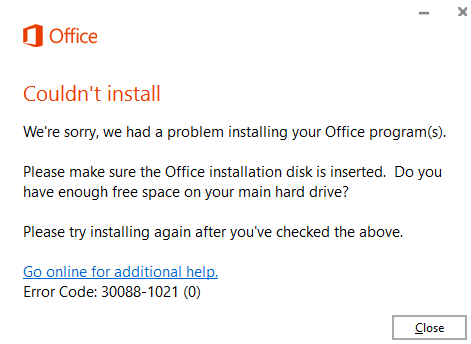
Некоторые пользователи заметили, что при попытке обновить существующую установку MS Office или установить новую копию MS Office они видят сообщение Office не удалось установить ошибка 30088-1021 (0). Полное сообщение об ошибке показано ниже.
Не удалось установить
Мы извините, у нас возникла проблема с установкой ваших программ Office
Убедитесь, что установочный диск Office вставлен.
На основном жестком диске достаточно свободного места?
Пожалуйста, попробуйте установить еще раз после того, как вы проверили вышеуказанное.
За дополнительной помощью обратитесь в Интернет
Код ошибки: 30088-1021 (0)
Возможные причины этой проблемы:
- Вредоносное ПО присутствует в системе
- Поврежденные ключи реестра.
- Поврежденная установка приложения MS Office
В этой статье мы перечислили исправления, которые могут помочь вам решить проблему Не удается установить Office 30088-1021 (0)
.
Исправление 1: быстрое восстановление приложения MS Office
ПРИМЕЧАНИЕ. Убедитесь, что у вас есть рабочее сетевое соединение
Шаг 1. Удерживая вместе клавиши Windows + r , откройте терминал запуска
Шаг 2. В окне”Выполнить”введите appwiz.cpl и нажмите Enter
.

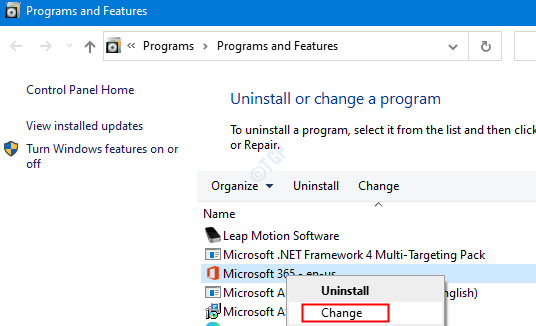
Шаг 3. В открывшемся окне”Программа и компоненты”найдите Microsoft Office Suite или Microsoft 365. Щелкните его правой кнопкой мыши и выберите Изменить
Шаг 4. Если UAC всплывает с запросом разрешений, нажмите Да
.
Шаг 5. Выберите Онлайн-ремонт , а затем нажмите Ремонт
.
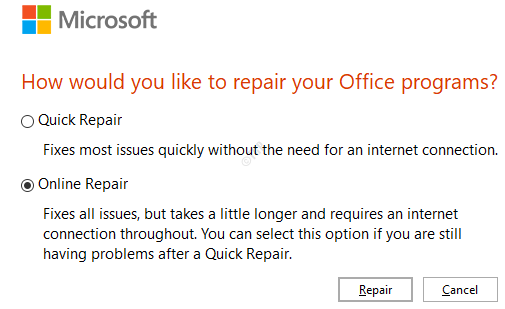
Шаг 6. В диалоговом окне Все готово к ремонту в оперативном режиме нажмите Восстановить
.

Шаг 7. Перезагрузите систему и проверьте, исправлена ли ошибка.
Исправление 2: удалите вредоносное ПО из системы, а затем удалите и повторно установите MS Office
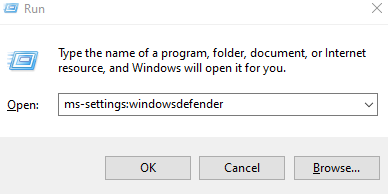
Шаг 1. Откройте диалоговое окно”Выполнить”
Шаг 2. Введите ms-settings: windowsdefender и нажмите Enter
.
Шаг 3. Нажмите Защита от вирусов и угроз

Шаг 4. Нажмите Параметры сканирования
.
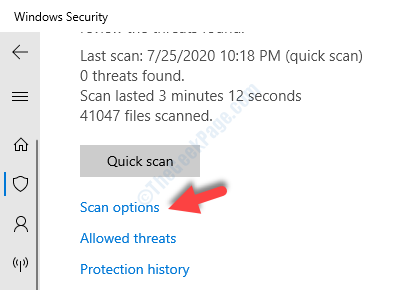
Шаг 5. Выберите Полная проверка , а затем нажмите кнопку Сканировать сейчас
.

Шаг 6. Запустите сканирование, а затем примите необходимые меры для устранения вредоносного ПО в вашей системе.
Шаг 7. Снова откройте терминал запуска
Шаг 8. В диалоговом окне”Выполнить”введите appwiz.cpl и нажмите Enter
.
Шаг 9. В открывшемся окне”Программы и компоненты”найдите Microsoft Office . Нажмите Удалить , как показано ниже

Шаг 10. Теперь переустановите Microsoft Office со страницы вашей учетной записи Microsoft.
Исправление 3. Используйте средство устранения неполадок Diagcab
Шаг 1. Посетите Страница устранения неполадок MS Office
Шаг 2. Нажмите кнопку Загрузить средство устранения неполадок
.
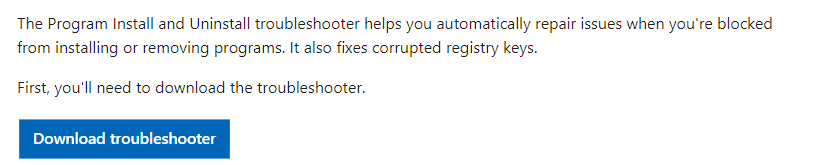
Шаг 3. Теперь дважды щелкните загруженный файл .diagcab .
Шаг 4. Откроется окно средства устранения неполадок при установке и удалении программы.
Шаг 5. Нажмите Дополнительно
.
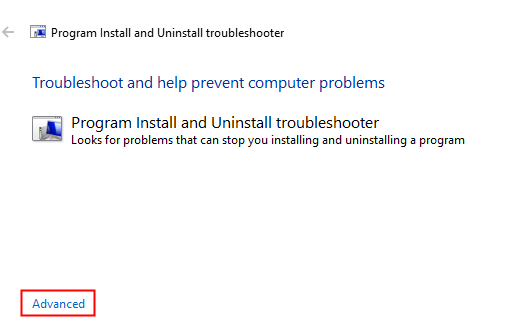
Шаг 6. Установите флажок Применить ремонт автоматически , а затем нажмите Далее
.

Шаг 7. В следующем окне вас спросят: «У вас возникли проблемы с установкой или удалением программы? ». Нажмите Удаление или Установка в зависимости от того, когда вы получаете сообщение об ошибке.
Шаг 8. В окне Выберите программу, которую вы хотите удалить выберите Microsoft Office из списка программ и пакетов, а затем нажмите Далее .
Шаг 9. Нажмите Да, попробовать удалить .
Шаг 10. Перезагрузите компьютер
Шаг 11. Удалите и повторно установите приложение MS Office. (См. Шаги 7–10 из Исправления 2)
Это все
Надеемся, эта статья была информативной. Спасибо за чтение
- Remove From My Forums
-
Question
-
I downloaded and installed Microosft Office 365/Office 2016 using this command: setup.exe /configure propuls.xml
Thisis propuls.xml
<Configuration>
< Add SourcePath=»c:ODT» OfficeClientEdition=»32″ Branch=»Current»>
< Product ID=»O365ProPlusRetail»>
< Language ID=»en-us» />
< /Product>
< /Add>
< /Configuration>It worked at first computer. Now when I try other computers, I get error code 30088-1021. I make sure the c:odt is correct. Any suggestions?
Bob Lin, MCSE & CNE Networking, Internet, Routing, VPN Networking, Internet, Routing, VPN Troubleshooting on http://www.ChicagoTech.net How to Install and Configure Windows, VMware, Virtualization and Cisco on http://www.HowToNetworking.com
Answers
-
Hi,
>>It worked at first computer. Now when I try other computers, I get error code 30088-1021. I make sure the c:odt is correct.
So you have copied the source file to the target machine?
This is a very generic error message, and may occur due to lots of reasons. If you have copied the source file to the target machine, there is a possibility that some files were missing from the office package. For testing purpose, you might want to re-download
the source file again on the target machine, then try the installation again.If issue persists, try to add the following line into your configuration.xml file, to enable the log for further troubleshooting:
<Logging Level=»Standard» Path=»%temp%» />
Regards,
Ethan Hua
Please remember to
mark the replies as answers if they helped.
If you have feedback for TechNet Subscriber Support, contact
tnmff@microsoft.com.-
Marked as answer by
Tuesday, February 21, 2017 10:27 PM
-
Marked as answer by
Многие пользователи Windows 10 сообщают об ошибке при попытке установить или обновить приложение Office в своей системе. Сообщение об ошибке гласит:
Не удалось установить
К сожалению, у нас возникла проблема с установкой ваших программ Office.
Убедитесь, что установочный диск Office вставлен. Достаточно ли у вас свободного места на основном жестком диске?
Пожалуйста, попробуйте установить снова после того, как вы проверите вышеуказанное.
Код ошибки: 30088-1021 (0)
Эта ошибка возникает, когда текущая установка MS Office повреждена или некоторые из основных ключей реестра были повреждены. Прежде чем продолжить, убедитесь в следующем:
- Установочный диск Office вставлен.
- На Диске, на который вы хотите установить MS Office, достаточно свободного места.
В этой статье мы перечислили некоторые исправления, которые могут помочь вам решить эту ошибку.
Исправление 1: очистка диска
Шаг 1. Откройте диалоговое окно «Выполнить» с помощью клавиш Windows + R.
Шаг 2: Введите команду ниже и нажмите Enter.
cleanmgr.exe
Шаг 3: В окне «Очистка диска» выберите диск, на который вы хотите установить MS Office, и нажмите «ОК».
Шаг 4: Утилита очистки диска начнет сканирование.
Шаг 5: В появившемся окне убедитесь, что отмечены «Корзина» и «Временные файлы».
Шаг 6: Нажмите ОК.
Шаг 7: В появившемся диалоговом окне подтверждения нажмите «Удалить файлы».
Шаг 1. Откройте диалоговое окно «Выполнить». Удерживайте вместе клавиши Windows + r.
Шаг 2. В окне «Выполнить» введите appwiz.cpl и нажмите Enter.
Шаг 3. В открывшемся окне «Программа и компоненты» найдите Microsoft Office Suite или Microsoft 365. Щелкните его правой кнопкой мыши и выберите «Изменить».
Шаг 4. Если появляется UAC с запросом разрешений, нажмите Да.
Шаг 5: В появившемся всплывающем окне Microsoft отметьте «Быстрое восстановление».
Шаг 6: нажмите кнопку «Восстановить».
Шаг 7. Следуйте отображаемым инструкциям и восстановите программы Office.
Шаг 8: перезапустите приложение и проверьте, устранена ли проблема.
Шаг 10: Если ошибка не исчезла, попробуйте выбрать «Онлайн-ремонт» и нажмите «Восстановить».
Шаг 10. В диалоговом окне «Готово к запуску диалогового окна восстановления» нажмите «Восстановить».
Перезапустите приложение и проверьте, исправлена ли ошибка.
Исправление 3: используйте инструмент Fix-It от Microsoft
Шаг 1. Откройте браузер и перейдите на Страница загрузки Fix-IT Tool
Шаг 2: Нажмите кнопку «Загрузить средство устранения неполадок», как показано ниже.
Шаг 3: Дважды щелкните загруженный файл. Обратите внимание, что у этого файла должно быть расширение .diagcab.
Шаг 4: В появившемся окне нажмите кнопку Далее.
Шаг 5. Средство устранения неполадок начнет обнаруживать проблемы. Он сообщит о проблеме, а также предложит необходимое решение. Следуйте инструкциям на экране и завершите процесс.
Это все.
Надеемся, эта статья была информативной.
Просьба прокомментировать и сообщить нам исправление, которое помогло вам исправить ошибку.
Спасибо за чтение.
Обновлено 2023 января: перестаньте получать сообщения об ошибках и замедлите работу вашей системы с помощью нашего инструмента оптимизации. Получить сейчас в эту ссылку
- Скачайте и установите инструмент для ремонта здесь.
- Пусть он просканирует ваш компьютер.
- Затем инструмент почини свой компьютер.
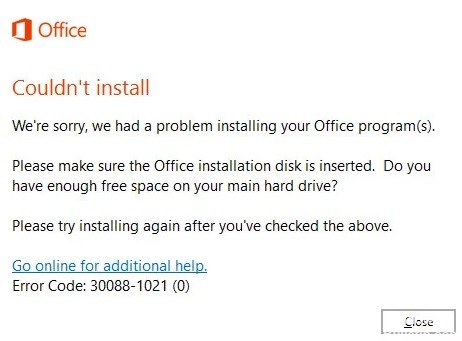
Некоторые пользователи заметили, что при попытке обновить существующую установку MS Office или установить новую копию MS Office появляется ошибка Office не удалось установить 30088-1021 (0). Полное сообщение об ошибке выглядит так
Не удалось установить
К сожалению, у нас возникла проблема с установкой ваших программ Office.
Убедитесь, что установочный диск Office вставлен и на основном жестком диске достаточно свободного места.
Пожалуйста, попробуйте установку еще раз после проверки вышеуказанных пунктов.
Пожалуйста, проверьте следующее в Интернете для получения дополнительной помощи
Код ошибки: 30088-1021 (0)

- Вредоносное ПО, препятствующее установке
- Поврежденные / отсутствующие ключи реестра
- Неправильная установка Microsoft Office
Как устранить ошибку Microsoft Office 30088-1021 (0)?
Обновление за январь 2023 года:
Теперь вы можете предотвратить проблемы с ПК с помощью этого инструмента, например, защитить вас от потери файлов и вредоносных программ. Кроме того, это отличный способ оптимизировать ваш компьютер для достижения максимальной производительности. Программа с легкостью исправляет типичные ошибки, которые могут возникнуть в системах Windows — нет необходимости часами искать и устранять неполадки, если у вас под рукой есть идеальное решение:
- Шаг 1: Скачать PC Repair & Optimizer Tool (Windows 10, 8, 7, XP, Vista — Microsoft Gold Certified).
- Шаг 2: Нажмите «Начать сканирование”, Чтобы найти проблемы реестра Windows, которые могут вызывать проблемы с ПК.
- Шаг 3: Нажмите «Починить все», Чтобы исправить все проблемы.

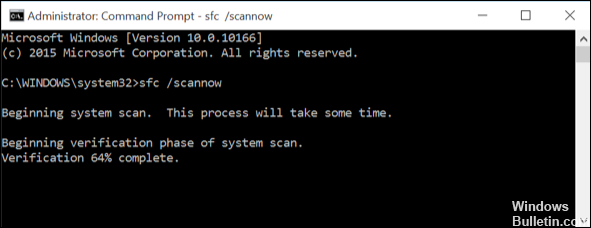
Выполнить сканирование SFC
- Введите cmd в поле поиска и щелкните Запуск от имени администратора, чтобы запустить расширенную командную строку.
- В окне командной строки введите команду ниже и нажмите Enter, чтобы запустить ее.
ПФС / SCANNOW - Дождитесь завершения сканирования. Затем перезагрузите компьютер и посмотрите, решит ли это проблему.
Восстановить офисные программы
- Откройте диалоговое окно «Выполнить», одновременно нажав Windows + R.
- Введите «appwiz.CPL» в текстовое поле диалогового окна и нажмите Enter. Откроется окно «Программы и компоненты».
- В открывшемся окне найдите установку Office и щелкните ее правой кнопкой мыши.
- Выберите «Изменить» и дождитесь завершения первой проверки.
- Теперь выберите Online Repair и дождитесь завершения процесса.
- Чтобы процесс прошел гладко, вам необходимо стабильное интернет-соединение.
- Наконец, перезагрузите компьютер и проверьте, решена ли проблема.
Совет экспертов: Этот инструмент восстановления сканирует репозитории и заменяет поврежденные или отсутствующие файлы, если ни один из этих методов не сработал. Это хорошо работает в большинстве случаев, когда проблема связана с повреждением системы. Этот инструмент также оптимизирует вашу систему, чтобы максимизировать производительность. Его можно скачать по Щелчок Здесь
Часто задаваемые вопросы
- Исправьте программы Office.
- Используйте инструмент Microsoft Fix it Tool.
- Запустите сканирование SFC.
- Попробуйте использовать CleanMyPC.
- Удалите предыдущие установки Office.
- Щелкните правой кнопкой мыши кнопку «Пуск».
- Выберите Приложения и функции.
- Найдите в списке приложение, в котором произошла ошибка.
- Щелкните кнопку Edit.
- Выберите «Восстановить онлайн».
- Нажмите Восстановить.
- Вредоносное ПО, препятствующее установке
- Поврежденные / отсутствующие ключи реестра
- Неправильная установка Microsoft Office
Сообщение Просмотров: 130
Error Code 30088-1021 (0) for Microsoft Office and Outlook
It is mainly occurs when you tried to install office or while installing office 365 and it gets failed. Error Code 30088-1021 (0) may occur due to following reasons:
- Due to Microsoft Office system file get corrupt.
- Previous installation had not removed properly.
- Windows Firewall not allows to network access.
- You may download partial setup.
To solve Office 365 Error 30088-1021 (0) you may follow below step to fix. If you follow the below steps or troubleshooting steps or process then may be resolve this Error Code 30088-1021 (0).
Steps to fix Microsoft Office 365 Error Code 30088-1021 (0):
Whenever if you trying to install office 365 updated version and you keep getting error 30088-1021 (0) it means you haven’t install previous office 365 properly or your previous office file got corrupt. and you might be seen below image as an error.

Some Common factor that cause Office Error 30088-1021 (0):
- Pre existing office installation files.
- Tamp and logs files.
- Office file got corrupt.
- Office didn’t update fully it updated partially.
- Windows Update not installed properly.
- Antivirus or windows Firewall might be blocking the office installation.
Steps to Fix/Resolve/troubleshoot the error code 30088-1021 (0):
1 – Repair your Office app
Error Code 30088-1021 (0) will be fixed when Office repair tool replaces all the corrupted system files. Follow the steps below to run repair tool to fix the error.
- Open Control Panel using Start.
- Click on Programs and select Programs and Features.
- Click on the Office product that you want to repair.
- Click Change.
- Select Quick Repair and click on Repair. If Quick Repair didn’t fix the Error Code 30088-1021 (0), select Online Repair and click on Repair.
Note: If Office Repair did not fix this error code, then remove and reinstall the Office installation to fix this Error Code 30088-1021 (0).
2 – Steps to remove Office
In case if the error persists even after running Office repair tool, uninstall Office from your computer.
- Open Control Panel using Start
- Click on Programs and select Programs and Features.
- Select Office Suite and click on Remove.
Note: If Office installation failed or it didn’t fix the error, a manual installation is required to completely remove the Office Suite.
3 – Steps to remove Office manually to fix the Error Code 30088-1021 (0)
If the error code 30088-1021 (0) is re-occurring, proceed with the following steps to manually remove Office program from your computer.
Step 1: Remove the Windows Installer packages
- Find the Office 16 installation folder, typically located in C:Program Files.
- Right-click the Microsoft Office 16 folder and select Delete.
Step 2: Remove the Office scheduled tasks
- Open a Command Prompt window as an administrator.
- At the command prompt, type the following commands and press Enter after each one:
schtasks.exe /delete /tn “MicrosoftOfficeOffice Automatic Updates”
schtasks.exe /delete /tn “MicrosoftOfficeOffice Subscription Maintenance”
schtasks.exe /delete /tn “MicrosoftOfficeOffice Click To Run Service Monitor”
Step 3: Use Task Manager to end the Click-to-Run tasks
- Open Task Manager.
- Click the Process tab
- If the following processes are running, right-click each one, and then click End task after you select each process.
- .exe
- setup*.exe
Step 4: Delete the Office files
- Press Windows logo key + R to open the Run dialog box.
- In the Open box, type %ProgramFiles%, and then click OK.
- Delete the “Microsoft Office 16” folder.
- Delete the “Microsoft Office” folder.
- Open the Run dialog box, type %ProgramFiles(x86)%, and then click OK.
- Delete the “Microsoft Office” folder.
Step 5: Delete the Office registry sub keys
- Open Registry Editor.
- Delete the following registry sub keys:
- HKEY_LOCAL_MACHINESOFTWAREMicrosoftOfficeClickToRun
- HKEY_LOCAL_MACHINESOFTWAREMicrosoftAppVISV
- HKEY_CURRENT_USERSoftwareMicrosoftOffice
- Then Delete the Office key.
Step 6: Delete the Start menu shortcuts
- Open a Command Prompt window as an administrator.
- Type %ALLUSERSPROFILE%MicrosoftWindowsStart MenuPrograms, and then press Enter.
- Delete the “Microsoft Office 2016 Tools” folder.
4 – Download and install Office
2. Choose Install.
3. Click Run or the equivalent depending on the browser you’re using.
4. When you see “You’re good to go”, click All done.
Still getting Microsoft Office Error Code 30088-1021 (0) then you may contact with technical expert that will solve your issues.
Error code 30088-1021 (0) : Microsoft office application is now an important element of our day to day life as it deals about our studies, work, business etc. And as it is a development era Microsoft has launched the well developed and secured products such as Office 365 and Office 2016 and also Office 2013 which was precede of Office 365 and Office 2016. You could buy the Office product from Microsoft product list or store .And in some cases the installation or update of Office may end up with Error code 30088-1021 (0)
Step 1. Temporarily disable Firewall and Antivirus
Error code 30088-1021 (0) while installing or updating the Microsoft Office may occur in case of Network or firewall restriction. The network rules or firewall rules in the network/computer may block the installation of Office program or its updating as a part of their security measurements. These firewall rules and Antivirus are implemented on the computer by the network provider or the computer user on its core system or registry.
You could fix the Error code 30088-1021 (0) by disabling the firewall or antivirus temporarily or you could fix the Error code 30088-1021 (0) by making creating an exceptional rule for Microsoft Office installation or update.
Follow the steps to disable Firewall:
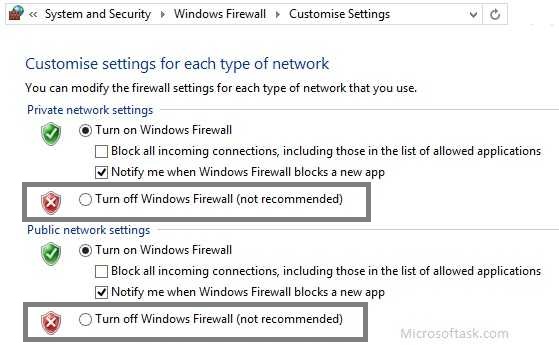
Step 1. Open “control panel”
Step 2. Navigate to “system and security” and then to “Windows Firewall”
Step 3. Click on “turn windows firewall On or Off”
Step 4. Select Turn Off firewall for both private and public network.
Step 5. Try installing or updating Microsoft Office and check whether the Error code 30088-1021 (0) is fixed.
For more information: click here to view Microsoft Reference article to disable windows firewall.
Follow the steps to disable Antivirus:

Step 1. Open Antivirus application installed on the computer.
Step 2. Click on settings and navigate to real time protection.
Step 3. Turn Off real time protection.
Step 4. Navigate to Antivirus firewall.
Step 5. Turn off Antivirus firewall.
Step 6. Click on YES or OK confirmation prompt if prompted.
Step 7. Try installing or updating Microsoft Office and check whether the Error code 30088-1021 (0) is fixed.
Step 2. SFC Scan to fix Error code 30088-1021 (0)
Error code 30088-1021 (0) also occurs in case of system file errors or corruption. If the Error code 30088-1021 (0) is occurred due to the system file corruption, it could be fixed easily by the SFC scan. The SFC scan or system file checking scan is the process of replacing or repairing the corrupted copy of system files using the cached copy of the file from the directory.

Follow the steps to initiate SFC scan:
Step 1. Open command prompt in administrative privileges.
Step 2. Type “ sfc /scannow “ and click enter.
Step 3. The scan will begin automatically .
Step 4. Do not close the command prompt until the scan get completed.
Step 5. Try installing or updating Microsoft Office and check whether the Error code 30088-1021 (0) is fixed.
For more information: Click here to view Microsoft reference kb article 929833 for sfc scan
Step 3. Registry repair to fix Error code 30088-1021 (0)
Error code 30088-1021 (0) also occurs due to registry corruption or key value errors. A single key value corruption or change may lead to malfunctioning of the entire Microsoft Office program.

In order to fix Error code 30088-1021 (0) it is required to repair the registry keys and rebuilt the string values. And we request you to back up the registry before initiating the registry repair as registry is a highly sensitive element of a computer system and it is recommended to be done in the presence of Online or offline technician.
For more information on back up of registry follow the Microsoft kb article 322756
Follow the steps to repair registry:
Step 1. Open registry editor
Step 2. Delete the preinstalled or older registry key which block the installation of latest version or update.
Step 3. Navigate the below keys and delete it.
HKEY_CURRENT_USERSoftwareMicrosoftOffice11.0
HKEY_CURRENT_USERSoftwareMicrosoftOffice12.0
HKEY_CURRENT_USERSoftwareMicrosoftOffice14.0
HKEY_CURRENT_USERSoftwareMicrosoftOffice15.0
HKEY_CURRENT_USERSoftwareWow6432NodeMicrosoftOffice11.0
HKEY_CURRENT_USERSoftwareWow6432NodeMicrosoftOffice12.0
HKEY_CURRENT_USERSoftwareWow6432NodeMicrosoftOffice14.0
HKEY_CURRENT_USERSoftwareWow6432NodeMicrosoftOffice15.0
Step 5. Also change the DWORD values in below keys from 0 to 1 in Office common registry folder.
LicenseServers
LicenseServerRedirection
AutoExpandDLsEnable
PassportAuthProvider
Solution 4. Remove and reinstallation.
If Error code 30088-1021 (0) is not fixed in registry repair, SFC scan and firewall/antivirus exception, it is required to remove the Office suite completely from the programs and features, and then to reinstall the product for a proper use.

Follow the steps given below to fix Error code 30088-1021 (0) completely.
Step 1. Open control panel
Step 2. Click on uninstall programs and features
Step 3. Search for Microsoft Office in the list.
Step 4. Select Microsoft Office and click on uninstall.
Step 5. Once uninstall is finished, try running Office setup to install Microsoft Office.
For more information: Click here to view Microsoft reference kb article to uninstall a program.
How to install Microsoft Office
Step 1. Open Office My Account

Step 2. Login to Office account using your registered email ID and password.
Step 3. Click on install Option under the Office product in your account.

Step 4. Save the installer setup if prompted and run it once download is completed.

Step 5. Do not go offline or reboot the computer once installation is initiated.

Step 6. Click on finish button once the program is installed completely.
Please note: If you are trying to install School or college or company version of Office suite click here to login to your office account and then follow from step 2.
Facing Microsoft Office 365 error code 30088-1021 (0) when attempting to install Office?
Microsoft Office 365 is the best in its category. It’s the behemoth of office suites, and every competitor struggles to match the excellence. From the designs being easy on the eyes to hundreds of automated features, we don’t think anything else comes even close in terms of power, flexibility, and convenience.
Considering all the perks, there is no denying that Microsoft Office has been a staple part of computing for decades, at both home and work.
But imagine not being able to install or update it just when you need to share that one important Word document or Excel spreadsheet that you have been working on for God knows how long. That too when the clock is ticking and you are running both out of time and ideas to fix the issue.
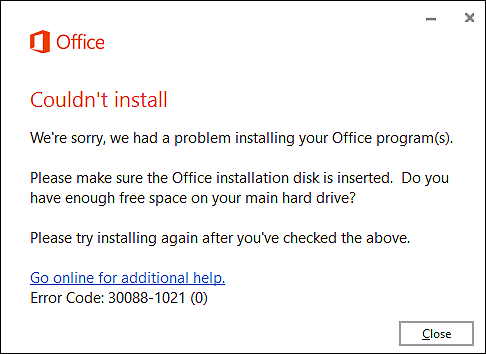
A similar situation was faced by multiple users recently when their screens displayed the Office Couldn’t Install 30088-1021 (0) error upon their attempts to install or update Office 365.
If you are facing a similar issue and have no clue what to do, take a deep breath because this guide is going to walk you through all the relevant troubleshooting steps in detail.
Let’s get started.
1. Repair Office Programs.
In case your screen is displaying the error code 30088-1021 (0) upon your attempt to update your current version of Microsoft Office, there is a chance that a corruption error or missing registry keys are the reason behind it.
If this scenario is applicable, the easiest way to resolve the issue is by repairing the Office installation using the built-in Office repair tool.
Here is how you can do that:
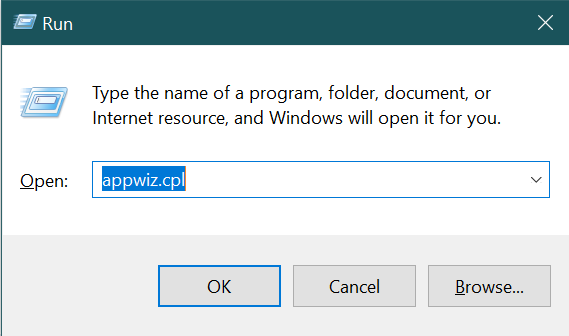
- Open a Run dialogue box by pressing Windows + R keys simultaneously.
- In the text field of the dialogue box, type ‘appwiz.cpl‘ and hit Enter. Doing so will launch the Programs and Features window.
- In the newly launched window, locate your Office installation and right-click on it.
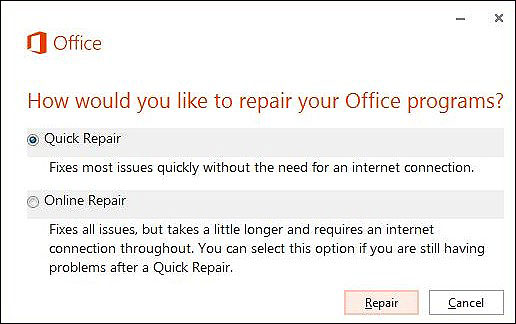
- Select Change and wait for the initial scan to complete.

- Now choose Online Repair and wait for the operation to complete. To ensure that the process runs smoothly, you must have a stable internet connection.
- Finally, restart your PC and check if the issue is resolved.
If a corruption error or missing registry keys were causing the issue at hand, repairing the Office installation will hopefully resolve it. We also have listed another easy method of eliminating the corruption errors within your operating system. If this method did not work out, try following the steps mentioned in Method 4.
Another easy way to fix the error code 30088-1021 (0) is by using the Microsoft Fix it tool.
This tool will scan the corrupt Office installation and the operating system for issues that are preventing you from installing, updating, or uninstalling the program from your operating system.
Here is how you can fix the issue at hand using the Microsoft Fix it tool:
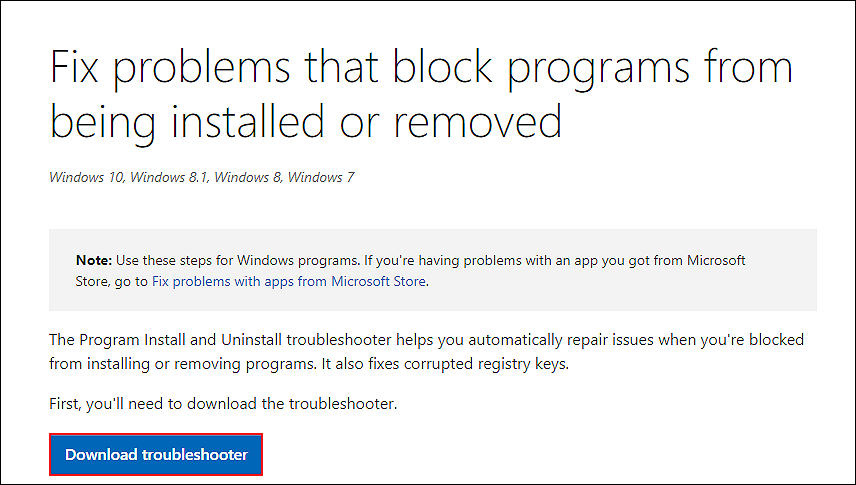
- Navigate to the official download page of the Microsoft Fix it tool and click on the Download troubleshooter button.
- Once the download is complete, double-click on the downloaded file to open it.
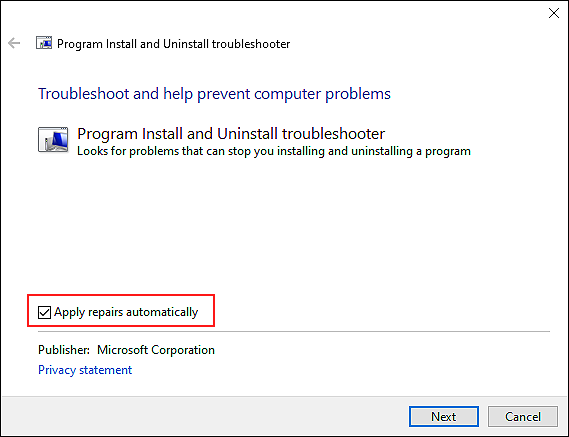
- In the first prompt, click on Advanced and then checkmark the box associated with Apply repairs automatically.
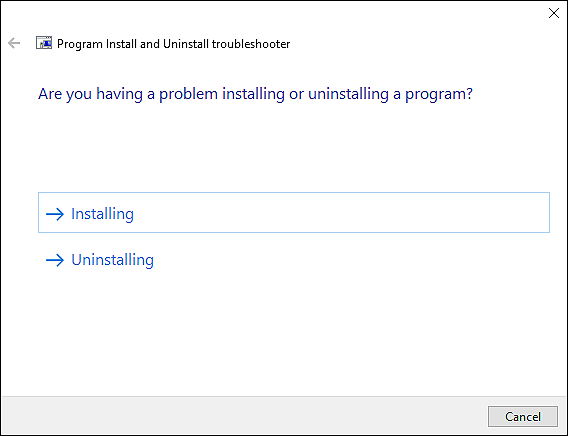
- In the next window, select Uninstalling or Installing, depending on which action is resulting in the error code 30088-1021 (0).
- Now choose the program that is causing the issue. In this case, choose Microsoft Office.
- Next, click on Yes and then finally click on Yes, try uninstall.
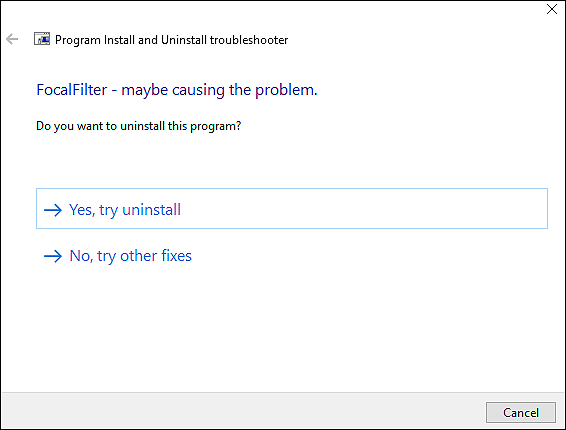
- Wait for the operation to complete and restart your PC. Upon reboot, check if the issue is resolved.
Hopefully, doing so will resolve the issue at hand successfully.
3. Perform SFC Scan.
As we mentioned earlier, it is common for corruption errors within the system to cause errors like the one at hand.
If the troubleshooting utilities mentioned above did not work for you, then try using the System File Checker (SFC).
SFC is a built-in command-line tool that scans the system’s protected files for issues and fixes the ones found with little to no user input.
Here is how you can run an SFC scan on your PC:
- Type cmd in the search bar and click on Run as administrator to launch elevated Command Prompt.
- Inside the command prompt window, type the command mentioned below and hit Enter to execute it.
sfc /scannow

- Wait for the scan to complete. Once done, restart your PC and check if doing so resolved the issue.
If the error persists, then proceed to the next method below.
4. Try Using CleanMyPC.
In case running the SFC command did not do the trick for you, you can also using a third-party PC cleaner to clean the junk files from your PC.
There are times when the unused junk files become corrupt and prevent your operating system from performing certain actions like installing new apps or updating the existing ones. The best way to get rid of these junk files is by deep cleaning your system using an efficient PC cleaner and if you are looking for a recommendation, we suggest using CleanMyPC.
CleanMyPC comes with a wide range of system maintenance tools including (but not limited to) a PC cleaner, Speed Booster, and a Multi-Uninstaller. These tools can take care of all your PC-related issues in no time.
If this is something your PC desperately needs, install CleanMyPC now and get your PC up and running like new!
Try CleanMyPC Now!
5. Uninstall Previous Office Installations.
In case you are trying to install Microsoft Office on your PC without removing the previous Office installations properly, then there is a high chance that is resulting in the error code 30088-1021 (0).
In this case, we suggest removing the previous Office installations and then trying to install the new version of Microsoft Office on your PC. Hopefully, doing so will resolve the issue once and for all.
This brings us to the end of our guide on fixing Microsoft Office 365 error code 30088-1021 (0). We hope that our easy-to-execute methods helped you resolve the error on your PC. If you have any questions regarding the troubleshooting steps, please let us know in the comment section below.
If this guide helped you, please share it. 🙂
Join 50,000+ subscribers
Stay updated on the latest discounts, exclusive promos, and news articles from Saint.
In Microsoft office365/2019/2021 error code 30088-1021 (0), many users are facing problems repairing or installing office 365/2021 office programs. The majority of problems are due to Office licensing, Windows updates, insufficient system resources such as disk space, Internet connectivity, etc. So, this article provides the perfect solution for various kind of office problems related to office 365/2021/2019 error 30088-1021 (0).
Microsoft Office Error Code 30088-1021 (0) Returns the Following Error Messages
- Something went wrong Error code 30088-1021 (0) Go online for more help.
- The office is Busy, there is an issue starting the Office Installation
- We are sorry, but we are not able to begin your office program.
- We are sorry, but we cannot verify the signature of the files needed to install your office 365 product.
- Internet connection required. Office program error code 30088-1021 (0)
- Background office installation ran into a problem.
Something Went Wrong office Error Code 30088-1021 (0) Go online for more support.
You will receive the error stating “Something went wrong” when trying to start an Office application. If the operating system is not able to add or delete the office products that you are requesting. Generally, returns error code 300XX,1xxx series depending on the reason for the problem.
The Office is Busy, there is an issue to begin the office program installation.
The error “Office is Busy” occurs when you try to open any MS office program such as word, excel, etc, and the office program is already in progress. It displays the error code 30088-1021(0) message “We are updating or helping you add or remove a few office installation programs”.
We are Sorry, but we are not able to start your office program.
We are Sorry, but we are not able to start your office installation program is a general error code 30088-1021 in a windows operating system that occurs due to failed services of an application. You cannot installing an Office product if the Windows Installer services are not working.
Sorry installation cannot continue as no compatible office products are detected.
Windows display an error code 30088-1021 message stating that your computer ran into a problem and needs to restart. A Microsoft Windows Operating system is released in two various-bit versions depending on the hardware architecture such as 32 and 64. It is necessary to office program installing relevant versions of office program suitable for the Windows Operating system. In case of any mismatch in the versions, this error code 3088-1021 message says no compatible Microsoft office365 products are detected.
We are sorry, but we cannot Verify the Signature of the files required to install your office product.
An Office product is available in various types such as a disc or a click-to-run. In the disc failure, you receive an error code 30088-1021 message stating “We are Sorry, But We Can’t Verify the Signature” which says signatures of office files needed to install the office product.
Internet connection required to fix office installation error code 30088-1021 (0)
While you are performing the online repair for your office product this error code 30088-1021 message occurs due to internet issues. You can perform a quick offline repair. Also, the office program Installation of Microsoft Office needs an internet connection depending on the version. The latest Office 365/2021/2019 comes with a click-to-run version which is a small setup office files, that will begin the Microsoft office365 installation by downloading all the needed program files for the application. In the case of an irregular connection or connectivity failure, you will see this office 365 error code 30088-1021 (0).
Background Installation ran into a problem.
Background Installation Ran into a Problem generally pops up when your Office program-relevant files are damaged. It is necessary to repair the Office installation program. Also, we need to check for malware or virus-related problems on your computer.
Unable to begin the Office installation Program.
This message shows that the office installation program has been stopped by your Windows and not able to begin the office installation program. This also describes the Office-related files that are missing from office Program folders. If this occurs recently with any of your Clean up office programs, a system restore will help you to fix it.
Check Your System to Fix office Error Code 30088-1021 (0)
There will be a log for every action on your computer that records all the events. It is known as an Event Viewer. This is a Windows Inbuilt office application in the system tools, it gives all the information for the issue causing keys. This is caused due to the failure of Windows-related services and the executable office program file is not able to read the necessary office files when trying to install Office 365/2021. There are problems with the set-up office programs which are checked under System Configuration.
Perform a System File Scan for the error code 30088-1021 (0)
To Run a System File Scan
Firstly, Open the command prompt (CMD) in administrator mode and run the command SFC/SCANNOW

If you see any office file violations persisting after the scan, move to Event viewer to check what has caused the office 365/2021/2019 error code 30088-1021 (0)
Watch this video on SFC SCAN to fix Microsoft 365/2019/2021 error code 30088-1021 (0)
-
How to use Event Viewer to Check Office Error code 30088-1021Logs?
- Firstly, program on a start button, open the command prompt in the Run Window
- After that, type “EVENT VIEWER” and press enter key.

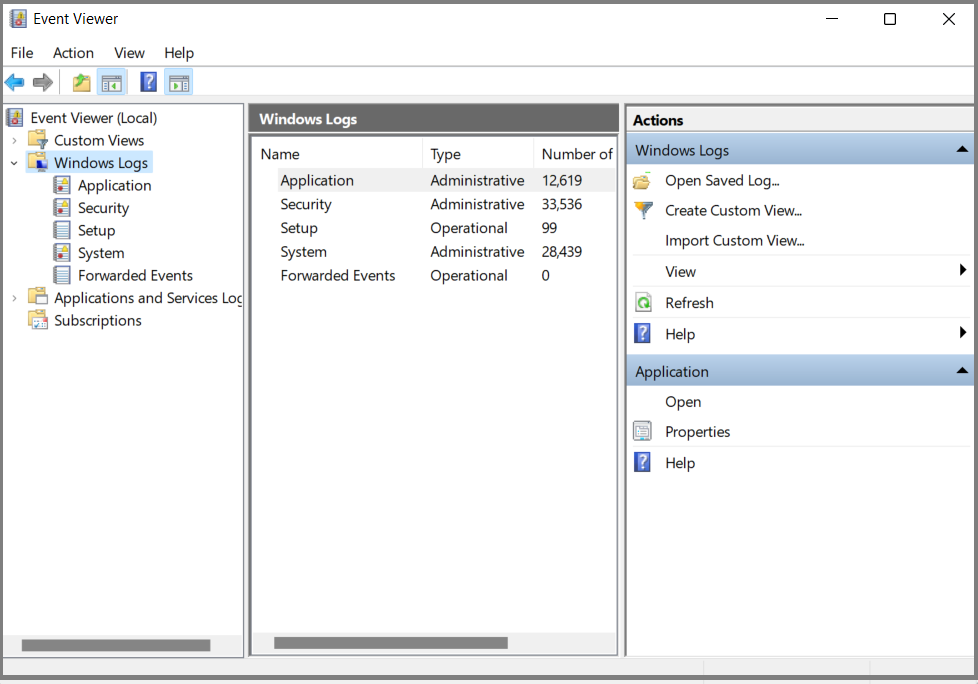
- Double-click on “windows logs” and select “application” you will see many logs in the Centre panel.
Filter the logs to find office program -related issues and warnings by selecting Filter current log option. Find any critical, error logs that caused error code 30088-1021 (0). If no reasons are found for the issues, then perform a clean office 2021 installation to save time.
How To Fix the Office 365/2021/2019 Error Code 30088-1021 (0)
Remove Temporary office Files
Frequently office program will not installing due to many reasons such as internet connectivity, dependencies for the office product, or any viruses that affect your computer files, etc. Then do a clean office installation by removing traces of office program files that existed from older versions or by multiple office installation trails.
To Remove Temporary Files
- Press on the windows start button to open the run command window.
- Type “%temp%” and click on the enter button and select all to remove permanently.
For example, there may be some files that require admin permission to remove, click on OK.
Error Code 30088-1021 (0) fix by removing office traces from office program files.
In other words, in a few cases, Office program installation stops due to many reasons such as slow internet, connection server issues, etc. Then your system generates a few of the files required for the office 365/2021/2019 product. When trying to re-install this time, you will see problems like these types of error code 30088-1021 (0) and various series based on the reason for failure. You must delete these Office traces from the computer before trying the re-installation process of office 365/2021/2019.
Repair / Uninstall Office Program
- Go to Control Panel and Select Programs and Features
- From the list, check for the Microsoft Office products and click on
- A window will open showing Add, Repair, and Remove options. Then proceed with the repair and wait for sometimes.
- Once the repair is successful use Microsoft office products again
- To uninstall following the first 4 steps from the repair process and select to Delete instead of office repair.
Installing Office Product
- Sign into the Microsoft office account office.com/signin
- Check the dashboard to see the product you purchased.
- Press on the “Install Office” option and then download it
- Go to downloads on the system and double click on the office setup file to
Windows Registry Fix
The registry fix in Windows displays the structure of the Windows Operating system and its internal office programs. Consequently, the Hex codes in the registry fix with few unnecessary office programs use the same resources.
Finally, to fix the Error Code 30088-1021 (0) delete the altered Office Registry Keys or Remove and re-create the keys with previous values. If you are still not able to resolve this error code 30088-1021, contact our Technician.
Note: Do not perform Registry fix changes if you are not aware of the structure, as it damages office applications. It also damages your PC operating system too.

Take help from our online experts regarding any unresolved problems on your computer. Finally, chat with our technician experts to Fix your system issues Now!
——————————————————————————————————————–
Post Views: 3,350
Contents
- 1 Microsoft Office Error Code 30088-1021 (0) Returns the Following Error Messages
- 1.1 Something Went Wrong office Error Code 30088-1021 (0) Go online for more support.
- 1.2 The Office is Busy, there is an issue to begin the office program installation.
- 1.3 We are Sorry, but we are not able to start your office program.
- 1.4 Sorry installation cannot continue as no compatible office products are detected.
- 1.5 We are sorry, but we cannot Verify the Signature of the files required to install your office product.
- 1.6 Internet connection required to fix office installation error code 30088-1021 (0)
- 1.7 Background Installation ran into a problem.
- 1.8 Unable to begin the Office installation Program.
- 2 Check Your System to Fix office Error Code 30088-1021 (0)
- 2.1 Perform a System File Scan for the error code 30088-1021 (0)
- 2.2 How to use Event Viewer to Check Office Error code 30088-1021Logs?
- 3 How To Fix the Office 365/2021/2019 Error Code 30088-1021 (0)
- 3.1 Remove Temporary office Files
- 3.2 Error Code 30088-1021 (0) fix by removing office traces from office program files.
- 3.3 Repair / Uninstall Office Program
- 3.4 Installing Office Product
- 3.5 Windows Registry Fix