-
mitushinem
- Завсегдатай
- Сообщения: 25
- Зарегистрирован: 20 сен 2013 04:07
- Откуда: Смоленск
- Контактная информация:
Проблема при установке ПО через Application Catalog
Есть проблема с установкой любого ПО через Application Catalog.
После запуска на установку вроде бы как все проходит нормально и программы устанавливаются, но выдается ошибка установки (код ошибки 0x87d00324 2016410844).
Правила проверки настраиваю по пути до запускаемого файла. При повторном запуске уже говорит что программа установлена, ну это и логично.
Все разворачивается для категории Все пользователи, режим установки — для системы.
Но если приложение удалить, то потом оно становится хорошо
Буду пробовать назначить на устройство, хотя не уверен что это что-то изменит

Спасибо!
-
Виталий Якоб
- Администратор сайта
- Сообщения: 36
- Зарегистрирован: 19 сен 2013 09:52
Re: Проблема при установке ПО через Application Catalog
Сообщение
Виталий Якоб » 07 окт 2013 17:03
mitushinem писал(а):
Правила проверки настраиваю по пути до запускаемого файла. При повторном запуске уже говорит что программа установлена, ну это и логично.
Не очень удачный выбор метода обнаружения. Кто-то может установить ПО в какой-то другой каталог, с точки зрения системы ПО будет установлено, с CM — нет. Выйдет подобная коллизия и если мне не изменяет память, CM будет пробовать развернуть задачу 1004 раза.
В данном случае, установка производится с MSI пакета, поэтому лучший метод обнаружения будет «Установщик Windows» с кодом продукта.
Такая ошибка сто процентов возникает у Вас и при обязательном развёртывании, либо на x86 либо на x64 системах.
-
Виталий Якоб
- Администратор сайта
- Сообщения: 36
- Зарегистрирован: 19 сен 2013 09:52
Re: Проблема при установке ПО через Application Catalog
Сообщение
Виталий Якоб » 16 окт 2013 10:36
Обнаружение программ установленных через различные инсталляторы завёрнутые в EXE мы делаем через реестр:
Обнаружение настраивается на существование ключа реестра. Необходимо настраивать обнаружение для двух типов систем, x64 и x86.
Пример для обнаружения Mozilla FireFox 15
X86
Код: Выделить всё
HKLMSOFTWAREMicrosoftWindowsCurrentVersionUninstallMozilla Firefox 15.0.1 (x86 ru)
X64
Код: Выделить всё
HKLMSOFTWAREWow6432NodeMicrosoftWindowsCurrentVersionUninstallMozilla Firefox 15.0.1 (x86 ru)
-
alyam
- Сообщения: 2
- Зарегистрирован: 08 мар 2017 07:25
Re: Проблема при установке ПО через Application Catalog
Сообщение
alyam » 04 май 2018 09:50
здрасьте!
а как быть, если устанавливаешь приложение — сценарий BAT (распаковка архива в папку %userprofile%ПАПКА111)
я указываю в методе обнаружения папку. путь %userprofile%. имя папки ПАПКА111
сценарий отрабатывает, приложение развертывается, но выдается ошибка проверки установки
In this post, I will show you how to fix SCCM application install error 0x87D00324(-2016410844). The software change returned error code 0x87D00324 (-2016410844).
When you deploy applications or packages using SCCM, sometimes the applications may fail to install it on client computers. Sometimes they install correctly but show an error code like 0x87D00324 which is a common issue.
When you see an application fails to install with error, the software center shows the error code that is important for troubleshooting the application installation issues. In addition to that, do not forget to review the ConfigMgr log files as well.

In this blog, I have covered numerous posts on creating and deploying applications using Configuration Manager. This includes creation of both .exe and .msi applications.
Every application has a different detection method, install commands, uninstall commands and the overall way you deploy it.
In most cases, when the application installation fails, it fails with an error code that is seen in the software center. More details about the error code and installation failures should also be logged in AppEnforce.log file located on the client computer.
One such example is the error code 0x87D00324 (-2016410844) that appears in the software center when you install the SCCM application. Let’s see why you encounter the error code 0x87D00324 and how to fix this error permanently.
First let’s understand why you get the SCCM application install error 0x87D00324(-2016410844). The error code 0x87D00324 means the application installed successfully, but there was wrong detection method used.

If you are seeing the software change returned error code 0x87D00324 (-2016410844) in SCCM software center, the issue is surely with the detection method that you have used. Correcting the detection method under application properties resolves this issue.
I have seen many people reporting the application deployment error 0X87D00324(-2016410844) in forums. If you have not joined the forums yet, feel free to be a part of the community.
The simple solution to this issue is to have a check on the application detection method which is usually specified incorrectly. For example, you may specify a wrong version number for an application or an incorrect registry path.
Why you don’t encounter error code 0x87D00324 with MSI Applications
When you use an .MSI based installer, the SCCM can read the .msi file and populates the install and uninstall commands. A valid detection method is also populated which is another advantage of using msi applications.
With MSI applications, the chances of the application install failing with error code 0x87D00324 is too minimal. However not all applications are available in .msi format.
While packaging the executable applications (.exe) in SCCM, you have to manually specify the install program, uninstall program and detection method.
The silent install and uninstall commands are usually available online however the detection method should be specified correctly.
Ok, now that you know why you get the application install error 0x87D00324, let me quickly show you how to correct the detection method for an SCCM application.
Whenever you want to modify the detection method of an application in SCCM, it has to be done under the application properties.
I am just picking up one application to show you how can you correct or modify the detection method. In the ConfigMgr console, go to the Software LibraryOverviewApplication ManagementApplications.
Select the application and click Deployment Properties. Right-click the application and select Properties. Click the Detection Method tab, select the detection method that you have specified and click Edit Clause. On the Detection Rule window, you can correct the detection method.

Important – After you make changes to the application detection method, you must update the application content. To accomplish that, select the application first and then select the deployment types tab. Right-click the application and select Update Content.
After you correct the detection method, update the content, go back to the client computer. Now you shouldn’t see The software change returned error 0x87D00324(-2016410844). This is how you fix SCCM application install error 0x87D00324(-2016410844).

Prajwal Desai is a Microsoft MVP in Enterprise Mobility. He writes articles on SCCM, Intune, Configuration Manager, Microsoft Intune, Azure, Windows Server, Windows 11, WordPress and other topics, with the goal of providing people with useful information.
- Remove From My Forums
-
Question
-
Deployment to the client is successful but the error reported within Clients «SCCM Software Center»
The software change returned error code 0x87D00324(-2016410844).
Also States on «Status» Past Due — Will be Retired»
Can’t figure this one out and I did some googling with no success in finding a solution?
I am running an Adobe Flash install (.EXE)
Any help or direction would be greatly appreciated
RF
Answers
-
How did you set up the detection method (details)? An application installation will only be successful if the software to be installed will be detected successfully.
Torsten Meringer | http://www.mssccmfaq.de
-
Proposed as answer by
Tuesday, September 11, 2012 12:39 AM
-
Marked as answer by
Robert Marshall — MVPMVP
Wednesday, November 7, 2012 11:00 PM
-
Proposed as answer by
установка приложения с ошибкой 0x87D00324 (-2016410844)
12.02.2014, 19:57
Ошибка из серии «поспешишь — людей насмешишь и будешь читать логи».
Установка Visio 2013 x86 на операционную систему x64 заканчивается ошибкой:
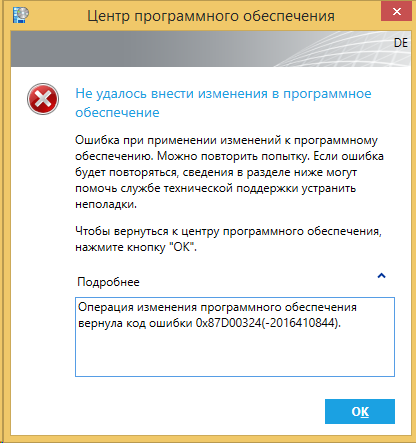

AppEnforce.log:
Executing Command line: «C:Windowsccmcache8setup.exe» /adminfile silent.msp with user context
Working directory C:Windowsccmcache8
Post install behavior is BasedOnExitCode
Waiting for process 2268 to finish. Timeout = 120 minutes.
Process 2268 terminated with exitcode: 0 <— код возврата 0 говорит о том, что приложение установилось корректно
Looking for exit code 0 in exit codes table…
Matched exit code 0 to a Success entry in exit codes table.
Performing detection of app deployment type Silent install Visio 2013 x86(ScopeId_59A4B277-455C-46D4-9A22-85B0F4D6D8AF/DeploymentType_49e90a4a-5471-4fbb-af43-ca04b25a4c17, revision 1) for user.
+++ Application not discovered. [AppDT Id: ScopeId_59A4B277-455C-46D4-9A22-85B0F4D6D8AF/DeploymentType_49e90a4a-5471-4fbb-af43-ca04b25a4c17, Revision: 1] <— приложение не было найдено
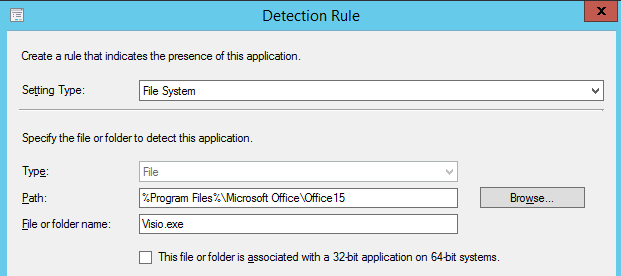
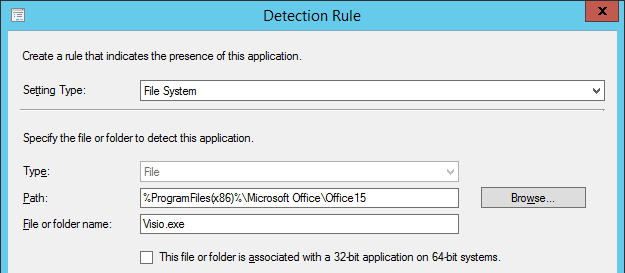
Т.е. приложение корректно устанавливается, но после завершения установки выдаёт ошибку. Это происходило из-за того, что в методах обнаружения в спешке был указан файл Visio.exe в папке %Program Files%Microsoft OfficeOffice15. 32-битное приложение в системе х64 устанавливается в папку Program Files (x86), а переменная %Program Files% перенаправляет нас в Program Files, где, понятное дело, нужных нам файлов нет.
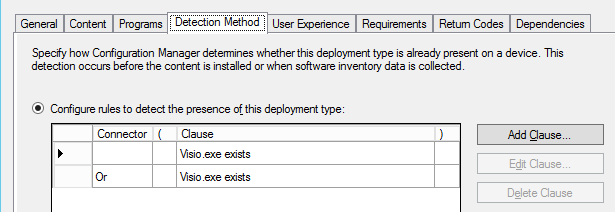
Правильным решением в данном случае будет указать два метода обнаружения:
SCCM is one of the best tools for deploying applications and updates on a large scale. But as good as it is, occasionally, you may still face deployment issues such as the 0X87D00324 error.
This error code, specifically, means that the application was installed, but it couldn’t be detected by the configuration manager. As for why this happens, in most cases, either the detection method or the values in use are incorrect.
Validating these will resolve this error for most users, but there are a few other solutions you can try as well. We’ve listed the steps to apply all these in the guide below.
What Causes Error 0X87D00324 During SCCM Deployment?
The 0X87D00324 error occurs due to the use of an incorrect detection method during SCCM deployment. In rare cases, you may encounter this error despite using the correct detection method if there are other issues relating to command synchronicity or network access.
Since an incorrect detection method causes this error in most cases, validating it and ensuring all the values are correct will resolve this error most of the time. You’ll find all the necessary details regarding this in the sections below.
Validate the Detection Method
The Configuration Manager detects an application by verifying its GUID (Unique Application Identifier) from the registry. If the verification fails due to an incorrect path or wrong GUID, or any other reason, the detection fails, and error 0X87D00324 is returned. The steps to resolve these issues are listed below:
- In the ConfigMgr console, navigate to Software Library > Overview > Application Management > Applications.
- Select an application and click Deployment Types or Deployment Properties.
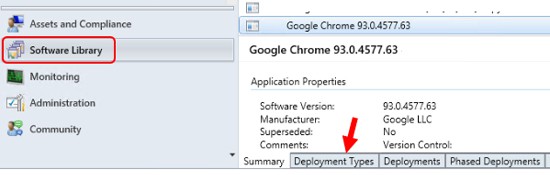
- Right-click the application and select Properties.
- In the MSI file properties window, switch to the Detection Method tab.
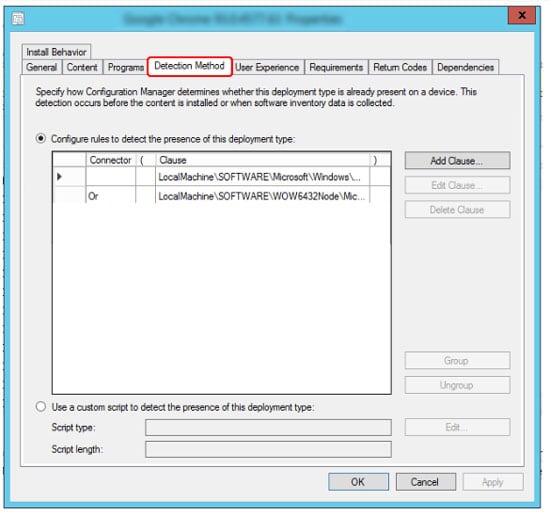
- Select the specified detection method and click on Edit or Edit Clause.
- In the Detection Rule window, select Windows Installer as the setting type.
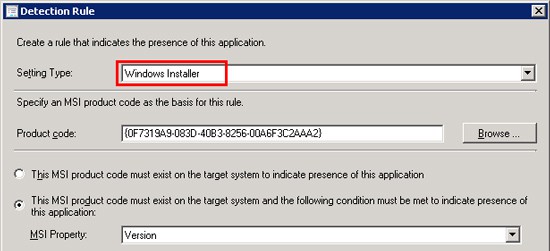
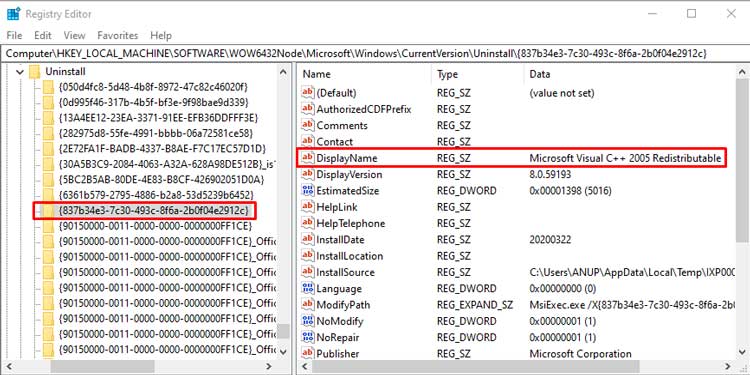
- Verify that the listed product code is correct by checking the registry entry on the client machine. The registry path is:
32 bit:HKEY_LOCAL_MACHINESOFTWAREWow6432NodeMicrosoftWindowsCurrentVersionUninstall
64 bit:HKEY_LOCAL_MACHINESOFTWAREMicrosoftWindowsCurrentVersionUninstall - The list of keys in curly brackets {} are the product codes for various programs. Select one of them and check the Display Name. Repeat this until you find the program you’re trying to install.
- Once you find that, verify that the GUID matches with the product code used in the Detection Clause.
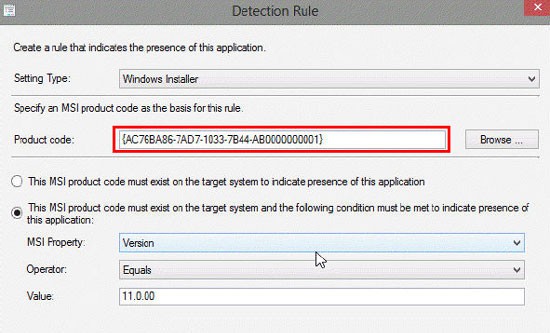
Even after the detection clause is corrected, you may still encounter this error. This is likely because ConfigMgr uses binary differential replication (BDR). Basically, it only resends new or changed content instead of sending all the source files to minimize network bandwidth usage. You can easily fix this issue by refreshing the deployment with the following steps:
- Open the Configuration Manager properties on the client computer.
- Run the Machine Policy Request and Evaluation Cycle in the Action tab.
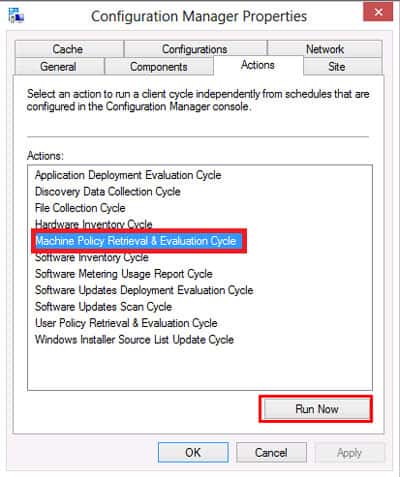
- Once the new policy is received, the deployment will work, and the application will install without any errors.
Add Delay to Detection
Some installers can spawn a child process to perform the actual installation. If the initial process exits but the installation isn’t complete yet, ConfigMgr will try to detect the product but inevitably fail.
In cases like this, adding a simple script to add a timeout is enough to fix this issue. You can also add a sleep period after the installation process by adding Start-Sleep -seconds 60within the PSADT installer script after the msi install commands. A 60-second delay is generally enough, but you can modify it as you prefer.
User Reported Fixes
Note: User-reported fixes generally only apply to niche scenarios, but they are worth looking into nonetheless.
One user reported facing the 0X87D00324 error because he only copied the GUID (product code), and not the curly brackets, as he didn’t think they were necessary. We tend not to notice small things like this, so make sure you give the product code a double check.
Another user reported that he wrote a script but couldn’t deploy it as an application. The reason why this happened was that the script was running as an account that didn’t have network access. Using a network access account and ensuring it has access to the application you’re trying to deploy will resolve the issue in such scenarios.
Let’s see how you can FIX SCCM Application Installation Failed 0x87D00324. The error 0x87D00324 (-2016410844) prompt when you attempted to install an application from the SCCM software center.
The error 0x87D00324 Translate SCCM Error Codes to Error Messages “The application was not detected after installation completed.”
Application Model is used these days extensively for Software Distribution from SCCM. However, troubleshooting Application deployment using this model is not easy due to the number of components involved.
The client-side flow for the application deployment post will help you to perform troubleshooting for failed deployment.

Issue Summary
The error Application Installation Failed 0x87D00324(-2016410844) was received while installing an application from Software Center. The application appeared with Status Failed.
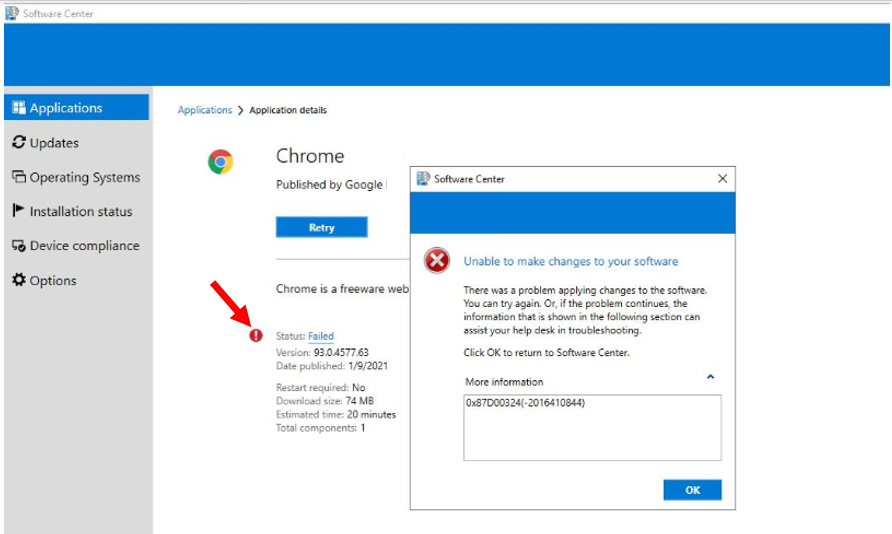
Application evaluation is performed during the InvokingSdmMethod phase of a CI Agent job. This phase is where the client evaluates the detection method defined for the application to determine if the application is installed on the device.
This activity can be tracked in AppDiscovery.log using the Deployment Type Unique ID or Deployment Type Name.
Next, the client evaluates the desired state of the application based on the Deployment Purpose. This step also involves detecting whether the application has any dependencies or supersedence rules that should be honored for the application. This activity can be tracked in AppIntentEval.log using the Application and Deployment Type Unique ID.

After reviewing the AppEnforce.log to track the installation, You might see the application exit code 0 represents, Application installation is completed successfully.
The appropriate detection method is used to check if the application is installed using alternate detection methods.
Let’s check the possible solutions to FIX SCCM Application Installation Failed 0x87D00324. It could be different based on the details you get into logs –
- In the Configuration Manager console, go to the Software Library workspace, expand Application Management, and select the Applications node.
- Select an application from the appeared list and select Deployment Types tab. Right-click on the existing deployment type and select Properties.
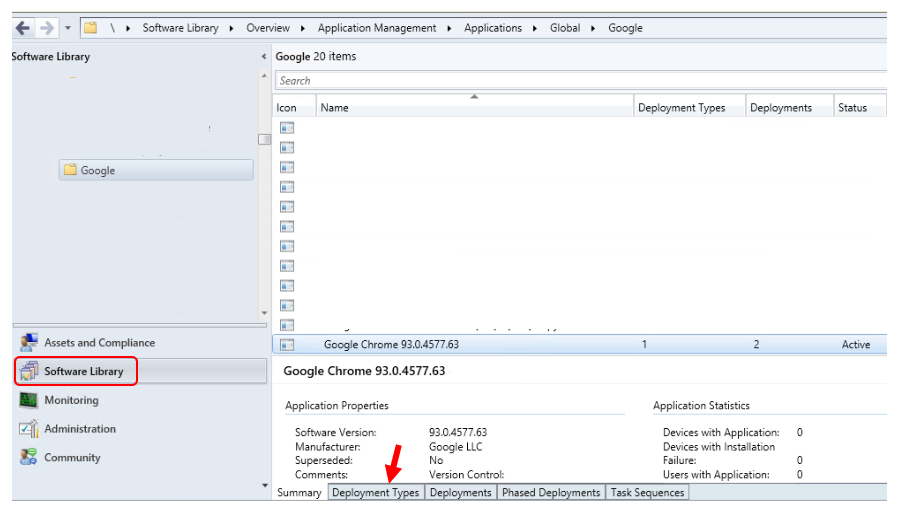
Under Application Properties, Switch to the Detection Method tab. Validate the specified detection, Make sure you refering to correct path, GUID in the detection clause based on detection method you using.
Here you can see, it shows detection for an MSI application where the detection is done by checking if the Registry key is exist on the device.
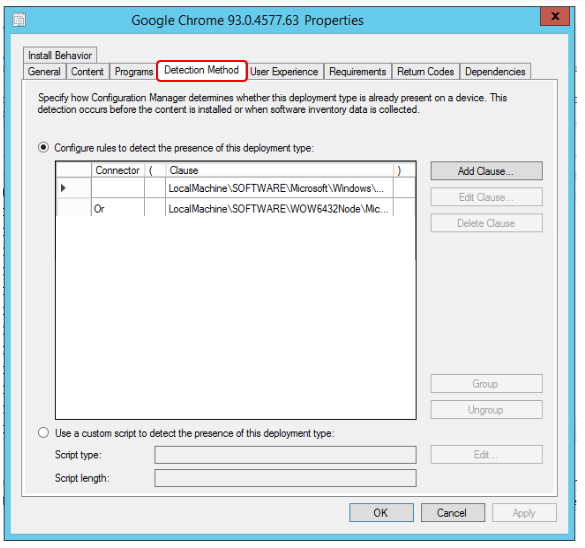
Once you corrected the detection, Refresh the deployment. As Applications always use binary differential replication. When files in the source content change, It resends only the new or changed content instead of sending the entire set of content source files each time you change those files.
On the client machine, Open Configuration Manager properties from the control panel. Under the Action tab, Run the Machine Policy Request & Evaluation Cycle.
As soon as the machine received the new policy, you can retry the deployment from the software center and the application will install without an issue. This time status message will update from Failed to Installed.
About Author, -> Jitesh has over 5 years of working experience in the IT Industry. He writes and shares his experiences related to Microsoft device management technologies and IT Infrastructure management. His primary focus area is Windows 10 Deployment solution with Configuration Manager, Microsoft Deployment Toolkit (MDT), and Microsoft Intune.
Resources
- Fix the SCCM Software Center cannot be loaded Issue with ConfigMgr
- FIX Software Center Crash Error SCNotification Has Stopped Working | SCCM | ConfigMgr
- Fix DCM Compliance Rules Error 0x87d00320 with ConfigMgr | SCCM
- HTMD Blog #2 SCCM Archieve
VMWare Tools are usually installed through SCCM and now the newer version will not be installed through SCCM on all machines. So for some I do have the following failure.

The error code semes to be straight forward and after some research I found out that it means.. Quote:
It means that the application is installed successfully, however the
software center showing the deployment as failed.Check the SCCM detection rule => make sure that correct GUID is used
in the detection clause
Most of the people fixed this by updating their wrongly setup detection rules. But in our case the detection rule is correct. It checks the file and the version. And the application is NOT INSTALLED
So it’s not a detection problem.
Now I wonder what else might be blocking us here. Some servers did get the installation. Others didn’t.
The Appenforce log shows that the app was not installed and it is finished after 8-12 seconds.
<
Возможно аналогичная опция есть и в Application, но я пока не нашел. С другой стороны — результат достигнут — программа была установлена пользователям.