Столкнулся с интересной ошибкой при установке MS SQL Server 2014 на новом сервере Windows Server 2012 R2. Установка SQL Server прерывается почти в самом конце с ошибкой «Не найден дескриптор запуска компонента Database Engine» (Could not find the Database Engine startup handle).
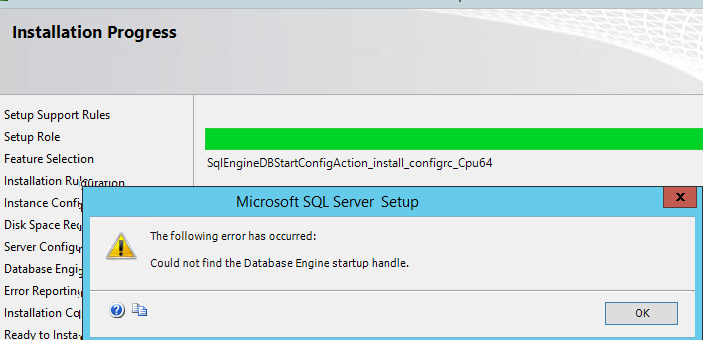
В логе установки Summary.txt при этом присутствует ошибка:
Feature: Database Engine Services
Status: Failed: see logs for details
Reason for failure: An error occurred during the setup process of the feature.
Next Step: Use the following information to resolve the error, uninstall this feature, and then run the setup process again.
Component name: SQL Server Database Engine Services Instance Features
Component error code: 0x851A0019
Error description: Could not find the Database Engine startup handle.
Данная ошибка установки MS SQL Server связана с тем, что используются стандартные настройки установки, при котором служба SQL Server запускается под непривилегированной учетной записью NT ServiceMSSQL$V2014. У данной учетной записи может быть недостаточно полномочий для запуска службы SQL Server, поэтому запустить службу невозможно, и установщик завершается с ошибкой «Could not find the Database Engine startup handle». Также эта ошибка может указывать на то, что ранее на компьютере уже пытались установить SQL Server и не очистили файлы и службы, оставшиеся от предыдущей установки.
Чтобы исправить ошибку установки SQL Server:
- Корректно деинсталлируйте все программы, связанные с SQL Server через Панель управления и перезагрузите сервер (проверьте, что не осталось файлов и папок в каталоге C:Program FilesMicrosoft SQL ServerMSSQL12.xxx);
- Запустите чистую установку из дистрибутива SQL Server. На вкладке «Server Configuration» убедитесь, что служба SQL Server Database Engine запускается под учетной записью NT ServiceMSSQLSERVER;
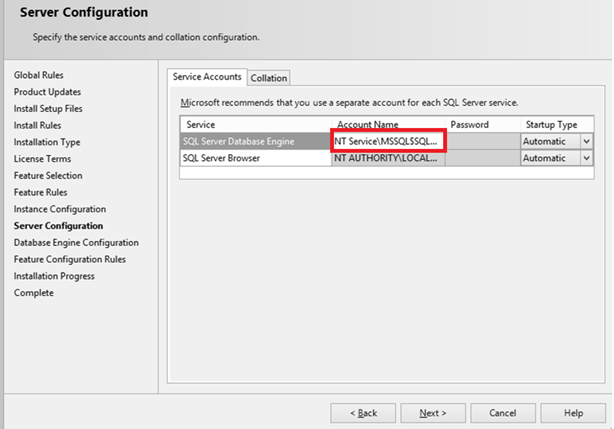
- Измените эту учетную запись на NT AUTHORITYSYSTEM;
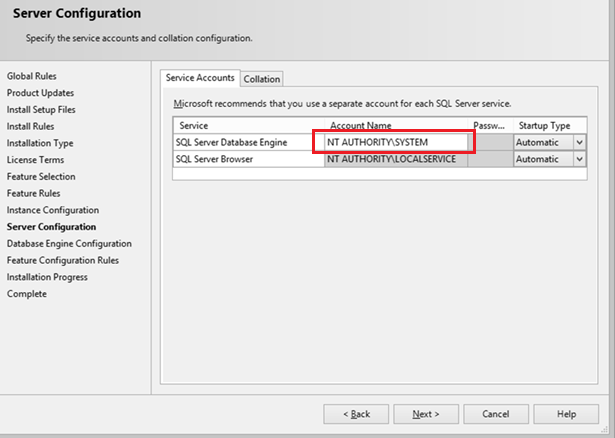
- Продолжите установку SQL Server. Ошибка больше не должна появляться.
После окончания установки настоятельно рекомендуем изменить учетную запись, под которой запускается служба SQL Server Database Engine на непривилегированную учетную запись. Эта учетная запись не обязательно должна обладать правами локального администратора сервера (вполне достаточно полномочий внутри SQL Server). Можно использовать аккаунты с правами sysadmin — NT ServiceMSSQLSERVICE или NT ServiceSQLSERVERAGENT. Чтобы изменить учетную запись, под которой работает SQL Server:
- Запустите SQL Server Configuration Manager и перейдите в раздел SQL Server Services;
- Щелкните по SQL Server (MSSQLSERVER), нажмите кнопку Browse и в поле This account укажите учетную запись, под которой нужно запускать службу или используйте управляемую учетную запись — gMSA (Group Managed Service Accounts). Укажите пароль пользователя и сохраните изменения;
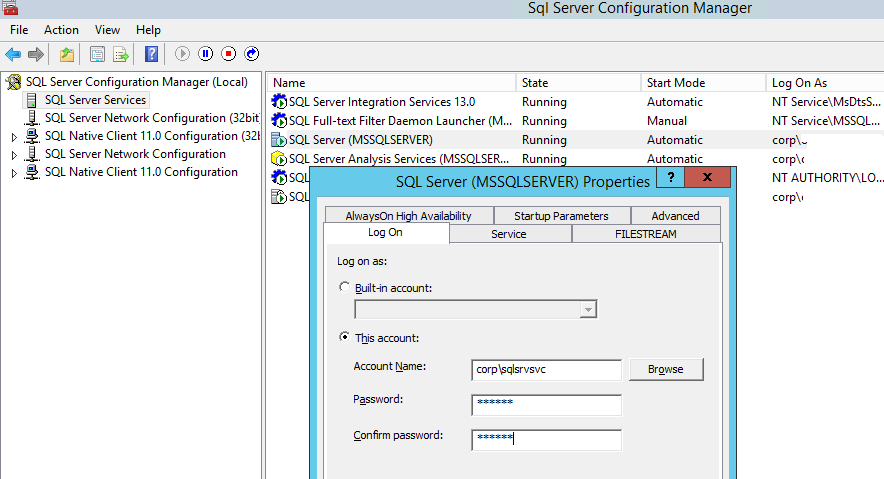
- Перезапустите службы SQL Server.
Этот способ поможет вам исправить ошибку «Не найден дескриптор запуска компонента Database Engine» при установке любых версий SQL Server (2016, 2014, 2012 или 2008).
- Remove From My Forums
-
Вопрос
-
Сообщение: не найден дескриптор запуска ядра СУБД.
-
Перемещено
25 июля 2017 г. 20:41
Более подходящий раздел форума
-
Перемещено
Ответы
-
Попробуйте воспользоваться рекомендациями статьи: SQL Server
Troubleshooting: Could Not Find Database Engine Startup Handle Error During installationВкратце
1. Полностью удалить SQL Server 2016
2. Создать точку восстановления (на всякий случай)
3. Запустить установку с правами администратора
4. В окне выбора службы для Database engine выбрать NT AUTHORITYSYSTEM
Если установка удалась, в конфигурации переключить службу на более безопасные учетки (NETWORK SERVICE или LOCAL SERVICE)
Если не помогло, дальше изучать логи (в том числе detail.txt). Откатываться к точке восстановления и пробовать что-то еще.
-
Помечено в качестве ответа
Иван ПродановMicrosoft contingent staff, Moderator
1 августа 2017 г. 5:19
-
Помечено в качестве ответа
Системное администрирование
1
Посты
1
Пользователи
0
Likes
4,310
Просмотры

(@dom)
Сообщения: 200
Honorable Member
Я столкнулся с интересной ошибкой при установке MS SQL Server 2014 на новую виртуальную машину под управлением Windows Server 2012 R2. Установка SQL Server была прервана почти в конце с ошибкой « Не удалось найти дескриптор запуска компонента Database Engine ».
В журнале установки SQL произошла следующая ошибка (файл summary.txt):
Особенность: Услуги СУБД
Статус: Ошибка: подробности см. В журналах.
Причина сбоя: во время процесса установки функции произошла ошибка.
Следующий шаг: используйте следующую информацию для устранения ошибки, удалите эту функцию, а затем снова запустите процесс установки.
Имя компонента: функции экземпляра служб СУБД SQL Server
Код ошибки компонента: 0x851A0019
Описание ошибки: не удалось найти дескриптор запуска компонента Database Engine.
Эта ошибка установки MS SQL Server связана со стандартными параметрами установки, когда SQL Server запускается под непривилегированной учетной записью NT Service MSSQL $ V2014 . Эта учетная запись может не иметь права на запуск службы SQL Server, поэтому она не может быть запущена, и установщик возвращает ошибку «Не удалось найти дескриптор запуска компонента Database Engine». Кроме того, эта ошибка может указывать на то, что кто-то уже пытался установить SQL Server на этот компьютер, а файлы или службы, оставшиеся после установки, не были удалены.
Чтобы исправить ошибку установки SQL Server:
- Правильно удалите все программы, связанные с SQL Server, из панели управления и перезапустите сервер (убедитесь, что в папке C: Program Files Microsoft SQL Server MSSQL12.xxx нет файлов или папок).
- Запустите установку из дистрибутива SQL Server с нуля. На вкладке Конфигурация сервера убедитесь, что служба ядра СУБД SQL Server запущена с учетной записью NT Service MSSQLSERVER;
- Измените эту учетную запись на NT AUTHORITY SYSTEM;
- Продолжите установку SQL Server. Ошибка не должна появиться снова.
После завершения установки мы настоятельно рекомендуем изменить учетную запись, под которой запускается компонент SQL Server Database Engine, на непривилегированную учетную запись.
Вам не нужно предоставлять этой учетной записи права локального администратора (достаточно предоставить необходимые привилегии в настройках безопасности SQL Server).
Вы можете использовать учетные записи с привилегиями системного администратора: NT Service MSSQLSERVICE или NT Service SQLSERVERAGENT.
Чтобы изменить учетную запись, под которой работает SQL Server:
- Запустите диспетчер конфигурации SQL Server и перейдите к службам SQL Server;
- Нажмите SQL Server (MSSQLSERVER), затем нажмите кнопку «Обзор» и в поле «Эта учетная запись» укажите учетную запись, под которой должна быть запущена служба, или используйте gMSA (учетная запись группы управляемых служб). Введите пароль пользователя и сохраните изменения;
- Перезапустите службы SQL Server.
Этот метод поможет вам исправить ошибку «Не удалось найти дескриптор запуска компонента Database Engine» во время установки любых версий SQL Server (2016, 2014, 2012 или 2008 r2).
Размещено : 03/03/2020 5:46 дп
I’m trying to install SQL Server 2012 Express in a Windows 7 Enterprise machine but always get this error when installing the named instance MAPS:
Wait on the Database Engine recovery handle failed. Check the SQL Server error log for potential causes.
The database engine does not start, even tried to change the user for local system or account.
It’s important to refer that I’ve already had SQL 2012 Express installed and working in this machine, with the named instance MAPS. I can install other instances with other names, but not this one.
Because the previous install was for testing purposes and I now wanted to work on a clean install & DB I’ve uninstalled SQL and deleted the remaining folders in Programs and Programs (x86), including the local SQL user folders.
In the final stage of the setup I get the message «Wait on the Database Engine recovery handle failed. Check the SQL Server error log for potential causes.»
After many many hours searching the web and almost as many trial and error procedures, I’ve almost certain that the error resides in the registry, on the key HKEY_USERSS-1-5-21-1125719120-3159512075-4029346314-500 that remained after the SQL uninstall and
now the setup program can’t overwrite.
I tried the manually delete the registry key but I can’t, I always get a message indicating that there was an error deleting the key. I’ve also tried the usual, like changing the ownership and rights for this key, with no success. Most probably the key is
corrupted.
I have also tried installing SQL and uninstalling again, with the same errors.
I am almost certain that if I could delete that registry key all my problems would go away, well, not all, but at least this one…
Can anyone help me on this?

You are installing a new Microsoft SQL Server but the installation ended with below error message,
Feature: Database Engine Services
Status: Failed: see logs for details
Reason for failure: An error occurred during the setup process of the feature.
Next Step: Use the following information to resolve the error, uninstall this feature, and then run the setup process again.
Component name: SQL Server Database Engine Services Instance Features
Component error code: 0x851A0019
Error description: Could not find the Database Engine startup handle.
Feature: Full-Text and Semantic Extractions for Search
Status: Failed: see logs for details
Reason for failure: An error occurred for a dependency of the feature causing the setup process for the feature to fail.
Next Step: Use the following information to resolve the error, uninstall this feature, and then run the setup process again.
Component name: SQL Server Database Engine Services Instance Features
Component error code: 0x851A0019
Error description: Could not find the Database Engine startup handle.
Solution
Uninstall the SQL Server from your server and remove the Microsoft SQL Server folder from the Program Files directory. Restart the server.

Now, you can re-install the SQL Server.
Windows OS Hub / SQL Server / SQL Server Install Error: Could Not Find the Database Engine Startup handle
I came across an interesting error when installing MS SQL Server 2014 on a new VM running Windows Server 2012 R2. SQL Server setup was interrupted almost at the end with the error “Could not find the Database Engine startup handle”.
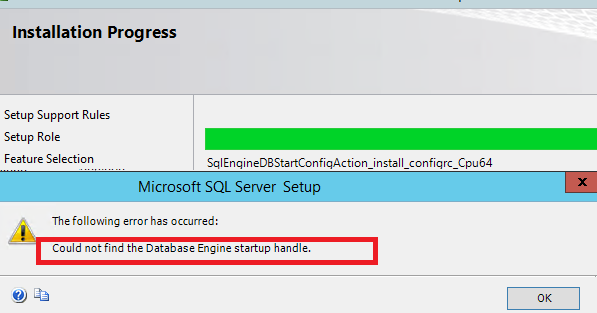
There was the following error in the SQL installation log (summary.txt file):
Feature: Database Engine Services Status: Failed: see logs for details Reason for failure: An error occurred during the setup process of the feature. Next Step: Use the following information to resolve the error, uninstall this feature, and then run the setup process again. Component name: SQL Server Database Engine Services Instance Features Component error code: 0x851A0019 Error description: Could not find the Database Engine startup handle.
This MS SQL Server installation error is related to standard installation settings when SQL Server is run under an unprivileged account NT ServiceMSSQL$V2014. This account may not have the privilege to run SQL Server service, so the service cannot be run and the installer returns the “Could not find the Database Engine startup handle” error. Also, this error may indicate that somebody has already tried to install SQL Server on this computer and files or services left after the installation have not been removed.
To fix the SQL Server install error:
- Correctly uninstall all programs related to SQL Server from the Control Panel and restart your server (make sure there are no files or folders in the folder C:Program FilesMicrosoft SQL ServerMSSQL12.xxx).;
- Run the installation from the SQL Server distribution from scratch. On the Server Configuration tab, make sure that the SQL Server Database Engine service is run under NT ServiceMSSQLSERVER account;
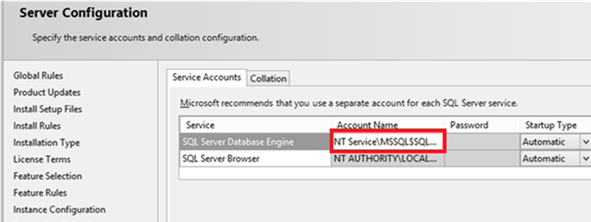
- Change this account to NT AUTHORITYSYSTEM;
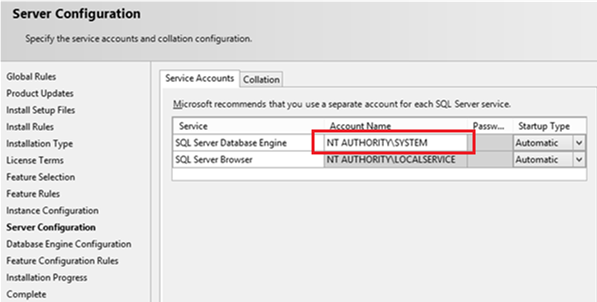
- Continue the SQL Server installation. The error shouldn’t appear again.
After the installation is complete, we strongly recommend to change the account, under which SQL Server Database Engine is run, to an unprivileged account. You don’t need to grant this account local administrator permissions ( it’s enough to provide necessary privileges inside SQL Server security settings). You can use accounts with sysadmin privileges: NT ServiceMSSQLSERVICE or NT ServiceSQLSERVERAGENT. To change the account, under which SQL Server runs:
- Run the SQL Server Configuration Manager and go to SQL Server Services;
- Click SQL Server (MSSQLSERVER), then click Browse and in the “This account” field specify the account, under which the service must be run, or use a gMSA (Group Managed Service Account). Enter the user password and save the changes;
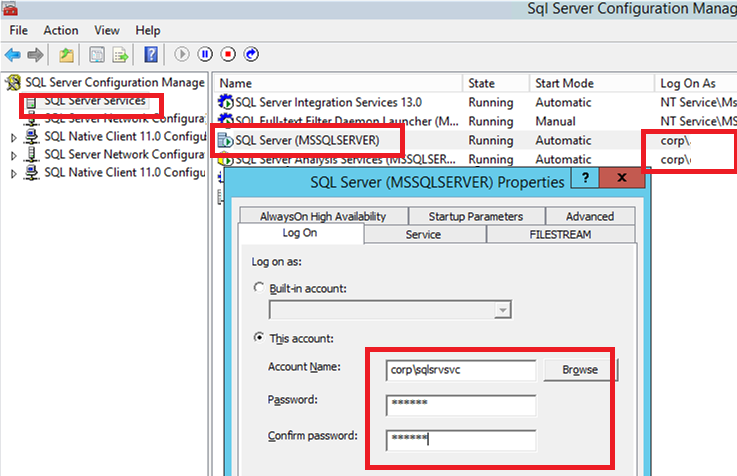
- Restart SQL Server services.
This method will help you to fix the “Could not find the Database Engine startup handle” error during the installation of any SQL Server versions (2016, 2014, 2012 or 2008 r2).
Overall summary:
Final result: Failed: see details below
Exit code (Decimal): -2061893607
Start time: 2017-11-02 10:33:21
End time: 2017-11-02 10:59:54
Requested action: Install
Setup completed with required actions for features.
Troubleshooting information for those features:
Next step for RS: Use the following information to resolve the error, uninstall this feature, and then run the setup process again.
Next step for SQLEngine: Use the following information to resolve the error, uninstall this feature, and then run the setup process again.
Next step for FullText: Use the following information to resolve the error, uninstall this feature, and then run the setup process again.
Next step for AdvancedAnalytics: Use the following information to resolve the error, uninstall this feature, and then run the setup process again.
Next step for Replication: Use the following information to resolve the error, uninstall this feature, and then run the setup process again.
Machine Properties:
Machine name: RAJ-THINKPAD
Machine processor count: 4
OS version: Microsoft Windows 10 Pro (10.0.15063)
OS service pack:
OS region: United States
OS language: English (United States)
OS architecture: x64
Process architecture: 64 Bit
OS clustered: No
Product features discovered:
Product Instance Instance ID Feature
Language Edition Version Clustered Configured
Package properties:
Description: Microsoft SQL Server 2016
ProductName: SQL Server 2016
Type: RTM
Version: 13
Installation location: C:SQLServer2016MediaExpressAdv_ENUx64setup
Installation edition: Express
Slipstream: True
SP Level 1
Product Update Status:
Success: KB 3182545
Product Updates Selected for Installation:
Title: Microsoft SQL Server 2016 Express Advanced SP1
Knowledge Based Article: KB 3182545
Version: 13.1.4001.0
Architecture: x64
Language: 1033
Update Source: Slipstream
User Input Settings:
ACTION: Install
ADDCURRENTUSERASSQLADMIN: true
AGTSVCACCOUNT: NT AUTHORITYNETWORK SERVICE
AGTSVCPASSWORD: *****
AGTSVCSTARTUPTYPE: Disabled
ASBACKUPDIR: Backup
ASCOLLATION: Latin1_General_CI_AS
ASCONFIGDIR: Config
ASDATADIR: Data
ASLOGDIR: Log
ASPROVIDERMSOLAP: 1
ASSERVERMODE: MULTIDIMENSIONAL
ASSVCACCOUNT: <empty>
ASSVCPASSWORD: <empty>
ASSVCSTARTUPTYPE: Automatic
ASSYSADMINACCOUNTS: <empty>
ASTELSVCACCT: <empty>
ASTELSVCPASSWORD: <empty>
ASTELSVCSTARTUPTYPE: 0
ASTEMPDIR: Temp
BROWSERSVCSTARTUPTYPE: Disabled
CLTCTLRNAME: <empty>
CLTRESULTDIR: <empty>
CLTSTARTUPTYPE: 0
CLTSVCACCOUNT: <empty>
CLTSVCPASSWORD: <empty>
CLTWORKINGDIR: <empty>
COMMFABRICENCRYPTION: 0
COMMFABRICNETWORKLEVEL: 0
COMMFABRICPORT: 0
CONFIGURATIONFILE:
CTLRSTARTUPTYPE: 0
CTLRSVCACCOUNT: <empty>
CTLRSVCPASSWORD: <empty>
CTLRUSERS: <empty>
ENABLERANU: true
ENU: true
EXTSVCACCOUNT: NT ServiceMSSQLLaunchpad$SQLEXPRESS
EXTSVCPASSWORD: <empty>
FEATURES: SQLENGINE, REPLICATION, ADVANCEDANALYTICS, FULLTEXT, RS, CONN, BC, SDK, BOL, SNAC_SDK, LOCALDB
FILESTREAMLEVEL: 0
FILESTREAMSHARENAME: <empty>
FTSVCACCOUNT: NT ServiceMSSQLFDLauncher$SQLEXPRESS
FTSVCPASSWORD: <empty>
HELP: false
IACCEPTROPENLICENSETERMS: true
IACCEPTSQLSERVERLICENSETERMS: true
INDICATEPROGRESS: false
INSTALLSHAREDDIR: C:Program FilesMicrosoft SQL Server
INSTALLSHAREDWOWDIR: C:Program Files (x86)Microsoft SQL Server
INSTALLSQLDATADIR: <empty>
INSTANCEDIR: C:Program FilesMicrosoft SQL Server
INSTANCEID: SQLEXPRESS
INSTANCENAME: SQLEXPRESS
ISSVCACCOUNT: NT AUTHORITYNetwork Service
ISSVCPASSWORD: <empty>
ISSVCSTARTUPTYPE: Automatic
ISTELSVCACCT: <empty>
ISTELSVCPASSWORD: <empty>
ISTELSVCSTARTUPTYPE: 0
MATRIXCMBRICKCOMMPORT: 0
MATRIXCMSERVERNAME: <empty>
MATRIXNAME: <empty>
MRCACHEDIRECTORY:
NPENABLED: 0
PBDMSSVCACCOUNT: <empty>
PBDMSSVCPASSWORD: <empty>
PBDMSSVCSTARTUPTYPE: 0
PBENGSVCACCOUNT: <empty>
PBENGSVCPASSWORD: <empty>
PBENGSVCSTARTUPTYPE: 0
PBPORTRANGE: <empty>
PBSCALEOUT: false
PID: *****
QUIET: false
QUIETSIMPLE: false
ROLE: AllFeatures_WithDefaults
RSINSTALLMODE: DefaultNativeMode
RSSHPINSTALLMODE: DefaultSharePointMode
RSSVCACCOUNT: NT ServiceReportServer$SQLEXPRESS
RSSVCPASSWORD: <empty>
RSSVCSTARTUPTYPE: Automatic
SAPWD: *****
SECURITYMODE: SQL
SQLBACKUPDIR: <empty>
SQLCOLLATION: SQL_Latin1_General_CP1_CI_AS
SQLSVCACCOUNT: NT ServiceMSSQL$SQLEXPRESS
SQLSVCINSTANTFILEINIT: true
SQLSVCPASSWORD: <empty>
SQLSVCSTARTUPTYPE: Automatic
SQLSYSADMINACCOUNTS: RAJ-THINKPADhuzefapc
SQLTELSVCACCT: NT ServiceSQLTELEMETRY$SQLEXPRESS
SQLTELSVCPASSWORD: <empty>
SQLTELSVCSTARTUPTYPE: Automatic
SQLTEMPDBDIR: <empty>
SQLTEMPDBFILECOUNT: 1
SQLTEMPDBFILEGROWTH: 64
SQLTEMPDBFILESIZE: 8
SQLTEMPDBLOGDIR: <empty>
SQLTEMPDBLOGFILEGROWTH: 64
SQLTEMPDBLOGFILESIZE: 8
SQLUSERDBDIR: <empty>
SQLUSERDBLOGDIR: <empty>
SUPPRESSPRIVACYSTATEMENTNOTICE: false
TCPENABLED: 0
UIMODE: AutoAdvance
UpdateEnabled: true
UpdateSource: Slipstream
USEMICROSOFTUPDATE: true
X86: false
Configuration file: C:Program FilesMicrosoft SQL Server130Setup BootstrapLog20171102_103319ConfigurationFile.ini
Detailed results:
Feature: Client Tools Connectivity
Status: Passed
Feature: Client Tools SDK
Status: Passed
Feature: Client Tools Backwards Compatibility
Status: Passed
Feature: Reporting Services — Native
Status: Failed: see logs for details
Reason for failure: An error occurred for a dependency of the feature causing the setup process for the feature to fail.
Next Step: Use the following information to resolve the error, uninstall this feature, and then run the setup process again.
Component name: SQL Server Database Engine Services Instance Features
Component error code: 0x851A0019
Error description: Could not find the Database Engine startup handle.
Error help link: http://go.microsoft.com/fwlink?LinkId=20476&ProdName=Microsoft+SQL+Server&EvtSrc=setup.rll&EvtID=50000&ProdVer=13.0.4001.0&EvtType=0xD15B4EB2%400x4BDAF9BA%401306%4025&EvtType=0xD15B4EB2%400x4BDAF9BA%401306%4025
Feature: Database Engine Services
Status: Failed: see logs for details
Reason for failure: An error occurred during the setup process of the feature.
Next Step: Use the following information to resolve the error, uninstall this feature, and then run the setup process again.
Component name: SQL Server Database Engine Services Instance Features
Component error code: 0x851A0019
Error description: Could not find the Database Engine startup handle.
Error help link: http://go.microsoft.com/fwlink?LinkId=20476&ProdName=Microsoft+SQL+Server&EvtSrc=setup.rll&EvtID=50000&ProdVer=13.0.4001.0&EvtType=0xD15B4EB2%400x4BDAF9BA%401306%4025&EvtType=0xD15B4EB2%400x4BDAF9BA%401306%4025
Feature: Full-Text and Semantic Extractions for Search
Status: Failed: see logs for details
Reason for failure: An error occurred for a dependency of the feature causing the setup process for the feature to fail.
Next Step: Use the following information to resolve the error, uninstall this feature, and then run the setup process again.
Component name: SQL Server Database Engine Services Instance Features
Component error code: 0x851A0019
Error description: Could not find the Database Engine startup handle.
Error help link: http://go.microsoft.com/fwlink?LinkId=20476&ProdName=Microsoft+SQL+Server&EvtSrc=setup.rll&EvtID=50000&ProdVer=13.0.4001.0&EvtType=0xD15B4EB2%400x4BDAF9BA%401306%4025&EvtType=0xD15B4EB2%400x4BDAF9BA%401306%4025
Feature: R Services (In-Database)
Status: Failed: see logs for details
Reason for failure: An error occurred for a dependency of the feature causing the setup process for the feature to fail.
Next Step: Use the following information to resolve the error, uninstall this feature, and then run the setup process again.
Component name: SQL Server Database Engine Services Instance Features
Component error code: 0x851A0019
Error description: Could not find the Database Engine startup handle.
Error help link: http://go.microsoft.com/fwlink?LinkId=20476&ProdName=Microsoft+SQL+Server&EvtSrc=setup.rll&EvtID=50000&ProdVer=13.0.4001.0&EvtType=0xD15B4EB2%400x4BDAF9BA%401306%4025&EvtType=0xD15B4EB2%400x4BDAF9BA%401306%4025
Feature: SQL Server Replication
Status: Failed: see logs for details
Reason for failure: An error occurred for a dependency of the feature causing the setup process for the feature to fail.
Next Step: Use the following information to resolve the error, uninstall this feature, and then run the setup process again.
Component name: SQL Server Database Engine Services Instance Features
Component error code: 0x851A0019
Error description: Could not find the Database Engine startup handle.
Error help link: http://go.microsoft.com/fwlink?LinkId=20476&ProdName=Microsoft+SQL+Server&EvtSrc=setup.rll&EvtID=50000&ProdVer=13.0.4001.0&EvtType=0xD15B4EB2%400x4BDAF9BA%401306%4025&EvtType=0xD15B4EB2%400x4BDAF9BA%401306%4025
Feature: SQL Browser
Status: Passed
Feature: Documentation Components
Status: Passed
Feature: SQL Writer
Status: Passed
Feature: LocalDB
Status: Passed
Feature: SQL Client Connectivity
Status: Passed
Feature: SQL Client Connectivity SDK
Status: Passed
Feature: Setup Support Files
Status: Passed
Rules with failures:
Global rules:
Scenario specific rules:
Rules report file: C:Program FilesMicrosoft SQL Server130Setup BootstrapLog20171102_103319SystemConfigurationCheck_Report.htm
Overall summary:
Final result: Failed: see details below
Exit code (Decimal): -2061893607
Start time: 2017-11-02 10:33:21
End time: 2017-11-02 10:59:54
Requested action: Install
Setup completed with required actions for features.
Troubleshooting information for those features:
Next step for RS: Use the following information to resolve the error, uninstall this feature, and then run the setup process again.
Next step for SQLEngine: Use the following information to resolve the error, uninstall this feature, and then run the setup process again.
Next step for FullText: Use the following information to resolve the error, uninstall this feature, and then run the setup process again.
Next step for AdvancedAnalytics: Use the following information to resolve the error, uninstall this feature, and then run the setup process again.
Next step for Replication: Use the following information to resolve the error, uninstall this feature, and then run the setup process again.
Machine Properties:
Machine name: RAJ-THINKPAD
Machine processor count: 4
OS version: Microsoft Windows 10 Pro (10.0.15063)
OS service pack:
OS region: United States
OS language: English (United States)
OS architecture: x64
Process architecture: 64 Bit
OS clustered: No
Product features discovered:
Product Instance Instance ID Feature
Language Edition Version Clustered Configured
Package properties:
Description: Microsoft SQL Server 2016
ProductName: SQL Server 2016
Type: RTM
Version: 13
Installation location: C:SQLServer2016MediaExpressAdv_ENUx64setup
Installation edition: Express
Slipstream: True
SP Level 1
Product Update Status:
Success: KB 3182545
Product Updates Selected for Installation:
Title: Microsoft SQL Server 2016 Express Advanced SP1
Knowledge Based Article: KB 3182545
Version: 13.1.4001.0
Architecture: x64
Language: 1033
Update Source: Slipstream
User Input Settings:
ACTION: Install
ADDCURRENTUSERASSQLADMIN: true
AGTSVCACCOUNT: NT AUTHORITYNETWORK SERVICE
AGTSVCPASSWORD: *****
AGTSVCSTARTUPTYPE: Disabled
ASBACKUPDIR: Backup
ASCOLLATION: Latin1_General_CI_AS
ASCONFIGDIR: Config
ASDATADIR: Data
ASLOGDIR: Log
ASPROVIDERMSOLAP: 1
ASSERVERMODE: MULTIDIMENSIONAL
ASSVCACCOUNT: <empty>
ASSVCPASSWORD: <empty>
ASSVCSTARTUPTYPE: Automatic
ASSYSADMINACCOUNTS: <empty>
ASTELSVCACCT: <empty>
ASTELSVCPASSWORD: <empty>
ASTELSVCSTARTUPTYPE: 0
ASTEMPDIR: Temp
BROWSERSVCSTARTUPTYPE: Disabled
CLTCTLRNAME: <empty>
CLTRESULTDIR: <empty>
CLTSTARTUPTYPE: 0
CLTSVCACCOUNT: <empty>
CLTSVCPASSWORD: <empty>
CLTWORKINGDIR: <empty>
COMMFABRICENCRYPTION: 0
COMMFABRICNETWORKLEVEL: 0
COMMFABRICPORT: 0
CONFIGURATIONFILE:
CTLRSTARTUPTYPE: 0
CTLRSVCACCOUNT: <empty>
CTLRSVCPASSWORD: <empty>
CTLRUSERS: <empty>
ENABLERANU: true
ENU: true
EXTSVCACCOUNT: NT ServiceMSSQLLaunchpad$SQLEXPRESS
EXTSVCPASSWORD: <empty>
FEATURES: SQLENGINE, REPLICATION, ADVANCEDANALYTICS, FULLTEXT, RS, CONN, BC, SDK, BOL, SNAC_SDK, LOCALDB
FILESTREAMLEVEL: 0
FILESTREAMSHARENAME: <empty>
FTSVCACCOUNT: NT ServiceMSSQLFDLauncher$SQLEXPRESS
FTSVCPASSWORD: <empty>
HELP: false
IACCEPTROPENLICENSETERMS: true
IACCEPTSQLSERVERLICENSETERMS: true
INDICATEPROGRESS: false
INSTALLSHAREDDIR: C:Program FilesMicrosoft SQL Server
INSTALLSHAREDWOWDIR: C:Program Files (x86)Microsoft SQL Server
INSTALLSQLDATADIR: <empty>
INSTANCEDIR: C:Program FilesMicrosoft SQL Server
INSTANCEID: SQLEXPRESS
INSTANCENAME: SQLEXPRESS
ISSVCACCOUNT: NT AUTHORITYNetwork Service
ISSVCPASSWORD: <empty>
ISSVCSTARTUPTYPE: Automatic
ISTELSVCACCT: <empty>
ISTELSVCPASSWORD: <empty>
ISTELSVCSTARTUPTYPE: 0
MATRIXCMBRICKCOMMPORT: 0
MATRIXCMSERVERNAME: <empty>
MATRIXNAME: <empty>
MRCACHEDIRECTORY:
NPENABLED: 0
PBDMSSVCACCOUNT: <empty>
PBDMSSVCPASSWORD: <empty>
PBDMSSVCSTARTUPTYPE: 0
PBENGSVCACCOUNT: <empty>
PBENGSVCPASSWORD: <empty>
PBENGSVCSTARTUPTYPE: 0
PBPORTRANGE: <empty>
PBSCALEOUT: false
PID: *****
QUIET: false
QUIETSIMPLE: false
ROLE: AllFeatures_WithDefaults
RSINSTALLMODE: DefaultNativeMode
RSSHPINSTALLMODE: DefaultSharePointMode
RSSVCACCOUNT: NT ServiceReportServer$SQLEXPRESS
RSSVCPASSWORD: <empty>
RSSVCSTARTUPTYPE: Automatic
SAPWD: *****
SECURITYMODE: SQL
SQLBACKUPDIR: <empty>
SQLCOLLATION: SQL_Latin1_General_CP1_CI_AS
SQLSVCACCOUNT: NT ServiceMSSQL$SQLEXPRESS
SQLSVCINSTANTFILEINIT: true
SQLSVCPASSWORD: <empty>
SQLSVCSTARTUPTYPE: Automatic
SQLSYSADMINACCOUNTS: RAJ-THINKPADhuzefapc
SQLTELSVCACCT: NT ServiceSQLTELEMETRY$SQLEXPRESS
SQLTELSVCPASSWORD: <empty>
SQLTELSVCSTARTUPTYPE: Automatic
SQLTEMPDBDIR: <empty>
SQLTEMPDBFILECOUNT: 1
SQLTEMPDBFILEGROWTH: 64
SQLTEMPDBFILESIZE: 8
SQLTEMPDBLOGDIR: <empty>
SQLTEMPDBLOGFILEGROWTH: 64
SQLTEMPDBLOGFILESIZE: 8
SQLUSERDBDIR: <empty>
SQLUSERDBLOGDIR: <empty>
SUPPRESSPRIVACYSTATEMENTNOTICE: false
TCPENABLED: 0
UIMODE: AutoAdvance
UpdateEnabled: true
UpdateSource: Slipstream
USEMICROSOFTUPDATE: true
X86: false
Configuration file: C:Program FilesMicrosoft SQL Server130Setup BootstrapLog20171102_103319ConfigurationFile.ini
Detailed results:
Feature: Client Tools Connectivity
Status: Passed
Feature: Client Tools SDK
Status: Passed
Feature: Client Tools Backwards Compatibility
Status: Passed
Feature: Reporting Services — Native
Status: Failed: see logs for details
Reason for failure: An error occurred for a dependency of the feature causing the setup process for the feature to fail.
Next Step: Use the following information to resolve the error, uninstall this feature, and then run the setup process again.
Component name: SQL Server Database Engine Services Instance Features
Component error code: 0x851A0019
Error description: Could not find the Database Engine startup handle.
Error help link: http://go.microsoft.com/fwlink?LinkId=20476&ProdName=Microsoft+SQL+Server&EvtSrc=setup.rll&EvtID=50000&ProdVer=13.0.4001.0&EvtType=0xD15B4EB2%400x4BDAF9BA%401306%4025&EvtType=0xD15B4EB2%400x4BDAF9BA%401306%4025
Feature: Database Engine Services
Status: Failed: see logs for details
Reason for failure: An error occurred during the setup process of the feature.
Next Step: Use the following information to resolve the error, uninstall this feature, and then run the setup process again.
Component name: SQL Server Database Engine Services Instance Features
Component error code: 0x851A0019
Error description: Could not find the Database Engine startup handle.
Error help link: http://go.microsoft.com/fwlink?LinkId=20476&ProdName=Microsoft+SQL+Server&EvtSrc=setup.rll&EvtID=50000&ProdVer=13.0.4001.0&EvtType=0xD15B4EB2%400x4BDAF9BA%401306%4025&EvtType=0xD15B4EB2%400x4BDAF9BA%401306%4025
Feature: Full-Text and Semantic Extractions for Search
Status: Failed: see logs for details
Reason for failure: An error occurred for a dependency of the feature causing the setup process for the feature to fail.
Next Step: Use the following information to resolve the error, uninstall this feature, and then run the setup process again.
Component name: SQL Server Database Engine Services Instance Features
Component error code: 0x851A0019
Error description: Could not find the Database Engine startup handle.
Error help link: http://go.microsoft.com/fwlink?LinkId=20476&ProdName=Microsoft+SQL+Server&EvtSrc=setup.rll&EvtID=50000&ProdVer=13.0.4001.0&EvtType=0xD15B4EB2%400x4BDAF9BA%401306%4025&EvtType=0xD15B4EB2%400x4BDAF9BA%401306%4025
Feature: R Services (In-Database)
Status: Failed: see logs for details
Reason for failure: An error occurred for a dependency of the feature causing the setup process for the feature to fail.
Next Step: Use the following information to resolve the error, uninstall this feature, and then run the setup process again.
Component name: SQL Server Database Engine Services Instance Features
Component error code: 0x851A0019
Error description: Could not find the Database Engine startup handle.
Error help link: http://go.microsoft.com/fwlink?LinkId=20476&ProdName=Microsoft+SQL+Server&EvtSrc=setup.rll&EvtID=50000&ProdVer=13.0.4001.0&EvtType=0xD15B4EB2%400x4BDAF9BA%401306%4025&EvtType=0xD15B4EB2%400x4BDAF9BA%401306%4025
Feature: SQL Server Replication
Status: Failed: see logs for details
Reason for failure: An error occurred for a dependency of the feature causing the setup process for the feature to fail.
Next Step: Use the following information to resolve the error, uninstall this feature, and then run the setup process again.
Component name: SQL Server Database Engine Services Instance Features
Component error code: 0x851A0019
Error description: Could not find the Database Engine startup handle.
Error help link: http://go.microsoft.com/fwlink?LinkId=20476&ProdName=Microsoft+SQL+Server&EvtSrc=setup.rll&EvtID=50000&ProdVer=13.0.4001.0&EvtType=0xD15B4EB2%400x4BDAF9BA%401306%4025&EvtType=0xD15B4EB2%400x4BDAF9BA%401306%4025
Feature: SQL Browser
Status: Passed
Feature: Documentation Components
Status: Passed
Feature: SQL Writer
Status: Passed
Feature: LocalDB
Status: Passed
Feature: SQL Client Connectivity
Status: Passed
Feature: SQL Client Connectivity SDK
Status: Passed
Feature: Setup Support Files
Status: Passed
Rules with failures:
Global rules:
Scenario specific rules:
Rules report file: C:Program FilesMicrosoft SQL Server130Setup BootstrapLog20171102_103319SystemConfigurationCheck_Report.htm