Некоторые пользователи Xbox One сталкиваются с кодом ошибки 0x82d40004 при попытке запуска определенных приложений или игр. В некоторых случаях затронутые пользователи сообщают, что проблема возникает в каждой игре — даже после того, как они вставили диск с игрой.
Код ошибки Xbox 0x82d40004
Одним из наиболее распространенных случаев, приводящих к ошибке 0x82d40004, является режим энергопотребления и запуска, называемый энергосберегающим. Некоторым пользователям, которые боролись с той же проблемой, удалось исправить ее, изменив параметр «Мгновенное включение».
Если это не сработает, проверьте текущее состояние серверов Xbox Live и посмотрите, есть ли у службы покупки и использования контента проблемы. Если есть проблемы, ваша консоль может быть не в состоянии проверить, есть ли у вас право воспроизвести этот элемент библиотеки. Если вы подтвердите проблему с сервером, переключение режима консоли в автономный режим позволит вам проверить свою игровую библиотеку локально.
Однако ошибка 0x82d40004 также может возникать из-за несоответствия микропрограммы или поврежденного локального профиля. В этом случае выполнение процедуры выключения или повторного добавления учетной записи Microsoft должно очистить все временные данные, которые могут вызвать эту проблему.
Если вы видите эту ошибку только при вставке физического игрового диска, начните с очистки постоянного кэша консоли Xbox One. Кроме того, вы должны попробовать очистить диск изопропиловым спиртом и предпринять некоторые шаги, чтобы определить, не работает ли ваш оптический привод.
Способ 1: изменение режима питания на мгновенное включение
Как оказалось, для многих затронутых пользователей, которые сталкиваются с кодом ошибки 0x82d40004 на Xbox One, эта проблема в конечном итоге была вызвана режимом питания и настройкой запуска. Помните, что это не единственная проблема, вызванная энергосберегающими функциями, реализованными в Xbox One.
Если этот сценарий применим и режим энергосбережения установлен на Энергосбережение, вы сможете исправить проблему, изменив параметр на Мгновенное включение.
Многие затронутые пользователи сообщили, что проблема была полностью решена после того, как они осуществили это изменение. Вот краткое пошаговое руководство о том, как это сделать:
- В главном меню панели управления консоли Xbox One нажмите меню руководства на контроллере и дождитесь его появления.
- Как только направляющее меню (слева) станет видимым, используйте его, чтобы выбрать вкладку «Настройки» (значок шестеренки), затем перейдите к записи «Настройки».
Доступ к меню настроек в Xbox One
- Зайдя в меню настроек, выберите вкладку «Общие» в вертикальном меню слева, затем перейдите в правую часть и откройте меню «Режим питания и параметры запуска».
Доступ к меню режима питания
- Внутри режима питания и меню запуска откройте раскрывающееся меню, связанное с режимом питания, и измените его с энергосберегающего на мгновенный.
Изменение стандартного режима питания на энергосберегающий
- После этого просто выполните обычный перезапуск консоли и дождитесь завершения следующего запуска.
- Попытайтесь запустить ту же игру, которая ранее вызывала код ошибки 0x82d40004, и посмотрите, была ли проблема решена.
Если ваша консоль Xbox One все еще показывает тот же код ошибки, перейдите к следующему потенциальному исправлению ниже.
Способ 2: проверка на наличие проблем с сервером
Как подтвердила Microsoft, код ошибки 0x82d40004 также может быть результатом проблемы с сервером, которая не позволяет консолям конечного пользователя проверять права использования. Это даже более вероятно, если вы сталкиваетесь только с проблемой цифровых покупок.
Как оказалось, несколько затронутых пользователей, которые сталкивались с этой проблемой в прошлом, подтвердили, что проблемы были прямым результатом проблемы с одним сервисом Xbox Live (покупка и использование контента). Запланированный период обслуживания или другая непредвиденная проблема могут привести к блокировке проверки прав использования.
Если этот сценарий кажется применимым, перейдите к исследованию состояния серверов Xbox live, перейдя по этой ссылке (Вот) и посмотреть, если какие-либо основные службы не работают.
Проверка состояния служб Xbox Live
Если только что проведенные расследования не выявили проблемы со службой покупки и использования контента, вы можете решить проблему с сервером из списка потенциальных преступников.
Примечание. Если вы обнаружили, что действительно существует проблема со службой Xbox Live, подождите около часа и проверьте, решена ли проблема. Кроме того, следуйте способу 3, чтобы переключить консоль в автономный режим.
Если тот же код ошибки 0x82d40004 все еще происходит, и вы обнаружили, что нет проблем с какими-либо службами Xbox Live, пропустите следующий метод ниже и перейдите непосредственно к методу 4.
Способ 3: переключение консоли в автономный режим
Если вы ранее подтвердили, что служба «Покупка и использование контента в реальном времени» в настоящее время сталкивается с проблемами, и вы не можете получить доступ к своим цифровым покупкам из-за кода ошибки 0x82d40004, один из способов обойти эту проблему — переключить режим консоли в автономный режим.
Эта операция позволит обойти некоторые онлайн-проверки прав собственности, которые сильно зависят от службы покупки и использования контента, что может позволить вам получить обычный доступ к своей игровой библиотеке.
Однако имейте в виду, что в конечном итоге вы потеряете возможность играть в многопользовательские игры и получать доступ к любому типу контента, для которого требуется соединение с сервером Xbox Live.
Если вы готовы переключить консоль в автономный режим, когда исправляется служба, подверженная Xbox Live, вам нужно сделать следующее:
- Нажмите и удерживайте кнопку Xbox на вашем контроллере, чтобы открыть меню руководства. Затем выберите значок шестеренки, чтобы перейти на вкладку «Настройки».
Нажав на «Все настройки»
Попав в меню настроек, откройте подменю «Сеть». Затем выберите меню настроек сети и нажмите «Перейти в автономный режим».
Переход в автономный режим на Xbox One
- После того, как вы это сделаете, ваша консоль должна обрабатывать проверки покупок на месте, и вы сможете получить доступ к своим цифровым покупкам без проблем.
Примечание. Как только проблема с сервером будет решена, перепроектируйте шаги, описанные выше, чтобы позволить вашей консоли снова подключиться к службе Xbox Live.
Если этот метод неприменим или вы все еще сталкиваетесь с кодом ошибки 0x82d40004 даже после включения автономного режима, перейдите к следующему потенциальному исправлению ниже.
Метод 4: Выполнение процедуры включения и выключения питания
Если ни один из перечисленных методов не помог вам обнаружить виновника, вызвавшего ошибку 0x82d40004, скорее всего, вы видите ошибку из-за какого-либо несоответствия прошивки — особенно, если эта проблема начала появляться после установки обновления (или произошла ошибка Обновить).
Если этот сценарий кажется применимым, вы можете решить проблему, выполнив циклическое переключение питания — эта операция приведет к разрядке конденсаторов питания вашей консоли Xbox One, что приведет к устранению подавляющего большинства встроенных программ- связанные с этим проблемы, которые могут вызвать это конкретное поведение.
Вот краткое руководство, которое позволит вам выполнить процедуру включения и выключения питания на консоли Xbox One:
- Начните с того, что ваша консоль включена (не в спящем режиме) и полностью загружена.
- Затем нажмите и удерживайте кнопку включения / выключения Xbox (на консоли). Удерживайте ее нажатой более 10 секунд или пока не увидите, что передний светодиод перестает мигать. Как только вы увидите это, отпустите кнопку.
Выполните полный сброс на Xbox One
- После завершения выключения отсоедините кабель питания от электрической розетки и подождите целую минуту, прежде чем снова подключить его.
- Традиционно включите консоль и дождитесь завершения сетевого запуска. Если вы видите начальный анимационный логотип, процедура включения / выключения питания прошла успешно.
- После завершения последовательности загрузки попытайтесь запустить игру или приложение, которое ранее вызывало 0x82d40004, и посмотрите, решена ли проблема сейчас.
Если та же проблема все еще возникает, перейдите к следующему потенциальному решению ниже.
Другой потенциальный виновник, который может в конечном итоге вызвать код ошибки 0x82d40004, — поврежденный профиль Xbox (временные данные, сохраненные для подключенной учетной записи Xbox). Если этот сценарий применим, вы сможете исправить проблему, удалив свой локальный профиль и снова подписавшись с ним, чтобы очистить временные данные и повторно синхронизировать все файлы.
Несколько затронутых пользователей подтвердили, что эта операция, наконец, позволила им нормально обращаться к своей игровой библиотеке.
Вот краткое руководство, которое позволит вам повторно добавить свою учетную запись Xbox:
- Убедитесь, что вы видите основную панель управления Xbox One.
- Нажмите кнопку Xbox на вашем контроллере, чтобы открыть меню подсказок, затем выберите свой активный профиль и используйте опцию «Выход».
Выход из активной учетной записи Xbox
- Как только вы успешно вышли из своей учетной записи, вам нужно предпринять шаги, чтобы удалить его. Для этого снова войдите в меню «Настройки» и перейдите на вкладку «Учетные записи» из вертикального меню (слева). Затем перейдите в правую часть экрана и используйте параметр «Удалить учетные записи» из списка параметров (в разделе «Учетная запись»).
Доступ к меню «Удалить учетные записи»
- На следующем экране выберите учетную запись, которую вы хотите удалить, затем подтвердите, нажав кнопку Удалить.
Удаление подключенной учетной записи
- Как только вам удастся успешно удалить свою учетную запись, вернитесь на страницу входа, повторно добавьте свою учетную запись и установите соответствующие параметры безопасности.
Установка параметров входа и безопасности
- Дождитесь завершения процесса входа, затем запустите ту же игру или приложение, которое ранее вызывало ошибку 0x82d40004.
Примечание. Эта операция может занять больше времени, чем обычно, поскольку каждый бит данных должен быть синхронизирован.
Если сообщение об ошибке все еще сохраняется, перейдите к следующему потенциальному исправлению ниже.
Способ 6: очистка постоянного кэша (если применимо)
Если вы столкнулись с проблемой исключительно при попытке воспроизвести контент, хранящийся на дисках Blu-Ray, скорее всего, вы столкнулись с ошибкой 0x82d40004 из-за поврежденных данных, присутствующих в папке постоянного хранения, которую Xbox One поддерживает для физических носителей.
Если этот сценарий применим, вы сможете исправить проблему, открыв настройки консоли и очистив кэш-память постоянного хранения. Помните, что постоянное хранилище в основном содержит временные данные, которые должны быть легко доступны, поэтому очистка кэша не приведет к потере каких-либо данных или настроек.
Вот краткое руководство по очистке постоянного хранилища на Xbox One:
- На главной панели инструментов Xbox One нажмите меню руководства на контроллере и откройте меню настроек (значок шестеренки).
Доступ к меню настроек в Xbox One
- В меню «Настройки» перейдите в «Настройки консоли» и получите доступ к опции «Диск и Blu-Ray» в правой части экрана.
Доступ к меню диска и Blu-Ray
- В меню Disc & Blu-Ray откройте меню постоянного хранения (в разделе Blu-Ray).
Доступ к меню постоянного хранилища
- Затем используйте опцию «Очистить постоянное хранилище» и дождитесь завершения операции.
- Перезапустите консоль и проверьте, решена ли проблема при следующем запуске системы.
Если вы все еще сталкиваетесь с ошибкой 0x82d40004, перейдите к следующему потенциальному исправлению ниже.
Способ 7: очистка грязного диска Blu-ray
Если ни один из описанных выше способов не позволил вам решить проблему и вы сталкиваетесь только с физическими играми, скорее всего, вы имеете дело с грязным или поврежденным диском или неисправен оптический привод.
Если диск работал, подумайте о том, чтобы очистить его от пыли, которая может помешать его чтению оптическим блоком. Идеальный способ сделать это с изопропиловым спиртом и мягкой тканью. Поскольку изопропиловый спирт высыхает очень быстро, вам не нужно беспокоиться о том, чтобы оставить какие-либо побочные продукты, которые могут повредить ваш оптический привод.
Но имейте в виду, что если проблема вызвана глубокой царапиной, эта операция не будет эффективной.
Вот краткое руководство по очистке диска Blu-Ray от пыли:
- Начните с разбрызгивания изопропилового спирта на мягкую ткань и начните тереть диск круговыми движениями (изнутри наружу).
Очистка диска Blu-Ray
- После завершения процесса очистки высушите его на воздухе не более 10 секунд в непыльном месте.
- Вставьте диск обратно в консоль Xbox One и посмотрите, удастся ли оптическому приводу прочитать его.
Если та же самая проблема все еще возникает, очень вероятно, что вы имеете дело с неисправным оптическим блоком. Некоторым пользователям, столкнувшимся с той же проблемой, удалось обойти эту проблему, слегка наклонив переднюю часть консоли Xbox, чтобы передняя часть находилась в воздухе — это заставит диск немного отодвинуться назад в дисковод.
Кроме того, вы можете попытаться удержать диск рукой в течение секунды или двух, пока он пытается извлечь его.
ВАЖНО: Если какой-либо из этих способов сработал для вас, вы должны начать рассматривать вопрос о замене вашего оптического привода. В конце концов, ваш дисковод погаснет.
Here is a complete guide on how you can fix the error code 0x82D40004 on your Xbox One console. A lot of users have complained of being experiencing this error code when trying to launch an app or game on their Xbox console. While many users experienced this error with selective games, a few encountered the same error with every game. If you are one of those who is getting 0x82D40004 error on the Xbox console, this post is for you. We have several fixes that worked for affected users that you can try. Let us check out.

What does error code 0x82D40004 mean?
The error code 0x82D40004 on your Xbox console occurs when you are trying to launch a game. It could be facilitated if the disc you are using is dirty or damaged. It can also be caused if you have selected an energy-saving power mode. Other reasons for the same could be server issues, corrupted Persistent storage data, corrupted data on your profile, etc.
What to do if Xbox says disc is dirty?
If Xbox says the disc is dirty, you can try performing a power cycle on your console. Or, eject the disc, clean it carefully and properly, and then insert it back.
We show you how to Fix Xbox One Error Code 0x82D40004. But first, check to see if the disc is in and if it’s dirty or scratched.
- Switch Power mode to Instant-On.
- Make sure there is no Xbox Live service issue.
- Switch your console to Offline Mode.
- Perform a power cycle.
- Clear Persistent storage on Xbox One.
- Clean the Blu-ray disc.
- Re-add your Xbox account.
- Reset Console.
1] Switch Power mode to Instant-On
The error 0x82D40004 on Xbox One console can be triggered by a startup setting or power mode. Energy-saving features implemented on Xbox One tend to cause problems and this might be one of them. So, if your power mode is set to Energy-saving, you can try changing the power mode to Instant-On to resolve the issue. This fix has proven to be effective for several affected users and it might work for you as well. So, give it a shot.
Here are the steps to switch power mode to Instant-On on your Xbox One console:
- On your Xbox One console, go to the main Dashboard and click on the guide menu present on your controller.
- When the guide menu appears on the left, select the gear icon and then click on the Settings option.
- Inside the Settings menu, go to the General tab and then tap on the Power mode & startup option.
- On the Power mode & startup menu page, click on the Power mode drop-down button and then choose the Instant-on mode.
- Now, restart your console, and on the next startup, attempt to open the same game that was giving you the error and see if it is fixed now.
If this method resolves the error, great. In case it doesn’t, go ahead with our next solution.
2] Make sure there is no Xbox Live service issue
The 0x82D40004 error code can also be caused if there are some server issues at the end of Xbox One. So, make sure there are no Xbox Live service issues by going to the Xbox Status page or using a free server status detector. If the Xbox Live services are down, there is nothing much you can do to fix the issue. Just wait for an hour or so and check back to see if the error is resolved.
In case there is no server issue, move on to the next potential fix to resolve the error code.
3] Switch your console to Offline Mode
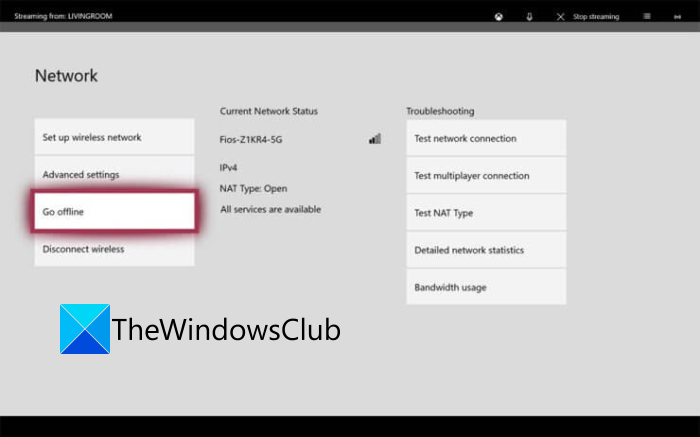
If there is some issue with the purchase and content usage service of Xbox Live, you will not be able to access the purchased game. And, you might encounter this error code. So, do check on the Xbox Status page whether the purchase and content usage services are down or not. If yes, you can try switching your console to offline mode to resolve the error. Here is how to do that:
- Firstly, press and hold the Xbox button on your controller; it will open up the guide menu.
- Now, click on the gear icon, and then from the appeared menu, click on Settings.
- Next, navigate to the Network tab and then press the Network settings option.
- After that, click on the Go offline option.
Your console will be offline now and all your purchase verifications will be handled locally. You should now be able to access digital purchases without the error code 0x82D40004.
Note: When the purchase and content usage services are up and running again, you can connect your console to Xbox Live services by disabling the Go offline feature.
If this method doesn’t apply to you, try the next potential fix to resolve the error.
See: How do I fix Xbox One Error Code 0x800c0008.
4] Perform a power cycle
This error can be a result of firmware inconsistency especially if you encountered the error after installing an update or the update failed. If the scenario applies, you can try performing a power cycle and see if the issue is fixed.
To perform a power cycle on your Xbox One console, try the below steps:
- Firstly, make sure your console is on and fully booted.
- Now, press the On/Off button on your console and hold the button for about 10 secs or until the LED stops flashing.
- Next, you need to unplug the console from the main power switch and wait for at least a minute.
- After that, plug in the console back and switch it on normally. Let the console boot fully.
- When the Xbox console is turned on, try launching the game that was previously throwing the 0x82D40004 error.
Hopefully, you won’t see the error anymore.
5] Clear Persistent storage on Xbox One
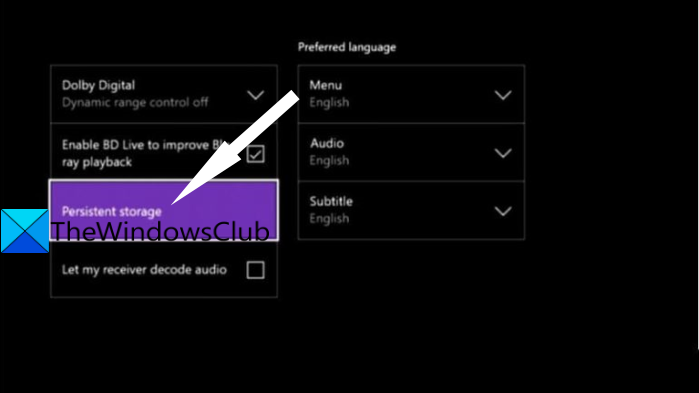
If you trying to play the game that is stored on a Blu-Ray disc, the error might be triggered in case there is corrupted or damaged data inside the Persistent Storage folder. In that case, you can try clearing the persistent storage cache to get rid of the corruption that might be causing the error at hand.
Here are the steps to clear Persistent storage on Xbox One console:
- Firstly, open the guide menu as we did in method (1), then press the gear-shaped icon, and tap on Settings.
- Now, move to the Console settings menu and press the Disc & Blu-Ray option from the right-side panel.
- On the Disc & Blu-Ray menu page, tap on the Persistent storage option present under Blu-Ray.
- After that, choose the Clear Persistent storage option and let it clear the persistent storage.
- Finally, reboot your console and check whether the error stops now on the next startup.
Read: How to fix Xbox Error Code 0x800c000B.
6] Clean the Blu-ray disc
There are also chances that the error might be triggered because the disc is dirty or damaged. Or, your optical drive might be malfunctioning. So, try cleaning the Blu-ray disc physically, probably with isopropyl alcohol and a soft cloth. Once you are done cleaning the disc, wait for a few seconds until it completely dries off, and then insert the disc back into your Xbox One console. See if this fixes the error for you.
7] Re-add your Xbox account
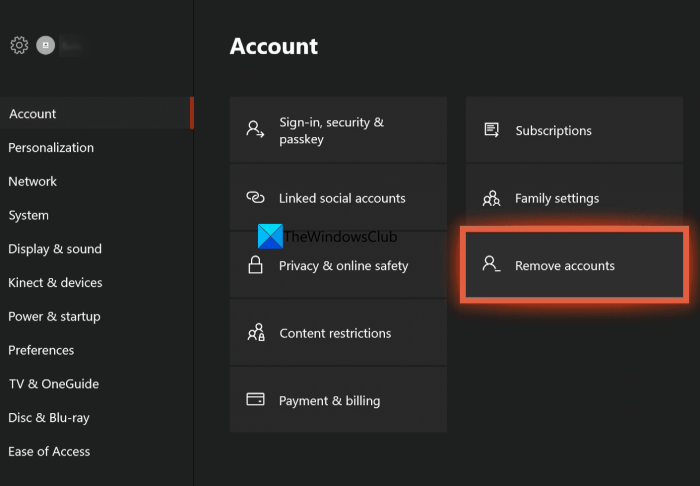
A corrupted Xbox profile can also be a cause that you get 0x82D40004 error on your Xbox console when launching a game. In this scenario, what you can do is delete your local profile and log in back to clear all the temp files and re-sync data. Some affected users were able to fix the error using this method.
Here is how you can re-add your Xbox account:
- Firstly, ensure that you are on the main dashboard of your Xbox console and open up the guide menu (refer to the method(1)).
- Now, select the active profile and then press the Sign Out option.
- When you are logged out of your account, you need to remove the account. For that, go to the guide menu, click on the gear icon, press the Settings option, and then move to the Account tab.
- Next, select the Remove accounts option, choose the account you want to remove, and press the Remove button.
- Once done removing the account, go to the login page and sign in again.
- When signed in successfully, try launching the game that was you the error and see if the error is now fixed.
8] Reset Console
If none of the above solutions worked for you, the last resort is to reset your Xbox console. But do remember that this will reset your console to factory settings and clear all your preferences and customizations. Here are the steps to reset the Xbox console:
- Firstly, bring up the guide menu (as method (1)) and go to the Settings.
- Now, go to the System > Console info option and then press the Reset console option.
- Next, select the Reset and keep my games and apps option and let the process complete.
When the process is complete, try launching a game and see if the error stops now.
That’s it!
Now read:
- How to fix Xbox One startup errors or E error codes.
- Xbox One error code 0x8027025a, Game took too long to start.
Here is a complete guide on how you can fix the error code 0x82D40004 on your Xbox One console. A lot of users have complained of being experiencing this error code when trying to launch an app or game on their Xbox console. While many users experienced this error with selective games, a few encountered the same error with every game. If you are one of those who is getting 0x82D40004 error on the Xbox console, this post is for you. We have several fixes that worked for affected users that you can try. Let us check out.
What does error code 0x82D40004 mean?
The error code 0x82D40004 on your Xbox console occurs when you are trying to launch a game. It could be facilitated if the disc you are using is dirty or damaged. It can also be caused if you have selected an energy-saving power mode. Other reasons for the same could be server issues, corrupted Persistent storage data, corrupted data on your profile, etc.
What to do if Xbox says disc is dirty?
If Xbox says the disc is dirty, you can try performing a power cycle on your console. Or, eject the disc, clean it carefully and properly, and then insert it back.
We show you how to Fix Xbox One Error Code 0x82D40004. But first, check to see if the disc is in and if it’s dirty or scratched.
- Switch Power mode to Instant-On.
- Make sure there is no Xbox Live service issue.
- Switch your console to Offline Mode.
- Perform a power cycle.
- Clear Persistent storage on Xbox One.
- Clean the Blu-ray disc.
- Re-add your Xbox account.
- Reset Console.
1] Switch Power mode to Instant-On
The error 0x82D40004 on Xbox One console can be triggered by a startup setting or power mode. Energy-saving features implemented on Xbox One tend to cause problems and this might be one of them. So, if your power mode is set to Energy-saving, you can try changing the power mode to Instant-On to resolve the issue. This fix has proven to be effective for several affected users and it might work for you as well. So, give it a shot.
Here are the steps to switch power mode to Instant-On on your Xbox One console:
- On your Xbox One console, go to the main Dashboard and click on the guide menu present on your controller.
- When the guide menu appears on the left, select the gear icon and then click on the Settings option.
- Inside the Settings menu, go to the General tab and then tap on the Power mode & startup option.
- On the Power mode & startup menu page, click on the Power mode drop-down button and then choose the Instant-on mode.
- Now, restart your console, and on the next startup, attempt to open the same game that was giving you the error and see if it is fixed now.
If this method resolves the error, great. In case it doesn’t, go ahead with our next solution.
2] Make sure there is no Xbox Live service issue
The 0x82D40004 error code can also be caused if there are some server issues at the end of Xbox One. So, make sure there are no Xbox Live service issues by going to the Xbox Status page or using a free server status detector. If the Xbox Live services are down, there is nothing much you can do to fix the issue. Just wait for an hour or so and check back to see if the error is resolved.
In case there is no server issue, move on to the next potential fix to resolve the error code.
3] Switch your console to Offline Mode
If there is some issue with the purchase and content usage service of Xbox Live, you will not be able to access the purchased game. And, you might encounter this error code. So, do check on the Xbox Status page whether the purchase and content usage services are down or not. If yes, you can try switching your console to offline mode to resolve the error. Here is how to do that:
- Firstly, press and hold the Xbox button on your controller; it will open up the guide menu.
- Now, click on the gear icon, and then from the appeared menu, click on Settings.
- Next, navigate to the Network tab and then press the Network settings option.
- After that, click on the Go offline option.
Your console will be offline now and all your purchase verifications will be handled locally. You should now be able to access digital purchases without the error code 0x82D40004.
Note: When the purchase and content usage services are up and running again, you can connect your console to Xbox Live services by disabling the Go offline feature.
If this method doesn’t apply to you, try the next potential fix to resolve the error.
See: How do I fix Xbox One Error Code 0x800c0008.
4] Perform a power cycle
This error can be a result of firmware inconsistency especially if you encountered the error after installing an update or the update failed. If the scenario applies, you can try performing a power cycle and see if the issue is fixed.
To perform a power cycle on your Xbox One console, try the below steps:
- Firstly, make sure your console is on and fully booted.
- Now, press the On/Off button on your console and hold the button for about 10 secs or until the LED stops flashing.
- Next, you need to unplug the console from the main power switch and wait for at least a minute.
- After that, plug in the console back and switch it on normally. Let the console boot fully.
- When the Xbox console is turned on, try launching the game that was previously throwing the 0x82D40004 error.
Hopefully, you won’t see the error anymore.
5] Clear Persistent storage on Xbox One
If you trying to play the game that is stored on a Blu-Ray disc, the error might be triggered in case there is corrupted or damaged data inside the Persistent Storage folder. In that case, you can try clearing the persistent storage cache to get rid of the corruption that might be causing the error at hand.
Here are the steps to clear Persistent storage on Xbox One console:
- Firstly, open the guide menu as we did in method (1), then press the gear-shaped icon, and tap on Settings.
- Now, move to the Console settings menu and press the Disc & Blu-Ray option from the right-side panel.
- On the Disc & Blu-Ray menu page, tap on the Persistent storage option present under Blu-Ray.
- After that, choose the Clear Persistent storage option and let it clear the persistent storage.
- Finally, reboot your console and check whether the error stops now on the next startup.
Read: How to fix Xbox Error Code 0x800c000B.
6] Clean the Blu-ray disc
There are also chances that the error might be triggered because the disc is dirty or damaged. Or, your optical drive might be malfunctioning. So, try cleaning the Blu-ray disc physically, probably with isopropyl alcohol and a soft cloth. Once you are done cleaning the disc, wait for a few seconds until it completely dries off, and then insert the disc back into your Xbox One console. See if this fixes the error for you.
7] Re-add your Xbox account
A corrupted Xbox profile can also be a cause that you get 0x82D40004 error on your Xbox console when launching a game. In this scenario, what you can do is delete your local profile and log in back to clear all the temp files and re-sync data. Some affected users were able to fix the error using this method.
Here is how you can re-add your Xbox account:
- Firstly, ensure that you are on the main dashboard of your Xbox console and open up the guide menu (refer to the method(1)).
- Now, select the active profile and then press the Sign Out option.
- When you are logged out of your account, you need to remove the account. For that, go to the guide menu, click on the gear icon, press the Settings option, and then move to the Account tab.
- Next, select the Remove accounts option, choose the account you want to remove, and press the Remove button.
- Once done removing the account, go to the login page and sign in again.
- When signed in successfully, try launching the game that was you the error and see if the error is now fixed.
8] Reset Console
If none of the above solutions worked for you, the last resort is to reset your Xbox console. But do remember that this will reset your console to factory settings and clear all your preferences and customizations. Here are the steps to reset the Xbox console:
- Firstly, bring up the guide menu (as method (1)) and go to the Settings.
- Now, go to the System > Console info option and then press the Reset console option.
- Next, select the Reset and keep my games and apps option and let the process complete.
When the process is complete, try launching a game and see if the error stops now.
That’s it!
Now read:
- How to fix Xbox One startup errors or E error codes.
- Xbox One error code 0x8027025a, Game took too long to start.
Мы все знаем, насколько хорош Xbox для многих игроков в видеоигры. Однако не все так хорошо, как кажется.
Многие пользователи столкнулись с ошибкой 0x82d40004 на своей консоли Xbox One.
Один пользователь сообщил на официальном форуме Microsoft следующее:
Когда я вставляю игру в систему Xbox one, я получаю код ошибки 0x82d40004. Никакие игры не будут работать в моей системе, так как этот код ошибки появляется на каждом компакт-диске с игрой, который я ввожу Мне нужна помощь или информация о том, как решить эту проблему. Я пытаюсь выяснить, есть ли серьезная проблема с моим Xbox, которая может понадобиться для отправки его в Microsoft.
Таким образом, никакие игры не будут работать, поскольку каждый раз, когда проигрыватель вставляет компакт-диск, консоль Xbox отображает код ошибки 0x82d40004.
К счастью, есть несколько простых решений, которые быстро решат эту проблему.
1. Проверьте свой диск
Если на консоли Xbox появляется ошибка 0x82d40004, возможно, ваш диск физически поврежден. Проверьте свой DVD / CD на наличие царапин или других признаков износа.
Вы можете почистить диск влажной и мягкой тканью.
2. Перезагрузите консоль
- Перейти в главное меню.
- Нажмите и удерживайте не менее десяти секунд кнопку питания консоли.
- Подождите 30 секунд.
- Перезапустите и попробуйте игру.
Ищете лучший VPN для Xbox One? Вот наши лучшие выборы.
3. Повторно добавьте свой аккаунт
Если описанные выше методы не работают, попробуйте повторно добавить свою учетную запись. Удалите свою учетную запись из консоли Xbox, а затем добавьте ее обратно.
- Выберите Система, затем Настройки, Учетная запись, а затем Удалить учетные записи.
- Нажмите на учетную запись, которую вы хотите удалить, а затем выберите Удалить, чтобы подтвердить.
- Выберите Закрыть, когда вы закончите.
Теперь, чтобы добавить учетную запись, выполните следующие действия.
- В верхнем левом углу экрана выберите свое изображение игрока.
- Выберите Добавить новый.
- Введите адрес электронной почты для учетной записи Microsoft, которую вы хотите добавить, и нажмите Enter.
- Не выбирайте Получить новую учетную запись. Это создаст совершенно новую учетную запись Microsoft.
- Следуйте инструкциям по настройке параметров входа и безопасности, чтобы добавить учетную запись Microsoft в консоль Xbox One.
Заключение
Код ошибки 0x82d40004 является серьезной проблемой для многих игроков. Они не могут ничего играть, но, к счастью, есть несколько простых и быстрых решений, чтобы это исправить.
Некоторые из них довольно очевидны. Ваш диск, вероятно, поврежден. Однако вам может понадобиться повторно добавить свой аккаунт.
Работали ли наши решения для вас? Дайте нам знать в комментариях ниже!
Мы все знаем, насколько хорош Xbox для многих игроков в видеоигры. Однако не все так хорошо, как кажется.
Многие пользователи столкнулись с ошибкой 0x82d40004 на своей консоли Xbox One .
Один пользователь сообщил на официальном форуме Microsoft следующее:
Когда я вставляю игру в систему Xbox one, я получаю код ошибки 0x82d40004. Никакие игры не будут работать в моей системе, так как этот код ошибки появляется на каждом компакт-диске с игрой, который я ввожу Мне нужна помощь или информация о том, как решить эту проблему. Я пытаюсь выяснить, есть ли серьезная проблема с моим Xbox, которая может понадобиться для отправки его в Microsoft.
Таким образом, никакие игры не будут работать, поскольку каждый раз, когда проигрыватель вставляет компакт-диск, консоль Xbox отображает код ошибки 0x82d40004.
К счастью, есть несколько простых решений, которые быстро решат эту проблему.
Как решить код ошибки 0x82d40004 на Xbox?
1. Проверьте свой диск
Если на консоли Xbox появляется ошибка 0x82d40004, возможно, ваш диск физически поврежден. Проверьте свой DVD / CD на наличие царапин или других признаков износа.
Вы можете почистить диск влажной и мягкой тканью.
2. Перезагрузите консоль
- Перейти в главное меню .
- Нажмите и удерживайте не менее десяти секунд кнопку питания консоли.
- Подождите 30 секунд.
- Перезапустите и попробуйте игру.
Ищете лучший VPN для Xbox One? Вот наши лучшие выборы.
3. Повторно добавьте свой аккаунт
Если описанные выше методы не работают, попробуйте повторно добавить свою учетную запись. Удалите свою учетную запись из консоли Xbox, а затем добавьте ее обратно.
- Выберите Система , затем Настройки , Учетная запись , а затем Удалить учетные записи .
- Нажмите на учетную запись, которую вы хотите удалить, а затем выберите Удалить, чтобы подтвердить.
- Выберите Закрыть, когда вы закончите.
Теперь, чтобы добавить учетную запись, выполните следующие действия.
- В верхнем левом углу экрана выберите свое изображение игрока.
- Выберите Добавить новый .
- Введите адрес электронной почты для учетной записи Microsoft, которую вы хотите добавить, и нажмите Enter .
- Не выбирайте Получить новую учетную запись . Это создаст совершенно новую учетную запись Microsoft.
- Следуйте инструкциям по настройке параметров входа и безопасности, чтобы добавить учетную запись Microsoft в консоль Xbox One.
Вывод
Код ошибки 0x82d40004 является серьезной проблемой для многих игроков. Они не могут ничего играть, но, к счастью, есть несколько простых и быстрых решений, чтобы это исправить.
Некоторые из них довольно очевидны. Ваш диск, вероятно, поврежден. Однако вам может понадобиться повторно добавить свой аккаунт.
Работали ли наши решения для вас? Дайте нам знать в комментариях ниже!
СВЯЗАННЫЕ СТАТЬИ, КОТОРЫЕ ВЫ ДОЛЖНЫ ПРОВЕРИТЬ:
- Игры и приложения для Xbox One не открываются [РУКОВОДСТВО ПО ШАГУ]
- Вот как исправить медленную производительность на Xbox Live
- Можно ли установить игры для Xbox Game Pass на дополнительный диск?
Пользователи Xbox сообщают, что в их системе возникает код ошибки 0x82d40004. Не имеет значения, вставлен диск с игрой или нет; ошибка все равно сохраняется. Они сталкиваются с этой ошибкой каждый раз, когда пытаются запустить приложение или игру. У этой ошибки может быть много причин, и в этой статье мы рассмотрим все возможные исправления для этой ошибки. Так что, если вы также являетесь одной из тех ошибок Xbox, которые испытывают эту трудность, эта статья может содержать ответ, который вы ищете.
Вот несколько пользователей, которые сообщили об этой проблеме в сообществе Reddit.
Xbox 1 x все время звенит, извлекает диск, и я также получаю ошибку 0x82d40004 от r / xboxone
0x82d40004 от r / xboxone

Оглавление
-
1 Действия по исправлению кода ошибки Xbox One 0x82d40004
- 1.1 Исправление 1 — Изменение режима питания на мгновенное включение:
- 1.2 Исправление 2 — Проверка на наличие проблем с сервером:
- 1.3 Исправление 3 — переключить консоль в автономный режим:
- 1.4 Исправление 4 — Выполните процедуру отключения и включения питания:
- 1.5 Исправление 5 — Повторное добавление учетной записи Xbox:
- 1.6 Исправление 6 — Очистка постоянного кеша:
- 1.7 Исправление 7 — Очистите диск:
Действия по исправлению кода ошибки Xbox One 0x82d40004
Убедитесь, что вы следуете этому шаг за шагом. Если это не помогает, вы можете воспользоваться решением пользователя Reddit, которое мы подробно описали ниже.
Исправление 1 — Изменение режима питания на мгновенное включение:
Большинство пользователей страдают от этой ошибки из-за режима, установленного в настройках питания их Xbox. Так что, скорее всего, это вероятное решение и для вас.
Для режима питания в меню настроек есть возможность установить энергосберегающий режим, и именно здесь возникает проблема. Простое переключение с энергосбережения на мгновенное включение может исправить всплывающую ошибку. Для этого сначала перейдите в меню панели управления консоли Xbox One и нажмите меню руководства на контроллере. В левой части экрана появится меню руководства. Здесь выберите вкладку настроек, которая выглядит как значок шестеренки, и перейдите в настройки. Как только вы войдете в настройки, выберите общую вкладку в левой части меню настроек. Затем с правой стороны вы увидите режим питания и запуск. Откройте его, и здесь, в меню режима питания и запуска, вы увидите раскрывающийся список в разделе Режим питания. Измените его с энергосбережения на мгновенное включение. Сохраните изменение, и это должно помочь.
Просто перезапустите консоль сейчас и посмотрите, возникает ли та же ошибка, когда вы пытаетесь открыть игру. Если по какой-либо причине проблема все еще существует, попробуйте следующее исправление, указанное ниже.
Исправление 2 — Проверка на наличие проблем с сервером:
Microsoft обнаружила, что пользователи Xbox столкнулись с этой ошибкой из-за проблемы с сервером, которая не позволяет конечному пользователю проверять права использования. Многие выяснили, что эта ошибка возникает из-за проблем со службами Xbox live, которые вызваны проблемой сервера. Итак, если это так, то нажмите на это ссылка. Это автоматически проверит, все ли основные службы консоли работают правильно.
Если эта проверка не выявила каких-либо проблем со службой покупки и использования контента, значит, эту ошибку для вас не вызывает сервер.
Теперь, если проверка выявляет проблему со службой покупки и использования контента, подождите, например, час, и еще раз проверьте, разрешается ли она автоматически. Если проблема продолжает появляться на экране, попробуйте следующее исправление — переключиться в автономный режим.
Исправление 3 — переключить консоль в автономный режим:
Если проверка на консоли выявляет проблему с покупкой и использованием контента, то один из способов решения этой проблемы — переключиться в автономный режим. Это просто обойдет любое подтверждение права собственности от служб Xbox Live, и вы сможете получить доступ к своей игровой библиотеке и открывать игры в автономном режиме. Однако это приведет к тому, что вы не сможете играть в многопользовательские онлайн-игры, поскольку все онлайн-сервисы будут отключены.
Так что, если вы хотите наслаждаться играми в автономном режиме, ожидая, пока службы Xbox live исправятся, это может быть временным решением для вас. Для этого нажмите кнопку Xbox и откройте меню руководства. Здесь выберите вкладку настроек, которая выглядит как значок шестеренки. Затем откройте сеть в меню настроек и выберите настройки сети. Здесь с левой стороны вы увидите вкладку с надписью «Перейти в автономный режим», поэтому просто выберите ее, и все готово.
Это позволит вам наслаждаться играми, так как проверка ваших цифровых покупок теперь будет производиться локально. Если даже офлайн-режим не помогает с ошибкой 0x82d40004, попробуйте следующее исправление.
Исправление 4 — Выполните процедуру отключения и включения питания:
Иногда обновление могло быть причиной ошибки 0x82d40004. Если вы начали испытывать эту ошибку, опубликуйте обновление OTA, это может быть связано с несоответствием прошивки. В этом сценарии единственное решение, которое будет работать, — это включение и выключение питания. Этот процесс приведет к разряду конденсаторов питания вашего Xbox и определенно должен решить любую проблему с прошивкой.
Теперь давайте посмотрим, как это сделать. Во-первых, убедитесь, что консоль полностью включилась и полностью загрузилась. Теперь нажмите и удерживайте кнопку включения / выключения консоли в течение 10 секунд, то есть до тех пор, пока светодиод на передней панели не перестанет мигать. Теперь отпустите кнопку и выньте вилку Xbox из порта питания. Подождите минуту, а затем снова включите, как вы делаете каждый раз. Если появляется анимация Xbox, вы можете быть уверены, что процесс выключения и включения питания прошел успешно.
Теперь попробуйте запустить игру, в которой появилась ошибка 0x82d40004. Если ошибка по-прежнему появляется, попробуйте следующее исправление.
Исправление 5 — Повторное добавление учетной записи Xbox:
Иногда поврежденная учетная запись Xbox могла быть причиной кода ошибки 0x82d40004. В этом сценарии простое удаление локального профиля и повторный вход в систему позволит очистить все временные файлы и, как следствие, устранить ошибку 0x82d40004.
Для этого сначала перейдите на панель управления Xbox one и откройте меню руководства с помощью кнопки Xbox на контроллере. Здесь вы увидите свой активный профиль. Просто откройте его и выберите «Выйти». Теперь перейдите в меню настроек еще раз и откройте вкладку учетных записей слева. Это откроет множество возможностей для вашей учетной записи. Просто найдите учетную запись для удаления и выберите ее. Появится сообщение с просьбой подтвердить удаление учетной записи. Просто выберите удалить еще раз, и все готово.
Теперь просто вернитесь к входу и снова войдите в свою учетную запись и снова установите для нее настройки так, как вы предпочитаете. Это оказалось решением для многих пользователей. Но если проблема все еще существует, выполните следующее исправление.
Исправление 6 — Очистка постоянного кеша:
Поврежденные файлы или данные, присутствующие в папке постоянного хранилища, также могут иногда быть виновником ошибки 0x82d40004. К счастью, исправить это довольно просто. Все, что вам нужно, это зайти на панель управления Xbox one, нажать кнопку Xbox и открыть руководство. Затем выберите Настройки из списка в меню руководства и оттуда перейдите в Настройки консоли. Здесь вы увидите другое меню с множеством опций, просто найдите опцию «Диск и Blu-ray» и выберите ее. Внутри диска и Blu-ray найдите постоянное хранилище, выберите его и выберите вариант, чтобы все это очистить. После завершения процесса перезапустите консоль, и это определенно должно помочь.
Однако очистка постоянного хранилища не приведет к удалению игровых данных, поэтому вам не о чем беспокоиться перед этим.
Исправление 7 — Очистите диск:
Если ни одно из вышеупомянутых исправлений не работает для вас, вы также можете попробовать очистить диск. Это снимок в темноте, но для некоторых это тоже исправление. Так что, если ничего не помогает, попробовать не повредит. Для эффективной очистки диска сначала нанесите изопропиловый спирт на сухую ткань и начните протирать диск этой тканью круговыми движениями. Затем дайте диску высохнуть в течение нескольких секунд и снова вставьте диск в Xbox. Теперь посмотрим, сохраняется ли проблема.
Также один Reddit ответил пользователю, чтобы исправить эту проблему, следуя приведенному ниже методу.
Не забудьте сначала попробовать следующие основные шаги по устранению неполадок:
Цикл питания — Инструкции здесь. Нажмите и удерживайте логотип Xbox на консоли примерно 8-10 секунд, пока консоль не выключится.
Проверьте статус службы Xbox Live Вот!
Проконсультируйтесь Xbox.com/support — У них широкий выбор тем и тонны поддержки.
Обратитесь в службу поддержки Xbox — У них есть чаты, телефонные звонки, электронные письма и все такое.
Поиск — используйте Google, используйте боковую панель, используйте форумы. Отсутствие поиска перед публикацией может привести к удалению вашего сообщения.
Проконсультируйтесь с нашей вики — Это высоко вероятно, что ваша проблема там.
Другие темы
Вы участвуете в программе инсайдеров? Это бета. Ошибки — это совершенно нормально, если вы зарегистрировались для этого. Пожалуйста, разместите сообщение в официальном субреддите инсайдеров r / xboxinsiders
Консоль не запускается? – Попробуйте режим самовосстановления
Если он все еще там, скорее всего, у вас неисправное оборудование. Так что вам придется заменить оптический привод Xbox One.
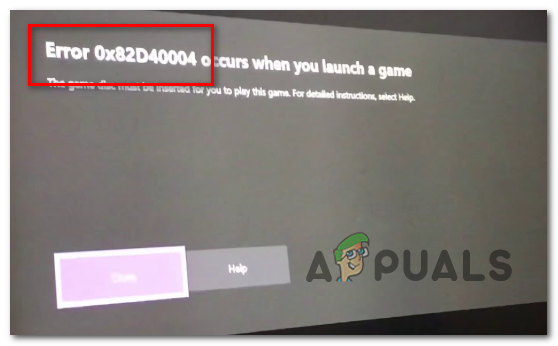
Some Xbox One users are encountering the Error Code 0x82d40004 when they try to launch certain applications or games. In some cases, affected users are reporting that the issue is reported to occur with every game – even after they insert the game disc.
One of the most common instances that will end up producing the 0x82d40004 error is a power mode & startup setting called Energy-Saving. Some users that were struggling with the same issue have managed to fix it by changing the option to Instant-on.
If that doesn’t work, check the current status of the Xbox Live servers and see if the Purchase and Content usage service is currently experiencing problems. If there are issues, your console might be unable to check if you have the right to play that library item. In case you confirm a server problem, switching your console mode to Offline mode will allow you to validate your game library locally.
However, the 0x82d40004 error can also occur due to a firmware inconsistency or a corrupted local profile. In this case, performing a power-cycling procedure or re-adding your Microsoft account should clear any temporary data that might cause this issue.
In case you’re only seeing this error only while inserting a physical game disk, start by clearing the persisting cache of your Xbox One console. Additionally, you should try cleaning the disk with isopropyl alcohol and take some steps to distinguish if your optical drive is failing.
Method 1: Changing Power mode to Instant-On
As it turns out, for a lot of affected users that are encountering the Error Code 0x82d40004 on Xbox One, this problem ended up being caused by a power mode & startup setting. Keep in mind that this is not the only problem that is being caused by the energy-saving features implemented on Xbox One.
If this scenario is applicable and the power mode is set to Energy-saving, you should be able to fix the issue by changing the option to Instant-On.
A lot of affected users have reported that the issue was entirely resolved after they enforced this change. Here’s a quick step-by-step guide on how to do this:
- From the main dashboard menu of your Xbox One console, press the guide menu on your controller and wait for it to appear.
- Once the guide menu (on the left) becomes visible, use it to select the Settings tab (gear icon), then access the Settings entry.
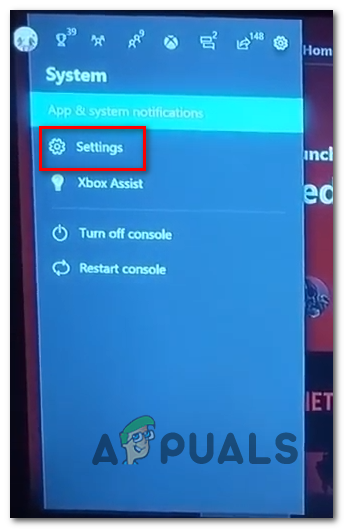
Accessing the Settings menu on Xbox One - Once you’re inside the settings menu, select the General tab from the vertical menu on the left, then move over to the right section and access the Power mode & startup options menu.
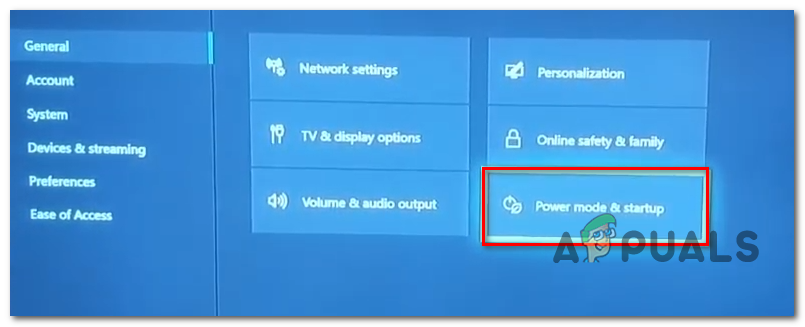
Accessing the power mode menu - Inside the Power mode & startup menu, access the drop-down menu associated with Power mode and change it from Energy-saving to Instant-on.
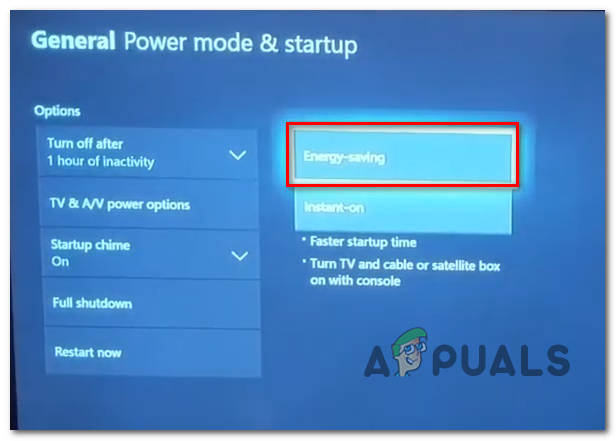
Changing the default Power Mode to Energy-Saving - After you do this, simply perform a regular console restart and wait for the next startup to complete.
- Attempt to launch the same game that was previously triggering the 0x82d40004 error code and see if the issue has been resolved.
If your Xbox One console is still showing the same error code, move down to the next potential fix below.
Method 2: Checking for server issues
As Microsoft has confirmed, the 0x82d40004 error code might also be the result of a server issue that is preventing end-user consoles from checking usage rights. This is even more likely if you’re only encountering the problem with digital purchases.
As it turns out, several affected users that encountered this issue in the past have confirmed that the issues were a direct result of a problem with one Xbox Live service (Purchase and Content Usage). A scheduled maintenance period or a different unexpected problem might end up inhibiting usage rights checking.
In case this scenario seems like it could be applicable, proceed to investigate the status of the Xbox live servers by accessing this link (here) and see if any core services are not operational.
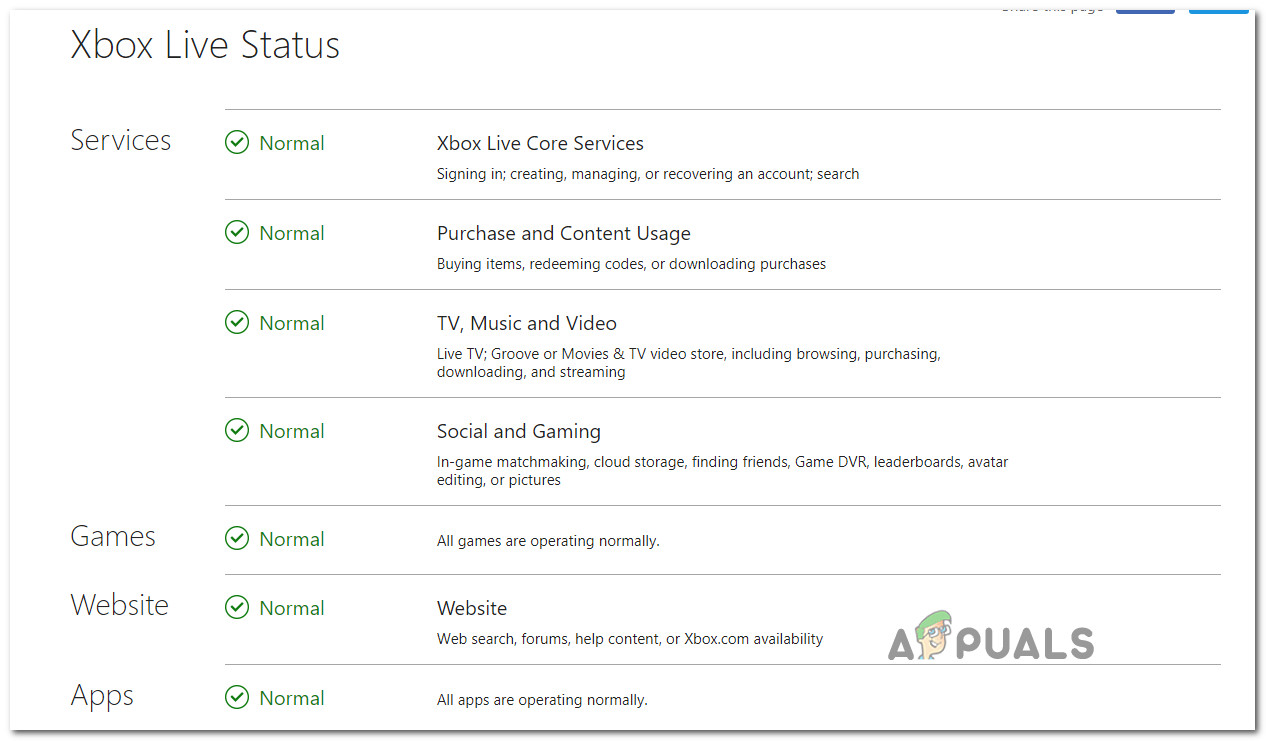
If the investigations you just performed didn’t reveal an issue with the Purchase and Content usage service, you can cross a server issue of the potential culprit list.
Note: In case you have discovered that there’s indeed a problem with an Xbox Live service, wait an hour or so and check back to see if the issue is resolved. Additionally, follow Method 3 to switch your console to offline mode.
If the same 0x82d40004 error code is still occurring and you’ve discovered that there are no issues with any Xbox Live services, skip the next method below and move directly to Method 4.
Method 3: Switching your console to Offline Mode
If you’ve previously confirmed that the Purchase and Content usage Live service is currently encountering issues and you’re unable to access your digital purchases due to the 0x82d40004 error code, one way to circumvent the problem is to switch your console mode to Offline.
This operation will bypass some online ownership verifications that are heavily-reliant on the Purchase and Content usage service, which might allow you to access your game library normally.
However, keep in mind that you will end up losing the ability to play multiplayer games and access any type of content that requires a connection with the Xbox Live server.
If you are prepared to switch your console to Offline Mode while the Xbox Live affected service is being fixed, here’s what you need to do:
- Press and hold the Xbox button on your controller to open up the guide menu. Next, select the gear icon to access the Settings tab.
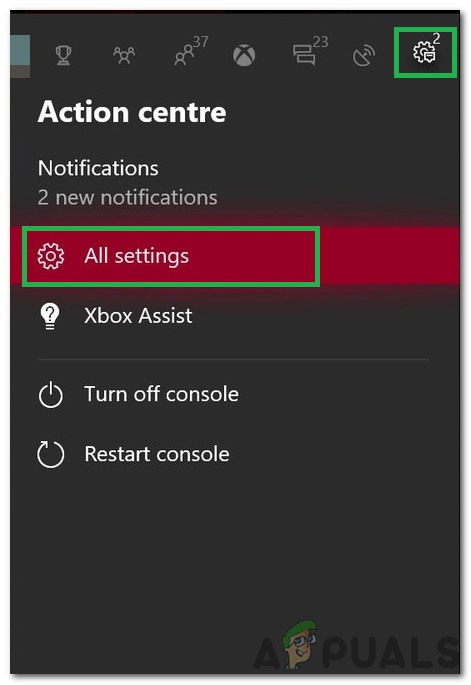
Clicking on “All Settings” Once you’re inside the settings menu, access the Network sub-menu. Next, select the Network settings menu and tap on Go offline.

Going Offline on Xbox One - After you do this, your console should handle purchase verifications locally and you should be able to access your digital purchases without issues.
Note: Once the server problem is resolved, reverse engineer the steps above in order to allow your console to connect to the Xbox Live service again.
In case this method wasn’t applicable or you’re still encountering the 0x82d40004 error code even after you’ve enabled Offline Mode, move down to the next potential fix below.
Method 4: Performing a power cycling procedure
If none of the methods above have helped you discover the culprit causing the 0x82d40004 error, it’s likely that you’re seeing the error due to some kind of firmware inconsistency – particularly if this issue started appearing after the installation of an update (or a failed update).
If this scenario seems like it could be applicable, you might be able to fix the issue by performing a power cycling – This operation will end up draining the power capacitors of your Xbox One console, which will end up eliminating the vast majority of firmware-related issues that might cause this particular behavior.
Here’s a quick guide that will allow you to perform a power-cycling procedure on your Xbox One console:
- Start by ensuring that your console is turned on (not in hibernation) and fully booted.
- Next, press and hold the On/Off Xbox button (on your console). Keep it pressed for over 10 seconds or until you see that the front LED stops flashing. Once you see this occurring, let go of the button.
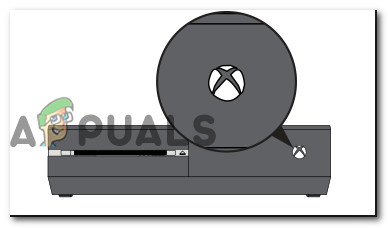
Perform a hard reset on Xbox One - After the shut down is completed, disconnect the power cable physically from the power outlet and wait for a full minute before plugging it back in.
- Turn your console back on conventionally and wait for the net startup to complete. If you see the initial animation logo appearing, the power-cycling procedure was a success.
- Once the booting sequence is complete, attempt to launch the game or application that was previously triggering the 0x82d40004 and see if the issue is now resolved.
In case the same problem is still occurring, move down to the next potential fix below.
Method 5: Re-adding Xbox account
Another potential culprit that might end up causing the 0x82d40004 error code is a corrupted Xbox profile (the temporary data saved for the connected Xbox account). If this scenario is applicable, you should be able to fix the issue by deleting your local profile and signing with it again in order to clear the temp data and re-sync all files.
Several affected users have confirmed that this operation finally allowed them to access their game library normally.
Here’s a quick guide that will allow you to re-add your Xbox account:
- Make sure that you’re seeing the main dashboard of Xbox One.
- Press the Xbox button on your controller to bring up the guide menu, then select your active profile and use the Sign Out option.
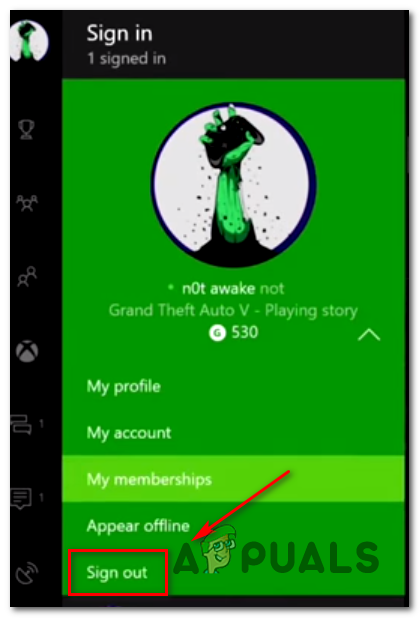
Signing out from your active Xbox account - Once you have successfully signed out from your account, you need to take the steps to remove it. In order to do this, access the Settings menu once again and go to the Accounts tab from the vertical menu (on the left-hand side). Next, move over to the right section of the screen and use the Remove accounts option from the list of options (under Account).
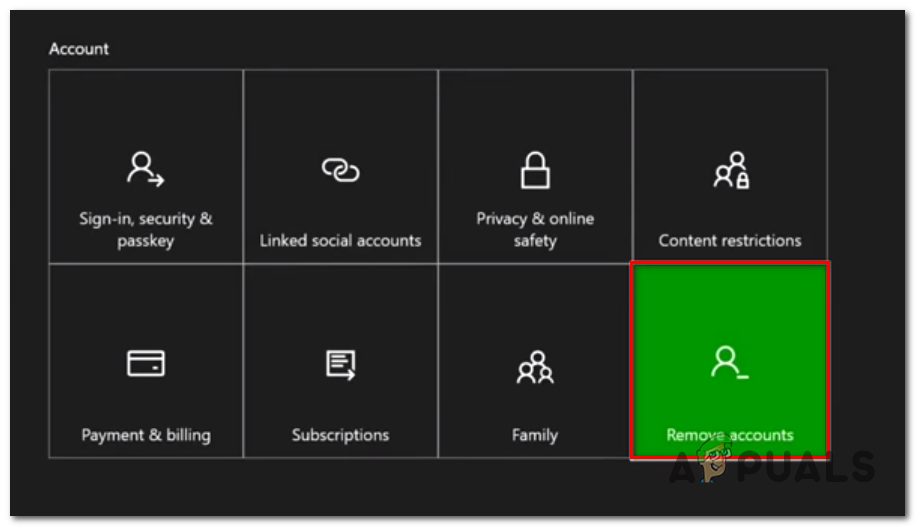
Accessing the Remove accounts menu - At the next screen, select which account you want to remove, then confirm by using the Remove button.
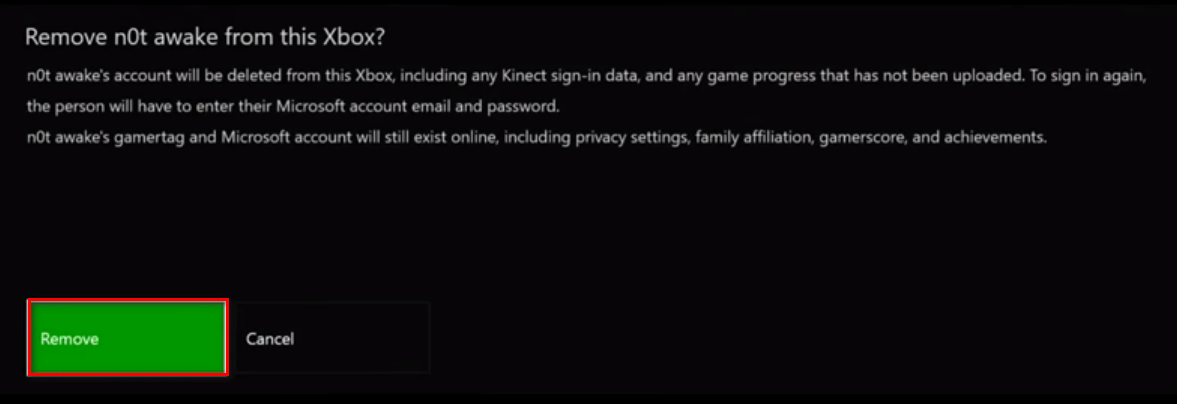
Removing the connected account - Once you manage to successfully remove your account, go back to the sign-in page, re-add your account and set the appropriate security preferences.
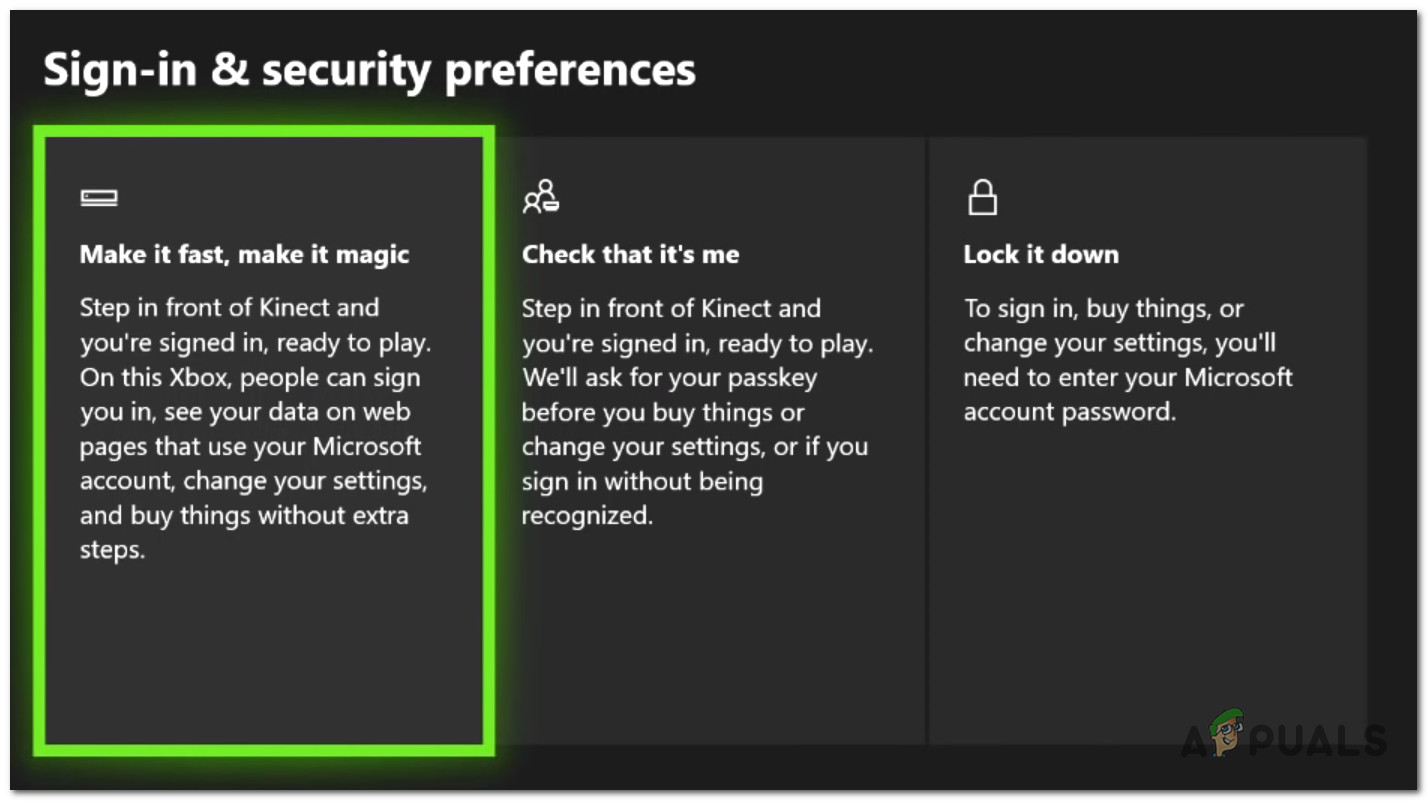
Establishing Sign-in & security preferences - Wait until the sign-in process is complete, then launch the same game or application that was previously triggering the 0x82d40004 error.
Note: This operation might take longer than usual since every bit of data needs to be synced.
In case the same error message is still persisting, move down to the next potential fix below.
Method 6: Clearing persisting cache (if applicable)
If you’re encountering the issue exclusively when trying to play content that is stored on Blu-Ray disks, chances are you are encountering the 0x82d40004 error due to corrupted data present in the Persistent Storage folder that Xbox One maintains for physical media.
If this scenario is applicable, you should be able to fix the issue by accessing your console’s settings and clearing the persistent storage cache. Keep in mind that the Persistent Storage mainly contains temporary data that needs to be readily available, so clearing the cache will not make you lose any data or settings.
Here’s a quick guide on clearing the persistent storage on Xbox One:
- From the main Dashboard of Xbox One, press the guide menu on your controller and access the Settings menu (gear icon).
Accessing the Settings menu on Xbox One - Inside the Settings menu, go to Console settings and access the Disc & Blu-Ray option from the right section of the screen.
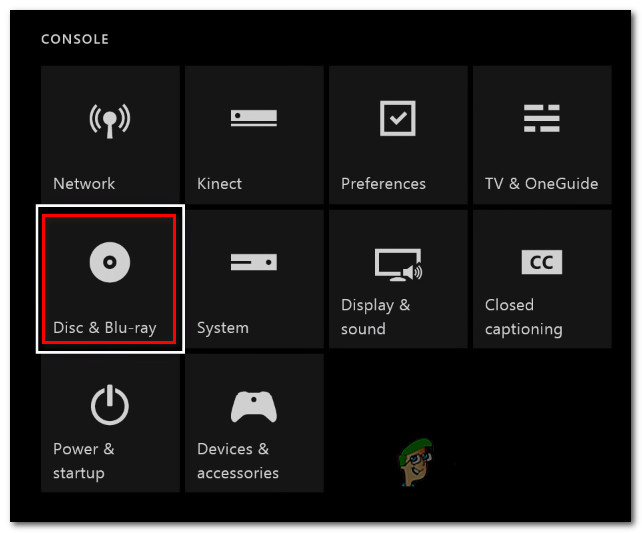
Accessing the Disk & Blu-Ray menu - Inside the Disc & Blu-Ray menu, access the Persistent storage menu (under Blu-Ray).
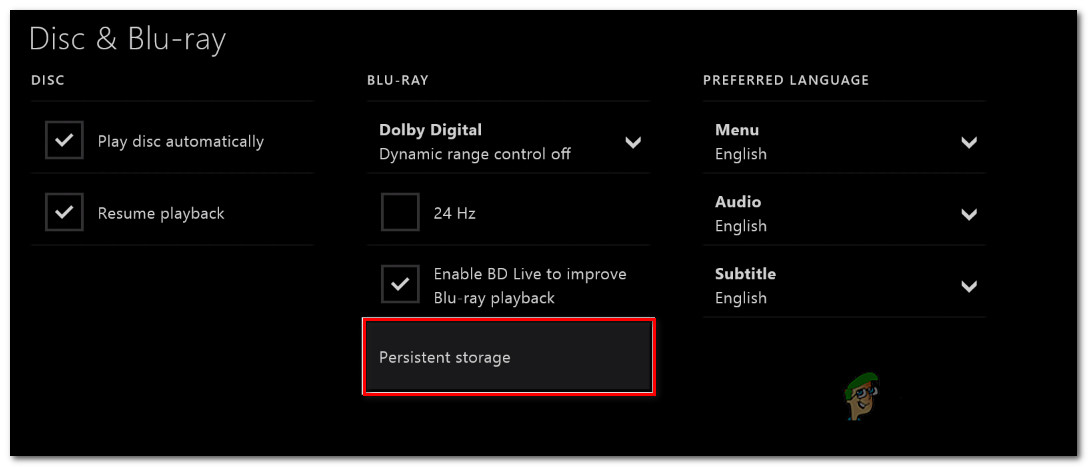
Accessing the Persistent Storage menu - Next, use the Clear Persistent storage option and wait for the operation to complete.
- Restart your console and see if the issue is resolved at the next system startup.
In case you’re still encountering the 0x82d40004 error, move down to the next potential fix below.
Method 7: Cleaning dirty Blu-ray disk
If none of the methods above have allowed you to fix the issue and you’re only encountering physical games, chances are you’re either dealing with a dirty or damaged disk or your optical drive is malfunctioning.
If the disk used to work, consider cleaning it for dust that might be preventing the optical block from reading it. The ideal way to do it is with isopropyl alcohol and a soft cloth. Since isopropyl alcohol dries up very fast, you don’t have to worry about leaving behind any by-products that might produce damage to your optical drive.
But keep in mind that if the issue is being caused by a deep scratch, this operation will not be effective.
Here’s a quick guide on cleaning a Blu-Ray disc of dust:
- Start by sprinkling some isopropyl alcohol on a soft cloth and start rubbing the disc with a circular movement (from the inside to the outside).

Cleaning the Blu-Ray disk - Once you finished the cleaning process, air dry it for a maximum of 10 seconds in a non-dusty area.
- Insert the disk back into your Xbox One console and see if the optical drive manages to read it.
In case the same problem is still occurring, it’s very likely that you’re dealing with a failing optical block. Some users encountering the same issue have managed to get past this issue by tilting the front of the Xbox console a bit so the front is in the air – This will force the disk to drop back a bit more into the drive.
Additionally, you can try holding the disc with your hand for a second or two while it’s trying to pull it in.
IMPORTANT: If any of these last to operation work for you, you should start considering replacing your optical drive. Eventually, your disc drive will die out.
I’m sure you might have encountered this issue called “Error code 0x82d40004.” It is one of the common issues faced while launching a game on the Xbox Series X gaming console. Here is everything you need to know on how to fix the Error Code 0x82d40004.
The Error Code 0x82d40004r is faced by Xbox series X users when they are trying to launch the game or an app on the console. It occurs regardless of whether the game disc is inserted or not. It is a serious concern for many Xbox players. because it doesn’t allow them to play any game at all. However, there are some ways by which you can fix this issue.
How to fix Error Code 0x82d40004?
1. Check your disk condition
There is a high chance that your disc might be physically damaged if this error code appears on your screen. Make sure to check for scratches or any other signs of wear. You can simply clean your disk with a damp and soft piece of cloth.
2. Switch to Offline Mode
If the Xbox Series x error 0x82d40004 is causing a problem with your purchase and content usage live service, and you are unable to access the digital content you purchased, you must turn to offline mode. Note that switching to offline mode will allow you to access the game library without getting the error, but you will lose the multiplayer option.
To switch your console to offline mode, follow these simple steps:
- Press the Xbox button on your controller to open the menu
- Click on Settings
- Then, click on Network
- Select the Network settings
- Finally, click on Go Offline
3.Changing the Power Mode to Instant-On
Several players have faced this because of the power mode being set to energy-saving mode. Changing the power mode to Instant-On can solve your issue. To change it, follow these steps:
- Open your Xbox
- Go to settings and select All settings
- Then, select the General tab
- Click on the Power & startup option
- Select the Power mode and set it to Instant-on from energy saving.
- After it’s done, simply restart your Xbox console and check theater the issue has been solved or not.
In conclusion, the Error Code 0x82d40004 can be quite frustrating for the players because it won’t let you play any game at all. However, you can fix it by following the above methods.
If these methods don’t seem to be working for you, we would recommend you contact the Xbox developers team for support.