Что ж, как часто бывает, ошибка 0x8027025a на Xbox появляется по разным причинам. При чем у нее очень долгая история, первые найденные упоминания касаются еще 2013 года. До сих пор ошибка имеет место и периодически проскакивает. В обычных условиях она появляется у не очень большого количества пользователей, но бывают случаи, когда она отображается более массово.
Причины
Причины сравнительно классические:
- случайная или более серьезная неисправность системы;
- недоступные сервера;
- баги в работе жесткого диска или первые симптомы его выхода из строя.
Решения ошибки 0x8027025a на Xbox
Как и при любых ошибках, сперва следует перезапустить консоль с кнопки и оставить ее на пару минут без питания. После этого вам следует попробовать такие методы:
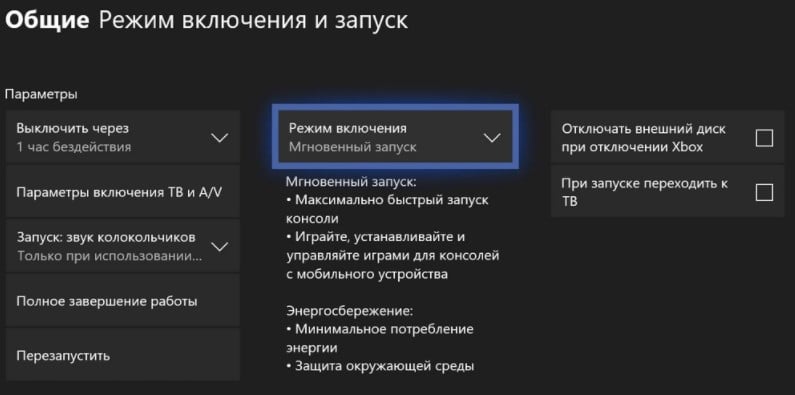
- Изменить тип питания. Для этого в «Настройках» в разделе «Питание» меняем параметр с «Мгновенное включение» на «Экономия энергии». Это должно сработать после перезапуска.
- Сменить регион. Если вы сейчас находитесь в России, можно выбрать Беларусь или другую страну СНГ, Европы. Для этого на странице изменения региона, а также в параметрах учетной записи проверьте, что регион совпадает с выбранным вами ранее.
- Сменить расположение игры. Стоит удалить игру с того места, где она у вас сейчас и установить на другой накопитель: внешний или внутренний жесткий диск. После переустановки должно сработать.
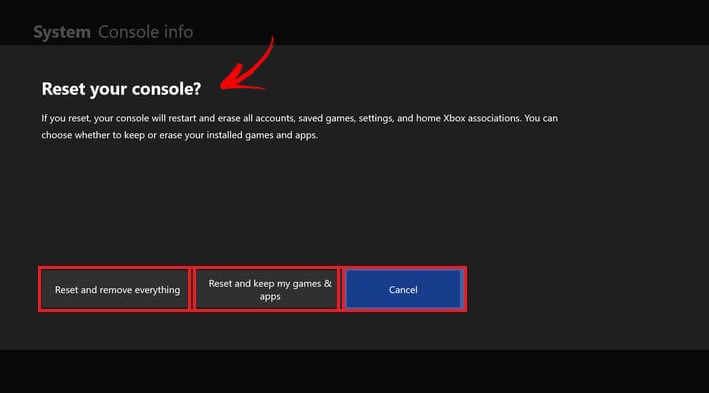
- Сделать сброс Xbox к заводским настройкам. Для этого в настройках в разделе «Система» выбираем пункт «Информация о консоли» и жмем «Сбросить консоль». Можно попробовать воспользоваться вариантом сброса, который не подразумевает удаление игр (второй вариант из списка).
Если ничего не сработало, велика вероятность, что дело в серверах Xbox. Придется немного подождать. Если облегчения и сейчас не наступит или у вас есть запасной жесткий диск, следует попробовать подключить его. Дело в том, что ошибка 0x8027025a нередко указывает на неисправность накопителя (внешнего или внутреннего, в зависимости от того, какой использует игра).
Мы же ждем от вас комментарии в отношении эффективности процедур и всего, что вам известно об ошибке 0x8027025a. Помогите нам и другим пользователям решить эту проблему.
Пользователи Xbox One жаловались на ошибку 0x8027025A, появляющуюся при попытке войти в систему или запустить приложение Xbox One с момента выхода Xbox One. Ошибка 0x8027025A всегда сопровождается сообщением об ошибке, которое гласит:
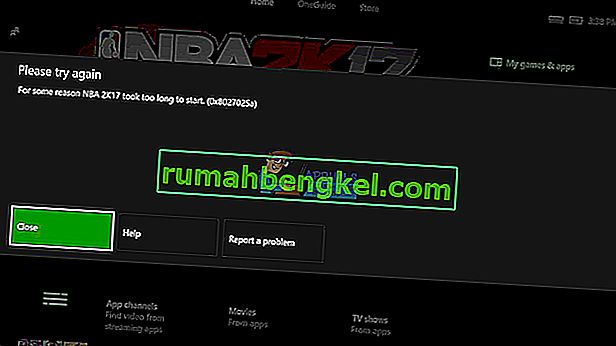
«По какой-то причине (название приложения, которое не удалось запустить) запускалось слишком долго».
Сообщение об ошибке советует затронутому пользователю просто попробовать войти в систему или снова запустить конкретное приложение Xbox One. Ошибка 0x8027025A может означать что угодно: от временной проблемы со службой Xbox Live, не позволяющей вашему Xbox выполнить вход или запуск приложения Xbox One, до проблемы со входом в ваш профиль или приложения Xbox One, которое вы пытались открыть, просто не запускается. в ожидаемое количество времени.
Ошибка, из-за которой вы не можете войти в систему при использовании Xbox One или запустить одно или несколько приложений Xbox One, не следует воспринимать легкомысленно. К счастью, вы можете избавиться от этой ошибки самостоятельно. Ниже приведены наиболее эффективные решения, которые вы можете использовать, чтобы попытаться исправить ошибку 0x8027025A на Xbox One:
Решение 1. Убедитесь, что основные службы Xbox Live не работают
Если основные службы Xbox Live не работают по какой-либо причине, вы не сможете войти в систему на Xbox One и можете столкнуться с ошибкой 0x8027025A при попытке сделать это. Чтобы узнать, не работают ли основные службы Xbox Live, вам необходимо:
- Щелкните здесь .
- Проверьте состояние основных служб Xbox Live .
Если состояние основных служб Xbox Live отображается как обычно, со службами все в порядке. Однако, если статус этих служб отличается от нормального, вы нашли виновника ошибки 0x8027025A. К сожалению, если проблема с основными службами Xbox Live вызывает у вас ошибку 0x8027025A, единственное, что вы можете сделать, — это дождаться восстановления основных служб Xbox Live до нормального состояния.
Решение 2. Попробуйте снова запустить уязвимое приложение
Если вы видите ошибку 0x8027025A при попытке запустить приложение Xbox One, есть вероятность, что это всего лишь разовая проблема, и в этом случае простой запуск затронутого приложения снова должен заставить его загрузиться. Однако, чтобы снова запустить приложение, вам сначала нужно полностью остановить экземпляр, который вы пытались загрузить ранее. Для этого вам необходимо:
- Нажмите кнопку Xbox на геймпаде, чтобы открыть гид, и выберите « Домой» .
- Выделите плитку затронутого приложения и, выделив ее, нажмите кнопку « Меню» .
- Выберите Выйти .
После того, как соответствующее приложение Xbox One будет полностью закрыто, подождите 10 секунд, а затем попробуйте запустить его снова, чтобы проверить, успешно ли оно загружается.
Решение 3. Выполните полный сброс консоли Xbox One и ее кеша
Многие пользователи смогли устранить ошибку 0x8027025A, выполнив полную перезагрузку своих консолей Xbox One и кеша. Для этого вам необходимо:
- Нажмите и удерживайте Xbox кнопку на Xbox One консоли в течение 10 секунд, после чего она будет закрыта.
- Отключите блок питания от консоли.
- Подождите ~ 3 минуты.
- Подключите блок питания обратно к консоли.
- Нажмите Xbox кнопку на вашем Xbox One консоли , чтобы включить его.
Когда Xbox One загружается, проверьте, не возникает ли ошибка 0x8027025A при входе в систему или попытке запустить какое-либо из ваших приложений.
Решение 4. Удалите уязвимое приложение и установите его на внешний жесткий диск.
Если вы видите ошибку 0x8027025A при попытке запустить игру или приложение, установленное на вашем Xbox One, а также используете внешний жесткий диск с вашим Xbox One вместо только его внутреннего жесткого диска, вы также можете полностью избавиться от ошибки 0x8027025A удаление затронутой игры или приложения с Xbox One, а затем переустановка на внешний жесткий диск вместо внутреннего жесткого диска консоли. Это решение оказалось эффективным для значительного числа пользователей Xbox One, у которых возникла ошибка 0x8027025A при попытке запустить игры / приложения на своих консолях и которые также используют внешние жесткие диски.
Если Руководство Xbox Series X|S или Xbox One не открывается на вашей консоли, и вы получаете Руководство запустилось слишком долго сообщение об ошибке с сопровождающим кодом ошибки 0x8027025a, то этот пост предназначен для того, чтобы помочь вам с наиболее подходящими решениями, которые вы можете попробовать решить проблему на вашем игровом устройстве.
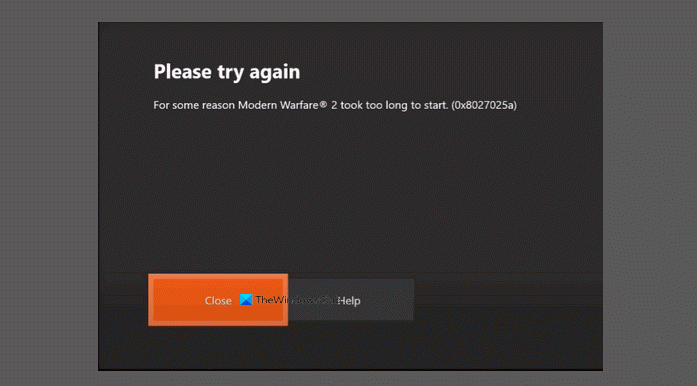
Полное сообщение об ошибке выглядит следующим образом:
Пожалуйста, попробуйте еще раз
По какой-то причине руководство запустилось слишком долго. (0x8027025a)
Некоторые консольные игроки сообщали об этой проблеме после обновления консоли и не могли получить доступ к чему-либо, кроме этого экрана, и не могли нажать кнопку”Закрыть”или переместить курсор на другие варианты. Некоторые другие игроки на консолях сообщали, что сталкиваются с проблемой при попытке перенести игры на жесткий диск или открыть некоторые игры на Xbox.
Что означает код Xbox 0x8027025a?
Ошибка Xbox код 0x8027025a или 8027025a может означать одно из следующего:
Возникла временная проблема со службой Xbox.Приложение не загрузилось в ожидаемое время.Возникла проблема со входом в ваш профиль.
Гид тоже взял long to start (0x8027025a) на Xbox
Важно иметь доступ к Руководству по Xbox Series X|S или Xbox One, поскольку без доступа к Руководству пользователи не смогут видеть или отслеживать свои достижения, вести совместную трансляцию с друзьями и семьей или управлять лентой активности и уведомлениями. Более того, консольные игроки не смогут выполнять основные задачи, такие как выход из текущей игры или приложения.
Если на вашей консоли Xbox возник код ошибки 0x8027025a для запуска Руководства, вы можете попробовать наш рекомендуемые решения в порядке, представленном ниже, для решения проблемы на вашем игровом устройстве.
Выключите и снова включите консоль XboxПолный сброс консоли XboxЗаводские настройки консоли Xbox
Давайте рассмотрим описание процесса, связанного с каждым из перечисленные решения.
1] Выключите и снова включите консоль Xbox
Ваша первая линия действий по устранению неполадок и исправлению Руководства заняла слишком много времени, чтобы запустить код ошибки 0x8027025a, возникший на вашей консоли Xbox. , заключается в отключении питания консоли Xbox.
Чтобы вручную включить питание консоли Xbox, выполните следующие действия:
Нажмите и удерживайте кнопку Xbox на передней панели консоли примерно 10 секунд, чтобы включить выключите консоль. Отключите Xbox от сети. Подождите не менее 30–60 секунд. подключите Xbox обратно к розетке. Теперь нажмите кнопку Xbox на консоли или кнопку Xbox на геймпаде, чтобы снова включить консоль.
В случае, если вы не видите зеленую анимацию загрузки, когда консоль перезагрузится, вы можете повторить эти шаги и убедиться, что вы удерживаете кнопку питания, пока консоль полностью не выключится.
2] Аппаратный сброс консоли Xbox
Это решение требует от вас для жесткого сброса консоли. Выполните следующие действия:
удерживайте нажатой кнопку питания системы в течение 10 секунд, пока консоль полностью не выключится. Когда консоль Xbox полностью выключится, нажмите и отпустите кнопку питания, чтобы снова включить консоль.
Один раз Xbox завершает перезагрузку, функция Guide должна быть доступна и работать должным образом.
3] Сброс настроек консоли Xbox до заводских настроек
Вы можете восстановить заводские настройки консоли Xbox и посмотреть, будет ли решена проблема. При выполнении операции сброса настроек обязательно выберите параметр Сбросить и сохранить мои игры и приложения. Когда пользователи снова войдут в свою учетную запись Xbox после сброса настроек, Руководство должно работать должным образом.
Надеюсь, это поможет!
Похожая запись: Xbox One код ошибки 0x8027025a, Игра слишком долго запускается
Как исправить игру, которая запускается слишком долго?
Чтобы исправить, что игры Xbox слишком долго запускаются на игровом устройстве , попробуйте выполнить следующие действия:
Удалите сохраненные данные и перезапустите приложение. Перезапустите консоль. Измените настройки региона. Переустановите проблемные игры. Удалите и снова добавьте профиль Xbox. Очистите постоянное хранилище. Переключитесь между энергосбережением и мгновенным включением. Отрегулируйте настройки сети.
Почему FIFA 21 запускается слишком долго?
Ошибка FIFA 2022 не загружается или не работает на ПК или слишком долго запускается из-за проблем с кешем на ваше игровое устройство. ПК с Windows или консоль Xbox хранят всевозможные временные файлы в вашем кеше, и эти файлы должны помочь вам быстрее запускать ваши приложения, но иногда некоторые файлы в вашем кеше могут быть повреждены и вызвать появление этой и многих других ошибок.
Что такое «черный экран смерти» Xbox One?
Ошибка «черный экран смерти Xbox One» обычно является результатом сбоя на панели управления консоли. Это может произойти, если системе не удается правильно загрузить панель мониторинга после запуска из режима покоя.
Что ж, как часто бывает, ошибка 0x8027025a на Xbox появляется по разным причинам. При чем у нее очень долгая история, первые найденные упоминания касаются еще 2013 года. До сих пор ошибка имеет место и периодически проскакивает. В обычных условиях она появляется у не очень большого количества пользователей, но бывают случаи, когда она отображается более массово.
Причины
Причины сравнительно классические:
- случайная или более серьезная неисправность системы;
- недоступные сервера;
- баги в работе жесткого диска или первые симптомы его выхода из строя.
Как и при любых ошибках, сперва следует перезапустить консоль с кнопки и оставить ее на пару минут без питания. После этого вам следует попробовать такие методы:
- Изменить тип питания. Для этого в «Настройках» в разделе «Питание» меняем параметр с «Мгновенное включение» на «Экономия энергии». Это должно сработать после перезапуска.
- Сменить регион. Если вы сейчас находитесь в России, можно выбрать Беларусь или другую страну СНГ, Европы. Для этого на странице изменения региона, а также в параметрах учетной записи проверьте, что регион совпадает с выбранным вами ранее.
- Сменить расположение игры. Стоит удалить игру с того места, где она у вас сейчас и установить на другой накопитель: внешний или внутренний жесткий диск. После переустановки должно сработать.
- Сделать сброс Xbox к заводским настройкам. Для этого в настройках в разделе «Система» выбираем пункт «Информация о консоли» и жмем «Сбросить консоль». Можно попробовать воспользоваться вариантом сброса, который не подразумевает удаление игр (второй вариант из списка).
Если ничего не сработало, велика вероятность, что дело в серверах Xbox. Придется немного подождать. Если облегчения и сейчас не наступит или у вас есть запасной жесткий диск, следует попробовать подключить его. Дело в том, что ошибка 0x8027025a нередко указывает на неисправность накопителя (внешнего или внутреннего, в зависимости от того, какой использует игра).
Мы же ждем от вас комментарии в отношении эффективности процедур и всего, что вам известно об ошибке 0x8027025a. Помогите нам и другим пользователям решить эту проблему.
Пользователи Xbox One жаловались на ошибку 0x8027025A, появляющуюся при попытке войти в систему или запустить приложение Xbox One с момента выхода Xbox One. Ошибка 0x8027025A всегда сопровождается сообщением об ошибке, которое гласит:
«По какой-то причине (название приложения, которое не удалось запустить) запускалось слишком долго».
Сообщение об ошибке советует затронутому пользователю просто попробовать войти в систему или снова запустить конкретное приложение Xbox One. Ошибка 0x8027025A может означать что угодно: от временной проблемы со службой Xbox Live, не позволяющей вашему Xbox выполнить вход или запуск приложения Xbox One, до проблемы со входом в ваш профиль или приложения Xbox One, которое вы пытались открыть, просто не запускается. в ожидаемое количество времени.
Ошибка, из-за которой вы не можете войти в систему при использовании Xbox One или запустить одно или несколько приложений Xbox One, не следует воспринимать легкомысленно. К счастью, вы можете избавиться от этой ошибки самостоятельно. Ниже приведены наиболее эффективные решения, которые вы можете использовать, чтобы попытаться исправить ошибку 0x8027025A на Xbox One:
Решение 1. Убедитесь, что основные службы Xbox Live не работают
Если основные службы Xbox Live не работают по какой-либо причине, вы не сможете войти в систему на Xbox One и можете столкнуться с ошибкой 0x8027025A при попытке сделать это. Чтобы узнать, не работают ли основные службы Xbox Live, вам необходимо:
- Щелкните здесь .
- Проверьте состояние основных служб Xbox Live .
Если состояние основных служб Xbox Live отображается как обычно, со службами все в порядке. Однако, если статус этих служб отличается от нормального, вы нашли виновника ошибки 0x8027025A. К сожалению, если проблема с основными службами Xbox Live вызывает у вас ошибку 0x8027025A, единственное, что вы можете сделать, — это дождаться восстановления основных служб Xbox Live до нормального состояния.
Решение 2. Попробуйте снова запустить уязвимое приложение
Если вы видите ошибку 0x8027025A при попытке запустить приложение Xbox One, есть вероятность, что это всего лишь разовая проблема, и в этом случае простой запуск затронутого приложения снова должен заставить его загрузиться. Однако, чтобы снова запустить приложение, вам сначала нужно полностью остановить экземпляр, который вы пытались загрузить ранее. Для этого вам необходимо:
- Нажмите кнопку Xbox на геймпаде, чтобы открыть гид, и выберите « Домой» .
- Выделите плитку затронутого приложения и, выделив ее, нажмите кнопку « Меню» .
- Выберите Выйти .
После того, как соответствующее приложение Xbox One будет полностью закрыто, подождите 10 секунд, а затем попробуйте запустить его снова, чтобы проверить, успешно ли оно загружается.
Решение 3. Выполните полный сброс консоли Xbox One и ее кеша
Многие пользователи смогли устранить ошибку 0x8027025A, выполнив полную перезагрузку своих консолей Xbox One и кеша. Для этого вам необходимо:
- Нажмите и удерживайте Xbox кнопку на Xbox One консоли в течение 10 секунд, после чего она будет закрыта.
- Отключите блок питания от консоли.
- Подождите ~ 3 минуты.
- Подключите блок питания обратно к консоли.
- Нажмите Xbox кнопку на вашем Xbox One консоли , чтобы включить его.
Когда Xbox One загружается, проверьте, не возникает ли ошибка 0x8027025A при входе в систему или попытке запустить какое-либо из ваших приложений.
Решение 4. Удалите уязвимое приложение и установите его на внешний жесткий диск.
Если вы видите ошибку 0x8027025A при попытке запустить игру или приложение, установленное на вашем Xbox One, а также используете внешний жесткий диск с вашим Xbox One вместо только его внутреннего жесткого диска, вы также можете полностью избавиться от ошибки 0x8027025A удаление затронутой игры или приложения с Xbox One, а затем переустановка на внешний жесткий диск вместо внутреннего жесткого диска консоли. Это решение оказалось эффективным для значительного числа пользователей Xbox One, у которых возникла ошибка 0x8027025A при попытке запустить игры / приложения на своих консолях и которые также используют внешние жесткие диски.
Download PC Repair Tool to quickly find & fix Windows errors automatically
Some Xbox gamers are reporting issues whereby they get the error code 0x8027025a when trying to sign in or start an Xbox app on the Xbox console. In this post, we will identify the potential culprits to the error, as well as provide the most adequate solutions to resolve the error.
The most likely culprits to this error include;
- There’s a temporary problem with the Xbox service
- The application did not load in the time expected
- There’s a sign-in issue with your profile
You can try our recommended solutions below in no particular order and see if that helps to resolve the Xbox console error code 0x8027025a.
- Restart Xbox console
- Check Xbox Status page
- Restart the problematic app
- Reinstall problematic app on external Hard Drive
- Hard Reset Xbox console
Let’s take a look at the description of the process involved concerning each of the listed solutions.
1] Restart Xbox console
The first thig you can do to fix the Xbox console error code 0x8027025a is to restart your Xbox console. Here’s how:
In the event the console appears to be frozen, do the following:
Press and hold the Xbox button on the console for 10 seconds, until the console turns off. After the console shuts down, touch the Xbox button on the console again to restart.
Try the next solution if this didn’t work for you.
2] Check Xbox Status page
This solution requires you to heck the Xbox status page. If you see any services with alerts, expand the service, scroll down to Notifications, and sign in to receive a message when the service is up and running again.
3] Restart the problematic app
Another viable solution to the issue at hand is to restart the problematic app. Here’s how:
- Press the Xbox button to open the guide.
- Select Home.
- With the focus on the app tile, select the Menu button.
- Select Quit.
- Wait at least 10 seconds, and then start the app again.
If the issue is unresolved, try the next solution.
4] Reinstall problematic app on external Hard Drive (if applicable)
Some users that were experiencing this issue, try to load a game or app installed on an external hard drive instead of an internal hard drive, In this case, to get rid of this error, you need to completely uninstall the affected game or app from your Xbox console on the external hard drive; then reinstall the app on an internal hard drive.
5] Hard Reset Xbox console
This solution requires you to hard reset the Xbox console and its cache.
Do the following:
- Press and hold the Xbox button on the console for at least 10 seconds to open the Power center.
- Then unplug the power supply from your console and wait for 3 minutes.
- Plug the power supply back into the Xbox console.
- Press the Xbox button on the console to turn it on again.
Hope any of these solutions work for you!
Why does my Xbox one keep saying Game took too long to start?
Most affected users experiencing the issue whereby Xbox One keeps saying Game took too long to start, is mainly due to cache problems. Xbox One stores all sorts of temporary files in your cache, and those files do help to start your apps/games faster – but sometimes certain files in your cache can get corrupted and cause this and many other errors to appear.
Will a factory reset fix my Xbox One?
In most cases than not, a factory reset of your Xbox console will fix some of the issues you encounter. If your Xbox One is still malfunctioning after a soft and hard reset, you can force a factory reset that will erase all of your saved data but should restore the console to a normal working condition.
What does clearing Xbox cache do?
Clearing the Xbox cache will essentially remove previously downloaded game updates. You must download these updates again the next time you play the game.
Related post: Xbox Update Error Code 0x8B0500D0, 0x90050005, 0x00000000.

Obinna Onwusobalu has studied Information & Communication Technology and is a keen follower of the Windows ecosystem. He has been a Windows Insider MVP (2020). He runs a computer software clinic.
Download PC Repair Tool to quickly find & fix Windows errors automatically
Some Xbox gamers are reporting issues whereby they get the error code 0x8027025a when trying to sign in or start an Xbox app on the Xbox console. In this post, we will identify the potential culprits to the error, as well as provide the most adequate solutions to resolve the error.
The most likely culprits to this error include;
- There’s a temporary problem with the Xbox service
- The application did not load in the time expected
- There’s a sign-in issue with your profile
You can try our recommended solutions below in no particular order and see if that helps to resolve the Xbox console error code 0x8027025a.
- Restart Xbox console
- Check Xbox Status page
- Restart the problematic app
- Reinstall problematic app on external Hard Drive
- Hard Reset Xbox console
Let’s take a look at the description of the process involved concerning each of the listed solutions.
1] Restart Xbox console
The first thig you can do to fix the Xbox console error code 0x8027025a is to restart your Xbox console. Here’s how:
In the event the console appears to be frozen, do the following:
Press and hold the Xbox button on the console for 10 seconds, until the console turns off. After the console shuts down, touch the Xbox button on the console again to restart.
Try the next solution if this didn’t work for you.
2] Check Xbox Status page
This solution requires you to heck the Xbox status page. If you see any services with alerts, expand the service, scroll down to Notifications, and sign in to receive a message when the service is up and running again.
3] Restart the problematic app
Another viable solution to the issue at hand is to restart the problematic app. Here’s how:
- Press the Xbox button to open the guide.
- Select Home.
- With the focus on the app tile, select the Menu button.
- Select Quit.
- Wait at least 10 seconds, and then start the app again.
If the issue is unresolved, try the next solution.
4] Reinstall problematic app on external Hard Drive (if applicable)
Some users that were experiencing this issue, try to load a game or app installed on an external hard drive instead of an internal hard drive, In this case, to get rid of this error, you need to completely uninstall the affected game or app from your Xbox console on the external hard drive; then reinstall the app on an internal hard drive.
5] Hard Reset Xbox console
This solution requires you to hard reset the Xbox console and its cache.
Do the following:
- Press and hold the Xbox button on the console for at least 10 seconds to open the Power center.
- Then unplug the power supply from your console and wait for 3 minutes.
- Plug the power supply back into the Xbox console.
- Press the Xbox button on the console to turn it on again.
Hope any of these solutions work for you!
Why does my Xbox one keep saying Game took too long to start?
Most affected users experiencing the issue whereby Xbox One keeps saying Game took too long to start, is mainly due to cache problems. Xbox One stores all sorts of temporary files in your cache, and those files do help to start your apps/games faster – but sometimes certain files in your cache can get corrupted and cause this and many other errors to appear.
Will a factory reset fix my Xbox One?
In most cases than not, a factory reset of your Xbox console will fix some of the issues you encounter. If your Xbox One is still malfunctioning after a soft and hard reset, you can force a factory reset that will erase all of your saved data but should restore the console to a normal working condition.
What does clearing Xbox cache do?
Clearing the Xbox cache will essentially remove previously downloaded game updates. You must download these updates again the next time you play the game.
Related post: Xbox Update Error Code 0x8B0500D0, 0x90050005, 0x00000000.
Obinna Onwusobalu has studied Information & Communication Technology and is a keen follower of the Windows ecosystem. He has been a Windows Insider MVP (2020). He runs a computer software clinic.
If the Xbox Series X|S or Xbox One Guide won’t open on your console, and you receive the Guide took too long to start error message with accompanying error code 0x8027025a, then this post is intended to help you with the most adequate solutions you can try to resolve the issue on your gaming device.
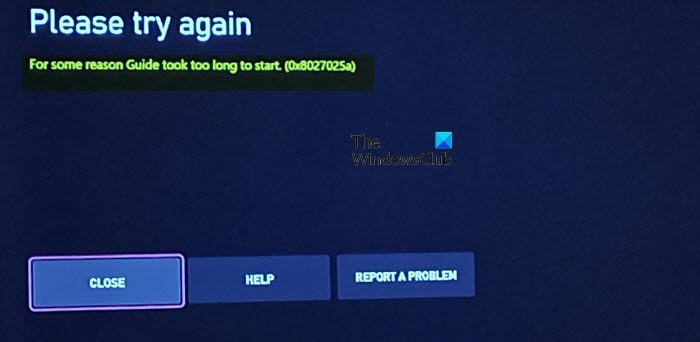
The full error message reads thus-
Please try again
For some reason Guide took too long to start. (0x8027025a)
Some console gamers reported this issue after the console updated and have not been able to access anything other than this screen and can’t click the Close button or move the cursor to the other options. Some other console gamers reported they encounter the issue when trying to transfer games to the hard drive or open some games on Xbox.
What does the Xbox code 0x8027025a mean?
The Xbox error code 0x8027025a or 8027025a may mean one of the following:
- There’s a temporary problem with the Xbox service.
- The application did not load in the time expected.
- There’s a sign-in issue with your profile.
Having access to the Xbox Series X|S or Xbox One Guide is important, because without access to the Guide, users might not be able to see or track their Achievements, co-stream with friends and family, or manage Activity Feed and Notifications. Even more so, console gamers will be unable to perform basic tasks like quit the current game or app.
If the Guide took too long to start error code 0x8027025a has occurred on your Xbox console, you can try our recommended solutions in the order presented below to resolve the issue on your gaming device.
- Power cycle your Xbox console
- Hard Reset your Xbox console
- Factory Reset your Xbox console
Let’s take a look at the description of the process involved concerning each of the listed solutions.
1] Power cycle your Xbox console
Your first line of action to troubleshoot and fix the Guide took too long to start error code 0x8027025a that occurred on your Xbox console, is to power cycle your Xbox console.
To manually power cycle your Xbox console, do the following:
- Press and hold the Xbox button on the front of the console for approximately 10 seconds to turn off your console.
- Unplug your Xbox from the mains.
- Wait at least 30-60 seconds.
- Once the time elapses, plug your Xbox back into the power outlet.
- Now, press the Xbox button on the console or the Xbox button on your controller to turn your console back on.
In the case you don’t see the green boot-up animation when the console restarts, you can repeat these steps and make sure that you hold the power button until the console completely shuts down.
2] Hard Reset your Xbox console
This solution requires you to hard reset the console. Do the following:
- Hold the system power button down for 10 seconds until the console fully powers down.
- Once the Xbox console has turned off completely, press and release the power button to turn the console back on.
Once the Xbox finishes rebooting, the Guide function should be accessible and work as intended.
3] Factory Reset your Xbox console
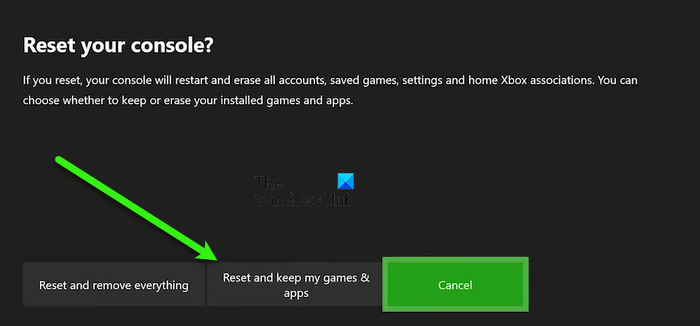
You can factory reset your Xbox console and see if the issue in hand will be resolved. When you perform the factory reset operation, make sure to select the Reset and keep my games & apps option. Once users log back into their Xbox account following the factory reset, the Guide should work as intended.
Hope this helps!
Related post: Xbox One error code 0x8027025a, Game took too long to start
How do you fix a game that’s taking too long to start?
To Fix Xbox Games taking too long to start on your gaming device, try the following suggestions:
- Delete saved data and restart the app.
- Restart console.
- Change the region settings.
- Reinstall problematic games.
- Remove and re-add Xbox Profile.
- Clear Persistent Storage.
- Switch between Energy Save and Instant On.
- Adjust Network settings.
Why is FIFA 21 taking too long to start?
The FIFA 2022 not loading or working on PC or is taking too long to start error can occur due to problems with the cache on your gaming device. Windows PC or Xbox console stores all sorts of temporary files in your cache, and those files should help you start your apps faster, but sometimes certain files in your cache can get corrupted and cause this and many other errors to appear.
What is Black Screen of Death Xbox One?
The Xbox One Black Screen of Death error is usually the result of a glitch in the console dashboard. This could happen if the system doesn’t manage to load the dashboard correctly after starting up from rest mode.
Xbox One users have been complaining about error 0x8027025A showing up when they try to sign in or start an Xbox One app ever since the Xbox One came out. Error 0x8027025A is always accompanied by an error message that reads:
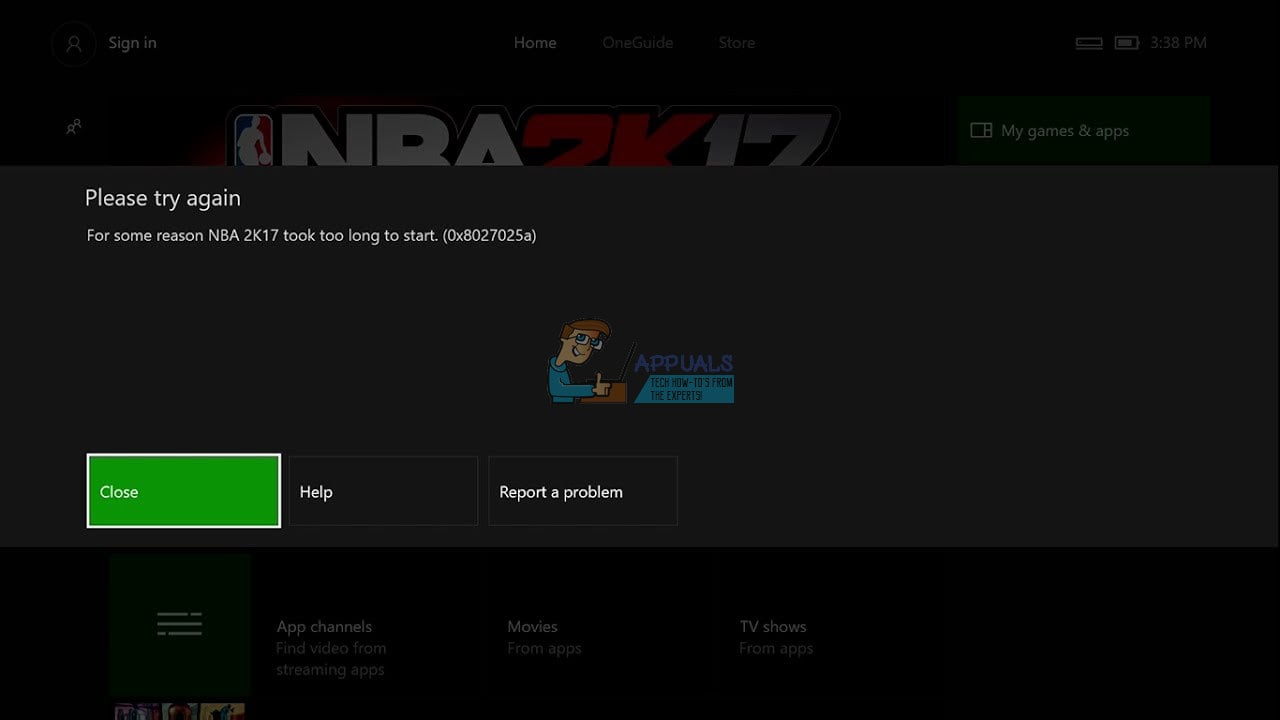
“For some reason (name of app that could not be started) took too long to start.”
The error message advises the affected user to simply try signing in or starting the specific Xbox One app again. Error 0x8027025A can mean anything from a temporary problem with the Xbox Live service preventing your Xbox from signing you in or starting an Xbox One app to there being a sign-in issue with your profile or the Xbox One app you tried to open simply not starting in the expected amount of time.
An error that prevents you from signing in while using your Xbox One or starting one or more Xbox One applications is nothing to be taken lightly. Thankfully, though, you can get rid of this error on your own. The following are the most effective solutions you can use to try and fix error 0x8027025A on an Xbox One:
Solution 1: Check to see if Xbox Live Core Services are down
If Xbox Live Core Services are down for any reason whatsoever, you will not be able to sign in on your Xbox One and may run into error 0x8027025A while trying to. To see if Xbox Live Core Services are down, you need to:
- Click here.
- Check the status of Xbox Live Core Services.
If the status of Xbox Live Core Services shows up as normal, everything with the services is A-ok. However, if the status of these services shows up as anything other than normal, you’ve found the culprit behind error 0x8027025A. Unfortunately, if an issue with Xbox Live Core Services is causing error 0x8027025A for you, the only thing you can do is wait for Xbox Live Core Services to be restored back to normal.
Solution 2: Try starting the affected app again
If you’re seeing error 0x8027025A while trying to start an Xbox One app, there’s a chance it’s just a onetime thing, in which case simply starting the affected app again should get it to load up. To start the app again, though, you first need to completely stop the instance you attempted to previously load up. To do so, you need to:
- Press the Xbox button on your controller to open the guide, and select Home.
- Highlight the tile for the affected app, and with it highlighted press the Menu button.
- Select Quit.
Once the Xbox One app in question has been completely closed down, wait for 10 seconds and then try starting it up again to see if it loads up successfully.
Solution 3: Hard reset your Xbox One console and its cache
Many users have been able to resolve error 0x8027025A by hard resetting both their Xbox One consoles and their cache. In order to do so, you need to:
- Press and hold the Xbox button on your Xbox One console for 10 seconds, at which point it will shut down.
- Unplug the power supply from your console.
- Wait for ~3 minutes.
- Plug the power supply back into your console.
- Press the Xbox button on your Xbox One console to turn it on.
When the Xbox One boots up, check to see if you still run in to error 0x8027025A when signing in or trying to start any of your apps.
Solution 4: Uninstall the affected app and install it on your external HDD
If you see error 0x8027025A when trying to start a game or app you installed on your Xbox One and are also using an external HDD with your Xbox One instead of just its internal HDD, you might also be able to get rid of error 0x8027025A by completely uninstalling the affected game or app from your Xbox One and then reinstalling it on your external HDD instead of the console’s internal HDD. This solution has proven effective for a significant number of Xbox One users experiencing error 0x8027025A while trying to start games/apps on their consoles and who also use external HDDs.

Kevin Arrows
Kevin is a dynamic and self-motivated information technology professional, with a Thorough knowledge of all facets pertaining to network infrastructure design, implementation and administration. Superior record of delivering simultaneous large-scale mission critical projects on time and under budget.
Experiencing Error 0x8027025a on Xbox One?
Valorant — How To Fix Error Code 43…
Please enable JavaScript
Are you experiencing the same error whenever you are trying to log in or try to open any app on your Xbox One?
If YES,
then it could be due to corrupted data or some region settings or Xbox live core services might be down.
You would be thinking How do I fix error 0x8027025A?
Then honestly you don’t need to worry much because you can solve this problem now by just trying a couple of listed solutions below.
Roblox Error 106 On Xbox?
Video Guide to Fix 0x8027025a Error on Xbox
Solution 1: Check Xbox Live Core Service Status
So first of all we need to check Xbox live core status because if it’s down then you won’t be able to log in and facing a 0x8027025a error.
All you need to do is:
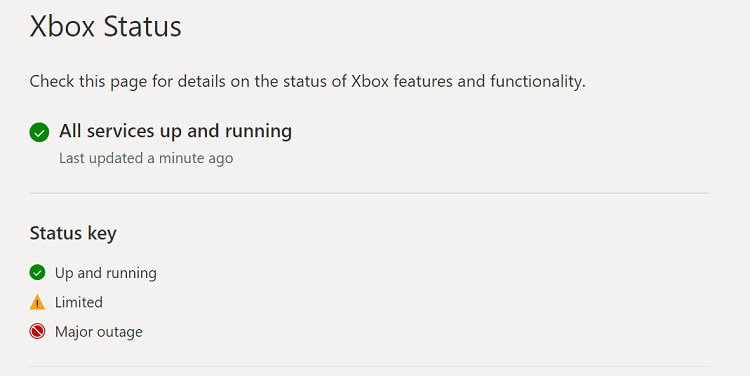
- Click here.
- If the service shows normal then everything would be OK.
- And if there are any alerts shown or something’s not right leading to 0x8027025a then you have to wait for everything to get normal.
Recommended Xbox Goodies for Xbox Lovers
Solution 2: Restart Your Application to Fix Error 0x8027025a
If the above solution didn’t work then try restarting the application to overcome 0x8027025a.
- Go to the home screen and select the faulty app.
- Press the Menu button and select Quit.
- Now go to your gaming profile and select the Sign out option.
- Restart your console and log in to your Xbox account.
- Launch your game and see if 0x8027025a is solved.
Xbox Not Turning On?
Solution 3: Restart Your Console to Fix Login Error on Xbox One
Restarting your console is also one way to get rid of 0x8027025a of error.
Here’s what you need to do:
- Go to the home screen and select Settings.
- On the left pane select Power and Startup and select the Turn off or restart option from the right side of the screen.
- Now select Restart and then Yes to confirm.
Roblox Error 103 On Xbox?
Solution 4: Modify Console’s Region Settings
Making changes to region settings may lead to solving 0x8027025a.
Here’s how:
- Log out from your Xbox account and go to the home screen.
- Select Settings and then go to All Settings.
- Go to System and select Language and Location.
- Now update the location from the list and restart your console.
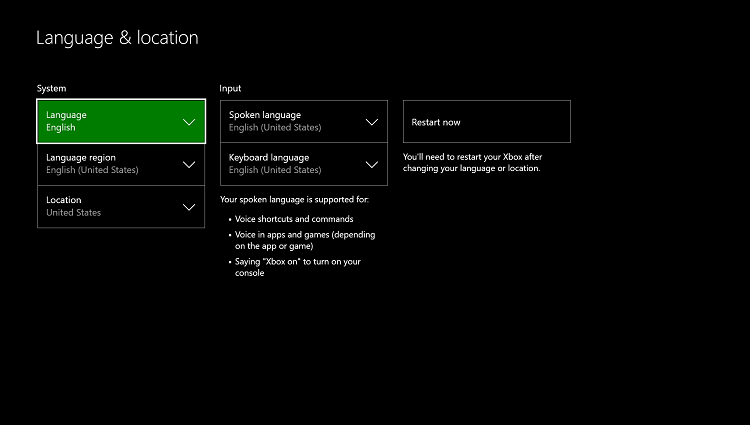
Solution 5: Hard Reset Your Console
You may lose some game data while trying this solution.
But this has worked for many users to help them solve 0x8027025a.
So let’s hard reset:
- Press and hold the Xbox button on the console for at least 10 seconds to open the Power center.
- Now unplug the power supply from your console and wait for a maximum of 3 minutes.
- Plug the power supply back into your console.
- Press the Xbox button on your console to turn it on.
- After your Xbox turns on check if 0x8027025a is solved.
0x80270300 Error On Xbox One
Solution 6: Resetting Console to Factory Default Settings to Fix Xbox Error 0x8027025a
Lastly, If none of the above solutions worked for you which means you got corrupted game files or Xbox system files
And the least you can do to overcome 0x8027025a is the factory reset.
Keep in mind this technique will lose all your game data and personal too so you need to backup everything important to you.
After backup just follows these steps:
- Select Settings and then go to All Settings.
- Select System.
- Navigate to Console info and updates.
- Select Reset console.
- Now you will be seeing two options
- One “Reset and remove everything“.
- Second “Reset and keep my games & apps”.
- Now choose the second option first and if it didn’t work for you then try the first option.
Xbox Power Supply Issues Guide
So, I hope these solutions were helpful to you. Do comment below and let us know if you have any questions.
На чтение 8 мин. Просмотров 14.2k. Опубликовано 03.08.2019
Если вы являетесь пользователем Xbox, вы наверняка поймете разочарование, когда Xbox One Мои игры и приложения не открываются .
Вы, вероятно, также пытались понять, в чем может быть проблема, или попытаться отследить свои шаги назад, к тому, с чего все началось, или что вы могли бы сделать, чтобы их устранить.
В большинстве случаев при попытке запустить игру и/или приложение на несколько секунд отображается заставка, после чего вы возвращаетесь на главный экран.
Хорошей новостью является то, что вам не нужно вычесывать голову, пытаясь понять, как это исправить, потому что у нас есть решения, которые могут помочь вам, когда ваши игры и приложения для Xbox One My не откроются.
Если это описывает то, через что вы проходите, попробуйте эти решения, чтобы решить проблему, в зависимости от того, не открываются ли игры или приложения.
Содержание
- Как исправить проблемы с запуском игры/приложения на Xbox One
- Решение 1. Перезапустите приложение.
- Решение 2. Перезагрузите консоль
- Решение 3. Удалите и переустановите приложение
- Решение 4. Проверьте состояние службы Xbox Live/Перезапустите приложение/Перезапустите консоль Xbox One
- Решение 5. Если игры не открываются, выйдите из главного экрана
- Решение 6. Перезагрузите консоль
- Решение 7. Проверьте сетевое соединение
- Решение 8. Удалите свой профиль и добавьте его снова
- Решение 9. Очистите локальное сохранение и выполните повторную синхронизацию с облаком
- Решение 10. Убедитесь, что игра была куплена под вашей учетной записью.
- Решение 11. Проверьте лицензию на игру
- Решение 12. Переставьте консоль Xbox One, чтобы исправить Xbox One Мои игры и приложения не открываются
- Решение 13. Очистите игровой диск и проверьте на наличие повреждений
- Решение 14. Попробуйте другой игровой диск
Как исправить проблемы с запуском игры/приложения на Xbox One
- Перезапустите приложение
- Перезагрузите консоль
- Удалить и переустановить приложение
- Проверьте состояние службы Xbox Live/Перезапустите приложение/Перезапустите консоль Xbox One
- Если игры не открываются, выйдите из главного экрана
- Перезагрузите консоль
- Проверить сетевое соединение
- Удалите свой профиль и добавьте его снова
- Очистить локальное сохранение и выполнить повторную синхронизацию с облаком
- Убедитесь, что игра была куплена под вашей учетной записью
- Проверьте лицензию на игру
- Переставьте консоль Xbox One, чтобы исправить Xbox One Мои игры и приложения не открываются
- Очистите игровой диск и проверьте на наличие повреждений
- Попробуйте другой игровой диск
Решение 1. Перезапустите приложение.
- Выйти из приложения
- Проверьте, доступно ли приложение на вашем главном экране в виде последних использованных плиток, затем выделите его с помощью контроллера, не выбирая его.
- Нажмите Меню на вашем контроллере.
- Если вы выбрали вариант Выйти , выберите его. Когда эта опция отсутствует, это означает, что приложение не запущено
- После закрытия приложения перейдите к недавно использованным плиткам и выберите их в Мои игры и приложения .
- Перезапустить приложение
Если ваше приложение/приложения не запускаются, попробуйте следующее решение.
Решение 2. Перезагрузите консоль
- Нажмите кнопку Xbox , чтобы запустить руководство
- Выберите Настройки .
- Выберите Перезагрузить консоль .
- Выберите Да , чтобы подтвердить
- Запустите приложение
Если вы не можете получить доступ к руководству Xbox One или консоль зависла, нажмите и удерживайте кнопку Xbox в течение 10 секунд, пока она не выключится, затем снова нажмите кнопку Xbox, чтобы перезапустить консоль и запустить приложение.
Решение 3. Удалите и переустановите приложение
Если Xbox One Мои игры и приложения не открываются, вы можете попробовать удалить и переустановить приложение, выполнив следующие действия:
- Включите Xbox One с помощью кнопки Xbox .
- Перейдите на экран Главная .
- Переместитесь вправо и выберите Мои игры и приложения .
- Выделите то, что вы хотите удалить
- Нажмите Меню .
- Выбрать
- Переустановите приложение и откройте его
ТАКЖЕ ПРОЧИТАЙТЕ : как исправить ошибку Xbox One «Мы не могли вас зарегистрировать» навсегда
Решение 4. Проверьте состояние службы Xbox Live/Перезапустите приложение/Перезапустите консоль Xbox One
Если вы видите ошибку 8027025A, это может означать, что есть проблема со службой Xbox Live, приложение не загружается вовремя или возникла проблема с входом в ваш профиль.
В этом случае проверьте состояние службы Xbox Live, перезапустите приложение и/или перезапустите консоль.
- Перейдите к основным службам Xbox Live и проверьте, отображается ли запущен и работает зеленым цветом.
- Перезапустите приложение, нажав кнопку Xbox, чтобы открыть руководство, выберите «Домой», выберите «Меню», выделив приложение (не выбирайте его), затем выберите «Выйти». Подождите 10 секунд или около того, прежде чем перезапустить приложение снова.
- Если ваша консоль зависла (зависает), выполните полный сброс, затем перезапустите консоль, нажав кнопку Xbox, чтобы открыть руководство, выберите «Настройки»> «Перезагрузить консоль»> «Да» для подтверждения. Этот процесс сбрасывает кеш на вашей консоли.
Решение 5. Если игры не открываются, выйдите из главного экрана
- Нажмите кнопку Xbox , чтобы открыть руководство
- Нажмите Меню .
- Выйти из игры
- Перезапустите игру
Игра открывается после выхода из главного экрана? Если нет, попробуйте следующее решение.
Решение 6. Перезагрузите консоль

Полный цикл питания может решить проблему, когда игры и приложения Xbox One My не открываются.Вот что нужно сделать:
- Удерживайте нажатой кнопку Xbox около 10 секунд.
- Консоль выключится, затем включите ее снова, нажав кнопку Xbox. На экране должна появиться зеленая анимация загрузки. Если это не так, попробуйте те же шаги еще раз.
- Попробуйте снова сыграть в игру
Это помогает? Если нет, вы можете попробовать следующее решение.
Решение 7. Проверьте сетевое соединение
Иногда сетевые подключения влияют на вашу способность играть в игры на консоли Xbox One. Чтобы проверить подключение к Xbox Live, выполните следующие действия:
- Нажмите кнопку Xbox , чтобы открыть руководство.
- Выберите Система .
- Выберите Настройки .
- Выберите Сеть .
- Выберите Настройки сети .
- Перейдите на правую панель в разделе «Настройки сети» и выберите Проверить сетевое подключение .
В случае успеха консоль Xbox One подключится к Xbox Live. Если вас попросят обновить программное обеспечение консоли, выберите Да для подтверждения.
- ТАКЖЕ ЧИТАЙТЕ: ошибка Xbox One 0x803F8001: почему это происходит и как это исправить
Решение 8. Удалите свой профиль и добавьте его снова
Если ваши Xbox One Мои игры и приложения не открываются, возможно, проблема в вашем профиле или профиле на консоли, данные которого могут быть повреждены.
Чтобы это исправить, вы можете удалить профиль, а затем снова добавить его, выполнив следующие действия:
- Нажмите кнопку Xbox , чтобы открыть руководство.
- Выберите Система .
- Выберите Настройки .
- Выберите Аккаунт .
- Выберите Удалить аккаунты .
- Выберите аккаунт, который хотите удалить, затем нажмите Удалить .
После удаления учетной записи снова загрузите профиль, чтобы создать новую свежую версию, выполнив следующие действия:
- Нажмите кнопку Xbox , чтобы открыть руководство.
- Выберите свой геймплей в левом верхнем углу экрана.
- Перейдите вниз и выберите Добавить новый .
- Введите адрес электронной почты и пароль для вашей учетной записи Microsoft (тот, который вы удалили)
Примечание. НЕ выбирайте Получить новую учетную запись , если вы не хотите полностью новую учетную запись.
После того, как вы выполните описанные выше шаги, консоль проведет вас через процесс настройки учетной записи. Следуйте инструкциям, пока не вернетесь на главный экран, затем попробуйте снова сыграть в игру.
Если это не поможет, попробуйте следующее решение.
Решение 9. Очистите локальное сохранение и выполните повторную синхронизацию с облаком
Если игры и приложения Xbox One My не открываются, а локальное сохранение для ваших игр повреждено, удалите его, а затем повторно синхронизируйте с облаком, чтобы устранить проблему, выполнив следующие действия:
- Нажмите кнопку Xbox .
- Выберите Мои игры и приложения .
- Выделите (не выберите) название игры
- Нажмите Меню .
- Выберите Управление игрой .
- Перейдите в правую часть экрана и выделите сохраненные данные для вашего тега игрока в разделе Сохраненные данные .
- Нажмите A на вашем контроллере.
- Выберите Удалить в консоли, чтобы удалить локальное сохранение для игры.
- После удаления локального сохранения перезапустите консоль
- Нажмите кнопку Xbox .
- Выберите Система .
- Выберите Настройки .
- Выберите Система .
- Выберите Информация о консоли .
- Выберите Перезагрузить консоль .
- Выберите Перезагрузить , чтобы подтвердить действие.
После перезапуска консоли повторно синхронизируйте игры, сохраненные в облаке, который автоматически сохраняет их при подключении к Xbox Live.
Попробуйте снова сыграть в игру.
- ТАКЖЕ ПРОЧИТАЙТЕ : исправьте закрытие Xbox One X и устранение неполадок
Решение 10. Убедитесь, что игра была куплена под вашей учетной записью.
Если вы играете в цифровую игру, аккаунт, купивший игру, должен быть тем же, который вы используете для входа в Xbox Live. Вы можете проверить это, проверив историю покупок Xbox Live.
Решение 11. Проверьте лицензию на игру
Если у вас нет лицензии на цифровую игру, она не откроется. Аналогичным образом, если аккаунт, использованный для покупки игры, отсутствует на вашей консоли, игра не будет открыта.
Решение 12. Переставьте консоль Xbox One, чтобы исправить Xbox One Мои игры и приложения не открываются

Ваша консоль расположена на плоской горизонтальной поверхности? Если нет, то стоит отметить, что изменение положения означает, что игры и приложения для Xbox One не будут открываться.Расположите его на ровной, устойчивой поверхности без помех, затем попробуйте снова сыграть в свою игру.
Решение 13. Очистите игровой диск и проверьте на наличие повреждений
Если вы не используете цифровые игры, а вместо этого используете диск, игры могут не открыться из-за грязного диска или диска, на котором слишком много отпечатков пальцев. Попробуйте почистить диск мягкой тканью и посмотрите, решит ли он проблему. Проверьте игровой диск на наличие повреждений на задней стороне, царапин или других повреждений, поскольку это мешает игре играть.
Решение 14. Попробуйте другой игровой диск

Если у вас чистый диск, проблема может быть в дисководе вашей консоли. Вы можете попробовать воспроизвести другой диск и проверить, повторяется ли проблема. Если он играет, то причина не в приводе.
Устранило ли какое-либо из этих решений проблему с играми и приложениями для Xbox One My? Поделитесь с нами своим опытом в разделе комментариев ниже.
Примечание редактора . Этот пост был первоначально опубликован в ноябре 2017 года и с тех пор был полностью переработан и обновлен для обеспечения свежести, точности и полноты.
Table Of Contents
- 3 Fixes
- Quick Video Fix
- Second Fix
- Third Fix
- What Is Error Code 0x8027025a?
- When Does It Occur?
- What Causes The Error?
- Related Posts:
In this post, we provide several fixes for the annoying 0x8027025a error code. A lot of times you’ll have to wait out the error because it’s actually a fault on the Xbox server side- basically, a glitch that gamers can’t address themselves.
That said there are some steps you can take, especially if it’s not the case that Microsoft is down.
You can see on social media lots of people have experienced this frustrating problem:
And now, «For some reason Dead Rising 3 has taken too long to start. 0x8027025a.» What does that OH, HEY, MY INTERNET’S DOWN. #xbone
— Rus McLaughlin @ #GDC (@rusmclaughlin) December 31, 2013
@XboxSupport I’m having trouble launching gears of War UE. «For some reason it took too long to start» (0x8027025a)
— Eric Pihlblad (@Ericstifer) February 28, 2016
I fixed my nephews Xbox one’s 0x8027025a problem. pic.twitter.com/b0fXVrIHFr
— GTecHKeN🐉🇩🇴 (@GTecHKen) July 2, 2018
This article explains everything you need to know about this Xbox error. Whether you have actually encountered this problem and would like to know how to solve it or if you want to be ready in case you ever experienced it, you have come to the right place.
We will begin by talking about this in more detail. That way you will be better informed about all the ins and outs of this error from what causes it to what it might mean.
Quick Video Fix
This YouTube tutorial walks you through different steps to potentially get your game loading again. This gamer’s situation ended up originating from a bad hard drive- but he’ll walk you through several possible solutions you can try:
If that doesn’t work for you- try the fix below.
Second Fix
The first thing that you would really try to do follow these very simple steps:
- Grab your device.
- Hit the Xbox button. This action will take you to the Xbox home.
- Then you should choose the menu button on the application tile. This action will cause for other options to display on your screen.
- From all the different options choose quit.
- Next, you’ll have to wait 10 seconds or more
- Finally, start the application again.
These steps should fix the problem. If you followed each of the steps in this exact order you should be able to sign in for launch the app now. There is a chance, however, that you would still get the error message. If that is the case then you should go on to the next solution.
Third Fix
If the first solution does not work for you, you should not worry.
The first solution as you probably realize you tried it out is just about restarting the application. If this does not work (it does very often work but sometimes it does not), then you should attempt to restart your Xbox console.
If you are not sure how to do this, you should simply follow the next few steps:
- Grab your Xbox console.
- Hit the Xbox button. This action will take it to the Xbox home.
- Once on the Xbox home screen, you should scroll to the left. This action should open the Xbox guide.
- Once you get to the Xbox guide you should choose settings.
- Then from all the settings options, you should select to restart the console.
- You will then be asked to confirm whether restart your Xbox. You should, of course, yes.
- Waited until your console has fully restored it and check whether you are able to sign in without getting the error message.
There is still a chance that you could experience problems. Sometimes, the Xbox one console freezes when you’re trying to access the guide or even before.
If your Xbox console appears to be completely frozen you will have to carry out what is often known as a hard reset. Scary as this may sound it is the only sure way to unfreeze, as it were, your Xbox One console.
If you do not know how to perform this, it is actually very simple. All you need to do will be to press the Xbox button and hold it down for about 10 seconds (it is not a problem if you hold it down for a slightly longer than 10 seconds but this will not work if you hold it down for less so it’s always better to hold it down for a slightly longer period).
Holding down the Xbox button will turn off the Xbox One console.
So, basically, you should just hold down the Xbox button until your Xbox turns off or shuts down. Wait until your Xbox console is fully shut down and then press the Xbox button again to restart your console.
What Is Error Code 0x8027025a?
We consider that the first thing we need to know any given error and this applies not only to any computer, app, or device error we may encounter would be what it actually means.
All too often, users are just interested in the fixes, i.e., solutions that they may follow very often in the form of steps make the error go away.
There is, of course, nothing wrong with wanting to fix any errors and we encounter as quickly as possible.
Right now you are feeling like you just want to do this, that is fine. All you will need to do is stop reading the section to skip over to the next one in which we will give you different solutions in the shape of simple steps you can follow that will guarantee that this error gets fixed.
If, however, like to know a little bit more about this error then you should continue reading this section. This is certainly what we would recommend.
Why?
Because understanding what an error means will always give you more confidence when dealing with it and even decide what solution you should try out first.
So, even if you are in a rush to fix the problem spending some time learning about what may cause it might actually help you to deal with it more quickly and more effectively.
Also, knowing what this error means and what could be behind it I can also help you avoid getting again in the future. And, if you are lucky enough to have never experienced this problem, knowing about it may help you to prevent it from ever happening to you.
Now that we hope to have convinced you how important it is to know about the errors in general, let’s talk about error 8027025a and what it means.
When Does It Occur?
Basically, this is an error that only happens when you try to sign in or launch the Xbox one app.
So, why are you getting this error when you’re trying to start or a sign into the Xbox one app?
Well, this error might mean that is just some kind of temporary problem with the service that provides Xbox live. If that is the case, there is not a whole lot you can do other than wait and try to sign in or launch the app later.
You may want to contact the Xbox one for but normally wait for a few minutes and try again you should be able to sign in without getting this error.
This error could also mean that there is some kind of issue to do with your profile says sign in details. We will go more into this in the next section of this article.
Finally, another possible cause of this Xbox error could be that, for some reason or another, your Xbox one app is just taking too long to load. You should know that the Xbox One app, like most other apps of its kind, are supposed to load in a short period of time and if it does not then you may get a time run out error.
In summary, we could say that this error is always related to our signing in issue although the issue itself could have a different nature.

What Causes The Error?
Now that we have gone the possible causes for this error we are in a good position to go through all the different possible solutions to fix it.
As we said in the previous section, very common cause for this error is when there is a temporary problem with the Xbox Live service. There is no actual solution for this problem because it is not really a problem. From time to time Xbox will run service updates. So when this is the problem all you have to do is wait and try to sign in later.
There is a way to know if Xbox live is being updated and therefore when you would not be able to sign in or launch the app. We would recommend that you check the Xbox live service status and pay particular attention to any service status messages.
If you see any alerts you should take heed and do not attempt to sign in until you see the following status message: Xbox live core services up and running. This message will have a date and a time stamp so you will be able to know exactly when the service has resumed working.
So, as you can see this error message sometimes is just a temporary thing and just annoying as it may be to get it all you need is just a little bit of patience and you should be able to start using the service again.
Other times, however, there is an actual problem hiding behind it.
There are two different solutions that will help you fix it. The good news is that both The good news is that the solutions are extremely simple and actually quite similar, so we would suggest you try out the first one check with their existing error for you and, if it does not, then you should go ahead and try the second solution.

There are very few problems reported by Xbox users who then try to fix them.
Unfortunately, from time to time, things can go wrong and one of the most common errors you can get if you use an Xbox is the following: 0X8027025a.
As you can see, fixing an Xbox error code 0X8027025a is very simple indeed. If you would like to share tips on how to fix this error or if you have any feedback about this tutorial, please leave us a message in the comments section below.

Ryan is a computer enthusiast who has a knack for fixing difficult and technical software problems. Whether you’re having issues with Windows, Safari, Chrome or even an HP printer, Ryan helps out by figuring out easy solutions to common error codes.
Xbox One users have been complaining about error 0x8027025A showing up when they try to sign in or start an Xbox One app ever since the Xbox One came out. Error 0x8027025A is always accompanied by an error message that reads:
“For some reason (name of app that could not be started) took too long to start.”
The error message advises the affected user to simply try signing in or starting the specific Xbox One app again. Error 0x8027025A can mean anything from a temporary problem with the Xbox Live service preventing your Xbox from signing you in or starting an Xbox One app to there being a sign-in issue with your profile or the Xbox One app you tried to open simply not starting in the expected amount of time.
An error that prevents you from signing in while using your Xbox One or starting one or more Xbox One applications is nothing to be taken lightly. Thankfully, though, you can get rid of this error on your own. The following are the most effective solutions you can use to try and fix error 0x8027025A on an Xbox One:
Solution 1: Check to see if Xbox Live Core Services are down
If Xbox Live Core Services are down for any reason whatsoever, you will not be able to sign in on your Xbox One and may run into error 0x8027025A while trying to. To see if Xbox Live Core Services are down, you need to:
- Click here.
- Check the status of Xbox Live Core Services.
If the status of Xbox Live Core Services shows up as normal, everything with the services is A-ok. However, if the status of these services shows up as anything other than normal, you’ve found the culprit behind error 0x8027025A. Unfortunately, if an issue with Xbox Live Core Services is causing error 0x8027025A for you, the only thing you can do is wait for Xbox Live Core Services to be restored back to normal.
Solution 2: Try starting the affected app again
If you’re seeing error 0x8027025A while trying to start an Xbox One app, there’s a chance it’s just a onetime thing, in which case simply starting the affected app again should get it to load up. To start the app again, though, you first need to completely stop the instance you attempted to previously load up. To do so, you need to:
- Press the Xbox button on your controller to open the guide, and select Home.
- Highlight the tile for the affected app, and with it highlighted press the Menu button.
- Select Quit.
Once the Xbox One app in question has been completely closed down, wait for 10 seconds and then try starting it up again to see if it loads up successfully.
Solution 3: Hard reset your Xbox One console and its cache
Many users have been able to resolve error 0x8027025A by hard resetting both their Xbox One consoles and their cache. In order to do so, you need to:
- Press and hold the Xbox button on your Xbox One console for 10 seconds, at which point it will shut down.
- Unplug the power supply from your console.
- Wait for ~3 minutes.
- Plug the power supply back into your console.
- Press the Xbox button on your Xbox One console to turn it on.
When the Xbox One boots up, check to see if you still run in to error 0x8027025A when signing in or trying to start any of your apps.
Solution 4: Uninstall the affected app and install it on your external HDD
If you see error 0x8027025A when trying to start a game or app you installed on your Xbox One and are also using an external HDD with your Xbox One instead of just its internal HDD, you might also be able to get rid of error 0x8027025A by completely uninstalling the affected game or app from your Xbox One and then reinstalling it on your external HDD instead of the console’s internal HDD. This solution has proven effective for a significant number of Xbox One users experiencing error 0x8027025A while trying to start games/apps on their consoles and who also use external HDDs.
Kevin Arrows
Kevin is a dynamic and self-motivated information technology professional, with a Thorough knowledge of all facets pertaining to network infrastructure design, implementation and administration. Superior record of delivering simultaneous large-scale mission critical projects on time and under budget.