По правде говоря, ошибку 0xC0000035 может увидеть у себя в средстве просмотра событий любой пользователь. Она означает, что системе не удалось запустить определенную службу. Бывает довольно много ее разновидностей, в том числе связанных с Circular Kernel Context Logger, Kernel EventTracing, STATUS_OBJECT_NAME_COLLISION и другими. Однако самая распространенная ошибка выглядит так:
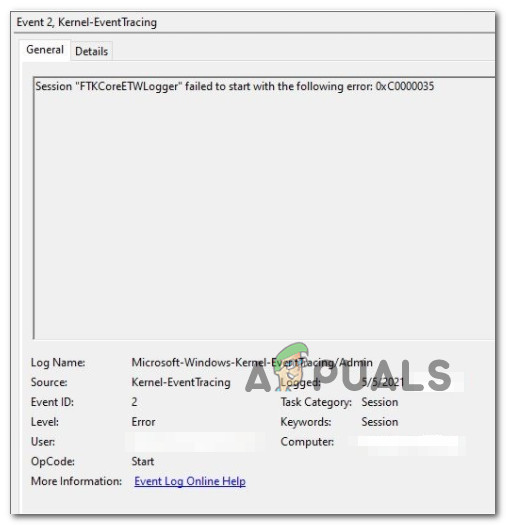
Не удалось начать сеанс “Microsoft.Windows.Remediation” из-за следующей ошибки: 0xC0000035!
Нужно ли что-то делать при ошибке 0xC0000035?
На самом деле вам ничего не нужно делать в большинстве случаев. Как говорят в одной из веток технической поддержки Microsoft, это одна из банальных ошибок, которая обычно не нуждается в дополнительном исправлении. Если ошибка не приводит к каким-нибудь реальным проблемам, можно ее просто игнорировать либо просто отключить отображение данного кода. Она появляется по той причине, что система просто не успела запустить какую-то службу или ее вызов был произведен слишком рано (до того, как успела запуститься). Обычная реакция Windows на подобный код – повторная попытка, которая в следующий раз заканчивается успешно.
Если вас не устраивает игнорирование данного кода ошибки, можете отключить его появление с помощью редактора реестра. Вот, как это можно сделать:
- Клавишами Win + R запускаем строку «Выполнить».
- Вводим в пустую строку команду rededit и нажимаем Enter.
- Последовательно открываем Компьютер HKEY_LOCAL_MACHINE SYSTEM CurrentControlSet Control WMI Autologger EventLog-System {b675ec37-bdb6-4648-bc92-f3fdc74d3ca2}.
- В правой рабочей области дважды кликаем по EnableProperly и устанавливаем значение для параметра – Hexadecimal, вместо стандартного Base. Если есть параметр Enable, ему тоже устанавливаем такое же значение.
- Для параметра Value устанавливаем 0.
Если вы не можете мириться с данной ошибкой, то можете попробовать несколько способов. Несколько людей написали, что у них это сработало.
Что можно предпринять?
Вот все, что кто-то советовал и эффективность чего была подтверждена другими пользователями:
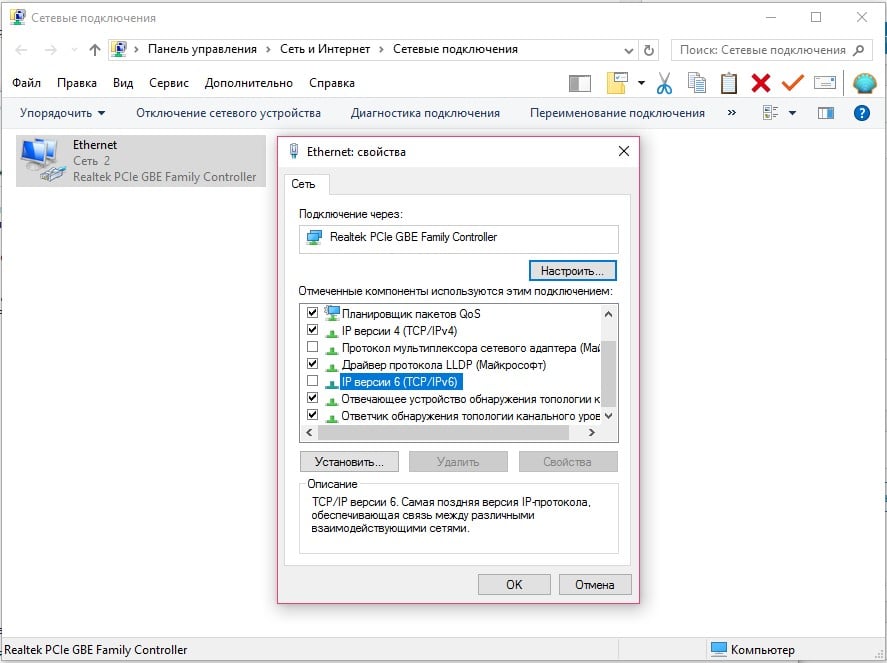
- Отключить протокол IPv6. Похоже, он в старых версиях Windows работает не очень стабильно. Для этого нужно перейти в «Центр управления сетями и общим доступом», выбрать «Изменение параметров адаптеров» и перейти в свойства того подключения, которое активно используется. Просто снимаем галочку с «IP версии 6», сохраняем изменения и выходим.
- Восстановить ассоциации. Некачественные установщики могут нарушить ассоциации системных файлов, из-за чего Windows не удается запустить службы. Самый простой способ – скачать с интернета reg-файл для восстановления ассоциации под конкретную версию Windows и запустить его.
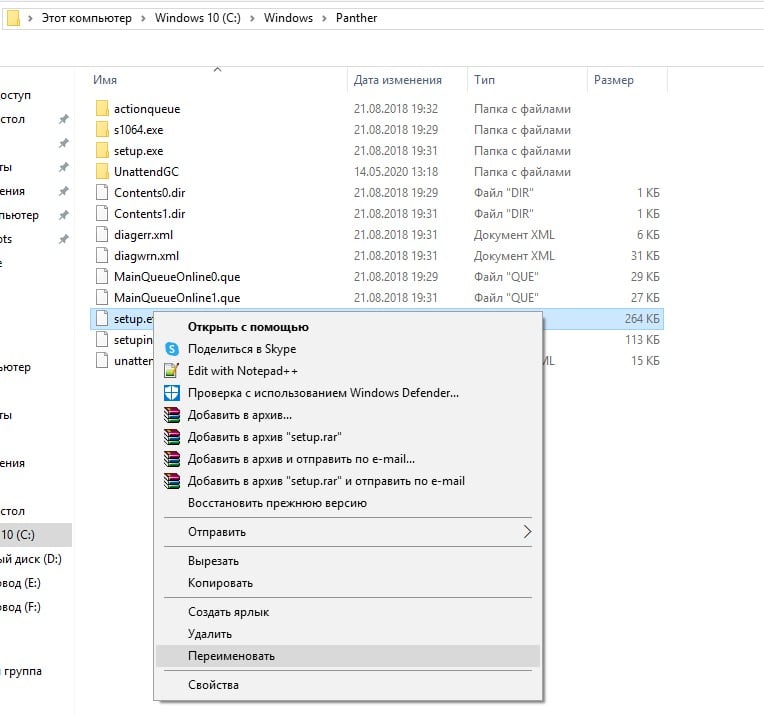
- Обновить циклический регистратор контекста ядра. Служба создает снимки системы размером 100 Мб и в них могут быть проблемы. Нужно вставить в строку Выполнить %windir%panther и найти setup.etl, а затем переименовать данный файл в setup.old. Система автоматически сгенерирует новый файл и, возможно, ошибка исчезнет.
В качестве итога можно отметить, что сама по себе ошибка с кодом 0xC0000035 не является чем-то экстравагантным, что требует исправления. Она появляется практически во всех операционных системах, когда Windows не удается запустить службу. В конечном итоге ОС повторяет запрос и выполняет поставленную задачу. Если каких-то дополнительных проблем ошибка не создает, ее лучше игнорировать. В остальных случаях можно попробовать те несколько решений, которые описаны выше.
Если у вы знаете что-нибудь еще, пожалуйста, напишите нам об этом в комментариях. Возможно, это поможет другим читателям в поиске ответа или нам в целях создания максимально полезного материала.
Обновлено 2023 января: перестаньте получать сообщения об ошибках и замедлите работу вашей системы с помощью нашего инструмента оптимизации. Получить сейчас в эту ссылку
- Скачайте и установите инструмент для ремонта здесь.
- Пусть он просканирует ваш компьютер.
- Затем инструмент почини свой компьютер.
Многие пользователи Windows сталкиваются с сеансом ошибки «Циклическое ведение журнала контекста ядра», которое не началось со следующей ошибки: 0xc0000035. Повреждение операционной системы Windows является основной причиной проблем с Кольцевое ядро Контекстный регистратор 0xc0000035.
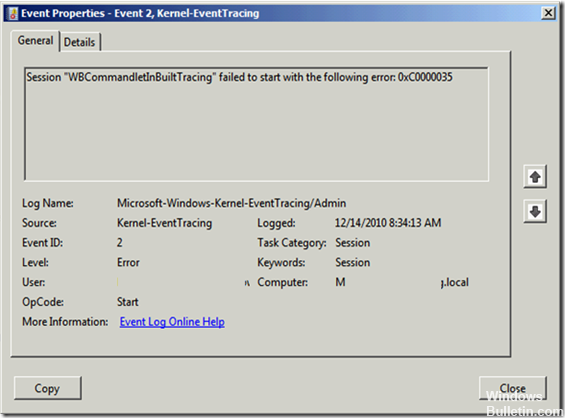
Microsoft-Windows-Kernel-EventTracing «похоже, работает с Circular Kernel Context Logger» при каждом запуске системы. Эти компоненты являются частью диагностики производительности.
Код ошибки «0xc0000035» возвращается как «STATUS_OBJECT_NAME_COLLISION». Этот код ошибки был связан с идентификатором безопасности двойного домена (SID), который был обнаружен, даже если регистратор событий был заполнен и сеанс кругового регистратора основного контекста не мог быть запущен.
Ошибки ПК — серьезная проблема. Если не принимать во внимание эти ошибки, они будут только расти и усложняться. Вы можете предотвратить это, выявив симптомы ошибок и приняв необходимые меры. Наиболее распространенными симптомами являются вирусы, неполные системные файлы, проблемы с системным реестром и нехватка оперативной памяти.
У вас медленный компьютер, если у него есть вирус или если у него мало оперативной памяти. С медленным компьютером ваша работа наверняка будет отложена. Ваша система может оказаться под угрозой из-за повреждения файлов и кражи данных вирусами, поэтому ее необходимо удалить с помощью антивирусного программного обеспечения. С другой стороны, если ваш компьютер не отвечает правильно и внезапно перезагружается, это может привести к отсутствующим файлам и конфликтам реестра в системе. В произвольных перезапусках ужасно то, что вы тратите свое продвижение на работу.
Ошибки также возникают при установке компьютерного оборудования, что может привести к нестабильной работе системы или вообще предотвратить ее работу. Таким образом, если вы заметили, что общая производительность вашего устройства ухудшается, вы будете получать запросы и обнаруживать такие термины, как 0xc0000035, в файле журнала установки, вы должны немедленно восстановить их, чтобы вы могли восстановить нормальную работу компьютера.
Обновление за январь 2023 года:
Теперь вы можете предотвратить проблемы с ПК с помощью этого инструмента, например, защитить вас от потери файлов и вредоносных программ. Кроме того, это отличный способ оптимизировать ваш компьютер для достижения максимальной производительности. Программа с легкостью исправляет типичные ошибки, которые могут возникнуть в системах Windows — нет необходимости часами искать и устранять неполадки, если у вас под рукой есть идеальное решение:
- Шаг 1: Скачать PC Repair & Optimizer Tool (Windows 10, 8, 7, XP, Vista — Microsoft Gold Certified).
- Шаг 2: Нажмите «Начать сканирование”, Чтобы найти проблемы реестра Windows, которые могут вызывать проблемы с ПК.
- Шаг 3: Нажмите «Починить все», Чтобы исправить все проблемы.

Прежде чем продолжить, вы должны сначала убедиться, что рекордер действительно работает:
Откройте Панель управления -> Система -> Администрирование -> Монитор производительности.
В разделе Наборы сборщиков данных -> Сеансы трассировки событий проверьте, работает ли регистратор контекста.
Если он запущен, проблем на самом деле нет, поэтому вам следует просто отфильтровать ошибку или проигнорировать ее и продолжить.
Конкретные причины и альтернативы для кольцевого основного регистратора контекста 0xc0000035 Ошибка
Перезагрузите компьютер. Недостаточные ошибки памяти часто исправляются путем перезапуска устройства. Сначала попробуйте это действие, чтобы определить, решает ли оно проблему точного кода ошибки.
Слишком мало оперативной памяти. Убедитесь, что в вашей системе достаточно оперативной памяти для выполнения многих программных функций. Процедурные требования обычно включаются в пакет, в котором эти компакт-диски с приложениями прибыли или зарегистрированы на веб-сайте поставщика программного обеспечения под заголовком «Документация» или аналогичным заголовком.
Плохое управление хранением. Многие программы требуют установки программ управления памятью. Удалите его, чтобы увидеть, решит ли он проблему, если в вашей системе установлено программное обеспечение для управления памятью.
Слишком мало места на диске: перед установкой нового программного обеспечения или нового драйвера убедитесь, что у вас есть по крайней мере 100-500 мегабайт абсолютно свободного доступа к жесткому диску вашего компьютера. Любое меньшее число, которое может помешать увеличению размера документа обмена при наличии необходимого дискового пространства.
Чтобы оценить HD FreeSpace под Windows 95, 98, NT, 2000, ME, XP, Vista7 и 7, выберите «Рабочий стол» или «Персональный компьютер». Наведите указатель мыши на нужный щелчок правой кнопкой мыши. Затем нажмите «Свойства» в контекстном меню. Откроется диалоговое окно, в котором отображается сумма объема памяти и полностью свободного расстояния.
Сложности с программным приложением. Если при запуске определенных приложений возникают повторяющиеся ошибки, вероятность того, что само программное обеспечение допустит ошибки, будет самой высокой. Выполните поиск, затем установите исправления или обновление. Если ошибки сохраняются или если невозможно приобрести обновления или исправления, обратитесь за помощью к программисту или распространителю программного обеспечения.
Технические дефекты памяти. Если описанные выше шаги не устраняют коды ошибок Circular Kernel Context Logger 0xc0000035, возможно, память вашего ПК

CCNA, веб-разработчик, ПК для устранения неполадок
Я компьютерный энтузиаст и практикующий ИТ-специалист. У меня за плечами многолетний опыт работы в области компьютерного программирования, устранения неисправностей и ремонта оборудования. Я специализируюсь на веб-разработке и дизайне баз данных. У меня также есть сертификат CCNA для проектирования сетей и устранения неполадок.
Сообщение Просмотров: 240
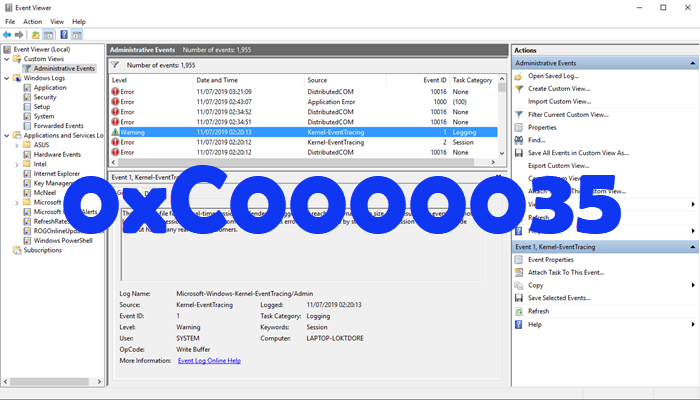
Если вы используете средство просмотра событий в Windows 11/10, то, возможно, в последнее время вы сталкивались с кодом ошибки 0xC0000035, который указывает непосредственно на ошибку отслеживания событий ядра. Конечно, это не новая ошибка, но для многих это первый раз, когда они сталкиваются с ней лицом к лицу.
Что такое ошибка 0xC0000035?
Код ошибки 0xC0000035 возвращается как «STATUS_OBJECT_NAME_COLLISION». Этот код ошибки был связан с обнаруженным идентичным идентификатором безопасности домена (SID). Более того, поскольку «регистратор событий заполнен» сеансом, «регистратор контекста кругового ядра» не запустился успешно.
В чем причина ошибки 0xC0000035 в Windows 11?
Это происходит, когда некоторые процессы не запускаются. Это могут быть сетевые или другие процессы. некоторые примеры: PerfDiag Logger, NetCfgTrace, Microsoft.Windows.Remediation, sensorframework и т. д.
Поскольку существует несколько способов вызвать ошибку 0xC0000035 на компьютере с Windows, в этой статье основное внимание будет уделено объяснению того, как выполнить работу несколькими из этих способов.
- Измените раздел реестра Autologg
- Отключите или удалите сторонний антивирус
- Обновите Intel или другие сетевые драйверы
- Выполнить сброс сети
- Запустите сканирование DISM, чтобы восстановить образ системы
1]Мы предлагаем изменить ключ реестра Autologg.
Бывают случаи, когда этот код ошибки вообще не вызывает никаких проблем. Если вы понимаете, что это действительно так, то лучший шаг, который можно предпринять, — это вообще предотвратить его появление.
Сделайте это, открыв диалоговое окно «Выполнить». Нажмите клавишу Windows + R, затем введите Regedit и нажмите клавишу Enter. Сразу появится редактор реестра
В редакторе перейдите к следующему:
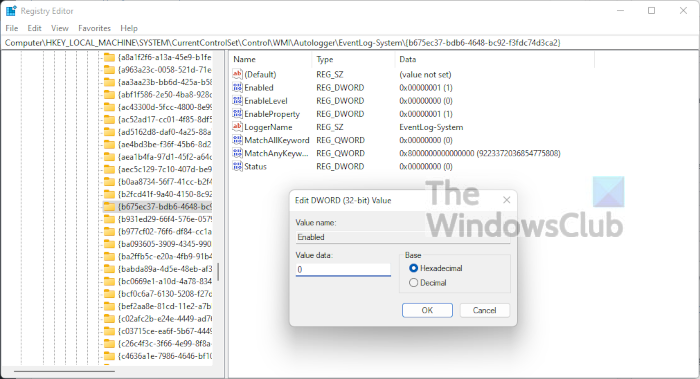
Компьютер HKEY_LOCAL_MACHINE SYSTEM CurrentControlSet Control WMI Autologger EventLog-System {b675ec37-bdb6-4648-bc92-f3fdc74d3ca2}
Как только вы окажетесь в нужном разделе, следующий шаг — перейти вправо от редактора реестра и не забудьте дважды щелкнуть ключ Enabled.
Теперь в параметре Edit DWORD (32-bit) Value измените Base на Hexadecimal, затем отредактируйте данные Value с любого текущего значения на 0. Нажмите OK, чтобы сохранить изменения.
После того, как вы выполнили эту задачу, вам нужно будет дважды щелкнуть EnableProperly, а затем изменить Base на Hexadecimal и установить значение Value равным 0. Наконец, нажмите OK, чтобы сохранить изменения.
Следующим шагом является перезагрузка компьютера и проверка, сохраняется ли ошибка 0xC0000035.
2]Отключите или удалите сторонний антивирус.
В некоторых случаях причиной ошибки 0xC0000035 в средстве просмотра событий может быть сторонний антивирус. Мы считаем, что вам нужно отключить антивирусную программу, а затем, надеюсь, перезагрузить компьютер, чтобы устранить ошибку.
Если это не сработает, скорее всего, вам может потребоваться полностью удалить утилиту. Чтобы выполнить эту работу в Windows 11, вам необходимо запустить приложение «Настройки», нажав клавишу Windows + I. Оттуда выберите «Приложения»> «Приложения и функции», затем прокрутите вниз, пока не увидите свою антивирусную программу в списке. .
3]Обновите Intel или другие сетевые драйверы.
Итак, есть несколько способов обновить Intel или другие сетевые драйверы на вашем компьютере с Windows 11.
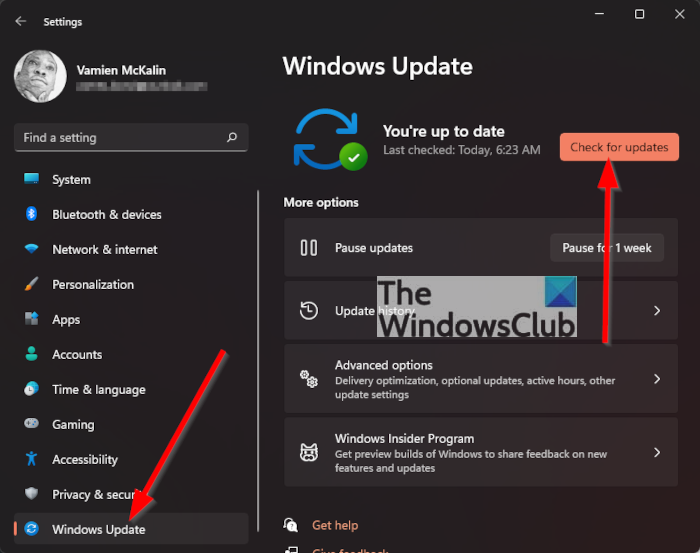
Для начала откройте Настройки, нажав клавишу Windows + I. Оттуда выберите Центр обновления Windows снизу, затем нажмите кнопку «Обновить», чтобы операционная система проверила наличие новых обновлений.
Если какие-либо драйверы доступны, Windows 11 загрузит и установит их автоматически или запросит вашу помощь. Все это зависит от ваших конкретных настроек Центра обновления Windows.
4]Выполнить сброс сети
Еще один способ избавиться от кода ошибки 0xC0000035 — сбросить настройки сети. Это простая задача. Все, что вам нужно сделать, это прочитать Как сбросить сетевые адаптеры с помощью функции сброса сети в Windows 11.
5]Запустите сканирование DISM, чтобы восстановить образ системы.
Восстановление образа вашей системы — один из лучших способов исправить код ошибки 0xC0000035. Для этого необходимо сразу запустить DISM (управление развертыванием образов и обслуживанием). Чтобы узнать, как сканировать компьютерную систему с помощью DISM, мы предлагаем прочитать «Запуск DISM для восстановления образа системы Windows и хранилища компонентов Windows в Windows 11/10».
Читайте: Как найти и просмотреть файлы журнала BSOD в средстве просмотра событий Windows 10
.
Содержание
- Руководство по решению ошибки 0xc0000035 в Windows
- Нужно ли что-то делать при ошибке 0xC0000035?
- Что можно предпринять?
- Исправить код ошибки 0xC0000035 в средстве просмотра событий в Windows 11/10
- Что такое ошибка 0xC0000035?
- В чем причина ошибки 0xC0000035 в Windows 11?
- Исправить код ошибки 0xC0000035 в средстве просмотра событий в Windows 11/10
- Как исправить сбой диспетчера загрузки Windows — ошибка 0xc000035a
- Обновление за январь 2023 года:
- Проверьте BIOS
- Форматирование жесткого диска
- Заметки Лёвика
- web программирование, администрирование и всякая всячина, которая может оказаться полезной
- Ошибка при установке windows c UEFI флэшки — Windows failed to start
Руководство по решению ошибки 0xc0000035 в Windows
По правде говоря, ошибку 0xC0000035 может увидеть у себя в средстве просмотра событий любой пользователь. Она означает, что системе не удалось запустить определенную службу. Бывает довольно много ее разновидностей, в том числе связанных с Circular Kernel Context Logger, Kernel EventTracing, STATUS_OBJECT_NAME_COLLISION и другими. Однако самая распространенная ошибка выглядит так:
Не удалось начать сеанс “Microsoft.Windows.Remediation” из-за следующей ошибки: 0xC0000035!
Нужно ли что-то делать при ошибке 0xC0000035?
На самом деле вам ничего не нужно делать в большинстве случаев. Как говорят в одной из веток технической поддержки Microsoft, это одна из банальных ошибок, которая обычно не нуждается в дополнительном исправлении. Если ошибка не приводит к каким-нибудь реальным проблемам, можно ее просто игнорировать либо просто отключить отображение данного кода. Она появляется по той причине, что система просто не успела запустить какую-то службу или ее вызов был произведен слишком рано (до того, как успела запуститься). Обычная реакция Windows на подобный код – повторная попытка, которая в следующий раз заканчивается успешно.
Если вас не устраивает игнорирование данного кода ошибки, можете отключить его появление с помощью редактора реестра. Вот, как это можно сделать:
- Клавишами Win + R запускаем строку «Выполнить».
- Вводим в пустую строку команду rededit и нажимаем Enter.
- Последовательно открываем Компьютер HKEY_LOCAL_MACHINE SYSTEM CurrentControlSet Control WMI Autologger EventLog-System .
- В правой рабочей области дважды кликаем по EnableProperly и устанавливаем значение для параметра – Hexadecimal, вместо стандартного Base. Если есть параметр Enable, ему тоже устанавливаем такое же значение.
- Для параметра Value устанавливаем 0.
Если вы не можете мириться с данной ошибкой, то можете попробовать несколько способов. Несколько людей написали, что у них это сработало.
Что можно предпринять?
Вот все, что кто-то советовал и эффективность чего была подтверждена другими пользователями:
- Отключить протокол IPv6. Похоже, он в старых версиях Windows работает не очень стабильно. Для этого нужно перейти в «Центр управления сетями и общим доступом», выбрать «Изменение параметров адаптеров» и перейти в свойства того подключения, которое активно используется. Просто снимаем галочку с «IP версии 6», сохраняем изменения и выходим.

- Восстановить ассоциации. Некачественные установщики могут нарушить ассоциации системных файлов, из-за чего Windows не удается запустить службы. Самый простой способ – скачать с интернета reg-файл для восстановления ассоциации под конкретную версию Windows и запустить его.
- Обновить циклический регистратор контекста ядра. Служба создает снимки системы размером 100 Мб и в них могут быть проблемы. Нужно вставить в строку Выполнить %windir%panther и найти setup.etl, а затем переименовать данный файл в setup.old. Система автоматически сгенерирует новый файл и, возможно, ошибка исчезнет.
В качестве итога можно отметить, что сама по себе ошибка с кодом 0xC0000035 не является чем-то экстравагантным, что требует исправления. Она появляется практически во всех операционных системах, когда Windows не удается запустить службу. В конечном итоге ОС повторяет запрос и выполняет поставленную задачу. Если каких-то дополнительных проблем ошибка не создает, ее лучше игнорировать. В остальных случаях можно попробовать те несколько решений, которые описаны выше.
Если у вы знаете что-нибудь еще, пожалуйста, напишите нам об этом в комментариях. Возможно, это поможет другим читателям в поиске ответа или нам в целях создания максимально полезного материала.
Источник
Исправить код ошибки 0xC0000035 в средстве просмотра событий в Windows 11/10
Если вы используете средство просмотра событий в Windows 11/10, то, возможно, в последнее время вы сталкивались с кодом ошибки 0xC0000035, который указывает непосредственно на ошибку отслеживания событий ядра. Конечно, это не новая ошибка, но для многих это первый раз, когда они сталкиваются с ней лицом к лицу.
Что такое ошибка 0xC0000035?
Код ошибки 0xC0000035 возвращается как «STATUS_OBJECT_NAME_COLLISION». Этот код ошибки был связан с обнаруженным идентичным идентификатором безопасности домена (SID). Более того, поскольку «регистратор событий заполнен» сеансом, «регистратор контекста кругового ядра» не запустился успешно.
В чем причина ошибки 0xC0000035 в Windows 11?
Это происходит, когда некоторые процессы не запускаются. Это могут быть сетевые или другие процессы. некоторые примеры: PerfDiag Logger, NetCfgTrace, Microsoft.Windows.Remediation, sensorframework и т. д.
Исправить код ошибки 0xC0000035 в средстве просмотра событий в Windows 11/10
Программы для Windows, мобильные приложения, игры — ВСЁ БЕСПЛАТНО, в нашем закрытом телеграмм канале — Подписывайтесь:)
Поскольку существует несколько способов вызвать ошибку 0xC0000035 на компьютере с Windows, в этой статье основное внимание будет уделено объяснению того, как выполнить работу несколькими из этих способов.
- Измените раздел реестра Autologg
- Отключите или удалите сторонний антивирус
- Обновите Intel или другие сетевые драйверы
- Выполнить сброс сети
- Запустите сканирование DISM, чтобы восстановить образ системы
1]Мы предлагаем изменить ключ реестра Autologg.
Бывают случаи, когда этот код ошибки вообще не вызывает никаких проблем. Если вы понимаете, что это действительно так, то лучший шаг, который можно предпринять, — это вообще предотвратить его появление.
Сделайте это, открыв диалоговое окно «Выполнить». Нажмите клавишу Windows + R, затем введите Regedit и нажмите клавишу Enter. Сразу появится редактор реестра
В редакторе перейдите к следующему:
Компьютер HKEY_LOCAL_MACHINE SYSTEM CurrentControlSet Control WMI Autologger EventLog-System
Как только вы окажетесь в нужном разделе, следующий шаг — перейти вправо от редактора реестра и не забудьте дважды щелкнуть ключ Enabled.
Теперь в параметре Edit DWORD (32-bit) Value измените Base на Hexadecimal, затем отредактируйте данные Value с любого текущего значения на 0. Нажмите OK, чтобы сохранить изменения.
После того, как вы выполнили эту задачу, вам нужно будет дважды щелкнуть EnableProperly, а затем изменить Base на Hexadecimal и установить значение Value равным 0. Наконец, нажмите OK, чтобы сохранить изменения.
Следующим шагом является перезагрузка компьютера и проверка, сохраняется ли ошибка 0xC0000035.
2]Отключите или удалите сторонний антивирус.
В некоторых случаях причиной ошибки 0xC0000035 в средстве просмотра событий может быть сторонний антивирус. Мы считаем, что вам нужно отключить антивирусную программу, а затем, надеюсь, перезагрузить компьютер, чтобы устранить ошибку.
Если это не сработает, скорее всего, вам может потребоваться полностью удалить утилиту. Чтобы выполнить эту работу в Windows 11, вам необходимо запустить приложение «Настройки», нажав клавишу Windows + I. Оттуда выберите «Приложения»> «Приложения и функции», затем прокрутите вниз, пока не увидите свою антивирусную программу в списке. .
3]Обновите Intel или другие сетевые драйверы.
Итак, есть несколько способов обновить Intel или другие сетевые драйверы на вашем компьютере с Windows 11.
Для начала откройте Настройки, нажав клавишу Windows + I. Оттуда выберите Центр обновления Windows снизу, затем нажмите кнопку «Обновить», чтобы операционная система проверила наличие новых обновлений.
Если какие-либо драйверы доступны, Windows 11 загрузит и установит их автоматически или запросит вашу помощь. Все это зависит от ваших конкретных настроек Центра обновления Windows.
4]Выполнить сброс сети
Еще один способ избавиться от кода ошибки 0xC0000035 — сбросить настройки сети. Это простая задача. Все, что вам нужно сделать, это прочитать Как сбросить сетевые адаптеры с помощью функции сброса сети в Windows 11.
5]Запустите сканирование DISM, чтобы восстановить образ системы.
Восстановление образа вашей системы — один из лучших способов исправить код ошибки 0xC0000035. Для этого необходимо сразу запустить DISM (управление развертыванием образов и обслуживанием). Чтобы узнать, как сканировать компьютерную систему с помощью DISM, мы предлагаем прочитать «Запуск DISM для восстановления образа системы Windows и хранилища компонентов Windows в Windows 11/10».
Читайте: Как найти и просмотреть файлы журнала BSOD в средстве просмотра событий Windows 10
.
Программы для Windows, мобильные приложения, игры — ВСЁ БЕСПЛАТНО, в нашем закрытом телеграмм канале — Подписывайтесь:)
Источник
Как исправить сбой диспетчера загрузки Windows — ошибка 0xc000035a
Please enable JavaScript
Последнее обновление 17 декабря 2018 г.
Обновлено 2023 января: перестаньте получать сообщения об ошибках и замедлите работу вашей системы с помощью нашего инструмента оптимизации. Получить сейчас в эту ссылку
- Скачайте и установите инструмент для ремонта здесь.
- Пусть он просканирует ваш компьютер.
- Затем инструмент почини свой компьютер.
Состояние ошибки 0xc000035a, пытается загрузить 64-битное приложение, но этот ЦП несовместим с 64-битным режимом. Эта ошибка может возникать с продуктами визуализации, такими как продукт VMware или виртуальный продукт, при установке 64-разрядного приложения. Не о чем беспокоиться. Все зависит от конфигурации вашего оборудования. См. Рисунок ниже, чтобы увидеть истинную картину проблемы.
Если вы уверены, что процессор вашего компьютера поддерживает функцию виртуализации, просто включите ее в BIOS вашего компьютера. Вы можете войти в BIOS во время самотестирования при включении (POST), когда вы запускаете / перезагружаете компьютер, и есть разные ключи, основанные на Dell, HP, Lenovo, Acer, IBM и т. Д.
- Для Dell нажмите F2.
- Для Acer нажмите F2.
- Для HP Press F10
Вы должны включить VT-x / AMD-V и, возможно, вложенную нумерацию страниц в конфигурации вашей виртуальной машины.
В моей версии VirtualBox это можно сделать через:
Обновление за январь 2023 года:
Теперь вы можете предотвратить проблемы с ПК с помощью этого инструмента, например, защитить вас от потери файлов и вредоносных программ. Кроме того, это отличный способ оптимизировать ваш компьютер для достижения максимальной производительности. Программа с легкостью исправляет типичные ошибки, которые могут возникнуть в системах Windows — нет необходимости часами искать и устранять неполадки, если у вас под рукой есть идеальное решение:
- Шаг 1: Скачать PC Repair & Optimizer Tool (Windows 10, 8, 7, XP, Vista — Microsoft Gold Certified).
- Шаг 2: Нажмите «Начать сканирование”, Чтобы найти проблемы реестра Windows, которые могут вызывать проблемы с ПК.
- Шаг 3: Нажмите «Починить все», Чтобы исправить все проблемы.
- Закрытие ВМ
- Щелкните правой кнопкой мыши на виртуальной машине.
- Перейдите в раздел «Система».
- Нажмите на вкладку «Ускорение».
- Активируйте «Активировать VT-x / AMD-V» и «Вложенный пейджинг».
- Нажмите «ОК» ниже, чтобы сохранить настройки.
После активации его в VirtualBox вы теперь сможете запустить Windows Сервер 2008, если ваша операционная система и конфигурация процессора правильные.
Проверьте BIOS
Откройте Bios и убедитесь, что vt-x включен.
Если это не так, вы должны удалить виртуальную машину в виртуальном ящике и создать новую ……… Теперь вы видите вариант для Windows 7 и Windows 7 (64-разрядная версия).
После удаления и восстановления виртуальной машины вы можете просмотреть ее. Изменение параметров существующей виртуальной машины не соответствует желаемой цели.
Форматирование жесткого диска
На жестком диске вашего компьютера хранятся важные файлы, программы и данные, без которых ваш бизнес не может обойтись.
Переформатирование и восстановление
1. Вставьте дискету восстановления системы Windows в дисковод гибких дисков компьютера. Перезагрузите компьютер.
2. нажмите любую клавишу в приглашении. Нажмите Next, чтобы открыть страницу Install Windows. Выберите ваш язык и другие настройки, затем нажмите «Далее».
3. нажмите «Я принимаю условия лицензии», затем «Далее».
4. нажмите на Пользовательские параметры и Параметры игрока (Дополнительно). Нажмите на жесткий диск, который вы хотите отформатировать, затем нажмите Формат. Время форматирования зависит от размера жесткого диска. Когда процесс завершится, Windows остановит установку на вашем компьютере.
Совет экспертов: Этот инструмент восстановления сканирует репозитории и заменяет поврежденные или отсутствующие файлы, если ни один из этих методов не сработал. Это хорошо работает в большинстве случаев, когда проблема связана с повреждением системы. Этот инструмент также оптимизирует вашу систему, чтобы максимизировать производительность. Его можно скачать по Щелчок Здесь
CCNA, веб-разработчик, ПК для устранения неполадок
Я компьютерный энтузиаст и практикующий ИТ-специалист. У меня за плечами многолетний опыт работы в области компьютерного программирования, устранения неисправностей и ремонта оборудования. Я специализируюсь на веб-разработке и дизайне баз данных. У меня также есть сертификат CCNA для проектирования сетей и устранения неполадок.
Источник
Заметки Лёвика
web программирование, администрирование и всякая всячина, которая может оказаться полезной
Ошибка при установке windows c UEFI флэшки — Windows failed to start
Ошибка при установке windows 7 на ноутбук с UEFI с флешки отформатированной в GPT
Во время загрузки с флешки процесса установки вылетает Black screen (не BSOD) с текстом следующего содержания:
Windows failed to start. A recent hardware or software change might be the cause. To fix the problem:
1. Insert your Windows installation disc and restart your computer.
2. Choose your language settings, and then click “Next.”
3. Click “Repair your computer.”
If you do not have this disc, contact your system administrator or computer manufacturer for assistance.
File: EFIMicrosoftBootBCD
Status: 0xc000000d
Info: an error occurred while attempting to read the boot configuration data.
Рекомендации по восстановлению в данном случае вряд ли применимы, поскольку система ещё не установлена.. по идее восстанавливать-то ещё нечего..
bootrec /scanos
bootrec /rebuildbcd
bootrec /fixmbr
bootrec /fixboot
W7 64B USB boot on Windows 8 EFI — Error 0Xc000000d
Для Windows 64 следует выполнить ещё один дополнительный шаг — скопировать каталог boot
A) On the USB flash drive, “copy” the efimicrosoftboot folder up one level into the efi folder as efiboot.
C) In 7-Zip, navigate to the sourcesinstall.wim1WindowsBootEFIbootmgfw.efi on the USB flash drive, select the bootmgfw.efi file, copy it to your desktop, click/tap on OK, and close 7-Zip. (see screenshot below)
If you get the error message EFIMicrosoftBOOT\\BCD Status 0xc000000d when booting the USB stick, please check the following things:
If it’s a system with Secure Boot, deactivate Secure Boot.
Select the USB stick (not Windows Boot Manager) from the boot menu.
Booting should work afterwards.
Опубликовано Вторник, Сентябрь 12, 2017 в 04:45 в следующих категориях: Без рубрики. Вы можете подписаться на комментарии к этому сообщению через RSS 2.0. Вы можете оставить комментарий. Пинг отключен.
Автор будет признателен, если Вы поделитесь ссылкой на статью, которая Вам помогла:
BB-код (для вставки на форум)
html-код (для вставки в ЖЖ, WP, blogger и на страницы сайта)
ссылка (для отправки по почте)
Источник
-
Question
-
I have lots of the following error messages in the event viewer.
Session «Circular Kernel Context Logger» failed to start with the following error: 0xC0000035
Is there a doctor in the room please ?
— What does it mean ?
— Is something wrong with my computer ? or with me ?
— How to avoid this ?
Regards
Picsoe
All replies
-
Seems to occur at restart/boot. Wonder what it means.
Doc
-
I have lots of the following error messages in the event viewer.
Session «Circular Kernel Context Logger» failed to start with the following error: 0xC0000035
Is there a doctor in the room please ?
— What does it mean ?
— Is something wrong with my computer ? or with me ?
— How to avoid this ?
Regards Picsoe
Hi Picsoe
In the Event Viewer, double click one of these events to see the details. At the lower/left corner of the details window, click the Copy Button and paste the results in a reply back here.
Regards,
Thank You for testing Windows 7
Ronnie Vernon MVP
-
Proposed as answer by
Monday, April 21, 2014 7:45 AM
-
Proposed as answer by
-
Hi Picsoe
In the Event Viewer, double click one of these events to see the details. At the lower/left corner of the details window, click the Copy Button and paste the results in a reply back here.
Regards,
Thank You for testing Windows 7
Ronnie Vernon MVP
Thanks Ronnie, here is the copy that you asked for :
Log Name: Microsoft-Windows-Kernel-EventTracing/Admin
Source: Microsoft-Windows-Kernel-EventTracing
Date: 15/09/2009 14:48:38
Event ID: 2
Task Category: Session
Level: Error
Keywords: Session
User: SYSTEM
Computer: Picsoetje-PC
Description:
Session «Circular Kernel Context Logger» failed to start with the following error: 0xC0000035
Event Xml:
<Event xmlns=»http://schemas.microsoft.com/win/2004/08/events/event»>
<System>
<Provider Name=»Microsoft-Windows-Kernel-EventTracing» Guid=»{B675EC37-BDB6-4648-BC92-F3FDC74D3CA2}» />
<EventID>2</EventID>
<Version>0</Version>
<Level>2</Level>
<Task>2</Task>
<Opcode>12</Opcode>
<Keywords>0x8000000000000010</Keywords>
<TimeCreated SystemTime=»2009-09-15T12:48:38.940841700Z» />
<EventRecordID>1421</EventRecordID>
<Correlation />
<Execution ProcessID=»4″ ThreadID=»52″ />
<Channel>Microsoft-Windows-Kernel-EventTracing/Admin</Channel>
<Computer>Picsoetje-PC</Computer>
<Security UserID=»S-1-5-18″ />
</System>
<EventData>
<Data Name=»SessionName»>Circular Kernel Context Logger</Data>
<Data Name=»FileName»>
</Data>
<Data Name=»ErrorCode»>3221225525</Data>
<Data Name=»LoggingMode»>268436608</Data>
</EventData>
</Event>
Regards
Picsoe -
Hi Picsoe
I did some research on this event and it appears to be one of those ‘non-event’ events?
The ‘Microsoft-Windows-Kernel-EventTracing’ appears to run each time the system is started along with the associated ‘Circular Kernel Context Logger’. These components are part of the Performance Diagnostics.
The ‘0xC0000035’ error code returns as ‘STATUS_OBJECT_NAME_COLLISION’. This error code has been associated with a duplicate domain security identifier (SID) being detected, also as ‘the event logger is full’ with Session «Circular Kernel Context Logger» failed to start.
There are many threads that refer to this event and associate it with many different behaviors, but i think these are redundant since the users were just looking for the cause for a problem that did not actually have anything to do with this event.
For now I would recommend that you monitor how often this event is recorded, but otherwise simply ignore it. It will likely disappear at some point.
Hope this helps.
Thank You for testing Windows 7
Ronnie Vernon MVP
-
Marked as answer by
Robinson Zhang
Monday, September 21, 2009 4:18 AM -
Unmarked as answer by
Picsoe
Monday, September 21, 2009 5:08 AM
-
Marked as answer by
-
Hi,
I have a clean install of Windows 7 downloaded from MSDN. This is running stand alone as a media centre PC. It is not a member of a domain. I appear to get the error message
Session «Circular Kernel Context Logger» failed to start with the following error: 0xC0000035
Repeated ~1second. It appears to start when the computer resumes from standby and then continues. The system appears to be brought out of standby by an attempt to access something at Microsoft and I receive a warning
Name resolution for the name dns.msftncsi.com timed out after none of the configured DNS servers responded.After this the kernel error starts to appear.
There is clearly something wrong. Advice would be appreciated.
Paul Ireland
-
Exactly the same here.
It goes on and on, up to 3 times per second.
Regards
Picsoe -
Hi,
I had the same trouble with Windows 7 (the RTM version). The Kernel context logger is a bit like a flight data recorder and takes snapshots of the system (I think every second) into a 100MB RAM file (not a log file on disk). It is needed.
I found the fix:
Rename this file: %windir%panthersetup.etl to setup.old and reboot.
Worked for me. To prove this, delete the logs in event viewer and keep an eye out for any recurrence. Can’t tell you why it was broken in the first place, though!
Regards,
RichardVet
-
Proposed as answer by
Doug Shreve
Friday, March 22, 2013 11:18 PM
-
Proposed as answer by
-
Seems I only and always get this error when I do a logoff/logon (same user, I’m only one on my system). Doesn’t happen on normal boots/reboots.
-
Proposed as answer by
jonathanVerrier
Tuesday, September 20, 2016 2:28 PM
-
Proposed as answer by
-
I’ve been away for months, but I can see that the event viewer filter on our brand new Windows 7 has not made much progress in the event 35 series [processor drivers not seen as installed or running by Windows] and I can see a new thread after I installed
Microsoft Security Essentials that the scanner will stop unexpectedly due to this filter not being solved? Error code 3221225458 ?In answer to your question, NO nothing is wrong with either your computer or your software and I think not you either, but you may want to check with a professional just in case?
-
hi,
thanks rename solve the problem.
regards
Basel
-
THis fix worked for me! Using Windows 7 Ultimate 64-bit. I was getting 10 of these errors each and everytime the desktop (Dell Optiplex 780) was restarted..it was maddening! Thank you for taking the time to nail this down RichardVet!
Doug Shreve
-
Proposed as answer by
Doug Shreve
Friday, March 22, 2013 11:16 PM -
Unproposed as answer by
Doug Shreve
Friday, March 22, 2013 11:16 PM
-
Proposed as answer by
-
Hi,
I had the same trouble with Windows 7 (the RTM version). The Kernel context logger is a bit like a flight data recorder and takes snapshots of the system (I think every second) into a 100MB RAM file (not a log file on disk). It is needed.
I found the fix:
Rename this file: %windir%panthersetup.etl to setup.old and reboot.
Worked for me. To prove this, delete the logs in event viewer and keep an eye out for any recurrence. Can’t tell you why it was broken in the first place, though!
Regards,
RichardVet
Thank you RichardVet!!!
-
Log Name: Microsoft-Windows-Kernel-EventTracing/Admin
Source: Microsoft-Windows-Kernel-EventTracing
Date: 1/16/2013 6:22:23 PM
Event ID: 3
Task Category: Session
Level: Error
Keywords: Session
User: SYSTEM
Computer: shahjanand-PC
Description:
Session «Circular Kernel Context Logger» stopped due to the following error: 0xC0000188
Event Xml:
<Event xmlns=»http://schemas.microsoft.com/win/2004/08/events/event»>
<System>
<Provider Name=»Microsoft-Windows-Kernel-EventTracing» Guid=»{B675EC37-BDB6-4648-BC92-F3FDC74D3CA2}» />
<EventID>3</EventID>
<Version>0</Version>
<Level>2</Level>
<Task>2</Task>
<Opcode>14</Opcode>
<Keywords>0x8000000000000010</Keywords>
<TimeCreated SystemTime=»2013-01-17T02:22:23.969514500Z» />
<EventRecordID>8</EventRecordID>
<Correlation />
<Execution ProcessID=»4″ ThreadID=»5440″ />
<Channel>Microsoft-Windows-Kernel-EventTracing/Admin</Channel>
<Computer>shahjanand-PC</Computer>
<Security UserID=»S-1-5-18″ />
</System>
<EventData>
<Data Name=»SessionName»>Circular Kernel Context Logger</Data>
<Data Name=»FileName»>C:windowssystem32WDILogFilesShutdownCKCL.etl</Data>
<Data Name=»ErrorCode»>3221225864</Data>
<Data Name=»LoggingMode»>128</Data>
</EventData>
</Event> -
Nombre de registro:Microsoft-Windows-Kernel-EventTracing/Admin
Origen: Microsoft-Windows-Kernel-EventTracing
Fecha: 07/10/3013 09:42:31 a. m.
Id. del evento:3
Categoría de la tarea:Sesión
Nivel: Error
Palabras clave:Sesión
Usuario: SYSTEM
Equipo: SERVIDOR
Descripción:
Finalizó la sesión «Circular Kernel Context Logger» con el siguiente error: 0xC0000188
XML de evento:
<Event xmlns=»http://schemas.microsoft.com/win/2004/08/events/event»>
<System>
<Provider Name=»Microsoft-Windows-Kernel-EventTracing» Guid=»{B675EC37-BDB6-4648-BC92-F3FDC74D3CA2}» />
<EventID>3</EventID>
<Version>1</Version>
<Level>2</Level>
<Task>2</Task>
<Opcode>14</Opcode>
<Keywords>0x8000000000000010</Keywords>
<TimeCreated SystemTime=»3013-10-07T14:42:31.653255200Z» />
<EventRecordID>4</EventRecordID>
<Correlation />
<Execution ProcessID=»4″ ThreadID=»212″ />
<Channel>Microsoft-Windows-Kernel-EventTracing/Admin</Channel>
<Computer>SERVIDOR</Computer>
<Security UserID=»S-1-5-18″ />
</System>
<EventData>
<Data Name=»SessionName»>Circular Kernel Context Logger</Data>
<Data Name=»FileName»>C:Windowssystem32WDILogFilesBootCKCL.etl</Data>
<Data Name=»ErrorCode»>3221225864</Data>
<Data Name=»LoggingMode»>41943168</Data>
<Data Name=»FailureReason»>0</Data>
</EventData>
</Event>
PLEASE HELP!!!
-
Can’t tell you why it was broken in the first place, though!
Regards,
RichardVet
Thanks! This worked for me as well, but I too, don’t know why it broke in the first place. It was a new PC, freshly joined to the domain and updated. If it is somewhat related or tied in, I was having issues with WMI that I had to deal with. Had to rebuild
it and re-register everything.
Ranie
-
I can’t find this, I have win 7 64 SP1…help
-
Had an incident this morning that may throw some light on this issue.
A Win 7 Pro machine in an Active Directory Domain could not access a mapped share (H:) on the server. I disconnected the share, then attempted to remap it but found that H: was not available among the drive letters offered. I mapped the share
to another drive letter so the user could continue.When I followed up to try to find the cause, I found a device named H: under Portable Devices in Device Manager. User said that a USB flash drive had been left in the machine over the weekend and the machine had been shut down. I would surmise
that on startup, the flash drive was recognised and obtained drive H: before the network connection was re-established so mapping the share failed.May or may not be significant, but 20 instances of «Circular Kernel Context Logger» on each startup.
-
I cannot find the file ‘setup.etl’ in win7 pro. I found a ‘panthersetup.exe’ and a ‘panthersetup’ any advice is appreciated.
-
You sure you aren’t looking at FOLDERS? There is a folder named setup.exe, BUT setup.etl is a FILE plainly listed (probably a bit lower on your screen), not even hidden. Check again, IMO.
BTW, renaming the file and autocreating a new one worked for me, too. Thanks 🙂
-
Edited by
WillB69
Thursday, November 7, 2013 5:21 PM -
Proposed as answer by
Franco Tsang
Sunday, May 8, 2016 2:34 PM -
Unproposed as answer by
Franco Tsang
Sunday, May 8, 2016 2:34 PM
-
Edited by
-
I believe this IS VERY significant. I recently discovered my girlfriend was using a KeyLogger program to monitor all internet activity as well as gain all of my passcode information. Since she knew I would monitor activity on my PCs, all of the program data
was stored on her portable device, in this case, her ipod. Every time she rebooted the system with this device attached it automatically first, discovered my system admin password, then Impersonates the Administrator. There are several other things that happen
this is simply an abridged version of the event.Here is a complete list of privileges it assigns to this «new user» :
Privileges: SeSecurityPrivilege
SeTakeOwnershipPrivilege
SeLoadDriverPrivilege
SeBackupPrivilege
SeRestorePrivilege
SeDebugPrivilege
SeSystemEnvironmentPrivilege
SeImpersonatePrivilege -
First, I apologize for hitting the wrong button, as a proposed answer instead of a reply.
My reply to this issue would be to monitor your system for a KeyLogger program. This program may be hosted on a portable device. It will usually hide from the system, and run in a cloaked mode. The intent of these programs is to take periodic snapshots of
your activity, as well as monitor EVERY keystroke made. This allows the program to monitor all emails, texts, chats, messaging of all types, as well as obtain log in information to ANY site visited.Most are designed to email these snap shots and logged keystrokes to a designated person.. The one snooping your activity.
-
Hi,
I had the same trouble with Windows 7 (the RTM version). The Kernel context logger is a bit like a flight data recorder and takes snapshots of the system (I think every second) into a 100MB RAM file (not a log file on disk). It is needed.
I found the fix:
Rename this file: %windir%panthersetup.etl to setup.old and reboot.
Worked for me. To prove this, delete the logs in event viewer and keep an eye out for any recurrence. Can’t tell you why it was broken in the first place, though!
Regards,
RichardVet
I am having this exact same error. I tried to perform this fix, but I could not find the setup.etl file. The only setup files in this directory close are setuperr and setupact. Any ideas? I would like to fix this error.
-
Hi,
I had the same trouble with Windows 7 (the RTM version). The Kernel context logger is a bit like a flight data recorder and takes snapshots of the system (I think every second) into a 100MB RAM file (not a log file on disk). It is needed.
I found the fix:
Rename this file: %windir%panthersetup.etl to setup.old and reboot.
Worked for me. To prove this, delete the logs in event viewer and keep an eye out for any recurrence. Can’t tell you why it was broken in the first place, though!
Regards,
RichardVet
Well, I stumbled my way in here, because I started experiencing some problems with some Windows 7 SP1 64 Bit Enterprise Virtual Machines I have running and you can imagine the headache of dealing with this error appearing 20 times after each reboot on each
VM. If you have some form of consolidated Event Error Log that is «farming» all of these event logs into one then you can imagine the nightmare of seeing constant errors showing up and flooding logs, so no THANK YOU MICROSOFT… 😛Anyway, Thank You RichardVet for your solution although I wanted to add an addendum for those of you who also found that RichardVet’s solution did not actually work 100% of the time. I went ahead and renamed the file, same error. I went ahead and deleted
the file, same error. It seems this file is created as part of the initial install and then might get updated over time, but I found that it must exist otherwise error is generated even though it might never be used again.So basically, I created a blank TXT file and renamed it setup.etl — empty file, no edit, etc. Errors stopped, so just thought I would share that with others who still gets errors after RENAME or DELETION.
If you have issues creating the file in the Panther folder or it does not exist, then create the file on your desktop and then COPY/PASTE into the Panther folder which you can also manually create.
C:WindowsPanther —> setup.etl
Thanks and Good Luck… 🙂
-
Edited by
DonChino
Sunday, June 1, 2014 6:53 AM
Mention File Permission and Existence
-
Edited by
-
Hi DonChino,
How do you create a blank TXT file.
Best regards, Luis
-
To create a blank txt file, right-click on the desktop, and select «New» -> «Text Document»
Change the name as usual … right-click on the document icon (not the name) and select «Rename.»
You may need an administrative password.
-
Is she still your girlfriend? Sounds like a female character out of a James Bond movie.
-
Proposed as answer by
trmark123
Thursday, August 20, 2015 3:11 PM
-
Proposed as answer by
-
Used your solution with success until the setup.etl dissapeared.
After some testing in a Win 7 ultimate installation: The root cause seems to be a bug in login logout. If you do a logout and then login the error stream starts. If you then reboot it stops.
-
okay, here is my dumb question. Which file are you saying to rename « %windir%panthersetup.etl to setup.old
and reboot»?I know enough to fix somethings, but this fix isnt resonating with me. I trust its corrrect, but I need just a how
to on this.I have a number of errors as well in a brand new os in my new drive. So, I am taking these one at a time. And this is exactly the error code and problem I have in my logs, but I dont understand which file to rename. Just please show a step by step, (but
a simple one will do).Since this is a brand new OS windows 10 pro in my new replacement drive I am hoping to eliminate all/most of the events I am seeing on a regular basis. I just wonder if I should just undue everything and re-install my system, since it is beginning to lag
now like it did before my drive needed replacing. Since drive and os are new, I really dont see why I should be seeing any errors. But before I do all the reinstall, I thought I would work through each issue and see if I can figure out whats going on. The
dell guys are good at unclogging a system full of malware, but debugging is another story. Please help on this one issue though. -
Rename the file called «setup.etl» (found in the folder location: %windir%panther) to «setup.old»
James Wolf MS-MVP [Media Center]
-
Hi Ronnie,
Have we ever found a solution to the above problem…0xC0000035, from the event logs?
Best regards…trying my best to avoid windows 10 on my desk top but mebbe that needs replaced too.
Paul Stockwell
stockwellpg@ gmail.com
-
Question
-
I have lots of the following error messages in the event viewer.
Session «Circular Kernel Context Logger» failed to start with the following error: 0xC0000035
Is there a doctor in the room please ?
— What does it mean ?
— Is something wrong with my computer ? or with me ?
— How to avoid this ?
Regards
Picsoe
All replies
-
Seems to occur at restart/boot. Wonder what it means.
Doc
-
I have lots of the following error messages in the event viewer.
Session «Circular Kernel Context Logger» failed to start with the following error: 0xC0000035
Is there a doctor in the room please ?
— What does it mean ?
— Is something wrong with my computer ? or with me ?
— How to avoid this ?
Regards Picsoe
Hi Picsoe
In the Event Viewer, double click one of these events to see the details. At the lower/left corner of the details window, click the Copy Button and paste the results in a reply back here.
Regards,
Thank You for testing Windows 7
Ronnie Vernon MVP
-
Proposed as answer by
Monday, April 21, 2014 7:45 AM
-
Proposed as answer by
-
Hi Picsoe
In the Event Viewer, double click one of these events to see the details. At the lower/left corner of the details window, click the Copy Button and paste the results in a reply back here.
Regards,
Thank You for testing Windows 7
Ronnie Vernon MVP
Thanks Ronnie, here is the copy that you asked for :
Log Name: Microsoft-Windows-Kernel-EventTracing/Admin
Source: Microsoft-Windows-Kernel-EventTracing
Date: 15/09/2009 14:48:38
Event ID: 2
Task Category: Session
Level: Error
Keywords: Session
User: SYSTEM
Computer: Picsoetje-PC
Description:
Session «Circular Kernel Context Logger» failed to start with the following error: 0xC0000035
Event Xml:
<Event xmlns=»http://schemas.microsoft.com/win/2004/08/events/event»>
<System>
<Provider Name=»Microsoft-Windows-Kernel-EventTracing» Guid=»{B675EC37-BDB6-4648-BC92-F3FDC74D3CA2}» />
<EventID>2</EventID>
<Version>0</Version>
<Level>2</Level>
<Task>2</Task>
<Opcode>12</Opcode>
<Keywords>0x8000000000000010</Keywords>
<TimeCreated SystemTime=»2009-09-15T12:48:38.940841700Z» />
<EventRecordID>1421</EventRecordID>
<Correlation />
<Execution ProcessID=»4″ ThreadID=»52″ />
<Channel>Microsoft-Windows-Kernel-EventTracing/Admin</Channel>
<Computer>Picsoetje-PC</Computer>
<Security UserID=»S-1-5-18″ />
</System>
<EventData>
<Data Name=»SessionName»>Circular Kernel Context Logger</Data>
<Data Name=»FileName»>
</Data>
<Data Name=»ErrorCode»>3221225525</Data>
<Data Name=»LoggingMode»>268436608</Data>
</EventData>
</Event>
Regards
Picsoe -
Hi Picsoe
I did some research on this event and it appears to be one of those ‘non-event’ events?
The ‘Microsoft-Windows-Kernel-EventTracing’ appears to run each time the system is started along with the associated ‘Circular Kernel Context Logger’. These components are part of the Performance Diagnostics.
The ‘0xC0000035’ error code returns as ‘STATUS_OBJECT_NAME_COLLISION’. This error code has been associated with a duplicate domain security identifier (SID) being detected, also as ‘the event logger is full’ with Session «Circular Kernel Context Logger» failed to start.
There are many threads that refer to this event and associate it with many different behaviors, but i think these are redundant since the users were just looking for the cause for a problem that did not actually have anything to do with this event.
For now I would recommend that you monitor how often this event is recorded, but otherwise simply ignore it. It will likely disappear at some point.
Hope this helps.
Thank You for testing Windows 7
Ronnie Vernon MVP
-
Marked as answer by
Robinson Zhang
Monday, September 21, 2009 4:18 AM -
Unmarked as answer by
Picsoe
Monday, September 21, 2009 5:08 AM
-
Marked as answer by
-
Hi,
I have a clean install of Windows 7 downloaded from MSDN. This is running stand alone as a media centre PC. It is not a member of a domain. I appear to get the error message
Session «Circular Kernel Context Logger» failed to start with the following error: 0xC0000035
Repeated ~1second. It appears to start when the computer resumes from standby and then continues. The system appears to be brought out of standby by an attempt to access something at Microsoft and I receive a warning
Name resolution for the name dns.msftncsi.com timed out after none of the configured DNS servers responded.After this the kernel error starts to appear.
There is clearly something wrong. Advice would be appreciated.
Paul Ireland
-
Exactly the same here.
It goes on and on, up to 3 times per second.
Regards
Picsoe -
Hi,
I had the same trouble with Windows 7 (the RTM version). The Kernel context logger is a bit like a flight data recorder and takes snapshots of the system (I think every second) into a 100MB RAM file (not a log file on disk). It is needed.
I found the fix:
Rename this file: %windir%panthersetup.etl to setup.old and reboot.
Worked for me. To prove this, delete the logs in event viewer and keep an eye out for any recurrence. Can’t tell you why it was broken in the first place, though!
Regards,
RichardVet
-
Proposed as answer by
Doug Shreve
Friday, March 22, 2013 11:18 PM
-
Proposed as answer by
-
Seems I only and always get this error when I do a logoff/logon (same user, I’m only one on my system). Doesn’t happen on normal boots/reboots.
-
Proposed as answer by
jonathanVerrier
Tuesday, September 20, 2016 2:28 PM
-
Proposed as answer by
-
I’ve been away for months, but I can see that the event viewer filter on our brand new Windows 7 has not made much progress in the event 35 series [processor drivers not seen as installed or running by Windows] and I can see a new thread after I installed
Microsoft Security Essentials that the scanner will stop unexpectedly due to this filter not being solved? Error code 3221225458 ?In answer to your question, NO nothing is wrong with either your computer or your software and I think not you either, but you may want to check with a professional just in case?
-
hi,
thanks rename solve the problem.
regards
Basel
-
THis fix worked for me! Using Windows 7 Ultimate 64-bit. I was getting 10 of these errors each and everytime the desktop (Dell Optiplex 780) was restarted..it was maddening! Thank you for taking the time to nail this down RichardVet!
Doug Shreve
-
Proposed as answer by
Doug Shreve
Friday, March 22, 2013 11:16 PM -
Unproposed as answer by
Doug Shreve
Friday, March 22, 2013 11:16 PM
-
Proposed as answer by
-
Hi,
I had the same trouble with Windows 7 (the RTM version). The Kernel context logger is a bit like a flight data recorder and takes snapshots of the system (I think every second) into a 100MB RAM file (not a log file on disk). It is needed.
I found the fix:
Rename this file: %windir%panthersetup.etl to setup.old and reboot.
Worked for me. To prove this, delete the logs in event viewer and keep an eye out for any recurrence. Can’t tell you why it was broken in the first place, though!
Regards,
RichardVet
Thank you RichardVet!!!
-
Log Name: Microsoft-Windows-Kernel-EventTracing/Admin
Source: Microsoft-Windows-Kernel-EventTracing
Date: 1/16/2013 6:22:23 PM
Event ID: 3
Task Category: Session
Level: Error
Keywords: Session
User: SYSTEM
Computer: shahjanand-PC
Description:
Session «Circular Kernel Context Logger» stopped due to the following error: 0xC0000188
Event Xml:
<Event xmlns=»http://schemas.microsoft.com/win/2004/08/events/event»>
<System>
<Provider Name=»Microsoft-Windows-Kernel-EventTracing» Guid=»{B675EC37-BDB6-4648-BC92-F3FDC74D3CA2}» />
<EventID>3</EventID>
<Version>0</Version>
<Level>2</Level>
<Task>2</Task>
<Opcode>14</Opcode>
<Keywords>0x8000000000000010</Keywords>
<TimeCreated SystemTime=»2013-01-17T02:22:23.969514500Z» />
<EventRecordID>8</EventRecordID>
<Correlation />
<Execution ProcessID=»4″ ThreadID=»5440″ />
<Channel>Microsoft-Windows-Kernel-EventTracing/Admin</Channel>
<Computer>shahjanand-PC</Computer>
<Security UserID=»S-1-5-18″ />
</System>
<EventData>
<Data Name=»SessionName»>Circular Kernel Context Logger</Data>
<Data Name=»FileName»>C:windowssystem32WDILogFilesShutdownCKCL.etl</Data>
<Data Name=»ErrorCode»>3221225864</Data>
<Data Name=»LoggingMode»>128</Data>
</EventData>
</Event> -
Nombre de registro:Microsoft-Windows-Kernel-EventTracing/Admin
Origen: Microsoft-Windows-Kernel-EventTracing
Fecha: 07/10/3013 09:42:31 a. m.
Id. del evento:3
Categoría de la tarea:Sesión
Nivel: Error
Palabras clave:Sesión
Usuario: SYSTEM
Equipo: SERVIDOR
Descripción:
Finalizó la sesión «Circular Kernel Context Logger» con el siguiente error: 0xC0000188
XML de evento:
<Event xmlns=»http://schemas.microsoft.com/win/2004/08/events/event»>
<System>
<Provider Name=»Microsoft-Windows-Kernel-EventTracing» Guid=»{B675EC37-BDB6-4648-BC92-F3FDC74D3CA2}» />
<EventID>3</EventID>
<Version>1</Version>
<Level>2</Level>
<Task>2</Task>
<Opcode>14</Opcode>
<Keywords>0x8000000000000010</Keywords>
<TimeCreated SystemTime=»3013-10-07T14:42:31.653255200Z» />
<EventRecordID>4</EventRecordID>
<Correlation />
<Execution ProcessID=»4″ ThreadID=»212″ />
<Channel>Microsoft-Windows-Kernel-EventTracing/Admin</Channel>
<Computer>SERVIDOR</Computer>
<Security UserID=»S-1-5-18″ />
</System>
<EventData>
<Data Name=»SessionName»>Circular Kernel Context Logger</Data>
<Data Name=»FileName»>C:Windowssystem32WDILogFilesBootCKCL.etl</Data>
<Data Name=»ErrorCode»>3221225864</Data>
<Data Name=»LoggingMode»>41943168</Data>
<Data Name=»FailureReason»>0</Data>
</EventData>
</Event>
PLEASE HELP!!!
-
Can’t tell you why it was broken in the first place, though!
Regards,
RichardVet
Thanks! This worked for me as well, but I too, don’t know why it broke in the first place. It was a new PC, freshly joined to the domain and updated. If it is somewhat related or tied in, I was having issues with WMI that I had to deal with. Had to rebuild
it and re-register everything.
Ranie
-
I can’t find this, I have win 7 64 SP1…help
-
Had an incident this morning that may throw some light on this issue.
A Win 7 Pro machine in an Active Directory Domain could not access a mapped share (H:) on the server. I disconnected the share, then attempted to remap it but found that H: was not available among the drive letters offered. I mapped the share
to another drive letter so the user could continue.When I followed up to try to find the cause, I found a device named H: under Portable Devices in Device Manager. User said that a USB flash drive had been left in the machine over the weekend and the machine had been shut down. I would surmise
that on startup, the flash drive was recognised and obtained drive H: before the network connection was re-established so mapping the share failed.May or may not be significant, but 20 instances of «Circular Kernel Context Logger» on each startup.
-
I cannot find the file ‘setup.etl’ in win7 pro. I found a ‘panthersetup.exe’ and a ‘panthersetup’ any advice is appreciated.
-
You sure you aren’t looking at FOLDERS? There is a folder named setup.exe, BUT setup.etl is a FILE plainly listed (probably a bit lower on your screen), not even hidden. Check again, IMO.
BTW, renaming the file and autocreating a new one worked for me, too. Thanks 🙂
-
Edited by
WillB69
Thursday, November 7, 2013 5:21 PM -
Proposed as answer by
Franco Tsang
Sunday, May 8, 2016 2:34 PM -
Unproposed as answer by
Franco Tsang
Sunday, May 8, 2016 2:34 PM
-
Edited by
-
I believe this IS VERY significant. I recently discovered my girlfriend was using a KeyLogger program to monitor all internet activity as well as gain all of my passcode information. Since she knew I would monitor activity on my PCs, all of the program data
was stored on her portable device, in this case, her ipod. Every time she rebooted the system with this device attached it automatically first, discovered my system admin password, then Impersonates the Administrator. There are several other things that happen
this is simply an abridged version of the event.Here is a complete list of privileges it assigns to this «new user» :
Privileges: SeSecurityPrivilege
SeTakeOwnershipPrivilege
SeLoadDriverPrivilege
SeBackupPrivilege
SeRestorePrivilege
SeDebugPrivilege
SeSystemEnvironmentPrivilege
SeImpersonatePrivilege -
First, I apologize for hitting the wrong button, as a proposed answer instead of a reply.
My reply to this issue would be to monitor your system for a KeyLogger program. This program may be hosted on a portable device. It will usually hide from the system, and run in a cloaked mode. The intent of these programs is to take periodic snapshots of
your activity, as well as monitor EVERY keystroke made. This allows the program to monitor all emails, texts, chats, messaging of all types, as well as obtain log in information to ANY site visited.Most are designed to email these snap shots and logged keystrokes to a designated person.. The one snooping your activity.
-
Hi,
I had the same trouble with Windows 7 (the RTM version). The Kernel context logger is a bit like a flight data recorder and takes snapshots of the system (I think every second) into a 100MB RAM file (not a log file on disk). It is needed.
I found the fix:
Rename this file: %windir%panthersetup.etl to setup.old and reboot.
Worked for me. To prove this, delete the logs in event viewer and keep an eye out for any recurrence. Can’t tell you why it was broken in the first place, though!
Regards,
RichardVet
I am having this exact same error. I tried to perform this fix, but I could not find the setup.etl file. The only setup files in this directory close are setuperr and setupact. Any ideas? I would like to fix this error.
-
Hi,
I had the same trouble with Windows 7 (the RTM version). The Kernel context logger is a bit like a flight data recorder and takes snapshots of the system (I think every second) into a 100MB RAM file (not a log file on disk). It is needed.
I found the fix:
Rename this file: %windir%panthersetup.etl to setup.old and reboot.
Worked for me. To prove this, delete the logs in event viewer and keep an eye out for any recurrence. Can’t tell you why it was broken in the first place, though!
Regards,
RichardVet
Well, I stumbled my way in here, because I started experiencing some problems with some Windows 7 SP1 64 Bit Enterprise Virtual Machines I have running and you can imagine the headache of dealing with this error appearing 20 times after each reboot on each
VM. If you have some form of consolidated Event Error Log that is «farming» all of these event logs into one then you can imagine the nightmare of seeing constant errors showing up and flooding logs, so no THANK YOU MICROSOFT… 😛Anyway, Thank You RichardVet for your solution although I wanted to add an addendum for those of you who also found that RichardVet’s solution did not actually work 100% of the time. I went ahead and renamed the file, same error. I went ahead and deleted
the file, same error. It seems this file is created as part of the initial install and then might get updated over time, but I found that it must exist otherwise error is generated even though it might never be used again.So basically, I created a blank TXT file and renamed it setup.etl — empty file, no edit, etc. Errors stopped, so just thought I would share that with others who still gets errors after RENAME or DELETION.
If you have issues creating the file in the Panther folder or it does not exist, then create the file on your desktop and then COPY/PASTE into the Panther folder which you can also manually create.
C:WindowsPanther —> setup.etl
Thanks and Good Luck… 🙂
-
Edited by
DonChino
Sunday, June 1, 2014 6:53 AM
Mention File Permission and Existence
-
Edited by
-
Hi DonChino,
How do you create a blank TXT file.
Best regards, Luis
-
To create a blank txt file, right-click on the desktop, and select «New» -> «Text Document»
Change the name as usual … right-click on the document icon (not the name) and select «Rename.»
You may need an administrative password.
-
Is she still your girlfriend? Sounds like a female character out of a James Bond movie.
-
Proposed as answer by
trmark123
Thursday, August 20, 2015 3:11 PM
-
Proposed as answer by
-
Used your solution with success until the setup.etl dissapeared.
After some testing in a Win 7 ultimate installation: The root cause seems to be a bug in login logout. If you do a logout and then login the error stream starts. If you then reboot it stops.
-
okay, here is my dumb question. Which file are you saying to rename « %windir%panthersetup.etl to setup.old
and reboot»?I know enough to fix somethings, but this fix isnt resonating with me. I trust its corrrect, but I need just a how
to on this.I have a number of errors as well in a brand new os in my new drive. So, I am taking these one at a time. And this is exactly the error code and problem I have in my logs, but I dont understand which file to rename. Just please show a step by step, (but
a simple one will do).Since this is a brand new OS windows 10 pro in my new replacement drive I am hoping to eliminate all/most of the events I am seeing on a regular basis. I just wonder if I should just undue everything and re-install my system, since it is beginning to lag
now like it did before my drive needed replacing. Since drive and os are new, I really dont see why I should be seeing any errors. But before I do all the reinstall, I thought I would work through each issue and see if I can figure out whats going on. The
dell guys are good at unclogging a system full of malware, but debugging is another story. Please help on this one issue though. -
Rename the file called «setup.etl» (found in the folder location: %windir%panther) to «setup.old»
James Wolf MS-MVP [Media Center]
-
Hi Ronnie,
Have we ever found a solution to the above problem…0xC0000035, from the event logs?
Best regards…trying my best to avoid windows 10 on my desk top but mebbe that needs replaced too.
Paul Stockwell
stockwellpg@ gmail.com
Some Windows users are discovering that their Event Viewer is always filled with 0XC0000035 errors pointing towards a Kernel Event Tracing Error. This problem is confirmed to occur on every recent Windows version including Windows 7, Windows 8.1, Windows 10, and Windows 11.
After investigating this particular issue, it turns out that there are a few different causes with the potential of triggering this particular error. Here’s a shortlist of culprits that might be responsible for filling your Event Viewer with 0XC0000035 errors:
- Perfdiag is modifying the Event Tracing of Windows session – The ETW session is normally for private use only by the operating system. However, various factors might have it stuck into a retry look due to some async activity. In this case, the system interprets this as an attempt to modify the Event Tracing of Windows which is why the error is thrown. In the vast majority of these cases, the error should be considered completely benign and no action should be taken to resolve it. In this case, you can hide these benign errors by modifying a few registry values using Registry Editor.
- 3rd party AV interference – As it turns out, certain 3rd party AV suites are known to cause this issue due to an overprotective active shield feature. As it turns out, this particular issue can only be resolved by disabling the real-time protection or uninstalling the 3rd party suite and replacing it with a more permissive 3rd party equivalent.
- Outdated Intel Network drivers – If you’re using the network drivers fleet for Windows, chances are this issue is being caused by some kind of interference between the Intel WI-FI driver with a sensitive kernel process. In this case, you should be able to fix the issue by using the Intel Driver & Support Assistant to update your network driver’s feet with the latest driver equivalents.
- A network issue caused by Bad IP Range or DNS Cache – Under certain circumstances, you can expect to see this issue occurring due to a bad DNS cache or in a situation where you’ve been assigned a bad IP range. In this case, you should be able to fix the issue (at least temporarily) by flushing the IP and DNS cache from an elevated Command Prompt.
Now that you are aware of every scenario that might trigger this error, let’s get over some of the methods that other affected users have used so far to fix this issue completely.
Modify the Autologg Registry key
If the error is benign and you notice that it doesn’t affect the performance or behavior of your system, you can simply prevent the 0XC0000035 error from appearing inside your Event Viewer interface.
You can do this by navigating to the registry key used by the Autologg functionality and modifying the values of Enable and EnablePropertly.
Important: While this is generally harmless and will have no effect on your computer, it might hinder you from discovering a different issue that the Event Viewer might give you clues about. If you go through with this change, remember to undo this modification whenever you need to investigate something using Event Viewer.
If you are ready to apply this fix, follow the instructions below to ensure that your Event Viewer is no longer flooded with benign 0XC0000035 errors:
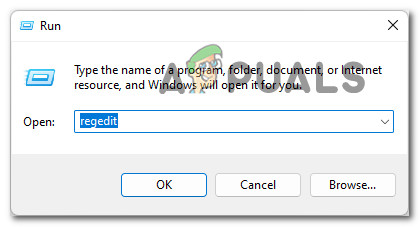
- Press Windows key + R to open up a Run dialog box. Inside the Run dialog box, type ‘regedit’ and press Ctrl + Shift + Enter to open up Registry Editor with admin access.
Opening the Regedit Editor with admin access - When you’re prompted by the User Account Control, click Yes to grant admin access.
- Once you’re inside the Registry Editor utility, use the menu on the left-hand side to navigate to the following location:
ComputerHKEY_LOCAL_MACHINESYSTEMCurrentControlSetControlWMIAutologgerEventLog-System{b675ec37-bdb6-4648-bc92-f3fdc74d3ca2}Note: You can either get here manually by clicking on each key individually or you can paste the full location path inside the nav bar at the top and press Enter to get there instantly.
- Once you’re inside the correct location, move over to the right-hand pane and double-click on the Enabled key.
- Inside the Edit DWORD (32-bit) Value, set the Base to Hexadecimal, then change the Value data to 0.
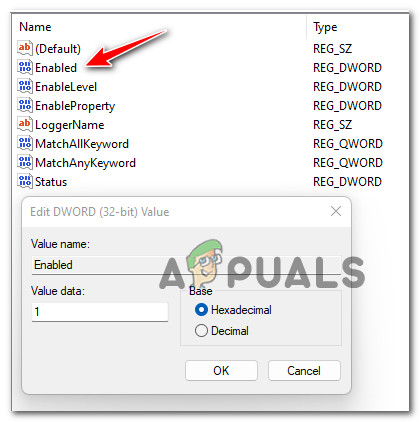
Disable the Enabled value of Event Log - Next, double-click on EnableProperly from the same key. Next, set the Base to Hexadecimal and Value data to 0. Click OK to save the changes.
- After both registry values have been interfered with, reboot your PC to make the changes permanent, then make sure to return to the same Event Viewer and see if you notice any new instances of the 0XC0000035.
If you followed the steps above and you’re still dealing with the same consistent 0XC0000035 kernel errors, move down to the next potential fix below.
Disable or Uninstall 3rd party antivirus
As it turns out, a lot of affected users are blaming their 3rd party antivirus because of the constant 0XC0000035 kernel errors.
You can test out this theory by temporarily disabling the antivirus shield and seeing if the apparition of the kernel errors stops.
Test out this theory by accessing your antivirus settings and disabling the real-time protection and see if the 0XC0000035 error stops occurring.
Of course, doing this will be different from one AV tool to another, but typically you can disable the real-time virus protection directly by right-clicking ok the taskbar icon.
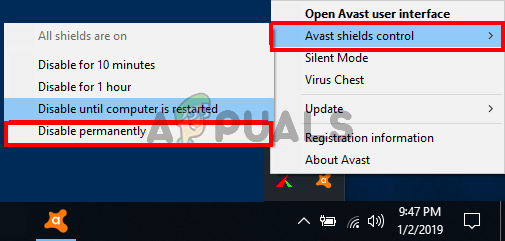
Unfortunately, if you discover that your 3rd party antivirus is indeed to blame, there is nothing else you can do other than uninstalling it.
Note: After you get rid of the interfering antivirus suite, the Windows Defender will take over automatically (unless you install a different 3rd party equivalent).
Follow the instructions below to get rid of the interfering 3rd party antivirus suite:
- Press Windows key + R to open up a Run dialog box. Inside the text box, type ‘appwiz.cpl’ and press Enter to open up the Programs and Features menu.
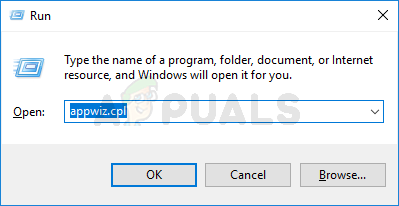
Accessing the Programs and Features menu Note: If you’re prompted by the User Account Control, click Yes to grant admin access.
- Once you’re inside the Programs and Features menu, scroll down through the list of installed programs and look for the 3rd party antivirus suite that you feel is interfering with your kernel processes.
- After you locate the problematic antivirus, right-click on it and choose Uninstall from the context menu.
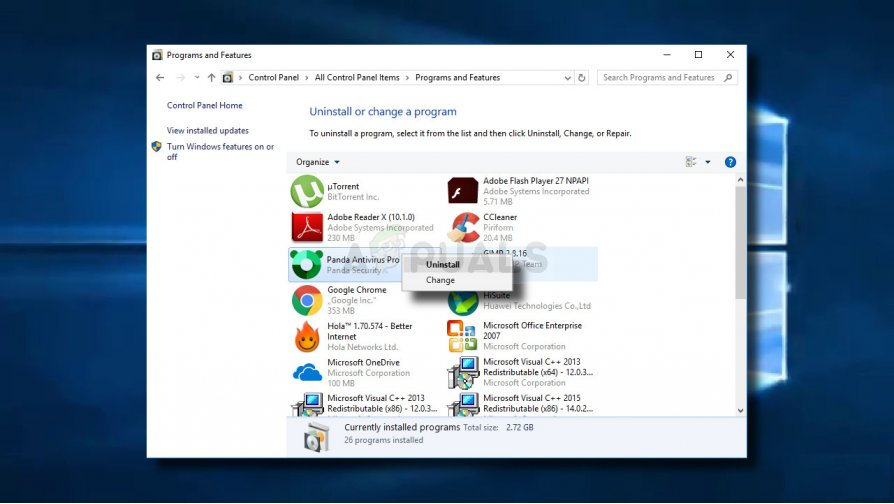
Uninstalling the antivirus suite - Inside the uninstallation screen, follow the on-screen instructions to complete the uninstallation process.
- After the problematic antivirus is uninstalled, reboot your PC one final time and see if the problem is now fixed.
If this problem is still not resolved as you’re still seeing new instances of the 0XC0000035 error, move down to the next potential fix below.
Update your Intel Drivers
As it turns out, the 0XC0000035 error can also be caused by a severely outdated Intel Wi-Fi driver that’s interfering with a Kernel process. As it turns out, this is typically occurring if you recently upgraded from an older Windows version to Windows 11.
If the Event Viewer error references one of the following locations, it’s clear that the problem is surfacing due to an issue produced by an Intel driver issue:
- C:Program FilesIntelWiFibinMurocApi.dll
- C:Program FilesIntelWiFiUnifiedLoggingMurocLog.log
In this case, the only solution that is confirmed to fix this issue completely is to use Intel’s driver utility (Intel Driver & Support Assistant) to ensure that you’re using the latest driver version compatible with your Windows version.
Follow the instructions below to use the Intel Driver & Support Assistant utility to update your Intel’s Driver fleet to the latest versions available:
- First things first, close any non-essential application from running and see that no resource-intensive process is running in the background.
- Open your default browser and access the home page of the Intel Driver & Support assistant web utility.
- Once you’re inside the Intel Driver & Support assistant utility, wait until the initial scan is complete, then click on the Download All button at the top to download the updated driver signatures locally.
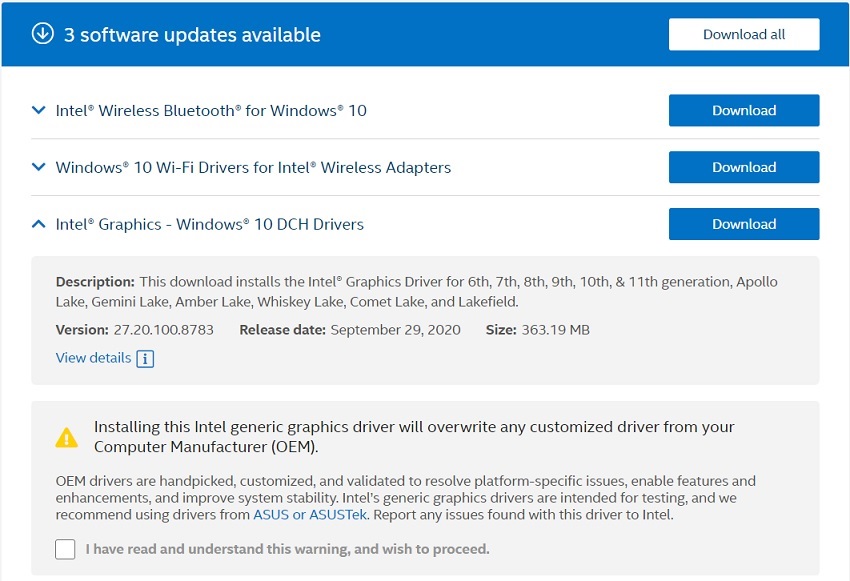
D0wnloading the latest available Intel drivers - After the download is complete, click on the Install All button (in the same place where the Download All button was previously) and wait until every driver is installed.
- Depending on the drivers that need to be updated, you might be required to follow an additional set of instructions to get these drivers installed.
- Once every driver installation is complete, reboot your computer one final time and see if the problem is now fixed.
If your Intel drivers we’re already updated to the latest or this scenario was not applicable in your particular scenario, move down to the next potential fix below.
Flush IP & DNS Cache
As it turns out, this particular issue can also be associated with an underlying network issue coming from a bad IP range or corrupted DNS cache data.
Several affected users going through the same problems and experiencing constant Kernel Event Tracing (0XC0000035) events have managed to get it fixed by using elevated CMD prompts to flush both the temporary data related to the IP and DNS.
For step-by-step instructions on how to do this, follow the guide below:
- Press Windows key + R to open up a Run dialog box. Next, type ‘cmd’ inside the text box, then press Ctrl + Shift + Enter to open up an elevated Command Prompt.
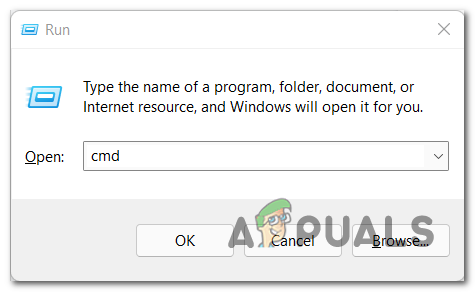
Open un an elevated Command Prompt - When you’re prompted by the User Account Control, click Yes to grant administrative privileges.
- Once you’re inside the elevated Command Prompt, type the following command in the same order and press Enter after each one to flush the IP and DNS cache of your PC:
ipconfig /all
ipconfig /Flushdns
ipconfig /release /all
- Wait until the operation is complete, then close the elevated CMD prompt and restart your computer.
- Once your PC boots back up, make sure DCHP is enabled before checking if any instances of the 0XC0000035 error.

Kamil Anwar
Kamil is a certified MCITP, CCNA (W), CCNA (S) and a former British Computer Society Member with over 9 years of experience Configuring, Deploying and Managing Switches, Firewalls and Domain Controllers also an old-school still active on FreeNode.

Many Windows users reported that their Event Viewer is constantly flooded with 0XC0000035 error, indicating a Kernel Event Tracing Error. Every current Windows version, including Windows 7, Windows 8.1, Windows 10, and Windows 11, has been proven to have this issue
In most circumstances, the system detects a duplicate domain security identification, resulting in the context logger error: 0xc0000035 (SID). As a result, it appears to be more common in computers connected to a local area network.
Luckily the error won’t cause a problem with the functioning of the computer but when it appears the computer starts crashing and running slow. Also in some cases, the output devices fail to function properly.
Here in this article, we have put together the best possible solutions to fix Kernel Event Tracing Error 0XC0000035. But before directly heading towards the fixes it is important for us to understand the common culprit responsible for the error.
After a complete investigation, it was discovered that there are several possible causes for the error. Here’s a quick rundown of what could be causing your Event Viewer to overflow with 0XC0000035 errors:
- 3rd Party Antivirus Program – It turns out that an overprotective active shield function in some third-party AV suites is known to create this problem. So, if you have installed any 3rd party antivirus program then uninstalling it works for you.
- Perfdiag is changing the Event Tracing of Windows session – The ETW session is generally reserved for the operating system’s exclusive use only. However, due to some async activity, it may be locked in a retry state due to various circumstances. The system reads this as an effort to change Windows’ Event Tracing, which is why the error is shown. So, in this case, modifying the registry entries works for you.
- Outdated or corrupted Intel Network drivers – If you’re using the Windows network driver’s fleet, the problem is most likely caused by a conflict between the Intel WI-FI driver and a sensitive kernel process. Updating your network driver’s using the Intel Driver & Support Assistant may work for you.
- Due to Bad IP Range or DNS Cache – In some rare cases the corrupted DNS cache or a faulty IP range can cause the problem. In this scenario, clearing the IP and DNS caches from an elevated Command Prompt might fix the problem.
Now as you are familiar with the common culprits, try the solutions listed worked for the affected users.
How Do I Fix Kernel Event Tracing Error: 0XC0000035?
Solution 1 – Identify the Error Location
Locating the error location in the Event ID is important, so first check the location and after that try the fixes given one by one:
- Right-click on the Windows Start button
- From the menu, choose Event Viewer.
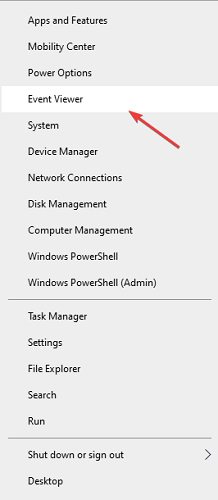
- Expand the Custom Views branch on the left side and select Administrative Events.
- Make sure to sort the list as per the by Event ID.
- Examine all errors with an Event ID of 2 until you find the most recent error code 0xc0000035.
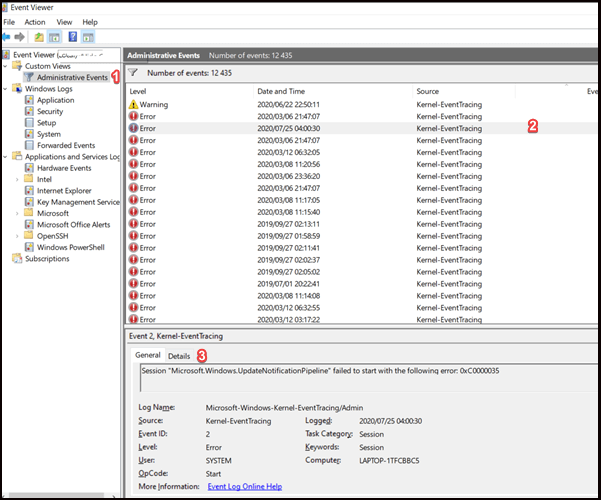
Now as you identify the location start following the solutions listed one by one to fix it completely.
Solution 2 – Restart your computer
Very first it is suggested to restart your computer, many times a simple restart fixes various glitches and bugs that cause confliction with the system.
- Click on the Start Menu and from the drop-down menu.
- Press and hold the power button.
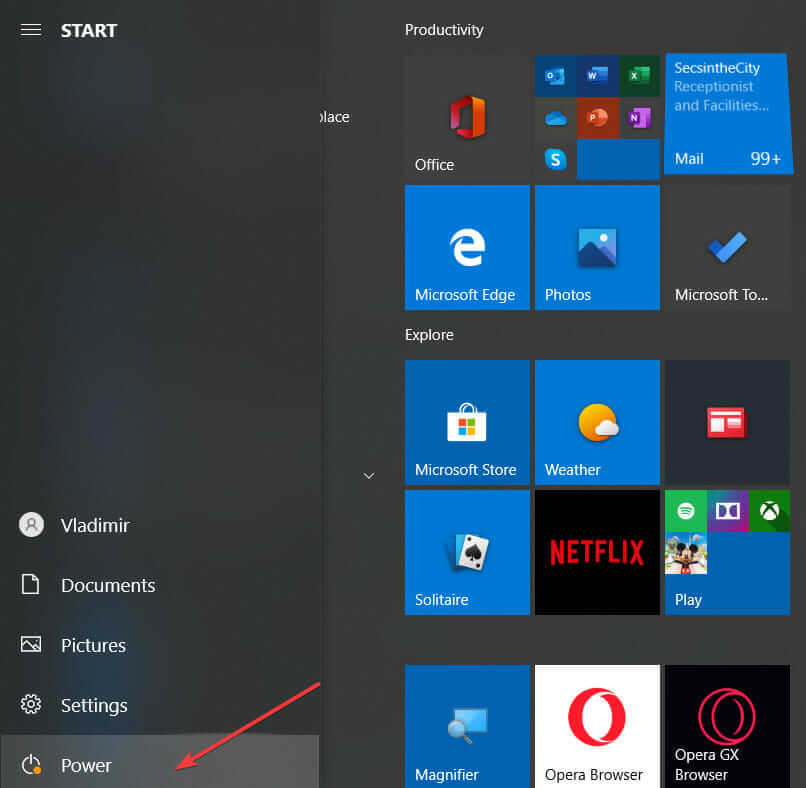
- Click Restart your PC option.
Once your system reboots check if the error code is fixed or else head to the next possible solution.
Solution 3 – Try Enabling the SysMain/Superfetch Service
The Superfetch service is now known as SysMain in newer versions of Windows 10. They do almost the same thing. So, here it is suggested to enable the service as this worked for many users to fix the error.
Follow the steps to do so:
- Press the Win+R key to open the Run box, here type services.msc and hit Enter.
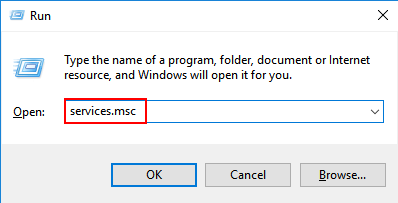
- Now sort the values as per their name.
- Locate the service named Superfetch or SysMain.
- And double-click on it for opening the Properties.
- Assure it is running as per the Service status. If not, click the Start button to see if any error messages appear.
- Then set the Startup Type to Automatic.
- And click the OK button.
- Restart your computer.
Solution 4 – Adjust the Startup Event Trace Sessions to Maximum File Size
If the Startup Event Trace Sessions maximum file size is insufficient, then this starts causing the problem and generate the error code 0XC0000035 Windows 10.
So, follow the steps to increase the file size:
- Press Win + R to open the Run box and type perfmon into the open text field > hit Enter
- From the left tree, expand Data Collector Sets.
- Select Startup Even Trace Sessions from the drop-down menu
- Scroll down until you locate the ReadyBoot entry in the main panel, then double-click on it.
- Then select the Stop Condition tab and set the maximum file size to 40 MB (or more).
- Close the Performance Monitor by clicking OK.
Check if this works for you but if not then there is a possibility your antivirus program is causing conflict.
Solution 5 – Turn Off or Uninstall Third-Party Antivirus
Many users confirmed that disabling the 3rd party antivirus works for them to fix the 0XC0000035 Kernel Event Tracing error.
So, temporarily disable the antivirus by clicking on the taskbar and disabling the security program. Check if the kernel stop error is solved. If in your case disabling the antivirus programs works and you stop seeing the error code 0XC0000035 then it is clear that your 3rd party antivirus is the culprit.
In this case, you need to uninstall the antivirus or contact the antivirus support centre and discuss the problem to check if they can offer any help.
Follow the steps to uninstall the antivirus program:
- Press the Win + R key to open the Run box, type appwiz.cpl and hit Enter
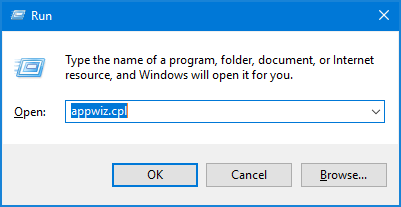
- Now in the Programs and Features menu, scroll to locate the antivirus program installed on your system
- Right-click on it and from the menu select Uninstall
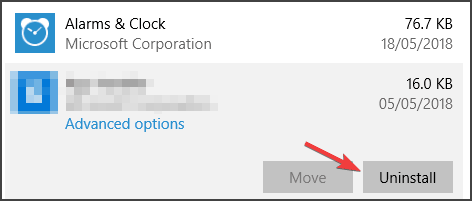
- And inside the uninstallation screen, follow on-screen instructions for completing the uninstallation process.
- As the uninstallation process is finished, restart your system.
You can also use the 3rd party uninstaller to remove software or application completely, as manually removing the software won’t remove it completely some of its traces and junk files are left behind that cause conflict when you install the software next time.
Get Revo Uninstaller to Uninstall any Application Completely
Check if you are still seeing the 0XC0000035 error, then head to the next potential fix.
Solution 6 – Disable IPv6
Some of the networks won’t support the latest Internet Protocol Version 6 (IPv6), so there is a possibility your network is not compatible with IPv6 and there showing Kernel Event Tracing error: 0XC0000035.
Despite this Microsoft also suggested disabling the IPv6 to fix further issues and errors.
Follow the steps to do so:
- Press Win + R key to open Run dialog box > type Control Panel > hit Enter
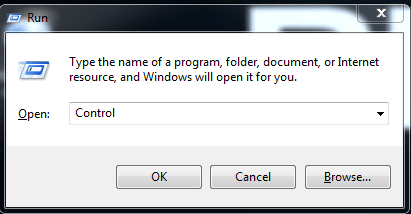
- Click on the Change adapter settings option.
- And right-click on the first connection and select Properties from the drop-down menu.
- Uncheck Internet Protocol Version 6 (TCP/IPV6) under the “This connection uses the following items panel.”
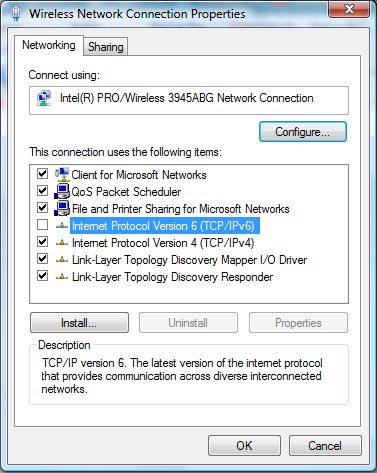
- Click the OK button.
- For the remaining connections on the list, repeat steps 3-5.
If this won’t work for you, then follow the next solution.
Solution 7 – Flush IP and DNS Cache
As it turns out, this particular issue can also be associated with an underlying network issue coming from a bad IP range or corrupted DNS cache data.
In this solution, in order to fix the 0XC0000035 error message from your PC, you can delete all the IP and DNS cache files.
This problem can also lead to underlying network problems that arise due to corrupted DNS cache data or the wrong IP range.
Don’t worry you are not alone, several users face this problem and lead to Kernel Event Tracing (0XC0000035). So, follow the below-given instruction to perform elevated CMD prompts that help you to delete both IP and DNS temporary data
- First, click on the Windows key + R button together to open the Run dialogue box.
- Now, type ‘cmd’ and hit Enter, to open Command Prompt
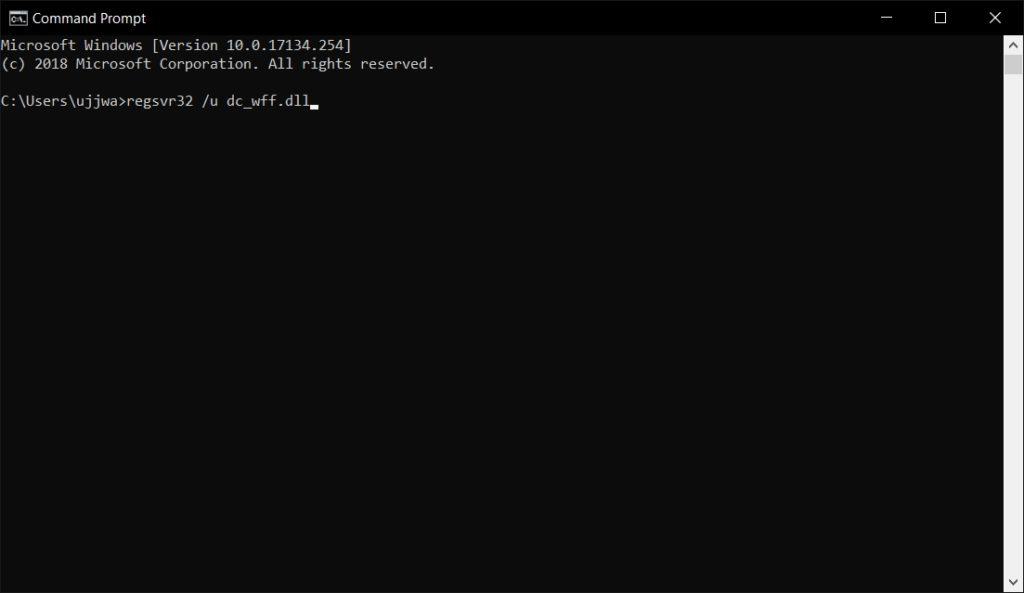
- Now a User Account Control appears, click the Yes button to grant administrative privileges.
- After entering the elevated Command Prompt, type the below-given command and press enter after each command.
- ipconfig/all
- ipconfig/Flushdns
- ipconfig/release/all

Now, wait until the operation is finished, then close the CMD prompt and reboot your PC.
Once your PC restarts, make sure that DCHP is ON before checking for instances of the 0XC0000035 error.
Solution 8 – Update PC’s Intel Drivers
If you encounter error code 0XC0000035 on your PC, then it can be due to an outdated or corrupted Intel Wi-Fi driver that interferes with the Kernel process.
It can also appear when you update your Windows operating system to the latest Windows 11 version.
If Event Viewer error refers to the location below, then it is clear that the issue arises due to an Intel driver:
- C:Program FilesIntelWiFibinMurocApi.dll
- C:Program FilesIntelWiFiUnifiedLoggingMurocLog.log
In this situation, you can fix this problem completely by using Intel’s driver utility, but make sure that you are using the latest version of the driver which is compatible with your Windows OS.
Follow the given below instruction to do so:
- First, select non-essential apps that run on your PC and check that no resource-intensive process is running in the background or not.
- Now, open the web browser and visit the official page of the Intel Driver & Support assistant web utility.
- Once you enter the official Intel driver page, wait until the initial scanning process is complete.
- Now, click the Download All button from the top of the screen.
- After completing the download process, now Install All the buttons in the same place where Download All button is stored previously and also wait till the driver is installed properly.
- Now, wait until the driver installs successfully. but make sure to reboot your PC after the installation process is complete.
- Now, check your PC, if your problem is fixed or not.
In case your Intel drivers are up to date and you keep getting the same error message, then proceed to the next solution mentioned below.
Solution 9 – Upgrade the Network Driver
If updating the Wi-Fi driver won’t work for you then there is a possibility that other outdated network drivers are causing the error.
So, check for the outdated drivers and update them:
- Press the Win + R key and in the Run box that appears type devmgmt.msc and click OK
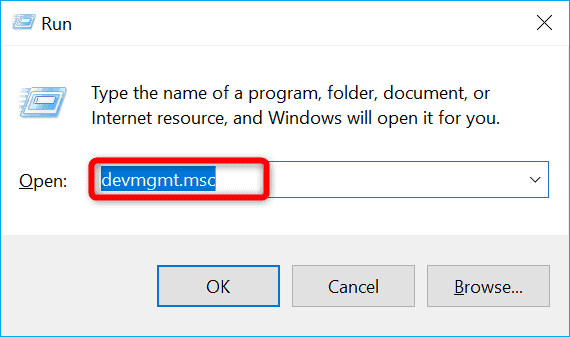
- And in the Device Manager window right click on the LAN device from the drop-down menu, choose Update driver
- Now click on Search automatically for updated driver software.
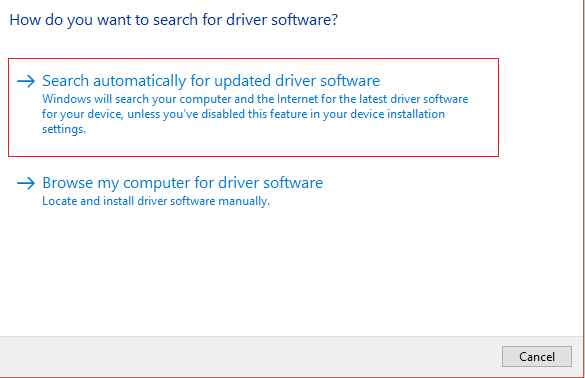
- Confirm if any confirmation window prompts and close the window.
- Restart your computer.
Manually updating the driver is very time-consuming and sometimes won’t update it, so you can also update the drivers easily with the Driver Easy, this is an advanced tool, that update the entire system drivers automatically.
Get Driver Easy, to Update Device Drivers Automatically
It is estimated the given solution work for you to get past the 0XC0000035 error inside the Event Viewer interface. But if still facing the error then the only option left is to modify the registry keys.
Solution 10 – Change the Autologg Registry key
If none of the above-listed solutions works for you then modifying the registry entries works for you. This is can be easily done by heading to the registry key utilized by the Autologg functionality and changing the Enable and EnablePropertly values.
Please Note: These steps are usually won’t cause any harm to your system functioning, but this may stop you from finding the different problems which Event Viewer may give you signs about. So, if you find any change the undo the modification at the time you require to investigate something using Event Viewer.
So, make sure to follow the steps given carefully:
- Hit Windows + R Key for opening the Run box and type regedit, hit the Enter key
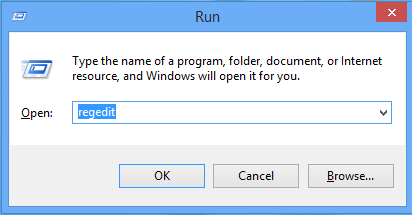
- And as prompted by the User Account Control then click Yes.
- As you are inside the Registry Editor utility, on the left-hand side use the menu for heading to the location:
ComputerHKEY_LOCAL_MACHINESYSTEMCurrentControlSetControlWMIAutologgerEventLog-System{b675ec37-bdb6-4648-bc92-f3fdc74d3ca2}
Please Note: You can get here by manually clicking on each key particularly or else you can simply paste the full location inside the Navbar and hit Enter
- As you are inside the location, in the right-hand double key on the Enabled key
- Then inside the Edit DWORD (32-bit) Value, make sure to set the Base to Hexadecimal, and modify the Value data to 0.
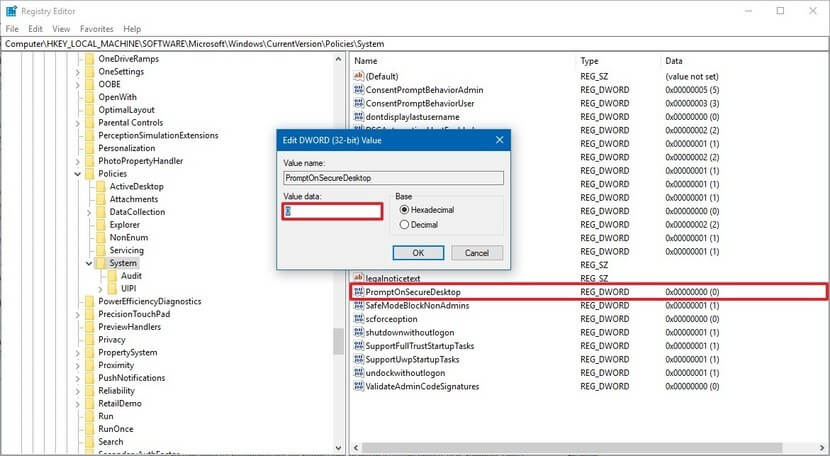
- Now, from the same key double-click on the EnableProperly option. And, set Base to Hexadecimal and the Value data to 0 after that click OK for saving changes.
- As both the registry values are interfered with, restart your computer to let the changes take effect.
- And return to the same Event Viewer and check if you see any new cases of the error 0XC0000035.
So, now the Kernel Event Tracing error code 0XC0000035 is fixed, but if you are not lucky enough and still see the error on your Windows system then the only option left is to reinstall your Windows 10 system
Recommended Solution To Fix Windows Errors & Optimize its Performance
Windows system tends to slow down after a certain period of time or start showing various stubborn errors, so it is very important to clean Windows PC/laptop at regular intervals.
Running the PC Repair Tool works for you to fix various internal PC errors, remove junk files, clear registry entries, prevent malware or viruses, repair system files and much more.
This is an advanced and multifunctional tool, that just by scanning once detect and fix various errors and optimize the Windows PC performance.
Get PC Repair Tool, to Optimize Windows PC Performance
Conclusion
So, this is all about the error code 0XC0000035, here I tried my best to list down the best possible solutions to get past the error.
It is estimated that one of our solutions listed managed to fix the error 0XC0000035 Windows 10.
Try the solutions given one by one carefully till you find the one that works for you.
If there is anything that I missed out on, or you have any queries then feel free to share with us on our Facebook page.
Good Luck..!

Hardeep has always been a Windows lover ever since she got her hands on her first Windows XP PC. She has always been enthusiastic about technological stuff, especially Artificial Intelligence (AI) computing. Before joining PC Error Fix, she worked as a freelancer and worked on numerous technical projects.